
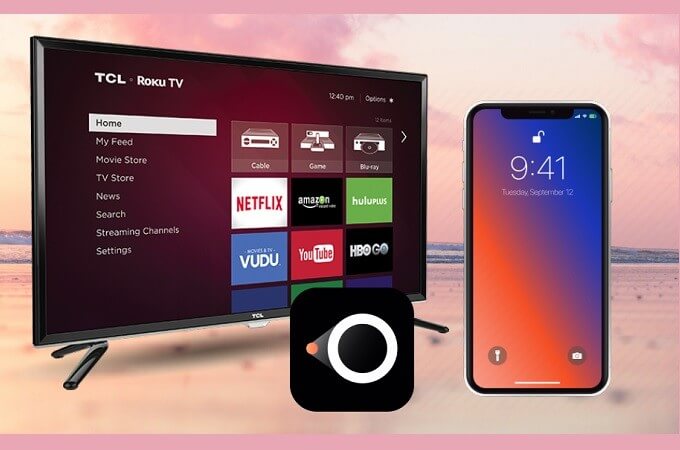
Want to share your phone or laptop screen on your TCL Smart TV but don’t know where to start? You’re in the right place.
Screen mirroring lets you enjoy videos, photos, apps, and games on a bigger screen effortlessly. Imagine watching your favorite content with friends or giving a presentation without cables getting in the way. In this guide, you’ll learn simple, step-by-step instructions to enable screen mirroring on your TCL Smart TV quickly.
Keep reading to unlock the full potential of your TV and make your viewing experience truly seamless.

Credit: www.ytechb.com
Screen Mirroring Basics
Screen mirroring lets you show your phone, tablet, or computer screen on your TCL Smart TV. It copies everything on your device’s display onto the big screen. This feature makes it easy to share videos, photos, and apps with family and friends.
Setting up screen mirroring is quick and does not require extra cables. It uses Wi-Fi to connect your device to the TV. Understanding the basics helps you enjoy this feature without hassle.
What Is Screen Mirroring
Screen mirroring sends your device’s screen to your TCL TV wirelessly. It shows the exact image or video on both screens at the same time. You can watch movies, view pictures, or browse apps on a bigger display.
This function works with many devices, including Android phones, iPhones, and laptops. It uses built-in technology like Miracast or AirPlay depending on your device type.
Benefits Of Screen Mirroring On Tcl Tv
Screen mirroring on TCL TV makes content sharing easy and fast. It helps you display photos and videos without transferring files. Watching videos on a bigger screen improves the experience.
You can use your TV as a second screen for presentations or online classes. It also lets you play mobile games on a larger display for better fun. No extra wires or hardware are needed, keeping your space neat.
Preparing Your Tcl Smart Tv
Preparing your TCL Smart TV is the first step to enable screen mirroring. A few simple checks and updates can improve your experience. Ensuring your TV is ready helps avoid common problems during connection.
This preparation will save time and make screen mirroring smooth and easy.
Check Tv Model Compatibility
Not all TCL TVs support screen mirroring. Check your TV model number on the back or in the settings menu. Visit the TCL website or user manual to see if your model supports screen mirroring. Compatible models usually have Miracast or Chromecast built-in. Knowing this helps you avoid frustration later.
Update Tv Software
Software updates improve TV performance and add new features. Open the TV’s settings menu and find the software update option. Connect the TV to the internet and check for updates. Download and install any available updates. Updated software ensures better compatibility with your devices and fewer bugs during screen mirroring.
Enable Screen Mirroring On Tcl Tv
Enabling screen mirroring on your TCL TV lets you share your phone or tablet screen with your big TV. This feature is useful for watching videos, showing photos, or playing games on a larger display. It is easy to turn on and use once you know the steps.
Accessing Screen Mirroring Settings
Start by turning on your TCL TV. Press the “Home” button on your remote control. Look for the “Settings” option and select it. Scroll through the menu to find “Network” or “Connection” settings. Inside this menu, find the “Screen Mirroring” option. Select it to open the screen mirroring settings. This area controls how your TV connects to other devices.
Turning On Screen Mirroring Mode
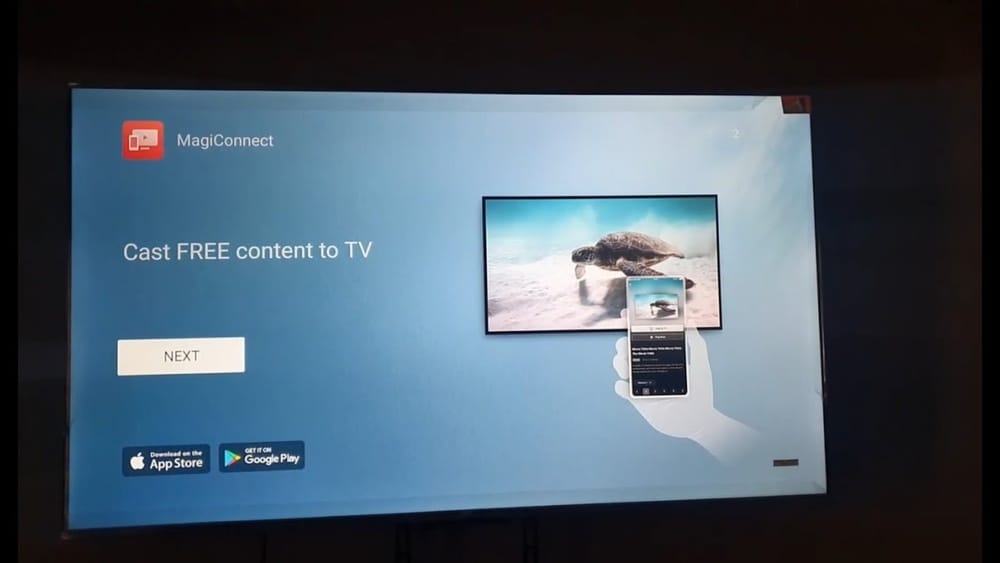
Once you are in the screen mirroring settings, you will see an option to enable or turn on screen mirroring. Choose this option to activate the mode. Your TV will start searching for devices nearby. On your phone or tablet, open the screen mirroring or casting feature. Select your TCL TV from the list of available devices. Your device screen will then appear on the TV. You can now enjoy your content on the big screen.

Credit: www.youtube.com
Connect Your Device
Connecting your device to a TCL Smart TV for screen mirroring is simple. It lets you share photos, videos, and apps on a bigger screen. Each device type has a slightly different method. Follow the steps below to connect easily.
Mirroring From Android Phones
Make sure your Android phone and TCL TV use the same Wi-Fi. On your phone, open the settings menu. Look for “Cast” or “Screen Mirroring.” Tap it and select your TCL TV from the list. Your phone screen will appear on the TV shortly.
Mirroring From Ios Devices
Connect your iPhone or iPad to the same Wi-Fi as your TCL TV. Swipe down from the top-right corner to open Control Center. Tap “Screen Mirroring” and pick your TCL TV. Your iOS device screen will show on the TV instantly.
Mirroring From Windows And Mac
Ensure your computer and TCL TV connect to the same Wi-Fi network. On Windows, open the Action Center and click “Project.” Select “Connect to a wireless display” and choose your TCL TV. On Mac, click the AirPlay icon in the menu bar. Pick your TCL TV to mirror your screen.
Troubleshooting Tips
Screen mirroring on your TCL Smart TV may sometimes face issues. These problems can stop your device from connecting or showing content properly. Troubleshooting helps fix these problems quickly. A few simple tips can improve your experience and reduce frustration.
Common Connection Issues
Connection problems often come from weak Wi-Fi signals. Make sure both your TV and phone are on the same network. Restart your router and devices to refresh the connection. Check if your TV software is updated. Outdated software can cause mirroring to fail.
Sometimes, screen mirroring apps may not work well with your TV model. Try using the built-in mirroring feature instead of third-party apps. Look out for any error messages on your TV screen. These messages can guide you to specific problems.
Improving Mirroring Performance
Mirroring can lag or freeze if the connection is slow. Move your devices closer to the router. Avoid using other high-bandwidth apps while mirroring. Close background apps on your phone to free up resources.
Lower the video quality on your phone if the stream is choppy. This can help keep the connection smooth. Restart your TV regularly to clear temporary glitches. Also, keep your devices’ software up to date for best performance.
Alternative Methods For Screen Sharing
Screen mirroring on a TCL Smart TV is not the only way to share content. There are other easy methods to display your phone, tablet, or laptop screen on the big TV. These alternative methods work well if your device or TV does not support direct screen mirroring. Explore these options to enjoy your photos, videos, and apps on a larger screen.
Using Chromecast
Chromecast is a small device that connects to your TV’s HDMI port. It allows you to cast content from your phone or computer to the TV wirelessly. To use Chromecast, plug it into your TCL TV and connect it to the same Wi-Fi network as your device. Open a supported app, like YouTube or Netflix, and tap the cast icon. Select your Chromecast device to start sharing your screen or media instantly.
Using Hdmi Cable
An HDMI cable offers a simple, direct way to share your screen. Connect one end of the HDMI cable to your laptop or device and the other end to your TCL TV. Change the TV input to the correct HDMI port. Your device screen should appear on the TV immediately. This method works with most laptops, tablets, and some phones with an HDMI adapter. It gives a stable, high-quality connection without lag.
Credit: www.centromedicoloira.com
Frequently Asked Questions
How Do I Enable Screen Mirroring On Tcl Smart Tv?
Go to your TCL TV’s Settings, select Network & Accessories, then choose Screen Mirroring. Enable it to allow your device to connect and mirror the screen.
Which Devices Support Tcl Smart Tv Screen Mirroring?
Most Android phones, tablets, and Windows PCs support screen mirroring with TCL Smart TVs. Apple devices use AirPlay for mirroring instead.
Can I Mirror My Iphone To Tcl Smart Tv?
Yes, if your TCL TV supports AirPlay 2, you can mirror your iPhone screen wirelessly using AirPlay from the Control Center.
Why Isn’t Screen Mirroring Working On Tcl Tv?
Check if both devices are on the same Wi-Fi network. Restart the TV and device, and ensure screen mirroring is enabled on both.
Conclusion
Enabling screen mirroring on your TCL Smart TV is simple and fast. Just follow the steps carefully. This feature helps you share photos, videos, and apps from your phone to the big screen. It makes watching and sharing content easier and more fun.
Keep your devices connected on the same Wi-Fi for smooth mirroring. Try it today and enjoy your favorite media on your TCL TV. You will find it useful for both work and entertainment.