
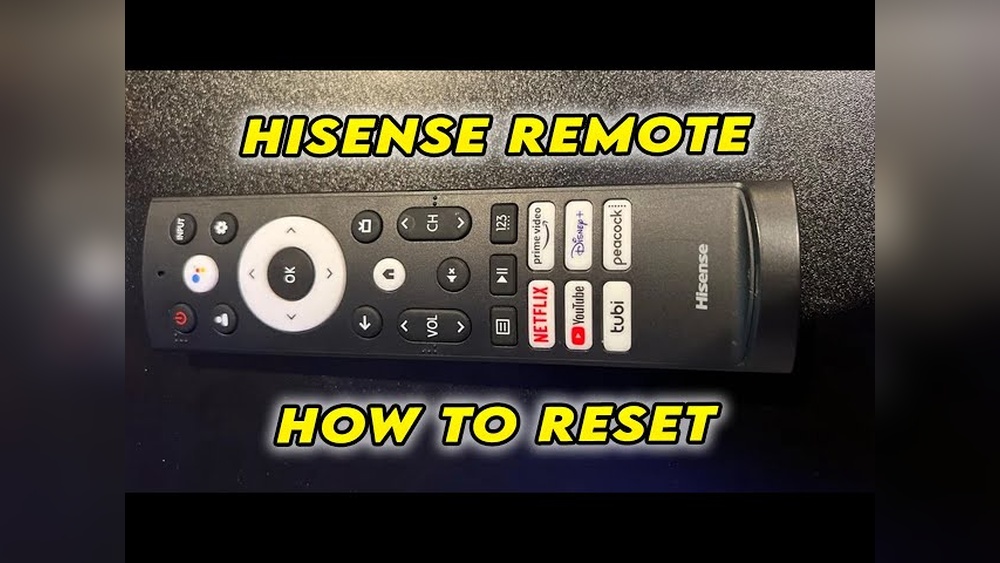
Programming your Hisense remote control is a simple task, but it can seem confusing if you’ve never done it before. Whether you want to use your remote for a new TV, connect it to a sound system, or fix a stubborn button, learning to program your remote is a skill that saves time and money. Many people struggle with weak signals, wrong codes, or unclear instructions. In this article, you’ll discover step-by-step guidance, practical tips, and real-life examples to make the process easy. No technical background is needed—just follow the instructions, and you’ll soon have a fully functional remote. You’ll also learn how to fix common mistakes, compare methods, and understand what to do if things don’t work. By the end, you’ll feel confident programming your Hisense remote control, whatever your needs.
Understanding Hisense Remote Control Types
Hisense produces several types of remote controls, each with unique features and programming steps. Choosing the right method depends on your remote’s model and the device you want to control.
Infrared (ir) Remotes
Most Hisense TV remotes use infrared signals. These remotes send commands to the TV using invisible light. They are cheap, reliable, and work with most Hisense TVs. IR remotes must be pointed directly at the device. If you block the signal or move too far away, the remote won’t work.
Universal Remotes
Universal remotes can control several devices—TV, DVD, soundbar, and more. You can use them for Hisense TVs and other brands. Programming a universal remote often means entering a code or following a special setup sequence.
Smart Remotes
Some new Hisense TVs come with smart remotes. These may use Bluetooth, Wi-Fi, or voice commands. Programming is usually automated, but sometimes you need to pair the remote manually or update its firmware.
Key Differences Table
Here’s a quick comparison of the main remote types:
| Remote Type | Signal | Devices Controlled | Programming Method |
|---|---|---|---|
| Infrared (IR) | Infrared light | TV only | Manual code entry |
| Universal | Infrared | TV, DVD, etc. | Code entry or auto scan |
| Smart | Bluetooth/Wi-Fi | TV, streaming devices | Pairing or app setup |
Understanding your remote type is the first step. If you’re not sure, check the back of the remote for a model number or visit the Hisense website for details.
Preparing To Program Your Hisense Remote
Before you start, make sure you have everything you need. Missing a code or holding the wrong button can waste time.
What You Need
- Hisense remote control (correct model)
- Device you want to control (TV, DVD, soundbar, etc.)
- Fresh batteries (preferably alkaline)
- Manufacturer code list (found in the remote manual or on the Hisense website)
Checking Remote And Device Compatibility
Not all remotes work with all devices. Look for your device in the code list. If you have a universal remote, check its compatibility with Hisense products. If your device is very new or very old, the code may not be included.
Quick Pre-programming Checklist
- Insert new batteries
- Remove any objects blocking the device’s sensor
- Find the code for your device
- Make sure your remote is not damaged (buttons should click, signal light should blink)
A small mistake here can stop everything later. Many beginners forget to replace old batteries, leading to weak signals and failed programming.
Programming Hisense Remote For Hisense Tv
This is the most common task. You can program your remote in three main ways: direct code entry, automatic code search, or smart pairing.
Method 1: Direct Code Entry
This method is simple if you have the correct code.
- Turn on your Hisense TV manually.
- Hold the ‘Set’ button on your remote until the LED indicator turns on.
- Enter the TV code using the number buttons.
- Release the ‘Set’ button; the LED should blink and turn off.
- Test the remote by pressing the power or volume button.
If it works, you’re done. If not, repeat the process with the next code.
Method 2: Automatic Code Search
If you don’t have the code, you can use this method.
- Turn on your TV.
- Hold the ‘Set’ button until the LED turns on.
- Press the ‘Power’ button repeatedly, or hold it. The remote sends codes one by one.
- When the TV turns off, release the ‘Set’ button.
- Turn the TV back on and test other buttons.
This process may take a few minutes. Be patient; some models need 20–50 presses.
Method 3: Smart Remote Pairing
Smart remotes sometimes require pairing.
- Turn on your TV.
- Press the pairing button (often labeled as ‘Pair’ or ‘Bluetooth’).
- Follow on-screen instructions, or open the TV’s settings menu and select ‘Remote Pairing’.
- Wait for confirmation.
Pairing is usually automatic, but sometimes you need to repeat or update the remote firmware.
Common Mistakes Table
Here’s a table of frequent mistakes and how to fix them:
| Mistake | Solution |
|---|---|
| Entering the wrong code | Try the next code in the list |
| Dead batteries | Replace with new batteries |
| Holding the wrong button | Check the manual for the correct button |
| Remote signal blocked | Remove obstacles, clean sensor |
| Remote not paired | Follow TV settings for pairing |
Programming Hisense Remote For Other Devices
Hisense remotes can also control DVD players, soundbars, and cable boxes. The process is similar, but the codes are different.
Step-by-step Process
- Turn on the device you want to control.
- Hold the ‘Set’ button on the remote.
- Enter the device code (found in the manual).
- Release the ‘Set’ button.
- Test key functions (power, volume, input).
If your device isn’t listed, try the automatic search method. Some devices use special codes, so check the manual or manufacturer’s website.
Example: Programming For A Soundbar
Suppose you want to control your soundbar:
- Find the soundbar code in the Hisense code list.
- Follow the steps above.
- If the remote doesn’t work, try codes for similar brands.
Soundbars sometimes use codes meant for TVs or DVD players. Experiment until you find one that works.
Troubleshooting Device Programming
If your remote doesn’t control a device:
- Double-check the code
- Make sure the device is compatible
- Move closer to the device
- Try a different programming method
Sometimes, devices from other brands need a universal remote instead of the original Hisense remote.
Using Universal Remote Codes With Hisense Devices
Universal remotes often require special codes for Hisense TVs and other devices. These codes are usually 3–5 digits. The process varies slightly depending on the remote brand.
Finding The Right Code
- Check the universal remote’s manual or website.
- Look for ‘Hisense TV’ or ‘Hisense DVD’ codes.
- Some popular code examples:
- Hisense TV: 1170, 0216, 0310
- Hisense DVD: 0896, 1202
If you can’t find the code, try an auto scan. Universal remotes often support hundreds of brands.
Programming Steps
- Turn on the Hisense device.
- Press and hold ‘Set’ or ‘Code Search’ on the remote.
- Enter the code using the number buttons.
- Release the button; the indicator should blink.
- Test the remote.
Universal remotes may require different buttons, so always check the manual.
Example: Auto Code Scan
If you don’t know the code:
- Hold ‘Set’ or ‘Code Search’
- Press the device button (TV, DVD, etc.)
- Press ‘Power’ or another key repeatedly until the device responds
This method takes longer but is useful for unknown devices.
Comparison Table: Universal Vs Hisense Remote Programming
| Feature | Hisense Remote | Universal Remote |
|---|---|---|
| Code list | Hisense devices only | Multiple brands |
| Programming steps | Simple | Varies by brand |
| Device compatibility | Limited | Wide |
| Troubleshooting | Easy | Can be complex |
Universal remotes are helpful if you have many devices, but setup can be trickier. Always keep the code list handy.
Programming Hisense Smart Remote With Bluetooth Or Wi-fi
Some Hisense remotes use advanced technology, like Bluetooth or Wi-Fi. Programming these remotes is different from standard IR remotes.
Bluetooth Pairing Process
- Turn on the TV
- Activate Bluetooth in TV settings
- Press and hold the pairing button on the remote (often ‘OK’ and ‘Back’ together)
- Wait for the TV to find the remote
- Confirm pairing on the TV screen
Bluetooth remotes often pair automatically, but manual pairing is needed if the remote is replaced or lost connection.
Wi-fi Remotes And Voice Controls
Some Hisense smart remotes have voice control and connect through Wi-Fi.
- Open the TV’s settings menu
- Choose ‘Remote Setup’ or ‘Voice Remote’
- Follow prompts to connect the remote to Wi-Fi
- Test voice commands
Make sure your TV and remote firmware are updated. Outdated software can cause pairing problems.
Real-life Example
A user bought a new Hisense smart TV but couldn’t get the remote to work. After updating the TV’s firmware and activating Bluetooth, the pairing worked perfectly. The remote then controlled voice commands, streaming, and smart functions.
Hidden Insight: Firmware Updates Matter
Many people forget to update their TV or remote firmware. This can block pairing and cause random issues. Always check for updates before programming a smart remote.
Credit: www.reddit.com
Troubleshooting Hisense Remote Programming Problems
Even if you follow every step, things can go wrong. Here’s how to fix the most common issues.
Remote Not Responding
- Replace batteries
- Clean the sensor with a soft cloth
- Move closer to the device
Wrong Code Entered
- Try the next code in the list
- Use the auto scan feature
Remote Paired But Not Working
- Re-pair the remote
- Update TV firmware
- Reset the remote (hold the ‘Set’ button for 10 seconds)
Buttons Not Working
- Check if the button is physically damaged
- Clean with compressed air
- Try programming again
Device Not Listed
- Use a universal remote
- Search for similar brand codes
Quick Fix Tips
- Always start with fresh batteries
- Keep the remote pointed at the device
- Don’t rush—wait for the remote’s light to blink before finishing
Advanced Programming Tips
Programming your remote can be easier if you know some extra tricks.
Using Learning Mode
Some Hisense remotes can ‘learn’ from other remotes. This is useful if you lost the code or want to copy a function.
- Hold ‘Set’ and ‘Learning’ buttons together
- Point the original remote at the Hisense remote
- Press the button to copy
- Wait for the LED to blink
Learning mode is not available on all remotes but is useful for advanced setups.
Resetting The Remote
If your remote is stuck or behaves strangely, reset it.
- Remove batteries
- Hold the ‘Set’ button for 15 seconds
- Reinsert batteries
This clears old codes and settings.
Hidden Insight: Signal Interference
Strong sunlight, fluorescent lights, or other electronics can block infrared signals. If your remote works only sometimes, try moving away from bright light or other devices.

Credit: www.youtube.com
Programming Hisense Remote For Cable Or Satellite Boxes
Many users want to control their cable or satellite box with a Hisense remote. This is possible, but codes are often harder to find.
How To Program
- Turn on the cable/satellite box
- Hold ‘Set’ on the remote
- Enter the box’s code (check Hisense or cable box manual)
- Release ‘Set’
- Test basic functions
Some boxes use codes for other brands. If you can’t find the code, try auto scan or contact the cable company.
Example: Using With Directv
Hisense remotes sometimes work with DirecTV boxes. Look for codes like 1043 or 1204. Programming is the same as for TVs.
Common Mistakes
- Using TV codes instead of cable box codes
- Not pointing the remote at the box
- Forgetting to turn on the box first
Hisense Remote Control App
Modern Hisense TVs often support a remote control app. This app can turn your smartphone into a remote.
How To Set Up
- Download the Hisense Remote App from Google Play or Apple App Store
- Connect your phone to the same Wi-Fi network as the TV
- Open the app and follow setup instructions
- Test basic functions (power, volume, input)
The app works even if you lose the physical remote. It also supports advanced features like keyboard input and voice search.
Data: App Popularity
According to Google Play, the Hisense Remote App has over 1 million downloads and a rating of 4.5 stars. Most users say it’s easy to use and reliable.
Hidden Insight: App As Backup
If your remote is lost or broken, the app is a quick solution. It’s also useful for typing passwords or searching for shows.
Comparing Programming Methods For Hisense Remotes
Different programming methods suit different needs. Here’s a comparison to help you choose:
| Method | Speed | Ease | Device Types | Success Rate |
|---|---|---|---|---|
| Direct code entry | Fast | Easy | TV, DVD | High |
| Automatic code search | Medium | Moderate | TV, DVD, soundbar | Medium |
| Smart pairing | Fast | Easy | Smart TV | High |
| Universal remote setup | Medium | Moderate | Many devices | Medium |
| App setup | Fast | Easy | Smart TV | High |
For most users, direct code entry or app setup is fastest and easiest. If you have multiple devices, a universal remote is best.
Practical Examples And Real-life Scenarios
Example 1: Programming For New Tv
Maria bought a new Hisense TV but her remote didn’t work. She found the TV code in the manual, followed the direct code entry steps, and her remote worked immediately.
Example 2: Remote Not Working After Battery Change
John changed his remote batteries, but it stopped working. He forgot to reset the remote after replacing the batteries. After holding ‘Set’ for 15 seconds, the remote was back to normal.
Example 3: Using The App During Travel
Anita lost her remote while traveling. She downloaded the Hisense Remote App, connected to the hotel Wi-Fi, and controlled her TV easily.
Example 4: Fixing Weak Signal
Peter’s remote worked only from very close. He cleaned the sensor and moved away from a bright window. The remote’s range improved.
These examples show that small steps and careful checks can solve most remote programming problems.
Maintenance And Care Tips For Hisense Remotes
Proper care keeps your remote working longer and saves money.
Battery Care
- Use high-quality alkaline batteries
- Replace batteries every 6–12 months
- Remove batteries if you won’t use the remote for a long time
Cleaning
- Wipe with a soft, dry cloth
- Avoid water and harsh chemicals
- Use compressed air to clean between buttons
Storage
- Keep remotes away from heat and sunlight
- Store in a safe place to avoid drops
Firmware Updates
- Check for remote and TV updates every few months
- Update through TV settings or Hisense website
Hidden Insight: Button Wear
Buttons lose sensitivity over time. If you notice weak or sticky buttons, clean them or use the app as a backup.
Frequently Asked Questions
How Do I Find The Correct Code For My Hisense Remote?
The code is usually in the remote’s manual or on the Hisense website. If you lost the manual, search for your remote model online. Hisense lists codes for TVs, DVDs, and other devices. Universal remotes often include Hisense codes in their manuals.
Can I Use A Hisense Remote For Devices From Other Brands?
Yes, but only if your remote supports universal programming. Check the code list for your device’s brand. If not listed, use a universal remote. Always test key functions after programming.
What Should I Do If My Remote Doesn’t Respond After Programming?
First, replace the batteries. Make sure you entered the correct code. Try re-programming or use the auto scan feature. Clean the remote’s sensor, and check for firmware updates on your TV.
Is There A Way To Reset My Hisense Remote If It Stops Working?
Yes. Remove the batteries, hold the ‘Set’ button for 15 seconds, and reinsert the batteries. This resets the remote’s settings. If problems continue, try programming again or use the Hisense Remote App.
Can I Control My Hisense Tv With A Smartphone?
Yes. Download the Hisense Remote App from Google Play or Apple App Store. Connect your phone to the same Wi-Fi network as your TV. Follow the app’s instructions to set up and control your TV.
Programming your Hisense remote control is easier than most people think. With fresh batteries, the right code, and a bit of patience, you can control your TV, soundbar, cable box, or even use your phone as a remote. Remember to check for updates, keep your remote clean, and use practical troubleshooting steps. If you need more help, visit the official Hisense support site or trusted sources like Wikipedia. With these tips, you’ll enjoy full control over your home entertainment system—quickly and confidently.
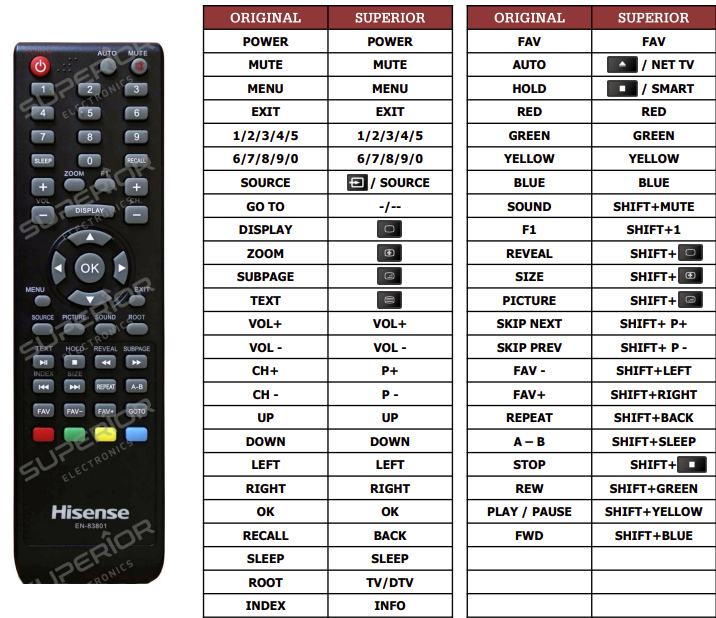
Credit: www.emerx.eu