
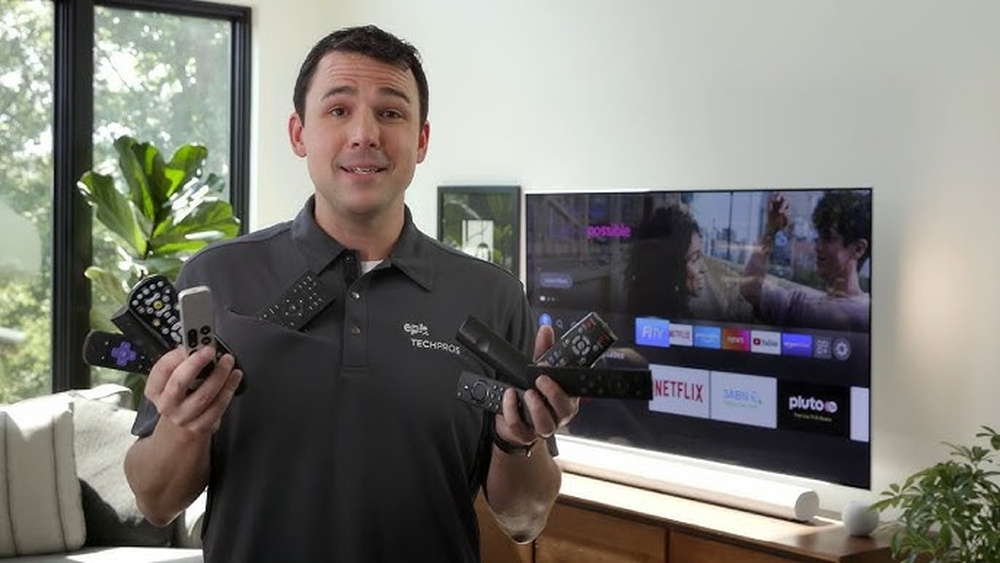
Most people expect their TV remote to work instantly, but when you’re handed an EPB remote control, things can feel a bit different. Maybe you just subscribed to EPB Fiber Optics, or perhaps you’re trying to help a family member set up their TV with this new remote. If you’re new to the EPB system, you might feel lost with all those buttons and features. The good news? Mastering the EPB remote control is much easier than it first appears. In fact, you’ll soon discover it gives you more power over your TV than standard remotes, once you know a few tricks.
This guide will walk you through every step: from the basics of setting up your EPB remote, to advanced features like controlling multiple devices, troubleshooting, and even programming custom functions. Along the way, you’ll find helpful tables, practical examples, and clear answers to common questions. Whether you’re trying to stream movies, pause live TV, or simply turn up the volume, you’ll have everything you need right at your fingertips.
Understanding The Epb Remote Control
Before you start using your EPB remote on your TV, it’s important to know what makes it different from a regular TV remote. EPB Fiber Optics, a popular provider of internet and TV services, gives its users a specialized remote that controls not just the TV, but also the EPB set-top box (also called a receiver), and sometimes even other devices like soundbars or DVD players.
Key Features Of The Epb Remote
- Universal compatibility: Can be programmed to control TVs from most brands
- Dedicated EPB functions: Buttons for On Demand, Guide, DVR, and Menu
- Learning capability: Some models can “learn” commands from other remotes
- Easy setup: Programming your TV is simple with provided codes or auto-scan
Types Of Epb Remotes
EPB has provided different remote models over the years. The two most common are:
- URC (Universal Remote Control) Series: Standard for most EPB set-top boxes
- RF (Radio Frequency) Remotes: Allow you to control the box without pointing directly at it
Check the model number on your remote (usually found on the back or inside the battery compartment) to confirm which you have.
| Remote Model | Main Feature | Works With |
|---|---|---|
| URC2025 | Infrared, universal code entry | Most TVs, EPB set-top box |
| URC2068 | Learning function, more device buttons | TV, Audio, DVD, EPB box |
| RF10 | Radio frequency, no line-of-sight needed | EPB set-top box |
If you’re unsure which one you have, visit the official EPB support page for photos and descriptions.
Setting Up Your Epb Remote For Tv Control
To use your EPB remote for your TV, you first need to program it. This means teaching the remote how to talk to your specific TV brand and model.
Step 1: Insert Batteries
Start by putting fresh batteries in your EPB remote. Always use matching batteries of the same brand and age to avoid power issues. If your remote is not responding, replacing the batteries often solves the problem.
Step 2: Find Your Tv Brand Code
Each TV brand has a unique code. EPB provides a list of these codes in the remote’s manual or on their website. Some common codes are:
- Samsung: 12051, 10812, 10060
- LG: 11423, 10178, 11265
- Sony: 10000, 10810
- Vizio: 11756, 11758
If you can’t find your code, don’t worry—you can try auto-search mode (explained below).
Step 3: Entering The Code Manually
Here’s how to program your EPB remote to your TV:
- Turn on your TV manually (not with the remote).
- On the EPB remote, press and hold the ‘TV’ button until the LED light stays on.
- Enter the 5-digit TV brand code using the number buttons.
- The LED light will blink twice and then turn off.
- Test the remote: Press the power button. If the TV turns off, the setup worked.
If the TV doesn’t respond, repeat with the next code for your brand.
Step 4: Auto-search Method
If you don’t know the code or your brand isn’t listed, use auto-search:
- Turn on the TV.
- Hold the ‘TV’ button until the LED stays on.
- Press the ‘CH+’ button repeatedly (every few seconds) until the TV turns off.
- When the TV turns off, press the ‘TV’ button again to save the code.
This method may take a few minutes, especially for less common brands.
Step 5: Confirm The Programming
Try these buttons:
- Volume Up/Down
- Mute
- Input/Source
If they work, your remote is ready. If not, repeat the programming steps using a different code.
Common Setup Issues
- LED doesn’t stay on: Replace batteries or press the button more firmly.
- TV doesn’t respond: Try another code or use auto-search.
- Some buttons don’t work: Not all codes support every function. Choose another code if possible.
Credit: epb.com
Using Basic Functions On Your Tv
Once set up, your EPB remote acts as a universal remote for your TV. Here are the most-used features:
Power And Volume Controls
- Power: Turns your TV on/off
- Volume: Adjusts loudness
- Mute: Silences TV instantly
These work just like your original TV remote.
Input/source Selection
To switch from watching cable to a game console or streaming device:
- Press the Input (sometimes labeled ‘Source’) button.
- Use the arrow keys to select the right HDMI or AV input.
- Press OK/Select to confirm.
Channel Control
When the remote is set to TV mode, the number pad or CH+/- keys may change the TV channel. However, most people watch channels through the EPB set-top box, so these buttons often change the box channel instead.
Navigating Menus
Use the Menu, Guide, and Exit buttons to open and close your TV’s menu or the EPB guide. Use the arrow and OK buttons to move and select options.
Epb-specific Buttons
- Guide: Shows the TV channel guide
- DVR: Access recorded shows (if you have a DVR box)
- On Demand: Opens the EPB On Demand library
These only work if your remote is pointed at the EPB box, not your TV.
Advanced Features And Programming
The EPB remote can do more than just basic functions. Here’s how to get the most from it.
Controlling Multiple Devices
Some EPB remotes can control up to four devices: TV, set-top box, audio receiver, and DVD/Blu-ray player.
How To Program Other Devices
- Find the device code (receiver, DVD, etc. ).
- Press and hold the device button (e.g., ‘AUX’ for audio).
- Enter the code, following the same steps as for the TV.
Switching Devices
Press the device button (TV, AUX, DVD) before using any command. The LED light will show which device is active.
Programming Macros (favorite Sequences)
Some advanced EPB remotes allow you to program a series of actions into one button (called a macro). For example, you can turn on your TV, set-top box, and soundbar with a single button press.
To set a macro (if supported):
- Press and hold the ‘Macro’ or ‘Setup’ button until the LED stays on.
- Enter the sequence of commands (e.g., ‘Power’ for TV, then ‘Power’ for box).
- Press the ‘Macro’ button again to save.
Check your remote’s manual to see if this feature is available.
Using Learning Mode
A few EPB remotes can “learn” functions from another remote. This helps if your TV or soundbar isn’t fully supported by built-in codes.
- Hold the ‘Setup’ button until the LED stays on.
- Point your old remote at the EPB remote (about 2 inches apart).
- Press the button on the EPB remote you want to teach.
- Press and hold the corresponding button on your old remote until the LED blinks.
- Repeat for other buttons as needed.
This process might take a few tries. Not all EPB remotes support learning mode.
Credit: epb.com
Customizing Your Remote Experience
Many users never realize their EPB remote can be personalized. Here are a few ways to make your experience better.
Setting Favorite Channels
If your EPB box supports it, you can save a list of favorite channels for fast access.
- Press the ‘Menu’ button.
- Navigate to ‘Favorites’ and select ‘Add/Edit Favorites.’
- Use the number pad or arrow keys to select channels.
- Save your list.
Now you can jump to your favorite channels using a single button.
Adjusting Remote Backlight
Some EPB remotes have a backlight feature for easier use in the dark. To turn it on or adjust:
- Press and hold the ‘Setup’ button, then press the ‘Light’ or ‘Backlight’ button.
- Release both buttons.
If your remote doesn’t have this feature, consider using a small stick-on light by your TV area.
Parental Controls
You can set parental locks using the EPB box’s menu (not the remote itself):
- Press ‘Menu.’
- Select ‘Settings’ > ‘Parental Controls.’
- Set a PIN and choose channels or content to block.
Parents often overlook this, but it’s a powerful way to control what kids can watch.
Accessibility Features
Some EPB remotes offer large buttons, high-contrast labels, or even voice command support (on select models). If you need these features, ask EPB for an accessibility-friendly remote.
Troubleshooting Common Epb Remote Issues
Even the best remotes have problems sometimes. Here’s how to fix the most common issues.
Remote Not Responding
- Check batteries: Old or mismatched batteries are the #1 cause of problems.
- Check for obstructions: Remove anything blocking the remote’s signal.
- Point at the right device: Make sure you are in the right mode (TV, AUX, etc. ).
- Reprogram the remote: Sometimes, codes get lost if batteries die.
Wrong Device Responds
If your soundbar or another device turns on instead of your TV:
- Double-check which device button is lit up when you press a command.
- Reprogram the remote with the correct code.
Some Buttons Don’t Work
- Try a different code for your TV. Not every code supports all features.
- For advanced functions (like ‘Input’), use your TV’s original remote if needed.
Remote Controls Only Epb Box, Not Tv
- Make sure you programmed the TV code, not just the EPB box code.
- Repeat the programming steps, carefully entering the TV brand code.
Intermittent Operation
- Clean the remote’s battery contacts with a cotton swab and a little rubbing alcohol.
- Avoid using the remote near direct sunlight or strong fluorescent lights; these can interfere with infrared signals.
When To Replace Your Remote
Remotes can wear out after years of use. If buttons become sticky, unresponsive, or broken, contact EPB for a replacement. They may provide a new remote free or for a small fee.
Comparing Epb Remote To Other Tv Remotes
You might wonder how the EPB remote stacks up against other universal remotes or your TV’s original remote. Here’s a quick comparison to help you understand the pros and cons.
| Feature | EPB Remote | TV’s Original Remote | Universal Remote |
|---|---|---|---|
| Controls EPB Box | Yes | No | Sometimes |
| Controls TV | Yes | Yes | Yes |
| Controls Other Devices | Yes (limited) | No | Yes (many) |
| Easy Setup | Yes | Already set | Sometimes complex |
| Special EPB Features | Yes | No | No |
| Learning Mode | Some models | No | Most models |
Practical Tips For Daily Use
After setting up your EPB remote, these small tips can improve your daily experience:
- Label device buttons: Use a sticker or small piece of tape to mark which device is which.
- Keep remotes together: Store your EPB remote and TV remote in the same spot, just in case.
- Use the lock feature: Some remotes can “lock” volume control to always adjust your TV, even when controlling the EPB box.
- Clean your remote: Dust and oil from hands can make buttons sticky. Wipe with a soft cloth monthly.
- Teach family members: Show everyone in the house how to use the remote, especially if you’ve set up advanced features.

Credit: www.youtube.com
Two Insights Most Users Miss
- Many people don’t realize the EPB remote can control the volume even when you’re in cable mode, if you set up “volume lock.” This means you can change channels and still control TV sound without switching back to TV mode. Look for this function in your remote’s instructions—it saves a lot of frustration.
- Auto-programming with the CH+ button can take up to 5 minutes for some TV brands. Many users stop after 30 seconds, thinking it’s not working. Be patient and keep pressing CH+ until the TV responds.
Data On Remote Usage And Satisfaction
A survey by the Consumer Technology Association found that over 65% of users prefer a single remote for all devices, but only 40% actually set up their remotes for multiple devices. EPB’s universal remote can help you join the group who enjoys full control, but only if you take the time to program it correctly.
Another study reported that 30% of tech support calls for TV service are related to remote control issues. Most of these are solved by reprogramming or changing batteries.
When To Call Epb Support
If you’ve tried everything and your remote still isn’t working, don’t hesitate to contact EPB support. They can:
- Walk you through programming steps
- Check if your remote needs replacement
- Help with advanced features like accessibility or parental controls
Their phone and chat support are both highly rated for quick solutions.
Frequently Asked Questions
How Do I Reset My Epb Remote Control To Factory Settings?
To reset your EPB remote, press and hold the ‘Setup’ button until the LED stays on. Enter 9-8-1 using the number buttons. The LED will blink twice, and the remote will return to its original settings. You’ll need to reprogram your devices after this.
Can The Epb Remote Control My Soundbar Or Audio System?
Yes, most EPB universal remotes can control audio devices. Use the ‘AUX’ or ‘Audio’ button and follow the same programming process as for your TV. You’ll need the correct code for your soundbar brand.
What Should I Do If The Remote Only Controls The Epb Box But Not My Tv?
Double-check that you’ve programmed the TV section of your remote with the correct code. Try reprogramming using another code from the list, or use the auto-search method. Sometimes, only some functions will work depending on the code used.
How Do I Lock The Volume Control To Always Adjust My Tv, Even When Using The Epb Box?
Many EPB remotes have a “volume lock” feature. To set it, press and hold ‘Setup’ until the LED stays on, then press ‘Volume Up. ‘ Press the device button you want to lock (usually ‘TV’). The LED will blink twice.
Now, the volume keys always control your TV.
My Remote’s Buttons Are Sticky Or Unresponsive. What Can I Do?
Try cleaning the remote: Remove batteries, wipe the outside with a damp cloth, and gently clean around the buttons with a cotton swab. For deep cleaning, you can open the remote (if you’re comfortable) and clean the contacts inside, but be careful not to damage it. If the problem continues, contact EPB for a replacement.
Controlling your TV with the EPB remote is straightforward once you know the steps. A little patience during setup and some regular maintenance will keep your viewing experience smooth. Remember, the remote is your gateway to everything your TV and EPB service offer—so take a few minutes to set it up right, and you’ll enjoy a more convenient and enjoyable entertainment experience every day.