
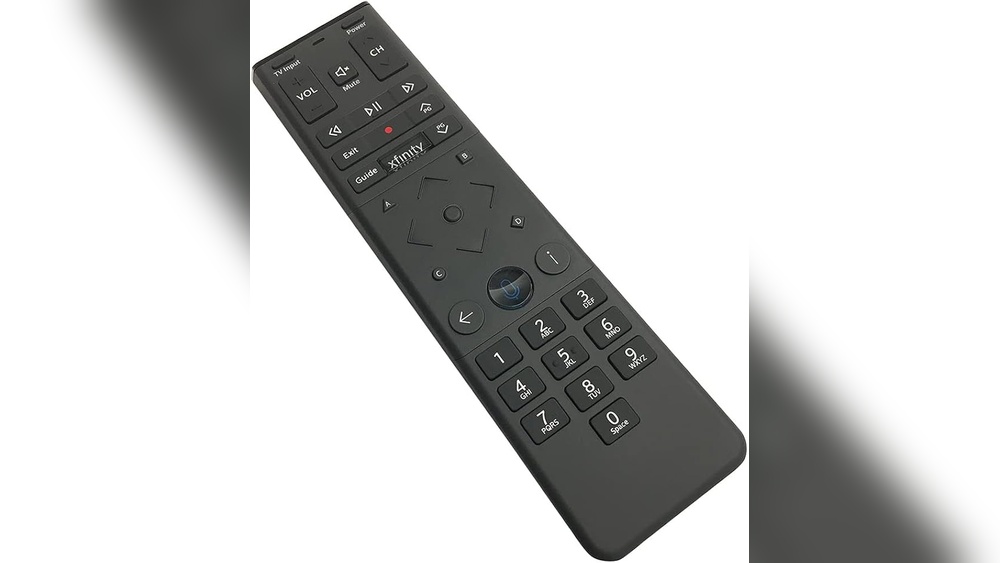
Using an Xfinity remote control can feel confusing at first, but it’s a tool that makes your TV experience smoother and more enjoyable. Whether you’re setting up your remote for the first time, learning to use advanced functions, or fixing common problems, understanding your Xfinity remote is key to getting the most from your cable service.
Many users miss out on features simply because they don’t know where to start. This article will guide you step by step, with practical advice and examples, so you can use your Xfinity remote confidently—even if English isn’t your first language.
By the end, you’ll know how to set up, use, and troubleshoot your remote, and you’ll discover tips that many beginners overlook.
Types Of Xfinity Remote Controls
Xfinity offers several remote models. Each has its own design and features. Knowing your remote model helps you follow the right instructions and unlock all its functions. Here’s a quick overview of the main types:
Xr15 Remote
The XR15 is the most common remote for Xfinity today. It’s compact, with a simple button layout and voice control.
Xr11 Remote
The XR11 is larger and includes a dedicated voice button. It also has backlit keys, which help in dark rooms.
Xr2 And Xr5 Remotes
These are older models, with more basic buttons and no voice feature. They are still used in some homes.
Xfinity X1 Voice Remote
The X1 Voice Remote is the newest model. It offers advanced voice search and control.
Here’s a comparison of popular Xfinity remotes:
| Remote Model | Voice Control | Backlit Keys | Button Layout | Release Year |
|---|---|---|---|---|
| XR15 | Yes | No | Simple | 2018 |
| XR11 | Yes | Yes | Medium | 2015 |
| XR2 | No | No | Basic | 2013 |
| X1 Voice Remote | Yes | Yes | Advanced | 2020 |
Tip: Check the model number on the back or inside the battery compartment to identify your remote.
Setting Up Your Xfinity Remote
Proper setup is essential. Many users struggle with pairing and programming. Here’s how to start:
Step 1: Insert Batteries
Most Xfinity remotes use AA or AAA batteries. Open the compartment, insert batteries, and close the cover. If the remote doesn’t work, check battery orientation.
Step 2: Pair The Remote With Your Tv Box
Pairing connects your remote to your Xfinity TV box. This lets you control channels, volume, and menus.
For XR15 and XR11:
- Turn on your TV and TV box.
- Hold the Setup button until the LED turns green (XR11) or blue (XR15).
- Press the Xfinity button. The LED flashes.
- Enter the pairing code shown on your TV screen.
- Wait for confirmation. Your remote is now paired.
For older remotes (XR2, XR5):
- Press and hold the Setup button until the light turns green.
- Enter the code for your TV brand. Codes are listed in the Xfinity manual or online.
- The light blinks twice to confirm pairing.
Step 3: Program The Remote For Tv And Audio Devices
To control your TV’s power and volume, program your remote:
- Hold the Setup button until the LED turns green.
- Enter your TV brand’s code. Try the first code; if it doesn’t work, try others.
- Test by pressing the Power and Volume buttons.
If you have a soundbar or audio system, repeat with the correct code.
Insight: Many users forget to program for audio devices, limiting their remote’s functions. Always check if your sound system is compatible.
Step 4: Test All Functions
Test basic buttons: Power, Volume, Mute, and Input. If any don’t work, repeat programming steps with a different code.
Understanding Xfinity Remote Buttons
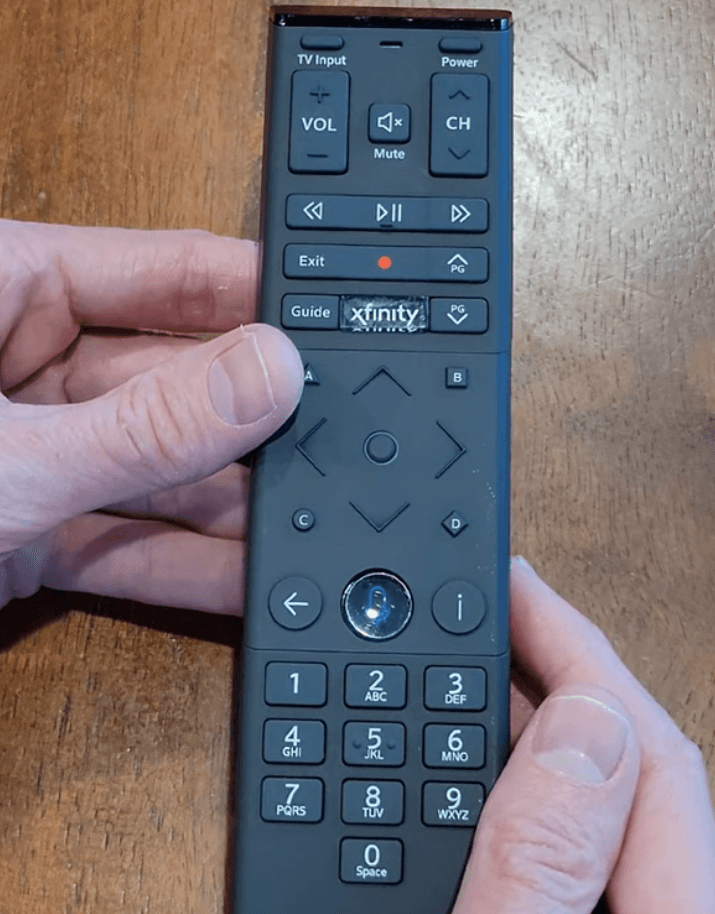
Xfinity remotes have many buttons. Some are obvious, others less so. Here’s what each button does:
Common Buttons Explained
- Power: Turns the TV or TV box on/off.
- Volume Up/Down: Adjusts sound level.
- Mute: Silences audio.
- Channel Up/Down: Moves to next/previous channel.
- Guide: Opens the channel guide.
- Menu: Shows main menu options.
- Info: Displays program details.
- Last: Returns to previous channel.
- OK: Confirms selections.
- Directional Arrows: Move through menus.
Advanced Buttons
- Voice (Microphone): Lets you search channels or shows by speaking.
- Setup: Used for programming and pairing.
- A, B, C, D: Shortcut buttons for apps, sports, and settings.
Example: Press Guide to see all channels. Use arrows to select a channel, then press OK.
Hidden Features
Some remotes have special shortcuts:
- B button: Quick access to accessibility settings.
- D button: Deletes recordings fast.
Non-obvious insight: Many users don’t use the colored buttons, missing extra features like closed captions or quick menu access.
Using The Voice Control Feature
Voice control is a powerful tool, but many people use it only for simple commands. With practice, you can do much more.
How To Activate Voice Search
- Hold the Microphone button.
- Speak your command clearly. For example: “Show me action movies.”
Useful Voice Commands
- “Go to ESPN.”
- “Record this show.”
- “Turn on closed captions.”
- “Find kids’ movies.”
You can search by channel, actor, genre, or title. The remote understands natural speech, so you don’t need perfect English.
Advanced Voice Functions
- Change input: “Switch to HDMI 1.”
- Open apps: “Launch Netflix.”
- Control settings: “Turn volume up.”
Insight: Voice control also works for searching within streaming apps, not just live TV.
Troubleshooting Voice Control
If the remote doesn’t respond:
- Check batteries.
- Make sure you’re paired with the TV box.
- Speak clearly and avoid background noise.

Credit: www.afvt.org
Navigating Xfinity Tv Menus
Your remote lets you access many menus and settings. Here’s how to use them:
Channel Guide
- Press Guide to see all channels.
- Use arrows to move up/down or left/right.
- Press OK to select a channel.
Dvr Controls
If you have an Xfinity DVR:
- Record: Press the Record button while watching a show.
- Playback: Use Play, Pause, Fast Forward, Rewind to control recordings.
- Delete: Press D to remove a recording.
On Demand
- Press On Demand button (or use voice command).
- Browse movies and shows.
- Press OK to watch or rent.
Apps
- Press the Menu button.
- Navigate to Apps.
- Use arrows and OK to open apps like Netflix, YouTube, or Pandora.
Adjusting Settings With Your Remote
The remote can change many settings without needing the TV’s own controls.
Accessibility Features
Xfinity offers features for people with disabilities:
- Closed captions: Press the B button.
- Voice guidance: Use voice command: “Turn on voice guidance.”
- Font size: Adjust in settings menu.
Picture And Audio Settings
- Picture mode: Use voice command: “Change picture mode.”
- Audio language: Press Menu, go to Audio, select language.
Parental Controls
- Press Menu.
- Go to Settings > Parental Controls.
- Set PIN, block channels, or restrict content by rating.
Insight: Many beginners don’t set parental controls, risking unwanted content for kids.
Using Your Remote For Streaming Apps
Xfinity remotes work with popular streaming services. This is a feature many users overlook.
Supported Apps
- Netflix
- YouTube
- Amazon Prime Video
- Hulu
- Pandora
How To Launch An App
- Press Menu, then Apps.
- Select the app with arrows and OK.
- Or use voice command: “Open Netflix.”
App-specific Controls
- Use Play, Pause, Fast Forward, Rewind during streaming.
- Use Voice control to search within apps.
Example: “Find comedy movies on Netflix.”
Non-obvious insight: You can use the remote to sign in, search, and control playback in most apps. Many users think they need a separate remote.
Troubleshooting Common Remote Issues
Problems with Xfinity remotes are common. Here’s how to fix the most frequent ones:
Remote Not Working
- Check batteries: Replace if needed.
- Pair again: Follow setup steps.
- Clear obstacles: Point remote at TV box, not at TV.
- Restart TV box: Unplug for 10 seconds, plug back in.
Buttons Not Responding
- Clean buttons: Dirt can block signals.
- Check for physical damage: Replace remote if broken.
Voice Control Not Responding
- Check microphone: Speak directly into it.
- Reset remote: Hold Setup for 10 seconds.
Can’t Control Tv Or Audio Device
- Try different codes: Some brands need multiple tries.
- Check compatibility: Some devices may not support Xfinity remotes.
Lost Remote
- Use Xfinity’s Remote Finder tool in the app.
- Use your phone as a remote with the Xfinity Stream app.
Credit: www.hollyland.com
Advanced Tips For Getting The Most From Your Xfinity Remote
Even experienced users miss some features. Here are advanced ways to enhance your experience:
Customizing Shortcuts
- Assign favorite channels to colored buttons.
- Set up quick access to apps.
Using The Xfinity App As A Remote
- Download the Xfinity Stream app.
- Use your phone for navigation, search, and control.
Universal Remote Mode
Some Xfinity remotes can control multiple devices:
- Program for TV, soundbar, Blu-ray, and more.
- Switch control modes with a single button.
Remote Reset
If your remote behaves strangely:
- Hold the Setup button until LED turns green.
- Enter 981 or 991 (reset codes).
- Re-pair and reprogram as needed.
Insight: Resetting is often faster than troubleshooting individual issues.
Comparing Xfinity Remote To Other Popular Remotes
How does the Xfinity remote stack up against other brands like Roku, Fire TV, or standard universal remotes? Here’s a comparison:
| Feature | Xfinity Remote | Roku Remote | Fire TV Remote | Universal Remote |
|---|---|---|---|---|
| Voice Control | Yes | Yes (limited) | Yes | No |
| TV Box Integration | Full | Partial | Partial | Varies |
| Streaming App Support | Yes | Yes | Yes | Some |
| Device Control | TV, Audio, Box | TV, Roku | TV, Fire TV | Multiple |
| Ease of Setup | Easy | Easy | Easy | Medium |
Key takeaway: Xfinity remotes offer more integration for cable and streaming, while universal remotes may require extra setup.

Credit: www.amazon.com
Maximizing Accessibility With Xfinity Remote
Many people need accessibility features. Xfinity remotes are designed to help.
Voice Guidance
- Provides spoken menus and instructions.
- Activate by pressing the B button or using voice command.
Closed Captions
- Turn captions on/off with a button or voice command.
- Adjust caption size and style in settings.
High-contrast Mode
- Makes menus easier to see.
- Enable in accessibility settings.
Example: A visually impaired user can use voice guidance and high-contrast mode to navigate menus easily.
Non-obvious insight: Accessibility features also help older users or anyone with limited mobility.
Xfinity Remote Maintenance And Care
Keeping your remote in good condition improves performance and lifespan.
Cleaning Tips
- Wipe with a soft, dry cloth.
- For stubborn dirt, use a damp cloth (no harsh chemicals).
- Remove batteries if not used for a long time.
Battery Care
- Use high-quality alkaline batteries.
- Replace batteries every 6-12 months.
- Don’t mix old and new batteries.
Storage
- Keep remote away from moisture and heat.
- Store in a safe spot to avoid drops or spills.
Handling Physical Damage
- If buttons stick, clean carefully.
- If remote is cracked or unresponsive, order a replacement from Xfinity.
Xfinity Remote Upgrades And Replacement
Sometimes you need a new remote. Here’s how to upgrade or replace:
Reasons To Upgrade
- Old remote lacks voice control.
- Buttons worn out or broken.
- Need advanced features (like app control).
How To Get A New Remote
- Visit the Xfinity website or local store.
- Order online or pick up in person.
- Check compatibility before buying.
Setup For New Remote
- Follow pairing and programming steps.
- Test all functions.
Tip: Xfinity often offers free replacements for damaged remotes.
Security And Privacy With Xfinity Remote
Your remote stores some settings and can access apps. Security is important.
Protecting Personal Data
- Use a strong PIN for parental controls.
- Don’t share remote with guests if you have private apps.
- Log out of streaming apps before sharing the remote.
Resetting Remote For Privacy
- Before giving away or recycling, reset your remote.
- Remove personal accounts from the TV box.
Preventing Unauthorized Access
- Keep remote out of reach of children if parental controls are set.
- Monitor account activity in streaming apps.
Xfinity Remote And Smart Home Integration
Many people use smart home devices. Xfinity remotes can help:
Compatible Devices
- Smart TVs
- Soundbars
- Streaming sticks
Integration Features
- Use voice control to turn lights on/off (with compatible smart home hub).
- Control smart thermostats via Xfinity TV box.
Setting Up Smart Home Controls
- Pair devices in Xfinity TV menu.
- Use voice commands for control.
Example: “Turn on living room lights” via voice command.
Insight: Integration works best with devices listed on the Xfinity compatibility page.
Common Mistakes Beginners Make
Learning to use your Xfinity remote takes time. Avoid these mistakes:
- Not pairing the remote properly with the TV box.
- Skipping programming for TV or audio devices.
- Ignoring colored shortcut buttons.
- Forgetting to check batteries.
- Using the remote only for basic functions, not exploring voice or app controls.
- Not setting parental controls.
- Trying to control the TV directly instead of pointing at the TV box.
- Missing accessibility features.
- Not cleaning or maintaining the remote.
- Not resetting the remote when troubleshooting.
Tip: Take a few minutes to explore every button and menu. Most mistakes are simple to fix.
Data And Statistics On Xfinity Remote Usage
Xfinity reports that:
- Over 75% of users now use voice search at least once per week.
- 60% of users use their remote for streaming apps.
- Only 45% have set up parental controls.
- Accessibility features are used by 12% of customers, but satisfaction is high among those users.
- Remote replacements are requested by 18% of households per year.
These numbers show that many people miss out on features and could benefit from learning more.
Frequently Asked Questions
How Do I Pair My Xfinity Remote To My Tv?
Hold the Setup button until the LED turns green. Enter the TV brand code shown in the manual or on your screen. Press Power to test. If it doesn’t work, try another code.
What Should I Do If My Xfinity Remote Stops Working?
First, check and replace the batteries. If it still doesn’t work, re-pair the remote with your TV box. Clean the buttons and check for physical damage. If all else fails, reset the remote using the setup code.
Can I Use My Xfinity Remote For Streaming Apps?
Yes, you can control apps like Netflix, YouTube, and Amazon Prime Video with your Xfinity remote. Use the menu or voice command to launch and control these apps.
How Do I Turn On Closed Captions With My Xfinity Remote?
Press the B button or use a voice command like “Turn on closed captions.” You can also adjust caption settings in the accessibility menu.
Where Can I Find More Help For My Xfinity Remote?
Visit the official Xfinity Support page for guides, troubleshooting, and live help.
Understanding your Xfinity remote opens up a world of entertainment, convenience, and accessibility. With these steps, tips, and insights, you can use every feature confidently. Take time to explore buttons, menus, and voice commands. Keep your remote clean and updated.
If you face issues, troubleshooting is easy with the right approach. Your Xfinity remote is more than a channel changer—it’s your gateway to smarter, easier TV.