
Managing the look and feel of video is not just about framing and movement. For professionals who use PTZ (Pan-Tilt-Zoom) cameras—especially in live events, studios, houses of worship, and conference settings—color correction is just as important as position or zoom. The Canon RC-IP1000 Advanced PTZ Controller stands out as one of the most advanced controllers available, promising not only smooth camera movement but also deep control over camera settings. But can it really handle camera color correction at a professional level? Let’s explore what the RC-IP1000 offers, how it works with Canon PTZ cameras, and what you should know if color management is critical for your workflow.
What Is The Canon Rc-ip1000 Advanced Ptz Controller?
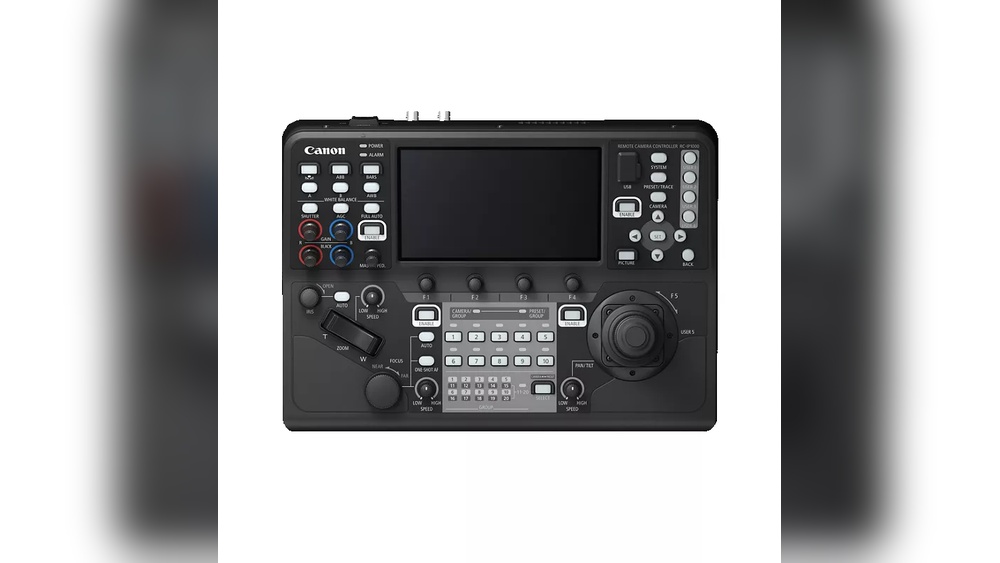
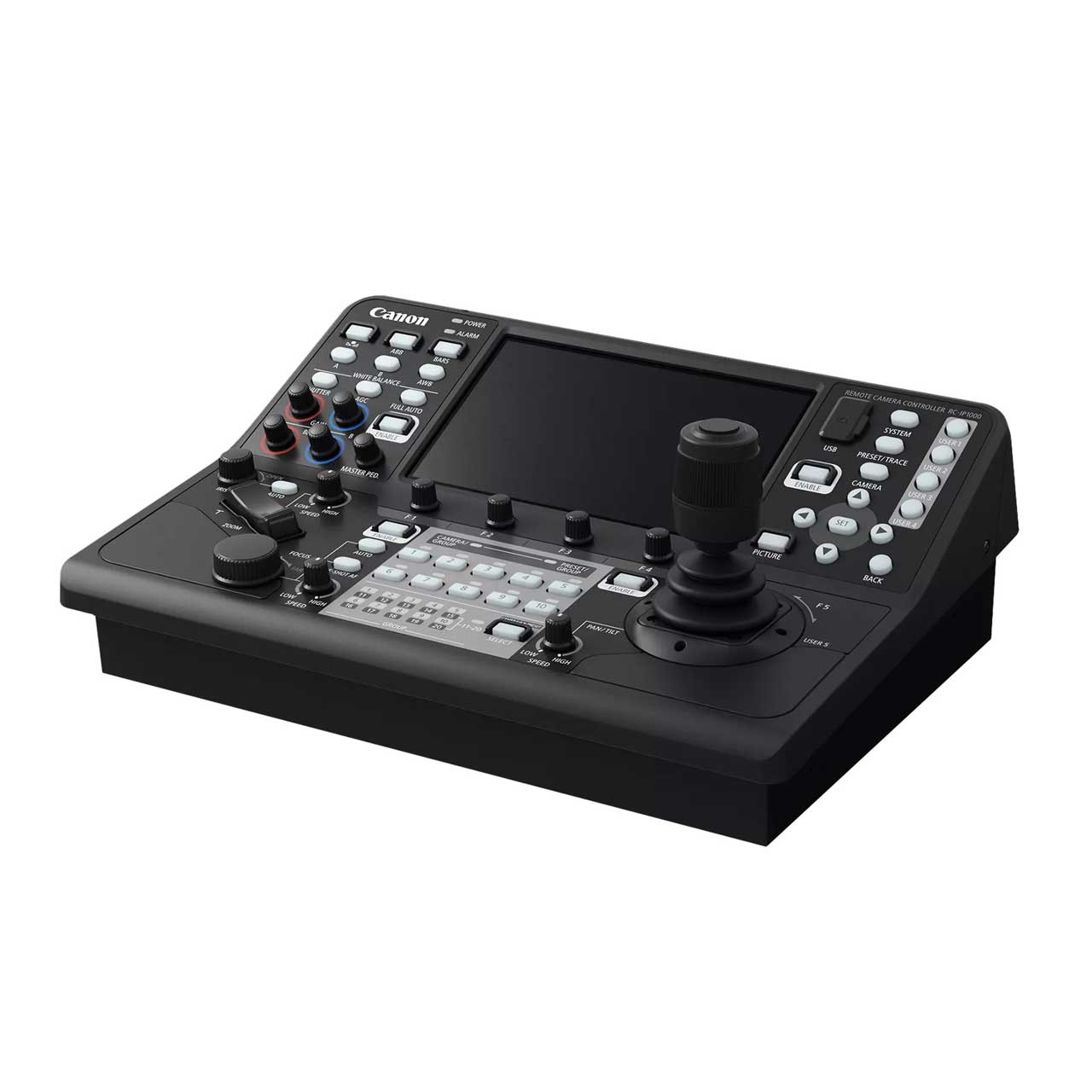
The Canon RC-IP1000 is a hardware controller designed to manage multiple Canon PTZ cameras from one central location. It features a large touchscreen, physical dials, and a joystick for intuitive control. Users can switch between cameras, adjust settings, and recall presets—all from the controller.
What makes the RC-IP1000 “advanced” is its focus on professional-grade features. It supports IP (network) and serial control, can manage up to 200 cameras, and is compatible with Canon’s latest PTZ models. For production teams, this means fast workflow and less time spent on setup.
The physical build of the RC-IP1000 also stands out. The buttons are spaced well, and the joystick is highly responsive—making quick movement and adjustment simple, even in high-pressure live situations. The tactile feedback from the dials and joystick helps operators work by feel, not just by sight, which is important when attention is split between the controller and video monitors.
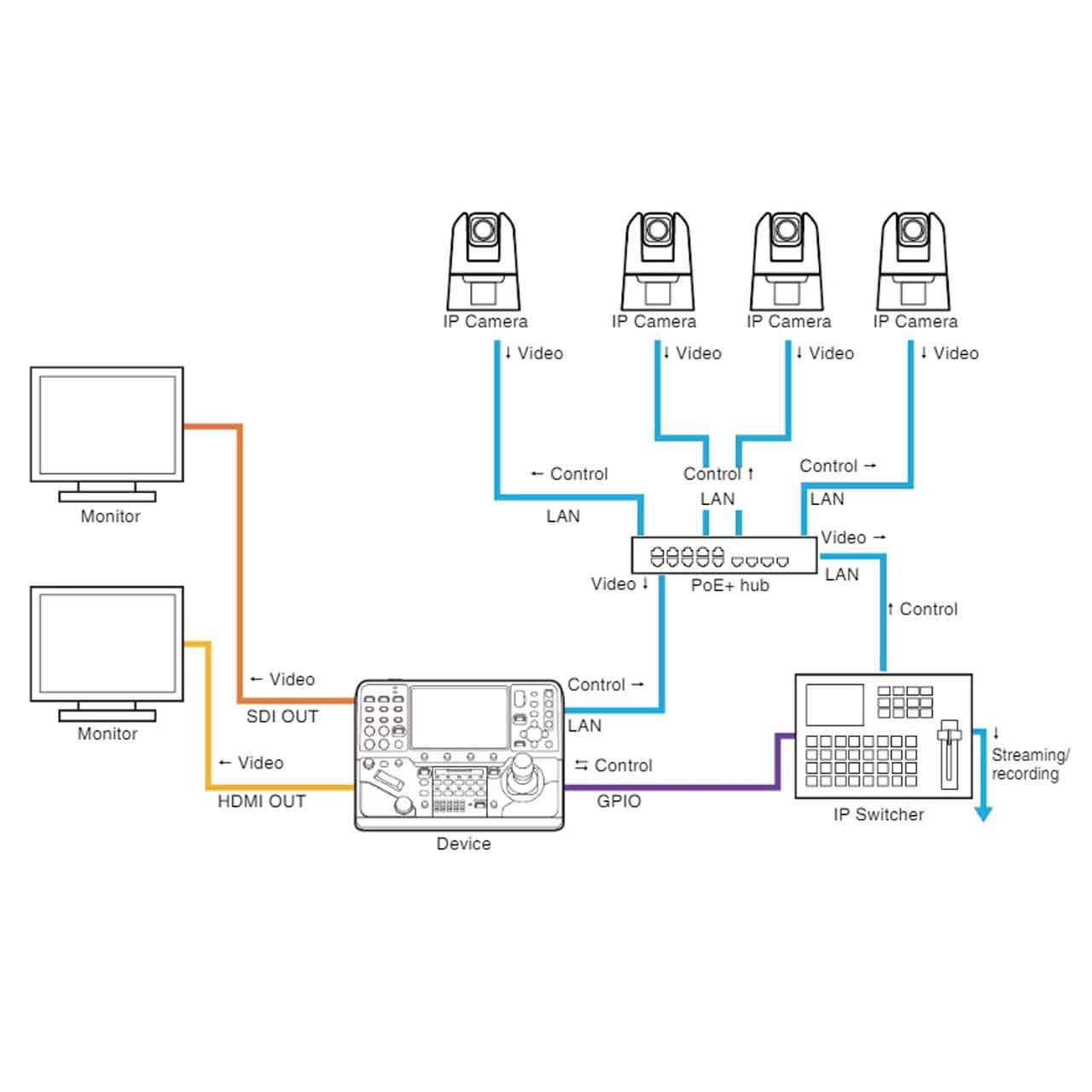
Another point is the RC-IP1000’s network integration. You can set up the controller in a control room, while cameras are spread throughout a large venue. The controller maintains steady communication over standard Ethernet, which is much more reliable than wireless options for live events.
Why Color Correction Matters In Ptz Camera Control
Color correction involves adjusting camera settings like white balance, gain, black levels, and color matrix to ensure all cameras deliver a consistent look. This is crucial when using multiple cameras in different lighting conditions. If one camera looks too blue and another too yellow, viewers notice the difference—even if the footage is smooth.
This is not just about aesthetics. In broadcast and streaming, mismatched colors can look unprofessional and distract the audience. For example, in a conference with speakers on stage, you want every angle to show true-to-life skin tones and avoid sudden color jumps when switching cameras.
Even small changes in lighting—such as sunlight from a window or a stage light shifting hue—can cause big color changes in cameras. Fixing these differences during a live event is not possible in post-production, so real-time correction is essential. A controller with deep color features lets you fix problems immediately, reducing stress and improving the result.
In environments like churches or theaters, lighting can change quickly. The ability to tweak color settings on the fly is a huge benefit. Imagine a pastor stepping from warm spotlight to cool daylight, or a performer moving across the stage—the operator can react instantly to keep the image consistent.
Core Features Of The Rc-ip1000 Related To Color Control
Let’s break down the features the RC-IP1000 offers for color management:
- Touchscreen Interface – The 7-inch touchscreen displays camera feeds and menus for fast access to color settings. The display is bright and clear, making it easy to see even in busy control rooms. You can quickly jump between menus for different cameras without scrolling through long lists.
- Physical Dials and Joystick – You can adjust settings like iris, gain, and white balance without digging through menus. Dedicated dials for key settings mean you don’t lose time searching for the right option. For example, if you notice the image is too dark, you can turn the iris dial immediately.
- Multi-Camera Management – Change color settings for up to 200 cameras from the same controller. This is helpful for large venues or productions with many camera angles. You can group cameras by location or purpose and adjust color settings for each group, making management efficient.
- Preset Recall – Save and recall color profiles for different scenes or environments. You might have different lighting setups for morning, afternoon, and evening events. With presets, you don’t have to rebuild your settings each time—just select the profile and all cameras adjust instantly.
- Network Integration – Adjust settings remotely over IP, even for cameras in different rooms. This is especially valuable for multi-room conferences or venues with cameras in hard-to-reach places. You don’t need to send technicians to each camera to tweak settings.
How The Rc-ip1000 Handles Color Correction
Camera Parameter Access
The RC-IP1000 gives access to a wide range of camera parameters. This includes:
- White balance: Adjust for indoor, outdoor, or custom lighting. You can fine-tune this to match the specific color temperature of your lights.
- Gain: Control sensitivity to light, which affects brightness and noise. If the lighting dims during an event, you can add gain to keep the image visible, but you must balance it to avoid grainy video.
- Black level: Fine-tune the darkest parts of the image. By matching black levels, you avoid one camera looking washed out while another looks too contrasty.
- Color matrix: Shift colors to match specific looks or other cameras. This allows you to balance reds, greens, and blues, essential when matching to other camera brands or models.
- Gamma: Adjust image contrast. With gamma, you can make the image look softer or punchier, which can help match different display types.
You select a camera from the touchscreen, then use dials or the interface to change these settings in real time. This is faster than using camera menus or remote apps, especially when managing multiple units.
User Experience
The workflow is designed for speed. For example, if you notice one camera is too warm, you select it, tweak white balance or the color matrix, and see the result instantly. The physical controls mean you don’t have to fumble with a mouse or touchscreen during a live show.
Operators often comment that the RC-IP1000’s interface is less cluttered than software apps. Critical settings are always within reach, and you can adjust while watching the output on a professional monitor. The large screen also helps when you have to make quick decisions under pressure.
Saving And Recalling Presets
Preset functionality is a big plus. You can set up color profiles for different lighting situations—such as daylight, tungsten, or LED stage lights. With one touch, all cameras can switch to a preset, ensuring consistency. This is especially useful if you move between venues or lighting setups.
Presets also help when you have multiple operators or volunteers. You can lock in the best settings, so even less experienced staff can recall the right look for each event. This reduces training time and prevents mistakes.
Comparing Rc-ip1000 To Other Controllers
How Does The Rc-ip1000 Stack Up Against Other Ptz Controllers?
| Controller | Color Correction Support | Max Cameras | Interface Type |
|---|---|---|---|
| Canon RC-IP1000 | Full (WB, Gain, Black Level, Color Matrix, Gamma) | 200 | Touchscreen, Dials, Joystick |
| Canon RC-IP100 | Basic (WB, Gain) | 100 | Joystick, Buttons |
| Panasonic AW-RP150 | Full (WB, Matrix, Detail) | 200 | Touchscreen, Joystick |
| Sony RM-IP500 | Partial (WB, Gain, Black Level) | 100 | Joystick, Buttons |
The RC-IP1000 is one of the few controllers with deep color controls, not just basic white balance and gain. The touchscreen interface also speeds up complex adjustments.
Another advantage is the RC-IP1000’s ability to control a larger number of cameras compared to most competitors. This is important for large productions or campuses with many rooms, where controlling every camera from one device can make a big difference in workflow.
Supported Camera Models And Compatibility
The RC-IP1000 is built to work with Canon’s IP-enabled PTZ cameras, such as:
- CR-N700
- CR-N500
- CR-N300
- CR-X300
- Other Canon PTZ models with XC protocol
Not all features are available on older or third-party cameras. For full color correction, use current Canon models with the latest firmware. Always check compatibility before purchasing.
Canon frequently updates their firmware to expand compatibility and add features. For example, a new firmware version might add support for a new PTZ model or unlock deeper color controls. It’s smart to check Canon’s official documentation before making a buying decision, especially if you plan to use less common camera models.
Example Workflow: Matching Multiple Cameras
Imagine a live concert with three different Canon PTZ cameras in different parts of the hall. Light levels and colors change across the stage. Here’s how the RC-IP1000 can help:
- Select Camera 1: Adjust white balance and color matrix for stage left.
- Select Camera 2: Tweak black level and gain for the center, where it’s darker.
- Select Camera 3: Save a preset for stage right, where blue LEDs dominate.
- Recall Preset: If lighting changes, recall a preset for all cameras to instantly match the new look.
This process, which would take much longer with camera menus or software, is handled quickly on the RC-IP1000.
In a real event, you might have just seconds to react to a lighting change. The RC-IP1000’s speed and physical controls mean you won’t miss a moment. Operators often report that the ability to instantly match colors makes their production look much more professional.
Real-world Insights And Limitations
Non-obvious Insights
- Camera Firmware Matters: Some advanced color features only appear with the latest camera firmware. Always update before use.
- Network Quality Affects Control: If your network is slow, adjustments may lag, especially with many cameras. Use wired networks for best performance.
Another detail: Preset Management. Make a habit of naming and organizing your presets by event type or location. This reduces confusion during busy productions and helps new team members find the correct settings quickly.
Also, be aware that ambient light changes—such as sunlight moving across a room—can slowly shift camera color over time. Regularly check your cameras and adjust as needed.
Limitations
- No Advanced Grading Tools: The RC-IP1000 can’t replace a dedicated color grading suite for post-production. It’s designed for live and in-camera correction.
- Limited Third-Party Support: Works best with Canon PTZ cameras. For mixed-brand setups, not all features will be available.
Some users expect the RC-IP1000 to offer creative looks or LUT (Look Up Table) support like high-end color grading tools. It does not—its goal is fast, technical color matching for live use, not artistic post-production.
Key Color Correction Functions: In-depth Look
White Balance
White balance sets the camera’s reference for “white” in the current lighting. The RC-IP1000 lets you pick presets (Daylight, Tungsten, Fluorescent), set custom values, or use manual adjustments. This is critical for skin tones and avoiding blue/orange shifts.
For example, in a corporate event with fluorescent lighting, selecting the correct preset keeps skin tones natural. In a theater with mixed lighting, manual white balance tuning can make all the difference.
Gain
Gain boosts the image signal in low light. Too much gain introduces noise. The RC-IP1000 provides fine-grained control, so you can balance brightness without making the image grainy.
When lighting is unpredictable—like in concerts—being able to add just a bit of gain helps keep the image usable. Operators learn to “ride the gain” during shows, increasing it only as much as needed.
Black Level
Black level adjusts the darkest part of the image. Raising black level can reveal detail in shadows but may wash out the picture. The RC-IP1000 lets you set black level per camera, matching shadow detail across all units.
A common beginner mistake is to set black level too high, losing contrast. The RC-IP1000 allows you to compare cameras side by side, so you can match shadows across the board.
Color Matrix
The color matrix lets you shift the image’s colors to match other cameras or achieve a specific look. For example, you can make reds stronger or blues softer. This is essential when using cameras of different models or brands.
If you add a rental camera to your setup, the color matrix helps blend its look with your main cameras. This is a powerful tool for large productions or when mixing different equipment.
Gamma
Gamma affects the mid-tones and contrast. Adjusting gamma can make the image look more cinematic or help recover detail in highlights and shadows.
For example, in a church with lots of stained glass, adjusting gamma can help capture both bright windows and faces in the same shot.
Workflow Tips For Live Color Correction
- Use Presets: Set up color profiles in advance for different scenes.
- Check Monitors: Always monitor camera output on calibrated screens, not just the RC-IP1000 display.
- Practice Fast Switching: Know how to quickly select and adjust each camera during live events.
- Update Everything: Keep your controller and camera firmware current for best compatibility.
Additionally, create a color correction checklist for your team. Include steps like “check white balance on all cameras before show” and “save final presets after rehearsal. ” This reduces stress during the event.
It’s also a good practice to label your controller and cameras with matching IDs or names. When the pressure is high, this avoids mistakes when selecting cameras for adjustment.
Rc-ip1000 Vs. Software Control
Some users ask if software apps can do the same job. Canon’s Remote Camera Control Application allows color adjustments from a PC, but hardware controllers like the RC-IP1000 offer speed and reliability. In live settings, physical controls beat mouse clicks every time.
Here’s a quick comparison:
| Feature | RC-IP1000 | Software App |
|---|---|---|
| Speed | Instant | Slower (depends on PC/network) |
| Reliability | High (dedicated device) | PC-dependent |
| Physical Controls | Yes (dials, joystick) | No |
| Multi-Camera Management | Yes (up to 200) | Yes (but less intuitive) |
| Color Correction Depth | Full | Moderate |
Another advantage of hardware control: during a live stream, a PC can freeze or crash, but the RC-IP1000 is dedicated to camera operation. This reliability is important when downtime is not an option.
How To Set Up Color Correction With Rc-ip1000
- Connect Cameras: Plug all PTZ cameras into your network and power them on. Use high-quality Ethernet cables and switches to avoid network drops.
- Assign Camera IDs: Use the touchscreen to assign names or numbers for quick selection. Clear labeling helps when you have many cameras.
- Update Firmware: Check for the latest updates on both controller and cameras. Firmware updates can add new color options and fix bugs.
- Calibrate Each Camera: Use the controller to adjust white balance, gain, black level, and color matrix for each camera. It helps to use a color chart or gray card for best results.
- Save Presets: Store your favorite settings for fast recall during events. Organize presets by event type, location, or lighting setup.
If you’re new to the RC-IP1000, practice this workflow before your first live event. Familiarity with the system means you can make adjustments quickly and confidently.
Credit: www.markertek.com
Common Mistakes To Avoid
- Ignoring Monitor Calibration: If your reference monitor is not calibrated, color correction will be inaccurate.
- Not Saving Presets: Failing to save color profiles wastes time if you need to reset after a power cycle.
- Mixing Old and New Camera Models: Not all models support the same color features.
- Using Wi-Fi Networks: Always use wired Ethernet for reliable control, especially with multiple cameras.
Another common mistake is relying only on the controller’s small display for color checks. Always use a professional, calibrated monitor for final judgment. The controller is for adjustment, not final color evaluation.
Advanced Use Cases
Multi-venue Productions
For events spread across several rooms or venues, the RC-IP1000’s network capability means you can control cameras from a central location. Match color across rooms for a seamless broadcast look.
Houses Of Worship
Lighting can change quickly during services. The RC-IP1000 lets you adapt on the fly—switching presets or tweaking color per camera as needed.
Hybrid Setups
If you use a mix of Canon and third-party PTZ cameras, be aware that the RC-IP1000’s color features may not work fully on non-Canon models. Consider using only supported cameras for best results.
Another advanced use: in educational settings with lecture capture in many classrooms, the RC-IP1000 can standardize video quality across the building. Schools with media programs can use the controller to teach students about live color management.
Credit: www.markertek.com
Firmware And Software Updates
Canon regularly updates the RC-IP1000 to add features and improve compatibility. Always check the official Canon support page for updates. Updated firmware can add new color controls or support for new camera models.
Operators who keep their equipment updated often report fewer issues and gain access to new color tools. Scheduling regular checks for firmware updates is a good routine for any professional team.
Real-world Testimonial
A church AV technician shares: “We switched to the RC-IP1000 to manage six Canon PTZs. Being able to dial in color and recall presets from the controller saved us hours every week. Before, we had to tweak each camera from a laptop—now it’s all in one place.”
Another example comes from a sports broadcaster: “During fast-moving games, lighting changes constantly. The RC-IP1000 lets us adjust colors instantly, so every replay looks clean and consistent. Our viewers notice the difference.”
When To Use The Rc-ip1000 For Color Correction
- Live events: When you need instant adjustments.
- Multi-camera shoots: To match colors across different positions.
- Broadcasts: For consistent, professional-looking output.
- Fast-changing environments: When lighting changes often.
The RC-IP1000 excels in any situation where speed and reliability are critical. It’s especially valuable when a single operator is responsible for many cameras.
When Not To Rely On It
- Post-production grading: For high-end color work, use dedicated grading software.
- Mixed-brand camera setups: For best results, stick to supported Canon models.
If your workflow relies on heavy artistic grading or involves many brands of cameras, the RC-IP1000 may not provide all the tools you need.

Credit: martcom.eu
Cost And Value
The RC-IP1000 is an investment—often costing several thousand dollars. For large productions or any team using multiple Canon PTZs, the time saved and the level of control are worth the price. For small setups or where color is not critical, a basic controller or software may be enough.
For the latest pricing and official details, check the Canon USA site.
When calculating value, consider not just the hardware cost, but also the hours saved each week on setup, camera matching, and troubleshooting. Many teams find the controller pays for itself quickly in time saved and improved quality.
Summary: Can The Rc-ip1000 Manage Camera Color Correction?
The Canon RC-IP1000 Advanced PTZ Controller is one of the strongest options for live, in-camera color correction. With deep access to white balance, gain, black level, color matrix, and gamma, it allows you to match and manage camera looks on the fly.
Its physical controls, large touchscreen, and multi-camera support make color correction practical and reliable, even in fast-paced live environments. For Canon PTZ users, especially those with demanding color needs, the RC-IP1000 is a top choice.
Frequently Asked Questions
Can I Use The Rc-ip1000 With Non-canon Cameras?
The RC-IP1000 is designed for Canon PTZ cameras with IP control. Some basic functions may work with third-party cameras, but advanced color correction features are only available with supported Canon models.
Does The Rc-ip1000 Replace Color Grading Software?
No. The RC-IP1000 handles live, in-camera color correction, not post-production grading. For advanced color work, use software like DaVinci Resolve after recording.
How Many Cameras Can I Manage At Once?
You can control up to 200 Canon PTZ cameras from a single RC-IP1000 controller. This includes color settings, movement, and presets.
Is Firmware Updating Important For Color Control?
Yes. Updated firmware often adds new color features and improves compatibility. Always keep your controller and cameras updated for best results.
Can I Save Custom Color Settings For Different Events?
Yes. The RC-IP1000 lets you save and recall presets, including custom color profiles. This is useful for switching between venues or different lighting setups.
The Canon RC-IP1000 gives professionals true live color correction and unmatched camera management. If color consistency and speed matter, it’s a controller worth considering.