
Want to see your iPhone’s screen on your big TV without any hassle? Whether it’s sharing photos, watching videos, or playing games, screen mirroring your iPhone to a smart TV can make everything more enjoyable.
But if you’re not sure how to connect your devices quickly and smoothly, you’re in the right place. In this guide, you’ll discover simple steps to mirror your iPhone to your smart TV with ease. Keep reading, and you’ll be streaming like a pro in no time.
Credit: mysoapboxkids.com
Prepare Your Devices
Preparing your devices is the first step to screen mirror your iPhone to a smart TV. This step ensures a smooth and clear connection between your devices. Proper preparation saves time and avoids frustration during the process.
Make sure both your iPhone and smart TV are ready to connect. Follow simple checks to confirm compatibility and network connection. These checks help your devices communicate without interruption.
Check Compatibility
Not all smart TVs support screen mirroring from an iPhone. Look for AirPlay or screen mirroring features on your TV. Most newer models have these built-in. If your TV does not support AirPlay, consider using an Apple TV device.
Check your iPhone model too. Screen mirroring works on iPhones with iOS 12 or higher. Older iPhones may not support this feature. Updating your iOS can help if your iPhone is compatible but outdated.
Connect To Same Wi-fi Network
Both your iPhone and smart TV must connect to the same Wi-Fi network. This step allows them to find and talk to each other easily. Check your Wi-Fi name on both devices to confirm they match.
Use a stable and fast Wi-Fi connection. Slow or unstable Wi-Fi causes lag or disconnection. Restart your router if the connection seems weak or drops often. A strong network improves your mirroring experience.
Credit: www.liftingitalia.com
Use Airplay For Screen Mirroring
Screen mirroring lets you display your iPhone’s screen on your smart TV. AirPlay is a built-in tool from Apple that makes this easy. It works over Wi-Fi and shows photos, videos, and apps on a bigger screen. Using AirPlay creates a smooth connection between your iPhone and TV. This method does not need extra cables or apps. Follow these steps to use AirPlay for screen mirroring.
Enable Airplay On Smart Tv
Turn on your smart TV. Go to the settings menu. Find the AirPlay option. This option may be under ‘Network’ or ‘Connections’. Switch AirPlay to ‘On’. Some TVs ask you to set up a password for AirPlay. Set a simple password if needed. Wait for your TV to show it is ready to connect.
Activate Screen Mirroring On Iphone
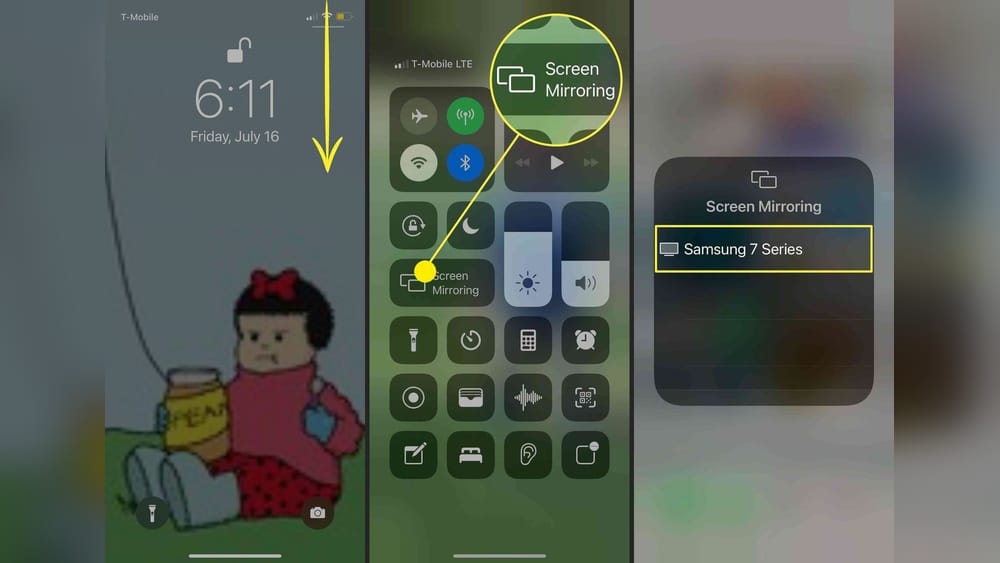
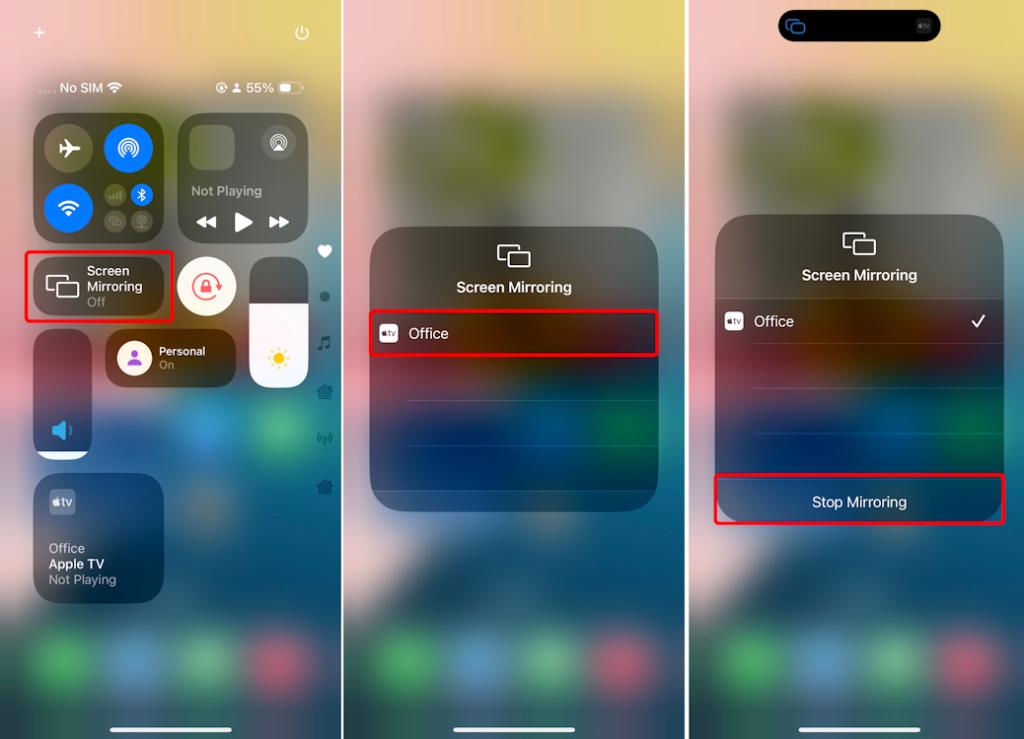
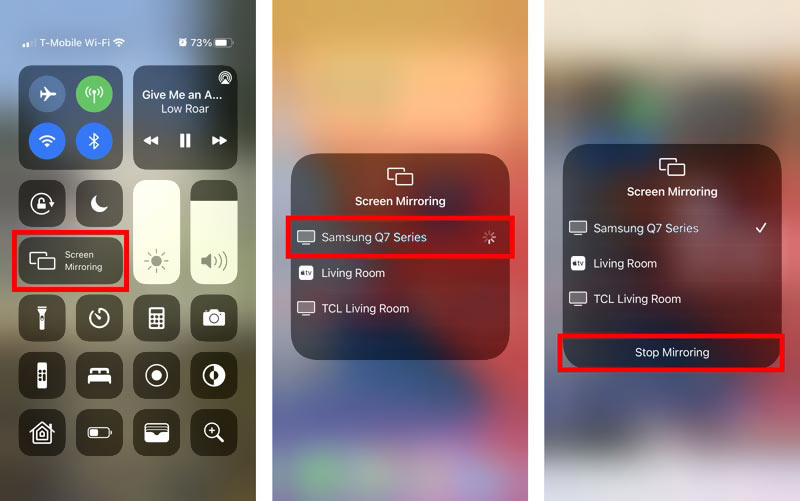
Swipe down from the top-right corner of your iPhone screen. This opens the Control Center. Tap on ‘Screen Mirroring’. A list of available devices appears. Select your smart TV from the list. Enter the AirPlay password on your iPhone if your TV asks for one. Your iPhone screen appears on your TV. To stop mirroring, open Control Center and tap ‘Stop Mirroring’.
Mirror Iphone Using Third-party Apps
Mirror iPhone screens to smart TVs using third-party apps. These apps help connect your devices without extra cables or adapters. They work by sending your iPhone’s display wirelessly to the TV.
This method suits those who want an easy setup or have older TV models. Many apps support different TV brands and iPhone versions. Choose apps that offer smooth streaming and clear display quality.
Choose A Reliable App
Pick an app with good user reviews and high ratings. Check if the app supports your TV brand and iPhone model. Look for apps with simple interfaces and fast connection speeds. Avoid apps with many ads or unclear instructions. Popular options include ApowerMirror, AirBeamTV, and LetsView.
Set Up The App On Both Devices
Download the app on your iPhone and your smart TV. Open the app on both devices and connect them to the same Wi-Fi network. Follow the app’s instructions to pair your iPhone with the TV. Usually, this involves selecting your TV from a list on the iPhone. After connecting, your iPhone screen will appear on the TV.
Troubleshoot Common Issues
Screen mirroring your iPhone to a smart TV can sometimes face issues. Troubleshooting common problems can make the experience smooth. This section covers easy fixes to improve your connection and streaming quality. Follow these tips for better results.
Fix Connection Problems
Check if both devices use the same Wi-Fi network. Different networks cause connection failure. Restart your router and smart TV. Turn off AirPlay on the iPhone and turn it back on. Update your iPhone and smart TV to the latest software. Reset network settings on your iPhone if problems continue. Keep your devices close to the Wi-Fi router. Avoid walls or objects blocking the signal.
Improve Streaming Quality
Close other apps running on your iPhone. This frees up resources for smooth streaming. Lower the video quality in the app settings if available. Reduce interference by turning off Bluetooth on your iPhone. Use a strong and stable Wi-Fi connection. Disconnect other devices using the network to reduce traffic. Restart your iPhone and smart TV to clear temporary glitches.
Alternative Methods For Screen Mirroring
Screen mirroring an iPhone to a smart TV can be done in many ways. Some methods do not need Wi-Fi or AirPlay. These alternative methods help when AirPlay is not available or the network is slow. They also work with older TVs and devices.
Use Hdmi Adapter
An HDMI adapter connects your iPhone directly to your TV. It plugs into the iPhone’s charging port. The other end connects to the TV’s HDMI port. This method shows your phone screen on the TV instantly. It provides a stable connection without lag.
Use a Lightning to HDMI adapter for iPhones with a Lightning port. For newer iPhones with USB-C, use a USB-C to HDMI adapter. No Wi-Fi or app is needed. Just plug and play for clear video and audio.
Use Chromecast With Iphone
Chromecast works well with iPhones to mirror screens. It connects to the TV’s HDMI port. Use the Google Home app on your iPhone to set up Chromecast. Once connected, you can cast your phone screen or apps to the TV.
Chromecast supports many apps like YouTube, Netflix, and more. The casting is smooth and easy to control from your phone. It does need a Wi-Fi network but works across different brands of smart TVs.

Credit: www.youtube.com
Frequently Asked Questions
How Do I Enable Screen Mirroring On Iphone?
To enable screen mirroring, swipe down from the top-right corner on iPhone. Tap “Screen Mirroring” and select your smart TV from the list. Ensure both devices are on the same Wi-Fi network for a successful connection.
Which Smart Tvs Support Iphone Screen Mirroring?
Most modern smart TVs from Samsung, LG, Sony, and Vizio support iPhone screen mirroring. Look for AirPlay 2 compatibility or Miracast support in your TV’s specifications to ensure seamless mirroring.
Can I Mirror Iphone To Tv Without Wi-fi?
Yes, you can mirror iPhone without Wi-Fi using an HDMI adapter. Connect your iPhone to the TV with a Lightning to HDMI cable for a stable, wired screen mirroring experience.
Why Is My Iphone Not Connecting To Smart Tv?
Connection issues often arise from different Wi-Fi networks or outdated software. Restart both devices, update their software, and ensure they are on the same network to fix common mirroring problems.
Conclusion
Screen mirroring your iPhone to a smart TV makes viewing easier. You can share photos, videos, and apps on a bigger screen. The process is simple and takes only a few steps. Make sure both devices connect to the same Wi-Fi network.
Choose the right method based on your TV model. Enjoy your favorite content without extra cables or devices. Try these tips to improve your experience. Screen mirroring brings more fun to your home entertainment. Start sharing your screen today and enjoy the view!