
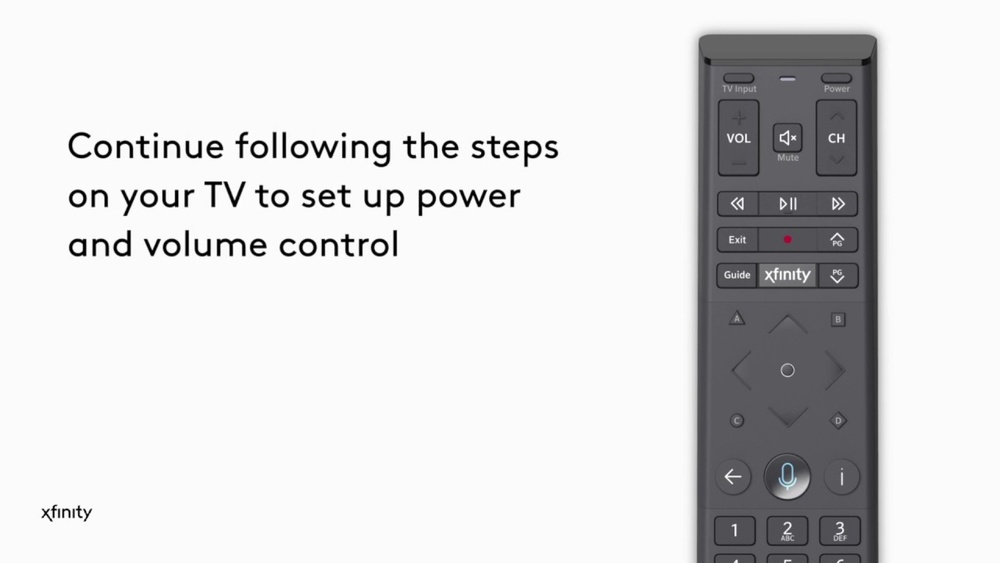
Setting up a remote control may sound simple, but if you have an Xfinity remote, you know there are more options and steps than you might expect. If you just got a new Xfinity remote, or your old one stopped working, figuring out the setup process can feel confusing, especially when there are several remote models and different devices to connect. This guide is here to make things easy. You’ll learn how to identify your remote, pair it with your TV and audio devices, troubleshoot common problems, and even discover helpful tips for getting the most from your Xfinity remote. Whether you’re a first-time user or want to reprogram your remote, you’ll find everything you need here—explained in clear, simple language.
Why Setting Up Your Xfinity Remote Matters
A properly set up remote is more than convenience—it’s about controlling your entire entertainment system easily. The Xfinity remote can manage your TV, soundbar, and even smart home devices if you set it up right. If you skip or rush setup, you may lose useful features, like voice commands or volume control. Many people don’t realize that a single mistake in programming can mean their remote only works with the Xfinity box, not the TV or other equipment. Taking a few extra minutes now saves you headaches later.
Understanding Xfinity Remote Types
Before you start, it’s important to know which Xfinity remote model you have. This affects which setup method you need. Xfinity offers several remotes, each with different buttons, pairing methods, and features.
Here’s a quick comparison of the most common Xfinity remotes:
| Remote Model | Key Features | Pairing Method |
|---|---|---|
| XR15 (Voice Remote) | Microphone button, no setup button, sleek design | Voice setup, code entry |
| XR11 (Voice Remote) | Microphone button, setup button, backlit keys | Voice setup, code entry |
| XR2/XR5 | No voice function, standard layout | Manual code entry |
| XR16 (Flex Remote) | Compact, for Xfinity Flex, voice enabled | Automatic pairing |
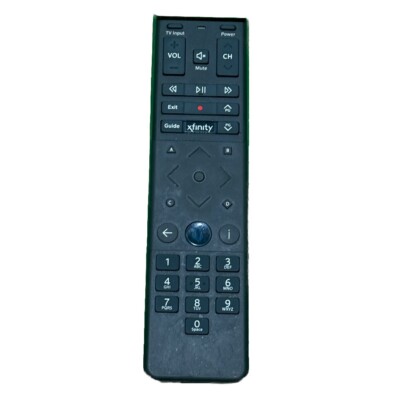
Find your model: Look for the model number printed on the back or inside the battery cover of your remote. If you’re still unsure, compare the buttons to the chart above.
Getting Ready: What You Need
Before you begin, gather everything you’ll need:
- Your Xfinity remote
- Working batteries (most remotes use AA or AAA)
- The device(s) you want to control (TV, audio receiver, etc.)
- Your Xfinity TV Box powered on and connected to your TV
Some TVs or soundbars may need their original remote for the initial setup. Place all devices in a spot where you can see them clearly.
Step-by-step: Setting Up The Xfinity Remote
The setup process depends on your remote model. Let’s go through the most common remotes one by one.
Xr15 Voice Remote
The XR15 is one of the newest and most popular Xfinity remotes. It doesn’t have a traditional Setup button, but setup is still simple.
Pairing With Your Tv
- Turn on your TV and the Xfinity TV Box.
- Press and hold the Xfinity and the Mute buttons together. Hold them for about five seconds until the LED on the remote turns from red to green.
- On your TV screen, you’ll see a code. Enter the code using the remote’s number buttons.
- Wait for the TV to respond. If the TV turns off, the pairing is successful.
- Test the volume and power buttons. If they work, setup is complete. If not, repeat the steps with a different code (the screen will suggest alternatives).
Pairing With Audio Devices
To control a soundbar or audio receiver:
- Press and hold the Xfinity and Mute buttons until the LED turns green.
- Enter the pairing code for your audio device (find codes on the Xfinity website or in the manual).
- Test the volume. If it works, you’re done.
Non-obvious Insight
Many users miss that you can program the XR15 to control both your TV and audio device separately. If you use a soundbar, set up audio control after TV pairing. This lets you control TV power and soundbar volume without switching remotes.
Xr11 Voice Remote
The XR11 is similar to the XR15 but has a Setup button.
Pairing With Your Tv
- Turn on your TV and the TV Box.
- Press and hold the Setup button (bottom left corner) until the LED turns green.
- Press the Xfinity button.
- Enter the three-digit code shown on the TV.
- Wait for confirmation.
Pairing With Audio Devices
After pairing with your TV:
- Press and hold Setup until the LED turns green.
- Enter the code for your audio device.
- Test the volume controls.
Helpful Tip
If you lose your pairing code, you can search for device codes by brand on the Xfinity website or by using the voice command “Program Remote.”
Xr2 And Xr5 Remotes
These are basic remotes, often used with older Xfinity boxes.
Pairing With Your Tv
- Turn on your TV.
- Press and hold the Setup button until the LED changes from red to green.
- Enter the code for your TV brand.
- Test the power and volume buttons.
If the first code doesn’t work, try others for your brand.
Voice Function
These remotes do not have voice control, so all setup is manual.
Xr16 Flex Remote
The XR16 is designed for the Xfinity Flex streaming device and uses automatic pairing.
Pairing Steps
- Make sure the Xfinity Flex device is powered on.
- Follow on-screen instructions. Usually, the remote will pair automatically when you press any button. If not, hold the “i” and Home buttons together for three seconds.
- Enter the pairing code shown on your TV.
Pro Tip
Pairing issues are more common if you try to set up your remote with the TV off or the Xfinity box unplugged. Always keep both devices powered on during setup.
Credit: www.ebay.com
Programming Your Remote For Multiple Devices
One of the best features of Xfinity remotes is the ability to control more than one device—like your TV, soundbar, and even your receiver—with a single remote. Here’s how:
- Pair your remote with your TV first, using the method above for your remote model.
- Pair with your audio device using the audio setup mode. For XR15 and XR11, this means entering the audio device code after the TV is paired.
- Test all functions. Make sure the volume, mute, and power buttons work for the correct devices.
If you want the remote’s volume to always control your soundbar (not your TV speakers), set the audio device as the default for volume.
| Device | Function Controlled | Setup Required? |
|---|---|---|
| TV | Power, Input, Some Volume | Yes |
| Soundbar/Receiver | Volume, Mute | Yes |
| Xfinity TV Box | Navigation, Channel, Voice | No (default) |
Non-Obvious Insight: The order you pair devices matters. Pair your TV first, then your audio device. If you do it the other way, some remotes may override previous settings.
Using Voice Control On Xfinity Remotes
If you have an XR11, XR15, or XR16, you can use voice commands to search for shows, change channels, and more.
Setting Up Voice Control
Voice control is active once your remote is paired with the Xfinity box. Just press and hold the microphone button and speak your command, like “Turn on subtitles” or “Go to ESPN.”
Common Voice Commands
- “Show me action movies”
- “Turn on closed captions”
- “Go to channel 810”
- “What’s on tonight?”
Example: Using Voice To Find A Program
Press the microphone button and say, “Find kids movies. ” The Xfinity box will show a list of available kids movies.
Pro Tip: If your voice commands aren’t working, check if your remote is paired to the right Xfinity box. You may need to re-pair if you switch boxes or move your remote to another room.

Credit: www.youtube.com
Troubleshooting: When Setup Doesn’t Work
Even with clear instructions, setup can fail. Here’s what to do if your Xfinity remote isn’t working as expected:
Remote Won’t Pair
- Check batteries. Weak batteries cause strange problems.
- Point the remote directly at the TV/box. Obstacles can block the signal.
- Restart your Xfinity box by unplugging it for 30 seconds, then try again.
Buttons Not Working
- Re-pair the remote. Sometimes, setup doesn’t “stick.” Repeat the pairing steps.
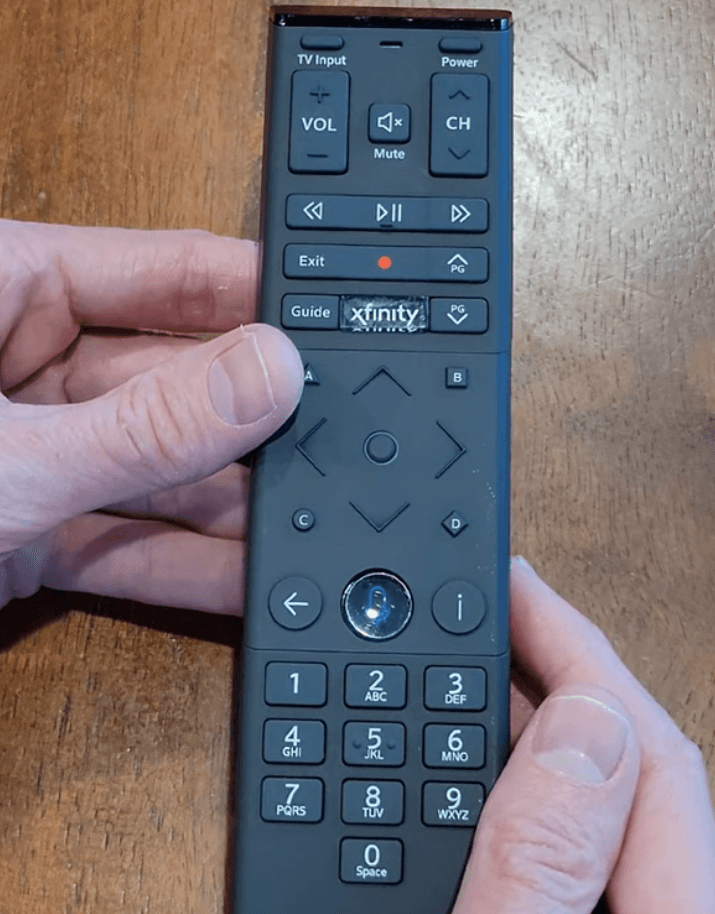
- Reset the remote. For XR15, press and hold the A (triangle) and D (diamond) buttons together for three seconds, then enter 981. For XR11, hold Setup, then enter 981.
- Try another code. Some devices have multiple codes; try each one.
Volume Or Power Only Works For One Device
- Check your default audio device. If you have a soundbar, you may need to set it as the default.
- Repeat the audio pairing process after TV setup.
Remote Not Responding At All
- Replace batteries.
- Check for physical damage. If the remote is cracked or buttons stick, it might need replacing.
Advanced Features And Customization
Many people only use the basic functions of their Xfinity remote. But these remotes have features that can make life easier.
Programming Favorite Channels
Some Xfinity remotes let you save favorite channels for faster access. Look for the “Favorites” button, or use voice commands like “Go to my favorites.”
Changing Input Source
If you use multiple devices (like a gaming console), you can program the remote to change the TV’s input source. After pairing with your TV, use the “Input” or “Source” button on your remote.
Accessibility Features
Xfinity remotes offer features for people with visual or physical challenges:
- Voice guidance: Reads aloud on-screen text.
- Large button remotes: Available for customers who request them.
- High contrast mode: Improves text readability.
To turn on accessibility, press and hold the microphone button and say, “Accessibility. ”
Customizing Button Functions
Some advanced users want to remap buttons or set up macros (like turning on the TV and soundbar at once). While Xfinity remotes are limited in customization, you can program basic device switching and volume control as described above.
Credit: www.hollyland.com
When To Replace Your Xfinity Remote
Remotes are built to last, but they can wear out. Here are signs you may need a replacement:
- Buttons stick or don’t respond after several tries.
- Remote doesn’t pair even after reset.
- Physical damage like cracks or water exposure.
Xfinity will often provide a replacement remote for free or low cost. Visit your local Xfinity store or request one on the official site.
Safety Tips And Best Practices
- Keep remotes dry and away from spills.
- Change batteries every 6–12 months to avoid corrosion.
- Store the remote in a visible place—not under cushions, where it can be damaged.
- Clean gently with a soft, dry cloth—avoid harsh cleaners.
Comparing Xfinity Remotes To Other Brands
You might wonder how Xfinity remotes stack up against other popular remotes.
| Feature | Xfinity XR15 | Roku Voice Remote | Fire TV Remote |
|---|---|---|---|
| Voice Control | Yes | Yes | Yes |
| TV/Audio Control | Yes (multi-device) | Limited | Limited |
| Customizable Buttons | No | No | No |
| Pairing Complexity | Medium | Easy | Easy |
| Works Without Wi-Fi | Yes | No (needs Wi-Fi for streaming) | No (needs Wi-Fi for streaming) |
Insight: Xfinity remotes offer broader device control than typical streaming remotes, but setup can be a bit more complex, especially for non-native English speakers. The extra effort pays off in flexibility.
Hidden Features Many Users Miss
Even experienced users may not know about these Xfinity remote features:
- Replay Button: Instantly replay the last 15 seconds of live TV.
- Page Up/Down: Quickly scroll through guide listings or menus.
- Voice Search for Settings: Say “Remote settings” to go straight to setup and troubleshooting options.
- RF Pairing: Modern remotes (XR11, XR15) can use radio frequency (RF) pairing, so you don’t need line-of-sight to the box. This is helpful if your TV box is hidden.
- Remote Finder: Some Xfinity boxes (like the X1) have a remote finder feature. Press the button on the box, and your remote will beep if it’s nearby.
Common Mistakes And How To Avoid Them
- Skipping the device code step: Many users rush setup and ignore entering the right code. Always find and try all codes for your TV or audio brand.
- Pairing with TV off: Devices must be on for pairing to work.
- Not setting default audio device: If you use a soundbar, always set it as the default for volume.
- Ignoring updates: Occasionally, your Xfinity box or remote may need a software update for best performance.
- Assuming all remotes are the same: Different models require different setup methods.
Tips For Non-native English Speakers
- Use the Xfinity website’s device code tool: It’s available in several languages.
- Ask for help in Xfinity stores: Staff can set up your remote for you.
- Use voice commands for simple searches: Speaking is often faster than reading through menus.
- Print setup instructions in your preferred language from the official site.
Keeping Your Remote Secure
Remotes can sometimes be used to access personal info if your Xfinity box is connected to apps. To stay safe:
- Don’t share your voice commands with guests.
- Log out of apps when not in use.
- Reset your remote before giving it away or recycling it.
When To Contact Xfinity Support
If you’ve tried all the steps above and your remote still won’t work:
- Visit the Xfinity support site for more troubleshooting.
- Chat with support online or call the support number.
- Request a new remote if yours is faulty.
For official instructions and device codes, visit the Xfinity Support site.
Frequently Asked Questions
How Do I Reset My Xfinity Remote To Factory Settings?
To reset most Xfinity remotes, press and hold the A and D buttons (XR15) or the Setup button (XR11) until the light turns green, then enter 981. This erases all custom settings and you’ll need to set it up again.
Can I Use My Xfinity Remote With Any Tv Brand?
Yes, Xfinity remotes support almost all major TV brands. You’ll need the correct device code for your brand, which you can find on the Xfinity website or in your remote’s user guide.
What Should I Do If My Remote’s Voice Commands Aren’t Working?
First, check if your remote is paired with the Xfinity box. If yes, try replacing the batteries. If it still doesn’t work, reset the remote and re-pair it. Make sure your Xfinity box is online and updated.
How Do I Control The Volume On My Soundbar Instead Of My Tv?
After pairing your remote with your TV, repeat the pairing process for your audio device (soundbar or receiver). Once paired, your remote’s volume and mute buttons will control the soundbar.
Is There A Way To Find My Lost Xfinity Remote?
Some Xfinity TV boxes have a remote finder feature. Press the “Remote Finder” button on your box, and your remote will beep if it’s nearby. If your box doesn’t have this, try searching common spots like under cushions or in other rooms.
Setting up your Xfinity remote doesn’t have to be a headache. With the right steps and a little patience, you’ll enjoy full control over your TV, sound, and more—all from one handy device. If you ever get stuck, Xfinity’s support resources are just a click or call away. Now, sit back and make the most of your Xfinity remote control—entertainment is just a button (or voice command) away.