
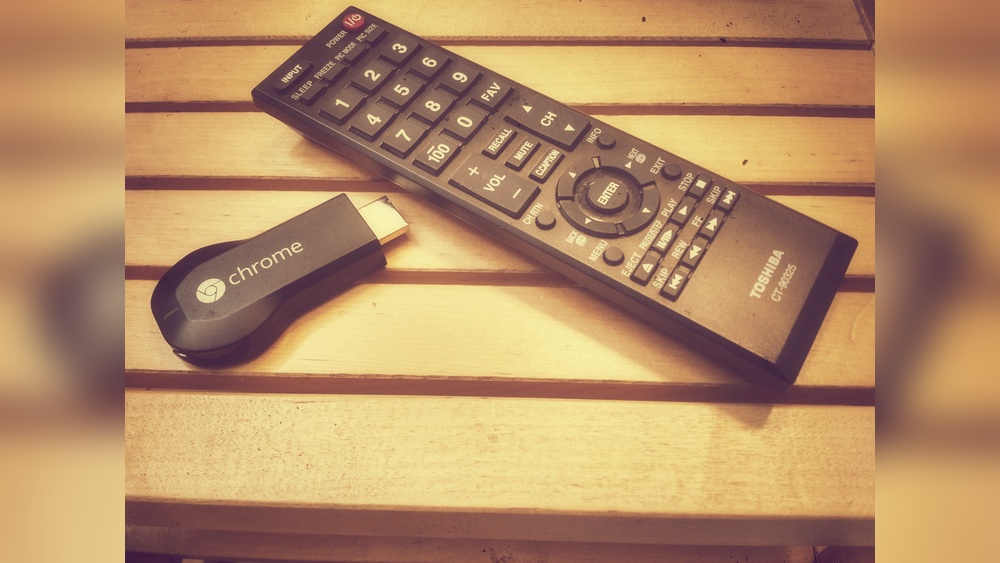
The world of smart entertainment keeps changing. Streaming devices are now everywhere, and one of the most popular is Chromecast. But as users look for easy control, a big question comes up: Does Chromecast have a remote control? This article explores that question in depth, breaking down the evolution of Chromecast, its different models, how you can control it, and what the future might hold. Whether you are planning to buy Chromecast or already own one, you will find clear answers and practical guidance here.
Understanding Chromecast: What Is It?
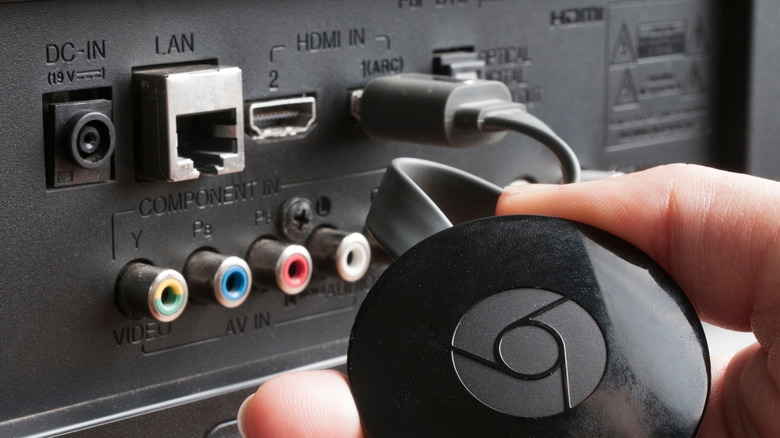
Chromecast is a streaming device made by Google. It lets you watch movies, shows, and videos from your phone, tablet, or computer on your TV. You plug it into your TV’s HDMI port, connect to Wi-Fi, and start casting content.
The key idea behind Chromecast was to make TV streaming simple. Instead of a traditional remote, Chromecast used your phone as the main controller. This was a new approach, and it made setup quick and easy. But it also made some users wonder about remote control options.
Over the years, Google released several Chromecast models, each with new features. Understanding these models helps explain the remote control situation.
Chromecast Models And Their Control Options
To answer if Chromecast has a remote, it’s important to look at the different versions. Here’s a quick breakdown:
| Model | Year Released | Remote Control | Main Control Method |
|---|---|---|---|
| Chromecast (1st Gen) | 2013 | No | Mobile device casting |
| Chromecast (2nd Gen) | 2015 | No | Mobile device casting |
| Chromecast Ultra | 2016 | No | Mobile device casting |
| Chromecast with Google TV | 2020 | Yes | Remote & Google TV interface |
The first three Chromecast devices (from 2013 to 2016) do not come with a remote control. Instead, you use your phone, tablet, or computer to select and control content.
With the release of Chromecast with Google TV in 2020, Google changed things. This model includes a physical remote control and a new on-screen interface. This shift was driven by user demand for easier navigation, volume control, and voice search.
How Chromecast Works Without A Remote
For most Chromecast models, you control everything from your mobile device. Here’s how it works:
- Setup: Plug Chromecast into your TV, connect to Wi-Fi, and use the Google Home app for setup.
- Casting: Open a streaming app (like Netflix or YouTube) on your phone. Tap the cast icon and select your Chromecast device.
- Control: Play, pause, rewind, fast-forward, or change volume directly from your phone.
This method is simple for many users. You don’t need to learn new controls. Your phone acts as a remote, and you can even cast from your laptop using the Chrome browser.
Common Challenges Without A Remote
However, some users find this system less convenient:
- You need your phone nearby.
- If your phone battery dies, you lose control.
- Not all apps support casting equally.
- Volume control can be tricky, depending on your setup.
These challenges led to a demand for a physical remote, especially among people used to traditional TV remotes.
Chromecast With Google Tv: The Remote Revolution
The Chromecast with Google TV marked a big change. It comes with a dedicated remote that offers:
- Navigation buttons (home, back, directional pad)
- Volume controls
- Power and input switching
- Voice search (via Google Assistant)
- Shortcut buttons for YouTube and Netflix
This remote works with the Google TV interface—a menu system you see on your screen. You can browse apps, search for shows, and adjust settings, all without needing your phone.
Remote Features Breakdown
Let’s look at what makes the Chromecast with Google TV remote special:
| Feature | Chromecast Remote | Traditional TV Remote |
|---|---|---|
| Navigation | Directional pad, Home, Back | Directional pad, Menu, Exit |
| Volume Control | Dedicated volume buttons | Volume buttons |
| Voice Search | Google Assistant button | Usually absent |
| App Shortcuts | YouTube, Netflix | Sometimes |
| TV Power/Input | TV Power, Input switch | Power, Input |
This comparison shows the Chromecast remote is similar to traditional TV remotes, but with modern features.
Using Chromecast Without A Physical Remote
Even if your Chromecast model doesn’t come with a remote, you have several options for control:
1. Mobile Device Control
Your phone or tablet can:
- Start and stop casting
- Adjust playback
- Change volume (if supported)
- Queue up content
2. Google Home App
The Google Home app acts as a virtual remote. You can:
- Adjust volume
- Pause/play
- Stop casting
- Access device settings
3. Chrome Browser
On your computer, Chrome lets you cast tabs, videos, or the full desktop to your TV. Control is done from your computer.
4. Third-party Remote Apps
There are apps that simulate a remote for Chromecast. Some offer extra controls, but they often require setup and may not be as reliable.
5. Smart Speakers
If you have a Google Nest Hub or Google Home speaker, you can use voice commands:
- “Hey Google, play Stranger Things on Netflix.”
- “Pause the TV.”
- “Turn up the volume.”
This works best with Chromecast devices linked to your Google account.
Why Google Didn’t Offer A Remote Initially
Google’s original vision for Chromecast was simplicity. By using your phone as the remote, they avoided extra hardware costs and made the device affordable. In the early days, smartphones were becoming more powerful and common, so Google bet people would prefer their own device.
However, this approach missed some practical needs:
- Multi-user households: Not everyone wants to use their phone.
- Lost phone scenario: If your phone is missing, you can’t control Chromecast.
- Elderly users: Some people are more comfortable with a traditional remote.
- Quick access: Picking up a remote is often faster than unlocking a phone.
As the market changed, Google responded by adding a remote to the Chromecast with Google TV.
Practical Tips For Chromecast Control
No matter which Chromecast you have, there are ways to make control easier.
For Chromecast Without Remote
- Keep your phone charged: A dead battery means no control.
- Install Google Home app: This gives extra options and easier setup.
- Use voice commands: If you have a smart speaker, link it with Chromecast.
- Set up Chrome browser casting: Great for streaming from websites.
For Chromecast With Google Tv Remote
- Pair the remote with your TV: This lets you control TV volume and power.
- Use Google Assistant: Try voice search for movies and shows.
- Customize shortcuts: Some remotes allow programming extra buttons.
Lesser-known Tricks
- Guest Mode: Chromecast has a guest mode. Visitors can cast without connecting to your Wi-Fi, using a PIN. This helps in parties or group settings.
- Universal Remotes: Some third-party universal remotes work with Chromecast with Google TV, especially if your TV supports HDMI-CEC.
Comparing Chromecast Remote To Other Streaming Devices
Other streaming devices have always included remotes. Here’s how Chromecast stacks up:
| Device | Remote Included | Voice Control | Interface | Price (2024 avg.) |
|---|---|---|---|---|
| Chromecast (pre-Google TV) | No | Via phone/smart speaker | No interface | $30 |
| Chromecast with Google TV | Yes | Google Assistant | Google TV | $50 |
| Roku Streaming Stick | Yes | Roku Voice | Roku OS | $40 |
| Amazon Fire TV Stick | Yes | Alexa Voice | Fire TV | $40 |
| Apple TV | Yes | Siri Remote | tvOS | $130 |
This data shows that Chromecast with Google TV is now on par with competitors, offering both a physical remote and a strong interface.
The Role Of Voice Control In Chromecast
One area where Chromecast shines is voice control. With Google Assistant built into the remote (Google TV model) and support from smart speakers, you can do things like:
- Search for movies or shows
- Control playback (“Pause” or “Play”)
- Adjust volume
- Ask for weather or news
Voice control is especially helpful for non-native English speakers, as you don’t need to navigate menus. You just speak your request.
Practical Voice Examples
- “Show me comedy movies.”
- “Turn on subtitles.”
- “Switch to HDMI 2.”
Most commands work well, but some advanced requests may need exact phrasing.
Common Mistakes When Using Chromecast Control
Many users make simple mistakes that can cause frustration:
- Not updating apps: Outdated streaming apps may not cast properly.
- Wrong Wi-Fi network: Your phone and Chromecast must be on the same Wi-Fi.
- Ignoring HDMI-CEC: If your TV supports HDMI-CEC, you can use your TV remote to control some Chromecast functions.
- Overlooking Google Home settings: Linking Chromecast with Google Home allows easy voice control.
- Physical obstruction: If Chromecast is hidden behind the TV, remote signals may not reach it well.
Fixing these mistakes can make Chromecast control much smoother.

Credit: support.google.com
What About Remote Replacement And Customization?
If you lose or break your Chromecast with Google TV remote, you have options:
- Buy an official replacement: Google sells remotes separately.
- Use the Google TV app: This app turns your phone into a remote.
- Try universal remotes: Some brands work with Chromecast, but compatibility varies.
- Customize controls: The Google TV app allows you to set up shortcuts and manage settings.
For older Chromecast models, since there’s no physical remote, you rely on your phone, tablet, or computer.
Accessibility And Remote Control
Remote control is important for people with accessibility needs. For example, elderly users or those with limited mobility may find phone-based control difficult.
Chromecast with Google TV remote helps solve this:
- Easy-to-press buttons
- Voice control for hands-free use
- TV power and volume included
For older Chromecast devices, adding a smart speaker can make things easier. Voice commands can help users who struggle with touchscreens.
The Future Of Chromecast Remote Control
Google’s move to add a remote shows that the company listens to user feedback. Future Chromecast models will likely keep improving remote features, such as:
- More customizable buttons
- Improved voice assistant integration
- Better support for universal remotes
- Enhanced accessibility features
Streaming devices are moving toward hybrid control—using both remotes and mobile devices. This gives users more flexibility and choice.
Real-world Examples: How People Use Chromecast Remotes
Let’s look at how different users interact with Chromecast:
- Families: Parents use the remote for quick access to kids’ shows. Children find the remote easier than using a phone.
- Tech lovers: Some prefer casting from their laptop, but use the remote for volume and power.
- Seniors: The physical remote simplifies TV watching. Voice search is helpful for those who don’t like typing.
- Party hosts: Guest mode lets visitors cast content without a remote or phone.
These examples show that having a remote increases flexibility and makes Chromecast more user-friendly.

Credit: www.youtube.com
Expert Advice For Buying Chromecast
If you’re thinking about buying Chromecast, consider these points:
- Want a remote? Choose Chromecast with Google TV.
- Already own a smart speaker? Voice control works well with any Chromecast.
- Prefer phone control? Classic Chromecast models are cheaper, but less flexible.
- Use multiple streaming apps? Chromecast with Google TV offers easier navigation.
Don’t forget to check if your TV supports HDMI-CEC. This allows your TV remote to control basic Chromecast functions.
Data: Chromecast Remote User Satisfaction
In a recent survey by Statista, 62% of Chromecast with Google TV users said the remote made their streaming experience easier. Only 23% of classic Chromecast users felt comfortable using their phone as the main controller.
Most people prefer physical remotes for:
- Quick navigation
- Volume control
- Power functions
- App shortcuts
But mobile device control is still popular among younger users.
Credit: www.slashgear.com
Chromecast Remote Control Faqs For Buyers
Here are some less obvious questions buyers often miss:
- Can you use a universal remote with Chromecast?
- Only with Chromecast with Google TV, and if your TV supports HDMI-CEC.
- Is the Google TV remote rechargeable?
- No, it uses AAA batteries. Battery life averages six months.
- Can you pair more than one remote?
- Yes, you can pair multiple remotes or use the Google TV app as a backup.
- Is voice control available on classic Chromecast?
- Yes, but only through smart speakers or mobile devices, not a physical remote.
- Are there parental controls?
- Chromecast with Google TV offers parental controls in the settings menu.
Frequently Asked Questions
Can You Buy A Remote For Older Chromecast Models?
No, classic Chromecast devices do not support physical remotes. You must use your phone, tablet, computer, or a smart speaker for control. If you want a remote, you need to upgrade to Chromecast with Google TV.
How Does The Google Tv App Work As A Remote?
The Google TV app (for Android and iOS) lets you control Chromecast with Google TV from your phone. You can navigate menus, use the keyboard for search, adjust volume, and launch apps. It acts as a backup if you lose your physical remote.
Is There Any Way To Use My Tv Remote With Chromecast?
If your TV supports HDMI-CEC, you can use your TV remote to control basic Chromecast functions like pause/play or volume. This works best with Chromecast with Google TV, but some classic Chromecast devices also support limited HDMI-CEC features.
Does Chromecast Remote Support Bluetooth?
Yes, the Chromecast with Google TV remote uses Bluetooth to connect to the device. This allows you to control Chromecast even if it’s hidden behind the TV. Classic Chromecast models do not use Bluetooth for remote control.
What Happens If I Lose My Chromecast Remote?
If you lose your Chromecast with Google TV remote, you can:
- Use the Google TV app on your phone as a remote
- Buy a replacement remote from Google
- Try pairing a universal remote if compatible
For classic Chromecast, control remains on your phone or tablet.
Chromecast’s journey from phone-based control to including a physical remote shows how streaming technology adapts to user needs. If you value easy navigation, app shortcuts, and voice search, Chromecast with Google TV is a strong choice. For those who prefer mobile device control, classic Chromecast models remain affordable and simple. As smart entertainment grows, the right control option depends on your habits, your TV, and your household. For official details and support, visit the Google Store.