
If your internet suddenly becomes slow or unreliable, it can be frustrating—especially when you depend on a stable connection for work, streaming, or smart home devices. Google Mesh Routers, like Google Nest Wifi and Google Wifi, are popular for creating strong, reliable Wi-Fi coverage across your home. However, even these advanced devices can sometimes misbehave. Maybe you need to troubleshoot, pass your router to a new owner, or simply start fresh after a network issue. In these situations, knowing how to reset your Google Mesh Router is essential.
Resetting sounds simple, but there are important differences between a reboot and a factory reset. Each has its purpose, and doing it incorrectly can cause more problems than it solves. In this guide, you’ll learn how to reset Google Mesh Routers safely, when to use each type of reset, what to expect during the process, and tips for getting your network back online quickly. Whether you’re a beginner or have some tech experience, you’ll find clear steps, useful insights, and answers to common questions about resetting your mesh network.
Understanding Google Mesh Routers
Google Mesh Routers use multiple devices, known as points or nodes, to spread Wi-Fi across your home. Unlike traditional routers that send signals from one spot, mesh routers connect together to cover larger spaces and reduce dead zones.
The main types are:
- Google Nest Wifi: The newer model, often comes with a router and one or more points.
- Google Wifi: The original version, still widely used.
Each device in the mesh system works together to deliver seamless Wi-Fi, so if one point has an issue, it can affect the whole network. That’s why resetting can sometimes help fix unexplained drops or slowdowns.
Common Problems That May Require A Reset
- Devices can’t connect to the network
- Wi-Fi speed is much slower than usual
- Google Home app shows points as “offline”
- Changes to network settings don’t apply
- Selling or giving away your router
Before you reset, it’s helpful to know which type of reset is best for your situation.
Types Of Resets: Soft Reset Vs. Factory Reset
Resetting a Google Mesh Router isn’t one-size-fits-all. Choosing the right method can save you time and prevent data loss.
Soft Reset (reboot)
A soft reset, or reboot, simply restarts the router or point. This is like turning your computer off and on again. It won’t erase your settings or disconnect devices permanently. Use this if your internet is slow, drops out, or your router feels “stuck.
”
When To Soft Reset
- Temporary glitches
- Devices not connecting
- Internet is slow or unstable
Factory Reset
A factory reset wipes your router or point back to its original settings. This removes all custom configurations, names, and passwords. It’s a clean slate and is necessary if you’re selling your device, setting up a new network, or troubleshooting serious issues.
When To Factory Reset
- Selling or giving away your router
- Major network errors that won’t fix with a reboot
- Want to start network setup from scratch
Important: A factory reset will disconnect all devices and erase your Wi-Fi network. You’ll need to set it up again using the Google Home app.
Preparing To Reset Your Google Mesh Router
Before starting the reset process, take a few moments to prepare. This will make the process smoother and help you avoid common mistakes.
- Note your Wi-Fi settings: Write down your network name (SSID), password, and any custom settings.
- Backup device connections: If you use smart home devices, they may need to reconnect after a factory reset.
- Check router placement: After resetting, you may want to reposition your points for better coverage.
- Confirm internet service: Make sure your internet from your ISP is working. A reset won’t fix problems outside your home.
How To Soft Reset (reboot) Your Google Mesh Router
Soft resetting is the first step you should try if your Wi-Fi is acting up. It’s quick and safe.
Method 1: Power Cycle (manual Reboot)
- Unplug the power cord from your Google Wifi or Nest Wifi router and points.
- Wait at least 10 seconds.
- Plug the power cord back in.
- Wait 2-3 minutes for the devices to fully restart. The lights will change color, then stabilize.
Method 2: Reboot Using The Google Home App
- Open the Google Home app on your phone or tablet.
- Tap Wi-Fi.
- Tap Settings (gear icon).
- Select Restart network.
- Confirm your choice.
Your routers and points will restart. This is safer than unplugging if you have multiple points.
Tip: If only one point is causing trouble, you can unplug and restart just that device.
How To Factory Reset Google Mesh Routers
A factory reset is more serious. It erases all data and removes your network from the Google Home app.
Two Main Ways To Factory Reset
- Using the Google Home app
- Using the physical reset button on the device
Not all situations allow both methods. For example, if you can’t access the app, the button method is your best option.
Factory Reset Using The Google Home App
This is the recommended method if your routers and points still appear in the app.
- Open the Google Home app.
- Tap Wi-Fi.
- Tap Settings (gear icon).
- Select Factory reset network.
- Confirm your choice.
The app will guide you through the process. This removes all routers and points from your account.
Note: This method only works if your devices are online and visible in the app.
Factory Reset Using The Physical Button
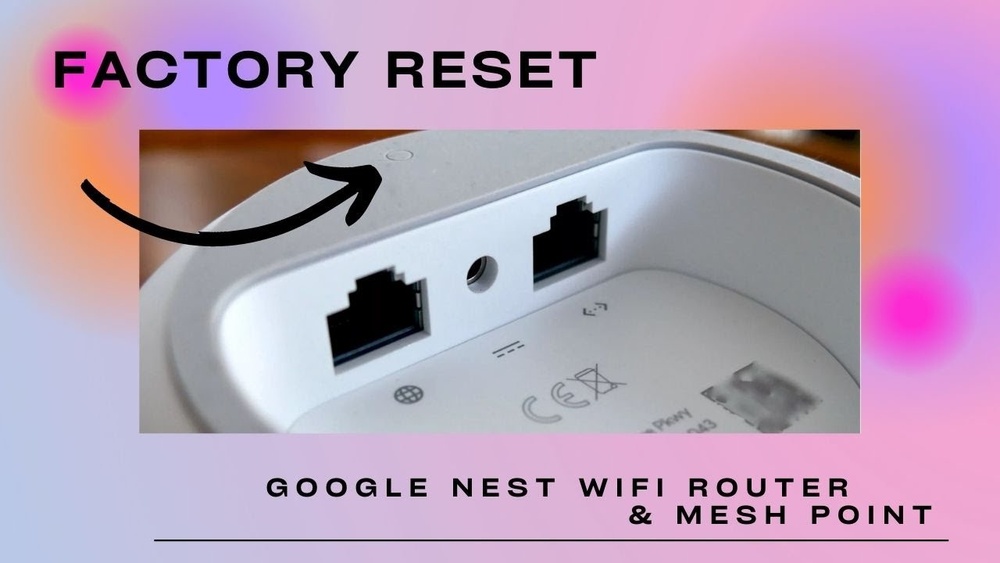
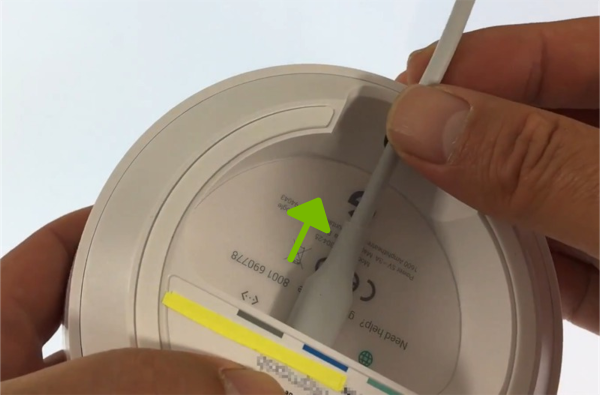
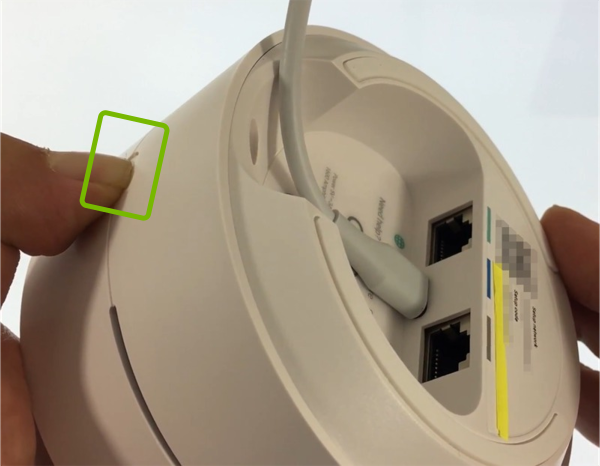
Every Google Mesh Router has a small reset button on the bottom or back. You’ll need a paperclip or similar tool.
For Google Nest Wifi Router And Points
- Find the factory reset button (often near the power port).
- Press and hold for about 10 seconds.
- The light will flash yellow, then turn solid yellow.
- Release the button when the light turns solid yellow.
- Wait for the device to finish resetting (about 2 minutes). The light will pulse white when ready.
For Google Wifi Points (first Generation)
- Unplug the power cord.
- Press and hold the factory reset button.
- While holding the button, plug the power cord back in.
- Continue holding until the light flashes blue.
- Release the button. The device will reset (wait 2-3 minutes).
Caution: If you have multiple points, repeat the reset for each one.
What Happens After A Factory Reset?
- All network settings are deleted.
- The router and points are removed from your Google account.
- The Wi-Fi network disappears.
- You must set up your mesh network again from scratch.
Pro Tip: If you plan to sell your device, remove it from your account in the app after resetting.
Setting Up Your Google Mesh Router After Reset
After a factory reset, your router is like new. You’ll need to set up your Wi-Fi network again.
What You’ll Need
- A Google account
- The Google Home app (iOS or Android)
- Internet connection (from your ISP)
- Your main router and all points
Step-by-step Setup Guide
- Plug in the main router near your modem and power it on.
- Open the Google Home app.
- Tap the + icon, then Set up device.
- Choose New device, then select your home.
- Follow the app instructions to scan the QR code on the bottom of the router.
- Name your network and set a strong password.
- Add additional points by following the app prompts.
- Test your network for coverage and speed.
Advanced Tip: Place points in open areas, not behind furniture, for best performance.
Comparison: Soft Reset Vs. Factory Reset
To help decide which reset to use, compare their effects and uses.
| Feature | Soft Reset (Reboot) | Factory Reset |
|---|---|---|
| Data Loss | No | Yes (all settings erased) |
| Network Removal | No | Yes |
| Reconnection Needed | No | Yes (all devices reconnect) |
| When to Use | Minor issues | Major errors, selling device |
| Time Required | 2–3 minutes | 10–15 minutes (including setup) |
Key Insight: Most Wi-Fi issues are fixed with a soft reset. Only factory reset if problems continue.
Troubleshooting Common Reset Problems
Sometimes, things don’t go as planned. Here are frequent issues users face when resetting Google Mesh Routers, and how to solve them.
The Router Doesn’t Reset
- Check the power supply: Use the original power adapter.
- Hold the button long enough: Some models require 10–15 seconds.
- Try both methods: If the app doesn’t work, use the button.
Devices Can’t Find The Network After Reset
- Wait for the light: The device needs to finish resetting.
- Check your app: Make sure you’re using the correct Google Home app.
- Restart your phone: Sometimes, the app needs a fresh start.
Setup Fails Or Hangs
- Update the app: Outdated apps can cause errors.
- Move closer: Stay near the router during setup.
- Reset again: If all else fails, repeat the reset process.
Credit: www.techsolutions.support.com
Google Mesh Router Light Guide
The lights on your router and points tell you what’s happening.
| Light Color | Meaning |
|---|---|
| Solid white | Working normally |
| Pulsing white | Starting up or updating |
| Pulsing blue | Ready to set up |
| Solid yellow | Resetting or error |
| Flashing yellow | Reset button pressed too long |
| Red | Critical error (contact support) |
Tip: If your device stays red, contact Google support.
What To Do After Resetting Your Google Mesh Network
Resetting isn’t the end of the process. Follow these steps to get your network working at its best.
- Reconnect all devices: Phones, laptops, smart home gadgets need the new Wi-Fi info.
- Update firmware: Check for updates in the Google Home app.
- Test coverage: Walk around your home and check speeds in each room.
- Optimize placement: Move points if you find weak spots.
- Secure your network: Use a strong password and enable guest networks for visitors.
Extra Insight: If you often need to reset, your router may have a hardware issue or be affected by interference from other devices (microwaves, cordless phones, etc.).
Advanced Reset Tips
If you’re comfortable with tech, these tips can help you avoid problems and speed up troubleshooting.
Reset Only A Single Point
If only one point is acting up (flashing orange, offline), you can factory reset just that device. This avoids resetting your whole network.
- In the Google Home app, tap the point.
- Tap Settings.
- Tap Factory reset Wifi point.
Remove Device From Account Before Reset
If you’re selling or giving away a point, remove it from your Google account in the app first. This makes setup easier for the next owner.
Use Ethernet For Faster Setup
Connect the main router to your modem with Ethernet. For large homes, you can link points with Ethernet cables for better speed (this is called “wired backhaul”).
Regular Maintenance
Reboot your router every few months to keep it running smoothly. This can clear out minor bugs and improve performance.
How Google Mesh Routers Compare To Other Brands
Resetting is similar across most mesh systems, but Google’s approach is simple and app-driven. Here’s a quick comparison with popular competitors.
| Brand | Reset Method | Setup App Required | Network Recovery |
|---|---|---|---|
| Google Mesh | App & Physical Button | Yes (Google Home) | Manual setup after factory reset |
| Netgear Orbi | App & Button | Yes (Orbi app) | Manual setup |
| Eero | App & Button | Yes (Eero app) | Manual setup |
| TP-Link Deco | App & Button | Yes (Deco app) | Manual setup |
Insight: Google’s reset process is among the most user-friendly, but always requires the app for advanced features.
Credit: www.techsolutions.support.com
Security Considerations When Resetting
Resetting your mesh router also affects your network’s security.
- Factory reset removes all passwords: You must set a new, strong password.
- Guest networks disappear: Re-create them if needed.
- Device history is erased: Useful if you want to clear logs before selling.
- Don’t share your network info: After reset, only share your new password with trusted people.
For more information on Wi-Fi security, check the Cybersecurity & Infrastructure Security Agency.
When Not To Reset
Resetting isn’t always the answer. In some cases, the problem may be with your ISP or interference from other electronics.
- ISP outage: Check with your provider before resetting.
- Device issues: Try restarting your computer or phone first.
- App bugs: Updating the Google Home app can fix many issues.
Pro Insight: Frequent resets may signal a need for a firmware update or, in rare cases, device replacement.
Credit: www.youtube.com
Frequently Asked Questions
How Long Does It Take To Reset A Google Mesh Router?
A soft reset takes about 2–3 minutes. A factory reset, including setup, can take 10–15 minutes depending on your network size and how many points you have.
Will I Lose All My Settings If I Reset My Router?
A soft reset does not erase any settings. A factory reset will erase all network names, passwords, and custom configurations. You’ll need to set everything up again.
Can I Reset My Router If I Can’t Access The Google Home App?
Yes. Use the physical reset button on the bottom or back of your router or point. Hold it for 10–15 seconds until the lights indicate a reset. This works even if you don’t have access to the app.
What Should I Do If My Router Doesn’t Show Up In The App After Reset?
Wait for the light to pulse blue or white, which means it’s ready for setup. Make sure your phone is connected to the correct Wi-Fi and Bluetooth is enabled. Restart your phone and try again.
Do I Need To Reset All Points If Only One Has A Problem?
No. You can reset only the point that’s causing issues. In the Google Home app, select the point and choose Factory reset Wifi point. This avoids affecting your whole network.
Resetting your Google Mesh Router doesn’t have to be stressful. With the right steps, you can solve most problems quickly and get back to enjoying fast, reliable Wi-Fi at home. Remember to use a soft reset for simple issues, and a factory reset only when necessary.
If you need extra help, Google’s support site has up-to-date troubleshooting guides and community advice. A little preparation goes a long way toward keeping your home network strong and secure.