
Losing your TV remote can feel frustrating, especially when you want to relax and watch your favorite show. Maybe the remote is broken, or the batteries are missing. Sometimes, you just don’t want to search for it under the couch cushions.
Luckily, you don’t need a remote to control your TV. There are several practical ways to manage your TV’s power, volume, channels, and settings without the original remote. This article will walk you through each method step by step, explain how they work, and help you choose the best solution for your situation.
By the end, you’ll know exactly how to control your TV with confidence—even if your remote is gone for good.
Using Physical Buttons On Your Tv
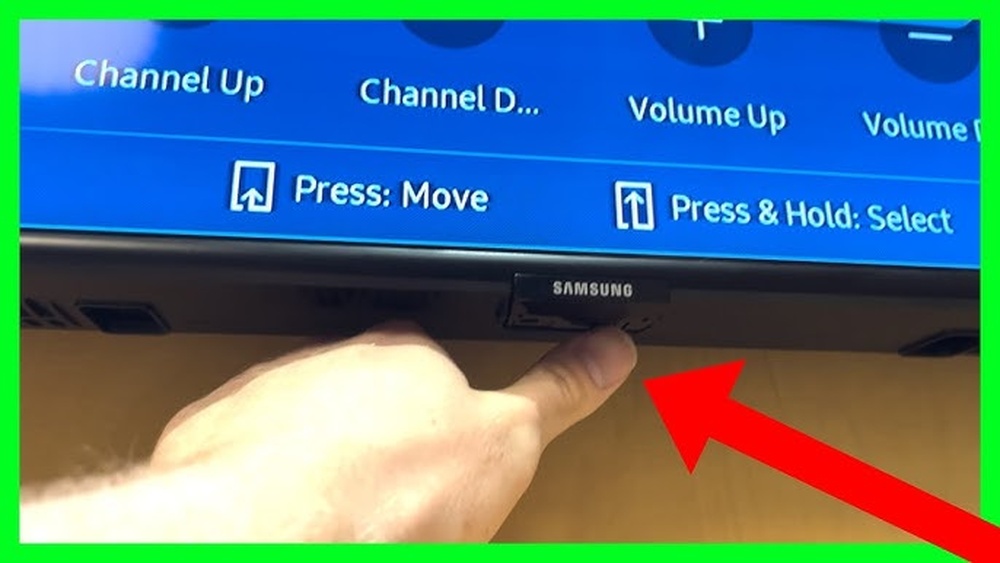
Most TVs have built-in buttons on the front, side, or back. These buttons allow basic control, such as turning the TV on or off, adjusting volume, and changing channels. Even modern smart TVs keep some physical buttons for emergencies.
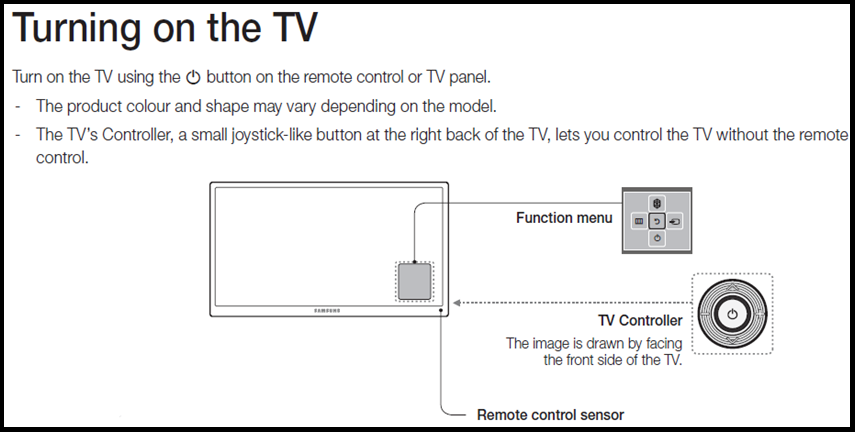
Locating The Buttons
TV manufacturers place buttons in different spots. You might find them:
- Under the front panel, near the logo
- On the left or right edge
- Behind the TV, facing outward
- On the underside, reachable by touch
If you can’t see them, check your TV’s manual or search online for your model.
Common Functions
The physical buttons usually include:
- Power: Turns the TV on/off
- Volume + / -: Adjusts sound
- Channel + / -: Changes channels
- Menu/Input: Opens settings or changes input (HDMI, AV, etc.)
Some TVs have a single joystick button. Press to select, push in different directions to navigate menus.
Limitations
Physical buttons let you do basic tasks. However, you may not be able to access advanced settings, smart features, or apps. Still, they help you watch TV when your remote is missing.
Non-obvious Tip
Some newer TVs hide buttons under a flap or use touch-sensitive controls that don’t look like buttons at first glance. Try gently pressing areas near the logo or edges.
Using A Universal Remote
A universal remote works with many TV brands and models. It’s a popular replacement when the original remote is lost or broken. Universal remotes cost between $10 and $40, and you can buy them at electronics stores or online.
How Universal Remotes Work
Universal remotes have a list of codes for different brands. You enter the code for your TV to make it work. Newer universal remotes can auto-search codes.
Setting Up A Universal Remote
- Insert batteries into the universal remote.
- Find the code for your TV brand in the remote’s manual.
- Press the ‘setup’ button (sometimes marked as ‘TV’ or ‘code’).
- Enter the code using the number buttons.
- Test the remote: Try power, volume, and channel buttons.
If it doesn’t work, try another code for your brand or use the auto-search function.
Comparison Of Universal Remotes
Here’s a quick comparison of three popular universal remotes:
| Remote | Price | Supported Devices | Setup Ease |
|---|---|---|---|
| GE Universal Remote | $13 | TV, DVD, Streaming | Medium |
| Logitech Harmony 650 | $49 | TV, Smart Home, Streaming | Easy |
| Philips Universal Remote | $15 | TV, DVD | Medium |
Common Mistake
Many people buy a universal remote without checking if it supports their TV model. Always check compatibility lists before buying.
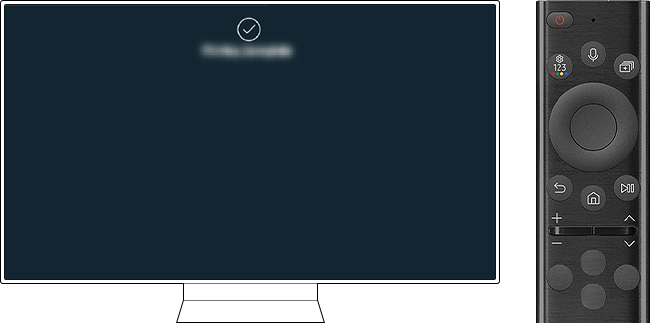
Credit: www.samsung.com
Using Smartphone Apps
Modern TVs, especially smart TVs, often support control via smartphone apps. These apps let you use your phone as a remote, offering even more features than a basic remote.
Types Of Tv Apps
- Official TV brand apps: Example, Samsung SmartThings, LG ThinQ, Sony TV SideView
- Third-party universal apps: Example, AnyMote, Peel Smart Remote
Setting Up A Smartphone Remote
- Download the app for your TV brand from Google Play or Apple App Store.
- Connect your phone and TV to the same Wi-Fi network.
- Open the app and follow instructions to pair with your TV.
- Use the app to control power, volume, channels, and apps.
Some TVs also support Bluetooth pairing, but Wi-Fi is more common.
Comparison: Official Vs Third-party Apps
| Feature | Official TV App | Third-Party App |
|---|---|---|
| Brand Support | Specific brand only | Multiple brands |
| Advanced Functions | Full access | Basic control |
| Reliability | High | Medium |
| Free to Use | Yes | Some paid features |
Practical Example
If you own a Samsung Smart TV, download the SmartThings app. Connect your devices to Wi-Fi, launch the app, and your phone becomes a remote. You can change channels, adjust volume, launch apps like Netflix, and even type using your phone keyboard.
Non-obvious Insight
Many people forget that their phone’s IR blaster (infrared sensor) can act as a remote for older TVs, even without Wi-Fi. If your phone has an IR blaster, download an IR remote app and point your phone at the TV.
Using Hdmi-cec
HDMI-CEC stands for HDMI Consumer Electronics Control. It’s a feature in most modern TVs and devices. HDMI-CEC lets devices connected by HDMI—like streaming sticks, DVD players, or gaming consoles—control the TV.
How Hdmi-cec Works
When you connect a device (like a Roku or PlayStation) to your TV’s HDMI port, and both support HDMI-CEC, you can use the device’s remote to control the TV. For example, turning on a PlayStation may automatically turn on the TV and switch input.
Enabling Hdmi-cec
- Go to your TV’s settings menu (use physical buttons if needed).
- Find HDMI-CEC settings (may be called Anynet+ for Samsung, Simplink for LG, Bravia Sync for Sony).
- Turn HDMI-CEC on.
Now, try using your connected device’s remote. You should be able to control power, volume, and input.
Data Table: Hdmi-cec Compatibility
| TV Brand | CEC Name | Supported Devices | Functions |
|---|---|---|---|
| Samsung | Anynet+ | Streaming, Consoles | Power, Input, Volume |
| LG | Simplink | Streaming, Consoles | Power, Input, Volume |
| Sony | Bravia Sync | Streaming, Consoles | Power, Input, Volume |
Common Mistake
People often forget to enable HDMI-CEC in their TV settings. Devices may work, but full control is only possible if the feature is turned on.
Using Voice Control
Voice assistants like Alexa, Google Assistant, or Apple Siri can control many smart TVs. You can use your voice to turn the TV on/off, change channels, adjust volume, or open apps.
Setting Up Voice Control
- Make sure your TV supports voice control (check manual or settings).
- Link your TV to your smart speaker or phone.
- Enable the TV skill in your voice assistant app.
- Use commands like “Turn on the TV,” “Volume up,” or “Launch YouTube.”
Examples
- “Hey Google, turn on the living room TV.”
- “Alexa, change the channel to ESPN.”
- “Siri, set the TV volume to 15.”
Non-obvious Tip
Some TVs support voice control directly via the TV microphone. Check your model for a built-in mic. If available, press the mic button on the TV or use a wake word.
Limitations
Voice control works best for basic tasks. Advanced settings may require manual control or a remote.
Using Streaming Device Remotes
Streaming devices like Roku, Amazon Fire TV, and Apple TV come with their own remotes. These remotes often control the TV’s power and volume if properly set up.
How Streaming Remotes Control Tvs
When you install a streaming device and connect it to your TV, the device remote may sync with your TV using HDMI-CEC or infrared signals. This lets you use one remote instead of two.
Setting Up
- Plug the streaming device into your TV’s HDMI port.
- Follow setup instructions to pair the remote with the TV.
- Test power and volume buttons.
If you have issues, consult the streaming device’s support page for troubleshooting.
Practical Example
A Roku remote can turn your TV on/off and control volume. During setup, Roku asks for your TV brand and checks compatibility.
Using A Computer Or Laptop
Some smart TVs and streaming devices support control from a computer or laptop. This is useful if you lose your remote but have access to a computer nearby.
Methods
- Use a web browser to access your TV’s web interface (some brands offer this).
- Use a desktop app provided by the TV manufacturer (for example, Samsung SmartThings desktop version).
- Cast or mirror your computer screen to your TV, then control settings from your computer.
Example
LG Smart TVs let you log in to your account and control the TV from a web browser. You can change channels, adjust volume, and launch apps.
Common Mistake
Many users overlook desktop apps or web interfaces, thinking only mobile apps exist.
Using Infrared (ir) Blaster Devices
An IR blaster sends infrared signals to your TV, just like a remote. You can buy IR blaster gadgets or use phones with built-in IR blasters.
How Ir Blasters Work
- Plug the IR blaster into your phone or computer (USB or headphone jack).
- Download an IR remote app.
- Point the device at your TV and control it.
Advantages
- Works with older TVs that don’t have Wi-Fi.
- Cheap and easy to use.
Limitations
- Short range (must point directly at TV).
- Only basic functions (power, volume, channel).
Using External Keyboards And Mouse
Some smart TVs support USB keyboards or mice. Plugging them in lets you control menus, apps, and even type for searches.
How To Use
- Plug a USB keyboard or mouse into the TV’s USB port.
- Wait for the TV to recognize the device.
- Use arrow keys, Enter, and Esc to navigate menus.
Practical Example
If you need to log in to Netflix or browse YouTube, a keyboard makes typing easier than using TV buttons.
Non-obvious Insight
Wireless keyboards with USB dongles can work up to 30 feet away, giving you remote-like control.
Using Tv’s Web Interface
Some smart TVs have a web interface that lets you control the TV from another device, like a phone or computer.
How To Access
- Find your TV’s IP address in settings.
- Enter the IP address in a web browser.
- Log in and use the controls.
Functions Available
- Change channels
- Adjust volume
- Launch apps
- Modify settings
Limitations
Web interfaces are rare, but growing in popularity for smart TVs.

Credit: www.youtube.com
Emergency Solutions For Older Tvs
Older TVs without smart features or HDMI-CEC require creative solutions. Here are some ways to control them:
- Use a universal remote with IR codes for old brands.
- Try a phone with IR blaster and compatible app.
- Buy a cheap IR remote online, matching your TV’s model.
- Use TV buttons for basic control.
Practical Example
If your old TV is a Panasonic from 1998, search for “Panasonic TV replacement remote” online or use a universal remote with Panasonic codes.
Common Mistake
Many people assume old TVs can’t be controlled without their original remote. Universal remotes and IR blasters often work well.
Troubleshooting Tv Control Without Remote
Sometimes, even after trying these methods, your TV doesn’t respond. Here’s how to troubleshoot:
- Check Power: Make sure the TV is plugged in and turned on.
- Try Multiple Methods: If buttons don’t work, try a universal remote or app.
- Update Firmware: Smart TVs may need software updates to support apps or HDMI-CEC.
- Check Batteries: If using a universal remote, ensure batteries are fresh.
- Reset TV: Unplug the TV for 30 seconds, then plug it in.
Practical Example
If your TV isn’t responding to physical buttons, the button panel may be damaged. Try another method, like a smartphone app or universal remote.
Non-obvious Insight
Sometimes, HDMI ports or USB ports get dusty or loose. Cleaning and reinserting devices can restore control.
Comparing Main Methods
To help you choose, here’s a summary comparison of popular ways to control your TV without a remote:
| Method | Cost | Setup Ease | Functions | Compatibility |
|---|---|---|---|---|
| Physical TV Buttons | Free | Easy | Basic | All TVs |
| Universal Remote | $10-$40 | Medium | Full | Most TVs |
| Smartphone App | Free | Medium | Full | Smart TVs |
| HDMI-CEC | Free | Medium | Basic | Modern TVs |
| Voice Control | Free-$50 | Medium | Basic | Smart TVs |
| Streaming Device Remote | $30-$100 | Easy | Basic | Smart TVs |
| IR Blaster Device | $5-$30 | Medium | Basic | Older TVs |
| USB Keyboard/Mouse | $15-$40 | Easy | Menu/App | Smart TVs |
| Web Interface | Free | Medium | Full | Some Smart TVs |
Real-world Examples
Let’s look at a few real-life situations and solutions:
Example 1: Smart Tv Without Remote
Maria lost the remote for her Samsung Smart TV. She downloaded the SmartThings app, paired her phone, and now controls her TV easily. She even uses voice commands with her Google speaker.
Example 2: Older Tv, No Smart Features
Alex’s old Sony TV had no Wi-Fi or smart features. He bought a GE universal remote for $15, entered the Sony code, and regained full control.
Example 3: Streaming Device Remote
Jessica uses an Amazon Fire TV Stick. She set up the Fire TV remote to control her TV’s power and volume, so she doesn’t need the original TV remote anymore.
Safety And Security Tips
When using apps or connecting devices to control your TV, keep these tips in mind:
- Only download apps from official stores.
- Avoid sharing your Wi-Fi password with strangers.
- Update your TV firmware regularly.
- Check privacy settings for voice assistants.
Additional Resources
For more details about universal remotes, TV apps, and HDMI-CEC, visit the official TV manufacturer’s website or read this trusted guide from Consumer Reports.
Credit: www.samsung.com
Frequently Asked Questions
How Can I Turn On My Tv Without A Remote?
Most TVs have a power button located on the front, side, or back. Press this button to turn your TV on or off. If you have a smart TV, you can also use a smartphone app or streaming device remote to turn it on.
Can I Control My Tv With My Phone?
Yes, many smart TVs support control by smartphone apps. Download the app for your TV brand, connect both devices to the same Wi-Fi network, and follow pairing instructions.
What If My Tv Is Not A Smart Tv?
For older TVs, you can use a universal remote or a phone with an IR blaster. Physical buttons on the TV also provide basic control.
Is It Possible To Use Voice Commands To Control The Tv?
If your TV supports voice assistants like Alexa or Google Assistant, you can use voice commands for power, volume, and channel controls. You may need to link your TV to a smart speaker or phone.
Are Universal Remotes Hard To Set Up?
Most universal remotes are easy to set up. Enter the code for your TV brand, or use the auto-search function. Always check compatibility before buying.
—
You don’t need a remote to enjoy your TV. With physical buttons, universal remotes, smartphone apps, HDMI-CEC, voice control, and more, you have plenty of ways to take charge. Pick the method that works best for your TV and lifestyle.
Now you can watch, change channels, adjust volume, and even use smart features—without worrying about where the remote went.