
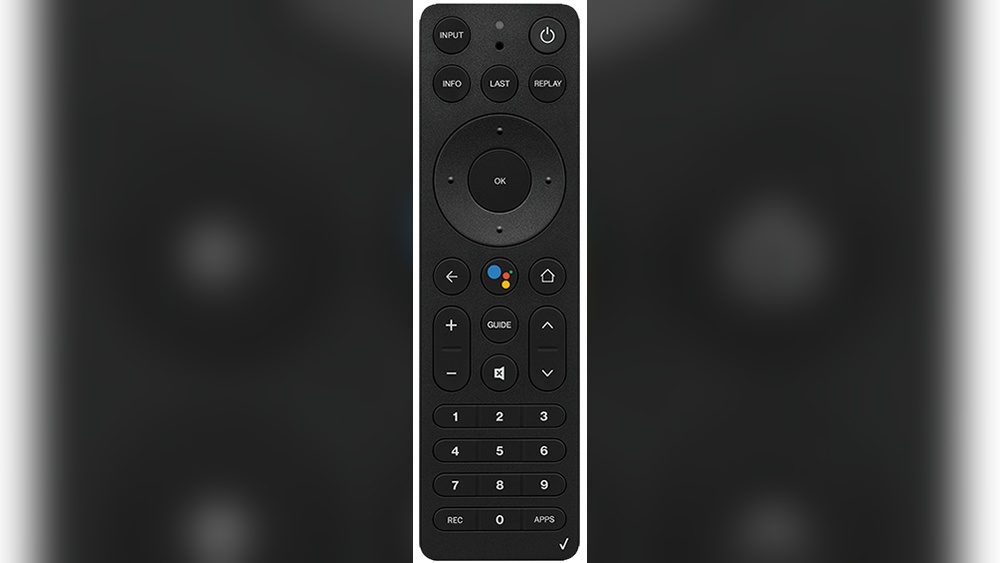
Programming your Verizon remote control might seem complicated at first, but with the right guidance, it’s a task anyone can master. Whether you want to control your TV, soundbar, or other home devices, this guide will walk you through every step.
You’ll learn practical tips, avoid common mistakes, and discover helpful details that most people miss. In the end, you’ll have full control over your home entertainment, making your experience smoother and more enjoyable.
Understanding Verizon Remote Controls
There isn’t just one type of Verizon remote control. Verizon has released several models over the years, each with its own layout and features. The most common include:
- Verizon P265: Simple layout, popular for FiOS TV.
- Verizon P283: Updated design, better button feel.
- Verizon Voice Remote: Has voice commands, used with newer Fios TV One boxes.
Knowing your model is important because programming steps can differ. Check the remote’s back label or battery compartment to find the model number.
Features You Should Know
Verizon remotes do more than just change channels. Some models can:
- Control multiple devices (TV, soundbar, DVD, etc.)
- Adjust volume for linked devices
- Turn devices on/off together
- Use voice search (for Voice Remote)
- Change input sources easily
Understanding which features your remote supports will help you use it more effectively.
Why Program Your Remote?
Programming your Verizon remote allows you to:
- Replace multiple remotes with one
- Reduce clutter and confusion
- Quickly access TV, sound, and streaming devices
- Troubleshoot faster when issues arise
Many users don’t realize that a fully programmed remote can also help solve problems with audio, inputs, and even device power cycles.
Preparing To Program Your Verizon Remote
Before you begin, gather these items:
- Your Verizon remote control
- Fresh batteries (weak batteries can cause programming to fail)
- The device you want to control (TV, soundbar, etc. ), powered on
- Model numbers for your devices (found on the back or side)
- Programming codes for your device brand
You can usually find programming codes in the remote’s manual or on the Verizon support website. Some remotes have a built-in automatic search feature, but having the code ready can save time.
Common Mistakes To Avoid
- Using old batteries: Weak batteries can interrupt the programming process.
- Pointing the remote away: Always point directly at the device you’re programming.
- Wrong code entry: Double-check you’re using the code for the correct brand and model.
- Mixing up devices: If you have multiple TVs or sound systems, make sure you’re programming the intended one.
A simple checklist before starting can help you avoid frustration later.
Credit: www.youtube.com
How To Program A Verizon Remote: Step-by-step Instructions
The steps depend on your remote model, but the general process is similar. Below are detailed instructions for the three most common Verizon remotes: P265, P283, and the Voice Remote.
Programming The Verizon P265 Remote
- Turn on your TV.
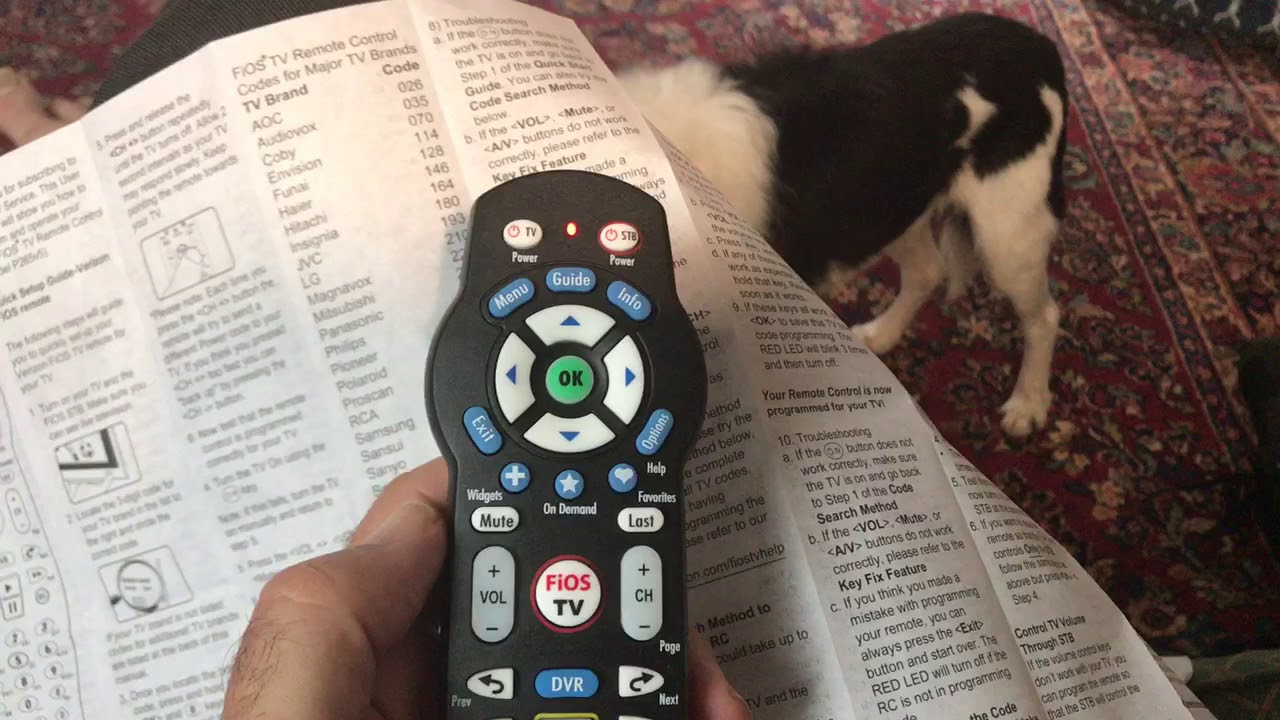
- Press and hold the “OK” and “FiOS TV” buttons together for 5 seconds. The red LED will blink twice and then stay on.
- Enter the 3-digit TV code for your brand (from the manual or Verizon website).
- The LED will blink three times and turn off if the code is accepted.
- Test the remote: Try turning off the TV or adjusting the volume.
- If it doesn’t work, repeat with the next code for your brand.
Example
Let’s say you have a Samsung TV. You look up the code (for example, 331), then follow the steps above. If it works, you’re done; if not, try the next code.
Programming The Verizon P283 Remote
- Turn on the TV.
- Press and hold the “OK” and “0” buttons together until the LED blinks twice.
- Enter the 3-digit code for your TV brand.
- The LED will blink three times if successful.
- Test the remote’s functions.
If it doesn’t respond, repeat the process using a different code.
Programming The Verizon Voice Remote
This remote can program itself using an auto-detect process:
- Turn on your TV and Fios TV One box.
- Press and hold the “Play/Pause” and “0” buttons together for 3 seconds.
- The LED will start flashing blue. The remote will try to find the right code automatically.
- When your TV turns off, press the “Power” button to turn it back on and confirm.
- Test other functions like volume and input.
If auto-programming fails, you can enter the code manually.
Manual Programming For Voice Remote
- Press “Menu” on the remote.
- Go to Settings > Voice Control > Fios TV Voice Remote > Program Fios TV Voice Remote.
- Follow the on-screen prompts to select your TV brand and enter the code.
Comparison Of Programming Steps
Here’s a side-by-side look at the key differences in programming each model:
| Remote Model | Start Programming | Button Combination | Code Entry | Auto-Detect Feature |
|---|---|---|---|---|
| P265 | TV ON | OK + FiOS TV | Manual | No |
| P283 | TV ON | OK + 0 | Manual | No |
| Voice Remote | TV + Box ON | Play/Pause + 0 | Auto/Manual | Yes |
Important Tips For All Models
- If the device doesn’t respond, try all listed codes for your brand.
- Test all remote buttons after programming; sometimes volume works but power does not.
- Some remotes can be programmed for audio devices (soundbars, AV receivers) in the same way as TVs.
Using Auto-search To Find Device Codes
If you can’t find your device code, use the auto-search feature:
- Turn on your TV.
- Press and hold “OK” and “0” until the LED blinks twice.
- Press the “Power” button repeatedly until the TV turns off.
- Once it turns off, press “OK” to save the code.
This method is slower, but it works even if your device is not listed in the manual.
When To Use Auto-search
- Your device brand is not in the code list
- Codes for your brand don’t work
- You have a newer or less common brand
Many users don’t realize that auto-search can take several minutes. Be patient—sometimes it takes 50 or more presses for the remote to cycle through all codes.
Advanced Programming: Controlling Multiple Devices
Some Verizon remotes allow you to control more than just your TV. You can program them to manage a soundbar, receiver, or even a DVD player.
Programming An Audio Device
- Press and hold the “OK” and “AUX” buttons (or “STB” for older remotes) together.
- Enter the audio device’s code.
- Test volume and power buttons.
Switching Between Devices
Most remotes have device mode buttons (TV, AUX, STB). Pressing these tells the remote which device you want to control. For example, press AUX to adjust your soundbar’s volume, then TV to change channels.
Example Use Case
Suppose your TV’s speakers aren’t loud enough. You add a soundbar, then program your Verizon remote to control the soundbar’s volume. Now you don’t need a separate soundbar remote.
Data: Device Compatibility
Verizon remotes support hundreds of brands. Here’s a quick look at compatibility for popular device types:
| Device Type | Supported Brands | Typical Code Range |
|---|---|---|
| TV | Samsung, LG, Sony, Vizio, TCL, Toshiba, Panasonic, Hisense, Philips | 001–399 |
| Soundbar | Bose, Yamaha, LG, Samsung, Polk, Vizio | 500–599 |
| Receiver | Pioneer, Denon, Sony, Onkyo, Marantz | 600–699 |
| DVD/Blu-ray | Sony, LG, Samsung, Panasonic | 700–799 |
Troubleshooting Common Programming Issues
Programming a remote doesn’t always go smoothly. Here are some common issues and how to solve them.
The Remote Doesn’t Work After Programming
- Check batteries—replace them with new ones.
- Try another code—sometimes the first code isn’t correct, even for your brand.
- Ensure direct line of sight—obstacles can block the signal.
- Reset the remote and try again (instructions below).
Some Buttons Don’t Respond
- Partial code match: Some codes only control power, not volume or input. Try all codes for your brand.
- Device settings: Some TVs need to be set to accept remote signals. Check your TV’s menu for remote settings.
The Remote Stops Working Suddenly
- Batteries may have drained.
- The remote may need to be reprogrammed after a power outage or software update.
Resetting Your Verizon Remote
If nothing works, try resetting your remote to factory settings:
- Press and hold the “OK” and “2” buttons together until the LED blinks twice.
- Enter 9-0-0.
- The LED will blink three times, confirming the reset.
After resetting, you’ll need to program your devices again.
Real-world Example: Troubleshooting Volume Issues
A common complaint is, “My Verizon remote changes channels but not volume. ” This usually means the remote is programmed to control your set-top box but not your TV or soundbar. Reprogram the remote, making sure to select the correct device mode (TV or AUX) before entering the code.

Credit: www.youtube.com
Tips For A Smoother Programming Experience
Programming your remote doesn’t need to be frustrating. Here are some tips to make things easier:
- Write down working codes: If you find a code that works, write it down for future reference.
- Update your remote’s firmware: For Voice Remotes, check for updates through your Fios TV menu.
- Keep the manual handy: It contains unique codes and troubleshooting tips.
- Label your remotes: If you have more than one, use a sticker to identify which TV or room it controls.
Two Insights Most Beginners Miss
- Not all buttons are programmable: Some buttons (like “On Demand” or “Guide”) may only work with Verizon Fios equipment, not your TV.
- Input/source selection: Many users forget to program the “Input” or “Source” button. This is crucial if you switch between cable, streaming devices, or game consoles. After programming, always test this button.
Comparing Verizon Remotes To Universal Remotes
Verizon remotes are designed for their own set-top boxes, but how do they stack up against universal remotes?
| Feature | Verizon Remote | Universal Remote |
|---|---|---|
| Device Support | TV, Audio, Set-top Box | TV, Audio, Streaming, Smart Devices, More |
| Programming Process | Simpler, fewer codes | Can be complex, more devices |
| Voice Commands | Yes (Voice Remote only) | Some models only |
| Custom Buttons | No | Often Yes |
| Cost | Usually free with service | Can be expensive |
If you only use Verizon Fios and basic devices, their remotes are the best fit. For more complex home theaters, a universal remote may be better.
Updating And Replacing Your Verizon Remote
Remotes wear out or get lost. If yours stops working:
- Request a replacement through your Verizon account or by calling customer service.
- Buy a new one from electronics retailers or online stores.
- Pair the new remote using the same programming steps above.
If you upgrade your Fios TV box, you may receive a new remote. Always check for the latest model to access new features like voice search.
Recycling Old Remotes
Don’t throw away old remotes. Many electronics stores recycle them. Verizon also offers recycling options for old equipment.
Programming For Special Setups
Some homes have unique setups: wall-mounted TVs, hidden cable boxes, or smart home systems. Here’s how to handle these:
Wall-mounted Or Hidden Tvs
- IR extenders can help the remote signal reach the TV if it’s behind a wall or cabinet.
- RF remotes (like the Voice Remote) use radio signals and don’t need line of sight.
Smart Home Integration
Verizon remotes are not true smart home controllers, but you can still:
- Use HDMI-CEC (“Consumer Electronics Control”) if your TV and devices support it. This allows the remote to control more functions automatically.
- Program your TV to power on/off with the Fios box, if the option is available in settings.
Multi-room Setups
If you have Fios TV in multiple rooms, each remote must be programmed for its specific TV and box. Mixing them up can cause confusion.

Credit: www.amazon.com
When To Contact Verizon Support
If you’ve tried everything and your remote still won’t program:
- Contact Verizon Support via phone or online chat.
- Describe your device models and steps you’ve tried—this speeds up troubleshooting.
- Ask for a technician visit if the issue is with the set-top box or wiring.
Verizon’s support team can often walk you through programming or send a replacement remote if needed. For the latest device codes and step-by-step videos, visit the official Verizon Remote Support page.
Frequently Asked Questions
How Do I Find The Correct Code For My Tv Brand?
You can find codes in your remote’s manual or on the Verizon support website. If your brand isn’t listed, use the auto-search function on your remote to scan for the right code.
Can I Program My Verizon Remote To Control A Soundbar Or Audio Receiver?
Yes, most Verizon remotes can control soundbars and receivers. Use the “AUX” device mode and follow the same programming steps as for a TV, entering the correct audio device code.
What Should I Do If My Remote Only Controls Some Functions (like Volume, But Not Power)?
This usually means the code you entered is only a partial match. Try other codes for your brand, as some codes control all functions while others only work for basic features.
Do I Need To Reprogram My Remote If I Move Or Get A New Tv?
Yes, if you change TVs or move your Fios box to a new room, you’ll need to program the remote again to work with your new setup.
Is It Possible To Use A Universal Remote With Verizon Fios?
Yes, many universal remotes can be programmed to control Verizon Fios set-top boxes and other devices. You’ll need to enter the Fios box code into the universal remote, which can usually be found in the remote’s manual or online.
Programming your Verizon remote control gives you more convenience and fewer headaches. By following these steps, using the troubleshooting advice, and applying the extra tips, you’ll get the most from your home entertainment system. Remember, patience and careful attention to each step make all the difference.
With your remote fully programmed, you can sit back and enjoy your favorite shows with just one click.