
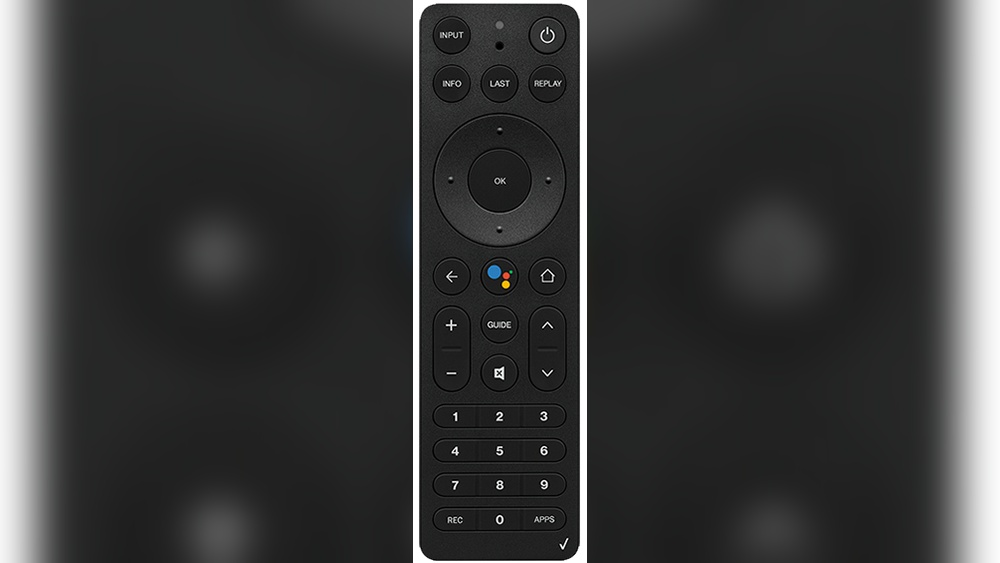
If your Verizon Fios remote control isn’t working as expected, you’re not alone. Many households face issues like buttons not responding, volume controls acting up, or the remote failing to connect with their Fios TV Box. The good news? Resetting your Verizon Fios remote is usually a simple fix—and you don’t need to be a tech expert to do it.
With the right instructions, you can restore your remote’s function and get back to enjoying your favorite shows without interruption.
This guide explains, step by step, how to reset different models of Verizon Fios remotes. You’ll learn not just the basic reset process, but also how to troubleshoot common issues, when to try a factory reset, and how to pair your remote again for the best experience.
You’ll also find helpful comparison tables and non-obvious tips to avoid common mistakes. By the end, you’ll have the confidence to handle nearly any Verizon Fios remote problem on your own.
Understanding Your Verizon Fios Remote Control
Before you start resetting, it’s important to know which Fios remote model you have. Verizon has released several remote controls over the years, each with slightly different designs and reset steps. The most common types are:
- Fios TV Voice Remote (most recent)
- Fios TV One Remote
- Fios Big Button Remote
- Fios P265 Remote
- Fios P283 Remote
Each remote model has unique features. For example, the Fios TV Voice Remote allows voice commands, while the Big Button Remote is designed for easy visibility. Knowing your model ensures you follow the correct reset instructions and avoid mistakes.
How To Identify Your Remote
Often, the remote model is printed on the back or inside the battery compartment. If you’re not sure, look for these clues:
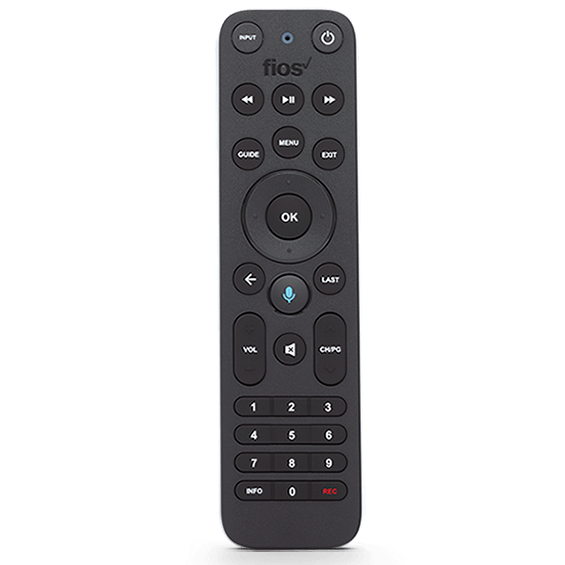
- Fios TV Voice Remote: Slim, with a blue microphone button.
- Fios TV One Remote: Sleek, with black and white coloring.
- Big Button Remote: Large buttons, easy to read.
- P265/P283 Remotes: Model number marked inside battery cover.
If your remote doesn’t match any of these, check the Verizon support website for images and details.
Common Reasons To Reset Your Verizon Fios Remote
A reset can solve many problems, but it’s not always the first step. Here are common situations when a reset is helpful:
- Buttons not working: Certain functions, like volume or power, stop responding.
- Remote is unpaired: The remote no longer controls the TV or Fios box.
- Lag or delay: Button presses respond slowly or inconsistently.
- Pairing issues after new setup: You moved your Fios box or changed TVs.
- Accidental reprogramming: The remote was programmed for a different device.
- After battery replacement: The remote forgets previous settings.
- General glitches: Unusual behavior without a clear cause.
Resetting wipes the remote’s memory and restores default settings. It’s a fast way to fix most problems, but remember: you’ll need to reprogram the remote to your TV and audio devices afterward.

Credit: www.youtube.com
Preparing For A Remote Reset
Before you reset, do a quick check:
- Replace the batteries with fresh ones.
- Check for physical damage like broken buttons.
- Restart your Fios TV Box by unplugging it for 30 seconds, then plugging it back in.
- Make sure you’re within range (usually 20-30 feet from the Fios box).
Sometimes, these simple steps fix the problem without needing a reset. If not, proceed with the reset.
How To Reset Verizon Fios Remotes: Step-by-step Instructions
Resetting The Fios Tv Voice Remote
The Fios TV Voice Remote is the newest and most advanced. It supports Bluetooth pairing and voice commands.
To reset this remote:
- Press and hold the Play/Pause and 0 buttons together for about 3 seconds.
- The LED on the remote will blink blue and then turn off.
- Release the buttons.
- The remote is now reset and will unpair from your Fios TV Box.
To re-pair the remote:
- Point the remote at the Fios TV Box.
- Press and hold the “Play/Pause” and “0” buttons again for 3 seconds, until the blue light flashes.
- Follow the on-screen instructions to complete pairing.
Resetting The Fios Tv One Remote
This remote is used with the Fios TV One box and looks similar to the Voice Remote but doesn’t support voice control.
Reset process:
- Press and hold the “OK” and “2” buttons at the same time for about 5 seconds.
- The LED will blink twice to confirm.
- Release both buttons.
- The remote is reset to factory settings.
Pairing after reset:
- Point the remote at the Fios TV One box.
- Press the “Menu” button, navigate to “Remote Control,” and select “Program Remote.”
- Follow the prompts on your TV screen.
Resetting The Fios Big Button Remote
This remote is designed for users who prefer larger buttons.
To reset:
- Press and hold the OK and FiOS TV buttons together for 5 seconds.
- The red LED blinks twice.
- Enter 922 using the keypad.
- Press and hold the Play/Pause button until the LED blinks three times.
The remote is now reset and ready for new programming.
Resetting The Fios P265 Remote
The P265 is a classic Fios remote and is still widely used.
Reset procedure:
- Press and hold the OK and 2 buttons together for 5 seconds.
- The red LED at the top blinks twice.
- Enter 922.
- The LED blinks three times to confirm.
Tip: The remote will lose all programmed codes, so you’ll need to reprogram it for your TV.
Resetting The Fios P283 Remote
This model is similar to the P265, but the process is slightly different.
Steps:
- Press and hold the OK and FiOS TV buttons together for 5 seconds.
- The red LED blinks twice.
- Enter 922.
- Press and hold the Play/Pause button until the LED blinks three times.
Now, you can reprogram your remote as needed.
Table: Verizon Fios Remote Models And Reset Methods
To make it easier, here’s a quick comparison of the main Fios remote models and how to reset each one:
| Remote Model | Reset Button Combination | Re-pairing Steps | Special Features |
|---|---|---|---|
| Fios TV Voice Remote | Play/Pause + 0 (3 sec) | Play/Pause + 0 (3 sec), follow on-screen | Voice commands, Bluetooth |
| Fios TV One Remote | OK + 2 (5 sec) | Use Menu to program | Sleek design, no voice control |
| Big Button Remote | OK + FiOS TV (5 sec), 922, Play/Pause | Manual code entry | Large buttons, easy-to-read |
| P265 Remote | OK + 2 (5 sec), 922 | Manual code entry | Classic design |
| P283 Remote | OK + FiOS TV (5 sec), 922, Play/Pause | Manual code entry | Similar to Big Button, newer |
How To Reprogram Your Fios Remote After Reset
A reset erases all previous pairings. After resetting, you’ll need to reprogram the remote to control your TV and possibly your audio system. Here’s how:
Programming The Remote For Your Tv
- Turn on your TV.
- On your remote, press the Menu button.
- Navigate to Settings > Remote Control > Program Remote.
- Choose Manual Setup or Automatic Setup.
- Follow the on-screen prompts. You may need to enter a code for your TV brand (the system provides a list).
- Test the power and volume buttons to confirm programming.
Tip: If you have a soundbar or AV receiver, repeat the process for audio devices.
Table: Common Tv Codes For Popular Brands
Here are some sample TV codes for popular brands. (Always use the latest code list from Verizon, as codes can change. )
| TV Brand | Sample Codes | Special Notes |
|---|---|---|
| Samsung | 331, 004, 005 | Most models support auto-detect |
| LG | 210, 260, 004 | Try multiple codes if first fails |
| Sony | 352, 111, 302 | Check your model year |
| TCL | 180, 292, 387 | Often works with Roku TVs |
| Vizio | 563, 627, 505 | Try auto setup first |
Pro Tip: If your TV brand isn’t listed, check the full code list in your Fios TV settings or on the official Verizon Fios Remote Programming page.
Troubleshooting: When The Reset Doesn’t Work
If you’ve followed the reset steps and your remote is still not working, try these troubleshooting strategies:
1. Confirm The Batteries
Even new batteries can be faulty. Try another set if the remote doesn’t light up or respond after resetting.
2. Check For Physical Obstructions
Make sure nothing blocks the infrared signal (for older remotes) or Bluetooth range (for Voice Remote). Objects like soundbars or decorations can interfere.
3. Test The Remote On Another Device
If possible, try pairing the remote with a different Fios TV Box. If it works, the issue may be with your box, not the remote.
4. Use The Fios Tv Mobile App
If your remote is still down, download the Fios TV Mobile App on your smartphone. It can control your Fios TV box and help you identify if the problem is with the remote or the TV box.
5. Factory Reset Your Fios Tv Box
Sometimes, a deeper issue exists with the Fios TV Box itself. Unplug it for one minute, then plug it back in. If available, use the on-screen menu to factory reset the box (note: this erases saved settings).
6. Check For Software Updates
On newer Fios TV Boxes, outdated software can cause remote issues. Go to Menu > Settings > System > System Information and see if an update is available.
7. Replace The Remote
If you’ve tried everything, your remote may be damaged. Contact Verizon Support for a replacement.
Non-Obvious Insight: Sometimes, the Fios TV Box can become overloaded with remote requests (especially after many resets). Unplugging both the TV Box and your router for 1-2 minutes can help clear any lingering connection issues.
Credit: www.verizon.com
Advanced: Factory Resetting Your Verizon Fios Remote
A standard reset fixes most issues, but if your remote is still misbehaving, you may need a factory reset (also called a “hard reset”). This process erases all data, including any unique button customizations.
Factory Reset For Fios Tv Voice Remote
- Remove the batteries.
- Press and hold the OK button while reinserting the batteries.
- Continue holding OK for 10 seconds until the LED blinks three times.
- Release the button. The remote is now factory reset.
Factory Reset For P265/p283 Remotes
- Press and hold OK and 2 for 10 seconds.
- The LED will blink four times.
- Enter 977 on the keypad.
- The LED blinks to confirm.
Caution: You will need to fully reprogram your remote after a factory reset.
Table: Standard Reset Vs. Factory Reset
This comparison shows the difference between the two reset options:
| Reset Type | What It Does | When to Use | Data Lost |
|---|---|---|---|
| Standard Reset | Restores default settings, unpairs from devices | Button issues, unresponsive remote | Pairings only |
| Factory Reset | Erases all codes, returns to out-of-box state | Severe or persistent problems | All codes and customizations |
Common Mistakes To Avoid When Resetting
Resetting a remote seems simple, but beginners often make a few errors that can waste time or even make things worse. Here’s what to watch out for:
- Holding buttons too briefly: Most resets require holding two buttons for at least 3-5 seconds. Letting go early can cancel the reset.
- Not replacing batteries first: Weak batteries can cause resets to fail or make the remote appear dead.
- Forgetting to reprogram devices: After a reset, the remote loses its codes for your TV or audio system. Don’t skip reprogramming.
- Mixing up button combinations: Each remote model is slightly different. Double-check the correct sequence for your device.
- Pointing the remote in the wrong direction: For infrared remotes, always aim at the Fios box during pairing.
- Trying to use the remote immediately after reset: Wait a few seconds for the reset to complete before testing.
Non-Obvious Insight: Some Fios remotes can become “stuck” if you try to reset them multiple times in quick succession. If the remote doesn’t respond, remove the batteries for 30 seconds, then try again.

Credit: www.youtube.com
When To Contact Verizon Support
Most remote issues can be fixed at home. However, if you experience any of the following, it’s best to reach out to Verizon:
- The remote still doesn’t work after all reset attempts.
- The remote is physically damaged (cracked case, stuck buttons).
- You can’t access your Fios TV Box’s menu or settings.
- The remote works for TV but not for the Fios box (or vice versa).
- You hear beeping or see unusual LED patterns after reset.
Verizon offers support online, by phone, and at local stores. Having your remote model number and Fios account details ready can speed up the process.
Tips For Maintaining Your Fios Remote
A little care can help avoid future problems:
- Keep the remote clean: Dust and spills can make buttons sticky. Wipe with a dry cloth—never use water.
- Replace batteries twice a year: Don’t wait for total failure. Weak batteries can cause glitches.
- Store the remote safely: Avoid dropping or sitting on it.
- Use the correct codes: When programming, always use the latest codes for your device.
- Keep away from magnets: Magnetic fields (like from speakers) can interfere with the remote.
- Avoid extreme temperatures: Heat and cold can damage the internal electronics.
Frequently Asked Questions
Why Does My Verizon Fios Remote Keep Losing Its Settings?
This usually happens due to weak batteries or a faulty reset. Make sure to use fresh batteries and follow the exact reset instructions for your model. If the problem continues, the remote may need to be replaced.
How Do I Know If My Remote Needs A Reset Or Just New Batteries?
Try replacing the batteries first. If the remote still doesn’t respond, or only some buttons work, a reset is likely needed. If you see the LED light but nothing happens, reset the remote.
Can I Use Any Verizon Fios Remote With My Fios Tv Box?
Most newer Fios remotes are cross-compatible with recent Fios TV Boxes, but some older models may not support all features (like voice control). Check the compatibility list on Verizon’s website or the user manual.
What Should I Do If My Remote Is Physically Damaged?
If buttons are stuck, the case is cracked, or you see battery corrosion, do not attempt to repair it yourself. Contact Verizon for a replacement. Using a damaged remote can harm your Fios TV Box.
Is There A Way To Control My Fios Tv Box Without The Remote?
Yes, you can use the Fios TV Mobile App on your smartphone or tablet. It offers full remote control features, including channel changes and DVR access. Download it from the App Store or Google Play.
Resetting your Verizon Fios remote doesn’t have to be stressful. With the right steps, most issues can be fixed in minutes, restoring full control over your TV experience. Remember to identify your remote model, follow the correct reset method, and reprogram devices after resetting.
If problems persist, don’t hesitate to reach out to Verizon support for help. With a little patience and these proven tips, you’ll be back to channel surfing in no time.