
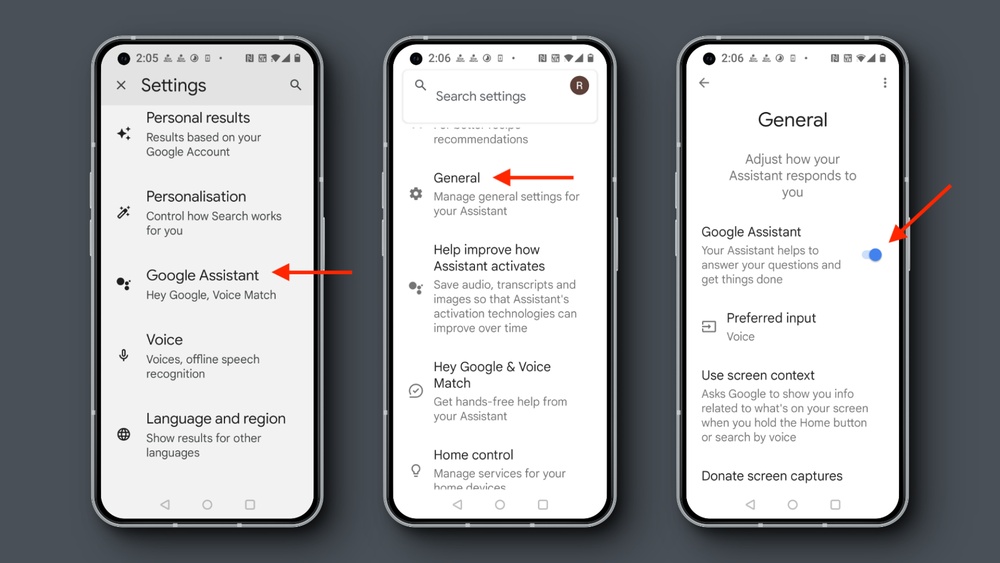
Disabling Google Assistant’s voice can make your device quieter and less intrusive. Many people enjoy the convenience of voice commands, but not everyone wants their phone or smart speaker talking back. If you prefer using your device without hearing spoken responses, you are not alone.
This article will show clear steps to turn off Google Assistant’s voice on Android, iPhone, smart speakers, and other devices. You’ll also learn how to customize settings, fix common problems, and understand what happens when you silence Google Assistant. Whether you want to reduce distractions, save battery, or just prefer a silent assistant, this guide will help you take full control.
What Is Google Assistant Voice?
Google Assistant is a smart voice-controlled feature available on most Android devices, Google smart speakers, and even iPhones. When you ask it a question or give a command, it usually responds with spoken answers. This is the “Google Assistant voice.” For example, if you say, “What’s the weather?” it will reply out loud with the forecast.
The voice response is useful for hands-free situations, like driving or cooking. However, it can sometimes be disruptive, especially in quiet places or meetings. Some users also find the voice unnecessary if they only want to see answers on the screen.
Why Turn Off Google Assistant Voice?
There are several good reasons to silence Google Assistant’s voice:
- Privacy: Voice responses can be heard by others around you.
- Discretion: Silent answers are better in public or at work.
- Battery life: Audio responses use more power than silent notifications.
- Accessibility: Some people prefer reading over listening.
- Personal preference: Not everyone likes talking to their phone.
Non-obvious insight: Muting the voice does not turn off Google Assistant completely. You can still use it for searching, reminders, and smart home control; it just won’t talk back.
Understanding Voice Responses Vs. Assistant Functionality
It’s important to know that turning off the Google Assistant voice only affects spoken replies. You’ll still be able to:
- Type queries and see results on the screen
- Use smart home controls (lights, thermostats, etc.)
- Set reminders, timers, and alarms (alerts may still make sounds if enabled)
- Receive notifications on your device
If you want to completely disable the Assistant (not just the voice), you need to follow different steps. This guide focuses on silencing the voice without removing Assistant features.
How To Turn Off Google Assistant Voice On Android Phones And Tablets
Most Android devices have Google Assistant built-in. You can silence its voice in a few steps. The exact path may vary slightly depending on your Android version or device manufacturer, but the general process is similar.
Step 1: Open Google Assistant Settings
- Activate Google Assistant: Hold the Home button, or say “Hey Google,” or swipe from the bottom corner (gesture navigation).
- Tap the compass icon in the bottom right (this opens Explore).
- Tap your profile picture or initial (top right).
- Select Settings.
Step 2: Find Assistant Voice Settings
- In Settings, tap Assistant.
- Scroll down to the Assistant devices section.
- Select your device (Phone or Tablet).
Step 3: Turn Off Spoken Responses
- Find the Speech output or Voice responses option.
- Choose Hands-free only or None (options may differ by device).
- Hands-free only: Assistant speaks only when using headphones, Bluetooth, or driving.
- None: Assistant will not speak, only show text.
Practical tip: If you can’t see these options, try searching for “Speech output” in the settings search bar.
Step 4: Test Your Settings
Ask Google Assistant a question, like “What’s the weather? ” It should now display the answer without speaking.
Example
If you want complete silence, choose None. If you sometimes need voice (like when driving), select Hands-free only.
How To Turn Off Google Assistant Voice On Iphone
Google Assistant is available on iOS through the Google Assistant app. The process is slightly different from Android.
Step 1: Open The Google Assistant App
Download and install it from the App Store if you haven’t already.
Step 2: Access Settings
- Open the app.
- Tap your profile picture or initial (top right).
- Tap Settings.
Step 3: Adjust Voice Response Settings
- Look for Speech output or similar settings.
- Change the option to None or Text only.
Note: On iOS, Google Assistant may have fewer options for silencing voice compared to Android. In some cases, you may need to mute your device or lower the media volume to stop voice responses completely.
How To Turn Off Voice On Google Smart Speakers And Displays
Google’s smart speakers (like Nest Mini or Google Home) and smart displays (like Nest Hub) are designed for voice. But you can reduce or mute voice feedback.
Option 1: Use The Physical Mute Button
Most smart speakers and displays have a physical mute switch. This disables the microphone, so the device can’t hear or respond at all.
- Look for a small switch or button, usually on the back or bottom of the device.
- Slide or press it. You’ll see a red light or hear a sound confirming mute.
Limitation: The device will not respond to any commands until you unmute it.
Option 2: Adjust Voice Response In The Google Home App
If you want to keep the microphone on but stop voice feedback:
- Open the Google Home app on your phone.
- Tap your device (like “Living Room Speaker”).
- Tap the gear icon for settings.
- Look for Accessibility or Audio settings.
- Adjust Speech output or Accessibility feedback (options may vary).
- Some devices allow you to lower or mute the volume for spoken responses.
Option 3: Lower The Volume
You can say, “Hey Google, volume 1” to set the device to its lowest voice level. It won’t be completely silent, but it will be very quiet.
Non-obvious insight: On some smart displays, you can mute only specific types of responses (like notifications) but keep others, giving you more control.
How To Turn Off Google Assistant Voice On Chromebooks
Chromebooks with Google Assistant enabled can also be silenced.
- Click the time at the bottom right to open the system menu.
- Click the settings gear.
- Go to Search and Assistant > Google Assistant.
- Click Settings.
- Find Speech output and set it to Off or Text only.
Ask a question to confirm the Assistant now shows results instead of speaking.
How To Silence Google Assistant Voice On Wear Os Watches
Wear OS smartwatches can speak Assistant responses, which may not always be desirable.
- Wake your watch.
- Open Settings.
- Go to Personalization or Apps & notifications.
- Select Google Assistant.
- Find Speech output and turn it off.
Tip: On some watches, you can only reduce the volume or mute alerts to silence the voice.

Credit: www.maisongokan.com
How To Mute Google Assistant On Tvs And Smart Displays
Many smart TVs (especially with Android TV or Google TV) have Google Assistant built-in.
- Press the Assistant button on your remote.
- Go to Settings.
- Find Device Preferences > Google Assistant.
- Look for Speech output or Audio feedback.
- Set it to Off or Mute.
On devices without this option, you may need to lower or mute the TV volume.
Comparison: Voice Response Options By Device
Different devices offer different levels of control. Here’s a quick comparison:
| Device | Can Disable Voice Output? | Partial Mute Option? | Physical Mute Available? |
|---|---|---|---|
| Android Phone/Tablet | Yes | Yes (Hands-free only) | No |
| iPhone (Assistant app) | Partial | No | No |
| Google Smart Speaker | No (Software), Yes (Physical) | Volume Control | Yes |
| Wear OS Watch | Yes (Some models) | Volume Control | No |
| Smart TV | Partial | Volume/Mute | No |
Insight: Not all devices let you silence voice replies through software. Sometimes, only a hardware mute or lowering the volume works.
How To Turn Off Google Assistant Voice For Specific Apps
You may want to use Google Assistant silently only within certain apps (like Maps or Calendar).
In Google Maps
- Open Google Maps.
- Tap your profile picture > Settings.
- Tap Navigation settings > Assistant voice.
- Set voice volume to Muted.
In Other Apps
Some apps have their own voice feedback settings. Check the app’s settings or notifications area for options to mute or lower Assistant voice.
Note: These settings only affect the app, not the entire device.
What Happens After Disabling Google Assistant Voice?
When you turn off voice responses, Google Assistant will:
- Show answers as text on your screen
- Still perform actions (like setting reminders or controlling devices)
- Not interrupt you with spoken words
You can still use “Hey Google” to wake the Assistant, but it will respond silently.
Common misconception: Disabling the voice does not disable the microphone. Your device can still listen for commands unless you use the physical mute switch.
How To Re-enable Google Assistant Voice
If you change your mind, turning voice replies back on is easy.
- Open Google Assistant Settings.
- Find Speech output or Voice responses.
- Switch back to On or Full.
On smart speakers, unmute the physical button or increase the volume.
Advanced Settings: Customizing Google Assistant Voice
If you don’t want to completely turn off the voice, you can customize it.
- Change the voice: Google Assistant offers different voices (male, female, accents).
- Adjust response length: In some regions, you can choose short or full answers.
- Choose which devices respond: Set up multiple devices to only let one respond to “Hey Google.”
How To Change Google Assistant Voice
- Open Google Assistant Settings.
- Go to Assistant > Assistant voice & sounds.
- Pick a different voice style.
Interesting stat: According to Google, over 1 billion devices use Google Assistant, and users can choose from more than 10 different voices in the US.
:max_bytes(150000):strip_icc()/002-turn-off-ok-google-4163404-c4c7c668be884979a4db3af945b66079.jpg)
Credit: www.lifewire.com
Troubleshooting: When Google Assistant Keeps Talking
Sometimes, even after turning off voice, Google Assistant may still speak. Here’s what to check:
- Restart your device: Changes may not take effect until you restart.
- Update your apps: Make sure Google app and Assistant are up to date.
- Check accessibility settings: Some features (like TalkBack) can override Assistant voice settings.
- Mute media/assistant volume: On some devices, a separate “assistant volume” needs to be lowered.
- Physical mute switch: Use it if available for full silence.
Non-obvious insight: If your device is managed by a company or school, some settings may be locked. Check with your IT admin if you can’t change voice output.
Data Table: Assistant Voice Features By Region
Some voice features depend on your country or language. Here’s a look at differences:
| Region | Number of Voice Choices | Supports Short Replies | Text-only Replies |
|---|---|---|---|
| United States | 10+ | Yes | Yes |
| United Kingdom | 6 | Yes | Yes |
| India | 2 | No | Yes |
| Japan | 2 | Yes | Yes |
| Germany | 4 | No | Yes |
Tip: If you don’t see some options in your region, try changing your device language to US English.
Common Mistakes When Turning Off Assistant Voice
Many users run into simple but frustrating problems:
- Only lowering the volume: This does not always mute Google Assistant’s voice, especially on phones.
- Not saving settings: Some settings require you to tap “Save” or “Apply.”
- Changing the wrong device: If you have multiple devices, make sure you adjust the right one.
- Not updating software: Outdated Google apps may not support all settings.
- Confusing voice input and output: Turning off voice responses does not turn off voice commands.
Privacy And Data Implications
Muting Google Assistant’s voice does not stop it from listening or collecting data. The Assistant still processes your voice commands unless you disable the microphone or Assistant entirely.
- Voice recordings: If you want more privacy, review and delete your Assistant activity at myactivity.google.com.
- Microphone: Use the physical mute button for full privacy on smart speakers.
For more information on Google’s privacy practices, see the official Google Voice Privacy Policy.
Real-world Examples
Example 1: Using Assistant Silently At Work
Sara works in an open office. She uses Assistant to set reminders and check her schedule. By silencing voice replies, she stays productive without disturbing coworkers.
Example 2: Smart Speaker In The Bedroom
Mike uses his Nest Mini as a morning alarm. He mutes the speaker at night to avoid accidental voice responses waking him up.
Example 3: Traveling With Google Assistant
Linda uses Assistant on her phone for directions. She sets it to “Hands-free only” so it only speaks when connected to her car’s Bluetooth.
Data Table: Impact On Battery Life
Does turning off Google Assistant’s voice save battery? Here’s an estimate based on user reports:
| Device Type | Voice On (Daily Use) | Voice Off (Daily Use) | Estimated Battery Savings |
|---|---|---|---|
| Android Phone | 4-5% | 2-3% | ~2% |
| Smart Speaker | N/A (Plugged In) | N/A | N/A |
| Wear OS Watch | 5-7% | 2-4% | ~3% |
Note: The savings are small but can add up over time, especially on older devices.

Credit: www.afvt.org
Should You Turn Off Google Assistant Voice?
If you value privacy, need to be discreet, or simply prefer reading, turning off the voice makes sense. However, if you use Assistant while driving or with smart home devices, you might miss audible feedback.
Experience-based tip: Try the “Hands-free only” setting first. It lets you keep voice replies for driving or headphones but stays silent otherwise.
Alternatives To Turning Off Voice
If you want less voice but not full silence, consider:
- Short answers: Some devices offer shorter, less intrusive replies.
- Custom routines: Set routines that only show text or notifications instead of speaking.
- Do Not Disturb: Temporarily mute all sounds during meetings or sleep.
Final Thoughts
Controlling Google Assistant’s voice output is a smart way to make your devices fit your lifestyle. Whether you want less noise, more privacy, or simply a quieter space, you have options on almost every device. Remember, silencing the voice does not limit Assistant’s usefulness—it just changes how you interact.
Take a few minutes to adjust your settings and enjoy a more personalized, distraction-free experience.
Frequently Asked Questions
How Do I Turn Off Google Assistant Voice On My Samsung Phone?
On most Samsung phones, open the Google app, go to Settings > Google Assistant > Assistant > Phone, then set Speech output to “Hands-free only” or “None.” If you’re using Samsung’s Bixby, you may need to disable Bixby separately.
Will Google Assistant Still Listen For “hey Google” If I Turn Off The Voice?
Yes, Google Assistant will still activate and process commands if you say “Hey Google.” Only the voice responses are muted. To stop the Assistant from listening, you must disable the microphone or turn off Assistant completely.
Can I Mute Only Certain Types Of Voice Responses?
On some devices, yes. For example, you can lower the volume for notifications but keep responses for alarms. Check your device’s Assistant settings or accessibility options for more control.
Does Turning Off Assistant Voice Save Battery?
Yes, but the effect is small. On phones and watches, you might see 1–3% better battery life. On smart speakers, there’s no battery impact because they are always plugged in.
Where Can I Find More Information About Google Assistant Privacy?
For detailed privacy information, visit the official Google Voice Privacy Policy. This page explains how your data is used, stored, and how you can control your privacy settings.