
If you own a Daikin air conditioner, you know the remote control is your main tool for comfort. With just a few presses, you can adjust the temperature, switch modes, or set timers. But Daikin remotes are packed with features.
Many people use only the basic buttons and miss out on more advanced functions. If you ever felt confused by the symbols or wondered how to make your AC smarter, you’re not alone.
This guide will show you how to use Daikin remote control for the best results. Whether you have a simple model or a high-end unit with advanced features, you’ll learn practical steps, troubleshooting tips, and smart tricks. By the end, you’ll feel confident, save energy, and enjoy your Daikin AC even more.
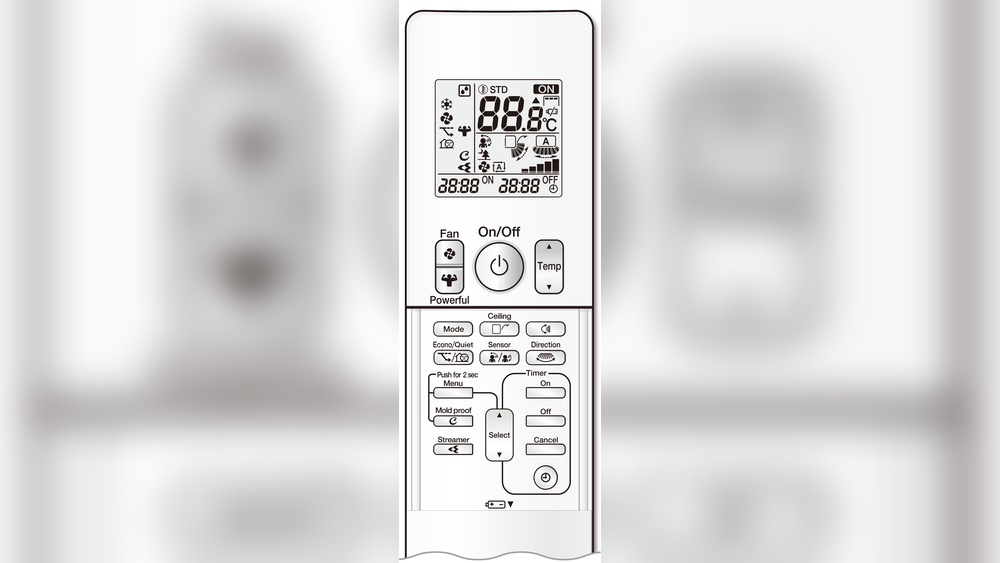
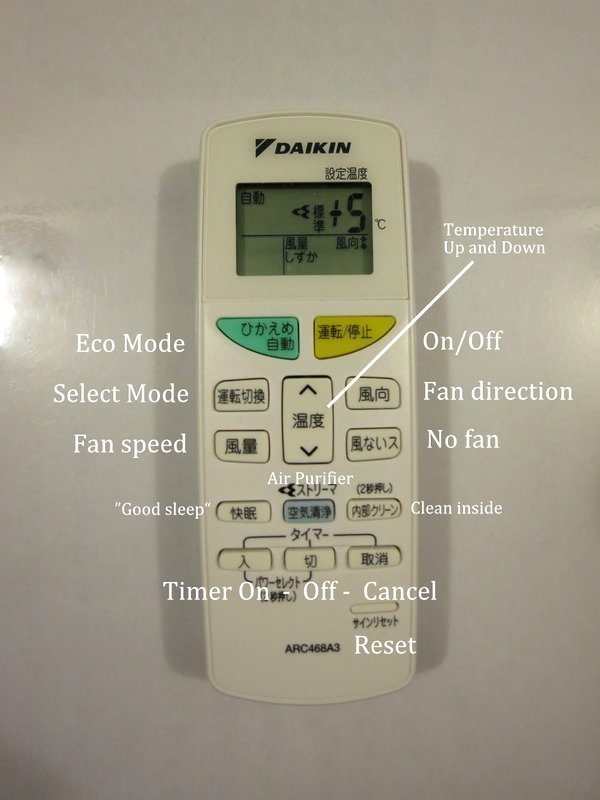
Understanding Daikin Remote Control Layout
Before you start pressing buttons, it helps to know what each one does. Daikin remote controls may look different depending on the model, but most have similar functions. Here’s what you’ll usually find:
- Power button (ON/OFF): Turns the air conditioner on or off.
- Mode button: Switches between cooling, heating, drying, fan, and auto.
- Temperature up/down: Adjusts the room temperature.
- Fan speed: Controls how fast the air blows.
- Swing/Louver: Changes the direction of the air flow.
- Timer: Lets you set the AC to start or stop at a certain time.
- Sleep/Eco mode: Saves energy, usually by adjusting temperature slowly at night.
- Display: Shows the current settings.
Some remotes have extra features like Turbo, Quiet, or i-See sensor. If you have a Daikin remote with an LCD screen, you’ll see symbols for each setting.
Here’s a quick comparison of common Daikin remote models and their features:
| Remote Model | Display Type | Main Features | Special Functions |
|---|---|---|---|
| ARC480A1 | Basic LCD | ON/OFF, Mode, Temp, Fan, Timer | None |
| ARC466A4 | Large LCD | All basics | Powerful, Quiet, Swing |
| BRC1E63 | Wired wall panel | All basics | Schedule, Child Lock, Service Menu |
| ARC477A1 | Backlit LCD | All basics | 3D Airflow, i-See Sensor, Advanced Timer |
Most confusion comes from the symbols. For example, a snowflake means cooling, a sun means heating, and a droplet means dehumidifying. If you’re unsure, check your manual or the Daikin website.
Basic Operations: Everyday Use
Let’s walk through the basic steps to control your Daikin AC. These are the actions you’ll use most often.
Turning The Air Conditioner On And Off
- Press the ON/OFF button. The display turns on and your AC beeps.
- To turn it off, press the same button again.
Most Daikin remotes have a light or icon to show if the unit is working.
Selecting The Operating Mode
You can set your AC to cool, heat, dry, fan, or auto. The Mode button usually cycles through these options.
- Press Mode until you see the symbol you want:
- Snowflake: Cooling mode for hot days
- Sun: Heating mode for cold days
- Droplet: Dry/dehumidify mode for humid days
- Fan: Only air circulation, no cooling or heating
- Auto: The AC chooses the best setting automatically
Using the right mode saves energy. For example, use dry mode in rainy weather instead of cooling.
Setting The Temperature
Use the up (▲) or down (▼) arrows to set your desired temperature. The range is usually 60°F to 86°F (16°C to 30°C).
- For comfort, set cooling to 75°F (24°C) and heating to 68°F (20°C).
- Setting the temperature too low or high increases energy use.
Tip: Setting your AC just 1-2 degrees higher in summer or lower in winter can save up to 10% on energy.
Adjusting Fan Speed
The Fan button lets you control how strong the air blows.
- Choose from Auto, Low, Medium, or High.
- Auto is good for most rooms, as the AC adjusts speed as needed.
- Use High for fast cooling, then switch to Low to maintain comfort.
Changing Airflow Direction (swing/louver)
Press the Swing or Louver button to move the air up, down, or side to side.
- Fixed position: Air blows in one direction.
- Swing: Air moves for even cooling or heating.
Some remotes let you adjust the angle for more control. Placing airflow toward the center of the room works best.

Credit: consumer.daikin.com.sg
Advanced Features: Going Beyond Basics
Modern Daikin remotes offer more than just basic settings. Learning these can boost comfort and efficiency.
Using The Timer Functions
Daikin remotes have ON, OFF, and sometimes WEEKLY timers.
- ON Timer: Schedules when the AC turns on. Set before you arrive home.
- OFF Timer: Schedules when it turns off. Good for night use.
- WEEKLY Timer (only on advanced models): Allows different schedules for each day.
To set a simple timer:
- Press Timer until “ON” or “OFF” flashes.
- Use the up/down buttons to set the time.
- Confirm by pressing Set or Timer again.
For weekly timers, follow your manual or on-screen prompts.
Non-obvious tip: Many people forget to cancel the timer after a power outage. Always check your timer if your AC does not start or stop as expected.
Sleep Mode And Energy Saving
The Sleep or Eco button makes your AC adjust temperature slowly at night. This means:
- The room won’t get too cold or hot while you sleep.
- It uses less power, saving money.
Sleep mode is especially useful in bedrooms and for children’s rooms.
Turbo/powerful And Quiet Modes
Some remotes have a Turbo or Powerful button. This runs the AC at maximum speed for quick cooling or heating.
- Use Turbo when you first come home on a hot day.
- Remember to switch back to normal mode after 15-20 minutes to avoid high bills.
Quiet mode lowers the fan speed for less noise. This is great for sleeping or studying.
Child Lock And Cleaning Reminders
Some Daikin models include Child Lock to prevent accidental changes. Hold two buttons (often Mode and –) for a few seconds to lock or unlock.
Higher-end remotes show a symbol when it’s time to clean the filter. Keeping filters clean improves air quality and saves energy.
Insider insight: Cleaning your filter every two weeks can improve efficiency by up to 15%. Many people wait for the reminder, but regular cleaning is better.
Setting Up Schedules (advanced Remotes)
With advanced Daikin remotes (like BRC1E63), you can set multiple schedules:
- Different ON/OFF times for weekdays and weekends
- Temporary overrides for special occasions
This is ideal for offices or homes with regular routines.
Using Daikin Remote Control: Step-by-step Examples
Let’s apply what you’ve learned with common real-life situations.
Example 1: Cooling Your Room Before You Arrive
Suppose you finish work at 6 p. m. and want your room cool when you get home.
- Set the ON Timer for 5: 45 p.m.
- Make sure the mode is Cool and the temperature is comfortable (e.g., 75°F/24°C).
- Close windows and curtains before leaving, so the AC works efficiently.
Example 2: Saving Power At Night
You don’t want the AC running all night.
- Press Sleep mode before going to bed.
- Set the OFF Timer for 2 or 3 a.m.
- The AC will slowly adjust the temperature, then shut down automatically.
Example 3: Adjusting For Different Family Members
If one person likes it cooler than the other, use:
- Fan mode instead of cooling: The room feels breezier without dropping temperature.
- Swing: Distribute air evenly, so no one sits directly in the cold air flow.
- Zone control: On multi-split systems, use different remotes for different rooms.
Example 4: Quick Cooling On A Hot Day
You come home and the room is very hot.
- Press Powerful or Turbo mode.
- Set temperature to 70°F (21°C) and fan to High.
- After 15 minutes, switch to Auto and a higher temperature (e.g., 75°F/24°C).
Example 5: Dehumidifying In Rainy Season
If your room feels damp but not hot:
- Set the mode to Dry (droplet symbol).
- The AC will remove moisture without overcooling.
- Run for 30–60 minutes and monitor comfort.

Credit: www.youtube.com
Troubleshooting Common Issues
Even the best remotes can have problems. Here are typical challenges and how to solve them.
Remote Not Working
- Check batteries first. Replace with fresh AA or AAA batteries, matching the correct polarity.
- Make sure there’s nothing blocking the sensor on the indoor unit.
- Try moving closer to the AC (within 20 feet is best).
- If the display is blank, the batteries are likely dead.
Air Conditioner Doesn’t Respond
- Confirm the remote is set to the right mode. Sometimes, the AC ignores commands if you try to heat when it’s already hot.
- Wait for a beep or indicator light.
- Reset the remote by removing batteries for 30 seconds.
Timer Functions Not Working
- Double-check the current time is set correctly on the remote.
- Cancel any existing timer before setting a new one.
- After a power cut, timers may reset. Set them again.
Symbols Flashing Or Error Codes
- A flashing filter symbol means cleaning is needed.
- An error code (e.g., “U4” or “A5”) means a technical issue. Turn off the AC and consult the manual or a technician.
Temperature Not Changing
- If you adjust the temperature but feel no difference, check:
- Windows and doors are closed.
- The AC is not in Fan or Dry mode.
- The filter is clean.
Pro tip: Sometimes, the remote sends a weak signal if the batteries are low, causing delayed or missed commands.
Optimizing Your Daikin Air Conditioner Experience
To get the most from your Daikin remote, combine good habits with smart use of features.
Place Your Remote Wisely
- Keep the remote near your main living area for easy access.
- Avoid direct sunlight or extreme heat, which can damage the display or batteries.
Regular Maintenance
- Clean the remote with a dry cloth to keep buttons responsive.
- Change batteries every 6–12 months, or when the range drops.
Teach All Family Members
- Show everyone in the household how to use key features.
- Write down the main steps and stick them near the AC if needed.
Using Multiple Remotes
If your home has several Daikin units (multi-split systems), label each remote for its room. Some remotes can control multiple indoor units, but most are paired to one.
Comparing Daikin Remote Features With Other Brands
How does Daikin stack up against other leading brands? Here’s a side-by-side look at common remote features:
| Brand | Basic Functions | Advanced Modes | Scheduling | Smart Connectivity |
|---|---|---|---|---|
| Daikin | Yes | Sleep, Turbo, Quiet, Eco | Weekly (select models) | Wi-Fi (optional) |
| Mitsubishi | Yes | i-See Sensor, Plasma Filter | Weekly | Wi-Fi (optional) |
| LG | Yes | Jet Cool, Auto Clean | Basic On/Off | Wi-Fi (standard on many) |
| Samsung | Yes | Fast Cool, Good Sleep | Basic On/Off | Wi-Fi (standard on many) |
Daikin’s weekly timer and energy-saving modes are strong points. However, some brands include Wi-Fi as standard, while Daikin often sells it as an upgrade. If smart home integration matters to you, check compatibility before buying.
Smart Control: Using Your Phone With Daikin
Many newer Daikin models let you control your AC with a smartphone app. This needs a Wi-Fi adaptor (sold separately in most cases).
- Download the Daikin Mobile Controller app from your app store.
- Connect the Wi-Fi adaptor to your AC unit.
- Follow the on-screen instructions to pair your phone.
With the app, you can:
- Turn the AC on or off from anywhere
- Change settings and schedules remotely
- Get filter cleaning reminders
Non-obvious insight: If you travel often, using the app can prevent mold by running the AC occasionally while you’re away.
For more details, see the official Daikin controls page.
Credit: themadtraveler.com
Energy Saving Tips With Your Daikin Remote
Your remote is not just for comfort—it can help you cut energy costs.
- Use timers: Don’t run your AC when no one is home.
- Set higher temperatures in summer: Every degree higher saves about 3% on bills.
- Close doors and curtains: Keeps cool air inside.
- Use Sleep mode at night: Prevents overcooling.
- Clean filters often: Clogged filters use more power.
- Switch off at the plug: Some units use standby power.
Extra tip: If your remote has an Eco mode, use it during peak electricity hours (usually afternoon and early evening).
Customizing Your Comfort: Advanced Settings
Some Daikin remotes let you adjust even more:
- Humidity level: Some high-end models allow you to set a target humidity, not just temperature.
- Air purification: Look for buttons for plasma or ionizer functions, which clean the air.
- Lock settings: Prevent unwanted changes in offices or public spaces.
Read your model’s manual for hidden features. Even basic remotes sometimes have two-button shortcuts for secret options.
Troubleshooting Table: Quick Fixes
Here’s a handy table for fast problem solving:
| Problem | Possible Cause | What To Do |
|---|---|---|
| Remote not responding | Dead batteries | Replace batteries |
| No display on remote | Battery inserted wrong | Check polarity (+/-) |
| AC not cooling/heating | Wrong mode selected | Press Mode until correct symbol |
| Timer not working | Time set incorrectly | Set clock first, then timer |
| Error code shows | AC needs service | Turn off, call technician |
When To Call For Help
Sometimes, problems need a professional.
- If your AC shows an error code often, or doesn’t turn on at all, call a Daikin service center.
- If the remote is lost or broken, buy a genuine replacement. Universal remotes work for some features, but not all.
- For Wi-Fi or app issues, check your internet connection and restart both the router and AC.
Frequently Asked Questions
Why Is My Daikin Remote Not Working Even After Changing The Batteries?
Check if the batteries are installed in the correct direction. Make sure the battery contacts are clean. If the problem continues, the remote may be damaged or the AC’s sensor could be blocked. Try using the remote close to the indoor unit.
If nothing works, contact support.
How Do I Reset My Daikin Remote Control?
Remove the batteries for at least 30 seconds, then reinsert them. Some models have a small reset button (use a pen tip to press it). After resetting, you may need to set the time and timers again.
Can I Use My Phone As A Daikin Remote?
Yes, but only if your AC has Wi-Fi capability and you install the Daikin Mobile Controller app. You’ll need a compatible Wi-Fi adaptor. Not all models support this feature. Check your AC’s manual or the Daikin website for details.
What Is The Best Temperature Setting For Energy Savings?
For most homes, set cooling to 75°F (24°C) and heating to 68°F (20°C). Adjusting by just 1–2 degrees can reduce energy use by 3–10%. Use Eco or Sleep mode for extra savings at night.
What Should I Do If My Daikin Remote Shows An Error Code?
Error codes mean there’s a technical problem. Turn off the AC and note the code. Check your manual for what it means. If the code stays, contact a Daikin technician for repair.
Using your Daikin remote is simple once you know what each button does. Take time to explore the features—you’ll enjoy better comfort, save energy, and avoid frustration. With this guide, you’re now ready to get the most from your Daikin air conditioner every day.