
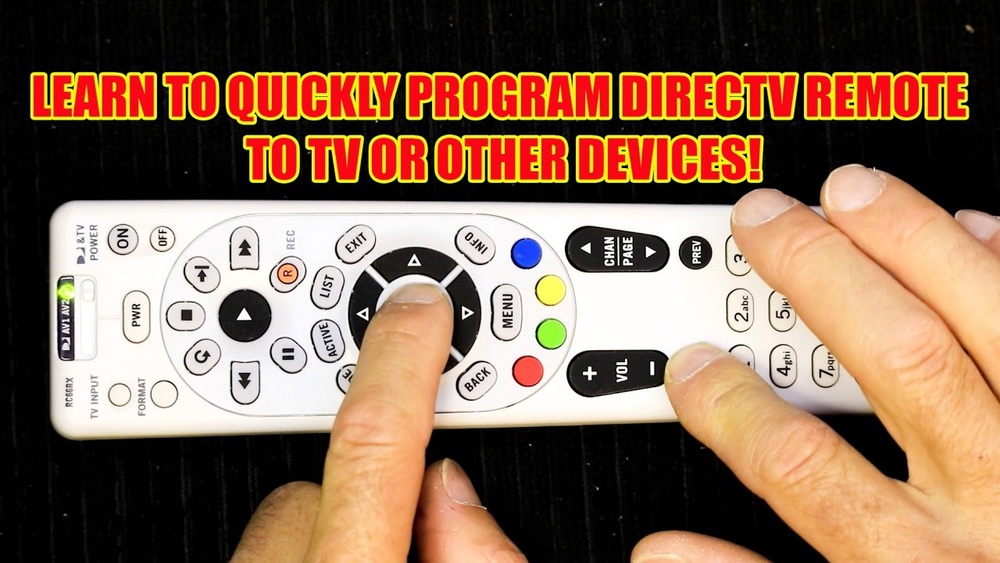
Programming a DIRECTV remote control can feel confusing at first, especially if you’re not a tech expert. Maybe you just bought a new TV, or your old remote stopped working. You want to control both your DIRECTV box and your television with one remote, but the instructions seem complicated.
The good news is, with the right steps and a bit of patience, programming your DIRECTV remote is easier than you might think.
In this guide, you’ll learn how to program every common type of DIRECTV remote. Whether you have a new Genie remote, an older Universal remote, or something in between, you’ll find clear, step-by-step instructions. Along the way, you’ll also discover troubleshooting tips, common mistakes to avoid, and solutions for rare problems that even seasoned users sometimes miss.
By the end, you’ll not only know how to program your DIRECTV remote—you’ll understand why certain steps matter and how to get the best performance from your setup.
Understanding Directv Remote Types
Before you start programming, it’s important to know which DIRECTV remote you have. DIRECTV has released several models over the years, and the programming process is a bit different for each one. Here’s a quick overview of the main types:
| Remote Model | Appearance | Programming Method | Device Support |
|---|---|---|---|
| Genie Remote (RC7x series) | Slim, gray or black; “DIRECTV” logo at the bottom | Automatic (RF/IR) | Genie DVR, TVs, Audio, Soundbars |
| Universal Remote (RC6x series) | Larger, often white; mode switch at top | Manual code entry (IR only) | Set-top boxes, TVs, Audio |
| Standard Remote (older models) | White, bulkier; colored buttons | Manual code entry (IR only) | TV, VCR, DVD, Audio |
| DIRECTV Stream Remote | Smaller, black; “Google Assistant” button | On-screen setup | Stream Device, TVs |
Check the model number on the back or inside the battery compartment. If your remote starts with RC7 (like RC73), it’s a Genie remote. RC6 (like RC66) means you have a Universal model.
Why does this matter? Each remote uses a different method and supports different devices. Using the wrong instructions can waste time and lead to frustration.
Preparing For Programming
A few quick checks make the process smoother and prevent common problems:
- Insert Fresh Batteries: Weak batteries can interrupt programming or cause the remote to fail later. Always use new, high-quality batteries.
- Turn On Your Device: The device (TV, soundbar, etc.) You want to control should be powered on.
- Clear Line of Sight: Point the remote directly at the device during programming. Remove any obstacles between the remote and the device.
- Know Your Device Brand: You’ll need the brand name (like Samsung, LG, Sony) for code lookup.
Some TVs and audio devices have special features (like HDMI-CEC) that can interfere with remote programming. If you notice strange behavior, try disabling those features temporarily.
How Directv Remotes Work
DIRECTV remotes use infrared (IR) and, in newer models, radio frequency (RF) signals. IR requires a direct line of sight, while RF can pass through walls. Genie remotes can switch between these modes. Universal and standard remotes use IR only.
Understanding this helps you position the remote correctly and explains why it might work in one room but not another.
Programming A Genie Remote (rc7x Series)
The Genie remote is the most popular model for DIRECTV users today. It’s used with Genie DVRs and Genie Mini clients.
Automatic Pairing (recommended)
Most Genie remotes automatically pair with your DIRECTV box. Here’s how:
- Press and Hold Mute + Enter: Hold both buttons together until the green light blinks twice.
- On-Screen Message: Your TV will display “Applying IR/RF Setup.”
- Follow Prompts: The system should guide you through the rest. If you see “Your remote is now setup,” you’re done.
If it doesn’t work, try these steps:
- Menu Navigation: Press the Menu button on your remote.
- Go to Settings: Select “Settings & Help” → “Settings.”
- Remote Control: Choose “Remote Control” → “Program Remote.”
- Select Device: Pick the device you want to control (usually TV).
- Follow Instructions: Enter the brand and follow on-screen steps.
Manual Code Entry
If the automatic method fails, you can program the Genie remote manually:
- Find Your Code: Visit the official DIRECTV code lookup tool or check the on-screen list.
- Press Mute + Select: Hold both until the light flashes twice.
- Enter Code: Use the number buttons to enter the code. The light should flash twice again.
- Test Functions: Try Power, Volume, and Mute. If they work, you’re finished.
Switching Between Ir And Rf Mode
Genie remotes can operate in RF mode (radio frequency) for better range, or IR mode (infrared) for compatibility:
- To switch to RF: Press and hold Mute + Enter until you see “Applying RF Setup.”
- To switch back to IR: Repeat the process; your TV will show “Applying IR Setup.”
Pro Tip: RF mode is best if your receiver is inside a cabinet or out of sight.
Common Problems And Fixes
- Remote Not Pairing: Reset the Genie box by holding the red button near the access card.
- No Response: Try fresh batteries, or re-pair the remote.
- Wrong Device Control: Double-check you selected the correct brand/model.
Programming A Universal Remote (rc6x Series)
Universal remotes are still used in many homes, especially with older DIRECTV receivers. The process is more manual but works with a wide range of devices.
Setting Up For Tv Control
- Slide Switch: Move the mode switch at the top to “TV.”
- Press and Hold Mute + Select: The light at the top will blink twice.
- Enter TV Code: Find the code for your TV brand. Enter it using the number pad.
- Light Flashes Twice: This confirms the code was accepted.
- Test Functions: Try Power, Volume, and Mute.
If the code doesn’t work, repeat with the next code from the list.
Setting Up For Audio Devices
The process is nearly identical:
- Mode Switch: Slide to “AV1” or “AV2.”
- Press and Hold Mute + Select: Light blinks.
- Enter Audio Device Code: Use the correct code.
- Test Functions: Try Volume and Power.
Direct Code Search Method
If you don’t know your code:
- Hold Mute + Select: Wait for the light to blink.
- Enter 991: The light flashes twice.
- Press 1 (for TV), 2 (for DVD), or 3 (for audio):
- Press Channel Up: Slowly tap until the device turns off.
- Lock In Code: Press Select.
This method cycles through all possible codes until it finds one that works.
Resetting The Remote
If you make a mistake or want to start over:
- Hold Mute + Select: Light blinks.
- Enter 981: This resets the remote to factory defaults.
Pro Insight: Some users forget to set the mode switch (TV, AV1, AV2) before programming. If your remote controls the wrong device, check this switch first.
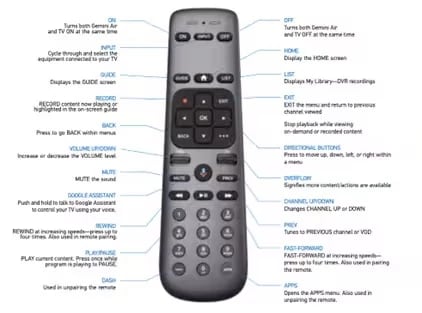
Programming A Directv Stream Remote
If you use DIRECTV’s streaming service, your remote is different from satellite models. It’s smaller and has a “Google Assistant” button.
On-screen Setup
- Press Home: On the remote, press the Home button.
- Go to Settings: Navigate to “Settings” on your TV screen.
- Choose “System” → “Remote & Devices.”
- Select “Program Your Remote.”
- Pick Device Brand: Enter your TV or soundbar brand.
- Follow Prompts: The system will guide you through testing Power and Volume.
Manual Pairing
If automatic setup doesn’t work:
- Press and Hold Fast Forward + Rewind: Hold until the LED blinks.
- Pairing Mode: The remote will pair with your DIRECTV Stream device.
- Continue Setup: Complete on-screen steps for TV/audio control.
Tip: Some smart TV models may require firmware updates to work with streaming remotes. Check your TV’s support site if you have trouble.
Credit: www.yumpu.com
Programming A Standard Remote (older Models)
Older DIRECTV remotes (RC32, RC34, etc. ) Use a manual code entry system. The steps are similar to Universal remotes but the codes might be different.
- Mode Switch: Set to TV or AV.
- Hold Mute + Select: Wait for the light to blink twice.
- Enter Code: Use the code list for your device.
- Test Controls: Try basic functions.
If you lose your code list, search online for “DIRECTV remote codes” or try the code search method.
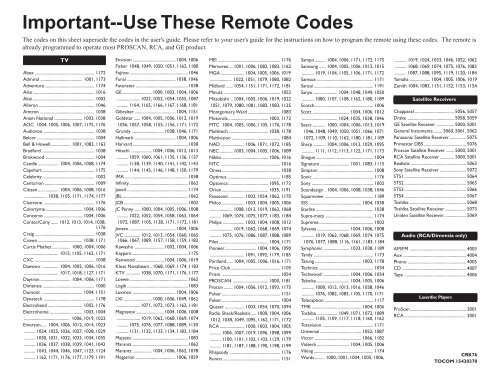
Where To Find Device Codes
Device codes are essential for manual programming. Here’s where to find them:
- DIRECTV Website: The official site has a searchable database.
- On-Screen Prompts: Newer receivers display lists during setup.
- Printed Lists: Included in your remote packaging.
- Online Forums: User-shared codes for rare devices.
Pro Insight: Sometimes, a single brand uses multiple codes for different models. If the first code doesn’t work, always try the next one on the list.
Credit: www.directv.com
Step-by-step Example: Programming A Genie Remote For A Samsung Tv
Let’s walk through a real-world scenario. Suppose you have a Genie remote (RC73) and a Samsung TV.
- Turn On TV and Receiver: Both devices should be on.
- Menu: Press Menu on your remote.
- Settings: Go to “Settings & Help” → “Settings.”
- Remote Control: Select “Program Remote.”
- Choose TV: Pick “TV” as the device type.
- Brand Selection: Enter “Samsung.”
- Follow Prompts: The system may ask you to test Power or Volume.
- Success Message: If the TV responds, you’ll see “Your remote is now setup.”
If it doesn’t work:
- Try manual code entry (use code 12051 for Samsung as a common starting point).
- Test all functions after setup, not just Power.
Troubleshooting And Common Issues
Even with the right steps, problems can happen. Here are solutions for the most frequent issues:
Remote Won’t Program
- Check Batteries: Replace with new ones.
- Restart Devices: Unplug TV and receiver for 30 seconds, then plug back in.
- Line of Sight: Make sure nothing blocks the remote’s path (for IR models).
Some Buttons Don’t Work
- Try Another Code: Not all codes support every function. Test multiple codes for your device brand.
- Update Remote Firmware: For Genie and Stream remotes, updates can fix compatibility issues.
Device Turns Off But Volume Doesn’t Work
- Separate Audio Setup: Some TVs require audio to be programmed separately.
- Check TV Settings: Some TVs have “external control” or “CEC” options that interfere.
Remote Controls Wrong Device
- Mode Switch: On Universal or Standard remotes, make sure the switch matches the device you want to control.
- Reprogram: Reset and redo setup if needed.
Remote Suddenly Stops Working
- Reset Remote: For Genie remotes, press and hold Select + Mute, then enter 981.
- Receiver Reset: Locate the red reset button on your DIRECTV receiver and press it.
Remote Features And Advanced Functions
DIRECTV remotes do more than basic Power and Volume. Exploring these features gives you greater control over your home entertainment setup.
Input Selection
- Input/Source Button: Lets you switch between HDMI ports or other inputs on your TV.
- Programming Needed: This button may not work until the remote is properly programmed.
Audio Device Control
Some remotes can control external speakers, soundbars, or AV receivers. To set this up:
- Mode Switch: Set to “AV1” or “AV2.”
- Program Device: Use the right code for your audio device.
Rf Mode For Hidden Receivers
If your DIRECTV box is inside a cabinet, RF mode is a lifesaver. Genie remotes support RF, which does not require line of sight.
- Pair in RF Mode: Follow the pairing steps above.
- Receiver Support Needed: Your DIRECTV box must support RF.
Parental Controls
DIRECTV receivers allow you to set parental controls using your remote. Set up PINs, block certain channels, or restrict purchases.
Favorite Channels
- Guide Favorites: Program favorite channels for quicker access.
- Shortcut Buttons: Use color buttons (on Universal remotes) for special functions.
Directv Remote Vs. Universal Remotes
You might wonder if you should use the DIRECTV remote or buy a universal remote from another brand. Here’s a quick comparison:
| Feature | DIRECTV Remote | Universal Remote (Third-Party) |
|---|---|---|
| DIRECTV Receiver Support | Full | Partial (some advanced features missing) |
| TV/Audio Device Support | Good (limited to supported brands) | Excellent (thousands of devices) |
| Programming Method | Automatic/Manual | Manual, sometimes app-based |
| RF Support | Genie only | Rare |
| Price | Usually free with service | Varies ($10-$50+) |
| App Integration | No | Yes (in advanced models) |
Key Insight: If you want full DIRECTV features (like Guide and On Demand), use the official remote. For controlling more devices or smart home integration, consider a third-party universal remote.

Credit: www.youtube.com
Expert Tips For Smooth Programming
Programming your DIRECTV remote can be straightforward if you keep these tips in mind:
- Try All Codes: Brands often have multiple codes. Don’t stop after the first one.
- Test All Functions: After programming, check Power, Volume, Mute, and Input. Sometimes one function works but others don’t.
- Reset if Stuck: If the remote acts strangely, a reset can solve most problems.
- Avoid Sunlight: Direct sunlight can interfere with IR signals. Program your remote away from bright windows.
- Label Your Remotes: If you have multiple DIRECTV remotes, label them by room or device to avoid confusion.
Advanced Insight: Some TVs need a “power scan” to find the right code, especially if they are off-brand or older models. This process can take longer but usually finds a working code.
When To Replace Your Remote
Sometimes, even the best programming steps won’t fix a broken remote. Here’s when you should consider a replacement:
- Physical Damage: Cracked case, stuck buttons, or water damage.
- Battery Corrosion: White powder inside the battery compartment.
- No Response After Reset: If the remote does not respond at all, even after a reset and new batteries.
DIRECTV offers replacement remotes on their website, or you can purchase one from retailers.
Saving Time With The Directv App
If you have a Genie or DIRECTV Stream device, you can control your receiver using the DIRECTV app on your smartphone. This is especially helpful if your remote is lost or broken.
- Download from App Store or Google Play
- Connect to Same Wi-Fi Network
- Pair with Your Receiver
The app offers full control, including Guide, DVR, and playback features. It’s a handy backup for programming or daily use.
How Programming Affects Your Viewing Experience
A properly programmed remote does more than turn devices on and off. It streamlines your entertainment experience:
- Single Remote Convenience: One remote for everything, less clutter.
- Faster Access: Quickly switch inputs or sound settings.
- Fewer Glitches: Less chance of “out of sync” devices or lost signals.
Hidden Insight: If you have advanced home theater gear, programming your DIRECTV remote to control audio receivers or soundbars can eliminate “volume wars” where different remotes set different levels.
Safety And Maintenance Tips
Taking care of your remote means fewer problems in the long run:
- Clean Regularly: Wipe with a soft, dry cloth. Avoid harsh cleaners.
- Replace Batteries Every 6-12 Months: Even if the remote still works, weak batteries can cause strange issues.
- Avoid Drops and Water: Remotes are not waterproof.
- Store Codes: Keep a list of your device codes in a safe place for future use.
Directv Remote Programming: Myths Vs. Facts
Let’s clear up some common misunderstandings:
- Myth: “All remotes work the same way.”
Fact: Each model has unique programming steps. Always use instructions for your exact remote.
- Myth: “You only need one code per brand.”
Fact: Many brands have multiple codes. Try more than one if the first doesn’t work fully.
- Myth: “Remotes never need updates.”
Fact: Genie and Stream remotes sometimes receive firmware updates with new features and codes.
- Myth: “Universal remotes are always better.”
Fact: Only official DIRECTV remotes guarantee full feature support for DIRECTV receivers.
Directv Remote Programming And Accessibility
If you or someone in your home has limited mobility or vision, DIRECTV remotes offer some helpful features:
- Large Button Models: Available for easier pressing.
- Voice Control: Some DIRECTV Stream remotes support Google Assistant.
- High Contrast: Clear labeling and tactile bumps for key buttons.
For more accessibility options, visit the DIRECTV official support site.
Frequently Asked Questions
How Do I Find The Right Code For My Tv?
You can find device codes in your remote’s printed manual, on the DIRECTV website, or through on-screen prompts during setup. If your TV is a popular brand, start with the first code listed. For uncommon brands, use the code search function on your remote.
Why Does My Directv Remote Only Turn My Tv On Or Off But Not Control The Volume?
This usually means the programmed code supports only basic functions. Try another code for your TV brand. Some TVs require separate programming for audio features. Also, make sure your TV’s audio settings are set to “TV speakers” rather than an external device.
Can I Use My Directv Remote To Control A Soundbar Or Av Receiver?
Yes, most DIRECTV remotes support audio devices. Use the “AV1” or “AV2” position on Universal or Standard remotes, or select “Audio Device” during Genie or Stream remote setup. Enter the correct code for your brand. Some advanced features (like sound modes) may not be available.
What Should I Do If My Remote Stops Working After Programming?
First, check and replace the batteries. Try resetting the remote (Genie: Select + Mute, then 981). Unplug your DIRECTV box for 30 seconds and plug it back in. If the remote still does not work, it might need to be replaced.
How Can I Program My Directv Remote Without The Code List?
Use the code search feature on your remote. For Universal and Standard remotes, hold Mute + Select, enter 991, then press Channel Up repeatedly until your device turns off. For Genie and Stream remotes, use on-screen prompts to search by brand.
Programming your DIRECTV remote gives you full control over your viewing experience. With the right approach, you’ll enjoy a seamless, hassle-free setup—and fewer remote control headaches in the future. If you ever run into a tricky situation, revisit these steps or contact DIRECTV support for further help.