
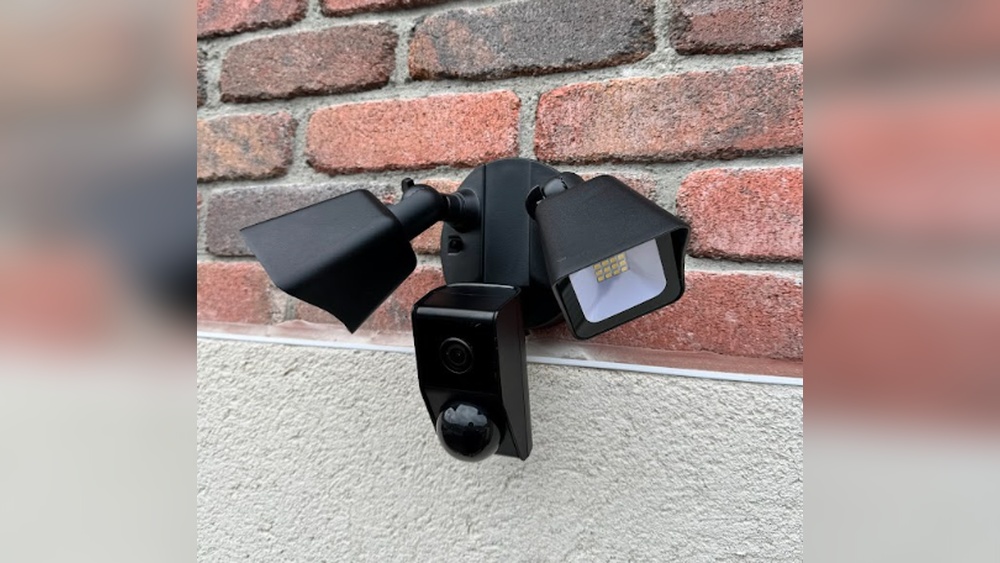
Connecting your security camera to your phone is one of the smartest ways to protect your home or business. Imagine checking your front door camera while you’re traveling, or receiving instant alerts if something unusual happens. Today, almost every modern security camera offers mobile access, but the setup process can feel confusing—especially if you’re not a tech expert.
In this guide, you’ll learn everything you need to connect a security camera to your phone, avoid common mistakes, and enjoy peace of mind wherever you are.
Understanding Security Camera Types
Before connecting your camera, you need to know what type you have. The connection method depends on whether your camera is wired, wireless, or battery-powered.
Wired Security Cameras
Wired cameras connect to your internet through cables (usually Ethernet or coaxial). They’re often used for bigger properties or in businesses. These cameras are reliable and less likely to have signal issues, but installation can be more complex.
Wireless Security Cameras
Wireless cameras use Wi-Fi to send video to your phone. They’re easy to install—just plug them in, connect to Wi-Fi, and follow the app setup. Wireless cameras are popular for homes and small offices.
Battery-powered Cameras
Some cameras run on batteries, making them portable. They often use Wi-Fi like wireless cameras, but may need more frequent maintenance (charging or swapping batteries). Their main advantage is easy placement—no wires needed.
Choosing The Right Camera For Mobile Access
If you haven’t bought a camera yet, check these key features for mobile access:
- App compatibility: Make sure the camera has an app for your phone type (iOS or Android).
- Cloud storage: Some cameras store videos online, which is easier to view remotely.
- Two-way audio: Lets you talk through your phone and hear what’s happening at the camera.
- Motion alerts: Sends instant notifications to your phone if the camera detects movement.
Many people buy cameras without checking these basics and later discover the camera’s app doesn’t support their phone model or country. Always check the camera’s website or app store reviews before buying.
What You Need To Get Started
Connecting a security camera to your phone is simple if you prepare the right tools:
- A compatible smartphone: Most apps require at least Android 8.0 or iOS 12.0.
- Stable Wi-Fi network: For wireless or battery cameras, a strong internet signal is critical. Wired cameras may use Ethernet.
- Security camera: Already installed and powered on.
- Camera’s mobile app: Downloaded from the App Store or Google Play.
- Camera login details: Usually found in the camera box or user manual.
- Email address: Needed for app account setup and alerts.
If you’re setting up a wired camera, you might also need a Network Video Recorder (NVR) or Digital Video Recorder (DVR). These boxes manage video storage and often provide the mobile connection.

Credit: www.twkf.gov.tr
Step-by-step: Connecting Your Security Camera To Your Phone
Let’s break down the typical process for getting your camera onto your phone. Most cameras follow a similar setup, though app names and buttons may be slightly different.
1. Install The Camera’s Mobile App
Find out the camera brand (like Arlo, Ring, Hikvision, or Wyze). Go to the App Store (iPhone) or Google Play (Android), and search for the official app—for example, “Ring – Always Home” or “Hik-Connect”.
Pro Tip: Always use the official app. Third-party apps can be unreliable or even unsafe.
2. Register An Account
Open the app and create a new account with your email and a strong password. You’ll often need to verify your email address by clicking a link.
3. Add Your Camera
Look for a button like “Add Device” or “+”. The app will ask to scan a QR code on your camera or to enter its serial number. This links your camera to your account.
4. Connect To Wi-fi Or Ethernet
For wireless cameras, the app will ask for your Wi-Fi name and password. Make sure your phone is on the same Wi-Fi during setup. Wired cameras should be plugged into your router.
5. Test The Video Feed
Once connected, you should see live video from your camera in the app. Try moving in front of the camera to check delay and clarity.
6. Set Up Notifications
Most apps let you turn on motion alerts. Customize these so you’re notified only when it matters (for example, only at night, or only for people, not pets).
7. Share Access (optional)
If you want family members to have access, most apps let you invite others by email.
8. Update Firmware
Check for camera or app updates. Updates add new features and fix security issues.
9. Secure Your Account
Use a strong password and enable two-factor authentication if available. Never share your login with strangers.
Example Setup: Wyze Cam To Iphone
Suppose you have a Wyze Cam. Here’s a quick summary:
- Download the Wyze app from the App Store.
- Register your account.
- Plug in the camera and wait for the yellow light.
- Tap “+” in the app, select “Wyze Cam,” and scan the QR code on the camera.
- Enter your Wi-Fi info.
- Wait for connection, then name your camera.
- Test the live video stream.
Small differences exist between brands, but the main steps are similar.
Common Camera Brands And Mobile App Comparison
Choosing a camera brand can impact your mobile experience. Here’s a comparison of popular brands, their apps, and notable features:
| Brand | App Name | iOS/Android Support | Cloud Storage | Motion Alerts |
|---|---|---|---|---|
| Ring | Ring – Always Home | Yes/Yes | Yes | Yes |
| Wyze | Wyze | Yes/Yes | Optional | Yes |
| Arlo | Arlo Secure | Yes/Yes | Yes | Yes |
| Hikvision | Hik-Connect | Yes/Yes | No | Yes |
| Reolink | Reolink | Yes/Yes | Optional | Yes |
Insight: Some brands, like Ring and Arlo, offer cloud storage by default, which means you can view past recordings easily. Others, like Hikvision, store video on a memory card or local device, so you may need extra steps to view history on your phone.
Connecting Cameras Without Official Apps
You might have a camera from a lesser-known brand, or an old camera without a dedicated app. Don’t worry—you can often connect these cameras using third-party apps or by finding the camera’s IP address.
Using Third-party Apps
Apps like TinyCam Monitor, IP Cam Viewer, or ONVIF IP Camera Monitor can connect to many camera models, especially those using the ONVIF or RTSP protocols.
How to connect:
- Find your camera’s IP address (in your router’s device list or camera manual).
- Open the third-party app.
- Add a new camera and enter the IP address, port, username, and password.
- Choose the right camera model or protocol.
Finding Your Camera’s Ip Address
- Log in to your router’s admin page (usually 192.168.1.1).
- Go to “Connected Devices.”
- Look for the device that matches your camera’s brand or MAC address.
Warning: Third-party apps may not have all features (like cloud storage or advanced notifications), and security may be weaker. Always check app reviews.
How Do Notifications And Alerts Work?
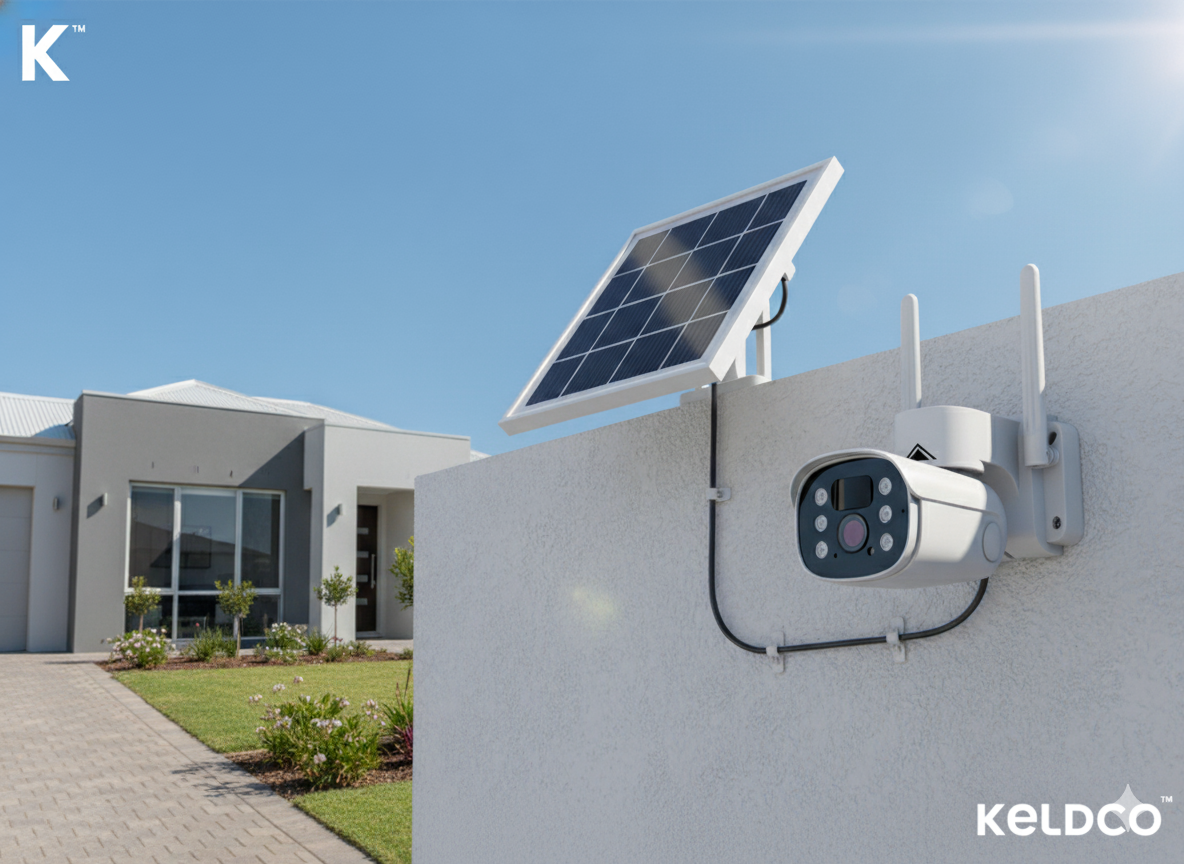
Once your camera is connected, your phone can receive real-time notifications. This is one of the biggest advantages over traditional CCTV.
Types Of Alerts
- Motion detection: The most common. The app pings your phone if movement is seen.
- Person detection: Advanced cameras know the difference between people, pets, and cars.
- Sound detection: Alerts if the camera hears glass breaking or a loud noise.
- Zone alerts: Only alerts you if motion is detected in a specific part of the image.
Customizing Alerts
You can usually set:
- Alert schedules: Only receive alerts during certain hours.
- Sensitivity: Adjust how much movement triggers an alert.
- Who gets notified: Send alerts to multiple family members.
Mistake to avoid: Leaving notifications set to “All” can lead to too many alerts and “alert fatigue.” Fine-tune settings so you’re only notified when it matters.
Credit: keldco.com
Viewing And Managing Video Footage
Connecting your camera to your phone means you can see live video, but you can also watch past recordings, save clips, or share video evidence.
Live View
Most apps let you tap the camera and see live video with just a few seconds of delay. You can often zoom in, switch between cameras, and control features like the spotlight or siren.
Playback And Storage
Where your video is stored depends on your camera:
- Cloud storage: Stores video online for a monthly fee. Easy to access from anywhere.
- MicroSD card: Stores video locally. You may need to download clips to your phone.
- NVR/DVR: For wired systems. Use the app to access recordings.
Exporting And Sharing Clips
Apps usually let you:
- Download a video to your phone’s gallery.
- Share clips by email or messaging apps.
- Save important events for insurance or police reports.
Insight: If your camera uses a memory card, always back up important clips. Cards can fail or be stolen during a break-in.
Setting Up Multiple Cameras
Many people install several cameras—front door, backyard, garage, etc. You can manage all of them from your phone, but setup takes a few extra steps.
Adding Extra Cameras
- Use the app’s “Add Device” button for each new camera.
- Give each camera a unique name (“Garage Cam,” “Backyard,” etc.) To avoid confusion.
Grouping And Viewing
Most apps let you group cameras by location or type. You can view up to 4–16 cameras on one screen, depending on the app.
Managing Notifications
Customize alerts for each camera, so you only get notified about the areas you care about.
Pro Tip: For a large property, consider a camera system with a central NVR and a professional-grade app.
Security And Privacy Best Practices
Remote camera access is powerful, but it also creates risks. Hackers often target poorly secured cameras to spy on homes. Protect yourself with these steps:
Use Strong, Unique Passwords
Never use default passwords like “admin” or “12345. ” Create a unique password for each camera and app account.
Enable Two-factor Authentication
If your camera brand offers it, turn on two-factor login. This means even if someone knows your password, they can’t log in without your phone.
Update Camera Firmware Regularly
Manufacturers release updates to fix bugs and security flaws. Check for updates every few months.
Secure Your Wi-fi
Set a strong Wi-Fi password. Use WPA3 or WPA2 encryption. Do not share your Wi-Fi with guests.
Limit Sharing
Only give camera access to trusted people. Remove old or unknown users from your camera app.
Review Privacy Settings
Some cameras let you block out (“mask”) parts of the image, or turn off the camera when you’re home. Use these features if you’re worried about privacy.
Non-obvious insight: Many people forget to change their camera’s default port number (usually 80 or 8080). Changing this can make your camera harder for hackers to find.
Troubleshooting: When Things Go Wrong
Even with the best setup, problems can happen. Here’s how to fix common issues:
Can’t Connect To Camera
- Check if the camera is powered and connected to Wi-Fi.
- Restart your router and camera.
- Make sure your phone is on the same Wi-Fi during setup.
- If using Ethernet, check the cable and port.
No Video Or Black Screen
- Move the camera closer to your router.
- Check if your internet speed is fast enough (at least 2 Mbps upload for HD video).
- Update the app and camera firmware.
Not Receiving Alerts
- Check notification settings in the app and your phone’s system settings.
- Make sure “Do Not Disturb” isn’t turned on.
- Adjust motion detection sensitivity.
Lost Password
- Use the app’s “Forgot Password” feature.
- Reset the camera to factory settings if you can’t recover the password.
Can’t Add Camera To App
- Make sure the camera isn’t linked to another account.
- Double-check the serial number or QR code.
- Contact customer support if needed.
Non-obvious insight: Some cameras only work on 2.4 GHz Wi-Fi, not 5 GHz. If setup fails, check your Wi-Fi frequency in your router settings.
Smart Home Integration
Many modern cameras work with smart home systems like Amazon Alexa, Google Home, or Apple HomeKit. This adds convenience and automation.
Connecting To Alexa Or Google Home
- Link your camera app to the smart home app (for example, add Ring to Alexa).
- Use voice commands like “Show the front door camera.”
- Set up routines (for example, automatically turn on lights when motion is detected).
Benefits Of Integration
- View camera feeds on smart displays (like Echo Show or Google Nest Hub).
- Combine cameras with other devices—lock doors, sound alarms, etc.
Practical tip: Make sure your camera brand supports your smart home platform before buying.
Data Usage And Bandwidth: What To Expect
Streaming video to your phone uses data. If you’re on Wi-Fi, this usually isn’t a problem. But if you check cameras while on mobile data, usage can add up.
How Much Data Does Streaming Use?
- Standard definition (SD): About 0.5–1.5 Mbps per stream.
- High definition (HD): About 2–4 Mbps per stream.
- 4K cameras: Can use 8 Mbps or more.
If you stream for 10 minutes in HD, you might use 150–300 MB of data.
Saving Data
- Set your camera to a lower resolution if you have a slow connection.
- Use “snapshot” alerts instead of live video.
- Download clips only when needed.
Pro Tip: If you have a data cap at home, check with your internet provider about camera streaming usage.
Comparing Local Vs Cloud Storage For Mobile Viewing
How your camera stores video matters for mobile access. Here’s a quick comparison:
| Feature | Cloud Storage | Local Storage (SD/NVR) |
|---|---|---|
| Access from anywhere | Yes | Only if NVR is online |
| Monthly fee | Yes (usually $3–$10) | No |
| Video backup | Safe from theft/fire | Can be stolen/damaged |
| Setup difficulty | Easy | Moderate |
| Privacy control | Controlled by provider | Controlled by you |
If you want to access old videos from your phone while traveling, cloud storage is usually the best choice. But if you’re concerned about privacy or monthly costs, local storage may be better.
Future Trends: Ai And Security Cameras
Security cameras are getting smarter every year. Here’s what’s coming:
- AI detection: Cameras now recognize people, pets, and cars—reducing false alerts.
- Facial recognition: Some high-end cameras can tell who is at your door.
- Smart alerts: Cameras can send different notifications based on what they see.
- Integration with other devices: Cameras can talk to doorbells, alarms, and lights.
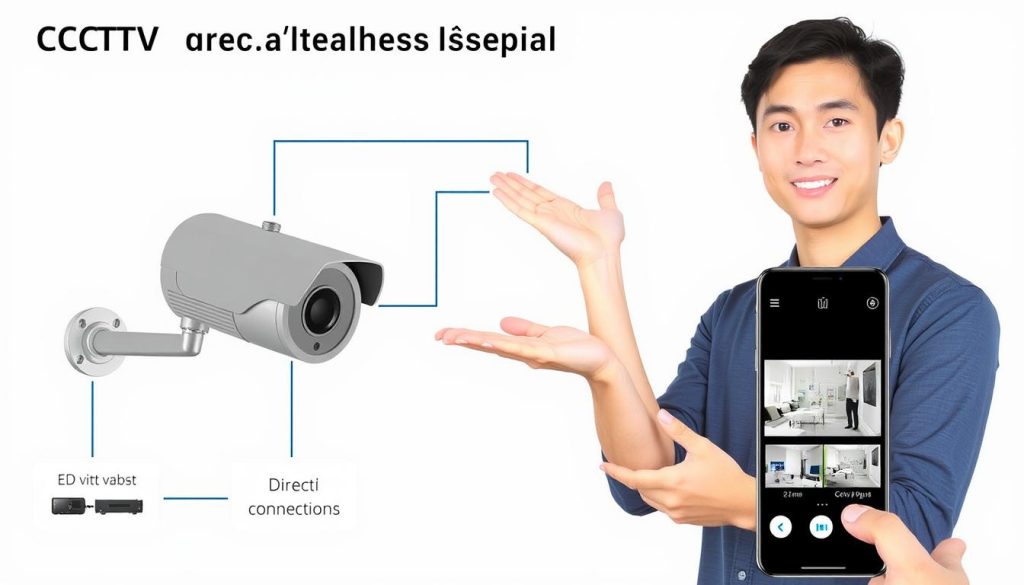
These features make it easier to manage your cameras from your phone and get only the alerts that matter.
For more on the latest in security technology, check out Security.org’s camera guide.
Credit: flegenheimer.com
Frequently Asked Questions
How Many Cameras Can I Connect To My Phone?
Most camera apps let you add unlimited cameras, but performance may drop if you view too many at once. For home use, 4–8 cameras are common. Some apps or NVRs have limits—check your camera’s manual.
Can I Connect My Security Camera To Multiple Phones?
Yes. Most apps let you share access by inviting other users via email. Each person needs their own app account. You can also log in with the same credentials on several phones, but it’s safer to use official sharing features.
Do I Need To Pay For Cloud Storage To View My Cameras On My Phone?
No, live viewing is usually free. Cloud storage is only needed if you want to watch past recordings or save video history online. Some brands offer short free storage (12–24 hours), but longer history often requires a monthly fee.
What If My Camera Only Supports 2.4 Ghz Wi-fi?
Many cameras only work on 2.4 GHz because it has longer range and better wall penetration. If your Wi-Fi is set to 5 GHz only, enable 2.4 GHz in your router’s settings. Most routers support both.
Is It Safe To Access My Camera From My Phone While On Public Wi-fi?
It’s not recommended to use public Wi-Fi for security camera access. Hackers can intercept data on open networks. If you must, use a VPN or access through your mobile data for better security.
Connecting your security camera to your phone transforms how you protect your space. With the right setup, you can see what’s happening at home, receive instant alerts, and help the police if something goes wrong. Take a few extra steps to secure your camera and app, and you’ll enjoy both convenience and peace of mind.
Whether you use a single doorbell camera or a full property system, mobile access puts control in your hands—no matter where life takes you.