
Can Google Wifi Mesh With Other Routers?
The way we connect to the internet at home is changing fast. With more devices, video calls, and streaming, people need strong Wi-Fi in every corner of the house. Many now use mesh systems, like Google Wifi, to cover big spaces and eliminate dead zones. But what if you already have a router or want to add Google Wifi to your current setup? Can Google Wifi mesh with other routers, or are there hidden problems?
This question is not just for tech lovers. Anyone considering upgrading their home network should understand how Google Wifi works with other brands and models. It’s not as simple as just plugging things in. Mixing mesh systems and different routers can create both benefits and headaches.
Sometimes, it works well; other times, it leads to slow speeds, double NAT issues, or even security risks.
In this article, you’ll get clear answers. We’ll explain how Google Wifi operates, what “mesh” really means, and what happens when you connect it to other routers. You’ll see how to set things up, what works smoothly, and when it’s better to avoid mixing devices. You’ll also find practical tips, comparisons, and real-life examples. By the end, you’ll know exactly what to expect—and how to get the best Wi-Fi for your home.
What Is Google Wifi And How Does It Work?
Google Wifi is a mesh Wi-Fi system designed to replace your traditional router. Instead of one central device, you place several small units (called “points” or “nodes”) around your home. These points communicate with each other wirelessly and create a single, strong Wi-Fi network. The main goal is to spread reliable internet to every room.
Key Features Of Google Wifi
- Easy setup: Controlled through the Google Home app.
- Automatic updates: Security and performance upgrades happen in the background.
- Seamless roaming: Devices switch between points without dropping connection.
- Parental controls: Manage screen time and block websites.
- Device prioritization: Choose which device gets the fastest speed.
How Mesh Works
Imagine a house with thick walls and multiple floors. A regular router may struggle to reach far rooms. A mesh system fixes this by letting each Google Wifi point relay the signal, acting like teammates passing a ball. This design removes weak spots and keeps speeds more consistent.
Can Google Wifi Work With Other Routers? The Core Question
The short answer is: Google Wifi can connect to other routers, but does not “mesh” with them in the true sense. Let’s break this down.
What Does “mesh With” Mean?
To mesh means to create a unified, seamless Wi-Fi network where all points communicate as equals. With Google Wifi, only Google-made points can join this mesh. Other routers (from brands like TP-Link, Netgear, Asus, etc.) cannot become true mesh points in a Google network.
You can, however, connect Google Wifi to another router. In this case, the Google Wifi becomes either a secondary network or, in some cases, extends your existing one—but there are limits and some technical issues to consider.
The Two Main Ways Google Wifi Connects With Other Routers
There are two main setups:
- Google Wifi as a Router: Google Wifi replaces your old router. It connects directly to your modem, and all other devices connect to Google Wifi.
- Google Wifi in Bridge Mode: Google Wifi connects to your existing router and acts as a bridge or access point, not as the main router.
Each setup has pros, cons, and specific use cases. The next sections will explain these in detail.
Setting Up Google Wifi With An Existing Router
If you already have a router, you might want to add Google Wifi for better coverage. Here’s how the main setups work:
Option 1: Google Wifi As Your Main Router (preferred)
- Disconnect your old router from the modem.
- Plug your modem directly into the first Google Wifi point.
- Other Google Wifi points go around your house.
- All your devices connect to the Google Wifi network.
Benefits:
- Simple management from one app.
- True mesh experience.
- No double NAT (explained later).
Drawbacks:
- Old router features are lost unless you set it up as a switch or access point.
Option 2: Google Wifi Connected To Another Router (double Nat)
- Keep your old router connected to the modem.
- Connect the main Google Wifi point to your router via Ethernet.
- Google Wifi creates a new Wi-Fi network.
- Devices can connect to either network.
Benefits:
- You keep your old router’s features (like advanced parental controls, custom firmware).
- Can be useful if your ISP router cannot be replaced.
Drawbacks:
- Double NAT problem (explained below).
- Devices on different networks may not see each other.
Option 3: Bridge Mode
- Google Wifi acts as an access point, not as the main router.
- Only one Google Wifi point can work in bridge mode (the main one).
- Other Google Wifi points lose mesh features.
Benefits:
- No double NAT.
- Devices can communicate across the whole network.
Drawbacks:
- You lose mesh benefits. Only the main Google Wifi point provides Wi-Fi.
- Secondary Google Wifi points do not act as mesh nodes.
Understanding Double Nat And Why It Matters
Double NAT stands for “Network Address Translation” happening twice. This happens when both your main router and the Google Wifi try to assign IP addresses to devices. It often causes:
- Problems with online gaming and video calls.
- Issues with smart home devices (e.g., Chromecasts, printers).
- Trouble with port forwarding.
A simple example: You try to connect your laptop (on the Google Wifi network) to a printer (on your old router’s network), but they can’t see each other. Or you want to use a VPN, but it keeps disconnecting. These are typical double NAT headaches.
How to avoid it? Use bridge mode or let Google Wifi replace your existing router completely.
Credit: www.level-sense.com
Google Wifi Compatibility With Other Mesh Systems
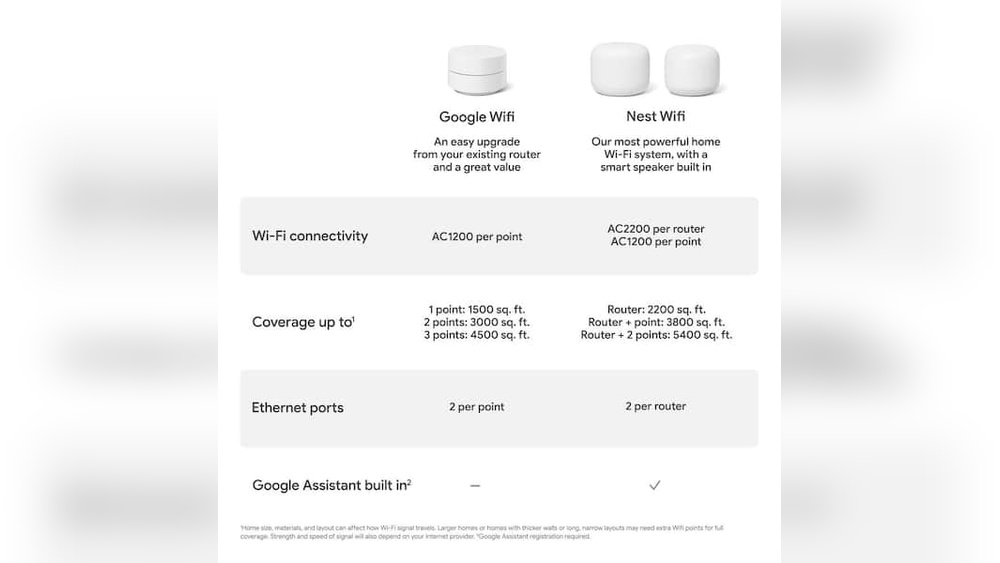
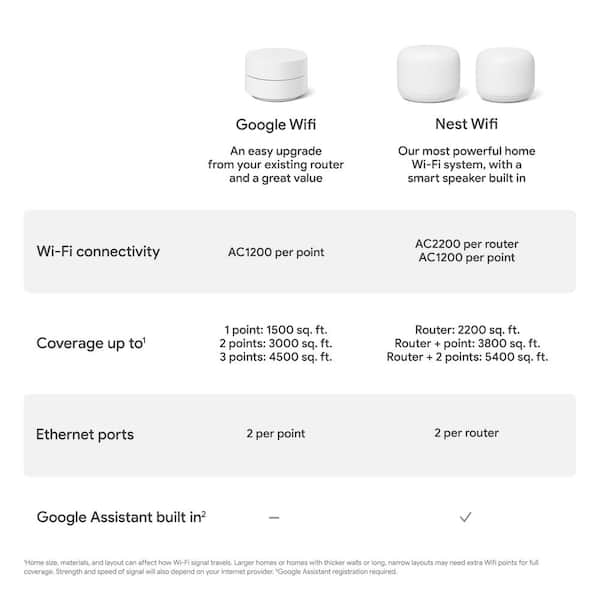
A common question is whether Google Wifi can be mixed with mesh points from other brands (e.g., mixing Google Wifi with TP-Link Deco or Amazon Eero points). The answer is: No, Google Wifi only meshes with other Google Wifi or Nest Wifi points.
This means:
- You cannot set up a Google Wifi point as part of another brand’s mesh.
- You cannot use other brands’ mesh points to extend a Google Wifi network.
Why Not? Proprietary Mesh Protocols
Each mesh system uses its own technology and communication method. For example, Google uses a proprietary mesh protocol. This is like trying to fit puzzle pieces from two different sets—they simply don’t match.
Insight: Some users try to mix brands using Ethernet backhaul (wiring different points together). While this can extend coverage, the network will not be seamless. You will have multiple Wi-Fi networks, and devices may not switch smoothly between them.
Using Google Wifi With Isp Routers (modem-router Combos)
Many people get a modem-router combo from their internet provider. These devices are often locked down, making it hard to replace them. Can Google Wifi still work?
How It Works
- You can connect Google Wifi to the ISP router using Ethernet.
- Google Wifi will create a new Wi-Fi network.
- The ISP router’s Wi-Fi can be turned off, or both can run at the same time.
What’s The Best Practice?
- If possible, set the ISP router to “bridge mode.” This disables its Wi-Fi and routing features, letting Google Wifi take over.
- If bridge mode is not available, you’ll face double NAT (see section above).
Tip: If you must keep the ISP router active, connect as many devices as possible to the Google Wifi network for a more stable connection.
Real-world Scenarios: When Mixing Routers Makes Sense
Here are situations where using Google Wifi with another router may be the right choice:
- Advanced Features Needed: Some routers offer features Google Wifi lacks, like advanced VPN or firewall tools.
- ISP Restrictions: Some internet providers require their own router for TV or phone services.
- Business Networks: Offices may use a main router for wired connections and Google Wifi to improve Wi-Fi.
Example: A small business has a main router running a special firewall and connects Google Wifi for better Wi-Fi coverage in the office. Staff use the Google Wifi network, but the main router still controls security.
When You Should Avoid Mixing Routers
While it’s possible, sometimes it’s better not to mix devices:
- If you want seamless roaming: Stick to one mesh brand.
- If you’re not tech-savvy: Mixing routers can create troubleshooting headaches.
- If you have smart home devices: Devices on different networks may not communicate well.
Insight: Many beginners overlook that smart speakers, cameras, or streaming sticks may not work properly if split between two networks.
Common Problems When Using Google Wifi With Other Routers
Here are issues you might face:
- Device Discovery Fails: Printers and smart home gadgets may not be found by phones or computers.
- Slow Speeds: Traffic may be slowed by double NAT or extra routing steps.
- Inconsistent Wi-Fi: Devices don’t always switch smoothly between networks.
- Management Confusion: You may need to use two different apps or interfaces.
These can often be fixed, but sometimes require advanced network knowledge.
How To Set Up Google Wifi With Another Router (step-by-step)
If you decide to use Google Wifi alongside your current router, follow these steps:
Connecting Google Wifi As A Secondary Router
- Plug your existing router into the modem.
- Connect the main Google Wifi point to your router using an Ethernet cable.
- Open the Google Home app and follow setup instructions.
- Create a new Wi-Fi network name (SSID) for Google Wifi.
- Connect your devices to the new network.
Optional: Setting Your Old Router To Bridge Mode
- Log in to your router’s web interface.
- Look for “Bridge Mode,” “Access Point Mode,” or “Disable Routing.”
- Enable it to turn off routing functions and let Google Wifi handle networking.
Adding More Google Wifi Points
- Place additional points around your home, away from thick walls or appliances.
- Use the Google Home app to add each point.
- Test speeds and adjust locations as needed.
Tip: For best results, keep points within 2–3 rooms of each other.
Comparison: Google Wifi Vs Other Mesh Systems
To help you understand where Google Wifi stands, here’s a quick comparison with two other popular mesh systems.
| Feature | Google Wifi | Netgear Orbi | TP-Link Deco |
|---|---|---|---|
| Mesh with Other Routers | No | Partial (with Orbi routers) | No |
| Max Speed | Up to 1200 Mbps | Up to 3000 Mbps | Up to 1267 Mbps |
| App Control | Google Home | Orbi App | Deco App |
| Advanced Settings | Basic | Advanced | Medium |
| Parental Controls | Yes | Yes | Yes |
| Price (3-pack) | ~$199 | ~$299 | ~$179 |
Insight: Google Wifi is simple and affordable but less flexible with other brands. Netgear Orbi offers more speed and features for advanced users.
Performance Impact: What To Expect When Mixing Devices
Mixing Google Wifi with other routers affects performance in several ways:
- Speed Drops: Passing data through two routers can reduce speed by 10–30%.
- Latency Increase: Extra routing steps add delay, which gamers and streamers may notice.
- Roaming Issues: Devices may not switch Wi-Fi points as smoothly.
Example: A user has a 500 Mbps internet plan. With a single Google Wifi system, they get 400 Mbps everywhere. When they use Google Wifi behind another router, speeds may drop to 250–350 Mbps in some rooms.
Pro Tip: If possible, use wired connections (Ethernet backhaul) between points to boost speed and reliability.
Credit: www.homedepot.com
Security Considerations When Mixing Routers
Mixing devices can affect network security:
- Multiple firewalls: Both routers may try to filter traffic, leading to conflicts.
- Firmware updates: Each device may update on a different schedule, creating vulnerabilities.
- Guest networks: Not all features (like guest Wi-Fi) will work properly across both routers.
To reduce risks:
- Keep all devices updated.
- Use strong passwords on both networks.
- Disable unused features (like remote management) if possible.
Google Wifi Bridge Mode: Details And Limitations
If you want to use Google Wifi as a bridge, know these facts:
- Only the main Google Wifi point can be in bridge mode.
- The other points will not mesh; they act as regular Wi-Fi repeaters.
- You lose features like device prioritization and parental controls.
When is bridge mode useful? When you must keep your ISP router as the main router (for TV, phone, or ISP requirements) but want to use Google Wifi to extend coverage.
Limitation: Most users expect full mesh benefits but lose them in bridge mode.
Credit: www.reddit.com
Using Ethernet Backhaul With Google Wifi And Other Routers
Some users wonder if they can connect Google Wifi points using Ethernet cables (for faster speeds), especially when mixing with other routers.
- Google Wifi supports Ethernet backhaul only between Google points.
- You cannot use Ethernet to connect a non-Google router as a mesh point.
- Wired connections improve speed and stability for Google points, but do not create a seamless mesh with non-Google devices.
Practical Tip: For large homes, running Ethernet between Google Wifi points brings the best speeds, but all points must be Google-branded.
Troubleshooting: If Things Don’t Work As Expected
If you have issues after mixing Google Wifi with another router, try these steps:
- Check connections: Ensure cables are secure and devices powered on.
- Restart devices: Power off and restart both routers and Google Wifi points.
- Check double NAT: Use the Google Home app to see if double NAT is present.
- Update firmware: Make sure both routers have the latest updates.
- Test speeds: Use speed tests in different rooms to find weak spots.
- Reset networks: As a last resort, reset both routers and set up from scratch.
Insight: Beginners often forget to turn off the old router’s Wi-Fi, causing interference. Always disable unused networks.
Pros And Cons Summary: Mixing Google Wifi And Other Routers
Here’s a quick summary to help you decide if this setup is right for you.
| Pros | Cons |
|---|---|
|
|
Best Practices For Using Google Wifi With Other Routers
To get the best results:
- Use Google Wifi as your main router when possible.
- If you must keep your old router, try to use bridge mode.
- Connect important devices (TVs, PCs) directly to Google Wifi.
- Place Google Wifi points in open areas, away from thick walls or electronics.
- Regularly check for software updates in the Google Home app.
Non-obvious Insights For Beginners
- Wi-Fi Names Matter: Devices may not switch networks automatically. Use the same Wi-Fi name (SSID) on both routers for easier roaming, but be aware of possible confusion.
- Smart Home Devices: Many smart devices only work on the 2.4 GHz band. If Google Wifi and your old router use different bands, setup can be tricky. Temporarily turn off the 5 GHz network if you have trouble connecting devices.
- Guest Network Limitations: If you create a guest network on Google Wifi while another router is present, guests may not be fully isolated from your main network. Always test before sharing guest access.
When To Upgrade To A Single Mesh System
If you face frequent issues, it may be time to upgrade:
- Replace both your old router and Google Wifi with a new, single mesh system.
- Choose a system that matches your speed needs and home size.
- Consider systems that support Ethernet backhaul if you have wiring.
Tip: Upgrading reduces troubleshooting and gives you full mesh benefits.
Alternatives To Google Wifi For Mixing With Other Routers
If you need a mesh system that works better with other brands, consider:
- Ubiquiti UniFi: Advanced, flexible, but more complex.
- Asus AiMesh: Some Asus routers can mesh together, even with different models.
- Synology Mesh: Works across certain Synology routers.
These options are better for users comfortable with advanced network setups.
External Resource For Advanced Users
For deeper technical details on mesh networking standards, see the Wikipedia page on mesh networking.
Frequently Asked Questions
Does Google Wifi Work As A Mesh With Non-google Routers?
No, Google Wifi only forms a mesh network with other Google Wifi or Nest Wifi points. Other brands cannot join the mesh. You can connect Google Wifi to another router, but it will not act as a seamless mesh.
Can I Use Google Wifi As An Access Point With My Existing Router?
Yes, you can set Google Wifi to bridge mode so it acts as an access point. However, only the main Google Wifi point works in this mode. Other points do not provide mesh features when in bridge mode.
Will Using Google Wifi With Another Router Slow Down My Internet Speed?
It can. Double NAT and extra routing steps may reduce speed and add latency, especially for activities like gaming or streaming. For best results, use Google Wifi as your main router or enable bridge mode on your existing router.
Can I Use Ethernet Cables To Connect Google Wifi With Another Brand’s Mesh System?
No. Ethernet backhaul only works between Google Wifi points. Connecting Google Wifi by Ethernet to another brand’s mesh system does not create a seamless mesh network.
How Do I Know If I Have Double Nat?
You can check for double NAT in the Google Home app under “Network status.” If both your main router and Google Wifi are handing out IP addresses, you likely have double NAT. This can cause connection problems for some devices.
Final Thoughts
Google Wifi is a powerful, user-friendly mesh system—but it’s not designed to work as a true mesh with other routers. While you can connect Google Wifi to an existing router or ISP-provided modem-router, you will face some limits, like double NAT, potential speed loss, and loss of mesh features in bridge mode.
For the best seamless coverage, use Google Wifi as your main router and only mesh with other Google or Nest Wifi points.
Mixing routers can work in special cases, but it’s rarely ideal for beginners. Know your needs, test your setup, and don’t be afraid to upgrade if you want the smoothest Wi-Fi experience. Your devices—and your sanity—will thank you.