
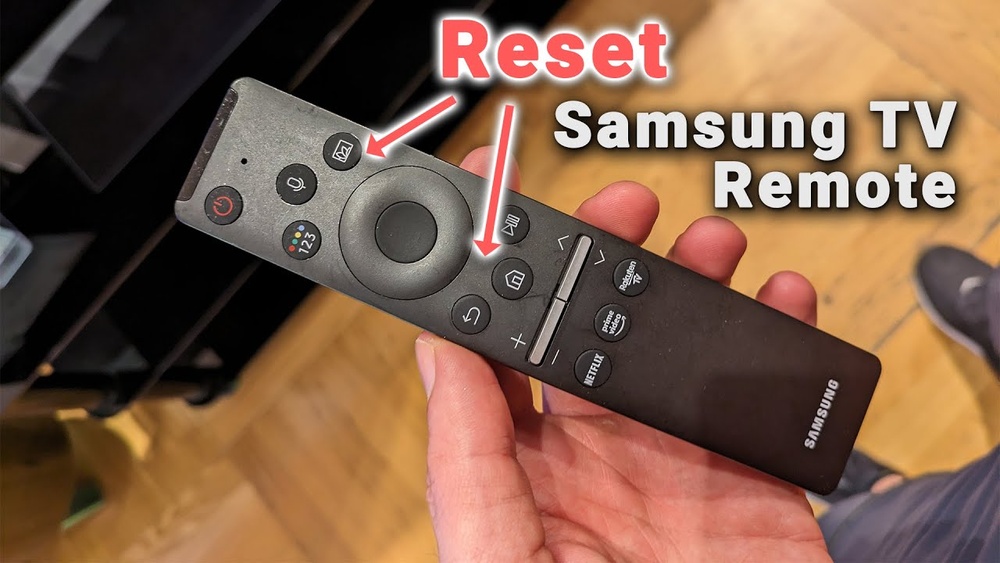
Resetting your Samsung TV remote might seem simple, but many people get stuck. Maybe your remote stopped working suddenly, or you’re seeing odd behavior like buttons not responding or unexpected volume changes. Sometimes, the problem is not with the TV, but with the remote itself.
Knowing how to reset your remote can save you time, money, and avoid unnecessary frustration.
In this guide, you’ll discover step-by-step methods to reset your Samsung TV remote, common issues that lead to needing a reset, troubleshooting tips, and ways to check if your remote or TV has deeper problems. You’ll also learn how to handle different types of Samsung remotes, including the newest models, older infrared remotes, and Smart remotes. If you’re unsure whether your remote needs a reset, you’ll find clear signs to help you decide. By the end, you’ll have the confidence to fix most remote control issues yourself and know when it’s time to seek professional help.
Why You Might Need To Reset Your Samsung Tv Remote
There are several reasons your Samsung TV remote may stop working properly. Understanding these helps you know when a reset is the right solution.
1. Buttons Aren’t Responding
Sometimes, specific buttons do nothing when pressed. This could be a sign of a software glitch. Occasionally, it happens after a remote is dropped or a liquid spill occurs, which can momentarily confuse the internal circuits.
2. Remote Doesn’t Pair With Tv
Modern Samsung TVs use Bluetooth for pairing. If the connection drops, the remote won’t work. Sometimes, after moving your TV or changing network settings, pairing can break unexpectedly.
3. Erratic Behavior
You might notice your TV changing channels or volume without input, or multiple button presses get ignored. Sometimes, the remote acts as if a button is stuck, even when nothing is pressed.
4. Battery Issues
Low batteries can cause the remote to malfunction. Even after replacing batteries, issues can persist if there’s a software error. Occasionally, battery corrosion can also cause problems by interrupting the power flow.
5. After Software Update
Sometimes, after updating your TV’s firmware, the remote stops working as expected. A reset can often fix this. Updates can change how your remote communicates with the TV, so a quick reset helps re-establish the connection.
6. Pairing New Remote
If you buy a new remote, you may need to reset the old one to pair the new device. This prevents conflicts between two remotes trying to control the same TV.
Non-obvious insight: Many users don’t realize that electromagnetic interference from other devices can cause remote issues. For example, if you have a wireless router or Bluetooth speaker nearby, it might disrupt the remote’s signal. Even cordless phones or baby monitors can sometimes affect Bluetooth remotes.
Types Of Samsung Tv Remotes
Before you start, it’s important to know which type of remote you have. Samsung offers several remote types, each with its own reset process.
| Remote Type | Features | Reset Method |
|---|---|---|
| Standard IR Remote | Basic controls, uses infrared signal | Battery removal and button press |
| Smart Remote (Bluetooth) | Voice control, pairing required | Button combo for reset |
| One Remote (Universal) | Controls multiple devices | Pairing and software reset |
| Touch Remote | Touchpad, advanced functions | Battery and button combo |
Non-obvious insight: Older IR remotes are less likely to suffer software glitches but are more prone to physical wear. Smart remotes can have pairing issues after TV firmware updates. Also, One Remotes that control several devices at once may occasionally get confused and stop responding to the TV if they receive signals from another device (like a soundbar) at the same time.

Credit: ladiablalv.com
Signs Your Remote Needs A Reset
Not every problem means you should reset your remote. Here are clear signs to look for:
- Pressing buttons but nothing happens on the TV.
- Remote works only when very close to the TV.
- TV responds to some buttons but not all.
- Remote LED blinks but TV ignores commands.
- Remote stopped working after pairing a new device.
Other signs include the remote randomly controlling features you didn’t select, or the remote being ignored by the TV at certain times of day. Sometimes, a remote that works for a few minutes after new batteries are inserted, but then fails again, often just needs a reset.
If you see these signs, a reset is often the best first step.
Preparing To Reset Your Remote
Before you start, do these checks:
1. Check Battery Level
Replace old batteries with fresh ones. Low power can cause strange behaviors. If batteries are old or have been used in other devices, they may not have enough charge.
2. Remove Obstructions
Clear any objects between your remote and TV. IR remotes need a clear line of sight. If you have decorations, soundbars, or even glass cabinets in front of the TV sensor, try moving them.
3. Turn Off Nearby Devices
Bluetooth or Wi-Fi devices can interfere with the remote’s signal. Turn them off if possible. Move wireless speakers, laptops, or routers away from the TV area for testing.
4. Confirm Tv Power
Make sure your TV is on and not in standby mode. Sometimes, the TV appears off, but it’s really in a power-saving state and won’t respond until it’s fully on.
It’s surprising how often these simple steps fix the problem. Many times, the issue is not as serious as it seems, and you don’t need to reset your remote at all.
How To Reset Standard Samsung Ir Remotes
These are the most common remotes for older Samsung TVs. The process is simple:
- Remove Batteries
- Open the battery compartment.
- Take out both batteries.
- Press All Buttons
- With batteries removed, press each button on the remote one by one.
- This clears any residual charge and resets the internal circuit.
- Pay extra attention to buttons that stick or feel stiff—press them several times.
- Wait 1-2 Minutes
- Leave the batteries out for at least one minute.
- If your remote has been dropped or exposed to moisture, wait a bit longer to ensure it’s completely dry inside.
- Insert New Batteries
- Place fresh batteries in the compartment.
- Make sure the battery contacts are clean and correctly aligned.
- Test the Remote
- Point the remote at the TV and try basic functions.
- Start with power, volume, and channel buttons.
If the remote still doesn’t work, try cleaning the battery contacts with a dry cloth. Corrosion can cause poor connection. Sometimes, a pencil eraser can be used gently on metal contacts to remove stubborn residue.
How To Reset Samsung Smart Remotes (bluetooth)
Smart remotes use Bluetooth and can have pairing or software glitches. Here’s how to reset:
- Remove Batteries
- Take out the batteries.
- Check for any signs of corrosion or leakage.
- Press Power Button
- Hold the power button for 10 seconds to drain residual power.
- This step helps clear minor software errors that can block Bluetooth pairing.
- Reinsert Batteries
- Put the batteries back.
- Make sure they are facing the right direction, matching the + and – symbols.
- Pair the Remote Again
- Hold the Return and Play/Pause buttons simultaneously for 5 seconds.
- The remote’s LED will start blinking, indicating it’s in pairing mode.
- If your remote has a pairing button, use that instead.
- Wait for TV to Detect Remote
- The TV should display a pairing message. Follow on-screen instructions.
- If nothing appears, move closer to the TV and try pairing again.
If your TV doesn’t recognize the remote, make sure you’re within 5 feet of the TV. Bluetooth pairing works only at close range. Also, remove any other Bluetooth devices that might compete for a signal. Sometimes, restarting the TV helps it “see” the remote again.
Resetting Samsung One Remote (universal Remote)
Samsung’s One Remote controls multiple devices. Sometimes it needs a full reset:
- Remove Batteries
- Open the battery cover and remove batteries.
- Let the remote sit for a moment.
- Press and Hold All Buttons
- Press each button, one at a time, for 2 seconds.
- This prevents any button from being stuck, which can confuse the remote’s internal processor.
- Wait 2 Minutes
- Let the remote rest without batteries.
- This ensures all power is drained from internal circuits.
- Insert Batteries
- Put new batteries in.
- Make sure the battery cover is closed tightly.
- Re-pair With TV
- Hold the Return and Play/Pause buttons until the LED blinks.
- Your TV should prompt you to confirm pairing.
- Re-pair With Other Devices
- Use the TV’s menu to pair with Blu-ray players, soundbars, etc.
- Follow manufacturer instructions for each device if needed.
Pro tip: If your One Remote controls a soundbar, resetting the remote may also require you to reset the soundbar or reselect it in the TV menu. Sometimes, devices like game consoles or streaming sticks may need to be unplugged and plugged back in for the remote to work correctly with them again.
Resetting Samsung Touch Remote
Touch remotes are less common but offer advanced features. Here’s how to reset:
- Remove Batteries
- Take out the batteries carefully.
- If your remote uses a rechargeable battery, let it drain completely before recharging.
- Press Touchpad and Power Button
- Hold both for 15 seconds.
- This action resets both the touch sensor and the remote’s processor.
- Insert Batteries
- Put in new batteries or recharge the battery fully.
- Try Pairing Again
- Use the TV’s menu to pair the remote.
- If the remote still doesn’t work, try cleaning the touchpad with a soft, dry cloth.
If the touchpad isn’t responding, it may need cleaning. Use a soft cloth and avoid moisture. Even fingerprints can sometimes confuse touch sensors, so keep the touchpad as clean as possible.
Factory Resetting Your Samsung Tv (when Remote Reset Doesn’t Work)
Sometimes, the remote isn’t the problem. The TV’s software can block remote signals. A factory reset of the TV may help:
- Go to Settings
- Use TV buttons or another remote if possible.
- If your TV has a joystick button, press and hold it to access the menu.
- Find ‘General’ or ‘Support’
- Select the Reset option.
- On some models, you may find it under System or Device Care.
- Enter PIN
- Default is usually 0000.
- If you changed your PIN and forgot it, you may need to contact Samsung support.
- Confirm Reset
- The TV will restart and wipe all custom settings.
- You’ll need to set up your Wi-Fi and apps again after the reset.
This wipes all settings and can resolve deep software issues. Only use this when remote resets fail. Back up important settings or app logins before a factory reset if possible.
Common Remote Problems After Reset
Even after resetting, you may face issues. Here’s what to check:
| Problem | Possible Cause | Solution |
|---|---|---|
| Remote still unresponsive | Faulty remote or TV sensor | Try another remote or check TV sensor |
| Buttons work intermittently | Low battery or interference | Replace batteries, move wireless devices |
| Remote pairs but won’t control TV | Firmware issue | Update TV software |
| Remote controls wrong device | Universal remote misconfiguration | Re-pair with correct device |
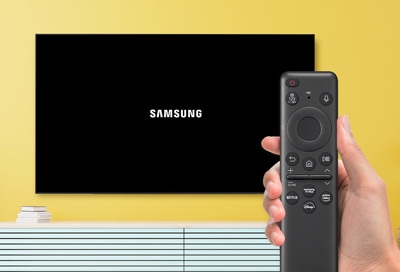
Experience-based tip: If your remote works after reset but stops after a few days, check for environmental factors. For example, sunlight can interfere with IR signals. Also, keep in mind that dust on the TV’s sensor can block signals—wipe the sensor gently with a soft cloth if needed.
Credit: www.samsung.com
How To Test If Your Remote Is Working
Testing your remote helps you know if the issue is with the remote or the TV.
Using A Smartphone Camera
IR remotes emit infrared light, invisible to the eye but visible to cameras.
- Open your phone camera.
- Point the remote at the camera.
- Press any button.
- Look for a flashing light at the remote’s tip.
If you see the light, the remote is sending a signal. If there’s no light, the remote may need new batteries or is broken.
Using Tv’s Built-in Remote Test
Some Samsung TVs have a remote test option:
- Go to Settings.
- Select Support.
- Choose Self Diagnosis.
- Select Remote Control Test.
Follow on-screen instructions. This test can sometimes help you see if the TV is receiving any signals at all.
Using Another Remote
If you have a second Samsung remote, try it with your TV. If the second remote works, your original remote may be faulty. If neither works, the problem is likely with the TV’s sensor.
Extra insight: Some universal remotes are compatible with Samsung TVs—borrowing one from a friend or neighbor can help you test if your TV’s sensor is the issue.
Advanced Troubleshooting For Persistent Issues
If a reset doesn’t solve your problem, try these advanced steps:
- Update TV Firmware
- Go to Settings > Support > Software Update.
- Install the latest update. This can solve compatibility issues with new remotes.
- Clear Bluetooth Cache
- Power off the TV for 60 seconds.
- Power back on. This can refresh the TV’s connection with Bluetooth remotes.
- Reset Remote Multiple Times
- Sometimes, two resets are needed if the remote is stuck. This may happen if the remote was dropped or exposed to static electricity.
- Check for Physical Damage
- Inspect the remote for cracks, broken buttons, or battery leaks.
- Even small drops can dislodge internal parts, so gently shake the remote to listen for loose components.
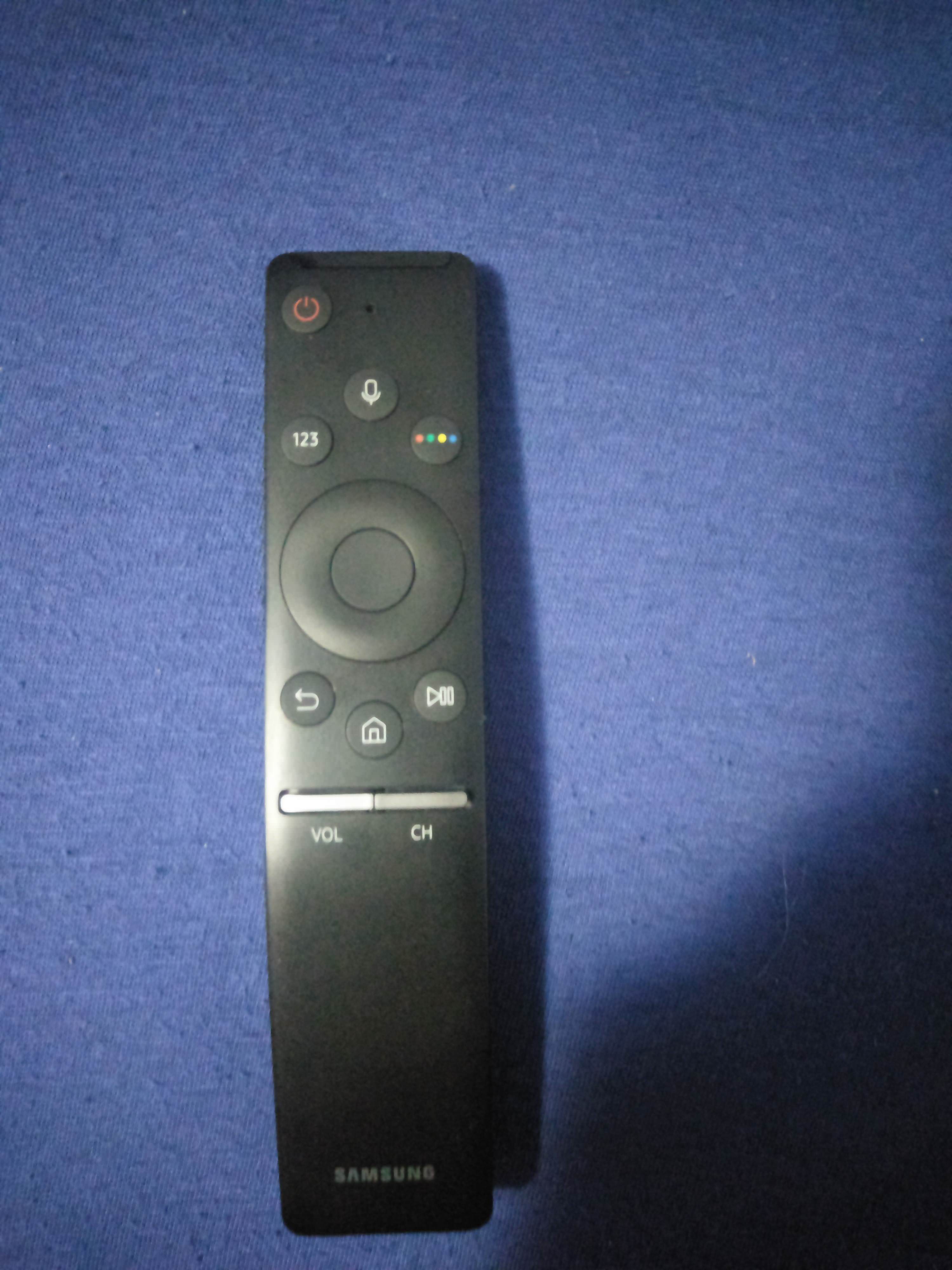
- Replace Remote
- If all else fails, buy a new remote. Official Samsung remotes are available online.
If you order a new remote, always check compatibility with your TV model. Some remotes look similar but work only with certain series.
Credit: eu.community.samsung.com
Avoiding Common Mistakes When Resetting Samsung Tv Remotes
Many people make mistakes when resetting their remotes. Here are things to avoid:
- Using Old Batteries
- Always use fresh batteries. Old batteries can cause false resets.
- Not Pressing All Buttons
- Pressing all buttons helps clear stuck circuits. Pay attention to volume and power buttons, as these are most often used and can stick.
- Resetting Only Once
- Sometimes, a second reset is needed. Don’t give up after just one attempt.
- Pairing at Wrong Distance
- For Bluetooth remotes, pair within 5 feet of the TV. Pairing too far away can cause the process to fail silently.
- Ignoring TV Firmware Updates
- Updating TV software is crucial for Smart remotes. Firmware fixes bugs that can block remote pairing.
- Not Cleaning Battery Contacts
- Dirt or corrosion can block power. Cleaning contacts extends the remote’s life.
Friendly mentor advice: If your remote is still not working, don’t rush to replace your TV. Often, a new remote or a firmware update solves the issue. Sometimes, simply unplugging the TV from power for a full minute can reset the TV sensor and fix remote response.
How Samsung Remote Technology Has Changed
Samsung has upgraded remote technology over the years. Older remotes used infrared only, while newer ones use Bluetooth and Wi-Fi. The One Remote can control multiple devices, making things easier but sometimes more complicated if there’s a glitch.
| Year Introduced | Remote Type | Main Features | Reset Complexity |
|---|---|---|---|
| 2005 | Standard IR | Basic controls | Very easy |
| 2013 | Smart Remote | Voice, Bluetooth | Moderate |
| 2016 | One Remote | Universal, Smart devices | Advanced |
| 2020 | Touch Remote | Touchpad, app integration | Moderate |
Data point: According to Samsung, over 60% of remote issues are solved with a simple reset. Less than 10% require a new remote. The remaining cases are usually caused by TV sensor problems or environmental interference.
Example: If you recently upgraded to a Samsung TV with a One Remote, remember that some older external devices may not respond to universal commands until you update their firmware or manually pair them.
When To Contact Samsung Support
If you’ve tried all the steps and your remote is still not working, it’s time to contact Samsung support.
- If your remote is under warranty, Samsung may replace it.
- If your TV sensor is faulty, support can guide you through repairs.
- For unique issues, Samsung has online troubleshooting tools.
- If your TV does not respond to any remote, including a universal one, support can help you determine if the TV’s receiver needs repair.
You can contact Samsung through their official website or call their hotline. For more information, visit Samsung Support.
Extra Tips For Reliable Remote Performance
To keep your remote working smoothly:
- Store your remote away from sunlight and heat. Excess heat can warp plastic and damage internal circuits.
- Clean it regularly with a soft, dry cloth. Dust buildup can block buttons.
- Avoid dropping or spilling liquids. Even small spills can corrode internal parts over time.
- Change batteries every 6-12 months, even if the remote still works. This prevents leakage.
- Update your TV firmware at least twice a year. New updates fix bugs and improve remote compatibility.
- Consider labeling remotes if you have multiple Samsung devices, to avoid using the wrong one.
- If you use rechargeable batteries, ensure they are fully charged for best performance.
Straight-to-the-point helper advice: Don’t ignore small problems. Fixing them early prevents bigger issues. If a button becomes harder to press or stops working, clean it and reset the remote immediately before the problem spreads.
Frequently Asked Questions
How Do I Know If My Samsung Tv Remote Needs A Reset?
If your remote doesn’t respond, works only at short distances, or certain buttons don’t work, it may need a reset. Try replacing batteries first. If problems continue, follow the reset steps described above. Also, if you notice the remote’s LED is blinking unusually, this is another sign a reset might help.
Can I Reset My Samsung Tv Remote Without Removing Batteries?
No. Removing batteries is essential to fully reset the circuit and clear any glitches. Skipping this step makes the reset less effective. The reset process depends on disconnecting all power from the remote.
What Should I Do If My Remote Still Doesn’t Work After A Reset?
Check for physical damage, try fresh batteries, and confirm the TV sensor is working. If possible, test another remote or update your TV’s firmware. If nothing works, contact Samsung support. Sometimes, using a universal remote helps identify if the problem is with the TV or the remote.
Does Resetting The Remote Erase My Tv Settings?
No. Resetting your remote only affects the remote. It does not erase TV settings or apps. However, factory resetting your TV will erase all custom settings, so use that option only if you’ve exhausted all remote fixes.
How Often Should I Reset My Samsung Tv Remote?
There’s no set schedule. Reset your remote only when it stops working or shows strange behavior. Regular battery changes and cleaning are more important than frequent resets. For most people, a reset is needed only once or twice a year.
Final Thoughts
Resetting your Samsung TV remote is a simple but powerful way to fix most issues. Whether you use a standard IR remote, Smart remote, One Remote, or Touch remote, the steps are easy and can save you from buying a new remote or calling for help. Remember to check batteries, clear obstructions, and update your TV firmware for best results. If your remote still doesn’t work, don’t panic. Try the advanced troubleshooting steps, test with another remote, or reach out to Samsung support.
Most remote problems are solved with patience and careful steps. Small actions, like pressing all buttons or pairing at the right distance, make a big difference. With this guide, you can handle almost any remote issue yourself and keep your Samsung TV experience smooth and enjoyable. If you want more technical details, you can find them at Wikipedia. If you ever feel stuck, remember that even experts sometimes need to try more than one solution before everything works as it should.