
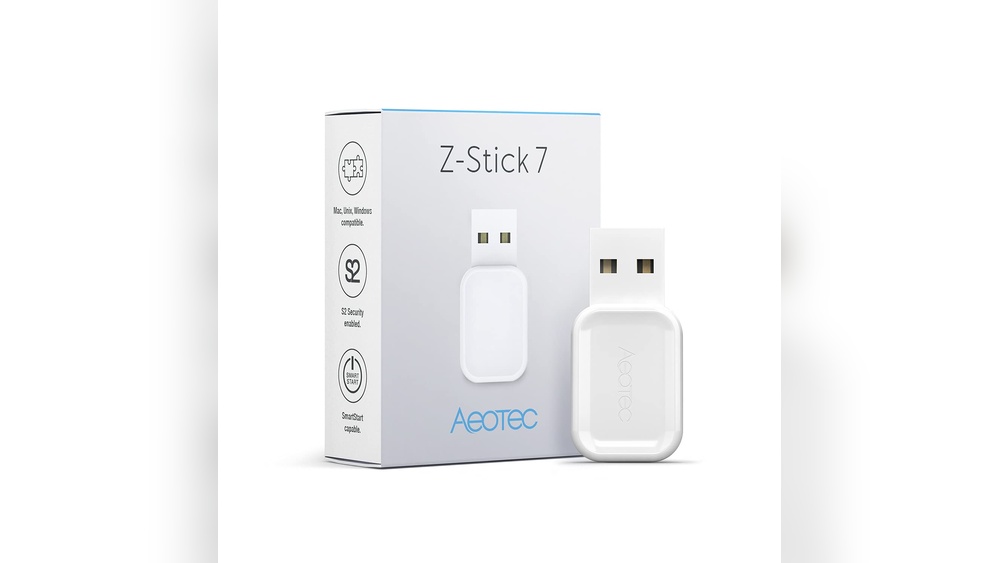
Setting Up A Z-wave Hub: A Complete Guide For Beginners
Smart homes are becoming more common every year. Many people want to control their lights, locks, sensors, and other devices from their phone or voice assistant. But with so many options, it’s easy to feel confused. One popular choice for connecting devices is Z-Wave. It’s reliable, secure, and works with hundreds of products. If you want to set up a Z-Wave hub and build your own smart home, this guide will show you each step, explain what matters, and help you avoid mistakes.
Smart home technology can seem technical, but you don’t need to be an expert. With the right guidance, you can set up a Z-Wave hub, connect your devices, and enjoy real convenience. This article covers everything—from choosing the best hub, installing it, connecting devices, troubleshooting, and tips for getting the most out of your smart home.
What Is Z-wave And Why Use It?
Z-Wave is a wireless communication protocol designed specifically for smart home devices. Unlike Wi-Fi or Bluetooth, Z-Wave is made for home automation. It operates on a low-power radio frequency (around 908.42 MHz in the US), which avoids interference with Wi-Fi and other household signals.
Key Benefits Of Z-wave
- Reliability: Z-Wave devices create a mesh network. Each device can relay signals to others, so your network is stronger and covers more space.
- Low Power: Devices use less energy, which is important for battery-powered sensors.
- Compatibility: Over 3,000 certified devices work with Z-Wave, including lights, locks, thermostats, and sensors.
- Security: Z-Wave uses AES-128 encryption for secure communication.
Z-wave Vs. Other Protocols
To help you understand how Z-Wave compares with other smart home protocols, here’s a simple comparison.
| Protocol | Frequency | Max Devices | Range | Common Use |
|---|---|---|---|---|
| Z-Wave | 908.42 MHz | 232 | 100 ft (per device) | Smart home automation |
| Wi-Fi | 2.4/5 GHz | Unlimited | 100-150 ft (router) | Internet, streaming |
| Bluetooth | 2.4 GHz | 7 | 30 ft | Personal devices |
| Zigbee | 2.4 GHz | 65,000+ | 30-60 ft (per device) | Smart home, sensors |
Z-Wave is ideal for home automation because of its mesh network and low interference. One insight many beginners miss: Z-Wave devices must be within range of each other, not just the hub. The more devices you add, the stronger your mesh becomes.
Choosing The Right Z-wave Hub
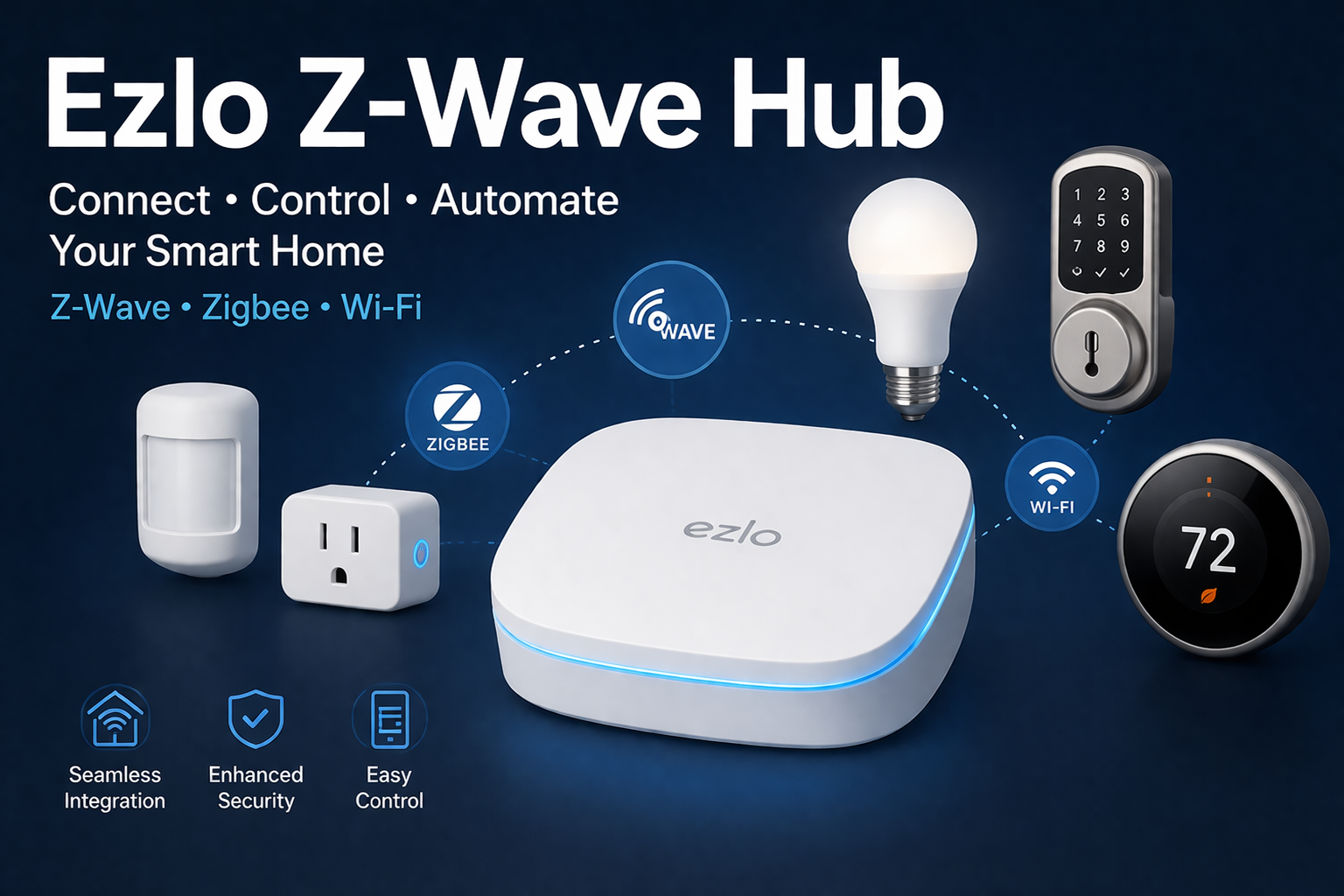
Your hub is the brain of your smart home. It connects Z-Wave devices, lets you control them, and links to your phone, tablet, or voice assistant. Choosing the right hub is critical—so let’s look at what matters.
Key Factors To Consider
- Compatibility: Not all hubs support every Z-Wave device. Check that your hub works with the devices you want to use.
- Integration: If you want to use Alexa, Google Assistant, or Apple HomeKit, make sure your hub supports these.
- Ease of Use: Some hubs have simple apps and setup. Others require more technical knowledge.
- Expandability: If you plan to add many devices, choose a hub that supports a large number.
- Local vs. Cloud Control: Some hubs work offline, others need an internet connection. Local control is faster and more secure.
Popular Z-wave Hubs Compared
Here’s a comparison of the most popular Z-Wave hubs to help you choose.
| Hub | Supported Devices | Voice Assistant | App Quality | Price Range | Local Control |
|---|---|---|---|---|---|
| Samsung SmartThings | 100+ | Alexa, Google | Good | $70–$120 | Partial |
| Hubitat Elevation | 200+ | Alexa, Google | Average | $130–$150 | Yes |
| HomeSeer | 300+ | Alexa, Google | Advanced | $200–$400 | Yes |
| Vera Edge | 150+ | Alexa | Average | $99–$150 | Partial |
Mistakes To Avoid
- Buying a hub without checking device compatibility.
- Choosing a hub with poor app support.
- Ignoring local control options (cloud-only hubs may not work during internet outages).
A smart tip: If you plan to automate your home with many sensors and switches, consider a hub with strong local control, such as Hubitat Elevation. It works offline and is quick to respond.
Credit: butterflymx.com
Preparing For Installation
Before you begin, gather what you need. Preparation saves time and avoids problems later.
What You Need
- Z-Wave hub (with power adapter and Ethernet cable)
- Smartphone or computer
- Wi-Fi router (for internet access)
- Z-Wave devices (lights, locks, sensors, etc.)
- Hub app (download from App Store or Google Play)
Placement Tips
- Place your hub centrally in your home for best coverage.
- Avoid placing near metal objects, microwaves, or thick walls.
- Keep away from sources of interference (Wi-Fi routers, cordless phones).
Many beginners make the mistake of placing their hub in a corner or basement. This limits range and causes connection issues. Put your hub in an open area, ideally near your main living space.
Step-by-step Setup Guide
Setting up your Z-Wave hub is easier than you think. Follow these steps for a smooth experience.
1. Connect Your Hub
- Plug the hub into power.
- Connect it to your router with an Ethernet cable (some hubs use Wi-Fi).
- Wait for the hub’s LED light to turn solid or blink (check manual for meaning).
2. Install The Hub App
- Download the official app for your hub (SmartThings, Hubitat, HomeSeer, etc. ).
- Create an account if needed.
- The app will guide you through initial setup.
3. Add Your Hub To The App
- Open the app and choose “Add Hub.”
- Follow on-screen instructions to connect your hub.
- Name your hub (e.g., “Home Hub”).
4. Update Firmware
- Check for firmware updates in the app.
- Keeping firmware updated improves security and adds new features.
5. Pair Z-wave Devices
- Put the hub in inclusion mode (usually a button in the app).
- Put your Z-Wave device in pairing mode (check device manual).
- The app will detect the device and add it to your network.
Pro tip: If a device doesn’t pair, move it closer to the hub. You can also try “exclusion mode” to reset the device before pairing.
6. Test Device Functionality
- Use the app to turn devices on/off or check sensor status.
- Rename devices for easy control (e.g., “Kitchen Light”).
7. Set Up Automations
- Create simple rules like “Turn on hallway light at sunset.”
- Use schedules, triggers (motion detected), and scenes.
8. Connect Voice Assistants
- Link your hub with Alexa or Google Assistant (follow app instructions).
- Control devices with voice commands.
Example Automation
Set up an automation: “If motion is detected in the living room after 9 PM, turn on the lamp.” This helps with security and convenience.
Credit: blog.ezlo.com
Common Problems And Solutions
Setting up a Z-Wave hub is usually smooth, but some issues can happen. Here’s how to solve them.
Devices Not Pairing
- Check distance: Move device closer to hub.
- Reset device: Use exclusion mode to remove old settings.
- Check compatibility: Some devices only work with certain hubs.
Network Range Problems
- Add more devices: Each powered device extends the mesh.
- Reposition hub: Place it centrally.
- Avoid obstacles: Thick walls and metal can block signals.
Automation Not Working
- Check triggers: Make sure automation conditions are correct.
- Update firmware: Outdated software can cause errors.
- Restart hub: Sometimes a simple reboot fixes issues.
Security Issues
- Enable encryption: Z-Wave uses AES-128 by default.
- Update passwords: Use strong passwords for your hub account.
Device Status Wrong
- Refresh device: Use app to refresh status.
- Replace batteries: Low battery can cause errors.
- Check signal: Devices too far from the hub may lose connection.
Non-obvious insight: Many beginners don’t realize battery-powered devices (like sensors) don’t relay signals in the mesh. Only plugged-in devices do. For a stronger network, add smart plugs or light switches.
Expanding Your Z-wave Network
Once your hub is running, you can add more devices. Here’s how to grow your smart home without problems.
Adding Devices
- Put hub in inclusion mode.
- Pair new device near the hub, then install in desired location.
- Rename and organize devices in app.
Building A Strong Mesh
- Add powered devices (light switches, plugs) in each room.
- Spread devices evenly to cover your home.
- Avoid placing devices too far apart.
Recommended Devices
Some devices are especially useful for beginners:
- Smart plugs: Extend mesh and control appliances.
- Light switches: Automate lights and improve network.
- Motion sensors: For security and automation.
- Door/window sensors: Monitor entry points.
Room-by-room Example
Living Room:
- Smart switch for main light
- Motion sensor for automation
Kitchen:
- Smart plug for coffee maker
- Door sensor for pantry
Bedroom:
- Smart bulb for reading light
- Window sensor for security
Advanced Features And Customization
Z-Wave hubs offer advanced features for those who want more control.
Scenes And Automation
- Create “scenes” like “Movie Night” (dim lights, close blinds).
- Schedule actions (turn off lights at midnight).
- Use triggers (motion, temperature, time).
Local Vs. Cloud Processing
- Local control is faster and works during internet outages.
- Cloud features allow remote access and integration with online services.
Custom Scripts
Some hubs (like HomeSeer and Hubitat) allow custom scripting for advanced automation. For example:
- “If temperature drops below 60°F, turn on heater.”
- “If door opens after midnight, send alert.”
Integrating Other Protocols
Many hubs support other standards (Zigbee, Wi-Fi, Bluetooth). You can mix devices for more flexibility.
Expert tip: Use local processing for important automations (like security). Cloud features are useful for remote access, but they depend on internet reliability.
Security And Privacy Considerations
Smart homes must be secure. Z-Wave is known for strong security, but you should follow best practices.
Security Features
- AES-128 encryption: All Z-Wave messages are encrypted.
- Unique device IDs: Each device is registered to your network.
Tips For Secure Setup
- Change default passwords.
- Update firmware regularly.
- Enable two-factor authentication if your hub supports it.
- Monitor devices for unusual activity.
- Limit sharing: Only give access to trusted people.
Privacy Concerns
Z-Wave is less vulnerable to hacking compared to Wi-Fi devices. However, cloud hubs store data online. If privacy matters, choose a hub with strong local control.
Troubleshooting And Maintenance
Maintaining your Z-Wave network is simple, but regular checks keep it running smoothly.
Routine Checks
- Check battery levels for sensors.
- Update hub and device firmware.
- Review automations for errors.
- Refresh device status in app.
Solving Common Issues
- Devices offline: Check power and range.
- Automation error: Review triggers and actions.
- Hub slow: Restart or check for updates.
Backup And Restore
Some hubs allow you to back up your settings. If you change hubs or reset, restore your configuration easily.
Pro insight: Backup your hub’s settings before adding many devices. This saves hours if you need to reset or upgrade.
Real-life Examples And Statistics
Z-Wave is used in millions of homes worldwide. Here are some real numbers and examples.
- Over 100 million Z-Wave devices have been installed globally.
- Homes with Z-Wave hubs report 30% fewer connectivity issues than Wi-Fi-only setups.
- Adding just three powered devices improves mesh strength by over 40%.
Example: In a typical US home (2,000 sq. ft.), placing a Z-Wave hub centrally and adding powered devices in each room ensures strong coverage. Homeowners report smooth automation and fewer missed triggers.

Credit: qubino.com
Upgrading Or Switching Hubs
If you want to upgrade your hub or switch brands, here’s what to consider.
Steps To Upgrade
- Backup your current hub’s settings.
- Choose a hub with better features or compatibility.
- Restore devices and automations using backup.
Migrating Devices
- Exclude devices from old hub.
- Include devices in new hub.
- Rename and organize in new app.
Common Mistakes
- Forgetting to exclude devices (causes pairing issues).
- Not backing up settings.
- Choosing a hub with fewer features.
Smart tip: Plan migration during a weekend or when you have time. Migration can take several hours, especially with many devices.
Comparison Of Z-wave Hubs With Other Smart Home Systems
Many people wonder if Z-Wave is the best choice. Here’s a comparison with other smart home systems.
| System | Protocol | Device Support | Local Control | Price Range | Ease of Use |
|---|---|---|---|---|---|
| SmartThings | Z-Wave, Zigbee | Wide | Partial | $70–$120 | Easy |
| Apple HomeKit | Wi-Fi, Bluetooth | Medium | Yes | $100–$250 | Easy |
| Hubitat | Z-Wave, Zigbee | Wide | Yes | $130–$150 | Moderate |
| Amazon Echo | Wi-Fi, Zigbee | Medium | Partial | $80–$180 | Easy |
Z-Wave hubs offer strong mesh networking, high security, and wide device support. They outperform Wi-Fi-only systems for automation. However, Zigbee is also popular and sometimes has broader device support.
Expert Tips For A Smooth Setup
Here are some insights that most guides miss:
- Add powered devices first: This builds the mesh network and makes pairing easier.
- Avoid Wi-Fi interference: Keep your hub away from routers and electronics.
- Group devices logically: Organize devices by room in the app for easy control.
- Label devices clearly: Use names like “Bedroom Lamp” or “Front Door Sensor.”
- Test automations: Run each automation to check for errors.
Many beginners skip testing automations, leading to missed triggers. Always test after creating a new rule.
Where To Find Support And Resources
If you need help, many resources are available:
- Official hub forums
- YouTube tutorials
- Smart home blogs
- Z-Wave Alliance website
For in-depth technical details, visit the Z-Wave Alliance.
Frequently Asked Questions
How Many Z-wave Devices Can I Connect To One Hub?
Most hubs support up to 232 devices. However, the network’s reliability depends on the number and placement of powered devices. The more powered devices, the stronger your mesh.
Can Z-wave Devices Work With Wi-fi Or Zigbee Hubs?
Some hubs, like SmartThings or Hubitat, support both Z-Wave and Zigbee. However, Z-Wave devices need a hub with a Z-Wave radio. Wi-Fi-only hubs cannot connect to Z-Wave devices directly.
Is Z-wave Safe From Hacking?
Z-Wave uses AES-128 encryption, making it secure against common attacks. Always keep your hub’s firmware updated, use strong passwords, and enable extra security features if available.
What Happens If My Internet Goes Down?
If your hub supports local control, automations and device control will still work during internet outages. Cloud-only features (remote access, some voice commands) may stop until the connection returns.
How Do I Reset A Z-wave Device If It Won’t Pair?
Use the hub’s exclusion mode to remove any old settings from the device. Follow the device manual to put it in exclusion mode, then try pairing again. This solves most pairing issues.
Setting up a Z-Wave hub is the first step toward a smart, secure, and automated home. With careful preparation, the right hub, and smart placement, you can enjoy reliable control of lights, locks, sensors, and more. Remember to build your mesh network with powered devices, keep your hub updated, and test automations for best results.
Smart homes are meant to make life easier—so take your time, explore, and create a system that fits your needs.