
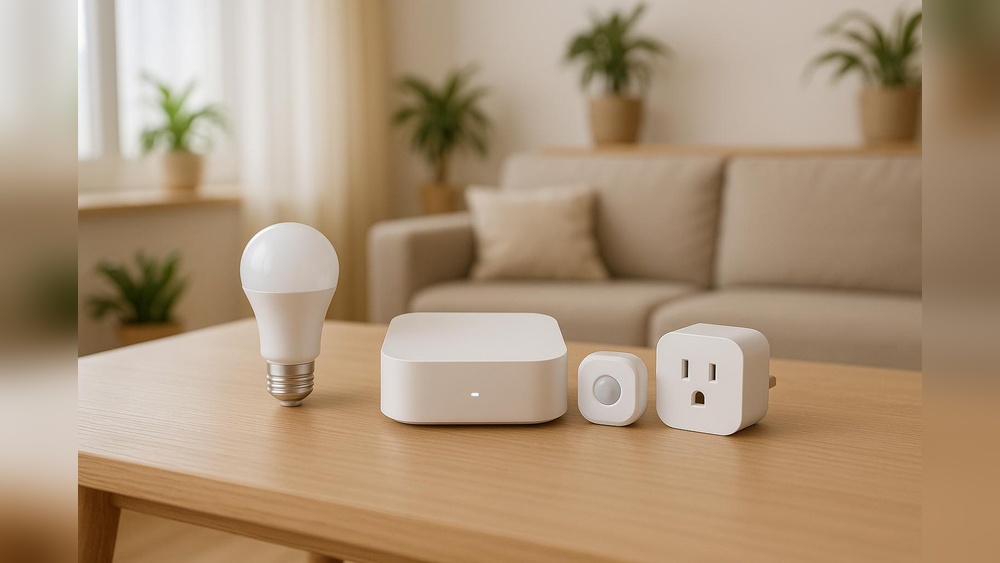
Setting up a Zigbee hub can transform your home into a smart, connected space. Zigbee is a popular wireless protocol for smart devices, offering reliable communication and low energy use. Many people want to use Zigbee hubs for home automation, but the process can feel confusing if you’re new to smart technology.
In this guide, you’ll learn how to set up a Zigbee hub from start to finish. You’ll see practical steps, real-life examples, and tips for avoiding common mistakes. Whether you want to control lights, sensors, or other devices, you’ll find everything you need to build a strong Zigbee network.
Let’s make your smart home journey easy and rewarding.
Understanding Zigbee Technology
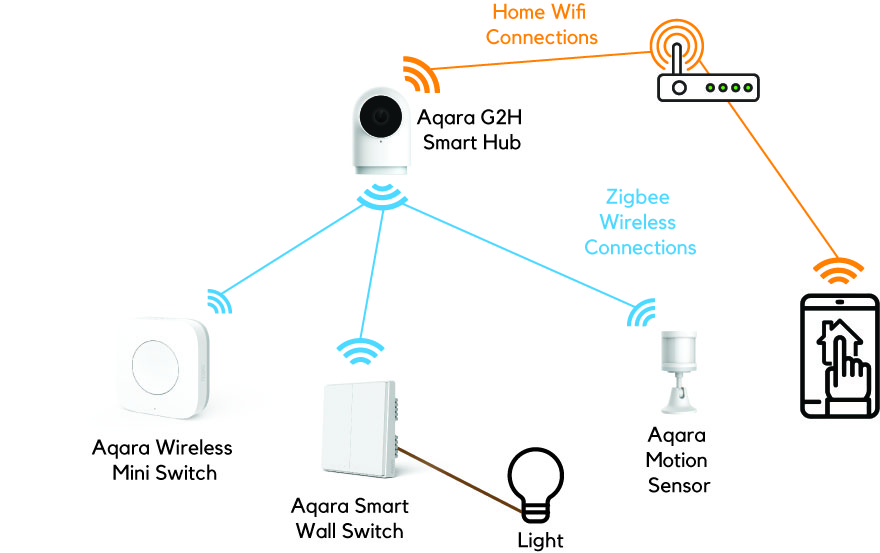
Before you start, it’s important to know what Zigbee is and why it matters. Zigbee is a wireless protocol, like Wi-Fi or Bluetooth, but it’s designed specifically for smart home devices. It uses low power, so devices like sensors and bulbs can run for months or years without changing batteries. Zigbee creates a mesh network, which means devices can pass signals to each other. This lets your smart home work even if one device is far from the hub.
Why Zigbee Is Popular For Smart Homes
- Reliability: Zigbee devices rarely lose connection because the mesh network covers your whole home.
- Low energy use: Sensors and bulbs use very little power.
- Compatibility: Many brands use Zigbee, so you can mix devices.
- Scalability: You can add many devices without losing speed or performance.
An important insight: Zigbee works best when you have multiple powered devices (like smart plugs or bulbs) because they help extend the network. If you only use battery-powered sensors, your network might be weaker.
Zigbee Vs Wi-fi And Bluetooth
To help you compare Zigbee with other protocols, here’s a simple table:
| Feature | Zigbee | Wi-Fi | Bluetooth |
|---|---|---|---|
| Network Type | Mesh | Star | Point-to-point |
| Range | Up to 100 meters | Up to 50 meters | Up to 10 meters |
| Power Use | Very low | High | Low |
| Device Limit | 100+ devices | Usually < 32 | 7 devices |
Zigbee is ideal for homes that want many connected devices with reliable communication.
Choosing The Right Zigbee Hub
Before buying, you must choose a Zigbee hub that fits your needs. The hub is the “brain” of your Zigbee network. It connects Zigbee devices to your home Wi-Fi and lets you control them with apps or voice assistants.
Key Factors To Consider
- Compatibility: Check if the hub supports the brands and devices you want to use.
- Smart Home Integration: Does it work with Amazon Alexa, Google Home, or Apple HomeKit?
- App Quality: Is the mobile app easy to use? Does it support automation, scenes, and schedules?
- Expandability: Can you add more Zigbee devices later?
- Security: Does the hub encrypt communications and offer regular updates?
For example, the Samsung SmartThings Hub is popular because it supports many brands, has a good app, and works with voice assistants. The Hubitat Elevation hub is also favored by advanced users for its strong automation features.
Comparing Popular Zigbee Hubs
Here’s a comparison of three leading hubs:
| Hub | Compatibility | Voice Assistant Support | App Quality | Price |
|---|---|---|---|---|
| Samsung SmartThings | Wide range | Alexa, Google | Easy | $70 |
| Hubitat Elevation | Wide range | Alexa, Google | Advanced | $130 |
| Amazon Echo (with Zigbee) | Limited | Alexa only | Basic | $100 |
If you’re a beginner, start with a hub that has a simple app and good support. For advanced automation, consider a hub with more features, but expect a steeper learning curve.
Common Mistakes When Buying
- Not checking device compatibility. Some Zigbee hubs only support certain brands.
- Ignoring software updates. Hubs without regular updates can become unsafe or stop working with new devices.
- Choosing based only on price. Cheap hubs may have weak range or poor app support.
Credit: www.youtube.com
Preparing For Zigbee Hub Setup
Setting up a Zigbee hub is easier when you prepare correctly. Gather all devices you want to connect, and make sure your Wi-Fi is strong.
What You Need
- Zigbee hub (chosen based on your needs)
- Smart devices (bulbs, sensors, plugs)
- Smartphone or tablet (for app setup)
- Home Wi-Fi network (stable and secure)
Tips Before Installation
- Place your hub in a central spot. This helps signals reach all devices.
- Avoid putting the hub near metal objects or thick walls. These can block wireless signals.
- Update your hub’s firmware before connecting devices.
A non-obvious insight: Most Zigbee hubs need to be plugged into your Wi-Fi router via Ethernet for best stability. Wireless connections may cause delays or drops.
Step-by-step Zigbee Hub Setup
Let’s walk through the setup process. These steps apply to most Zigbee hubs, but always check your hub’s manual for specific details.
Step 1: Power Up The Hub
Plug your Zigbee hub into a power outlet. If it needs to connect to your router, use an Ethernet cable. Wait for the lights to show it’s ready (usually a steady green or blue).
Step 2: Install The Hub App
Download the official app for your hub from the App Store or Google Play. Open the app and follow the instructions to create an account. Some hubs may require you to verify your email.
Step 3: Connect The Hub To Wi-fi
Follow the app instructions to connect your hub to your Wi-Fi. If using Ethernet, this step may be automatic. Make sure you use a secure Wi-Fi password.
Step 4: Update Hub Firmware
Before adding devices, check for firmware updates. Updated software keeps your hub secure and compatible with new devices.
Step 5: Add Zigbee Devices
Put your Zigbee devices in pairing mode. This usually means holding a button or flipping a switch. In the app, select “Add Device” and follow instructions. The hub will search for devices and show them in the app.
For example, to pair a Zigbee bulb:
- Turn the bulb on and off three times quickly.
- The bulb will blink, showing it’s ready to pair.
- In the app, select “Add Device” and choose your bulb.
Step 6: Name And Organize Devices
Once devices appear in the app, give them clear names. For example, “Living Room Lamp” or “Front Door Sensor. ” Group devices by room if possible.
Step 7: Set Up Automations
Most hub apps let you create automations. For example:
- Turn on lights when you arrive home.
- Send alerts if a door sensor triggers.
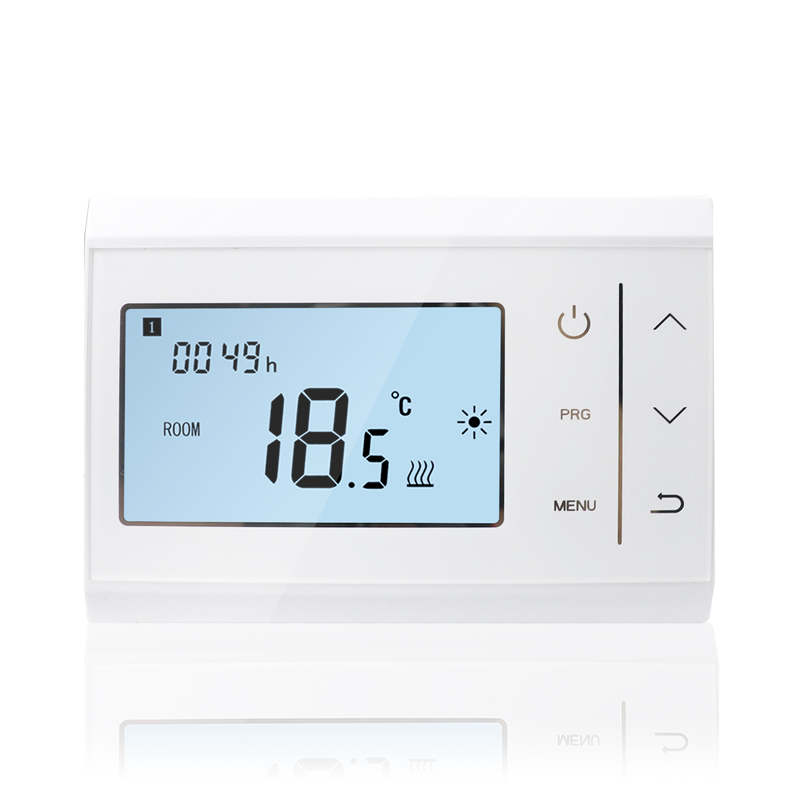
- Adjust thermostat when leaving.
Automations make your smart home more useful and efficient.
Step 8: Test Everything
Walk around your home and test each device. Make sure they respond quickly. If a device doesn’t work, move it closer to the hub or add a powered Zigbee device (like a smart plug) to boost the mesh network.
Connecting Zigbee Devices: Practical Examples
Let’s look at real-world examples. Many people set up Zigbee hubs for common devices like lights, sensors, and plugs.
Smart Bulbs
Zigbee bulbs are easy to add. After pairing, you can dim lights, change colors, or set schedules. For example, Philips Hue bulbs use Zigbee and can be grouped into rooms.
Door And Window Sensors
These sensors alert you if a door or window opens. Pairing is often as simple as pressing a button. Set automations to get phone notifications or trigger alarms.
Smart Plugs
Smart plugs extend the Zigbee mesh and let you control any device plugged into them. For example, turn off your coffee maker remotely or schedule it to turn on in the morning.
Motion Sensors
Motion sensors can trigger lights or alarms. Place them in hallways or entryways. Make sure they’re within range of the hub or a Zigbee plug.
A non-obvious insight: Zigbee devices remember their network, so if you move them, you may need to reset and re-pair. Always check for a “reset” button or instructions.
Advanced Zigbee Hub Features
Many Zigbee hubs offer more than basic control. Explore these features to get the most from your smart home.
Voice Assistant Integration
Connect your hub to Amazon Alexa, Google Assistant, or Apple HomeKit. This lets you control devices with your voice. For example, say “Alexa, turn off the living room lights.”
Scenes And Automations
Scenes let you control multiple devices with one command. For example, a “Movie Night” scene might dim the lights and close the blinds. Automations can use time, motion, or sensor data.
Remote Access
Some hubs allow remote access. You can control devices from anywhere using the app. For security, make sure your hub uses encrypted connections.
Device Health Monitoring
Advanced hubs check device health. You’ll see if a sensor battery is low or if a device drops off the network. This helps you fix problems before they affect your home.
Troubleshooting Zigbee Hub Setup
Even with careful setup, you may face issues. Here’s how to fix common problems.
Devices Not Pairing
- Make sure the device is in pairing mode.
- Move the device closer to the hub.
- Restart the hub and try again.
- Check if the device needs a firmware update.
Weak Signal Or Dropped Devices
- Add a powered Zigbee device (like a plug or bulb) to strengthen the mesh.
- Avoid placing hubs near metal or thick walls.
- Check for Wi-Fi interference.
Automation Not Working
- Double-check automation settings in the app.
- Make sure devices are named and grouped correctly.
- Update app and hub software.
Hub Not Responding
- Restart the hub by unplugging and plugging it back in.
- Check your router and internet connection.
- Contact support if problems persist.
A key insight: Zigbee networks can take a few minutes to rebuild after adding or moving devices. Wait 5-10 minutes before troubleshooting.
Expanding Your Zigbee Network
As your smart home grows, you’ll want to add more devices. Zigbee makes this easy, but there are a few things to remember.
Adding Devices Without Weakening The Network
Each powered Zigbee device acts as a repeater. To keep your network strong:
- Add smart plugs or bulbs in different rooms.
- Spread devices evenly throughout your home.
- Avoid battery-only networks.
Device Limitations
Most Zigbee hubs support up to 100 devices, but performance may drop if you add too many. Plan your network so each room has at least one powered device.
Example Network Layout
Here’s a sample layout for a medium-sized home:
| Room | Powered Device | Sensors | Plugs/Bulbs |
|---|---|---|---|
| Living Room | Smart Plug | Motion Sensor | Bulbs |
| Kitchen | Smart Plug | Door Sensor | Bulbs |
| Bedroom | Bulb | Window Sensor | Plug |
| Hallway | Bulb | Motion Sensor | — |
This setup ensures your mesh is strong, and all sensors can connect easily.
Credit: homesmart.sg
Security And Privacy With Zigbee Hubs
Smart home security is important. Zigbee hubs use encryption, but you should take extra steps to protect your data.
Security Tips
- Use strong passwords for your hub and app.
- Keep hub firmware updated.
- Only buy devices from trusted brands.
- Set up two-factor authentication if available.
Privacy Concerns
Some hubs send data to the cloud. Check your hub’s privacy policy. If you prefer local control, choose a hub that doesn’t require internet access for automation.
A non-obvious insight: Some advanced hubs let you block cloud connections or run automations locally. This protects your privacy and keeps your smart home working even if the internet goes down.
Integrating Zigbee With Other Smart Home Protocols
Many homes use a mix of Zigbee, Wi-Fi, and Z-Wave devices. Modern hubs can control multiple protocols.
Multi-protocol Hubs
Some hubs, like SmartThings and Hubitat, support both Zigbee and Z-Wave. This lets you add more device types.
Using Bridges And Adapters
If your hub only supports Zigbee, use bridges or adapters to connect Wi-Fi or Z-Wave devices. For example, a Philips Hue bridge connects Hue bulbs to Zigbee and Wi-Fi.
Practical Example
If you want to connect a Zigbee door sensor and a Wi-Fi camera, use a multi-protocol hub or link both devices in your automation app. For advanced setups, platforms like Home Assistant let you combine many protocols.
For more details on Zigbee technology, you can visit Wikipedia Zigbee.
Maintenance And Updates
Keeping your Zigbee hub and devices updated is key for smooth operation and security.
Regular Maintenance Steps
- Check for hub firmware updates monthly.
- Update device firmware if the app shows a warning.
- Replace batteries in sensors every 6–12 months.
- Review automations and scenes to remove unused settings.
Backing Up Hub Settings
Some hubs let you back up settings. This is helpful if you need to reset your hub or move to a new one.
When To Upgrade
Upgrade your hub if:
- It no longer supports new devices.
- Security updates stop.
- App features become outdated.
A practical tip: Always write down your device names and automation settings before resetting your hub. This saves time and avoids mistakes.
Real-life Zigbee Hub Setup Stories
Let’s look at how real users set up Zigbee hubs.
Example 1: Family Home Automation
A family installed a SmartThings hub. They added smart bulbs in every room, door sensors on all entrances, and motion sensors in hallways. By placing smart plugs in each room, their Zigbee network stayed strong. They set automations for lights to turn on when someone enters and for doors to send alerts if opened.
Example 2: Apartment Security System
A renter used a Hubitat Elevation hub for security. They added Zigbee window sensors, a smart plug for the living room lamp, and a motion sensor near the front door. The hub ran automations locally, so even if Wi-Fi failed, sensors triggered alarms.
Example 3: Office Lighting Control
An office manager installed Zigbee bulbs and plugs controlled by an Amazon Echo hub. They set schedules for lights to turn on and off during work hours. By naming devices clearly, they simplified control and troubleshooting.
A non-obvious insight: In shared spaces, label each device with a unique name and location. This reduces confusion and helps everyone use the system easily.
Credit: www.etopcontrols.com
Frequently Asked Questions
What Is A Zigbee Hub, And Why Do I Need One?
A Zigbee hub is a central device that connects Zigbee smart devices to your home network. It lets you control lights, sensors, and plugs from your phone or voice assistant. Without a hub, Zigbee devices can’t communicate with each other or your Wi-Fi.
How Many Zigbee Devices Can I Connect To One Hub?
Most hubs support over 100 devices. However, performance may drop if you add too many. Make sure you use powered devices, like plugs or bulbs, to keep the network strong.
Can I Use Zigbee Devices With Different Brands?
Yes, Zigbee is a universal protocol. Many brands work together, but always check your hub’s compatibility list before buying. Some devices use custom Zigbee versions and may need specific hubs.
What Should I Do If My Zigbee Device Won’t Pair?
First, put the device in pairing mode and move it closer to the hub. Restart the hub and try again. Check for firmware updates. If the device still won’t pair, consult the manual or contact support.
Is Zigbee Secure For Smart Home Use?
Zigbee uses encryption to protect your data. For extra security, use strong passwords, keep firmware updated, and buy devices from trusted brands. Some hubs offer local-only control for improved privacy.
Setting up a Zigbee hub is a smart step toward a connected home. With careful planning and the right devices, your Zigbee network will be strong, reliable, and easy to use. Take time to name devices, set automations, and maintain your hub.
If you follow these steps, your smart home will work smoothly for years.