
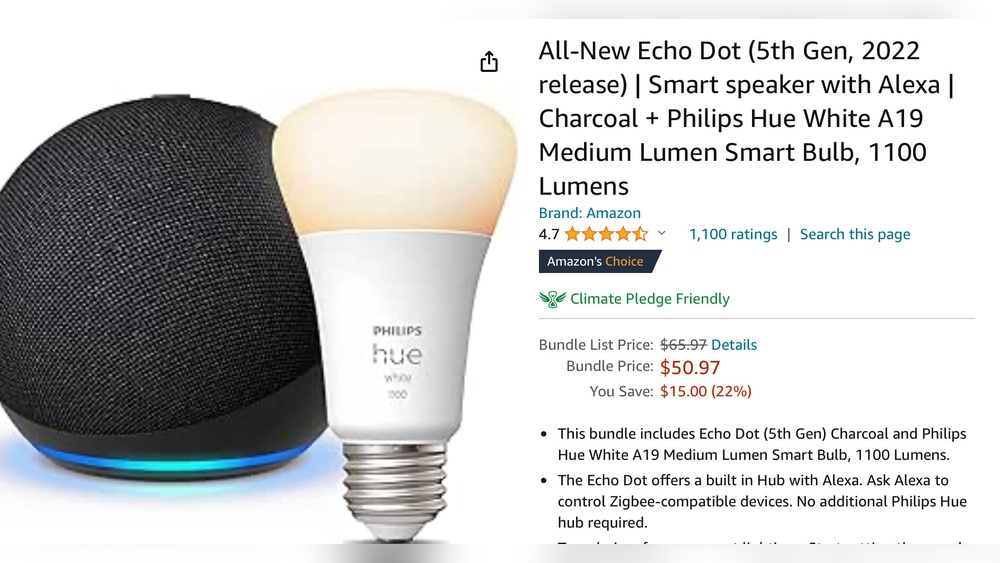
Many people buy an Alexa device, like the Echo, and discover a bonus feature: the built-in Zigbee hub. This hidden gem can make your smart home much simpler and more reliable. But if you’re new to smart devices, or you’re not sure how Zigbee works with Alexa, connecting and using everything can feel confusing. The good news? With a little guidance, you’ll soon control lights, locks, sensors, and more using just your voice or the Alexa app—no extra smart home hub needed.
This guide will walk you through how to use the Alexa Zigbee hub, step by step. You’ll learn how Zigbee works, which Alexa devices have it, and how to add and control Zigbee devices. Along the way, you’ll discover practical examples, troubleshooting tips, and ways to get the most value from your smart setup.
If you’re ready to unlock the true power of Alexa, keep reading.
What Is The Alexa Zigbee Hub?
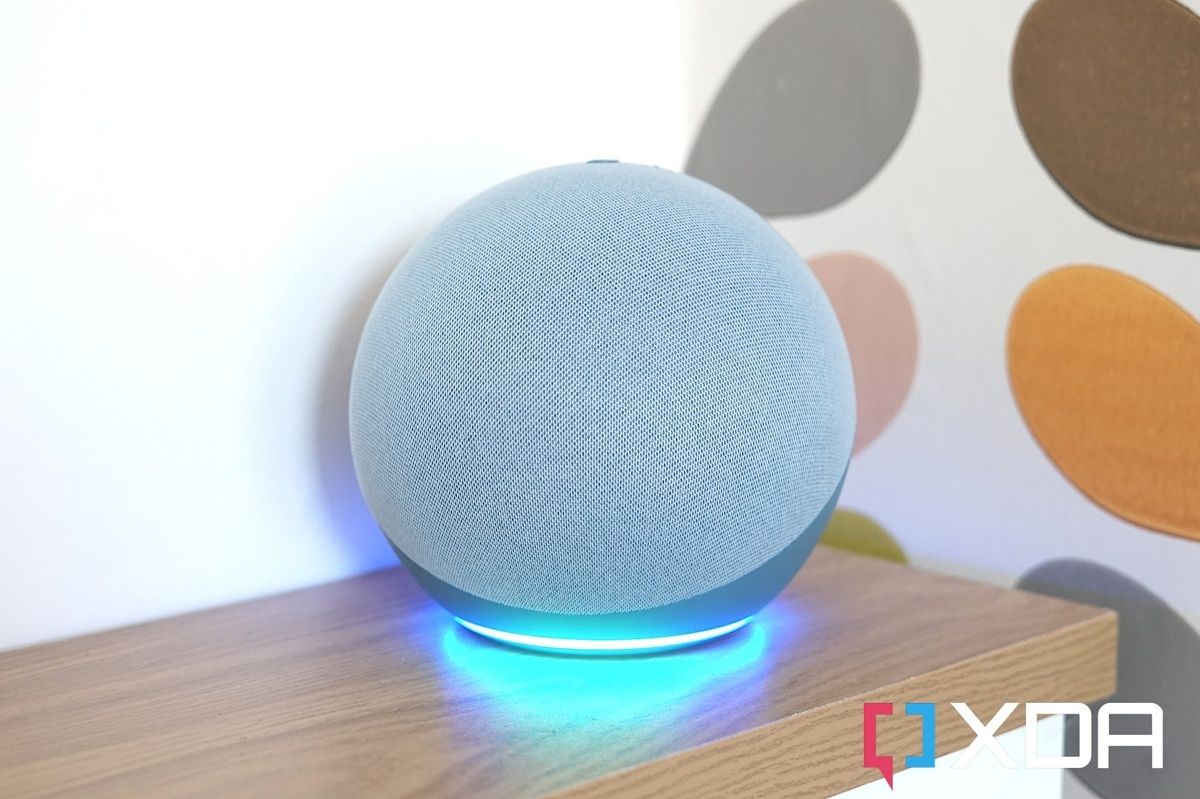
When people talk about the Alexa Zigbee hub, they usually mean a built-in Zigbee radio inside certain Alexa devices—like the Echo (4th Gen) or Echo Show 10. This feature acts as a smart home hub, letting Alexa connect directly to Zigbee smart devices, including bulbs, plugs, sensors, and more.
Zigbee: The Basics
Zigbee is a wireless communication protocol, like Wi-Fi or Bluetooth, but designed just for smart home devices. Zigbee has several advantages:
- Low power usage: Devices like sensors can run for years on a single battery.
- Reliable mesh network: Each device can relay signals, so your system works better as you add more devices.
- No need for Wi-Fi: Zigbee devices talk to the hub, not directly to your router.
Many smart home brands use Zigbee, including Philips Hue, Sengled, IKEA, and Yale. This means a single Alexa device with a Zigbee hub can control many different brands.
Why Use Alexa’s Zigbee Hub?
Most smart home devices need a bridge or hub to work with Alexa. But if you have an Alexa device with Zigbee, you often don’t need those extra boxes. This makes your smart home:
- Easier to set up: Fewer apps and hubs to manage
- More reliable: Less risk of Wi-Fi problems breaking your automations
- Faster: Local Zigbee control is usually instant
If you want a smart home that just works, the Alexa Zigbee hub is a smart choice.
Which Alexa Devices Include A Zigbee Hub?
Not every Echo or Alexa device has a Zigbee hub. Here’s a comparison of the main Alexa devices with and without Zigbee support:
| Alexa Device | Zigbee Hub Built-In? | Notes |
|---|---|---|
| Echo (4th Gen) | Yes | Mainstream speaker, globe design |
| Echo Plus (2nd Gen) | Yes | Older, still popular |
| Echo Show 10 (3rd Gen) | Yes | Screen and rotating base |
| Echo Studio | Yes | High-end audio |
| Echo Dot (all versions) | No | Does not support Zigbee |
| Echo Show 5/8/15 | No | Only the Show 10 includes Zigbee |
| Echo Flex, Input | No | No Zigbee support |
Pro tip: Always check the official Amazon product page before buying, as hardware features can change. Some limited-edition Echo models may include Zigbee.
Setting Up Your Alexa Zigbee Hub
If you have a supported Echo device, the Zigbee hub is already built in—there’s nothing special to buy or install. But you should follow a few key steps to get everything working smoothly.
1. Place Your Echo Device Wisely
The location of your Echo device matters for Zigbee. Place it:
- Near the center of your home, if possible
- Away from thick walls or large metal objects
- At least a few feet off the ground
This helps the Zigbee radio reach more devices. If you have a big house, you can use more than one Echo with Zigbee to extend coverage.
2. Connect Your Echo To Wi-fi And Amazon Account
Set up your Echo as usual, using the Alexa app on your phone. You need Wi-Fi for Alexa’s voice and smart functions, but Zigbee devices talk to the Echo over their own network.
3. Update Your Echo’s Firmware
Alexa devices get regular updates. Make sure yours is current:
- Say, “Alexa, check for software updates.”
- Or, use the Alexa app: Devices > Echo & Alexa > [Your Device] > Settings > About
If your Echo updates, wait until it finishes before adding Zigbee devices.
Adding Zigbee Devices To Alexa
Now you’re ready to add smart bulbs, plugs, sensors, or other Zigbee products. The process is usually fast and painless, but a few details matter.
What Devices Work With Alexa Zigbee Hub?
Most “standard” Zigbee devices will work, but not every feature is always available. Devices known to work well include:
- Philips Hue bulbs (without the Hue Bridge)
- IKEA TRÅDFRI bulbs and plugs
- Sengled Zigbee bulbs
- Yale Zigbee smart locks
- Third-party Zigbee plugs and sensors
Some advanced devices, like color-changing bulbs, may offer basic on/off and brightness control only. For full features, you might still need their own hub.
1. Reset The Zigbee Device
Most Zigbee devices need to be in “pairing mode. ” For bulbs, this usually means turning them off and on a few times quickly. For plugs or sensors, hold down a button. Check the device’s manual for the exact steps.
Non-obvious insight: If the device was used with another hub, it must be reset before Alexa can “see” it.
2. Start Device Discovery
In the Alexa app:
- Tap “Devices”
- Tap the “+” icon, then “Add Device”
- Choose the correct device type (Light, Plug, Sensor, etc.)
- Tap “Other,” then “Discover Devices”
Or, simply say, “Alexa, discover devices.” Alexa will search for new Zigbee devices for about 45 seconds.
3. Confirm And Name The Device
When Alexa finds your Zigbee device, it will show up in the app. You can give it a custom name (like “Living Room Lamp”). This name is what you’ll use for voice control.
Pro tip: Pick easy-to-say, unique names for each device—this makes voice commands much simpler.
4. Test The Device
Try turning the device on or off using the Alexa app or a voice command. For example:
- “Alexa, turn on Living Room Lamp.”
- “Alexa, turn off the hallway plug.”
If It Works, You’re Ready To Automate!
Using And Controlling Zigbee Devices With Alexa
Once connected, Zigbee devices act like any other Alexa smart device. Here’s how you can control and automate them.
Voice Control
Alexa understands simple commands for Zigbee devices:
- “Alexa, turn on [device name].”
- “Alexa, set [device name] to 50 percent.”
- “Alexa, dim [device name].”
If you have multiple devices, you can group them in the Alexa app (“Living Room Lights,” “Bedroom Lamps,” etc. ) For easy control.
The Alexa App
From the Alexa app:
- Tap “Devices”
- Choose “Lights,” “Plugs,” “Sensors,” or “All Devices”
- Tap a device to control power, brightness, or settings
You can also change device names, assign them to rooms, or set up routines.
Automating With Routines
Alexa’s Routines feature lets you automate actions. For example:
- Turn on lights at sunset
- Turn off plugs at midnight
- Turn on hallway light when motion is detected
To create a Routine:
- In the Alexa app, tap “More” > “Routines”
- Tap “+” to create a new Routine
- Choose a trigger (time, voice command, sensor activity, etc.)
- Add actions (turn on devices, play music, etc.)
- Save and test your Routine
Non-obvious insight: Some Zigbee devices (like motion sensors) can trigger Routines even when your internet is down, because everything runs locally.
Smart Home Groups
You can group Zigbee and non-Zigbee devices together. For example, a “Bedroom” group could include Zigbee bulbs and a Wi-Fi lamp. Saying, “Alexa, turn off Bedroom,” controls all grouped devices.
Local Control
One big advantage of Zigbee is local control. Even if your internet is down, Alexa can still control Zigbee devices using voice—if you’re on the same Wi-Fi network. However, app control from outside your home will not work.
Zigbee Vs Wi-fi Vs Bluetooth In Alexa
When you build a smart home with Alexa, you’ll see devices using different wireless standards. Here’s a quick comparison to help you understand the strengths of each:
| Protocol | Range | Power Usage | Reliability | Common Devices |
|---|---|---|---|---|
| Zigbee | 50–100 ft (mesh, extends with more devices) | Very low | High (mesh self-heals) | Lights, sensors, plugs, locks |
| Wi-Fi | 100–200 ft (depends on router) | Medium to high | Medium (depends on Wi-Fi) | Cameras, switches, plugs |
| Bluetooth | 30–50 ft | Low | Medium (short range) | Speakers, some locks |
Key takeaway: Zigbee is best for lots of simple devices, like lights and sensors. Wi-Fi is better for heavy data (cameras, streaming). Bluetooth is mostly for direct connections.
Credit: www.limpermt.com.br
Troubleshooting Alexa Zigbee Hub
Smart homes can be tricky. If something goes wrong with your Zigbee devices, these steps will help you solve most problems.
Device Not Found During Discovery
- Make sure the device is in pairing mode. Double-check the reset steps.
- Move the device closer to your Echo during setup.
- Restart your Echo (unplug, then plug back in).
- Delete old devices from the Alexa app if they’re not working.
Device Stops Responding
- Check the battery (for sensors or locks).
- Make sure the Echo and device are not too far apart.
- Try unplugging and replugging the device.
- In the Alexa app, delete the device and add it again.
Device Features Are Missing
Some advanced Zigbee features may not be supported by Alexa’s hub, such as:
- Full color control (for some bulbs)
- Custom device settings (like light effects)
- Energy monitoring data
If you need these, consider using the device’s own hub in addition to Alexa.
Echo Device Not Working As Hub
- Confirm your model actually has Zigbee (see earlier table).
- Make sure software is up to date.
- Reset your Echo if problems continue: Hold the action button for 25 seconds.
Pro tip: If you have lots of Zigbee devices, or a very large home, consider adding a second Echo with Zigbee in another area.
Advantages And Limitations Of Alexa Zigbee Hub
Advantages
- No extra hub needed: One Echo controls many brands.
- Local control: Works even if the internet goes down.
- Mesh networking: The system gets stronger as you add more devices.
- Instant response: No cloud delay for basic actions.
Limitations
- Limited advanced features: Some devices offer only basic control (on/off, brightness).
- Device compatibility: Not all Zigbee devices work, especially complex ones.
- Range: Large homes may need multiple Echos.
Non-obvious insight: Some Zigbee devices, like sensors, can be used in Alexa Routines even when made by different manufacturers—something not always possible with Wi-Fi devices.

Credit: www.amazon.com
Best Practices For A Reliable Zigbee Smart Home
To get the most from your Alexa Zigbee hub, follow these tips:
- Mix brands carefully: Stick to well-known Zigbee devices for best results. Avoid very cheap, no-name products.
- Name devices clearly: Use unique, simple names for each device.
- Update firmware regularly: Both Echo and device makers release updates for new features and bug fixes.
- Place Echos wisely: For large homes, space Echos with Zigbee evenly to cover all areas.
- Test before buying lots: Try one device first to confirm compatibility.
Experience-based tip: If you add a lot of devices at once, do them one at a time. This helps avoid confusion and makes troubleshooting easier.
Alexa Zigbee Hub: Real-life Example
Let’s see how a typical user, Maria, sets up her smart home with Alexa and Zigbee:
- Maria buys an Echo (4th Gen) and places it in her living room.
- She buys four Zigbee bulbs (two Sengled, two IKEA) and a Zigbee plug for her coffee machine.
- Each bulb is reset and added to Alexa one by one. She names them “Main Light,” “Desk Lamp,” “Reading Corner,” and “Kitchen Light.”
- She creates a group called “All Lights.” Now she can say, “Alexa, turn off all lights.”
- Maria sets a Routine: Every morning at 7 am, the coffee machine plug turns on for 20 minutes.
- She adds a Zigbee motion sensor to the hallway. Now, Alexa turns on the hallway light when Maria walks by at night.
- When her internet goes down, Maria can still use her voice to control all Zigbee devices.
This setup uses no extra hubs, and Maria manages everything from the Alexa app.

Credit: www.techhive.com
Alexa Zigbee Hub And Matter
You may have heard about Matter, the new smart home standard. Matter aims to make devices from different brands work together, using Zigbee and other protocols. Some newer Alexa devices support both Matter and Zigbee, making your smart home future-proof.
Non-obvious insight: If you buy a device that supports both Zigbee and Matter, you can usually add it to Alexa using either method. For now, Zigbee is still the more common choice, but Matter is growing fast.
For up-to-date details on Matter support, check the official Amazon Alexa Smart Home page.
Security And Privacy With Zigbee On Alexa
Smart home devices raise questions about security and privacy. Here’s what you should know about Zigbee with Alexa:
- Local communication: Zigbee devices send commands directly to your Echo, not over the internet.
- Amazon account security: Alexa needs your Amazon account. Use a strong password and enable two-factor authentication.
- Voice history: Review and manage your Alexa voice history in the app settings.
- Device control: Anyone in your home can use voice commands. For sensitive devices (like locks), set up a PIN code.
Pro tip: For smart locks, always enable Alexa’s voice PIN for unlocking. This prevents accidental or unauthorized unlocks.
Comparing Alexa Zigbee Hub To Other Hubs
You might wonder how Alexa’s Zigbee hub compares to other smart home hubs, like Samsung SmartThings or Philips Hue Bridge. Here’s a head-to-head look:
| Feature | Alexa Zigbee Hub | SmartThings Hub | Philips Hue Bridge |
|---|---|---|---|
| Device Control | Basic (on/off, brightness) | Advanced (more device types, custom settings) | Full (for Hue products) |
| Voice Integration | Built-in with Alexa | Works with Alexa, Google, more | Works with Alexa, Google, Apple |
| App Control | Alexa app | SmartThings app | Hue app |
| Local Control | Yes, for most devices | Yes, some devices | Yes (for Hue) |
| Automation | Alexa routines | More advanced options | Hue scenes, limited routines |
| Price | Free with supported Echo | Separate hub, extra cost | Separate bridge, extra cost |
Key takeaway: Alexa’s Zigbee hub is perfect for beginners or those wanting simple control. For complex automations, a dedicated hub may offer more flexibility.
When To Use (and Not Use) Alexa Zigbee Hub
Use Alexa Zigbee Hub If…
- You want to avoid extra hubs and wires.
- You want basic, reliable control of lights, plugs, and sensors.
- You like voice and app control from one system.
- Your home isn’t huge (or you’re willing to add more Echo devices for coverage).
Consider Other Hubs If…
- You want advanced features (color scenes, energy monitoring, custom device types).
- You have a very large smart home.
- You need compatibility with non-Zigbee devices (Z-Wave, specialty sensors).
- You want to tinker with custom automation tools.
Straight-to-the-point insight: For most everyday smart home users, Alexa’s Zigbee hub offers the best mix of simplicity and flexibility.
Frequently Asked Questions
Can I Use Zigbee Devices With Alexa If I Already Own A Philips Hue Bridge?
Yes, you can. You have two choices: Add Zigbee devices directly to Alexa, or connect them to the Philips Hue Bridge and link the Bridge to Alexa. If you want advanced Hue features (like dynamic scenes), use the Bridge. For simple on/off or dimming, Alexa’s built-in Zigbee works well.
Will Alexa Zigbee Hub Work If My Internet Is Down?
Yes, for local control. You can use voice commands to control Zigbee devices if you’re on the same Wi-Fi network. However, remote control from outside your home, or using the Alexa app over cellular data, will not work without internet.
How Many Zigbee Devices Can I Connect To My Echo?
Most Echo devices with Zigbee support up to about 50–100 devices, depending on the model. The Echo (4th Gen) and Echo Show 10 can handle large setups for most homes. If you need more, add another Echo with Zigbee in a different area.
Can I Use Zigbee Sensors (like Motion Or Door Sensors) In Alexa Routines?
Absolutely. Zigbee sensors paired with your Echo can trigger Alexa routines, such as turning on lights when motion is detected or sending alerts when a door opens. Not all sensor brands are supported, so check compatibility first.
Are Zigbee Devices More Secure Than Wi-fi Smart Devices?
Zigbee has strong local encryption and does not send commands over the internet, making it harder for outsiders to intercept. However, your Alexa device still connects to your Amazon account, so always use strong passwords and update your devices regularly.
Building a smart home can seem overwhelming at first, but the Alexa Zigbee hub makes it easier than ever. With the right devices and a little planning, you’ll enjoy a more comfortable, secure, and fun living space—without the headache of extra hubs or complicated setups.
Whether you start with a single smart bulb or automate your whole house, Alexa and Zigbee give you the flexibility to grow at your own pace.