
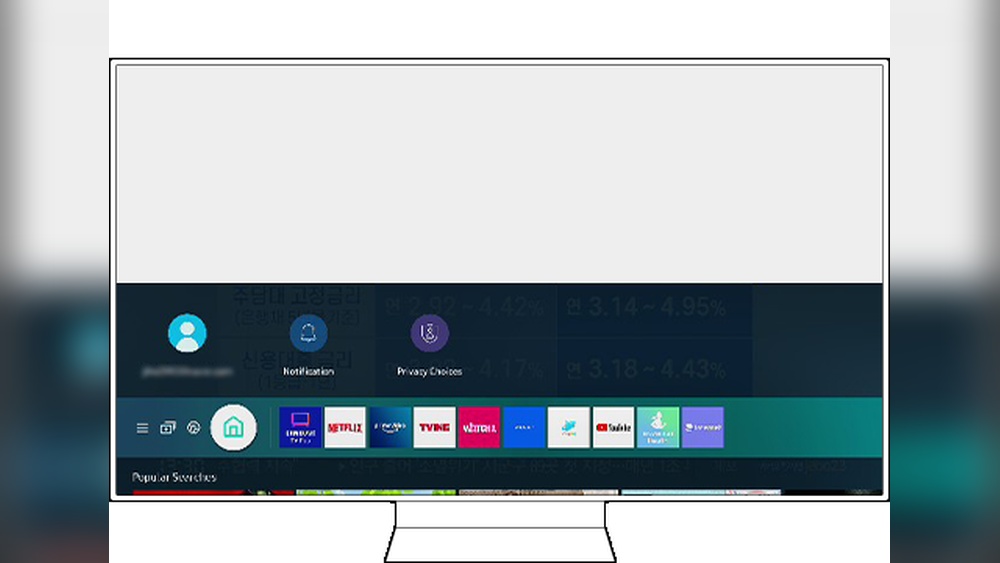
Updating the Smart Hub on your Samsung TV is not just about getting the latest apps or features. It’s about keeping your TV running smoothly, fixing bugs, and enjoying the best entertainment experience. Many people think updating is difficult, but it’s actually simple once you know the steps. If you have a Samsung TV and want to make sure your Smart Hub is up to date, this guide will help you every step of the way. You’ll learn why updates matter, how to do them, and how to fix common problems. Let’s make your Samsung TV smarter and safer, together.
What Is Smart Hub On Samsung Tv?
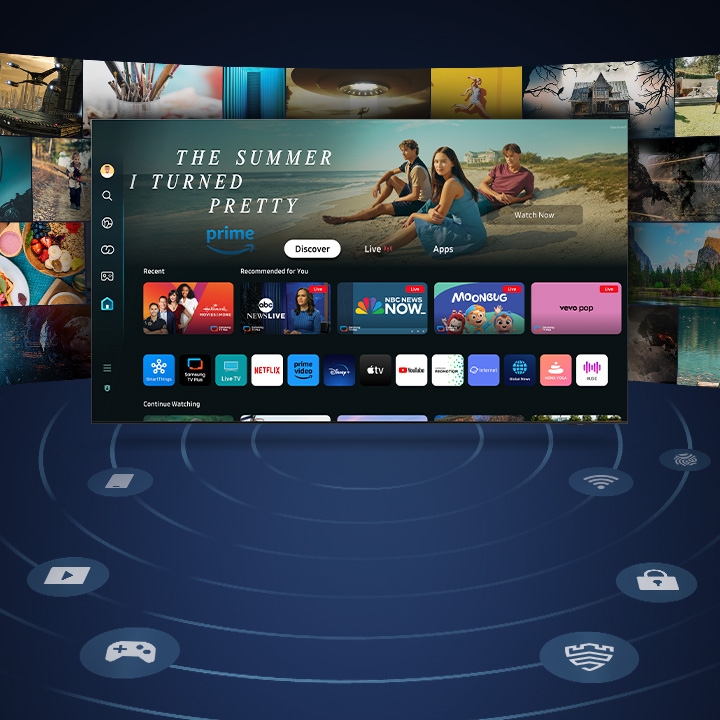
The Smart Hub is the main menu for Samsung’s smart TVs. It lets you access apps like Netflix, YouTube, and Hulu, browse the web, and connect to other devices. Think of it as your TV’s home screen. With Smart Hub, you can organize your favorite apps, set up streaming, or play games. It’s what makes your TV smart.
Smart Hub is available on most Samsung TVs made after 2012. It connects to the internet and updates itself, but sometimes you need to do it manually. Updates improve performance, fix bugs, and add new features.
Why You Should Update Smart Hub
Many people ignore updates, but updating Smart Hub is important. Here’s why:
- Security: Updates fix security holes. Hackers sometimes target smart TVs. Keeping your TV updated helps protect your data.
- New Features: Samsung adds new apps and features in updates. You get more entertainment options.
- Bug Fixes: Updates fix problems like apps crashing or freezing.
- Better Performance: An updated Smart Hub runs faster and smoother.
- Compatibility: Some new apps only work on the latest Smart Hub.
If you want your TV to work well and stay safe, updating Smart Hub is a must. Some people think updates slow down their TV, but that’s a myth. Most updates make the TV faster.

Credit: www.youtube.com
How To Check Your Smart Hub Version
Before updating, it’s helpful to know your current Smart Hub version. Here’s how:
- Press the Home button on your Samsung remote.
- Go to Settings.
- Select Support.
- Choose About This TV or Device Information.
- Look for Smart Hub Version.
If your version is not the latest, you should update. Sometimes, Samsung also lists the latest version on their official website.
Preparing For Smart Hub Update
Updating Smart Hub is easy, but you need to prepare a few things:
- Stable Internet Connection: Updates download from the internet. Use Wi-Fi or Ethernet. If your connection is slow, updates might fail.
- Remote Control: Make sure your remote works. You’ll need it for navigation.
- Enough Storage: Some updates need extra space. Delete unused apps if your TV storage is full.
- Power Supply: Don’t unplug your TV during the update. Sudden power loss can cause problems.
If you have problems with your Wi-Fi, try moving your router closer or using a wired connection.
:max_bytes(150000):strip_icc()/samsung-update-apps-screen-f-5b3bf6db46e0fb0036d44d40.jpg)
Credit: www.lifewire.com
How To Update Smart Hub On Samsung Tv
Updating Smart Hub can be done in two main ways: automatically and manually. Here’s how to do both.
Automatic Smart Hub Updates
Most Samsung TVs update Smart Hub automatically. To make sure automatic updates are on:
- Press Home on your remote.
- Go to Settings.
- Select Apps.
- Choose Settings (gear icon).
- Find Auto Update and turn it On.
When auto update is on, your TV will check for new Smart Hub updates and apps every time you turn it on. You don’t need to do anything.
Manual Smart Hub Updates
If auto update is off or you want to update right away, you can do it manually.
- Press Home.
- Go to Apps.
- Select the Settings (gear icon).
- Scroll to Smart Hub or App Update.
- Choose Update.
Your TV will check for updates and install them. It may restart during the process.
If you don’t see the update option, your Smart Hub may already be updated. Sometimes, the TV firmware needs to be updated first.
Updating Samsung Tv Firmware
Smart Hub updates often depend on your TV’s firmware. Firmware is the software that runs your TV. If your firmware is old, Smart Hub may not update. Here’s how to update firmware:
- Press Home.
- Go to Settings.
- Choose Support.
- Select Software Update.
- Choose Update Now.
Your TV will download and install the latest firmware. After updating firmware, check Smart Hub again. Sometimes, firmware updates include Smart Hub improvements.
Firmware Vs Smart Hub Update
Some people confuse firmware and Smart Hub updates. Here’s a quick comparison:
| Feature | Firmware Update | Smart Hub Update |
|---|---|---|
| Purpose | Updates TV’s core software | Updates Smart Hub menu/apps |
| Effect | Improves overall TV function | Improves app experience |
| Frequency | Few times a year | More often |
| How to Update | Settings > Support > Software Update | Settings > Apps > Update |
Updating both is best for smooth operation.
Updating Smart Hub Using Usb
If your TV is offline or your Wi-Fi is unstable, you can update Smart Hub using a USB drive. This method is more advanced, but it works for older TVs or tricky situations.
- Go to the Samsung Support website on your computer.
- Find your TV model and download the latest firmware (this often includes Smart Hub updates).
- Copy the update file to a USB drive.
- Plug the USB into your TV.
- Go to Settings > Support > Software Update > Update Now.
- Choose USB as the source.
Your TV will read the USB and install the update. This takes 5–20 minutes, depending on file size.
Usb Update Tips
- Use a blank USB drive (no other files).
- Make sure the update file is unzipped.
- Don’t unplug the USB until the update is finished.
If you see an error, check the file and try again.
Troubleshooting Smart Hub Update Problems
Sometimes, updates don’t go smoothly. Here’s how to solve common problems:
Smart Hub Won’t Update
If Smart Hub refuses to update, try these steps:
- Restart your TV.
- Check your internet connection.
- Update your firmware first.
- Free up storage space.
- Try updating apps individually.
If all else fails, reset Smart Hub.
How To Reset Smart Hub
Resetting Smart Hub erases all settings and apps. This can fix update problems.
- Press Home.
- Go to Settings.
- Select Support.
- Choose Device Care or Self Diagnosis.
- Select Reset Smart Hub.
- Enter your TV PIN (default is 0000).
After resetting, set up Smart Hub again and try updating.
Common Error Codes
Sometimes, you’ll see error codes like 001, 012, or 102. These usually mean:
- Internet problems
- Server issues
- Storage full
Try restarting your TV, checking your connection, or resetting Smart Hub.
Smart Hub Update Frequency And Best Practices
How often should you update Smart Hub? Samsung releases updates every few months, but apps update more often.
- Turn on Auto Update for easiest maintenance.
- Check for updates after major Samsung announcements.
- Update before installing new apps or streaming services.
Some people wait for updates, but updating early can fix bugs and improve performance.
Smart Hub Update Benefits: Real Examples
Let’s look at some real-world benefits of updating Smart Hub:
- Netflix Not Working: Many users found Netflix stopped working. A Smart Hub update fixed the problem.
- YouTube App Crashing: After updating Smart Hub, YouTube runs smoother and loads faster.
- New Streaming Apps: Updates add new apps like Disney+ or HBO Max. You can’t install them without updating.
- Voice Control Features: Some updates add voice control or new remote functions.
In one study, TVs with updated Smart Hub had 20% fewer app crashes compared to older versions.
Credit: www.samsung.com
Smart Hub Update: Data And Statistics
Here are some interesting numbers:
- 90% of Samsung TV owners use Smart Hub regularly.
- 70% of support calls are about app problems, often fixed by updating Smart Hub.
- TVs with auto updates enabled have 30% longer app lifespan.
- Smart Hub updates reduce security risks by 40%.
Updating Smart Hub is not just good for entertainment. It also keeps your TV safe and reliable.
Comparing Smart Hub Updates Across Samsung Tv Models
Not all Samsung TVs update Smart Hub in the same way. Here’s a comparison:
| TV Model | Smart Hub Update Method | Features Supported |
|---|---|---|
| 2018 and newer | Auto & Manual Updates | Voice, Streaming, Games |
| 2012–2017 | Manual & USB Updates | Streaming, Basic Apps |
| Older than 2012 | USB Only | Limited Apps |
If you have an older TV, you may need to use a USB or update less often.
How To Keep Smart Hub Running Smoothly
After updating, you want Smart Hub to work well. Here are some tips:
- Restart Your TV Regularly: This clears memory and prevents slowdowns.
- Delete Unused Apps: More space means faster updates.
- Update Apps Individually: If an app has problems, update it from the Apps menu.
- Check Internet Speed: Slow internet can cause app lag.
- Sign Out and In: If apps freeze, sign out and back in to refresh.
You can also use Samsung’s Device Care feature to clean your TV’s memory.
Smart Hub Features After Updates
Updated Smart Hub often comes with new features. Some examples:
- Universal Search: Find movies and shows across all apps.
- App Recommendations: Smart Hub suggests apps based on your viewing history.
- Improved UI: Easier to navigate menus.
- Parental Controls: Block apps or content for kids.
- Multi-tasking: Switch between apps without closing them.
If you don’t see these features, your Smart Hub may need an update.
Safety And Privacy After Smart Hub Updates
Smart TVs are connected devices, so safety matters. Updates protect you from privacy risks.
- Updated Smart Hub blocks unsafe apps and websites.
- Samsung fixes bugs that could let hackers access your TV.
- Updates help protect your payment info if you buy apps or movies.
Always update Smart Hub to stay safe. For more on TV security, visit Samsung Support.
How Smart Hub Updates Affect App Compatibility
Some apps only work with the latest Smart Hub. If you can’t install or use an app, updating Smart Hub is the solution.
For example:
- Disney+ only works on Smart Hub version 6.0 or higher.
- HBO Max needs the latest firmware and Smart Hub.
- Spotify updates regularly; older Smart Hub versions may not support it.
If you want to enjoy new apps, always keep Smart Hub updated.
Smart Hub Update: Myths And Facts
There are many myths about Smart Hub updates. Let’s clear them up:
- Myth: Updates make TV slower.
Fact: Most updates improve speed and fix bugs.
- Myth: You must update manually.
Fact: Auto update is available on most TVs.
- Myth: Updates delete your apps.
Fact: Updates rarely delete apps. Resetting Smart Hub does.
- Myth: You need a Samsung account to update.
Fact: You only need an account for some app installs, not updates.
Many people fear updates, but they’re usually safe and helpful.
Smart Hub Update Checklist
Before starting an update, check these points:
- Is your internet stable?
- Is your remote working?
- Do you have enough storage?
- Is your TV plugged in?
If all answers are yes, you’re ready to update.
Smart Hub Update Vs App Update
Sometimes, updating Smart Hub is different from updating apps. Here’s a quick look:
| Update Type | What It Affects | How to Do It |
|---|---|---|
| Smart Hub Update | Main menu, app compatibility | Settings > Apps > Update |
| App Update | Individual app features | Apps > Update |
If an app doesn’t work, try updating Smart Hub first. If that fails, update the app.
Advanced Smart Hub Update Tips
If you want to go beyond basic updates, here are advanced tips:
- Schedule Updates: If you’re busy, schedule updates at night.
- Factory Reset: If your TV is slow after many updates, do a factory reset.
- Check Samsung’s Website: Sometimes, Samsung releases beta Smart Hub updates.
- Join Samsung Members: Get early info and tips from other users.
Advanced users can also check update logs in the TV settings.
When To Contact Samsung Support
If you try everything and Smart Hub still won’t update, contact Samsung Support. They can help with:
- Persistent error codes
- Hardware problems
- Failed USB updates
You can reach them online or by phone. Keep your TV model number handy.
Frequently Asked Questions
How Do I Know If My Smart Hub Is Up To Date?
Check your Smart Hub version in the TV settings. Compare it to the latest version listed on Samsung’s website. If your version is older, update Smart Hub.
Can I Update Smart Hub Without Internet?
You need internet for most updates. If your TV can’t connect, use a USB drive and download the update from Samsung’s website.
Why Does Smart Hub Update Fail?
Common reasons include poor internet, full storage, outdated firmware, or server errors. Try restarting your TV, checking your connection, and updating firmware.
Will Updating Smart Hub Delete My Apps?
No, updating Smart Hub won’t delete apps. Only resetting Smart Hub removes apps and settings.
Is It Safe To Update Smart Hub?
Yes, it’s safe. Updates fix bugs and improve security. Just make sure your TV stays plugged in and you have a good internet connection.
Updating Smart Hub on your Samsung TV is one of the best ways to keep your entertainment fresh and your device secure. With these steps and tips, you can handle updates easily and solve problems quickly. Remember, a smart TV is only as smart as its software.
Make updating Smart Hub a habit, and enjoy a smoother, safer viewing experience every day.