
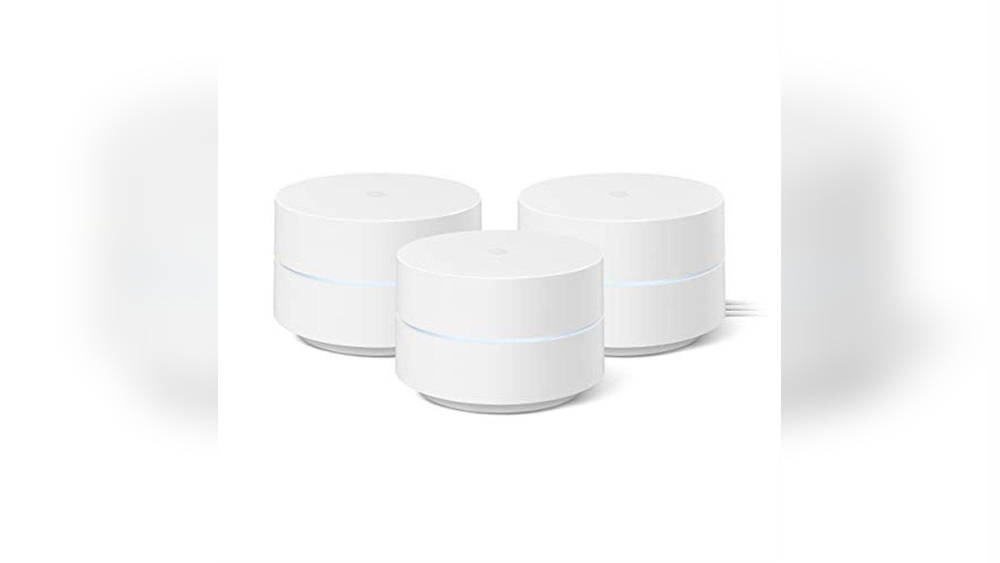
If you’ve ever struggled with weak Wi-Fi signals, dead zones, or slow internet in parts of your home, you may have heard about Google Mesh Routers. These devices promise to solve common wireless problems by spreading a strong signal throughout your living space, no matter the size or layout. But do they really deliver on their promise? Are Google Mesh Routers good, or are there better options out there? Let’s break down how they work, what makes them different, and whether they’re a smart choice for your needs.
What Is A Google Mesh Router?
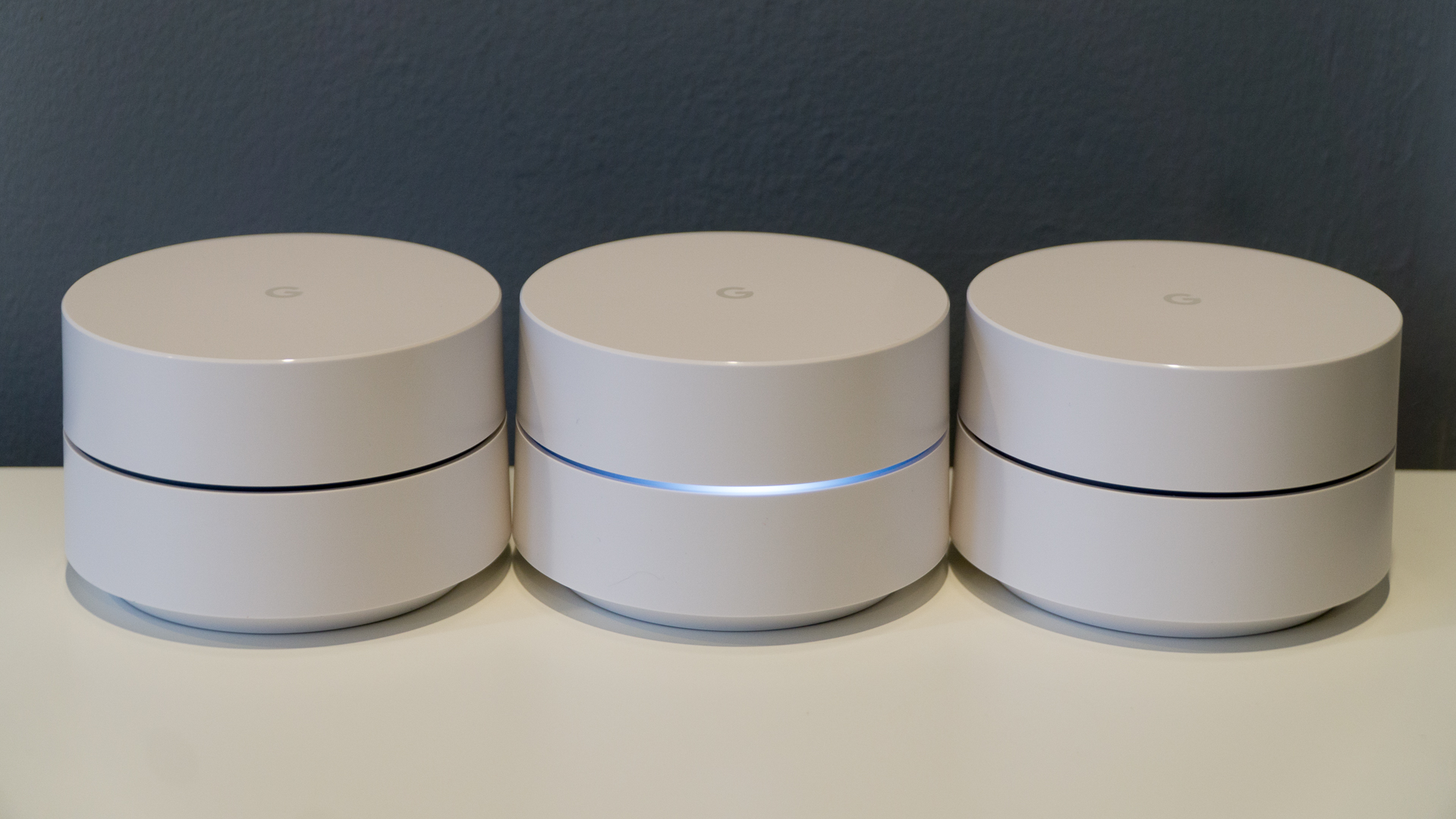
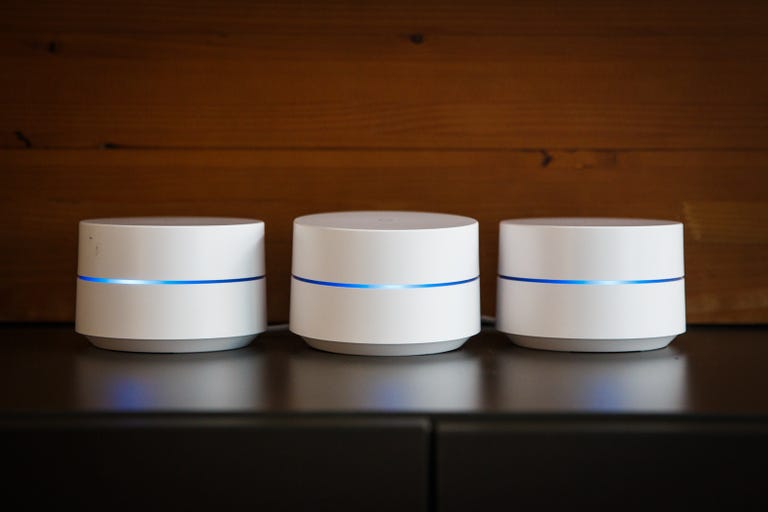
A mesh router system is not like a traditional single Wi-Fi router. Instead of broadcasting from just one device, a mesh system uses several units—often called “nodes” or “points”—that you place around your home. Each node communicates with the others, creating a seamless web of Wi-Fi that covers more area. Google Mesh Routers, including Google Wifi and Nest Wifi, are among the most popular mesh systems available today.
When you connect to a Google Mesh Router, your devices (like phones or laptops) are automatically connected to the nearest, strongest point. This way, you don’t lose signal as you move from room to room. The system is designed to be simple, smart, and easy to set up, even if you’re not a tech expert.
How Google Mesh Routers Work
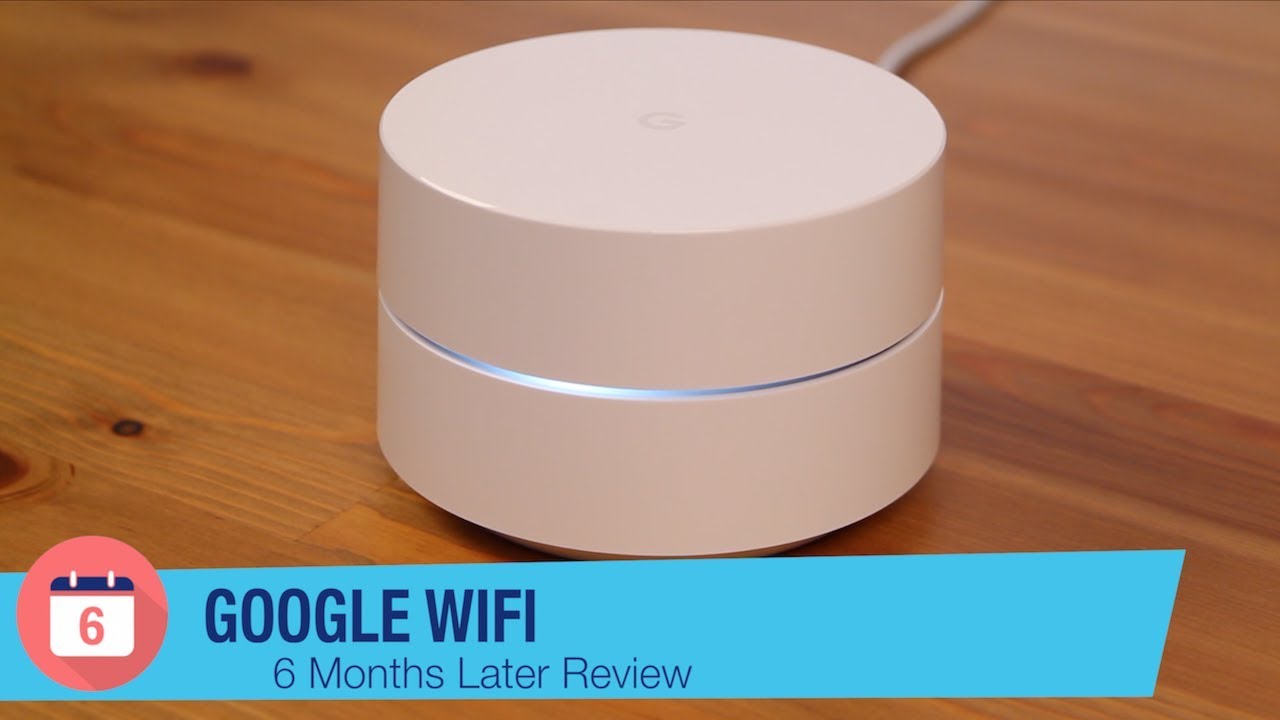
Google Mesh Routers replace your regular router. You start by connecting one unit to your modem, just like a regular router. Then, you add more nodes wherever you need extra coverage—maybe in a bedroom, the basement, or even the backyard.
The nodes communicate with each other using special wireless signals. This is called a “mesh network”. If one node goes down or is unplugged, the others can still talk to each other, so your Wi-Fi keeps working.
Each device on your network connects automatically to the best node. You don’t have to switch networks or enter new passwords as you move through your house.
Key Features Of Google Mesh Routers
Let’s look at the main features that set Google Mesh Routers apart from other options:
- Easy setup: The system is designed for non-technical users. You use the Google Home app, which gives you step-by-step instructions.
- Smart coverage: Nodes work together to give strong Wi-Fi everywhere. No more dead zones.
- Automatic updates: Security and performance updates happen in the background, so you don’t have to worry.
- Parental controls: You can pause Wi-Fi for kids’ devices or set schedules.
- Guest network: Easily create a separate Wi-Fi network for visitors.
- Integration with Google ecosystem: Works with devices like Google Nest speakers and smart displays.
Performance: Speed And Coverage
One of the most common questions is: Are Google Mesh Routers fast enough? Do they really cover large homes? Here’s what the real-world data shows.
Speed Tests
Speed depends on your internet plan, the mesh model, and your home’s layout. But in general, Google Mesh Routers deliver fast, stable Wi-Fi for most users.
Example Results
- Google Wifi (original): Supports speeds up to 1200 Mbps (theoretical maximum), but real-world speeds are usually 200–400 Mbps per node.
- Nest Wifi (newer model): Supports up to 2200 Mbps on the router and 1200 Mbps on points. Most users see 300–600 Mbps in practice.
If you have a gigabit internet plan, you may not get the full speed in every room, but for streaming, gaming, and work, it’s more than enough.
Coverage Area
Each node can cover about 1500–2200 square feet. A set of three can cover most homes up to 6000 square feet—including basements and upstairs rooms.
Here’s a quick comparison of coverage and speed:
| Model | Max Speed (Mbps) | Coverage per Node (sq ft) | Mesh Expansion |
|---|---|---|---|
| Google Wifi | 1200 | 1500 | Up to 5 nodes |
| Nest Wifi Router | 2200 | 2200 | Up to 6 nodes |
| Nest Wifi Point | 1200 | 1600 | Add to Nest system |
Real-world Experience
Most users report that Google Mesh Routers eliminate dead spots and keep connections strong, even through walls. In open spaces, the signal is very stable. In older homes with thick walls, placing nodes carefully is key. If nodes are too far apart, speeds can drop. But with the right setup, coverage is impressive.
Credit: www.youtube.com
Setup And User Experience
Many people are nervous about changing their Wi-Fi or setting up new hardware. Google Mesh Routers are designed to make this easy, even if you’re not tech-savvy.
The Setup Process
You use the Google Home app (or the older Google Wifi app) on your phone. The app guides you step-by-step:
- Plug in the first router to your modem.
- Open the app and scan the QR code on the router.
- Name your new Wi-Fi network and set a password.
- Add more nodes by plugging them in and following the prompts.
The whole process usually takes 15–30 minutes. The app tests each node’s placement and suggests better spots if needed.
Everyday Use
After setup, you almost never need to manage the system. The app lets you:
- See which devices are connected.
- Pause Wi-Fi on certain devices (helpful for homework time).
- Run speed tests.
- Add guest networks.
- Prioritize devices (for example, give your work laptop more speed during meetings).
Updates And Security
Google Mesh Routers update themselves automatically. This means you get new features and security patches with no action needed. Updates usually happen at night, so you don’t even notice.
One non-obvious advantage is that Google’s regular security updates make these routers safer than many cheaper brands, which may never update at all.
Comparison: Google Mesh Vs. Other Mesh Systems
Google is not the only company making mesh routers. Brands like Netgear Orbi, Eero, TP-Link Deco, and Linksys Velop are popular too. How does Google’s system compare?
| Feature | Google Mesh | Netgear Orbi | Amazon Eero | TP-Link Deco |
|---|---|---|---|---|
| Setup Simplicity | Very easy | Moderate | Very easy | Easy |
| Parental Controls | Good | Excellent (subscription) | Good (subscription) | Decent |
| App Quality | Excellent | Good | Excellent | Good |
| Price | Mid-range | High | Mid-range | Budget |
| Smart Home Integration | Best with Google devices | Some support | Best with Alexa | Some support |
| Wired Backhaul | Supported (limited ports) | Supported | Supported | Supported |
Key Differences
- Google Mesh Routers are praised for their simple setup and user-friendly app.
- Some competitors, like Orbi, offer faster speeds or more advanced features for very large homes, but are more expensive and harder to set up.
- Eero systems are also very easy to use, but some parental controls require a paid subscription.
- TP-Link Deco is usually cheaper, but the app is less polished.
Google Mesh is a great “set and forget” system for most families. If you need extreme speed (like multi-gigabit internet) or advanced customization, other brands may be better.
Pros Of Google Mesh Routers
Let’s look at the main reasons people love Google Mesh Routers.
- Wide coverage: Eliminates weak spots in almost any home, even with thick walls.
- Simple setup: Anyone can install it using just a smartphone.
- Reliable connection: Fewer drops or slowdowns, even as you move around.
- Automatic updates: No need to worry about security or maintenance.
- Parental controls: Easy to limit or pause internet for kids’ devices.
- Guest networks: Keep your main Wi-Fi safe from visitors.
- Smart home integration: Works smoothly with other Google devices.
- Attractive design: Small, modern units blend into your home.
- Scalable: Start with one or two nodes and add more if needed.
- Strong app: The Google Home app is one of the best in the industry.
Cons And Limitations
No product is perfect. Here are the most common drawbacks of Google Mesh Routers:
- Limited advanced features: Power users may find fewer customization options (for example, no VPN server, limited port forwarding).
- Fewer Ethernet ports: Only the main router has Ethernet ports, and even those are limited. Most points are Wi-Fi only.
- Not the fastest for high-end users: If you have multi-gigabit internet or transfer huge files, some other mesh systems offer faster speeds.
- Dependent on Google ecosystem: Works best if you use other Google products. Integration with Amazon Alexa or Apple HomeKit is limited.
- Privacy concerns: Some users are uneasy about Google managing their home network data, even though privacy controls are available.
- Cost: Not the cheapest option, especially for large homes that need many nodes.
Who Should Buy A Google Mesh Router?
Choosing the right router depends on your needs, budget, and technical skill. Here’s when Google Mesh Routers are a smart buy:
- Families: If you want Wi-Fi that “just works” everywhere in your home, with simple parental controls.
- People in large or multi-floor homes: Mesh is ideal for eliminating dead zones in big spaces.
- Renters or non-tech users: If you don’t want to mess with advanced settings or confusing web interfaces.
- Smart home fans: If you use Nest, Google Home, or Chromecast devices, integration is seamless.
- Anyone tired of unreliable Wi-Fi: A mesh system is usually the easiest fix.
On the other hand, if you need super-advanced network controls, have a very small apartment, or want the lowest price possible, a traditional router may be enough.
Value For Money: Are They Worth The Price?
Google Mesh Routers are not the cheapest, but they’re not the most expensive either. Most people find that the performance and reliability are worth the cost.
A basic Google Wifi 3-pack usually sells for $200–$250. The newer Nest Wifi system costs $270–$350 for a router and two points. Adding more points can raise the price, but you can often find discounts.
Here’s what you get for your money:
- Fewer headaches and less time troubleshooting Wi-Fi problems.
- Better coverage than almost any single router.
- Easy control from your phone.
- Security and updates taken care of automatically.
Compared to paying for a faster internet plan (which won’t help if your Wi-Fi is the problem), buying a mesh system often gives a bigger improvement for less money.
Credit: www.techradar.com
Privacy And Security: What You Need To Know
When you install a Google Mesh Router, you’re trusting Google with some of your home network data. Here’s what happens:
- Basic network info (like device type and Wi-Fi strength) is sent to Google to help with troubleshooting and automatic updates.
- Google says it does not track which websites you visit or what you do online.
- Privacy controls: You can turn off certain data sharing in the app, but some features may not work as well.
One insight many users miss: even if you turn off as much data sharing as possible, the router still needs to check for updates and basic info with Google servers. If you want a fully offline, “no cloud” system, Google Mesh is not for you.
That said, regular updates and Google’s security team mean your home network is generally safer from new threats than with many other brands.
For more information, check Google’s privacy policy or visit Google Nest Support.
Common Problems And How To Solve Them
No system is perfect. Here are some common issues with Google Mesh Routers and simple solutions:
1. Slow Speeds On Some Devices
- Place nodes closer together—especially if there are thick walls.
- Restart your modem and main router.
- Use the app’s “Network check” tool to test Wi-Fi strength at each point.
2. Devices Not Connecting To Nearest Node
- Some devices (like older laptops) may “cling” to a weak signal. Try turning Wi-Fi off and on again on the device.
- Move the device closer to a different node.
3. Trouble With Smart Home Devices
- Make sure your devices support 2.4 GHz and 5 GHz Wi-Fi.
- For devices that only support 2.4 GHz, try temporarily disabling 5 GHz (instructions are available in forums) or move the device near the main router when setting up.
4. Connection Drops
- Check for interference from microwaves, cordless phones, or Bluetooth speakers.
- If you have lots of neighbors, try changing your Wi-Fi channel in the app.
5. No Internet After Setup
- Double-check your modem is working.
- Try restarting all nodes by unplugging and plugging back in.
- Reset the system as a last resort (instructions in the app).
Upgrades And Future-proofing
Technology Changes Quickly. Are Google Mesh Routers Future-proof?
- Regular updates mean you’ll get new features for years.
- Supports Wi-Fi 5 (802.11ac): Fast enough for most homes, but not the latest Wi-Fi 6 standard. The latest Nest Wifi Pro does support Wi-Fi 6E.
- Expandable: You can add more nodes over time.
If you want the absolute latest technology (like Wi-Fi 6 or 6E), check Google’s newest models or look at other brands. But for most people, current Google Mesh Routers will last 4–6 years before you need to upgrade.
Practical Tips For Getting The Most From Your Google Mesh Router
If you decide to buy or already own a Google Mesh Router, these tips will help you get the best results:
- Place nodes in the open, not in cabinets or behind TVs.
- Space nodes 30–50 feet apart for best coverage.
- Avoid placing nodes near microwaves or large metal objects.
- Use Ethernet cables to connect nodes if possible (called “wired backhaul”) for even faster speeds.
- Check the app’s placement suggestions during setup.
A non-obvious tip: after setting up your mesh, run speed tests in different rooms and move nodes if needed. A small change in location can double your speed.
Credit: www.cnet.com
What Beginners Often Overlook
- Not all mesh points have Ethernet ports. If you need to connect a desktop PC, printer, or gaming console by wire, plan to put the main router near those devices.
- Mesh does not increase your internet plan speed. If your internet is slow from your provider, a mesh system can’t make it faster—but it can spread what you have more evenly.
- Placement matters a lot. Don’t just put nodes anywhere. Higher up (on a shelf) and central locations usually work better.
The Verdict: Are Google Mesh Routers Good?
For most people, Google Mesh Routers are an excellent choice. They’re especially good if you want simple setup, reliable coverage, and easy management with your phone. They’re not the best for advanced users or those who need the absolute fastest speeds, but for families, renters, and anyone tired of Wi-Fi headaches, they’re hard to beat.
If you have a very large home, lots of smart devices, or want a Wi-Fi system that just works, Google Mesh is a smart investment. If you’re a power user or have specific needs (like advanced controls or multi-gigabit internet), you may want to compare with other brands.
Frequently Asked Questions
What Is The Difference Between Google Wifi And Nest Wifi?
Google Wifi is the original mesh router from Google, offering solid coverage and basic features. Nest Wifi is the newer version, with faster speeds, more coverage per node, and some points that double as smart speakers. Nest Wifi also has a more modern design and integrates better with Google Assistant.
Do Google Mesh Routers Work With Any Internet Provider?
Yes, Google Mesh Routers work with any provider as long as you have a modem with an Ethernet port. You simply replace your old router with the Google Mesh Router. If you have a modem-router combo from your provider, you may need to disable its Wi-Fi (set to “bridge mode”).
Can I Mix Google Wifi And Nest Wifi In The Same System?
Yes, you can use Google Wifi and Nest Wifi nodes together in the same mesh network. The app will walk you through adding different types of nodes. However, the network will use the features and speeds of the oldest device in the system.
Are Google Mesh Routers Secure?
Yes, Google Mesh Routers are considered very secure. They receive automatic updates to fix security issues and protect against new threats. You control who can use your Wi-Fi, and you can set up guest networks. However, some users worry about privacy, since Google does collect basic network data.
Do I Need A Subscription To Use All Features?
No, you do not need a subscription for main features like parental controls, speed tests, and guest networks. Some competitors require a paid plan for advanced parental controls, but Google’s basic controls are free.
For more on mesh networks and home Wi-Fi, visit Wikipedia: Mesh Networking.
Google Mesh Routers are a dependable, user-friendly solution for nearly any home. With the right setup, they can transform your internet experience and make weak Wi-Fi a thing of the past.