
Can A Zigbee Device Connect To 2 Hubs
Smart homes are growing fast, with more devices using wireless standards like Zigbee. Many people want flexibility and reliability, so they ask: Can a Zigbee device connect to 2 hubs at the same time? Maybe you have a smart bulb and want to control it from two different systems, or you’re worried about your home’s devices if one hub fails. This question seems simple, but the answer depends on how Zigbee works, the devices you use, and the goals you have for your smart home. This article will explore Zigbee’s connection rules, real-world scenarios, and what you can and cannot do when it comes to multi-hub setups. Whether you’re a homeowner, installer, or just curious about smart tech, you’ll find clear answers here—along with some surprising insights most guides miss.
Understanding Zigbee Basics
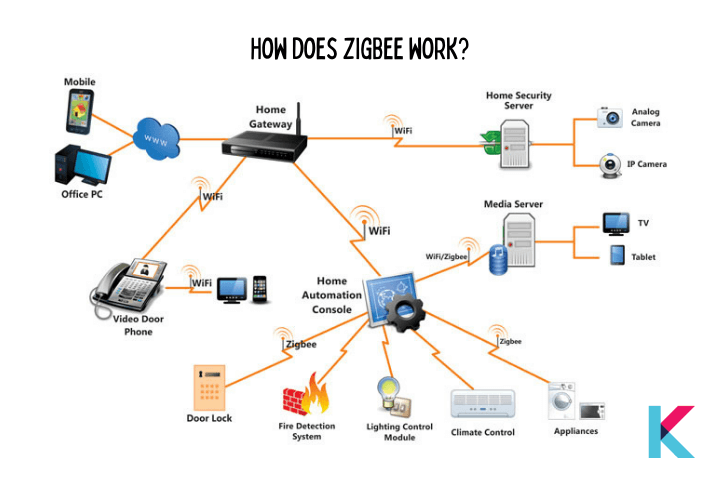
Zigbee is a popular wireless protocol designed for smart home devices. It’s used in products like bulbs, sensors, plugs, and thermostats. Zigbee runs on low power and supports mesh networking, which means each device can pass messages to others, increasing range and reliability.
A Zigbee network usually has three main parts:
- Coordinator (Hub): This is the control center. It creates the network and manages connected devices.
- Router Devices: These can pass messages to other devices, helping expand the network.
- End Devices: These are usually simple devices like motion sensors or bulbs. They connect to the network but don’t relay messages.
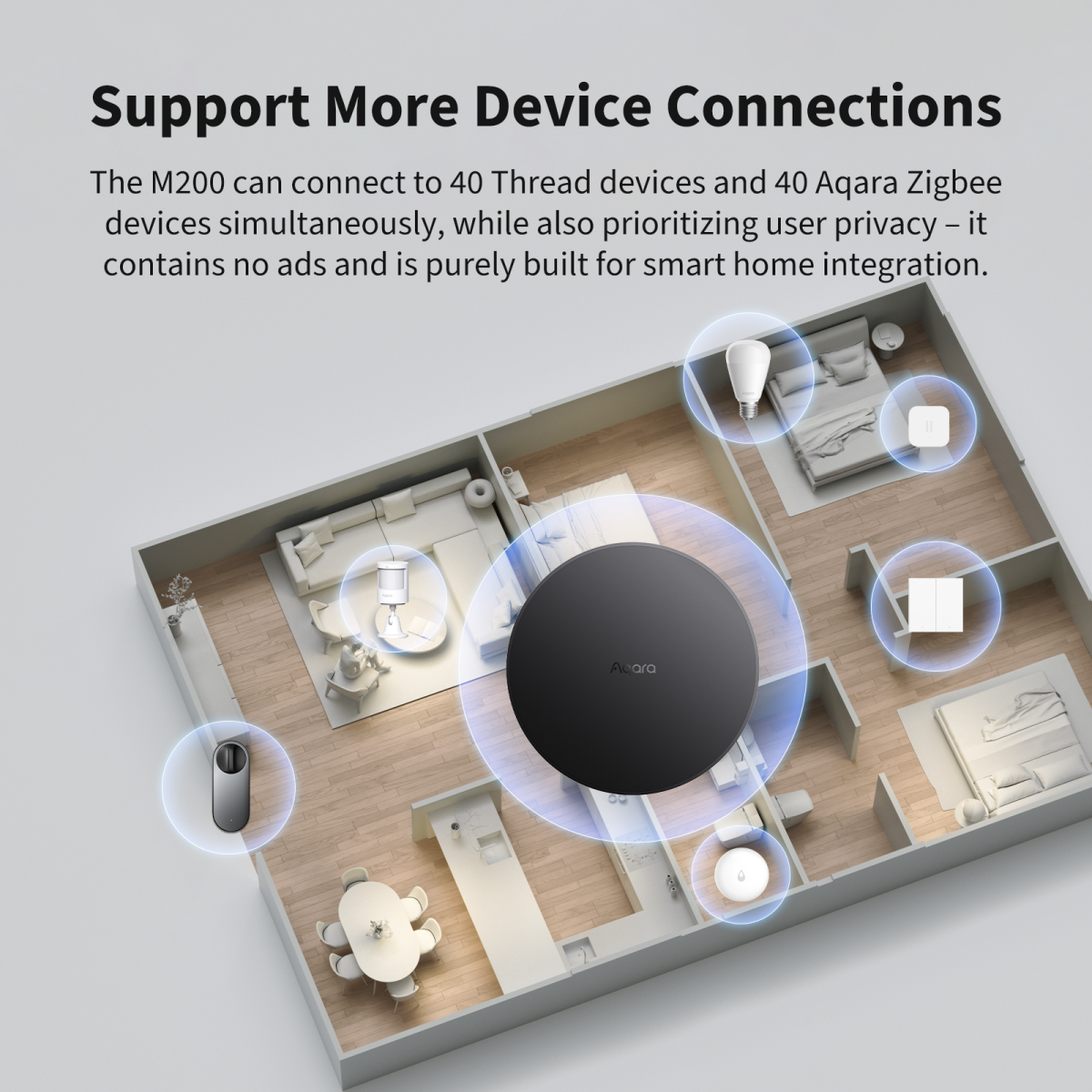
Most Zigbee smart homes have one hub that acts as the coordinator. All devices join this network and talk to each other through it. The hub is responsible for security, device management, and communication with your phone or voice assistant.
How Device Pairing Works In Zigbee
When you add a new Zigbee device, you put it in pairing mode. The hub scans for new devices and adds them to its network. The device gets a special network address and security keys.
Some important points about Zigbee pairing:
- Each device can only join one network at a time. It remembers the network key and address of the coordinator that added it.
- If you want to use the device with another hub, you must first reset it and pair it again with the new hub.
- Devices can’t share two different network keys or addresses at once.
This design keeps Zigbee networks secure and reliable. It also means a device usually can’t be a member of two hubs’ networks at the same time. But there are exceptions and advanced tricks, as we’ll see later.
Why People Want Zigbee Devices On Multiple Hubs
Many users want to connect a Zigbee device to 2 hubs for reasons like:
- Redundancy: If one hub fails, the device still works with the other.
- Different Control Systems: For example, using a device with both Amazon Alexa and Samsung SmartThings.
- Large Homes: Sometimes, one hub can’t cover the entire house. People hope multiple hubs will extend range or reliability.
- Testing and Development: Developers may want to compare how different hubs control the same device.
These are valid reasons. However, Zigbee’s technical rules often get in the way. Let’s look at what happens in different scenarios.
The Technical Limits: One Network, One Device
At the core, Zigbee’s network structure is designed for one coordinator per device. When a device joins a hub’s network, it gets a unique security key. This key is not shared with other networks. If you try to pair the same device with a second hub, it will leave the first network and join the new one.
This means:
- No dual membership: Zigbee devices can’t “belong” to two networks at the same time.
- No double control: Two hubs cannot both send commands directly to the same device without special setups.
- Reset required: To move a device to a new hub, you must reset it and pair it again.
This is different from Wi-Fi, where a device can sometimes connect to a mesh network with multiple access points under one network name. Zigbee’s security and addressing system do not allow this by default.
Real-world Example: Smart Bulb And Two Hubs
Suppose you have a Zigbee smart bulb and two Zigbee hubs—one from Philips Hue and one from Amazon Echo.
- You pair the bulb with the Philips Hue hub. It works fine.
- If you try to add the same bulb to your Amazon Echo hub, you must reset the bulb. When you do this, it forgets the Hue network and joins the Echo network.
- Now, the Hue hub can no longer control the bulb.
This is what most users experience. There is no built-in way to have the bulb on both hubs at the same time.
Advanced Zigbee Features: Are There Workarounds?
Some advanced users and companies have tried to find ways around this limitation. Here are some methods, their pros and cons, and why they’re rarely used in everyday homes.
1. Zigbee Group Binding
Zigbee supports something called group binding. In theory, you can assign a device to a group and let multiple controllers send commands to that group.
- In practice, both hubs must be part of the same Zigbee network.
- Group binding does not work across two separate networks.
- Most consumer hubs do not support advanced group binding features.
This method is mainly used in commercial or industrial Zigbee networks, not in smart homes.
2. Bridging Using Software
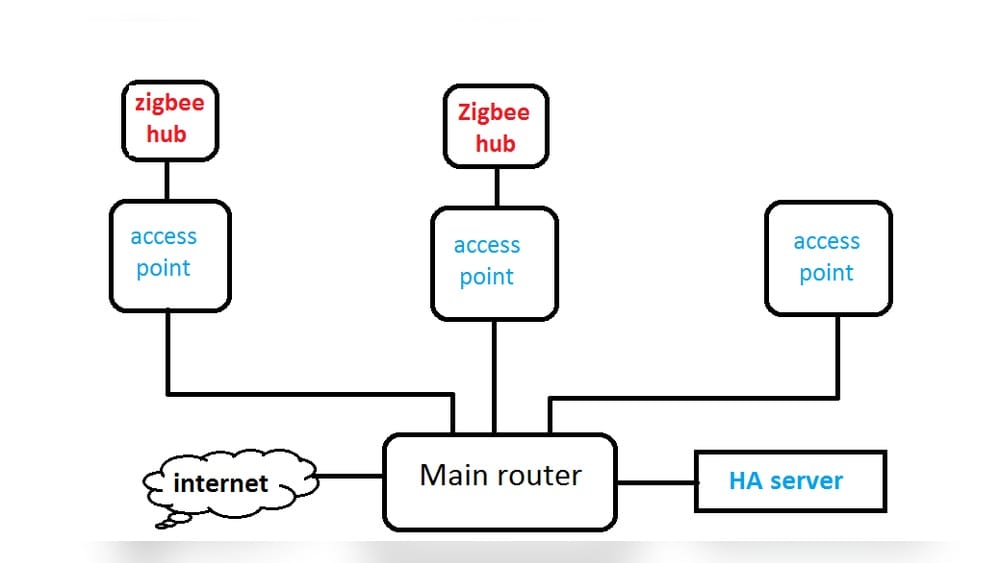
Some software systems, like Home Assistant or Zigbee2MQTT, allow you to connect many Zigbee devices and expose them to different control apps.
- The device still connects to only one physical network.
- The software can bridge commands from multiple systems (for example, Alexa + Google Home).
- There is no true dual-hub connection at the hardware level.
This is a good solution for users who want to control devices from several apps but do not need actual separate Zigbee networks.
3. Devices With Multiple Radios
A few rare devices have two Zigbee radios or support both Zigbee and another protocol (like Bluetooth). In theory, these could join two networks at the same time.
- These devices are expensive and not common in smart homes.
- Most smart bulbs, sensors, and plugs are single-radio only.
This is not a practical solution for most users.
4. Using Multiple Hubs On The Same Network
Some advanced hubs can work as secondary coordinators or routers in the same Zigbee network.
- Only one coordinator can control the network’s security and device membership.
- Secondary hubs can help extend range or act as routers, but they do not act as independent control points.
- This requires very advanced setup and is not supported by most consumer hubs.
Again, this is not a full solution for running a device on two separate hubs.
Credit: kodmy.com
Common Mistakes And Misunderstandings
Many guides and store pages suggest you can use “multiple hubs” for better coverage. But they often mean different things:
- Mesh networking: Zigbee devices can relay messages, extending range. But this still means one network, one coordinator.
- Cloud integrations: Some hubs let you control devices from multiple cloud services (like Alexa, Google Home, SmartThings). But the device itself is only talking to one Zigbee hub.
- Wi-Fi vs Zigbee confusion: Some people mix up how Wi-Fi mesh and Zigbee mesh work. Zigbee mesh is always under one network.
If you buy two hubs hoping to connect one device to both, you will probably be disappointed—unless you use advanced bridging software.
Security And Reliability Concerns
Zigbee’s “one device, one network” rule is partly for security. Each device shares a unique key with its hub. If a device was allowed to join two hubs, it could cause:
- Security leaks: Two networks sharing keys is a risk.
- Unreliable commands: If two hubs send different commands, the device could get confused.
- Network loops: Zigbee mesh can break if two coordinators run in the same area without proper setup.
Zigbee’s approach keeps networks isolated and reliable, which is especially important in homes and businesses.
Use Cases: When Multiple Hubs Make Sense
Even though a device can’t connect to two hubs at once, there are reasons to have more than one hub in your home.
1. Separate Networks For Different Zones
In a very large house or apartment complex, you might use one Zigbee hub for the upstairs and another for the downstairs. Devices only talk to the nearest hub. This keeps each network stable and avoids interference.
2. Testing And Upgrading
Developers or tech enthusiasts may want to test new hubs or devices without breaking their main smart home system. They can set up a second hub on a different channel or area for experiments.
3. Migration
When upgrading from one hub to another (like moving from SmartThings to Home Assistant), you may temporarily run both hubs. Devices must be reset and paired one at a time, but this allows for a smooth transition.
Comparing Zigbee, Z-wave, And Wi-fi For Multi-hub Support
To see how Zigbee’s rules compare to other smart home protocols, here’s a quick look:
| Protocol | Multi-Hub Support | Typical Use | Special Notes |
|---|---|---|---|
| Zigbee | Not supported (one network per device) | Smart bulbs, sensors, plugs | Mesh network, low power |
| Z-Wave | Similar to Zigbee (one network per device) | Locks, thermostats, sensors | Mesh network, more secure pairing |
| Wi-Fi | Possible (mesh APs under one SSID) | Cameras, speakers, some plugs | Higher power use, better range |
As shown, Zigbee and Z-Wave use similar rules, while Wi-Fi devices can sometimes roam between access points.
Zigbee Mesh Networks: How They Really Work
One of Zigbee’s best features is its mesh network. Devices like plugs and bulbs can act as repeaters, passing messages between the hub and distant devices. But the mesh only works inside one network—created and managed by a single hub (coordinator).
Key facts:
- Range extension: Mesh networks can cover large homes if you have enough powered routers.
- One coordinator: All devices in the mesh report to one hub.
- Routers vs End Devices: Only routers can repeat signals. Battery-powered sensors are usually end devices.
A common mistake is thinking you can “mesh” two hubs together for better coverage. In reality, each hub creates its own mesh. Devices cannot act as bridges between two hubs.
Practical Solutions For Multi-hub Control
If your real goal is to control the same device from two different apps or systems, there are practical workarounds:
1. Use Cloud Integrations
Many Zigbee hubs support cloud integrations. For example:
- A Philips Hue bulb can be controlled by the Hue app, Amazon Alexa, Apple HomeKit, or Google Home—all at the same time.
- The Hue bridge is the only Zigbee hub; the other platforms connect through the cloud.
This is the simplest way to get “multi-hub” style control.
2. Use A Smart Home Platform
Platforms like Home Assistant or SmartThings allow you to add Zigbee devices and expose them to other control systems.
- You only need one Zigbee hub.
- The platform acts as a bridge to other systems.
- Devices stay reliable and secure.
3. Use Device Sharing Features
Some hubs support device sharing. For example, you can invite family members to your smart home app so they can control the same devices.

Credit: community.home-assistant.io
Example: Home Assistant With Zigbee2mqtt
Home Assistant is a popular open-source smart home platform. With Zigbee2MQTT, you can connect almost any Zigbee device to Home Assistant, then link that device to Alexa, Google Home, or Apple HomeKit.
Here’s how it works:
- Zigbee device joins the Zigbee2MQTT coordinator (hardware like a USB stick).
- Home Assistant discovers the device.
- You connect Home Assistant to Alexa or Google Home using built-in integrations.
- Now, you can control the device from your phone, voice, or automations.
This setup gives you the feel of “multiple hubs,” but the device is only paired to one Zigbee network.
Data Table: Typical Zigbee Device Pairing Limits
To help you see how common Zigbee devices handle pairing and hubs, here’s a quick summary:
| Device Type | Can Pair with 2 Hubs? | Reset Required? | Cloud Integration? |
|---|---|---|---|
| Philips Hue Bulb | No | Yes | Yes |
| Samsung SmartThings Sensor | No | Yes | Yes |
| Xiaomi Aqara Switch | No | Yes | Yes (with hub) |
| Sonoff Zigbee Plug | No | Yes | Via 3rd party |
Almost all common Zigbee devices follow the “one hub at a time” rule.
Insights Beginners Often Miss
Here are two important things many beginners do not realize:
- Cloud services are the real “multi-hub” feature. Most smart homes today use the cloud to connect devices to Alexa, Google, and other systems. The device itself only needs one Zigbee hub.
- Signal problems are rarely solved by adding more hubs. If your Zigbee devices lose connection, the solution is usually to add more routers (plugs or bulbs), not extra hubs. Adding a second hub can cause interference, not improvement.
Understanding these points can save you time, money, and frustration.
Key Takeaways For Smart Home Owners
- One Zigbee device = one hub at a time. If you want a device on a new hub, you must reset and re-pair it.
- Cloud and platform integrations give you multi-system control. Use apps and integrations, not multiple Zigbee networks.
- Adding more hubs does not improve Zigbee mesh. Add powered Zigbee routers for better range.
- Advanced workarounds exist, but they are complex and risky. Most users should avoid trying to bridge two hubs.
Real-world Tips For Success
If you want the best smart home experience:
- Choose a Zigbee hub with strong integration support (like SmartThings, Philips Hue, or Home Assistant).
- Plan your Zigbee mesh by adding devices that act as routers (not just sensors).
- Use cloud integrations for voice and app control.
- Avoid using two Zigbee hubs in the same area unless you are a developer or installer with special needs.
- If you switch hubs, reset devices before pairing them to the new system.
Data Table: Comparing Zigbee Hub Brands For Multi-platform Control
Some hubs are better than others at working with different platforms:
| Hub Brand | Alexa Integration | Google Home Integration | Apple HomeKit Integration | Direct Multi-Hub Support |
|---|---|---|---|---|
| Philips Hue | Yes | Yes | Yes | No |
| Samsung SmartThings | Yes | Yes | Partial | No |
| Home Assistant (with Zigbee2MQTT) | Yes | Yes | Yes | No |
| Amazon Echo (with Zigbee) | Yes | No | No | No |
This shows that multi-platform support is available—but always through the cloud or software, not by pairing devices to two hubs.
Summary: What’s Possible And What’s Not
To sum up:
- A Zigbee device cannot connect to two hubs at the same time. This is a hard technical limit.
- Cloud and platform integrations let you control one device from several systems—but always through one Zigbee network.
- Advanced setups (like secondary coordinators or binding) are complex, rare, and not supported by most consumer products.
- If you want to migrate to a new hub, you must reset and re-pair your Zigbee devices.
- Most “multi-hub” talk online refers to cloud or app integrations, not true Zigbee network sharing.
For full technical details, you can check the official Zigbee Alliance documentation or resources like the Zigbee Wikipedia page.
Frequently Asked Questions
Can I Connect My Zigbee Device To Two Hubs At Once For Redundancy?
No, you cannot. A Zigbee device can only join one hub’s network at a time. For redundancy, you would need to have two devices—one on each hub.
What Happens If I Try To Pair A Zigbee Device With A Second Hub?
When you try to pair your Zigbee device with a new hub, it will reset and leave the first hub’s network. It cannot stay paired with both at the same time.
Are There Any Zigbee Devices That Support Connecting To Two Hubs?
There are no common smart home Zigbee devices that support dual-hub connections. Some industrial or research devices might, but they are not for home use.
How Can I Control One Zigbee Device From Several Apps Or Platforms?
The best way is to use a hub or platform (like Philips Hue, SmartThings, or Home Assistant) that supports cloud integrations. This lets you control the device from Alexa, Google, or Apple HomeKit, even though it’s only paired to one Zigbee hub.
Will Adding A Second Zigbee Hub Improve My Network’s Coverage?
Usually not. To improve Zigbee network coverage, add more mains-powered devices (routers) like smart plugs or bulbs. Adding another hub can cause interference and confusion, not better coverage.
Smart homes are all about making life easier and more connected. Knowing the real limits of Zigbee helps you plan your setup, avoid frustration, and get the most from your devices—without falling for common myths about “multi-hub” connections.
Credit: us.aqara.com