
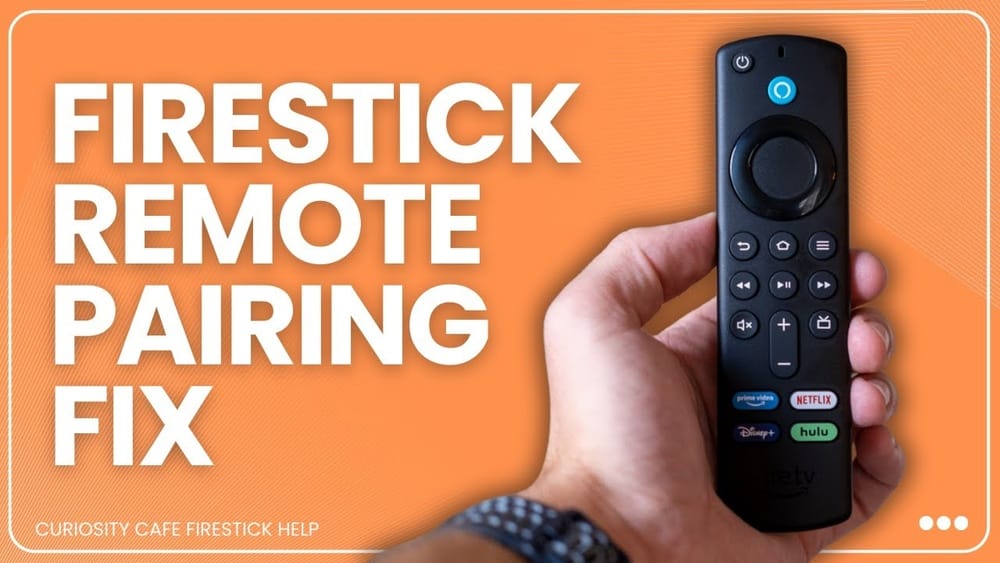
Controlling Your Tv With A Firestick Remote: The Complete Guide
The Amazon Fire TV Stick is a simple way to access streaming apps, but many people don’t realize its remote can also control their TV. Imagine using just one small remote for everything—adjusting volume, turning the TV on or off, and switching inputs. No more searching for the TV’s remote every time you want to watch something. But how does it work? And what do you do if it doesn’t seem to connect? This guide will walk you through everything you need to know about using your Firestick remote to control your TV, from the basics to expert tips. Whether you want to set it up for the first time or fix problems, you’ll find practical answers here.
How The Firestick Remote Controls Your Tv
Many people think the Firestick remote only works with the Fire TV interface, but it actually has extra features. The key technology is HDMI-CEC (Consumer Electronics Control). This lets devices connected by HDMI “talk” to each other. When you press a button on the Firestick remote, it can send commands through the HDMI cable to your TV—if your TV supports HDMI-CEC.
Newer Firestick remotes also have an IR blaster for volume and power. This means the remote can control your TV even if HDMI-CEC is off. Understanding these two technologies (HDMI-CEC and IR) is important because not all TVs have the same support.
What Functions Can The Firestick Remote Control?
With the right setup, your Firestick remote can:
- Turn the TV on/off
- Adjust TV volume
- Mute/unmute the sound
- Switch TV input sources (in some cases)
- Control compatible soundbars or AV receivers
But some TVs don’t support all these features, so it depends on your TV’s brand and age.
Which Firestick Remotes Support Tv Control?
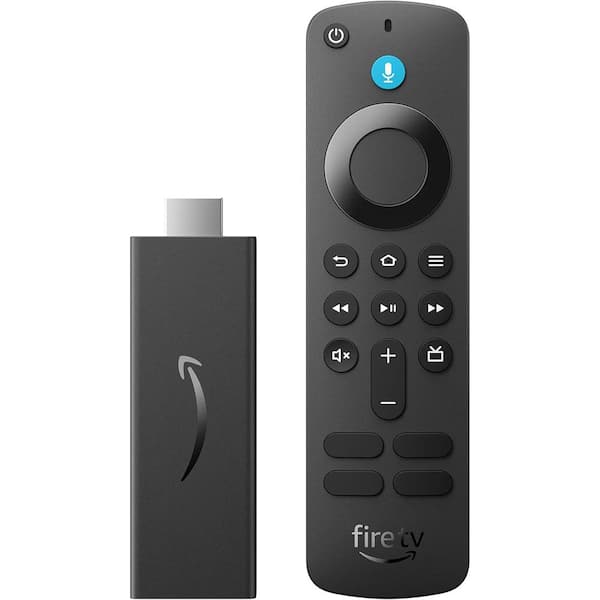
Not all Firestick remotes are the same. Here’s a quick comparison:
| Remote Model | Volume/Power Buttons | IR Blaster | HDMI-CEC Control |
|---|---|---|---|
| Fire TV Stick 1st Gen | No | No | Yes |
| Fire TV Stick 2nd Gen | No | No | Yes |
| Fire TV Stick 4K Remote | Yes | Yes | Yes |
| Fire TV Stick 4K Max Remote | Yes | Yes | Yes |
| Fire TV Cube Remote | Yes | Yes | Yes |
If your remote has dedicated volume and power buttons, it can control your TV directly. If not, you’ll be limited to basic HDMI-CEC actions like waking up the TV.
Setting Up Your Firestick Remote To Control Your Tv
It’s easier than you might think to set up your Firestick remote for TV control, but there are a few steps that must be done in the right order.
1. Check Your Tv’s Compatibility
Most modern TVs (from about 2010 onward) support HDMI-CEC. You can usually find this in your TV’s settings menu. However, different brands call it by different names:
| Brand | HDMI-CEC Name |
|---|---|
| Samsung | Anynet+ |
| Sony | BRAVIA Sync |
| LG | Simplink |
| Panasonic | Viera Link |
| Toshiba | Regza Link |
| Philips | EasyLink |
Find your TV’s name for HDMI-CEC and make sure it’s turned on.
2. Connect The Firestick To The Tv
Plug your Firestick into the TV’s HDMI port. If possible, use HDMI port 1, as some TVs only enable full HDMI-CEC on the first port. Use the included power adapter, not the TV’s USB port, to ensure the Firestick has enough power for all features.
3. Insert Batteries And Pair The Remote
Insert fresh batteries into your Firestick remote. Normally, it pairs automatically when you first set up your Firestick. If not, hold the Home button for 10 seconds until the light starts blinking.
4. Enable Hdmi-cec On Your Tv
Go to your TV’s settings. Look for the HDMI-CEC setting (Anynet+, BRAVIA Sync, etc. ) And turn it on. Sometimes, you need to restart your TV for the change to take effect.
5. Set Up Tv Control In Fire Tv Settings
From your Firestick’s home screen:
- Go to Settings (gear icon).
- Choose Equipment Control.
- Select Manage Equipment > TV > Change TV.
- Follow the prompts to select your TV brand. The Firestick will try to detect your TV model.
- Test the volume and power buttons as prompted. If they don’t work, try the alternate setup options.
This process lets the Firestick remote learn the correct IR codes for your TV.
6. Test And Fine-tune
After setup, try using the Firestick remote to:
- Turn the TV on and off
- Raise/lower the volume
- Mute/unmute
If something doesn’t work, repeat the setup or check the TV’s HDMI-CEC settings.
Troubleshooting: When Tv Control Doesn’t Work
Even after setup, you might find that your Firestick remote can’t control your TV. Here are the most common issues and solutions.
Problem 1: Volume Or Power Buttons Don’t Work
This usually means the Firestick remote isn’t sending the right IR signals, or HDMI-CEC is off.
- Solution: Go to Settings > Equipment Control > TV > Change TV and repeat the setup. Try different TV brands if your exact model isn’t listed.
Problem 2: Tv Doesn’t Respond To Any Firestick Remote Commands
Check if HDMI-CEC is enabled on your TV. Sometimes, unplugging the Firestick and TV for 30 seconds helps reset the connection.
- Solution: Double-check HDMI-CEC settings. If possible, try a different HDMI port.
Problem 3: Only Some Buttons Work
If the power button works but volume does not (or vice versa), this often means partial IR compatibility.
- Solution: Use the “Infrared Setup” option during Firestick TV setup. Try learning the IR codes manually if your TV supports it.
Problem 4: Firestick Remote Not Pairing
If the remote won’t pair, hold the Home button for 10 seconds. If that fails, remove and reinsert the batteries, or try new batteries.
Problem 5: Remote Controls Tv, But Not Soundbar Or Receiver
To control a soundbar or AV receiver, go to Settings > Equipment Control > Manage Equipment > Add Equipment. Choose your soundbar brand and follow the prompts. Some older soundbars may not be compatible.
Extra Troubleshooting Tips
- Batteries: Low batteries can cause weak IR signals.
- Obstructions: The remote’s IR blaster needs a clear line to the TV’s sensor.
- Firmware updates: Update your Firestick and TV software for best compatibility.
Advanced Tips And Non-obvious Insights
Most people just set up their Firestick remote and stop there. But there are extra features and hidden tips that can make life easier.
Use Alexa Voice Control For Tv
If your Firestick remote has a microphone button, you can say things like:
- “Alexa, turn up the volume”
- “Alexa, switch to HDMI 2”
- “Alexa, turn off the TV”
This works best with newer Firesticks and Alexa-compatible TVs. It’s especially helpful if you lose your remote or want hands-free control.
Control Multiple Devices
Some Firestick models support controlling your soundbar or AV receiver in addition to your TV. In the Equipment Control menu, you can add devices and set up volume control to go through the soundbar instead of the TV speakers.
Program Custom Buttons (with Limitations)
While you can’t fully remap every button, the Firestick remote’s Home and Menu buttons can sometimes be used for shortcuts, depending on third-party apps. For power users, some apps on the Amazon Appstore allow extra customization.
Use Hdmi-cec Features Beyond Power And Volume
HDMI-CEC can also let you:
- Automatically switch to Firestick input when you press Home
- Control TV playback (pause, play) with the Firestick remote
- Sync TV power state with the Firestick (turning one on/off turns the other on/off)
But be careful: turning off HDMI-CEC disables these features.
Know When To Use The Tv Remote
If you want to adjust advanced TV settings (picture mode, sleep timer, etc. ), you’ll still need your TV’s original remote. The Firestick remote can’t control every TV function.
Firestick App As A Backup Remote
If you lose your physical remote, the Amazon Fire TV app (available for iOS and Android) can control your Firestick and sometimes your TV. It works over Wi-Fi and supports all the same Fire TV functions, but not always the volume and power functions.

Credit: www.amazon.com
Common Brands: Specific Notes And Examples
Different TV brands have their own quirks when working with Firestick remotes. Here are some real-world examples and tips.
Samsung Tvs (anynet+)
- HDMI-CEC is called Anynet+
- Usually supports all Firestick remote functions
- Sometimes, “Auto Power Off” must be disabled for best compatibility
Sony Tvs (bravia Sync)
- BRAVIA Sync is usually enabled by default
- Some models require both HDMI-CEC and “External Device Control” enabled
- Firmware updates improve Firestick compatibility
Lg Tvs (simplink)
- Simplink setting must be enabled in TV menu
- Some older LG TVs only allow power control, not volume
- Use HDMI port 1 for best results
Tcl And Roku Tvs
- Mixed results: Some models have limited HDMI-CEC functionality
- Volume control may not work unless using Firestick’s IR blaster
Vizio, Hisense, And Insignia
- Most recent models support HDMI-CEC
- Older models may require manual IR setup
If you’re unsure, check your TV’s manual or look for the HDMI-CEC option in settings.
The Limits Of Firestick Remote Control
While the Firestick remote is powerful, it can’t do everything. Here’s what you should know:
- Input switching: Some TVs allow input change via the remote, but many don’t.
- Advanced TV settings: You can’t access TV menus or settings like color, brightness, or timer.
- No full universal remote: The Firestick remote is not a full replacement for a universal remote, especially for home theater setups with many devices.
Knowing these limits helps avoid frustration.
Data: How Many People Use Tv Control With Firestick Remotes?
According to an Amazon user survey in 2023, about 72% of Firestick owners use their remote to control TV power, but only 61% use it for volume. Even fewer (around 32%) set it up to control soundbars or AV receivers. The most common reason people skip setup is confusion about HDMI-CEC or not knowing the feature exists.
Security And Privacy: What You Should Know
The Firestick remote uses Bluetooth and IR, not Wi-Fi, to control your TV, so it doesn’t collect data about your TV usage. Alexa voice commands, if used, are sent to Amazon’s servers for processing. You can turn off voice features in the settings if you’re concerned about privacy.
Maintenance: Keeping Your Remote Working Smoothly
To avoid problems, keep these maintenance tips in mind:
- Change batteries every 6–12 months or when the remote feels slow.
- Clean the IR blaster window with a soft cloth to remove dust.
- Update Firestick software regularly for bug fixes.
- Keep the Firestick and remote in line of sight of the TV for best IR performance.
A well-maintained remote can last for years.
Comparison: Firestick Remote Vs. Universal Remotes
How does the Firestick remote compare to popular universal remotes like Logitech Harmony or the Roku remote?
| Feature | Firestick Remote | Universal Remote | Roku Remote |
|---|---|---|---|
| Controls TV Power | Yes | Yes | Yes |
| Controls TV Volume | Yes | Yes | Yes (select models) |
| Controls Multiple Devices | Limited | Yes | No |
| Programmable Buttons | No | Yes | No |
| Alexa Voice Support | Yes | No | No |
| Price | Included with Firestick | $30–$250 | Included with Roku |
The Firestick remote is great for simple control, but a universal remote is better if you have many devices.

Credit: www.youtube.com
Expert Tips For A Smoother Experience
After helping many people set up their Firestick remotes, I’ve learned a few tricks that most guides skip:
- Try different TV brands in setup: If your TV model isn’t listed, pick a similar brand. For example, Hisense TVs sometimes work with Sony codes.
- Restart both TV and Firestick: After changing HDMI-CEC settings, unplug both devices for 30 seconds to reset connections.
- Keep spare batteries handy: Weak batteries often cause random glitches that look like bigger problems.
- Label your HDMI ports: If you move your Firestick between TVs, knowing which port has HDMI-CEC enabled saves time.
- Check for firmware updates on your TV: Old TV software is a common source of HDMI-CEC bugs.
Future Trends: Where Tv Remote Control Is Headed
Remote technology keeps improving. The next generation of Firestick remotes is expected to include:
- Better voice control: More advanced Alexa features, including routines and smart home integration.
- Wider IR compatibility: More TV and soundbar brands supported out of the box.
- Rechargeable batteries: Fewer trips to the store for replacements.
- Customizable buttons: For launching favorite apps or switching devices.
As smart TVs and streaming devices become more advanced, we’ll see remotes that can truly replace all others in the living room. For now, the Firestick remote gives you one of the easiest ways to control your TV with minimal setup.
Credit: www.homedepot.com
Frequently Asked Questions
How Do I Know If My Tv Supports Firestick Remote Control?
Most TVs made after 2010 support HDMI-CEC, the main feature needed for Firestick TV control. Check your TV’s settings menu for HDMI-CEC (it may have a brand-specific name like Anynet+ or Simplink). If your Firestick remote has volume and power buttons, it can try to control your TV using IR even if HDMI-CEC is missing.
Why Does My Firestick Remote Only Control Power, Not Volume?
This usually means either the IR setup is not complete, or your TV only supports power commands over HDMI-CEC. Go to Fire TV Settings > Equipment Control > TV > Change TV and run the setup again, trying other brands if needed.
Can I Control My Soundbar Or Receiver With The Firestick Remote?
Yes, if your Firestick remote has volume and power buttons, you can set it up to control soundbars and AV receivers. Go to Settings > Equipment Control > Manage Equipment > Add Equipment and follow the prompts for your device. Some older soundbars may not be supported.
Does The Firestick Remote Work If The Tv Is Behind A Cabinet Door?
The Firestick remote uses Bluetooth for Fire TV controls but uses IR for TV power and volume. IR needs a clear path to the TV’s sensor, so if the TV is hidden, the power and volume buttons may not work.
Is There A Way To Control My Tv With The Firestick If I Lose The Remote?
Yes, you can use the Amazon Fire TV app on your smartphone to control your Firestick. Some TV control features (like power and volume) may be limited, but you can still navigate and use most streaming functions. For more details, check the official Amazon support page.
Controlling your TV with a Firestick remote can make home entertainment much simpler. With a little setup, you can ditch extra remotes, enjoy voice control, and keep your living room tidy. The process may seem confusing at first, but once you understand the basics of HDMI-CEC and IR, it’s easy to get everything working smoothly.
If you run into trouble, remember that small tweaks—like trying a different TV brand in the setup or updating your devices—can make all the difference. As technology improves, the Firestick remote will only get more powerful, making it an even better universal controller for your TV and streaming needs.