
Getting Netflix on your Smart Hub can make your TV experience much better. You get instant access to thousands of movies, TV shows, documentaries, and Netflix Originals—all right on your big screen. But many people struggle to set up Netflix properly on their Smart TVs, run into confusing errors, or wonder if their TV even supports it.
If that’s you, don’t worry! This guide gives you everything you need to know, step by step, in simple English.
You’ll learn how to check if your TV is compatible, how to install Netflix, what to do if you have problems, and how to get the best streaming quality. We’ll cover different brands, offer practical tips, and even compare Smart Hub features.
By the end, you’ll be ready to enjoy Netflix from your couch—without stress or confusion.
What Is Smart Hub And Why Does It Matter?
Smart Hub is the main menu system found on many modern Smart TVs, especially Samsung models. It acts like a control center for your TV, letting you access apps, settings, and connected devices all from one place. If you want to use streaming services like Netflix, Smart Hub is usually where you find and manage these apps.
Why does Smart Hub matter for Netflix? Without it, you might need extra devices like set-top boxes or streaming sticks. Smart Hub makes your TV “smart” by bringing the world of apps directly to your television. This means you can use Netflix, YouTube, Amazon Prime Video, and more—no extra gadgets required.
Most Smart TVs released after 2013 have some version of Smart Hub, but the design and features can look different depending on your TV’s brand and year. The good news: the process for getting Netflix is similar on most models.
Is Your Tv Compatible With Netflix On Smart Hub?
Before you start, it’s important to check if your TV supports both Smart Hub and Netflix. Not every TV is compatible, especially older models. Here’s how to check:
- Brand and Model Year: Most Samsung Smart TVs from 2013 onward include Smart Hub and support Netflix. Other brands like LG (webOS), Sony (Android TV), TCL, Hisense, and Vizio have similar smart platforms.
- Operating System: Your TV should run a smart operating system (like Tizen, webOS, Android TV, or Roku TV). Basic or non-smart TVs won’t have Smart Hub.
- App Store Access: Open your TV’s main menu and look for an “Apps” or “App Store” section. If you see Netflix or can search for it, you’re likely compatible.
- Internet Connection: You need Wi-Fi or Ethernet. Streaming Netflix requires an internet connection—wired is usually more stable, but Wi-Fi works for most people.
If you can’t find Smart Hub or an apps menu, check your TV’s manual or the manufacturer’s website. Sometimes, software updates add new features—even to older TVs.
Quick Comparison: Tv Operating Systems And Netflix Compatibility
Here’s a simple table comparing popular TV systems and their support for Netflix:
| Smart TV OS | Netflix App Support | Notes |
|---|---|---|
| Tizen (Samsung) | Yes | Smart Hub required |
| webOS (LG) | Yes | App store access |
| Android TV (Sony, TCL, Hisense) | Yes | Google Play Store |
| Roku TV | Yes | Roku Channel Store |
| Older proprietary systems | Sometimes | Check manual |
Insight: Even if your TV is a well-known brand, some lower-cost models may not have a full app store or the latest software. Always double-check before starting.
How To Install Netflix On Smart Hub
Ready to get Netflix? The process is simple, but small details matter. Here’s a step-by-step guide for most Smart TVs with Smart Hub (especially Samsung, but useful for others too):
Step 1: Turn On Your Tv And Connect To The Internet
- Press the Power button on your TV remote.
- Open the Settings menu (look for a gear icon or the word “Settings”).
- Go to Network or Connections.
- Choose Wi-Fi or Ethernet and follow the prompts to connect.
Tip: A wired connection (Ethernet) gives you the most stable streaming, but Wi-Fi is fine for most homes.
Step 2: Open Smart Hub
- On Samsung TVs, press the Home button or the button with the house icon.
- For other brands, look for a similar button or “Smart” key.
You should see the Smart Hub interface—a menu with apps, settings, and sometimes recommendations.
Step 3: Go To The Apps Section
- Navigate to the Apps menu (usually at the bottom of the screen).
- You might see a shortcut labeled App Store, Apps, or My Apps.
Step 4: Search For Netflix
- Use the search bar (look for a magnifying glass icon) and type Netflix.
- Select the Netflix app from the search results.
Step 5: Install Or Open Netflix
- If you see an Install or Download button, select it.
- Wait for the download and installation to finish.
- If Netflix is already installed, you’ll see an Open button instead.
Step 6: Sign In To Netflix
- Open the Netflix app.
- Enter your Netflix email and password using the on-screen keyboard.
- If you don’t have an account, select Sign Up and follow the prompts.
Important: Make sure your Netflix plan allows streaming on TVs. The basic plan supports one screen, while higher plans allow more devices at the same time.
Step 7: Pin Netflix For Easy Access (optional)
- After installing, you can usually add Netflix to your Home screen or favorite apps.
- On Samsung TVs, highlight Netflix, press and hold the Enter button, and select Add to Home.
This makes opening Netflix quick and easy next time you use your TV.
What To Do If Netflix Is Missing Or Not Working
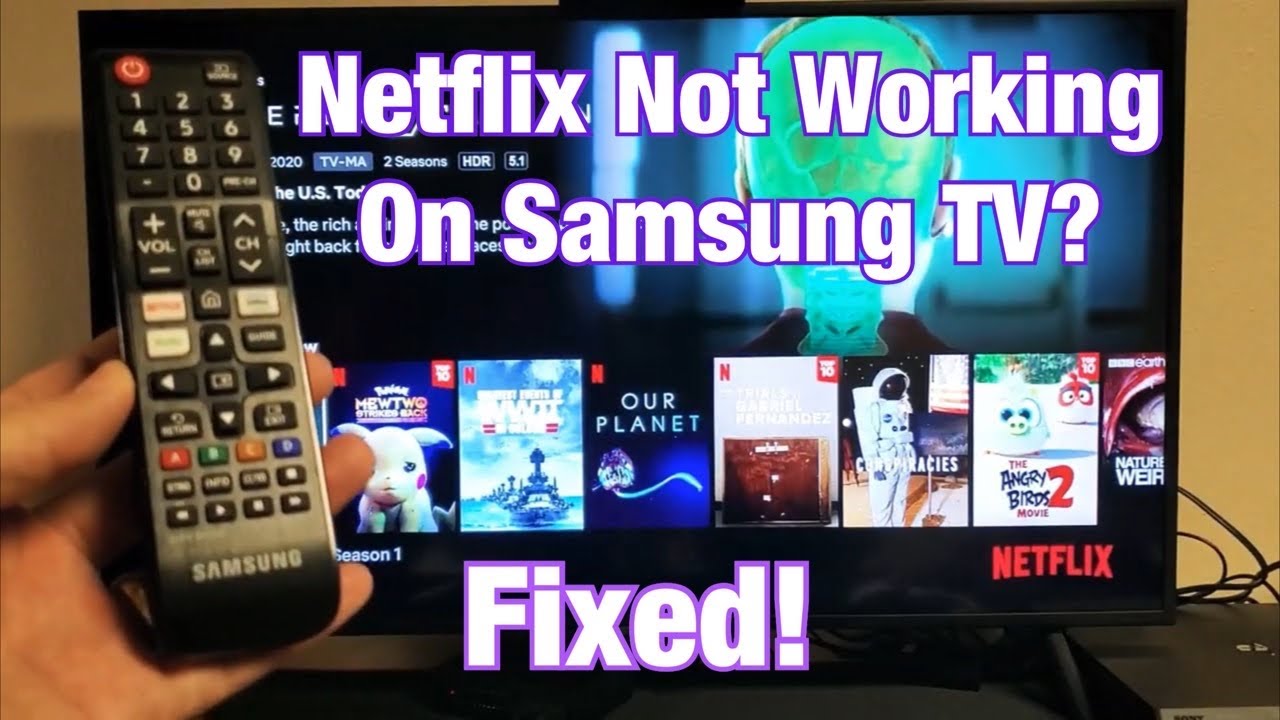
Sometimes, Netflix doesn’t show up in your Smart Hub, or the app won’t open. Here’s what to do if you have problems:
1. Restart Your Tv
- Turn off your TV completely (unplug it if possible).
- Wait 30 seconds, then plug it back in and turn it on.
- This clears minor software issues.
2. Check For Software Updates
- Go to Settings > Support > Software Update.
- Select Update Now.
- Install any available updates and restart your TV.
Insight: Many app problems are fixed with a simple update. Manufacturers often release new versions to support Netflix or improve performance.
3. Reinstall Netflix
- Go to the Apps menu.
- Highlight Netflix, press and hold the Enter button, and select Delete.
- After deleting, reinstall Netflix from the App Store.
4. Check Your Internet Connection
- Test your Wi-Fi or Ethernet with another device (like your phone).
- Slow or unstable internet can cause Netflix to freeze or fail to load.
5. Reset Smart Hub
- Go to Settings > Support > Self Diagnosis > Reset Smart Hub.
- You’ll be asked for a PIN (default is usually 0000).
- This returns Smart Hub to its original state, which can solve persistent issues.
Warning: Resetting Smart Hub removes all downloaded apps and your Samsung account. You’ll need to sign in and reinstall your apps.
6. Region Restrictions
Some TVs only show Netflix in certain regions. If you bought your TV in one country but use it in another, some apps may not be available. In this case, check the TV’s region settings or contact support.
When To Contact Support
If none of these steps work, your TV may have a hardware issue, or your model may no longer be supported. Visit your manufacturer’s official support page or contact their customer service.
How To Use Netflix On Smart Hub: Essential Tips
Once you have Netflix installed, knowing how to use it well makes a big difference. Here’s how to make the most of Netflix on your Smart TV:
Navigating Netflix
- Use the directional arrows on your remote to move through menus.
- Select titles with the OK or Enter button.
- Press the Back or Return button to go up a menu level.
Profiles
Netflix allows multiple user profiles. When you open the app, you can choose your profile. This keeps your recommendations and watch history separate from other family members.
Subtitles And Language
To change subtitles or audio language:
- Start playing a show or movie.
- Press the down arrow during playback.
- Select the dialogue icon or Audio & Subtitles.
- Choose your preferred language or subtitles.
This is very useful for non-native English speakers or those who prefer dubbed content.
Parental Controls
Netflix has built-in parental controls. You can set up a Kids profile or restrict certain content with a PIN in your account settings (on the Netflix website).
Watching In 4k Ultra Hd
If your TV supports 4K and you have the right Netflix plan, you can stream in Ultra HD. Make sure:
- Your Netflix plan includes 4K streaming (Premium plan).
- Your internet speed is at least 25 Mbps.
- Your TV is set to 4K resolution.
Not all content is available in 4K—look for the Ultra HD or 4K icon next to the title.
Comparing Smart Hub Features For Netflix
Different Smart TV brands and models offer unique features for using Netflix. Here’s a quick look at how Smart Hub (Samsung) compares with other popular systems:
| Feature | Samsung Smart Hub | LG webOS | Sony Android TV | TCL Roku TV |
|---|---|---|---|---|
| Netflix Button on Remote | Often included | Sometimes included | Usually included | Always included |
| Voice Control | Bixby/Alexa/Google | ThinQ AI | Google Assistant | Roku Voice |
| App Store | Samsung Apps | LG Content Store | Google Play Store | Roku Channel Store |
| Picture-in-Picture | Some models | Limited | Limited | No |
| Automatic App Updates | Yes | Yes | Yes | Yes |
Insight: The dedicated Netflix button is a game changer. If your remote has it, you can launch Netflix instantly—no need to go through menus. If not, adding Netflix to your favorites is the next best thing.
Solving Common Netflix Streaming Problems On Smart Hub
Even after installing Netflix, you might experience issues like buffering, loading errors, or poor video quality. Here’s how to fix common streaming problems:
Buffering Or Slow Video
- Test your internet speed. Go to fast.com on your phone or computer. For HD, you need at least 5 Mbps; for 4K, at least 25 Mbps.
- Move your router closer to the TV or connect using Ethernet.
- Limit other devices using the internet while streaming.
Error Messages (e.g., Nw-2-5, Ui-800-3)
- These usually mean network or app issues.
- Restart your TV and router.
- Reinstall the Netflix app if the error persists.
Poor Picture Quality
- Check your Netflix plan—not all plans support HD or 4K.
- Set your TV’s resolution to the highest available.
- Go to Netflix Account Settings > Playback Settings and choose “High.”
App Crashing Or Freezing
- Update your TV’s software.
- Clear the app’s cache (some TVs allow this in the app settings).
- Reset Smart Hub as a last resort.
Stuck On Netflix Loading Screen
- Unplug your TV for 1-2 minutes, then plug it back in.
- Try a different app to see if the issue is only with Netflix.
Non-obvious tip: Some older TVs run out of memory if too many apps are installed. Delete unused apps to free up space.
Advanced Tips: Getting The Most From Netflix On Smart Hub
Once you have Netflix working, a few advanced settings and features can make your streaming experience smoother and more enjoyable.
Use Voice Control
Many Smart TVs let you open Netflix and search for shows using voice commands. Try saying:
- “Open Netflix”
- “Play Stranger Things on Netflix”
- “Find comedies on Netflix”
Check if your remote has a microphone button or if your TV supports Google Assistant, Alexa, or Bixby.
Manage Your Account From The Tv
You can switch profiles, sign out, and even reset your password from the Netflix app. This is helpful if you share your TV with guests or family.
Enable Parental Controls
If you have children, set up a Kids profile with age-appropriate content. You can also set a PIN for mature shows.
Customize Subtitles
Go to your Netflix Account > Subtitle Appearance (on the Netflix website) to change font size, color, and background. This makes subtitles easier to read, especially for non-native speakers or older viewers.
Use The Mobile App As A Remote
With the Netflix mobile app (iOS or Android), you can browse shows on your phone and send them to your TV. Both devices must be on the same Wi-Fi network. Look for the Cast icon.
Expert insight: If your TV’s Netflix app is slow, using your phone to select and cast content can be much faster.

Credit: eu.community.samsung.com
What If Your Tv Doesn’t Support Netflix On Smart Hub?
Not all TVs are smart enough for Netflix. If your TV lacks Smart Hub or the Netflix app, you still have options:
- Streaming Devices: Connect a device like Roku, Amazon Fire Stick, Apple TV, or Google Chromecast. All support Netflix and work with almost any TV with an HDMI port.
- Game Consoles: Xbox and PlayStation have Netflix apps.
- Blu-ray Players: Many smart Blu-ray players support Netflix.
- Screen Mirroring: Use your phone or laptop to mirror or cast the Netflix app to your TV (requires Wi-Fi and a compatible TV).
- Upgrade Your TV: If your TV is very old, a new Smart TV may be more cost-effective than buying multiple accessories.
Comparison Of Streaming Devices For Netflix
To help you decide, here’s a comparison of popular streaming devices and their Netflix experience:
| Device | Netflix Support | Special Features | Approx. Price (USD) |
|---|---|---|---|
| Roku Express | Full | Simple remote, 1080p | 30 |
| Amazon Fire Stick 4K | Full | Alexa voice, 4K | 50 |
| Google Chromecast | Full | Cast from phone, 4K | 40 |
| Apple TV 4K | Full | Siri, 4K, premium apps | 129 |
Tip: For the most seamless experience, choose a device with a dedicated Netflix button on the remote.
Netflix App Updates And Maintenance
To keep Netflix working smoothly on your Smart Hub, regular updates and maintenance are important.
Automatic Updates
Most Smart TVs update apps automatically. If not, you can update manually from the Apps menu.
- Go to Apps > Settings > Updates (menu names may vary).
- Select Netflix and choose Update.
Clearing Cache And Data
If Netflix gets slow or buggy, clearing the app’s cache can help (if your TV supports this feature):
- Go to Settings > Apps > Netflix > Clear Cache/Data.
Caution: Clearing data may sign you out of Netflix.
Freeing Up Space
Uninstall apps you don’t use. Full storage can cause slow performance or app crashes.
Regular Tv Software Updates
Check for system updates every few months. New updates add features, fix bugs, and improve streaming quality.
Credit: www.youtube.com
Security And Privacy When Using Netflix On Smart Hub
Many people don’t think about security when using Smart TVs, but it’s important to keep your account and data safe.
Use Strong Passwords
Set a strong, unique password for your Netflix account. Avoid sharing it with people outside your household.
Sign Out When Selling Or Giving Away Your Tv
If you sell or give away your Smart TV, always sign out of Netflix and reset the TV to factory settings.
Keep Software Updated
Updates often fix security vulnerabilities.
Watch For Phishing Attempts
Don’t enter your Netflix login on suspicious websites or pop-ups. Always use the official Netflix app.
Set Up Parental Controls
Protect children from inappropriate content using Netflix’s built-in parental controls.
Non-obvious Insights For Beginners
Many beginners miss these key points:
- App order matters: On some TVs, the first few apps in your Smart Hub get priority for speed and updates. Keep Netflix near the top for best performance.
- Network band selection: If your home has both 2.4 GHz and 5 GHz Wi-Fi, connect your TV to 5 GHz for faster, more stable streaming.
- Regional app stores: If you travel or move countries, your TV’s app store may only show local apps. Changing the TV’s region setting (sometimes tricky) can restore Netflix if it disappears.
Credit: www.youtube.com
Where To Get Help And More Information
If you need official troubleshooting steps or want to check your TV’s compatibility, visit the Netflix Help Center. This site has up-to-date guides for many TV brands and models.
Frequently Asked Questions
How Do I Update Netflix On My Smart Hub?
Go to your TV’s Apps menu, find Netflix, and select Update (if available). Most Smart TVs update apps automatically, but manual updates ensure you have the latest features and bug fixes.
Why Is Netflix Missing From My Smart Hub?
Netflix can disappear due to region restrictions, outdated TV software, or memory issues. Try updating your TV’s software, resetting Smart Hub, or checking your region settings. If your TV is very old, it may no longer support Netflix.
Can I Install Netflix If My Smart Tv Doesn’t Show It In The App Store?
Usually no, unless you can change your TV’s region or update its firmware. If not, use a streaming device like Roku, Fire Stick, or Chromecast to access Netflix.
Do I Need A Special Netflix Plan For My Smart Tv?
No special plan is required, but to watch in HD or 4K, you need a Standard or Premium Netflix plan. Basic plans stream in SD only.
Is It Safe To Use Netflix On My Smart Tv?
Yes, as long as you use the official Netflix app, keep your TV’s software updated, and don’t share your password with strangers. Set up parental controls for children.
Getting Netflix on your Smart Hub opens a world of entertainment right in your living room. Whether you have a new Samsung TV, an older model, or another brand, these steps and tips will help you get started smoothly. Remember to keep your software updated, manage your profiles, and use parental controls if needed.
With these insights, you can relax and enjoy your favorite shows and movies—no more streaming headaches.