
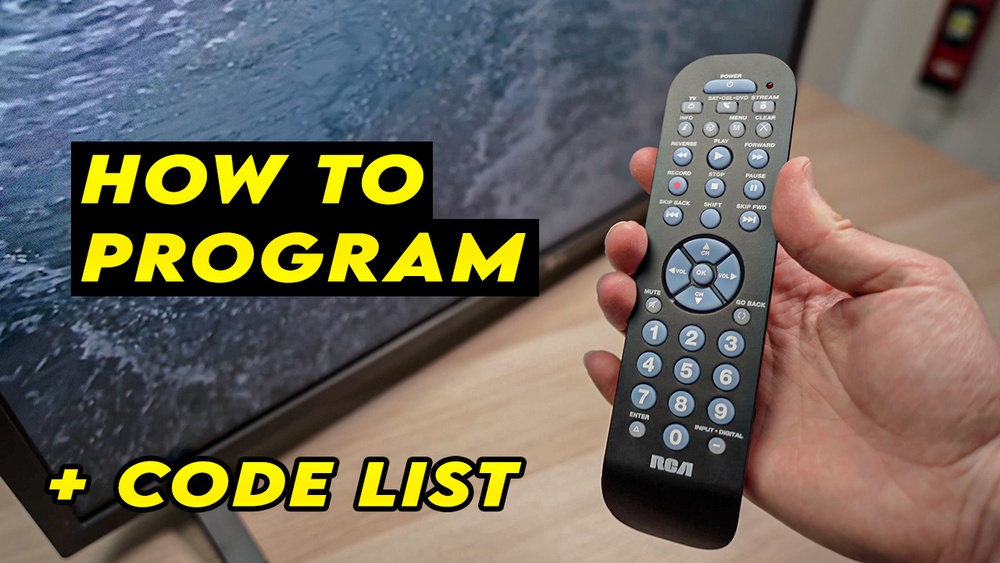
Programming a universal RCA remote control can feel confusing at first, especially if you’ve lost your original remote or need to control multiple devices. But once you understand the steps, it’s much easier than you might expect. The real challenge is that every home entertainment setup is a bit different, and RCA universal remotes have several models and programming methods.
This guide will walk you through every step, explain the different ways to program your remote, and help you avoid common mistakes. Whether you’re dealing with a TV, DVD player, or streaming box, you’ll find clear instructions and practical tips here.
Many people buy a universal remote to replace a lost one, reduce clutter, or control devices from different brands. RCA remotes are among the most popular choices for their affordability and compatibility. But programming them successfully requires attention to detail. In this guide, you’ll learn the difference between automatic code search and manual code entry, how to find device codes, and how to troubleshoot when things don’t work as expected.
Let’s dive into the world of universal RCA remotes and make your home theater simpler, not more complicated.
Understanding Rca Universal Remote Controls
Before you start programming, it helps to understand what makes RCA universal remotes special. These remotes are designed to work with a wide range of devices—TVs, cable boxes, DVD players, soundbars, and even some older VCRs. They replace original remotes that often get lost or broken.
Key Features Of Rca Universal Remotes
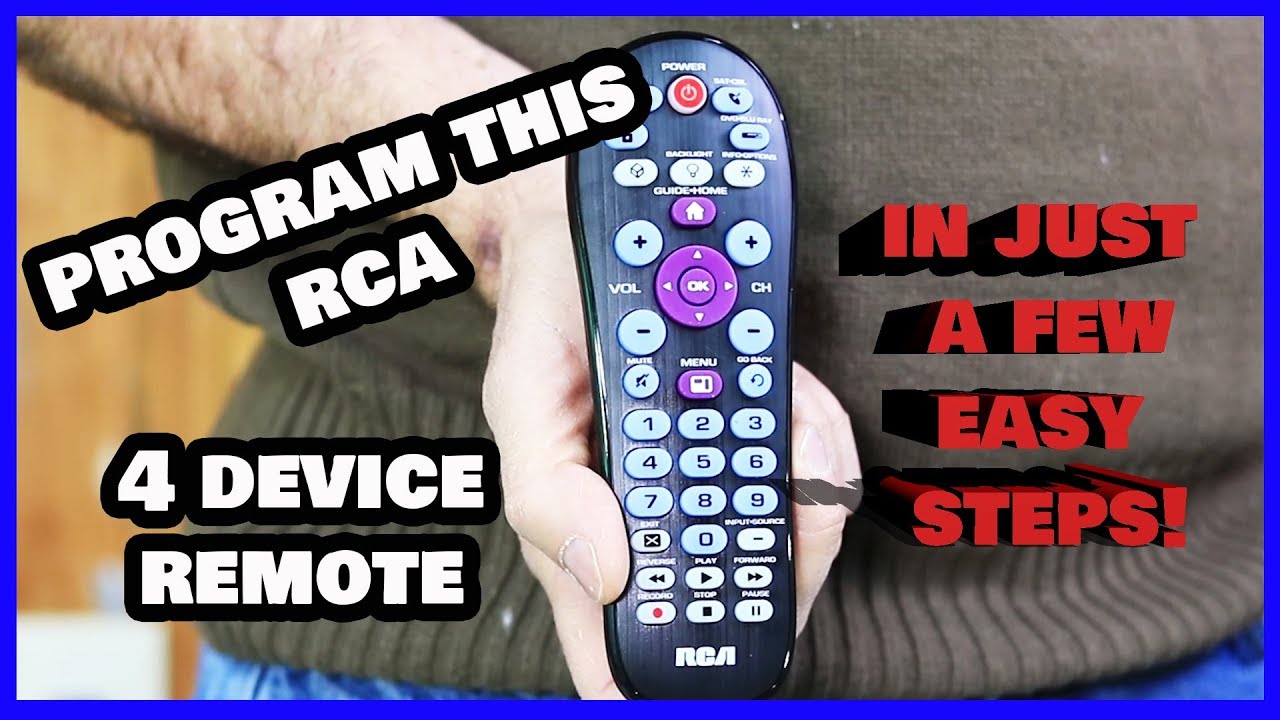
- Multiple device support: Most RCA remotes control 2, 3, 4, or even 6 devices.
- Pre-programmed codes: RCA maintains a database of device codes for brands and models.
- Simple layout: The button labels are clear, but functions can change depending on the device mode.
- Affordable pricing: RCA remotes are budget-friendly, often under $15.
Types Of Devices You Can Control
- Televisions (TVs)
- Cable or satellite boxes
- DVD/Blu-ray players
- Soundbars and audio systems
- Streaming devices (some models)
- VCRs (for older systems)
Not all RCA remotes support every device, especially the newest streaming platforms. Always check your remote’s model number and the list of supported devices.
Preparing To Program Your Rca Remote
Programming is easier when you’re prepared. Here are the steps to get started:
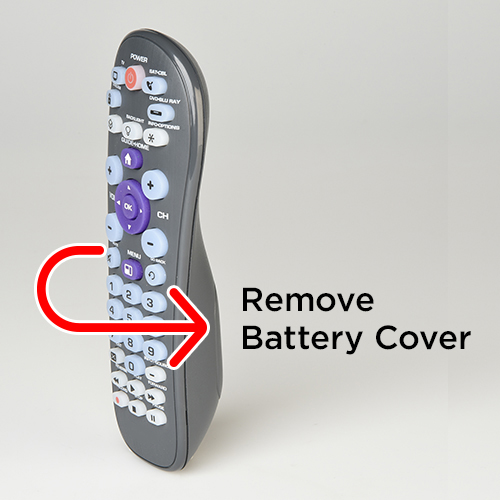
- Find your remote’s model number: Usually located inside the battery compartment or on the back.
- Get the correct device codes: RCA provides printed code lists in the packaging, but you can also find them online at the RCA support site.
- Install fresh batteries: Weak batteries can cause programming to fail.
- Know your device brand and type: For example, Samsung TV or Sony DVD player.
It’s smart to have the device code list on your phone or computer screen so you can look up codes quickly.
Why Preparation Matters
Many beginners skip these steps and run into trouble. For example, trying to program with old batteries may cause the remote to reset before finishing. Not knowing the device’s brand can waste time with the wrong codes. Taking five minutes to prepare can save you half an hour of frustration.
Rca Remote Programming Methods
There are two main ways to program an RCA universal remote:
- Manual Code Entry
- Automatic Code Search
Some RCA remotes also offer Direct Code Entry and Code Retrieval (to check which code is programmed). Let’s break down each method, when to use them, and how they work.
Manual Code Entry
This is the most reliable method if you know your device’s code.
Steps For Manual Code Entry
- Turn on the device you want to control (TV, DVD, etc. ).
- Press and hold the device button (e.g., TV, DVD) on the remote. The indicator light turns on and stays solid.
- Keep holding the device button, then enter the 4- or 5-digit code for your device using the number keys.
- Release the device button. The light goes off.
- Test the remote: Try the Power, Volume, and other basic functions.
- If it doesn’t work, repeat with the next code for your brand.
When To Use Manual Entry
- You have the correct code for your device.
- You want faster, more precise programming.
- Your device is a popular brand.
Non-obvious Insight
If your device is newer than your remote, the printed code list may not include it. In that case, use the automatic code search instead.
Automatic Code Search
This method tries all the codes in the remote’s memory until it finds one that works.
Steps For Automatic Code Search
- Turn on the device you want to control.
- Press and hold the device button (e.g., TV) until the indicator light stays on.
- Press and hold the Power button (or Play for some devices). The light blinks as the remote cycles through codes.
- Release the Power button as soon as the device turns off.
- Test other buttons. If the device doesn’t respond well, repeat the process.
When To Use Code Search
- You don’t know your device’s code.
- Your device isn’t listed in the printed code list.
- You want to try every possible code automatically.
Non-obvious Insight
Be patient—code search can take several minutes, especially for TVs. If you hold the button too long after your device turns off, you may skip the correct code.
Direct Code Entry Vs. Automatic Search: Which Is Better?
Here’s a quick comparison to clarify:
| Method | Speed | Accuracy | When to Use |
|---|---|---|---|
| Manual Code Entry | Fast (1-2 min) | High | You have the code |
| Automatic Code Search | Slow (5-15 min) | Medium | Code unknown or not listed |
Finding Rca Remote Codes
Every RCA remote comes with a list of codes in the manual. You can also find codes online for free. Codes are organized by device type and brand.
Where To Get Codes
- Printed RCA manual: Included with your remote.
- RCA support website: Search by remote model and device brand.
- Third-party websites: Some provide updated code lists.
Example Device Codes
Here’s what you might see for TVs:
| TV Brand | Code 1 | Code 2 | Code 3 |
|---|---|---|---|
| Samsung | 12051 | 10812 | 10060 |
| LG | 11423 | 10178 | 11265 |
| Sony | 10000 | 11300 | 11100 |
If your device is not listed, try the code search method.
Pro Tip
Try the first code listed for your brand. If it doesn’t work, move to the next. Some codes control only basic features, while others unlock more functions.
Credit: global.rca.com
Step-by-step Guide: Programming An Rca Universal Remote
Now, let’s break down the programming process into clear steps. This section covers both manual entry and automatic search. Follow the method that fits your situation.
Step 1: Insert Batteries
Use new, high-quality batteries. Weak batteries are the #1 reason for failed programming.
Step 2: Turn On The Device
Manually turn on the TV, DVD, or other device you want to program.
Step 3: Select Programming Method
If You Have The Code (manual Entry):
- Press and hold the corresponding device button (e.g., TV, DVD).
- Wait for the indicator light to stay on.
- Enter the device code using the number pad.
- Release the device button. The light should turn off.
- Test the remote. Try Power, Volume, and Input.
If You Don’t Have The Code (automatic Search):
- Press and hold the device button until the light stays on.
- Press and hold the Power button. The light will blink as the remote searches.
- When the device turns off, release the Power button immediately.
- Test the remote. If it works, you’re done.
Step 4: Test All Functions
Some codes only control basic functions. Try Volume, Mute, Input, and Menu. If certain buttons don’t work, repeat programming with the next code.
Step 5: Program Additional Devices
Repeat the process for each device (e. g. , TV, cable box, DVD player).
Step 6: Save Your Device Codes
Write down which code works for each device. Tape it to the back of the remote or keep it in your phone notes.
Step 7: Troubleshoot (if Needed)
If the remote isn’t working, see the troubleshooting section below.
Programming Rca Remotes: Special Scenarios
Some situations require extra steps. Here’s how to handle them.
Programming For A Combo Device
If you own a TV/DVD or TV/VCR combo, use the code for the main device type (usually TV). Some remotes require a special procedure for combos—check your manual.
Programming Streaming Devices
Not all RCA remotes support streaming devices like Roku or Apple TV. If your model does, use the code listed under “Media” or “Streaming. ” If not, consider a newer universal remote.
Learning Remotes
A few advanced RCA remotes can “learn” signals from the original remote by pointing them at each other. This is rare with basic models.
Resetting The Remote
If you make a mistake or want to start over:
- Remove the batteries.
- Press every button on the remote once (drains leftover power).
- Reinsert batteries.
- Start programming again.

Credit: www.ebay.com
Common Problems And How To Fix Them
Even with clear steps, things can go wrong. Here’s how to solve the most frequent issues.
The Remote Doesn’t Program
- Check battery strength.
- Make sure you’re using the correct device button.
- Try a different code from the list.
- Ensure you’re close to the device with no obstructions.
Buttons Don’t Work As Expected
- Some codes only support basic commands.
- Try the next code for your device brand.
- If only a few buttons fail, your device may not be fully supported.
Remote Stops Working
- Replace the batteries.
- Check for physical damage (spilled liquids, etc. ).
- Reprogram the remote.
Device Not Listed
- Use the automatic code search method.
- Visit the RCA website for updated code lists.
- Some very new or very old devices may not be supported.
Multiple Devices Turn On/off Together
- Some remotes send power signals to all programmed devices when you press Power.
- To avoid this, use the device-specific Power button or program only the devices you need.
Advanced Tips And Tricks
Once you’ve mastered the basics, you can get even more from your RCA remote.
Programming For Multiple Rooms
If you want to use one remote in different rooms, consider programming the same device type to different device buttons (e. g. , TV1 and TV2).
Using Macros
Some RCA remotes allow you to set up “macros”—one button press that sends a series of commands. For example, you can power on your TV and cable box together.
Code Retrieval Feature
Forgot which code you entered? Some RCA remotes let you “read out” the current code by pressing a certain button sequence. Check your manual.
Updating Codes
If your device is brand new, the code may not be in your remote. RCA updates their code list online. You can find the latest codes at the RCA Support site.
Comparing Rca Universal Remotes
With several RCA models available, choosing the right one can be tricky. Here’s a quick comparison.
| Model | Devices Controlled | Backlit Buttons | Streaming Support | Price Range (USD) |
|---|---|---|---|---|
| RCR503BZ | 3 | No | Limited | $8–$12 |
| RCR414BHE | 4 | Yes | Yes | $12–$15 |
| RCRN04GR | 4 | Yes | Good | $10–$16 |
| RCRN06GR | 6 | Yes | Good | $14–$18 |
What To Look For When Choosing
- Number of devices: Choose a remote that supports all your devices.
- Backlit buttons: Helpful for dark rooms.
- Streaming compatibility: Needed for Roku, Fire TV, etc.
- Ergonomics: Choose a comfortable design if you use it often.
Real-world Examples
Here are two practical examples to show how programming works.
Example 1: Programming An Rca Remote For A Samsung Tv
- Put in fresh batteries.
- Turn on your Samsung TV.
- Hold the TV button on the remote.
- Enter the first Samsung code from the list (e.g., 12051).
- Release the TV button.
- Test Power, Volume, and Input.
- If not working, repeat with the next code (10812).
Example 2: Using Code Search For A Sony Dvd Player
- Install new batteries.
- Turn on the Sony DVD player.
- Hold the DVD button until the light stays on.
- Hold the Power button. The light blinks as codes are tested.
- As soon as the DVD player turns off, release the Power button.
- Test Play, Stop, and Eject.
- If not all functions work, repeat the search.
Credit: www.youtube.com
Safety And Maintenance Tips
Taking care of your RCA remote extends its life and prevents problems.
- Avoid moisture: Don’t use the remote with wet hands.
- Clean regularly: Wipe with a soft, dry cloth. Avoid strong chemicals.
- Replace batteries yearly: Prevents battery leaks.
- Store codes safely: Keep a list of programmed codes.
When To Replace Your Rca Remote
Sometimes, a universal remote stops working or isn’t compatible with new devices. Consider replacing your remote if:
- Buttons are unresponsive after cleaning.
- Your device is not supported, even with updated codes.
- The remote is physically damaged.
- You need more device support or features (like smart home integration).
Modern RCA remotes are cheap to replace and often add new features.
Frequently Asked Questions
How Do I Reset My Rca Universal Remote To Factory Settings?
To reset most RCA remotes, remove the batteries and press all the buttons to discharge power. Then reinsert the batteries. If your remote supports a factory reset, press and hold the “Power” and “1” buttons together until the indicator light blinks.
Always check your model’s manual, as the process can vary.
Why Doesn’t My Rca Remote Work With My Device?
There are several possible reasons:
- Wrong code entered for your device brand.
- The device is too new or too old to be supported.
- Batteries are weak.
- Device sensor is blocked.
Try the automatic code search or check for updated codes on the RCA support site.
Can One Rca Remote Control Multiple Tvs In Different Rooms?
Yes, but not at the same time. You can program the remote to control different TVs using the available device buttons (TV, AUX, etc. ), but you’ll need to be in the same room as the TV you want to control.
For multiple rooms, consider buying extra remotes.
How Do I Find The Device Code For My Remote?
Check the printed code list in the remote’s packaging, or visit the RCA Support site and search by remote model and device brand. You can also use the automatic code search if your device isn’t listed.
Can I Use My Rca Remote For Smart Tvs And Streaming Devices?
Many RCA remotes support basic functions on smart TVs and streaming devices like Roku or Apple TV, but not all features (like voice search) will work. Check your remote’s compatibility before buying. For full smart device control, consider a more advanced universal remote.
Programming an RCA universal remote can save you time, reduce clutter, and give you full control over your home entertainment. With the right preparation and a little patience, you’ll be switching channels and streaming your favorite shows in no time.