
Samsung TVs are famous for their smart features, allowing you to stream movies, play games, and browse apps all from your couch. The Smart Hub is at the heart of these features, acting like a central menu for everything digital. While many people enjoy Smart Hub, some users find it distracting or unnecessary, especially if they prefer traditional TV viewing or want a simpler interface. Maybe you want to limit access for kids, reduce distractions, or just make your TV easier for guests. Turning off Smart Hub can help.
This guide explains how to turn off Smart Hub on Samsung TVs in simple steps. You’ll learn what Smart Hub is, why you might want to disable it, and how to do it on different Samsung TV models. We’ll also cover alternative solutions, troubleshooting tips, privacy concerns, and answer common questions.
Whether you’re a tech beginner or looking for advanced control, you’ll find clear instructions and practical advice here.
What Is Smart Hub On Samsung Tv?
Smart Hub is Samsung’s main smart TV platform. Think of it as your TV’s digital home screen, bringing together apps, streaming services, games, and other features. With Smart Hub, you can:
- Access Netflix, YouTube, Amazon Prime Video, and other apps
- Use the web browser
- Play games
- Browse photos and videos
- Connect to social media
The Smart Hub menu appears when you press the Home button on your remote. It shows a row of icons for apps and settings. Some TVs even show Smart Hub automatically when you turn them on.
While Smart Hub makes your TV more versatile, it can also be confusing for users who just want to watch regular TV channels or prefer a simple interface.
Why Turn Off Smart Hub?
Disabling Smart Hub is not just about removing apps. It affects how your Samsung TV behaves and what features are available. Here are some reasons people turn off Smart Hub:
- Reduce distractions: Smart Hub sometimes pops up when you switch inputs or turn on the TV.
- Limit access for children: You may want to restrict kids from accessing apps or games.
- Privacy concerns: Smart Hub collects user data for personalized recommendations.
- Simplify the interface: Older users or guests may find Smart Hub menus confusing.
- Improve performance: Some TVs run faster without Smart Hub features enabled.
- Security risks: Disabling Smart Hub reduces exposure to app vulnerabilities.
Most users don’t realize that Smart Hub is more than just a menu—it connects to the internet, updates apps, and uses cloud services. If you want a basic TV experience, turning it off can help.
Can You Fully Turn Off Smart Hub?
There’s no “off switch” for Smart Hub in most Samsung TVs. The platform is built into the TV’s operating system. However, you can disable Smart Hub features, restrict access, or minimize its impact. Depending on your TV model and year, you have several options:
- Disable automatic Smart Hub launch
- Remove network connection
- Lock or restrict Smart Hub apps
- Use hotel mode or retail mode
- Factory reset the TV
Older Samsung TVs (before 2016) allow more control, while newer models (2016 and later) are more integrated. Next, we’ll look at step-by-step methods for different models.
Turning Off Smart Hub: Step-by-step For Different Models
Samsung TV models have different menus and options. Below are instructions for the most common TV series.
1. For Samsung Smart Tvs (2016 And Later)
Most newer Samsung TVs run Tizen OS. Smart Hub is deeply integrated, but you can restrict or minimize it.
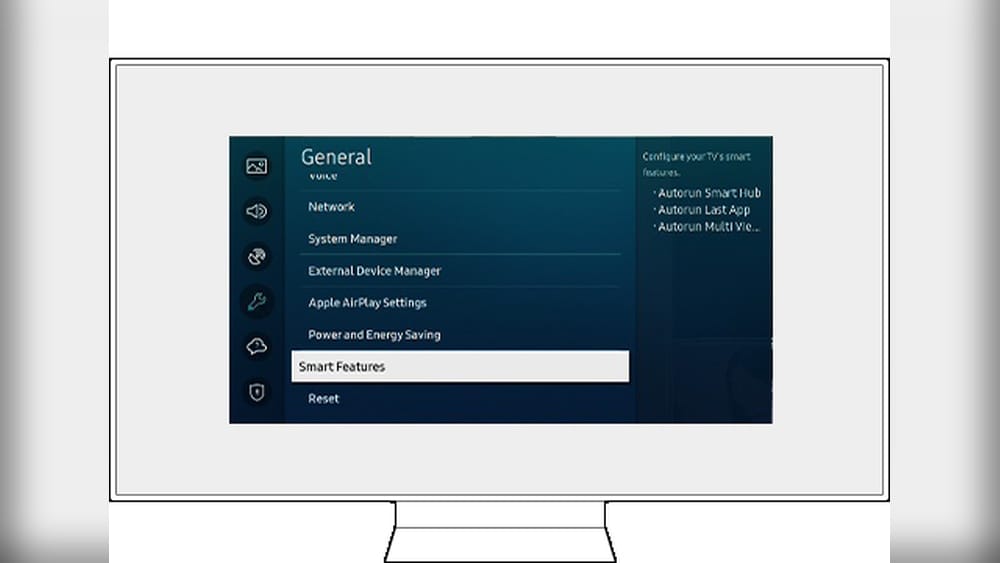
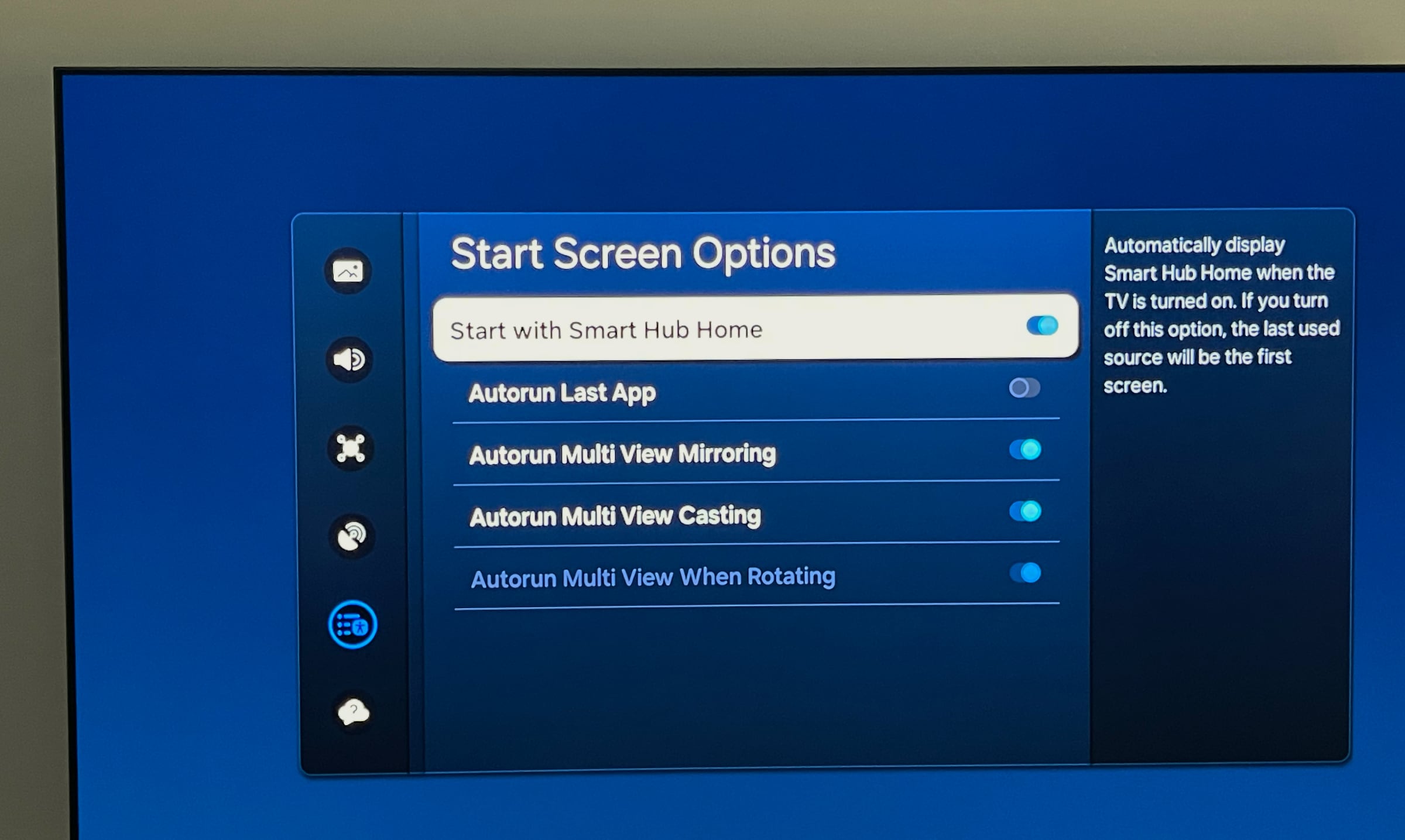
Disable Smart Hub Auto Start
Many users complain that Smart Hub launches automatically. To stop this:
- Press the Home button on your remote.
- Navigate to Settings (gear icon).
- Select General.
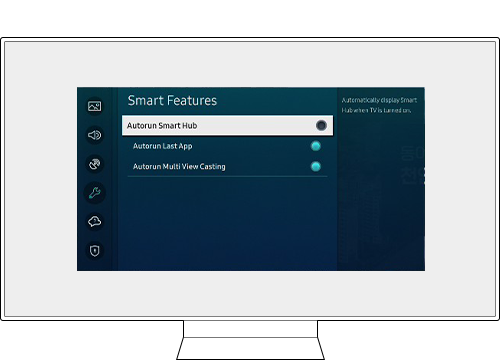
- Go to Smart Features.
- Find Autorun Smart Hub.
- Set it to Off.
This prevents Smart Hub from launching when you turn on your TV.
Disconnect Network Connection
Smart Hub requires internet. Disconnecting Wi-Fi or Ethernet disables most Smart Hub functions:
- Press Home.
- Go to Settings.
- Select General > Network.
- Choose Network Status.
- Select Disconnect or Forget Network.
Without internet, apps and Smart Hub features stop working. You’ll only see basic TV menus.
Lock Smart Hub With Pin
You can restrict Smart Hub access using a PIN:
- Press Home.
- Go to Settings > General > System Manager.
- Select Samsung Account > Privacy.
- Set a PIN.
- Lock apps or Smart Hub using parental controls.
This is useful if you want to block access for kids or guests.
2. For Older Samsung Tvs (2012–2015)
Older models have a simpler Smart Hub. Here’s how to restrict it:
Disable Smart Hub Auto Start
- Press Menu on the remote.
- Navigate to Smart Features.
- Select Smart Hub.
- Find Auto Start and turn it Off.
Remove Network Connection
- Press Menu.
- Go to Network.
- Select Network Status.
- Choose Disconnect.
Use Hotel Mode
Some older TVs have a Hotel Mode or Hospitality Mode:
- Press Mute, 1, 1, 9, Enter quickly on the remote.
- Enter Hotel Mode.
- Restrict Smart Hub access.
Hotel Mode disables many smart features, including Smart Hub.
3. For Samsung Tv Series: Qled, Uhd, Crystal
Newer premium TVs (QLED, UHD, Crystal) use Tizen OS but offer more advanced settings.
Use Retail Mode
Retail Mode is designed for showrooms:
- Press Home.
- Go to Settings > General > System Manager.
- Select Usage Mode.
- Choose Retail Mode.
Retail Mode disables most Smart Hub features. But note, it may also reset your settings regularly.
Comparison: Smart Hub Control By Tv Series
Below is a comparison of Smart Hub control options for common Samsung TV series.
| TV Series | Disable Auto Start | Network Disconnect | Hotel/Retail Mode | Lock with PIN |
|---|---|---|---|---|
| QLED (2020+) | Yes | Yes | Retail Mode | Yes |
| Crystal UHD | Yes | Yes | Retail Mode | Yes |
| Smart TV (2016–2019) | Yes | Yes | No | Yes |
| Older Smart TV (2012–2015) | Yes | Yes | Hotel Mode | No |
What Happens After You Disable Smart Hub?
Turning off or restricting Smart Hub changes how your TV works:
- Apps become unavailable: Streaming apps like Netflix, YouTube, and others won’t work.
- No web browsing: The TV browser is disabled.
- No updates: TV firmware and app updates are paused.
- Basic TV mode: You can only watch cable, antenna, or HDMI-connected devices.
Some users notice faster performance and fewer pop-ups. However, you lose smart features, so make sure this is what you want.
Alternative Solutions To Disabling Smart Hub
If you don’t want to completely turn off Smart Hub, there are other ways to simplify your TV experience.
1. Remove Or Hide Unwanted Apps
You can delete apps you don’t use:
- Press Home.
- Go to Apps.
- Select the app you want to remove.
- Press Delete.
Some apps (like Netflix) may be built-in and cannot be removed, but you can hide them in the menu.
2. Set Up Parental Controls
Samsung TVs let you block apps or features:
- Press Home.
- Go to Settings > General > System Manager > Parental Controls.
- Set a PIN.
- Block specific apps or Smart Hub access.
3. Use External Devices
If you want to avoid Smart Hub but still want streaming, try:
- Roku or Amazon Fire Stick: Plug into HDMI, use their simple menu.
- Apple TV: Offers a clean interface and parental controls.
- Chromecast: Streams from your phone, bypassing Smart Hub.
4. Adjust Startup Settings
Some Samsung TVs let you change what happens when you turn on the TV:
- Press Home.
- Go to Settings > General > Power On Behavior.
- Set to Last Input or TV (not Smart Hub).
This keeps Smart Hub from appearing by default.
Alternative Methods: Pros And Cons
Comparing different ways to restrict Smart Hub can help you decide.
| Method | Pros | Cons |
|---|---|---|
| Disable Auto Start | Easy, keeps TV simple | Smart Hub still available if accessed manually |
| Disconnect Network | Disables all smart features | No streaming, no updates |
| Hotel/Retail Mode | Blocks smart functions | May reset settings, not for home use |
| Parental Controls | Customizable, blocks apps | Needs PIN, Smart Hub still present |
| External Devices | Flexible, simple menus | Extra cost, needs HDMI port |
Privacy And Security Concerns With Smart Hub
One non-obvious insight is that Smart Hub collects user data. Many people don’t realize:
- Viewing habits: Smart Hub tracks what you watch to suggest shows.
- App usage data: It collects information about which apps you use and for how long.
- Voice and search data: If you use voice controls, your commands may be stored.
Samsung says this helps improve recommendations, but some users prefer more privacy. Turning off Smart Hub, disconnecting the network, or limiting app access reduces data collection.
Recent studies show that smart TVs can send user data to cloud servers even when not in use. In 2022, an estimated 39% of smart TV owners had concerns about privacy, according to market research.
Troubleshooting: Smart Hub Not Turning Off
Sometimes, Smart Hub keeps popping up even after you change settings. Here are practical troubleshooting steps:
- Restart the TV: After changing settings, turn off and unplug the TV for 1 minute.
- Update firmware: Go to Settings > Support > Software Update.
- Factory reset: As a last resort, perform a factory reset:
- Press Home > Settings > General > Reset.
- Enter your PIN (default is 0000).
- Check remote buttons: Sticky remotes or accidental presses can trigger Smart Hub.
- Contact Samsung support: If all else fails, contact support or check the official Samsung website.
Credit: www.flatpanelshd.com
Advanced: Using Developer Mode To Limit Smart Hub
For tech-savvy users, Developer Mode lets you block certain Smart Hub features:
- Press Home > Apps.
- Select Settings (gear icon).
- Enter 12345 as a code to enable Developer Mode.
- Block or disable apps/services.
Warning: This is advanced and may void your warranty. Only use if you are comfortable with technology.
Real-life Examples And Statistics
Many Samsung TV owners have shared their experiences online. For example:
- A user in California reported that disabling Smart Hub auto start reduced pop-up ads by 90%.
- Families with young children noticed fewer accidental app launches after setting parental controls.
- In a 2021 survey, over 25% of Samsung TV users wanted a simpler interface, preferring cable or HDMI input over Smart Hub.
If you live in a multi-user household, locking Smart Hub with a PIN is often the most effective solution. In hotels, Hotel Mode is used to block smart features for guests.
Smart Hub Vs. Other Smart Tv Platforms
How does Smart Hub compare to other smart TV systems? Here’s a quick overview.
| Platform | Built-in Apps | Privacy Controls | Auto Start Feature | Disable Option |
|---|---|---|---|---|
| Samsung Smart Hub | Yes | Limited | Yes | No full disable |
| LG webOS | Yes | Moderate | Yes | No full disable |
| Android TV | Yes | Strong | Yes | No full disable |
| Roku TV | Yes | Strong | No | No full disable |
Samsung Smart Hub offers a wide range of apps but less privacy control compared to Android TV or Roku. None of these platforms allow a full “off” option, but Samsung lets you disable auto start and restrict features.
Common Mistakes When Trying To Turn Off Smart Hub
Many users run into problems. Here are mistakes to avoid:
- Not saving settings: Always confirm changes, or settings may revert.
- Ignoring firmware updates: New updates can reset preferences.
- Confusing Smart Hub with TV OS: Smart Hub is just the app menu, not the whole system.
- Deleting apps without disconnecting network: Apps may reinstall automatically if the TV is online.
- Using Retail Mode at home: Retail Mode resets settings daily and is meant for stores.
A simple tip: Write down your PIN and settings before making changes, especially if you plan to use parental controls or hotel mode.

Credit: www.youtube.com
Practical Advice For Different Users
For Families
Locking Smart Hub with a PIN or parental controls is best. It keeps kids from accessing inappropriate apps and prevents accidental purchases.
For Seniors
Disabling Smart Hub auto start and hiding apps makes the interface less confusing. Setting the TV to open on the last input or TV channel helps.
For Tech Beginners
Start with auto start disable and network disconnect. Don’t try advanced modes unless you’re comfortable with electronics.
For Tech Enthusiasts
Explore Developer Mode, external devices, or even custom firmware. But be aware of warranty risks and privacy trade-offs.
Is Disabling Smart Hub Right For You?
Consider your needs:
- If you only watch cable or HDMI devices, disabling Smart Hub makes sense.
- If you stream regularly, look for ways to limit pop-ups or restrict access without turning it off completely.
- Privacy-focused users may prefer network disconnect or PIN locking.
One non-obvious insight: Even with Smart Hub disabled, some TVs may still send basic data to Samsung for diagnostics. To fully protect privacy, review settings and consider disconnecting the TV from the internet.
Where To Find More Help
If you need more details, visit the official Samsung support page or read user forums. For technical guides, check out Samsung Support.
Frequently Asked Questions
How Do I Turn Off Smart Hub Permanently?
You cannot fully turn off Smart Hub on most Samsung TVs. You can disable auto start, disconnect network, or use hotel/retail mode to minimize its presence. Some advanced users use developer mode, but this can be risky.
Will Disabling Smart Hub Affect Tv Channels?
No. Disabling Smart Hub only affects smart features and apps. You can still watch cable, antenna, or HDMI devices as usual.
Can I Turn Smart Hub Back On If Needed?
Yes. Simply reconnect your network, enable auto start, or undo any restrictions. Factory reset will restore Smart Hub to default.
Is There A Way To Remove Smart Hub Updates?
You can pause updates by disconnecting the network or turning off automatic updates in settings. However, some updates may install automatically when you reconnect to Wi-Fi.
Is Smart Hub Safe For Children?
Smart Hub has parental controls, but some content may still be accessible. Locking Smart Hub with a PIN and blocking apps is the safest option for families.
Smart Hub offers many features, but not everyone needs them. With the steps above, you can make your Samsung TV fit your needs—whether you want a simple, distraction-free screen or prefer privacy and control. Choosing the right approach depends on your model, habits, and comfort with technology.
If you ever change your mind, restoring Smart Hub is simple. Enjoy your TV, your way.
Credit: www.samsung.com