
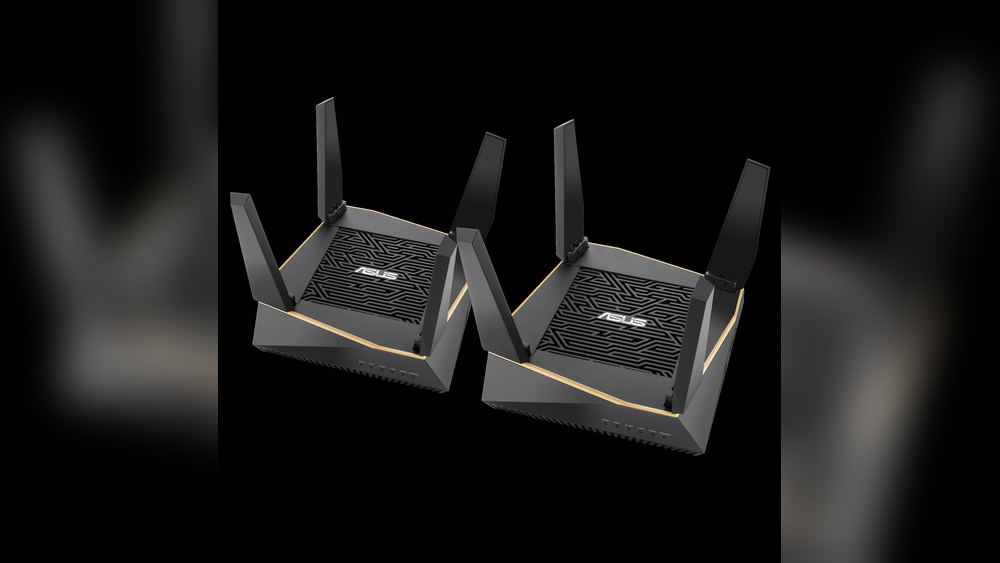
Setting up a mesh network can transform your home Wi-Fi experience, making dead zones and slow connections a thing of the past. If you own Asus routers, you’re in luck: Asus offers one of the most flexible and user-friendly mesh solutions on the market. This guide will walk you through every step, from understanding mesh basics to advanced tips for getting the most from your Asus mesh system.
Many people believe mesh networks are only for large homes or tech experts. But with Asus routers, almost anyone can build a mesh that fits their needs, whether you live in a small apartment or a multi-story house. You don’t need special technical skills—just some patience and a clear plan.
Before diving in, it’s worth knowing that Asus routers support AiMesh, which lets you combine different Asus models into one seamless network. This gives you flexibility other brands often lack. We’ll cover compatibility, setup, troubleshooting, and pro tips. By the end, you’ll have a solid, practical understanding of how to mesh Asus routers for reliable, fast Wi-Fi everywhere.
What Is Mesh Networking?
A mesh network is a system where multiple devices (called nodes) work together to provide a single, unified Wi-Fi signal throughout your space. Instead of relying on one router to cover everything, mesh uses several routers or satellites to create overlapping coverage.
With a mesh network:
- You get stronger Wi-Fi in every room.
- Devices switch automatically to the nearest node for best speed.
- You avoid dead zones—places where Wi-Fi is weak or missing.
- Management is easier; all nodes share one network name and password.
Traditional routers often struggle in large or complex homes. Mesh networks solve this problem by spreading Wi-Fi more evenly. Asus uses AiMesh technology, which lets you mix and match many Asus routers—even older models.
Why Choose Asus Routers For Mesh?
Asus routers are known for their powerful hardware and flexible features. But the real strength for mesh is their AiMesh system. Here’s why Asus stands out:
- You can use different models together—no need to buy a matched set.
- AiMesh works with both old and new Asus routers.
- Setup is guided by a simple app or web interface.
- Many Asus routers offer advanced options like parental controls, security, and guest networks.
For comparison, many brands force you to buy only their mesh kits. Asus lets you upgrade gradually. If you already own an Asus router, you can add another one to expand coverage, instead of replacing everything.
Understanding Aimesh Compatibility
Not all Asus routers support AiMesh, but most recent models do. Compatibility is crucial: mixing unsupported routers can cause problems.
Below is a comparison of common Asus routers and their AiMesh support.
| Router Model | AiMesh Support | Wi-Fi Standard | Release Year |
|---|---|---|---|
| RT-AX88U | Yes | Wi-Fi 6 | 2019 |
| RT-AC68U | Yes | Wi-Fi 5 | 2013 |
| RT-AC86U | Yes | Wi-Fi 5 | 2017 |
| RT-AX86U | Yes | Wi-Fi 6 | 2020 |
| RT-N66U | No | Wi-Fi 4 | 2012 |
To check if your router supports AiMesh:
- Look for “AiMesh” in the router’s product page or manual.
- Check the firmware—AiMesh may require a recent update.
- Visit Asus’s official compatibility list.
Many users overlook firmware updates. A router may not show AiMesh until you update it. Always check for the latest firmware before starting.
Preparing For Mesh Setup
Before you mesh Asus routers, planning is key. Here are steps to get ready:
- Update Firmware: Go to the Asus web interface, check for updates on both routers. This ensures you get the latest features and fixes.
- Pick Locations: Think about where coverage is weak. Avoid placing routers near thick walls or metal objects.
- Pick Roles: Decide which router will be the main (primary) and which will be the node (secondary).
- Reset Node Router: It’s best to factory reset the secondary router before meshing. This avoids conflicts.
- Gather Cables: Have Ethernet cables ready. Wired backhaul offers better performance, but wireless backhaul is also possible.
Many beginners forget to reset the node router. This can cause setup issues. Take time to do this step—it saves frustration later.
Step-by-step Guide To Mesh Asus Routers
Setting up Asus mesh is easier than many expect. Here’s a clear guide, using both the web interface and mobile app.
Step 1: Update All Routers
- Log in to each router’s web interface (usually http: //192.168.1.1).
- Go to “Administration” > “Firmware Upgrade.”
- Download and install the latest firmware.
- Restart both routers.
Step 2: Factory Reset Node Router
- On the node router, hold the reset button for about 10 seconds.
- Wait for reboot.
- Do not set up Wi-Fi—leave it as default.
Step 3: Set Up Main Router
- Log in to the main router.
- Set Wi-Fi name (SSID) and password.
- Connect to the internet.
- Enable AiMesh in the settings.
Step 4: Add Node Router
- Place the node router near the main router.
- In the main router’s interface, go to “AiMesh” > “Add AiMesh Node.”
- Click “Search.” The node router should appear.
- Click to add the node. Wait for confirmation.
If you use the Asus Router app:
- Open the app and log in.
- Tap “AiMesh” and follow on-screen instructions.
Step 5: Move Node Router
- Once setup is complete, unplug the node router.
- Place it in your desired location.
- Plug in and turn on.
- The mesh network will reconnect automatically.
Step 6: Optimize Placement
- Check signal strength in the AiMesh section.
- If the node shows weak signal, move it closer to the main router.
- Avoid placing nodes near microwaves, metal, or thick walls.
Many users miss the signal strength check. If a node is too far, it won’t help coverage—sometimes it makes things worse.
Wired Vs Wireless Backhaul: Which Is Better?
Backhaul is the connection between your main router and mesh nodes. You can use wired (Ethernet) or wireless (Wi-Fi) backhaul.
Here’s a quick comparison:
| Backhaul Type | Pros | Cons |
|---|---|---|
| Wired (Ethernet) | Fastest speed, stable connection, less interference | Requires running cables, less flexible placement |
| Wireless (Wi-Fi) | Easy setup, flexible placement, no cables | Lower speed, possible interference, signal loss over distance |
If possible, use wired backhaul. Even a single Ethernet cable between routers can boost reliability and speed. But wireless is fine for most homes, especially smaller spaces.
Common Mistakes When Meshing Asus Routers
Even with a simple setup, some mistakes can cause problems. Here are the most frequent ones:
- Outdated firmware: Always update both routers first.
- Skipping node reset: Factory reset the node before adding.
- Too far apart: Nodes must be close enough during setup; signal weakens over distance.
- Mixing incompatible models: Check AiMesh support first.
- Wrong Wi-Fi settings: Use the same SSID for all nodes.
- Ignoring backhaul quality: Wired is better if possible.
One insight many beginners miss: setting up mesh isn’t just “plug and play.” The node router must be added from the main router’s interface—not from the node’s own settings.
Advanced Aimesh Features
Asus routers offer extra features for mesh users. These can boost performance and security.
- Guest Network: Create a guest Wi-Fi that covers all nodes.
- Parental Controls: Limit access for certain devices.
- QoS (Quality of Service): Prioritize gaming, streaming, or work devices.
- Security: AiProtection blocks threats and malware.
- Smart Connect: Automatically assigns devices to the best band (2.4GHz or 5GHz).
To use these features, log in to your main router’s interface. Many settings apply to all nodes—no need to set up each one individually.
Mesh Placement Strategies
Mesh works best when nodes are placed correctly. Here are key tips:
- Place the main router near the center of your home, if possible.
- Place nodes about halfway between the main router and dead zones.
- Avoid obstacles like thick walls, mirrors, and appliances.
- Height matters: Place routers on shelves or tables, not the floor.
- For multi-story homes, place nodes vertically aligned (e.g., upstairs/downstairs).
A non-obvious insight: sometimes, fewer nodes are better. Too many nodes can cause interference. Start with two or three, test coverage, then add more if needed.
Testing And Optimizing Your Mesh Network
Once your mesh is set up, test it for coverage and speed.
- Walk around with a phone or laptop, checking Wi-Fi signal.
- Use speed test tools to measure download/upload speeds.
- Check the AiMesh section for node status and signal quality.
- Adjust node placement as needed.
If you notice slow speeds or dropouts:
- Move nodes closer together.
- Switch to wired backhaul.
- Disable older Wi-Fi bands if not needed.
Many users miss the benefit of using the Asus Router app for monitoring. It shows real-time info and helps you spot weak spots quickly.
Troubleshooting Common Mesh Problems
Mesh setup is usually smooth, but problems can happen. Here’s how to fix the most common issues:
- Node won’t connect: Make sure both routers have updated firmware and are close during setup.
- Slow speeds: Use wired backhaul if possible; check for interference.
- Dropped connections: Move nodes closer or restart routers.
- Node disappears: Check power and cables; reset if needed.
- Devices stick to wrong node: Enable Smart Connect or reboot devices.
If problems persist, factory reset all routers and start fresh. This solves most mesh issues.
Comparing Asus Mesh To Other Brands
Asus mesh systems are popular, but how do they compare? Here’s a quick comparison with other leading brands.
| Brand | Mesh Flexibility | Hardware Choices | Price Range | Unique Features |
|---|---|---|---|---|
| Asus | Mix and match models | Wide selection | $100–$500 | AiMesh, advanced controls |
| Netgear Orbi | Matched kits only | Limited selection | $200–$700 | Tri-band, easy setup |
| TP-Link Deco | Matched kits only | Variety | $80–$300 | App-based setup |
| Google Nest Wifi | Matched kits only | Limited | $150–$400 | Smart home integration |
Asus is unique in letting you build mesh with different routers—no need for matched kits. This lowers cost and makes upgrades easier.

Credit: www.asus.com
Real-world Examples Of Asus Mesh Networks
Let’s look at practical examples:
Example 1: Small Apartment
- Main router: RT-AC68U in living room.
- Node: RT-AC86U in bedroom.
- Wireless backhaul used.
- Result: Strong signal everywhere, no dead zones.
Example 2: Large House
- Main router: RT-AX88U in office.
- Nodes: RT-AX86U in kitchen, RT-AC68U upstairs.
- Wired backhaul for kitchen node, wireless for upstairs.
- Result: Stable, fast Wi-Fi on both floors.
Example 3: Multi-Story Office
- Main router: RT-AX86U on ground floor.
- Nodes: RT-AC86U on each floor.
- Guest network enabled for visitors.
- Result: Seamless coverage, easy management.
The key insight here: mixing models works well, as long as they support AiMesh and firmware is up to date.
Security Considerations For Mesh Networks
Mesh networks are powerful, but security is important. Here’s how to stay safe:
- Change default passwords.
- Enable AiProtection for malware blocking.
- Use WPA3 encryption if available.
- Update firmware regularly.
- Limit guest access with guest networks.
- Review connected devices often.
Many users forget to update firmware after setup. Set a reminder to check every few months—it keeps your network safe.

Credit: www.asus.com
Aimesh For Smart Homes
If you have smart home devices (lights, thermostats, cameras), mesh can improve reliability.
- Smart devices spread across nodes get stronger signal.
- You can segment devices on a separate network.
- AiMesh handles large numbers of devices without slowing down.
One advanced tip: use VLAN settings (if available) to separate smart devices for better security.
Upgrading Your Asus Mesh System
Over time, you may want to upgrade your mesh. Asus makes this easy.
- Add new routers as nodes—no need to replace everything.
- Upgrade main router for faster Wi-Fi.
- Expand coverage with more nodes.
- Use newer models for Wi-Fi 6 support.
When upgrading, always reset new routers before adding as nodes. This prevents conflicts and ensures smooth integration.

Credit: www.amazon.com
When Not To Use Mesh
Mesh isn’t always the best solution. Consider alternatives if:
- Your home is small—one router may be enough.
- You have lots of Ethernet wiring—wired access points may work better.
- You want the absolute fastest speeds—dedicated access points can outperform mesh.
But for most homes, mesh offers a simple, flexible way to improve Wi-Fi.
Practical Tips For A Smooth Mesh Experience
Here are some expert tips for best results:
- Don’t hide routers in cabinets—signal drops fast.
- Use the same SSID for all nodes.
- Name devices in your router interface for easy tracking.
- Regularly check node status.
- Test coverage after any changes.
- Use the Asus Router app for quick controls.
A tip many overlook: if you move a node, reboot both routers for best performance. This forces devices to reconnect to the optimal node.
Frequently Asked Questions
What’s The Difference Between Aimesh And Other Mesh Systems?
AiMesh lets you combine different Asus routers, even older models, into one network. Other brands often require matched kits, limiting flexibility. AiMesh is ideal for upgrading existing Asus routers without replacing everything.
Can I Use Ethernet Cables Between Asus Mesh Routers?
Yes. Using wired backhaul (Ethernet) gives the best speed and reliability. You can connect main and node routers with a cable; AiMesh will automatically use the wired connection for backhaul.
How Many Asus Routers Can I Mesh Together?
Most Asus routers support up to five nodes in a mesh network. For larger spaces, check the router’s manual or Asus support for specific limits. More nodes can increase coverage, but too many can cause interference.
Do All Asus Routers Support Aimesh?
No. Only certain models and firmware versions support AiMesh. Check Asus’s official compatibility list and update firmware before trying to mesh. Older routers (like RT-N66U) do not support AiMesh.
Is Asus Mesh Good For Gaming And Streaming?
Yes. Asus routers offer QoS, prioritizing gaming or streaming devices. Mesh networks reduce dead zones, so you get stable, fast Wi-Fi for online games and HD video. Wired backhaul is best for lowest latency.
Setting up a mesh network with Asus routers is simpler than most expect, and the benefits are huge—stronger Wi-Fi, seamless roaming, and easy upgrades. Whether you live in a small apartment or a sprawling house, Asus AiMesh lets you build the perfect network for your needs.
The key steps are planning, updating firmware, proper placement, and checking compatibility. Take your time, follow each step, and you’ll enjoy fast, reliable Wi-Fi everywhere.
For more detailed technical info, visit the official Asus Support FAQ.
Mesh networks are the future of home Wi-Fi—and with Asus, you don’t have to be an expert to set one up.