
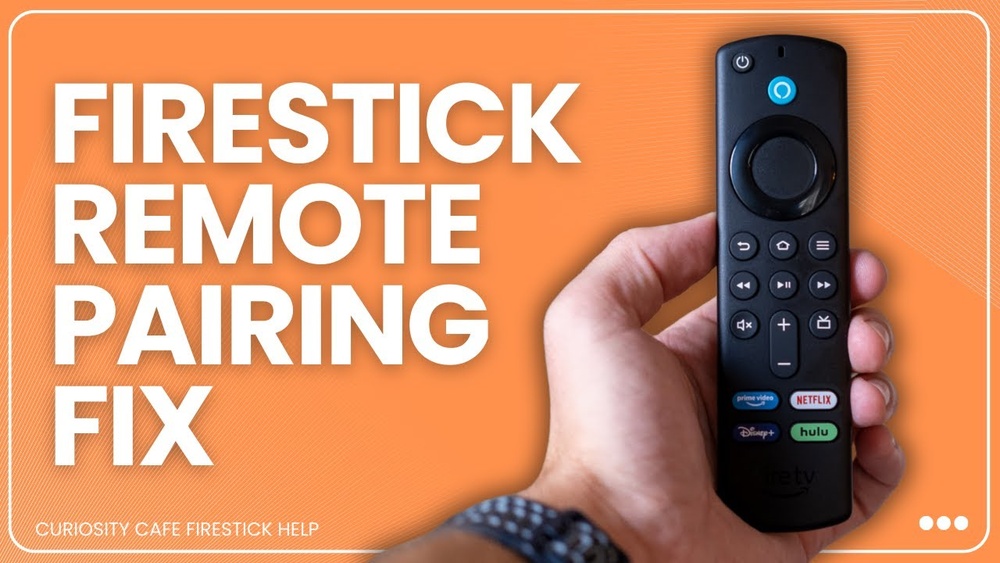
Syncing your remote control to your TV might sound simple, but many people face problems when they try. Maybe your new TV won’t respond to the remote, or you lost the original remote and bought a universal one. Sometimes, the remote suddenly stops working after months.
These situations can be frustrating, especially if you don’t understand much English or tech words. This guide will help you learn how to sync remote control to TV, step by step, using clear language and practical advice. You will find solutions for different TV brands, universal remotes, and smart TVs.
We’ll also explain common mistakes and share useful tips that most beginners miss.
Why Syncing Matters
Remote controls make watching TV easy. You can change channels, adjust volume, or access apps without touching the TV. But for the remote to work, it must be paired or synced with the TV. Syncing means connecting the remote to your TV so they talk to each other. If they are not synced, the remote won’t work. This is true for both original and universal remotes. Sometimes, even smart TV remotes need syncing after updates or battery changes.
Syncing is important because:
- It lets you control your TV from a distance.
- It unlocks features like voice commands, app navigation, and quick settings.
- It helps avoid confusion if you have multiple remotes or devices.
Types Of Remote Controls
Before syncing, you must know what type of remote you have. Different remotes use different syncing methods.
| Remote Type | Main Features | Syncing Method |
|---|---|---|
| Original remote | Made by TV brand, full functions | Automatic or manual pairing |
| Universal remote | Works with many brands, limited features | Code entry or auto search |
| Smart remote | Voice control, Bluetooth/Wi-Fi | Wireless pairing, app setup |
| Replacement remote | Copy of original, may need programming | Manual syncing |
Understanding your remote type will help you follow the correct syncing steps. If you’re unsure, check the back of the remote or the TV manual.
Preparing To Sync: What You Need
Before syncing, gather these items:
- TV and remote control
- Fresh batteries for the remote
- TV brand/model info
- Remote model info
- TV manual (optional but helpful)
- Universal remote code list (if using universal remote)
Make sure your TV is plugged in and turned on. Test the remote with new batteries. Weak batteries cause syncing problems. If you have a universal remote, keep the code sheet nearby. For smart remotes, you may need to connect to Wi-Fi or use a smartphone app.
Syncing An Original Remote To Tv
Most original remotes come pre-synced from the factory. If yours doesn’t work, or you bought a replacement, follow these steps.
Automatic Pairing
Some TVs, like Samsung or LG, support automatic pairing:
- Turn on the TV manually.
- Point the remote at the TV sensor (usually at the bottom).
- Press the Power button on the remote. The TV should respond.
- If not, hold both Power and Return buttons for 5 seconds (brand-specific).
- Wait for the TV to display a pairing message.
If automatic pairing fails, try manual pairing.
Manual Pairing
Manual pairing is needed for older TVs or after battery changes.
- Turn off the TV and unplug it for 1 minute.
- Insert new batteries in the remote.
- Plug in the TV and turn it on.
- Press and hold Pairing buttons (usually two buttons like Power + Volume Up).
- Wait for the TV to show a pairing prompt.
- If successful, you’ll see “Remote connected” or hear a beep.
Brand-specific Tips
- Sony TVs: Press and hold the Home + Back buttons.
- Samsung TVs: Press Return + Play/Pause together.
- LG TVs: Hold the OK button for 5 seconds.
If you see a pairing message, follow the instructions on the screen. If not, restart the process. Many beginners skip restarting the TV or forget about battery freshness.

Credit: support.apple.com
Syncing A Universal Remote To Tv
Universal remotes work with many brands. The syncing process is different from original remotes.
Code Entry Method
Universal remotes need TV codes to connect. Follow these steps:
- Find your TV brand in the code list (usually in the remote package).
- Turn on your TV manually.
- Press and hold the Setup button on the remote until the light turns on.
- Enter the TV code using the number keys.
- Press the Power button. If the TV turns off, syncing is successful.
- If not, try the next code for your brand.
Auto Search Method
If you don’t know the code, use auto search:
- Turn on the TV.
- Hold the Setup button until the light stays on.
- Press the TV button on the remote.
- Press Power repeatedly until the TV turns off.
- Once the TV responds, press Setup again to lock the code.
Common Universal Remote Problems
- Wrong code: Try all codes for your brand, not just the first.
- Weak batteries: Always use fresh batteries.
- Incorrect setup: Follow the order exactly; skipping steps causes failure.
- Signal blockage: Make sure nothing blocks the TV sensor.
| Universal Remote Brands | Supported TV Brands | Special Features |
|---|---|---|
| GE | Samsung, LG, Sony, TCL, more | Easy code entry, backlit buttons |
| RCA | Vizio, Panasonic, Sharp, more | Auto search, multiple device support |
| Logitech Harmony | Smart TVs, streaming devices | App-based setup, advanced controls |
Syncing Smart Tv Remotes
Smart TVs often use Bluetooth or Wi-Fi remotes. Syncing is different from IR remotes.
Bluetooth Pairing
- Turn on the TV.
- Put the remote in pairing mode (press and hold special button, like Pair or Home).
- Go to TV Settings > Remote & Accessories > Add Remote.
- Select your remote from the list.
- Follow on-screen instructions to complete pairing.
Wi-fi/app-based Remotes
Some smart TVs use apps on your phone as a remote:
- Download the official remote app (like Samsung SmartThings, LG ThinQ).
- Connect your phone and TV to the same Wi-Fi network.
- Open the app and follow instructions to add your TV.
- The app may ask for a PIN displayed on the TV.
- Enter the PIN to pair.
Voice Control Remotes
If your remote has a microphone, you may need to enable voice control in TV settings. Go to Settings > Voice > Enable. Some remotes require extra pairing for voice features.
Common Smart Tv Syncing Issues
- Bluetooth interference: Other devices nearby can block pairing.
- Wi-Fi drops: Make sure the network is stable.
- App version: Use the latest app for your TV brand.
Many people forget to check for software updates. Updating both TV and remote firmware can fix syncing problems.
Syncing After Factory Reset
If you reset your TV to factory settings, you must re-sync the remote. Here’s how:
- Turn on the TV and wait for the setup screen.
- Insert fresh batteries in the remote.
- Follow the on-screen instructions to pair the remote.
- If using universal remote, repeat code entry or auto search steps.
- For smart remotes, reconnect Bluetooth or Wi-Fi.
Factory reset removes all previous settings, so don’t skip this step. Beginners often miss the need for fresh pairing after a reset.
Syncing Replacement Remotes
Replacement remotes are made for specific TV brands or models. Their syncing process is usually manual.
- Check if the remote is compatible with your TV model.
- Insert new batteries.
- Turn on the TV.
- Press and hold Pairing button (may be labeled Setup or Sync).
- Wait for the TV to respond.
- If the remote has a learning mode, follow instructions to copy original remote signals.
Replacement remotes sometimes need programming with the original remote. Keep both remotes handy if possible.
Troubleshooting Sync Problems
Syncing doesn’t always work perfectly. Here are practical solutions for common problems:
Remote Not Responding
- Check batteries: Replace with new ones.
- Check TV sensor: Clean the sensor area (dust can block signals).
- Try from closer distance: Move within 3 feet of the TV.
- Restart TV: Turn off and unplug TV for 1 minute.
Wrong Code
- Try all codes for your TV brand, not just the first.
- Some codes work for older models, others for new ones.
Signal Interference
- Remove other electronic devices near the TV.
- Avoid strong lights shining on the sensor.
Software Issues
- Update TV firmware.
- Update remote firmware (check TV settings or manufacturer website).
Physical Damage
- Inspect the remote for cracks or broken buttons.
- If damaged, replace the remote.
Hidden Mistakes Beginners Make
- Mixing up remotes: Using a remote from another device (like DVD player) by mistake.
- Not pointing at sensor: Always point the remote directly at the TV sensor.
- Skipping battery check: Old batteries cause weak signals.
Brand-specific Syncing Steps
Different brands sometimes use unique syncing steps. Here are popular brands and their methods.
Samsung
- Use Return + Play/Pause for pairing.
- Bluetooth remotes need Settings > General > External Device Manager.
Lg
- Hold OK button for pairing.
- Use LG ThinQ app for smart remotes.
Sony
- Press Home + Back.
- For Android TVs, go to Settings > Remotes > Add Accessory.
Tcl
- Use pairing button on remote.
- Roku TVs: Press pairing button inside battery compartment.
Vizio
- Use Setup + Power combination.
- Vizio SmartCast app supports app-based pairing.
Refer to your TV manual for exact steps. If you lose the manual, search your brand’s official website.
Data On Remote Syncing Success Rates
Syncing success depends on the method and TV/remote types. Here’s a quick comparison:
| Syncing Method | Average Success Rate | Typical Time Needed |
|---|---|---|
| Original remote (automatic) | 92% | Under 2 minutes |
| Universal remote (code entry) | 80% | 3–5 minutes |
| Smart remote (Bluetooth) | 85% | 3 minutes |
| App-based remote | 78% | 4 minutes |
Success rates improve with new batteries, careful steps, and checking compatibility.
Practical Tips For Smooth Syncing
- Always use fresh batteries.
- Read the remote and TV manuals before starting.
- Try syncing from close distance first.
- Keep your TV software updated.
- Write down successful codes for universal remotes.
- If using app-based remotes, connect to stable Wi-Fi.
- Clean the TV sensor area regularly.
Non-obvious insight: Many people don’t realize that some universal remotes support “learning mode.” This lets you copy signals from the original remote. If your remote has this feature, use it for better compatibility.
When To Buy A New Remote
Sometimes, syncing fails because the remote is faulty or incompatible. Consider buying a new remote if:
- Your remote is physically damaged.
- Buttons are stuck or missing.
- The remote is not compatible with your TV model.
- You want advanced features like voice control or app navigation.
Choose remotes with good reviews and clear compatibility lists. Avoid cheap remotes without brand support.
Safety And Maintenance
Proper care keeps your remote and TV working well.
- Avoid dropping the remote.
- Keep away from water and heat.
- Clean battery contacts once a year.
- Store spare batteries in a dry place.
- Check for firmware updates every 6 months.
If your remote uses rechargeable batteries, charge as recommended by the manufacturer.
Real-life Example
Let’s look at a common scenario. Anna bought a new universal remote for her old Sony TV. She tried syncing with the first code, but nothing happened. She almost gave up, but then she read the manual and found three more codes for Sony.
Anna tried each code. The third code worked, and her TV responded. She learned to try all codes, not just the first one. Anna also realized that weak batteries caused poor response. Changing batteries made her remote work perfectly.
This story shows that patience and careful reading help. Many beginners don’t try all codes or check the manual closely.
Advanced Syncing: Multi-device Remotes
Some remotes can control multiple devices (TV, soundbar, streaming box). To sync these:
- Choose the device mode (TV, DVD, etc.) On the remote.
- Enter the correct code for each device.
- Test each function separately (volume, power, input).
- If a function doesn’t work, try another code.
Multi-device remotes save space, but setup takes longer. Write down all codes for future use.
Syncing Without A Manual
Lost your TV or remote manual? Here’s what to do:
- Search for your TV model on the manufacturer’s website.
- Look for remote syncing instructions online.
- Use the universal remote code list (often available online).
- Watch video tutorials for your TV and remote.
If you still can’t sync, contact the TV brand’s support team. They can guide you step by step.
The Importance Of Compatibility
Before buying a new remote, always check compatibility. Universal remotes list supported brands and models. Smart remotes may only work with specific TV types. Incompatible remotes won’t sync, no matter what you try.
Non-obvious insight: Some smart TVs disable remote pairing if “Hotel Mode” or “Demo Mode” is active. Make sure your TV is in normal mode.

Credit: www.youtube.com
Summary Of Key Steps
Syncing your remote to your TV is easy if you follow these steps:
- Identify your remote and TV types.
- Use fresh batteries.
- Follow correct pairing process (automatic, manual, code entry, Bluetooth, app).
- Try all codes for universal remotes.
- Update firmware if needed.
- Check compatibility before buying new remotes.
- Troubleshoot common problems (battery, sensor, signal interference).
- Don’t skip reading manuals and instructions.
If you need more guidance, official websites like Samsung Support offer helpful resources.
Frequently Asked Questions
How Do I Know If My Remote Is Synced?
If your remote is synced, pressing buttons like Power or Volume will make the TV respond. You may see a pairing message or hear a beep. If nothing happens, try syncing again.
Why Does My Universal Remote Not Work With My Tv?
It may not work because you entered the wrong code, have weak batteries, or the remote is not compatible with your TV model. Try all codes for your brand and check the code list.
Can I Use My Phone As A Remote For My Tv?
Yes, many smart TVs support phone apps as remotes. Download the official app for your TV brand, connect to the same Wi-Fi, and follow pairing instructions.
What Should I Do If My Remote Suddenly Stops Working?
Check batteries, clean the sensor area, and restart the TV. If the remote still doesn’t work, try re-syncing or replacing the remote.
How Do I Find The Code For My Universal Remote?
Look in the remote’s manual or code list. If lost, search online using your remote and TV model names. Try each code until your TV responds.
Syncing your remote control to your TV doesn’t have to be hard. With careful steps, fresh batteries, and patience, you can enjoy easy control of your TV. Following the advice in this guide will help you avoid common mistakes and save time.
Whether you have an original, universal, or smart remote, you’ll find the right way to sync and keep your home entertainment smooth.

Credit: www.amazon.com