
Mac users often find themselves wishing for smoother voice control and dictation. Maybe you’ve tried built-in tools, but they don’t always fit your workflow or handle noisy rooms. Whether you’re writing, presenting, or working hands-free, the right voice assistant can make daily tasks easier—but picking one isn’t simple.
There are a lot of options, each promising productivity, language support, or compatibility. Some focus on dictation, others add presentation tools or integrate with your favorite apps. You have to weigh ease of use, accuracy, and what fits your routine.
It’s easy to get lost in specs or features that sound useful but don’t matter in practice.
This guide will help you understand the trade-offs and find a voice assistant that matches how you actually work.
What Matters Most For Mac Voice Assistants?
Think about where you’ll use it. Do you need seamless voice typing in any app, or help with editing? Maybe you need hands-free controls for presentations or multitasking. Language support and device compatibility also matter—especially if you switch between Mac and other platforms.
Comfort and battery life are important for wearable options, but not for desktop tools.
Common Mistakes When Choosing
People often pick based on feature lists, not real needs. Buying a device with advanced translation when you only want dictation can add clutter. Others overlook microphone quality, which affects accuracy. Make sure the assistant fits your workflow and environment, not just the specs.
Below, you’ll find a range of options for different Mac users. Each was selected for its unique strengths, so you can match your choice to what matters most for your day-to-day tasks.
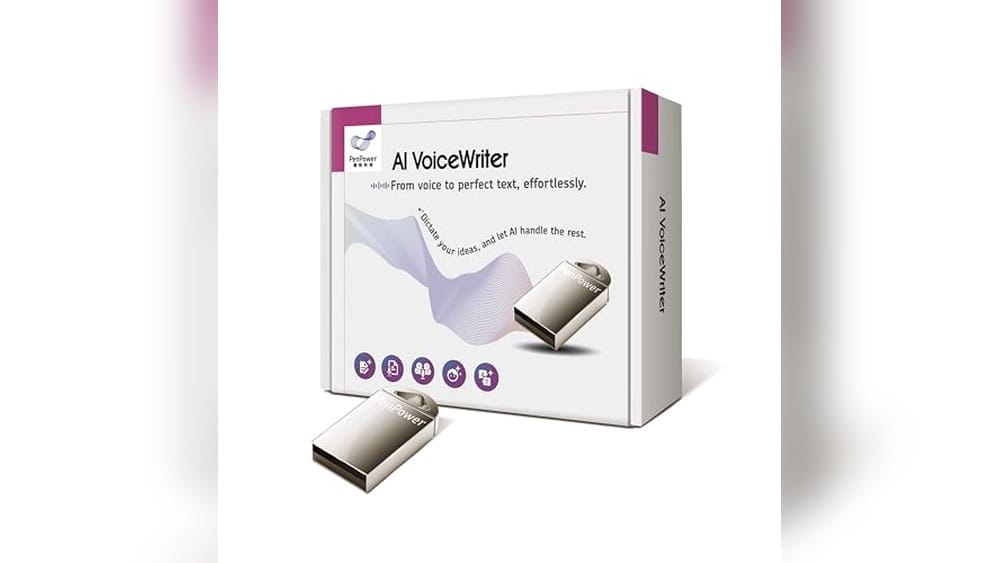
Penpower Voicewriter For Mac
As the Best Voice Assistant for Mac, this tool stands out for hands-free voice typing and seamless desktop integration.

PenPower VoiceWriter for Mac lets you type by speaking, turning your words into text instantly. It is designed for anyone who wants to write emails, reports, or creative content without using a keyboard. The system works with both Windows and Mac, and you can use it in any desktop app where you type.
Using this tool feels natural—just place your cursor and start talking. You gain speed and accuracy, especially with the mobile app that uses your phone’s microphone for clearer input. It’s reliable for switching between languages and perfect for people who write in different contexts throughout the day.
Why Users Choose This Voice Assistant
- Works in any desktop app, including Word, Google Docs, and Teams
- Real-time, hands-free voice typing saves time
- Supports 33 languages for dictation
- Mobile app boosts voice recognition accuracy
- Helps with proofreading, rephrasing, and formatting
- Easy setup for Mac users (macOS 13+)
Things To Keep In Mind
- Requires macOS 13 or later for Mac compatibility
- AI writing assistance languages are limited to a core set
- Mobile app needs a compatible phone (iOS 15+ or Android 9+)
Who This Fits Best
This tool is ideal for professionals and students who want faster, hands-free typing on a Mac. If you often switch between languages or work in multiple apps, it removes the hassle of manual typing and constant editing. You won’t have to worry about voice input errors, thanks to the enhanced mobile microphone feature.
For the best experience, set up the mobile app to get the clearest dictation. Consistency and reliable performance mean fewer surprises, letting you focus on your ideas instead of the tools. If you’re tired of switching windows or correcting typos, this device makes daily work less stressful and more efficient.
| Best for | Why |
|---|---|
| Hands-free typing on Mac | Lets you dictate text in any desktop app easily |
| Multilingual writers | Supports voice input in 33 languages |
| Busy professionals | Saves time with instant transcription and editing tools |
| Mobile-friendly users | Mobile app improves accuracy using your phone’s microphone |
Oikkei Ai Voice Mouse
The OIKKEI AI Voice Mouse stands out as the Best Voice Assistant for Mac by combining voice control with versatile presentation features.

The OIKKEI AI Voice Mouse is a multifunctional wireless mouse designed to improve workflow on laptops, PCs, and Macs. It integrates AI-powered voice typing and transcription, helping users generate notes, emails, or summaries just by speaking. Its detachable design also transforms it into a presentation remote, making it useful for both everyday computing and professional presentations.
Using this mouse feels natural and efficient, especially when controlling slides or dictating text during meetings or lectures. The ergonomic shape and adjustable DPI provide comfort and precision, while the voice assistant feature reduces the need to switch between devices or apps, streamlining tasks smoothly.
Key Advantages For Voice Control And Presentations
- Instant AI voice assistant access for typing and transcription
- Detachable 2-in-1 design for easy switching between mouse and presentation remote
- Built-in laser pointer and slide navigation for confident presentations
- Supports over 120 languages with real-time voice and text translation
- Rechargeable battery with USB-C fast charging for long use
- Ergonomic design suitable for extended daily use
Considerations Before Buying
- May be more complex than a standard mouse for casual users
- Voice assistant features require compatible software and setup
- Primarily designed for Windows and macOS, limited info on other systems
Where This Device Excels
This mouse is ideal for professionals who frequently present or need voice typing on Mac devices, such as teachers, lecturers, and business users. It removes the hassle of juggling multiple tools by combining voice commands and remote control in one device.
To get the most out of it, spend time customizing the software settings for your language preferences and presentation needs. The reliable wireless connection and ergonomic build mean you can trust it throughout long sessions without fatigue or interruptions.
For anyone looking to combine voice assistance with a versatile mouse and presentation tool, this offers a practical and polished solution.
| Best for | Why |
|---|---|
| Mac users needing voice assistant | Seamless AI voice typing and transcription support |
| Presenters and educators | Detachable remote with laser pointer and slide controls |
| Multilingual professionals | Real-time translation for over 120 languages |
| Users wanting ergonomic all-day use | Comfortable shape with adjustable DPI and long battery life |
Fifine Usb Microphone For Mac & Pc
A top pick for Best Voice Assistant for Mac users who want clear, simple voice capture without extra setup.
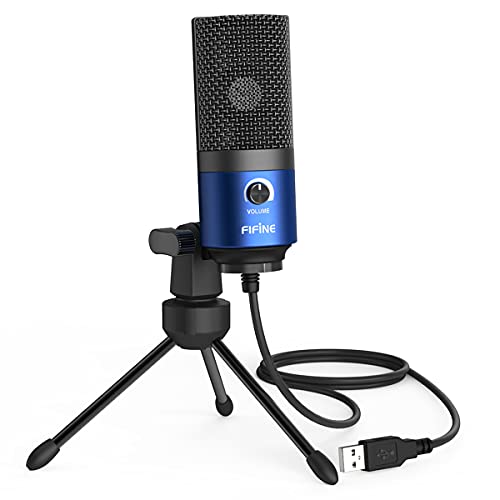
The FIFINE USB Microphone for Mac & PC is designed to capture your voice clearly while reducing background noise. With plug-and-play compatibility, it’s easy to start recording for YouTube, voice-overs, or calls without installing extra drivers or sound cards.
Using it feels straightforward and dependable—just connect, adjust the tripod to your liking, and you’re set. The gain control lets you quickly fine-tune your voice level, making it simple to get professional-sounding results. Its sturdy build and long cable add confidence for daily use at your desk or home studio.
What Makes This Microphone Stand Out
- Captures clear voice with reduced background noise
- Plug & play for Mac, Windows, and PS4
- Gain control for quick volume adjustments
- Adjustable tripod and pivot mount for best positioning
- All-metal construction for durability
- Long, permanently attached USB cable for flexible setup
- No need for external drivers or phantom power
Potential Limitations To Consider
- Not compatible with Xbox consoles
- Requires a USB adapter for USB-C only laptops
- Permanently attached USB cable limits replacement options
Where This Shines
The FIFINE USB Microphone for Mac & PC is best for anyone starting out with voice recording, podcasting, or streaming on a Mac who wants quick setup and reliable results. It removes the hassle of configuring drivers or buying extra gear, so you can focus on your content instead of troubleshooting.
A quick tip: use the gain knob to fine-tune your voice level for different apps and keep your environment as quiet as possible for the cleanest sound. This microphone offers peace of mind with its solid construction and dependable performance, making it easy to use day after day. I like the subtle blue finish—it looks professional on any desk setup.
| Best for | Why |
|---|---|
| YouTube video voice-overs | Captures natural, clear speech with minimal noise |
| Mac users new to audio recording | Works instantly with plug & play, no drivers needed |
| Home studio setups with limited space | Compact size and adjustable tripod for easy placement |
| Podcasters and online meetings | Gain control and clear pickup improve voice quality for listeners |
Yismo Poly Plantronics 5200 Uc Bluetooth Headset
For those seeking the Best Voice Assistant for Mac, this headset stands out with its seamless Siri integration and reliable call clarity.

This single-ear Bluetooth headset from YISMO is designed for users who need clear voice control and call quality on their Mac. It solves the hassle of background noise and connectivity issues, thanks to noise-canceling and a strong wireless range. You also get a compact case for travel and a dedicated USB adapter for non-Bluetooth setups.
Using it day-to-day feels comfortable, even during long meetings or voice assistant tasks. Commands to Siri (or other assistants) are picked up quickly, and the headset’s sensors make call handling almost automatic. You gain confidence that your audio will be clear, and switching devices is smooth with multipoint Bluetooth.
What Sets It Apart
- Excellent noise cancellation for busy environments
- Quick Siri access for hands-free Mac control
- Reliable call clarity and consistent connection
- Ergonomic, lightweight fit for all-day use
- Smart mute alert avoids accidental silent talking
- Works with Teams, Zoom, WebEx, and more
- Includes USB adapter for flexible pairing
Consider Before Buying
- Single-ear design may not suit stereo audio needs
- 7-hour talk time means daily charging for heavy users
- No included charging dock—just cable and wall charger
Where This Shines
This headset is best for Mac users who rely on voice assistants and need crystal-clear calls in noisy or changing settings. It removes the frustration of missed commands, background chatter, and unreliable Bluetooth connections. If you use your Mac for both meetings and personal tasks, the smart sensor and mute alert features streamline your workflow.
Here’s a tip: keep the USB adapter handy for older Macs or if you want to switch quickly between your laptop and phone. You can expect reliable performance and fewer audio surprises, making it a steady choice for remote work. Personally, the comfort and ease of switching devices makes it feel like a natural extension of my workspace.
| Best for | Why |
|---|---|
| Mac users needing reliable Siri integration | Quick voice command access with smart sensors |
| Frequent online meetings and calls | Noise-canceling mic and wide UC compatibility |
| Switching between multiple devices | Multipoint Bluetooth and included USB adapter |
| Travelers or hybrid workers | Portable case and lightweight, ergonomic design |
Key Considerations Before Choosing
- Compatibility: Check that your operating system and devices are supported. Some accessories work only with Windows or Mac, while others support both.
- Intended Use: Identify your main tasks—dictation, presentations, meetings, or recording. Each device excels in different areas.
- Language Needs: Multilingual support varies widely. If you work in several languages, confirm the device covers your requirements.
- Portability and Setup: Consider where you’ll use the device—at a desk, in meetings, or on the go. Some require installation or pairing steps; others are plug-and-play.
Common Buyer Mistakes
- Overlooking software requirements and device compatibility.
- Assuming all voice tools handle noisy environments equally.
- Expecting full language support for advanced features.
- Not considering battery life or charging methods for wireless options.
Who May Not Need These Devices
- Those who rarely use voice input, presentations, or video meetings.
- Users with built-in microphones or headsets that already meet their needs.
- Anyone uncomfortable installing additional software or drivers.
Setup And Usage Tips
- Read the quick-start guide before first use, especially for pairing wireless devices.
- Test in your actual work environment to adjust for background noise.
- Update device firmware and companion software for the best experience.
- Explore built-in features like gain control, mute alerts, or language switching.
Care And Maintenance Notes
- Store portable devices in a case when not in use to prevent damage.
- Clean microphones and headsets regularly with a dry cloth.
- Charge wireless accessories fully before extended use.
Faqs
Do I Need To Install Special Software For These Devices?
Some require companion apps or drivers for advanced features. Basic functions like plug-and-play microphones may work without extra software.
Will These Products Work With Video Conferencing Apps?
Most are compatible with common platforms such as Teams, Zoom, and Skype. Always check for specific app support if you rely on a niche tool.
How Do I Switch Between Devices Or Modes?
Follow the manufacturer’s instructions for pairing, switching modes, or detaching components. Practice the process before a live meeting or presentation.
Is Voice Accuracy Reliable In Noisy Environments?
Performance depends on the microphone’s design and your environment. Noise-canceling models perform better, but background noise can still affect results.
Can I Use These Products With Tablets Or Smartphones?
Some accessories support mobile platforms, but compatibility varies. Confirm with product documentation before purchasing for mobile use.
Final Thoughts
Choosing the right accessory depends on your workflow, environment, and preferences. Take time to match device strengths with your daily tasks. Ensuring compatibility and understanding each product’s focus will help you work more smoothly and comfortably.