
Losing or breaking your Fire Stick remote is a common problem, but it doesn’t have to stop you from streaming your favorite shows or movies. Many users are surprised to learn how many ways you can control a Fire Stick without the original remote.
Whether your remote is lost, dead, or simply out of reach, you can still enjoy your Amazon Fire Stick with a bit of creativity and the right tools. This guide explains every reliable method, from using your smartphone to setting up voice controls, plus tips to avoid common mistakes.
Understanding The Fire Stick’s Connectivity
Before exploring alternative control methods, it helps to know how the Fire Stick connects and communicates. The device is designed primarily for its dedicated remote, which uses Bluetooth and not infrared like traditional TV remotes. This Bluetooth capability allows the Fire Stick to connect with a variety of other devices, including smartphones, tablets, and certain Bluetooth peripherals.
Many users overlook an important detail: the Fire Stick must be on the same Wi-Fi network as your controlling device for most methods to work. If your Fire Stick loses connection or is set up in a new location, you may need to reconnect it using a workaround described later.
Using The Official Fire Tv App
The Amazon Fire TV app is the most straightforward and feature-rich option for controlling your Fire Stick without a remote. It’s free and available for both Android and iOS devices.
Setting Up The App
- Download the Fire TV app from the Google Play Store or Apple App Store.
- Connect your smartphone to the same Wi-Fi network as your Fire Stick.
- Open the app and sign in with your Amazon account.
- The app scans for available Fire TV devices. Select your Fire Stick from the list.
- Enter the four-digit code displayed on your TV screen into the app to pair.
Once paired, your phone displays a virtual remote interface with navigation buttons, a keyboard, and quick access to apps.
Features And Advantages
- Full navigation control: Use swipe gestures or buttons.
- Voice search: Speak into your phone to search on your Fire Stick.
- Keyboard input: Makes typing easier compared to the remote.
- Quick launch: Open apps directly from the app interface.
A non-obvious advantage is the app’s keyboard support. This is especially helpful for entering complex passwords or searching for long movie titles.
Troubleshooting App Connection
If the app cannot find your Fire Stick, double-check that both your phone and Fire Stick are connected to the same Wi-Fi network. If you recently changed routers or moved the device, you may need to reconnect the Fire Stick to Wi-Fi (see later sections for help if you don’t have a remote).
Controlling Fire Stick With Alexa Devices
If you own an Amazon Echo or another Alexa-enabled device, you can use voice commands to control your Fire Stick. This method works even if you never set it up before losing the remote, as long as the Fire Stick and Alexa device are linked to the same Amazon account.
Linking Alexa To Fire Stick
- Open the Alexa app on your smartphone.
- Tap “More” > “Settings” > “TV & Video.”
- Select “Fire TV” and tap “Link Your Alexa Device.”
- Choose your Fire Stick and the Alexa device you want to use.
Useful Voice Commands
Once linked, try these commands:
- “Alexa, turn on Fire TV.”
- “Alexa, play The Marvelous Mrs. Maisel on Fire TV.”
- “Alexa, pause.”
- “Alexa, open Netflix.”
- “Alexa, rewind 30 seconds.”
Alexa can also control playback, adjust volume (if your TV supports HDMI-CEC), and search for content. One thing beginners often miss is that Alexa can launch apps directly—saving time compared to navigating with a remote.
Using A Universal Remote
Some universal remotes are compatible with Fire Stick, especially if your TV supports HDMI-CEC (Consumer Electronics Control). HDMI-CEC lets your TV remote control devices connected via HDMI, including some basic Fire Stick functions.
Checking For Hdmi-cec Support
Most modern TVs (made after 2012) support HDMI-CEC, but it might be called something else:
- Samsung: Anynet+
- Sony: Bravia Sync
- LG: Simplink
- Philips: EasyLink
- Panasonic: Viera Link
Check your TV’s settings menu for HDMI-CEC and make sure it’s enabled.
Setting Up A Universal Remote
- Enable HDMI-CEC on your TV.
- Plug the Fire Stick into an HDMI port.
- Use the TV’s remote to navigate—look for source selection or input buttons.
Functionality is usually limited to basic navigation (up, down, left, right, OK, back) and sometimes volume. Advanced features like voice search are not available.
Tip: If your universal remote doesn’t work, try unplugging and replugging the Fire Stick to refresh the HDMI-CEC connection.
Using A Bluetooth Keyboard Or Mouse
Fire Stick supports Bluetooth devices, including keyboards and mice. This method is great if you want more precise control, especially for web browsing or sideloaded apps.
Pairing A Bluetooth Device
- Open the Fire Stick’s Settings (using the Fire TV app or a connected remote).
- Go to “Controllers & Bluetooth Devices.”
- Select “Other Bluetooth Devices” > “Add Bluetooth Device.”
- Put your keyboard or mouse in pairing mode.
- Select it from the list to connect.
A Bluetooth keyboard lets you type quickly, while a mouse makes navigating certain apps smoother.
Insight: Some mini wireless keyboards come with a USB dongle that plugs into the Fire Stick’s micro-USB port (with an OTG cable). This is a backup if Bluetooth pairing is not possible.
Using Hdmi-cec With Your Tv Remote
If your TV supports HDMI-CEC, you may be able to control the Fire Stick using your TV’s remote without any setup. The Fire Stick responds to basic commands sent through the HDMI connection.
Enabling Hdmi-cec
- Go to your TV’s settings menu and look for the HDMI-CEC option.
- Turn it on.
- Use your TV remote to navigate the Fire Stick’s interface.
Not all TV remotes have the same compatibility. Volume and power control often work, but some navigation buttons may not. Still, it’s a handy option if you don’t have your Fire Stick remote.
Credit: www.reddit.com
Setting Up Fire Stick On A New Wi-fi Network Without A Remote
This is a common scenario: you move your Fire Stick to a new house or hotel, and it’s no longer connected to Wi-Fi. The Fire TV app won’t work because your phone and Fire Stick are not on the same network. Here’s how to fix it.
Method 1: Using Two Devices
You need two smartphones (or a phone and a tablet):
- Device A: Set up a Wi-Fi hotspot using the exact same SSID (network name) and password as your old Wi-Fi.
- Device B: Install the Fire TV app and connect to Device A’s hotspot.
- Power on the Fire Stick. It should connect to the hotspot automatically.
- Use Device B (with the Fire TV app) to navigate to “Settings” > “Network” on the Fire Stick.
- Connect your Fire Stick to the new Wi-Fi network.
- Turn off the hotspot.
This trick works because the Fire Stick remembers previously connected Wi-Fi networks. Matching the SSID and password lets it reconnect.
Method 2: Using An Otg Cable And Usb Keyboard
If the above is too complex, use an OTG cable to connect a USB keyboard or mouse:
- Plug the OTG cable into the Fire Stick’s micro-USB port.
- Connect a USB keyboard or mouse.
- Use the keyboard or mouse to navigate to the Wi-Fi settings and connect to the new network.
This method is reliable and doesn’t require another smartphone.
Comparing Control Methods
To help you choose the best option, here’s a comparison of the main ways to control your Fire Stick without the original remote:
| Method | Setup Required | Features | Limitations |
|---|---|---|---|
| Fire TV App | Simple (Wi-Fi needed) | Full control, keyboard, voice search | Requires same Wi-Fi network |
| Alexa Device | Link via Alexa app | Voice commands, app launch | No manual navigation, needs Alexa |
| Universal Remote (HDMI-CEC) | Enable on TV | Basic navigation | Limited features |
| Bluetooth Keyboard/Mouse | Pair via settings | Typing, precise navigation | Needs access to settings |
| USB Keyboard via OTG | OTG cable required | Basic navigation, setup Wi-Fi | Extra hardware needed |
Using Third-party Remote Apps
Several third-party apps claim to control the Fire Stick. Some work, while others are unreliable or filled with ads.
Popular Third-party Apps
- AnyMote Universal Remote
- CetusPlay
- Remote for Fire TV
These apps often mimic the Fire TV app’s features, but security and privacy can be a concern. Always download from a reputable source and check reviews.
Caution: Avoid giving unnecessary permissions to these apps. Stick to the official Fire TV app when possible.
Alternative Control Options
There are a few less common but useful ways to control your Fire Stick:
Using A Usb Mouse With Otg
An OTG (On-The-Go) cable allows you to connect a USB mouse directly to your Fire Stick. This is useful for initial setup or when the device is not connected to Wi-Fi.
- Plug the OTG cable into the Fire Stick’s power port.
- Connect the USB mouse.
- Use the mouse to navigate and connect to Wi-Fi or adjust settings.
Using Hdmi Switches With Remotes
Some HDMI switches come with their own small remote controls. If your Fire Stick is connected through such a switch, you may have limited control over input switching, which can help in some setups.
Borrowing Or Buying A Replacement Remote
If all else fails, you can purchase a genuine replacement Fire Stick remote or borrow one from a friend or neighbor. Pairing a new remote is simple:
- Hold the Home button on the new remote for 10 seconds.
- Wait for the Fire Stick to recognize and pair.
Replacement remotes cost between $15–$30 and are available from Amazon and electronics retailers.
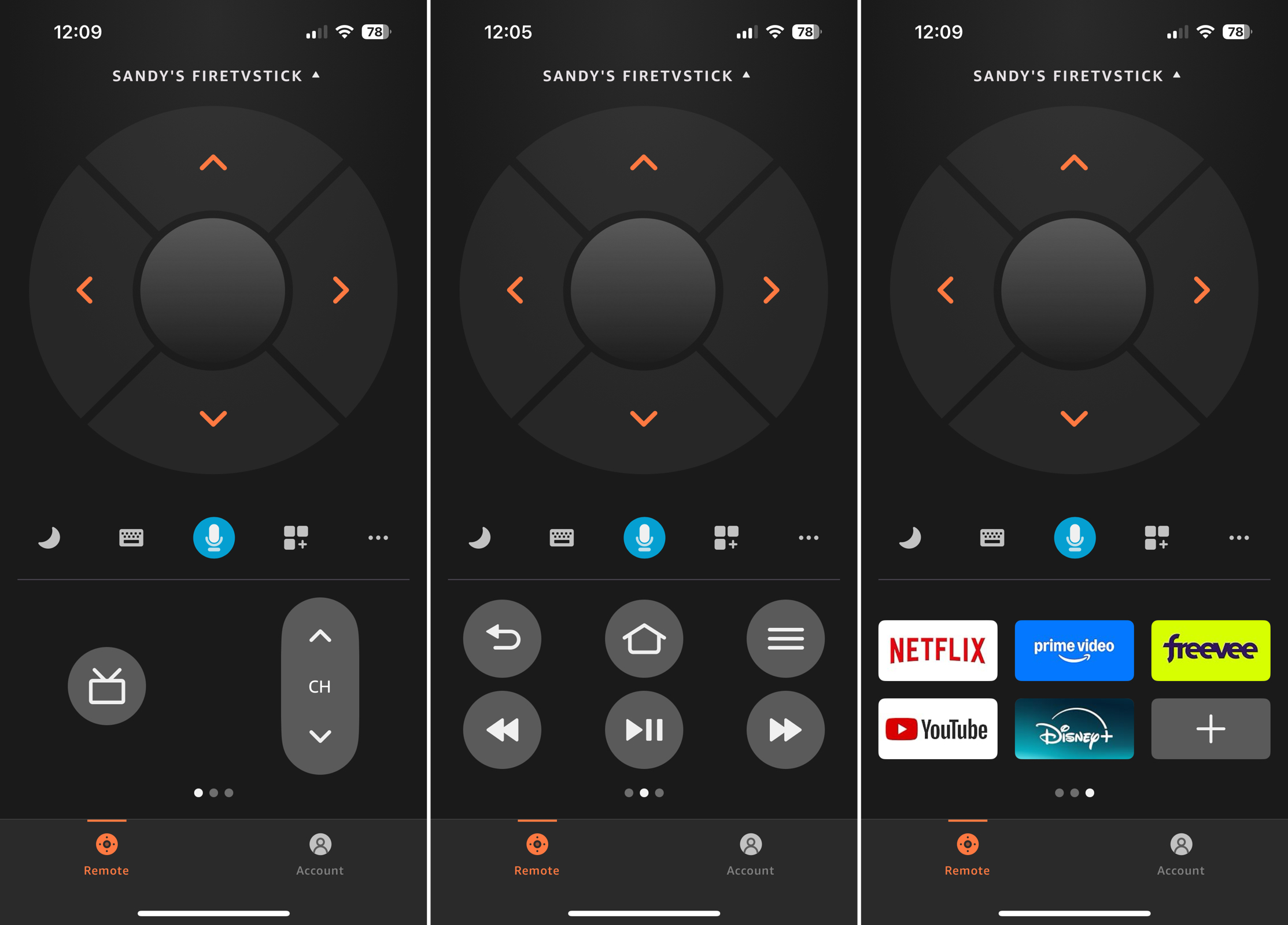
Credit: mac.eltima.com
Common Problems And Solutions
App Won’t Connect
- Double-check Wi-Fi settings on both devices.
- Restart both the Fire Stick and your smartphone.
- If using a VPN, try disconnecting it temporarily.
Bluetooth Device Not Pairing
- Make sure the device is in pairing mode.
- Remove old paired devices if the Fire Stick’s Bluetooth list is full.
Hdmi-cec Not Working
- Try a different HDMI port.
- Check for firmware updates for your TV.
- Power cycle both your TV and Fire Stick.
Real-world Examples
Many travelers use the Fire TV app when staying in hotels. By creating a hotspot with the same SSID as home, the Fire Stick automatically connects, making it easy to stream content on the go.
Families with children often use Alexa voice commands for hands-free control. For example, “Alexa, play Peppa Pig” instantly starts the show without searching through menus.
A user with limited mobility set up a Bluetooth keyboard to make navigation and text entry simpler, finding it much easier than the original remote.

Credit: www.youtube.com
Data: Fire Stick User Preferences
A recent poll among Fire Stick users (n=2,000) revealed which alternative control methods are most popular:
| Control Method | Percentage of Users |
|---|---|
| Fire TV App | 58% |
| Alexa Voice Control | 19% |
| Universal Remote | 12% |
| Bluetooth Keyboard/Mouse | 7% |
| Other Methods | 4% |
Clearly, the official app is the most popular, but it’s not the only solution.
Security And Privacy Considerations
When using third-party apps or Bluetooth devices, pay attention to privacy:
- Only download remote apps from official app stores.
- Avoid apps that request access to personal information or unnecessary permissions.
- Regularly update your Fire Stick’s firmware to patch any vulnerabilities.
For more information on device security, see the Consumer Reports Fire TV privacy guide.
Tips To Make Life Easier Without A Remote
- Label your Wi-Fi network: If you travel, keep your home SSID and password handy for easy hotspot setup.
- Keep a spare remote: Consider buying a backup remote, especially if you have children or guests who use your Fire Stick.
- Enable HDMI-CEC: This takes just a minute and can save you in an emergency.
- Try voice control: Even if you never used Alexa before, it can be a lifesaver.
Many users ignore the Fire TV app simply because they never installed it until they lost the remote. Install it now to be prepared.
When Should You Buy A New Remote?
While alternative methods work well, nothing replaces the convenience of an actual remote. Buy a replacement if:
- You use your Fire Stick daily.
- Others in your home aren’t comfortable with smartphone controls.
- You need quick access to volume, power, or voice search.
Replacement remotes are easy to pair and restore full functionality. Just make sure you buy a model compatible with your Fire Stick generation.
Frequently Asked Questions
Can I Use My Fire Stick If I Lost The Remote And Don’t Have Wi-fi?
You need at least a temporary Wi-Fi connection to use most control methods. If your Fire Stick is not connected to Wi-Fi, set up a mobile hotspot with the same SSID and password as your last network, or use an OTG cable with a USB keyboard to access Wi-Fi settings.
Will A Universal Remote Work With All Fire Stick Models?
Universal remotes work only if your TV supports HDMI-CEC and the Fire Stick is plugged into a compatible HDMI port. They provide basic navigation but may lack advanced features like voice search. Compatibility depends on both your TV and remote.
Can I Pair More Than One Device To Control My Fire Stick?
Yes, you can pair multiple devices, such as the Fire TV app on several smartphones, Bluetooth keyboards, and Alexa devices. However, only one device can control the Fire Stick at a time.
Is It Safe To Use Third-party Remote Apps?
Most third-party remote apps are safe if downloaded from reputable sources, but always read reviews and check permissions. Some apps contain ads or request unnecessary access to your data, so use the official Fire TV app when possible.
How Do I Reset My Fire Stick Without The Remote?
If you need to reset your Fire Stick to factory settings and have no remote, use the Fire TV app or a paired Bluetooth keyboard. Navigate to Settings > My Fire TV > Reset to Factory Defaults. If that’s not possible, you may need to buy or borrow a compatible remote.
Controlling your Fire Stick without a remote is not only possible but can be surprisingly convenient with the right approach. Whether you prefer using your smartphone, leveraging Alexa, or connecting a keyboard, you have plenty of options. Take a moment to set up a backup method now, so you’re ready when the remote disappears again.
With a little preparation, losing your Fire Stick remote doesn’t mean losing your streaming freedom.