
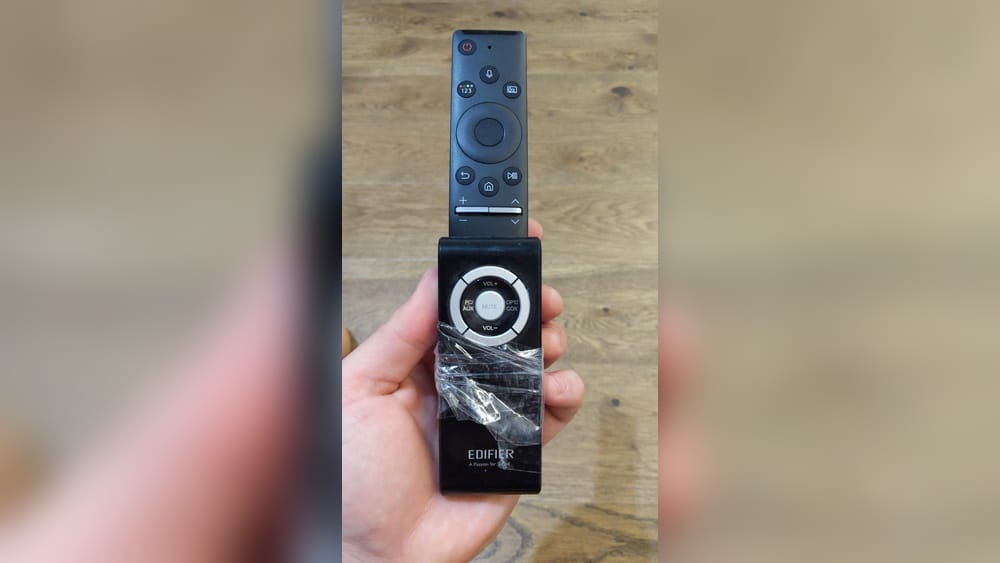
How To Control Optical Audio With Tv Remote Samsung
Getting your Samsung TV to control your optical audio device can make your home entertainment much easier. No more using two remotes or getting up to change the volume. But for many people, connecting optical audio to a soundbar or home theater, and then controlling it with the TV remote, feels confusing.
There are menu settings, cables, and sometimes things do not work as expected.
This guide explains, in clear steps, how to control optical audio with your Samsung TV remote. You will also learn about features like Anynet+ (HDMI-CEC), different Samsung remote types, and how to troubleshoot problems. Whether you use a Samsung soundbar, a third-party receiver, or basic speakers, you will find practical advice here.
Let’s make your TV and audio system work together smoothly.
Understanding Optical Audio On Samsung Tvs
What Is Optical Audio?
Optical audio uses a fiber optic cable to send sound from your TV to an external speaker or sound system. It sends a digital signal, which means clear sound and less interference. Most Samsung TVs have an optical output, often called Digital Audio Out (Optical).
Why Use Optical Instead Of Hdmi Or Bluetooth?
While HDMI ARC (Audio Return Channel) and Bluetooth are common, optical audio is popular for several reasons:
- Compatibility: Many older soundbars and AV receivers use optical.
- Reliability: It is less likely to have lip-sync issues compared to Bluetooth.
- Simplicity: One cable can carry high-quality audio without complex setup.
But one downside is that optical cables do not carry volume control signals by default. This means, unless you set things up correctly, your TV remote might not change the soundbar or receiver volume. That’s why knowing how to control optical audio with your Samsung TV remote is so valuable.
Common Devices Using Optical Audio
- Soundbars – Especially mid-range and older models.
- Home theater receivers – For surround sound systems.
- Stereo amplifiers – To boost TV sound using external speakers.
Samsung TVs support optical audio for all these devices, but the setup can be a bit different depending on your equipment.
How Samsung Tv Remotes Work With Optical Audio
Samsung Tv Remote Types
Samsung offers several remote types. The two most common are:
- Samsung Smart Remote (One Remote): Small, with minimal buttons and a voice control feature.
- Standard IR Remote: Larger, with number keys and more functions.
Both can control optical audio devices, but the experience is smoother with the Smart Remote. This is because the Smart Remote can use Universal Remote Setup to program itself to control other devices.
How Does The Tv Remote Control Optical Audio?
By default, when you connect a device with an optical cable, the TV sends audio through the cable, but the volume control may only affect the TV speakers. To control the external device’s volume, you must set up the Universal Remote function or use a feature like Anynet+ (HDMI-CEC) if your soundbar also supports HDMI. However, not all optical devices support HDMI-CEC, so using Universal Remote Setup becomes important.
Key Features That Help
- Universal Remote Setup: Lets your Samsung remote control other brands’ soundbars or receivers.
- Audio Output Settings: Changes where your TV sends sound (TV speakers or Optical Out).
- Auto Volume/Audio Sync: Helps fix volume jumps or delays.
Many users miss the Universal Remote Setup or do not know their TV can send volume commands over infrared (IR) to the soundbar or receiver. This is a key insight for getting your remote working the way you want.
Step-by-step: Connecting And Controlling Optical Audio
Let’s walk through the process, from connecting cables to using your Samsung TV remote for volume and mute.
1. Connect The Optical Cable
- Locate the Digital Audio Out (Optical) port on your Samsung TV. It often has a small, square cover.
- Plug one end of the optical cable into this port.
- Plug the other end into your soundbar or receiver’s Optical In port.
- Make sure both ends click in place. The cable tip is fragile—do not force it.
2. Set Tv Audio Output To Optical
- Turn on your TV.
- Press the Home button on your Samsung remote.
- Go to Settings > Sound > Sound Output.
- Select Audio Out/Optical or Digital Audio Out (Optical).
- Your TV will now send sound through the optical cable.
3. Setup Universal Remote (for Soundbar/receiver Volume Control)
- Go to Home > Source > Universal Remote.
- Add a new device (choose Soundbar or Home Theater).
- Follow on-screen steps to select the brand and model. For many major brands, Samsung will set up the correct IR codes.
- Test volume up/down and mute. If your soundbar/receiver reacts, you are set.
If your device is not listed, try the “manual” or “learn” mode, or test similar models. This step is where many people give up, but patience pays off.
4. Adjust Audio Settings For Best Experience
- In Settings > Sound, explore Expert Settings.
- Enable Auto Volume to keep volume changes smooth when switching inputs.
- Set Digital Output Audio Format to PCM for most soundbars/receivers (unless your device supports Dolby Digital).
- Adjust Audio Delay if the sound is out of sync with the picture.
5. Use The Tv Remote As Your Main Remote
With Universal Remote Setup finished, your Samsung TV remote should now control:
- Volume up and down on your soundbar/receiver
- Mute function
- Power on/off (for some devices and setups)
- Input switching (sometimes, if supported)
Now, you can forget about the soundbar’s remote and just use your Samsung TV remote.
Advanced Features And Tweaks
Using Anynet+ (hdmi-cec) For Volume Control (if Available)
Some soundbars/receivers have HDMI ARC or eARC ports and support Anynet+ (HDMI-CEC). This lets your TV send control signals (including volume and power) over HDMI. If you have this option, it is usually more reliable than optical.
However, if your device is connected only with optical, HDMI-CEC does not apply. Still, knowing about Anynet+ is helpful if you upgrade your audio gear later.
Setting Up Smartthings App For Remote Control
The SmartThings app lets you control your Samsung TV (and sometimes soundbars) from your phone. If you cannot find your TV remote, you can use the app to change the volume, mute, and switch audio outputs.
- Download SmartThings from Google Play or App Store.
- Connect it to your Samsung TV.
- Use the remote features inside the app.
This is especially useful if you lose your remote or want to control your TV from another room.
Using Voice Commands With Bixby Or Alexa
Newer Samsung TVs support voice assistants like Bixby, Alexa, or Google Assistant. You can say, “Volume up,” “Mute,” or “Set volume to 10,” and the TV will send the command to your soundbar or receiver.
This only works if the Universal Remote setup is done and the soundbar/receiver supports IR control or is linked through SmartThings.
Comparing Audio Output Options
Here is a quick comparison of the three most common audio output methods for Samsung TVs:
| Audio Output | Cable Type | Control With TV Remote? | Audio Quality | Device Compatibility |
|---|---|---|---|---|
| Optical (Toslink) | Fiber Optic | Yes (with setup) | Excellent (up to 5.1 surround) | Most soundbars, receivers |
| HDMI ARC/eARC | HDMI | Yes (automatic with CEC) | Best (supports more formats) | Newer soundbars, receivers |
| Bluetooth | Wireless | Limited (not always supported) | Good (may lag) | Bluetooth speakers, headphones |
If you have a choice, HDMI ARC is usually the easiest for remote control. But optical is still a great option for many setups.
Troubleshooting: When Volume Control Does Not Work
Sometimes, after connecting everything, the TV remote does not control your soundbar or receiver’s volume. Here are practical solutions.
Check The Sound Output Setting
- Make sure you selected Audio Out/Optical in TV settings.
- If it’s still set to TV Speakers, your remote will not control the external device.
Re-run Universal Remote Setup
- If you skipped setup, your TV remote will not send volume commands to your soundbar.
- Go to Source > Universal Remote, remove the device, and add it again.
Use The Correct Audio Format
- Many soundbars only support PCM audio, not Dolby Digital.
- Go to Settings > Sound > Expert Settings > Digital Output Audio Format and set it to PCM.
Check Soundbar/receiver Settings
- Some soundbars have an IR remote learning mode. Make sure it is enabled.
- Look for settings like “Remote Control Mode,” “IR In,” or “TV Remote Control” in the soundbar’s menu.
Replace Batteries And Check Line Of Sight
- Samsung remotes (except Bluetooth models) need a clear path to send IR signals.
- Replace old batteries and remove obstacles between the remote and the soundbar.
Power Cycle Devices
- Turn off your TV and soundbar/receiver.
- Unplug both from power for 30 seconds.
- Plug back in and turn on. Sometimes, this resets the connection.
Firmware Updates
- Check if your Samsung TV or soundbar has a firmware update.
- Updates can fix bugs with remote control and sound output.
Comparison: Common Issues And Fixes
Here’s a summary of typical problems and solutions:
| Problem | Likely Cause | Solution |
|---|---|---|
| TV remote does not control volume | Universal Remote not set up | Run Universal Remote Setup |
| Soundbar does not respond to volume changes | Wrong audio output selected | Switch to Optical in Sound Output |
| Audio is out of sync with video | Audio format or processing delay | Set output to PCM, adjust Audio Delay |
| Mute button does not work | Soundbar not programmed or incompatible | Retry Universal Remote Setup, check compatibility |
Tips For A Better Optical Audio Experience
Use A Quality Optical Cable
Cheap optical cables can be fragile or cause signal dropouts. Choose a cable with sturdy connectors and protective tips.
Keep Cable Bends Gentle
Optical cables can break if sharply bent. Keep curves wide and avoid pinching behind furniture.
Label Your Cables
If you have many devices, label both ends of your optical cable. This helps when you move or upgrade equipment.
Try Auto Power Link (for Samsung Soundbars)
If you use a Samsung soundbar, enable Auto Power Link in its settings. This feature turns the soundbar on when your TV turns on—even with an optical connection.
Update Software Regularly
Firmware updates for Samsung TVs and soundbars often improve compatibility and fix bugs. Check for updates every few months.
Test With Different Devices
If you cannot get remote control working, test your setup with another soundbar or receiver. This helps you know if the issue is with your TV, cable, or audio device.
Don’t Overlook Small Settings
Even small changes—like switching from Bitstream to PCM—can make a big difference in compatibility.
Use The Right Remote
Some Samsung TVs can use both a Smart Remote and a standard IR remote. If the Smart Remote is not working, try the other remote or the SmartThings app.

Credit: www.youtube.com
Common Mistakes To Avoid
- Skipping Universal Remote Setup: Many people think plugging in the optical cable is enough. Without programming the remote, volume control will not work.
- Forgetting to Change Sound Output: Always set the TV’s Sound Output to Optical or Audio Out.
- Ignoring Audio Format Settings: If your soundbar does not support Dolby Digital, leaving it enabled will cause silence or errors.
- Using Broken or Dirty Cables: Optical cables are sensitive to dust and physical damage. Use the protective caps until installation.
- Overlooking Firmware Updates: Old software may not recognize new devices or fixes for remote compatibility.
- Expecting HDMI-CEC Features Over Optical: Features like automatic power on/off only work over HDMI-CEC, not optical.
- Blocking the Remote Sensor: Soundbars need a clear line of sight to receive IR commands.
Special Cases And Compatibility Notes
Using Third-party Soundbars Or Receivers
Most major brands—like Sony, Bose, Yamaha, LG—can be programmed with Samsung’s Universal Remote. Some smaller brands or older models might need manual setup, or may not support TV remote control via IR.
When Optical Audio Volume Control Is Not Possible
Some very old soundbars and receivers do not have IR sensors for remote volume. For these, you must use their own remote or upgrade to a newer model.
Multi-device Setups
If you use a Blu-ray player or game console, connect them to the TV, not the soundbar. Let the TV handle video switching, then send all audio to the soundbar via optical. This keeps remote control simple.
Using A Universal Remote (third-party)
Remotes like Logitech Harmony can control both your Samsung TV and soundbar/receiver together, even over optical. This is a good option if Samsung’s built-in Universal Remote does not support your device.
When To Consider Upgrading To Hdmi Arc/earc
If you want features like:
- Dolby Atmos or DTS: X audio
- One-Touch Play (automatic power on/off)
- Better device compatibility
Consider upgrading to a soundbar or receiver with HDMI ARC/eARC. These features work more smoothly than optical and require less setup.
However, for most TV watching and music, optical audio is more than enough, and with the right setup, your Samsung TV remote will work just fine.
Real-world Example: Setting Up A Samsung Tv And Soundbar
Let’s look at a common scenario.
Situation: You have a Samsung QLED TV and a Yamaha soundbar with only optical input.
Steps:
- Connect the optical cable from TV to soundbar.
- On TV, set Sound Output to Optical.
- Go to Source > Universal Remote and add a soundbar. Choose Yamaha, then follow prompts.
- Test the remote’s volume and mute. If it works, setup is done.
- If not, try selecting a different Yamaha model, or use the “Manual” setup.
- In soundbar settings, make sure IR remote control is enabled.
- Set Digital Output Audio Format to PCM in TV settings.
Result: You control the soundbar’s volume and mute with your Samsung TV remote.
What if it does not work? Test with another optical cable. Try the SmartThings app for remote control. If still not working, your soundbar may not support IR remote volume.

Credit: en.community.sonos.com
Data: How Many People Use Optical Audio With Samsung Tvs?
According to a 2022 survey by Statista, about 22% of smart TV users in the US connect their TV to a soundbar or receiver with an optical cable. HDMI ARC use is higher, but optical is still very common, especially in homes with older AV equipment.
Many users report confusion when their TV remote does not control the soundbar right away. The most common solution is to use the TV’s Universal Remote Setup feature.
Summary: Key Steps For Success
- Always connect the optical cable firmly to both TV and soundbar/receiver.
- Change the TV’s Sound Output to Optical.
- Use Universal Remote Setup to let your Samsung remote control the soundbar’s volume.
- Set the Digital Output Audio Format to PCM if unsure.
- Check your soundbar/receiver for IR remote control support.
- Keep your TV and audio device firmware updated.
- If you have issues, check cables, settings, and try the SmartThings app as a backup.
With these steps, you can enjoy your favorite shows and music with great sound—and only one remote in hand.

Credit: www.youtube.com
Frequently Asked Questions
Why Doesn’t My Samsung Tv Remote Control My Soundbar Volume Over Optical?
Most likely, you did not set up the Universal Remote feature on your TV. Optical cables only carry audio, not volume control signals. You need to program your Samsung remote to control your soundbar via IR, or use a soundbar that supports HDMI-CEC with HDMI ARC.
Can I Use The Samsung Tv Remote To Control Any Brand Of Soundbar Through Optical?
Yes, you can control most major soundbar brands if they have an IR sensor for remote control. Use the TV’s Universal Remote Setup to add your soundbar. If your soundbar is very old or does not have IR remote support, this will not work.
Is Audio Quality Better Over Optical Or Hdmi Arc?
HDMI ARC supports more advanced audio formats (like Dolby Atmos) than optical, which is limited to PCM and Dolby Digital 5.1. For most TV watching, you will not notice a big difference, but for the best surround sound, HDMI ARC/eARC is superior. For more details, visit the Samsung official support page.
Does The Mute Button Work With Optical Audio Devices?
If you have set up the Universal Remote function and your soundbar or receiver supports IR remote mute commands, yes. Otherwise, the mute button will only affect the TV’s built-in speakers.
What Should I Do If There Is No Sound From My Soundbar After Setup?
First, check that the optical cable is fully connected on both ends. Make sure your TV’s Sound Output is set to Optical. On your soundbar or receiver, select the Optical In input. Also, set the TV’s digital output audio format to PCM. If there is still no sound, test with another cable or device.
By following this guide, you should be able to control your optical audio device with your Samsung TV remote, enjoy better sound, and keep your setup simple. If you run into issues, review each step and check your device manuals.
With patience, most setups can be made to work smoothly.