
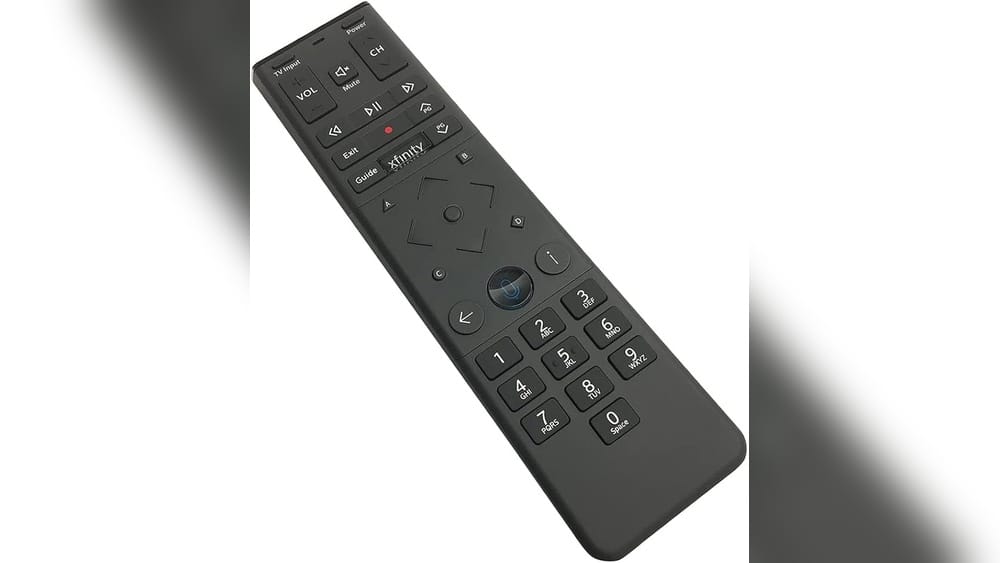
Anyone who uses Comcast’s Xfinity TV service quickly discovers how central the remote control is. This small device is the key to watching shows, searching for content, adjusting settings, and much more. Yet, for many people, especially those new to Xfinity or non-native English speakers, using the Comcast remote control can feel confusing at first. Different models, tricky buttons, pairing steps, and hidden features sometimes get in the way of a smooth TV experience.
This guide will help you understand exactly how to use your Comcast remote control. We’ll cover the basics, like setting up the remote, as well as advanced tips, troubleshooting, and how to make the most of voice commands. Whether you have the newest Xfinity Voice Remote or an older model, you’ll find clear answers here. Let’s start by understanding the types of remotes Comcast offers, so you know which one you have in your hand.
Types Of Comcast Remote Controls
Comcast has released many remote models over the years. The most common are the XR15, XR11, and XR2 remotes, but you might also see the XR5, XR16, or even earlier versions. Knowing your model is important because the button layout and features can vary.
Main Comcast Remote Models
| Model | Release Year | Voice Control | Backlighting | Common Use |
|---|---|---|---|---|
| XR15 | 2018 | Yes | Yes | Xfinity X1, Flex, Stream |
| XR11 | 2015 | Yes | Yes | Xfinity X1 |
| XR16 | 2020 | Yes | No | Xfinity Flex |
| XR2/XR5 | 2012/2014 | No | No | Legacy Boxes |
Older models like the Silver Remote are less common today, but some households still use them. The most advanced models are the XR15 and XR16, which support voice search and have a cleaner design.
How To Identify Your Remote
Look at the bottom or back of your remote. Usually, you’ll see the model number printed there. If you can’t find it, compare your remote’s button layout with pictures on the official Xfinity website. Knowing your model will help you follow the correct instructions for setup and use.
Pro tip: The XR15 has a round directional pad and a microphone button at the top, while the XR11 has a rectangular directional pad.
Setting Up Your Comcast Remote
Before you can control your TV and other devices, you need to set up your remote. Most remotes work out of the box with your Xfinity box, but you need to pair them to your TV for power and volume control.
Installing Batteries
All Comcast remotes use AA or AAA batteries. Open the battery cover on the back, insert the batteries (matching the + and – signs), and close the cover. If your remote isn’t working, fresh batteries often solve the problem.
Pairing With Your Tv Box
Most new remotes pair automatically with your Xfinity box, but if you need to pair manually:
- Turn on your TV and Xfinity box.
- Press the Setup button (on XR11) or press and hold the Xfinity and i buttons (on XR15) together for 5 seconds.
- Wait for the LED light to change color (usually from red to green).
- Enter the code shown on your TV screen, using the number buttons.
- Your remote should now control the box.
If your remote does not pair, make sure you’re close to the box and that nothing is blocking the signal.
Pairing With Your Tv For Power And Volume
To control your TV’s power and volume, you need to pair the remote with your TV brand:
- Press and hold the Setup button until the LED light turns green.
- Enter the 5-digit code for your TV brand (find this code in your remote manual or on the Xfinity website).
- If the code is correct, the LED light will flash twice.
- Test the Power and Volume buttons.
If your TV does not respond, repeat with the next code for your TV brand.
Pairing With Audio Devices
You can also pair your remote with soundbars or AV receivers:
- Press and hold Setup until the LED turns green.
- Enter the code for your audio device (codes are available online).
- Test by adjusting the volume.
Not all remotes or devices support this feature, so check your remote’s manual for details.
Non-obvious insight: If you have a newer Xfinity box, pairing is often wireless (RF), so you do not need to point the remote directly at the box.
Understanding The Button Layout
Each Comcast remote has a specific button layout. Here’s what the main buttons do, using the XR15 and XR11 as examples.
Xr15 And Xr11 Button Overview
- Power: Turns the TV on/off (if paired)
- Microphone: Activates voice commands
- Xfinity: Opens the main menu
- I (Info): Shows program details
- Guide: Opens the TV guide
- Menu: Quick access to settings
- Arrows & OK: Navigate menus and select items
- Last: Returns to the previous channel
- Volume/Mute: Adjusts or silences sound
- Channel Up/Down: Changes channels
- Number pad: Direct channel entry
- Exit: Leaves menus and returns to TV
Older remotes may not have a microphone button and may arrange buttons differently.
Special Buttons And Shortcuts
Some remotes have extra features:
- Voice remote (Microphone): Hold and speak your search or command
- A, B, C, D buttons: Special functions, like Accessibility, Sports, and more
- Input: Switches TV input source (HDMI, AV, etc.)
Pro tip: The A button often opens accessibility options, while the C button brings up sports scores (where supported).
Using Voice Control
The voice remote is one of the best features of modern Comcast remotes. It lets you search, change channels, and more—just by speaking.
How To Use Voice Commands
- Hold down the Microphone button (usually marked with a mic symbol).
- Speak clearly into the remote. For example: “NBC,” “Show me comedies,” or “Go to settings.”
- Release the button when you finish speaking.
- Your command appears on the TV screen and is performed automatically.
You can say things like:
- “Watch ESPN”
- “Open Netflix”
- “What’s on tonight?”
- “Turn on closed captions”
- “Fast forward three minutes”
Tips For Effective Voice Commands
- Speak naturally but clearly.
- Pause slightly after pressing the button.
- For best results, use specific channel names or program titles.
Non-obvious insight: You can ask for movie genres, actor names, or even sports scores (“Did the Yankees win?”). The remote understands many natural language requests.
Troubleshooting Voice Remote Issues
If the voice feature doesn’t work:
- Check if the batteries are fresh.
- Make sure the remote is paired (the mic button light should turn on).
- Try resetting the remote (instructions below).
If your accent is strong or English is your second language, speak slowly and avoid slang for better results.
Navigating The Xfinity Interface
Your Comcast remote is the main tool for exploring the Xfinity TV interface. Here’s how to use it efficiently.
The Xfinity Button
Pressing the Xfinity button opens the main menu, where you can:
- Access live TV
- Open the guide
- Go to On Demand
- Use apps (Netflix, YouTube, etc.)
- Change settings
Use the arrow keys to move through options, and press OK to select.
Using The Guide
The Guide button brings up a schedule of current and upcoming shows. You can:
- Scroll by time or channel
- Use the Info button for show details
- Press OK to watch or record
You can also filter by genre, HD channels, or favorites.
On Demand And Apps
To watch On Demand movies or shows, press Xfinity and select “On Demand.” You can browse by category, search by name, or use voice search.
To open apps like Netflix or YouTube, press Xfinity, scroll to “Apps,” and select with OK. Or, just say “Open Netflix” with your voice remote.
Searching For Content
You can search using:
- The voice remote
- The on-screen keyboard (use arrow keys to type)
Results include live TV, On Demand, DVR, and apps.
Advanced Features And Customization
The Comcast remote can do more than just change channels. Here are some advanced features you might not know about.
Accessibility Options
If you need easier navigation:
- Press the A button (yellow triangle) to open accessibility settings.
- Turn on voice guidance (spoken menu navigation).
- Turn on closed captions for subtitles.
- Adjust the font size or background color for better readability.
These features help users with vision or hearing difficulties and can make the TV easier for everyone.
Favorite Channels
You can create a list of favorite channels for quicker access:
- Press Guide.
- Select the channel you want to favorite.
- Press OK and choose “Favorite.”
- You can now filter the guide to show only favorites.
Parental Controls
To block content:
- Press Xfinity and go to Settings.
- Choose Parental Controls.
- Set a PIN and block channels or ratings you don’t want kids to access.
Remote Finder
Some newer Xfinity boxes have a remote finder feature. If you lose your remote, press the button on the box, and your remote will beep to help you find it.

Credit: www.amazon.com
Troubleshooting Common Problems
Even the best remotes sometimes stop working. Here’s how to fix the most common issues.
Remote Not Responding
If your remote doesn’t work:
- Replace the batteries.
- Make sure nothing blocks the signal.
- Check if the remote is paired (try re-pairing if needed).
Resetting The Remote
If the remote is frozen or behaves oddly, reset it:
XR15 (no Setup button):
- Press and hold A and D until the LED turns green.
- Press 9-8-1.
- The LED will blink blue. The remote is reset.
XR11:
- Press and hold Setup until the LED turns green.
- Press 9-8-1.
- The LED will flash. You must re-pair the remote.
Tv Or Audio Device Not Responding
If your TV or soundbar doesn’t react to the remote:
- Try a different pairing code.
- Confirm the device is compatible with the remote.
- Make sure your devices are turned on during pairing.
Buttons Not Working
If only some buttons fail:
- Clean the remote (wipe with a soft cloth, avoid liquids).
- Try resetting and re-pairing.
Expert tip: If you have pets or small children, the remote’s buttons can get sticky or blocked by dirt. Regular cleaning prevents many issues.
Comparing Comcast Remote Models
Choosing the right remote can make your TV experience much smoother. Here’s a side-by-side look at the features of major Comcast remotes.
| Feature | XR15 | XR11 | XR16 | XR2/XR5 |
|---|---|---|---|---|
| Voice Control | Yes | Yes | Yes | No |
| Backlighting | Yes | Yes | No | No |
| TV/Audio Pairing | Yes | Yes | Limited | Yes |
| Design | Slim, round pad | Rectangular pad | Minimalist | Traditional |
| Best For | X1, Flex | X1 | Flex | Legacy Boxes |
The XR15 and XR11 are the most popular and support all major features, including voice control and pairing with other devices.
Making The Most Of Your Comcast Remote
To get the best experience, explore these practical tips:
- Learn shortcuts: For example, pressing Last twice quickly switches between two channels.
- Try voice search: It’s faster than typing and handles complex requests.
- Use the D button: On some remotes, this opens the “Delete” function for DVR recordings.
- Explore accessibility: Voice guidance and larger captions are helpful for all ages.
- Update your remote: Newer models may be available for free. Check your Xfinity account or visit a store.
- Download the Xfinity Remote App: If your physical remote is lost or broken, the app lets you control your box from your phone.
Replacing Or Upgrading Your Remote
Remotes can break or get lost. Comcast makes it easy to get a replacement:
- Visit your local Xfinity store for a free swap (if you’re a subscriber).
- Order online through your Xfinity account.
- Call customer service for help.
Before replacing, try resetting or cleaning your remote. If you upgrade your cable box, you might get a new remote model with more features.
Note: If you want more advanced features, ask for the XR15 or XR16, which offer the best voice control and are more future-proof.
Safety And Maintenance Tips
Comcast remotes are durable, but proper care extends their life:
- Keep dry: Avoid liquids, which can damage electronics.
- Change batteries regularly: Old batteries can leak and damage the remote.
- Clean gently: Use a soft, dry cloth; avoid harsh cleaners.
- Avoid dropping: Internal parts can break if dropped on hard surfaces.
If you have young kids, consider a silicone cover for extra protection.
Special Uses And Accessibility
Comcast has made big steps in making TV accessible to everyone, including seniors and people with disabilities.
Voice Guidance
Enables spoken menus and instructions. Ideal for users with vision problems.
- Press the A button to turn on.
- Adjust speed and volume in settings.
Large Button Remotes
Comcast offers special large button remotes for those who find standard remotes too small. These are available on request for seniors or users with dexterity challenges.
Closed Captions And Subtitles
Turn these on via the B button or through the Accessibility menu for all shows and movies.
Pro tip: You can customize caption size, color, and background for better readability.

Credit: boomertechtalk.com
Integrating With Other Devices
Many households use soundbars, streaming devices, or smart TVs with their Xfinity service. Your Comcast remote can often control these, too.
Soundbars And Audio Receivers
Pair the remote just like you would with a TV (see earlier section). This lets you adjust volume and mute without juggling multiple remotes.
Smart Tvs
Some newer TVs require special codes. If standard pairing fails, check the Xfinity support page for your TV brand.
Streaming Devices
If you use Roku, Fire TV, or Apple TV, you’ll still need their native remotes for some functions. The Xfinity remote mainly controls your cable box and paired TV/audio devices.
Understanding Remote Codes
Each TV and audio brand has different remote codes. These codes tell the Comcast remote how to control the device. Most manuals list common brands, but some less-known brands may require extra research.
- If your brand isn’t listed, try the auto-search function:
- Hold Setup until the LED is green.
- Enter 9-9-1.
- Press Channel Up repeatedly until your device turns off.
- Press OK to lock in the code.
- If you buy a new device, you may need to reprogram the remote.
Non-obvious insight: Sometimes, newer remotes update automatically over the air. If you can’t find your code, try pairing again after a few days.
Parental Controls And Security
Protecting children from inappropriate content is easy with the Comcast remote:
- Set up a PIN to block channels or ratings.
- Hide adult content from the guide.
- Lock purchases (so kids can’t order movies by accident).
You can manage these in the Settings menu or through your Xfinity online account.
Comcast Remote App
If you lose your physical remote, the Xfinity Remote App turns your smartphone into a remote control.
- Download from the Apple App Store or Google Play.
- Log in with your Xfinity account.
- Control your TV, search, and use voice commands from your phone.
The app is especially helpful if your remote is missing or broken, or if you want to control the TV from another room.
When To Call Comcast Support
Most remote issues can be fixed at home, but sometimes you need help:
- If your remote won’t pair after multiple tries.
- If the remote is physically damaged.
- If your TV or audio device is not listed in the code manual.
Comcast customer support can walk you through advanced troubleshooting or send a replacement if needed.
Expert tip: Keep your remote’s model number and a list of tried codes handy when calling support—it speeds up the process.
Frequently Asked Questions
How Do I Reset My Comcast Remote?
Hold the Setup button (or A and D on XR15) until the light changes color, then enter 9-8-1. This resets the remote to factory settings. You’ll need to pair it again with your TV and box.
What Should I Do If My Remote’s Voice Control Isn’t Working?
First, check if the batteries are fresh and the remote is properly paired. If the microphone button does not light up or respond, try resetting the remote. Speak slowly and clearly, especially if you have a strong accent.
Can I Use My Comcast Remote To Control Devices From Other Brands?
Yes, the Comcast remote can usually control TVs and soundbars from other brands if you enter the correct pairing code. If your device is not listed, use the auto-search function or check the Xfinity website for updates.
How Do I Get A Replacement Comcast Remote?
Visit an Xfinity store, request one through your online account, or call customer service. Most subscribers can get a replacement for free.
Where Can I Find More Help And Device Codes?
Visit the official Xfinity Remote Support page for codes, manuals, and troubleshooting tips.
Getting comfortable with your Comcast remote control may take a little time, but once you learn the basics—and a few advanced tricks—you’ll enjoy your TV experience much more. The remote is designed to make things easier, whether you’re flipping channels, searching for movies, or helping family members use the TV.
With voice commands, accessibility features, and customization, the Comcast remote is more powerful than it looks. Try out these tips, explore the features, and don’t hesitate to reach out for help if you need it. Happy watching!

Credit: www.walmart.com