
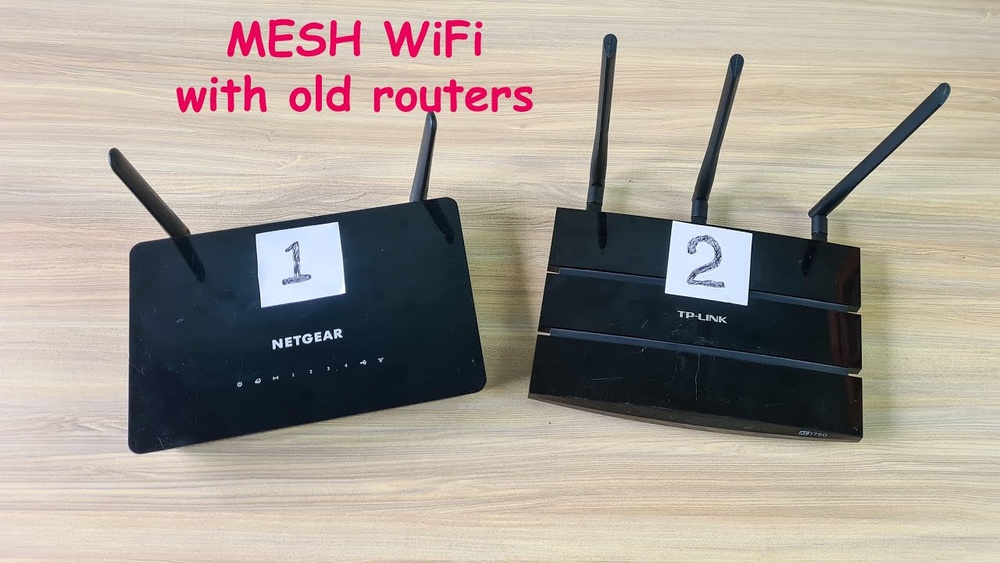
Setting up a strong home Wi-Fi is not always easy, especially if you have a large house, thick walls, or many devices. Slow speeds, dead spots, and dropped connections can be frustrating. Mesh networks are a modern solution, but many people wonder if they can create a mesh network with just two routers. This article explains if it’s possible, what you need, and how to do it. You’ll also learn the pros and cons, see real-world examples, and get answers to common questions. Whether you’re a tech beginner or just want better Wi-Fi, you’ll find clear, practical advice here.
What Is A Mesh Network?
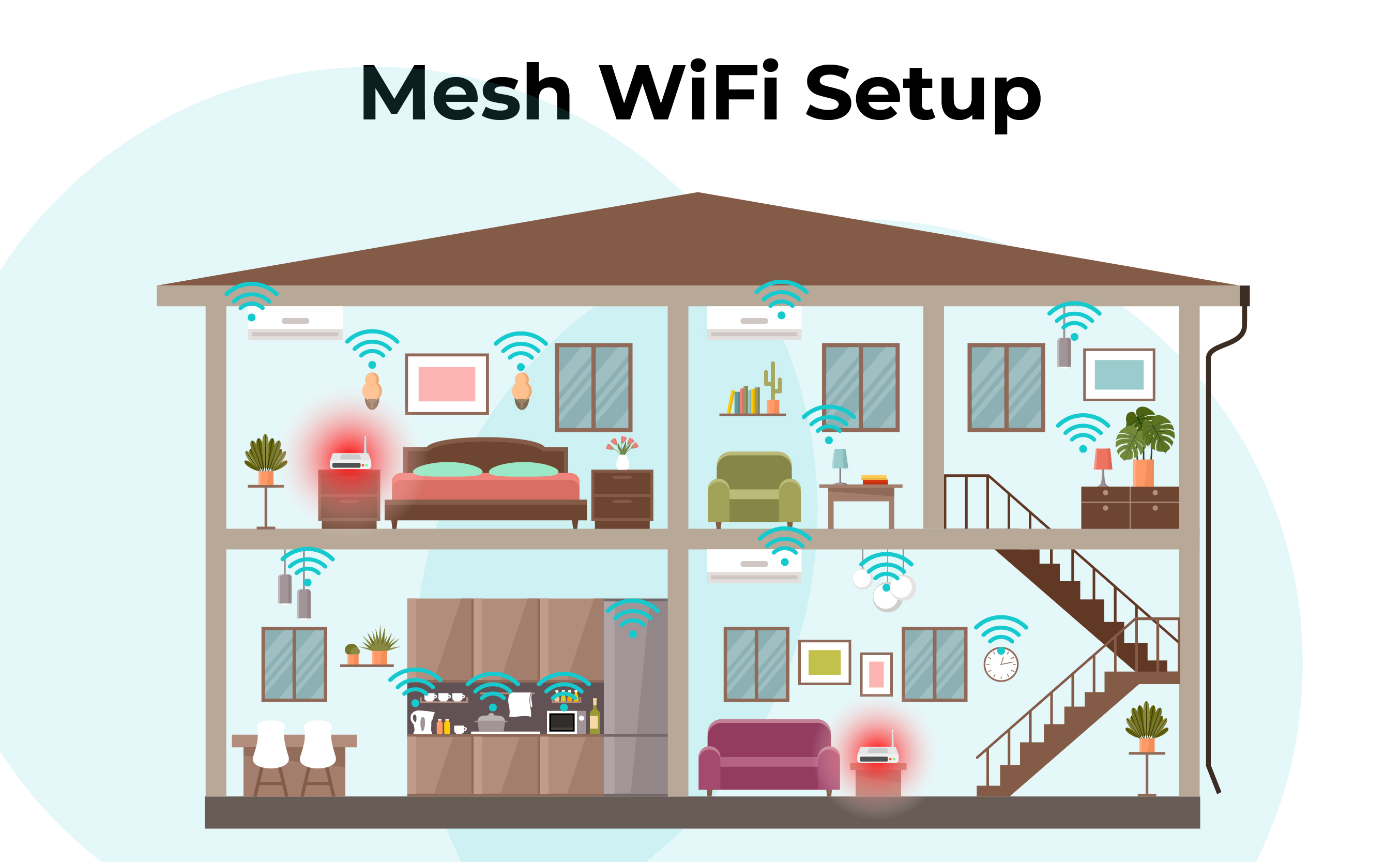
A mesh network is a type of Wi-Fi setup. Instead of using just one main router, it uses several devices, called nodes. These nodes work together. They create one big, seamless wireless network across your whole house or office.
With mesh, your device connects to the nearest node. If you move around, your device switches smoothly between nodes. You don’t notice any drop in connection. This is different from using one router and a range extender, where you sometimes have to manually switch Wi-Fi networks.
Mesh networks are popular because:
- They cover large spaces.
- They fix dead zones.
- They support many devices.
- The connection stays strong everywhere.
Most mesh kits have two or three nodes. Some systems can handle more, up to five or even ten. But can you build a true mesh with only two routers? Let’s dig into the details.
How Mesh Networks Work
In a mesh network, every node talks to the others. This is called dynamic routing. If one node has a weak connection, data takes another path. Think of it like a city with many roads. If one road is blocked, cars use another. Mesh Wi-Fi works the same way.
Here’s what happens in a typical mesh setup:
- Nodes are placed around your space.
- Each node connects to the main router, called the primary node.
- Nodes share data with each other.
- Devices connect to the nearest node.
- If a node fails, others keep working.
Traditional routers only talk to your device, not to other routers. If you use a range extender, you often have two separate Wi-Fi names (SSIDs), and switching is manual. Mesh solves this.
Can You Create A Mesh Network With Two Routers?
The short answer: Yes, but with limitations.
You can build a mesh-like system with two routers, but not all routers support mesh. Many older routers cannot work together as mesh nodes. Only certain models, often from the same brand and with mesh support, can do this.
What Makes A Mesh Network Different From Extenders?
- Mesh nodes use the same Wi-Fi name (SSID).
- Devices switch automatically between nodes.
- Data travels through the best path.
- Management is simple, often through an app.
Range extenders or repeaters:
- Usually create a new SSID (like “HomeWiFi_EXT”).
- Devices may not switch automatically.
- Data can be slower and less reliable.
Mesh With Two Routers: What’s Possible?
Some brands allow you to use two routers as mesh nodes. For example:
- ASUS AiMesh: Many ASUS routers can form a mesh, even with just two.
- TP-Link OneMesh: Some TP-Link routers can work together.
- Netgear Orbi: Orbi systems are designed for mesh, but usually sold as kits.
If your routers support mesh, you can set up a two-node mesh. If not, you can use one as a router and the other as a repeater, but this is not true mesh.
Requirements For Creating A Mesh Network With Two Routers
Before you start, check these points:
- Compatible routers: Both routers must support mesh (look for “mesh-ready” or “mesh-capable”).
- Same brand/model recommended: Mixing brands rarely works.
- Firmware updates: Routers need the latest software.
- Physical placement: Nodes should be close enough to connect, but far enough to expand coverage.
- Ethernet backhaul (optional): Using a wired connection between routers can improve speed.
If your routers don’t support mesh, you can still use them for extra coverage, but it won’t be seamless.

Credit: www.nytimes.com
Step-by-step Guide: Setting Up A Mesh Network With Two Routers
If your routers are mesh-ready, follow these steps. If not, see the section on alternatives.
1. Update Firmware
Make sure both routers are running the latest firmware. This can fix bugs and add mesh features.
- Log in to each router’s web interface.
- Look for “Firmware Update.”
- Download and install updates.
2. Factory Reset (optional)
If your routers were used before, reset them. This prevents old settings from causing problems.
- Press the reset button for 10 seconds.
- Wait for the router to reboot.
3. Set Up The Primary Router
This router connects to your modem and the internet.
- Plug in the router.
- Connect it to the modem with an Ethernet cable.
- Log in to the router interface.
- Set your Wi-Fi name (SSID) and password.
4. Add The Second Router As A Mesh Node
This step varies by brand.
- For ASUS AiMesh:
- Log in to the main router.
- Go to AiMesh settings.
- Click “Add Node.”
- Turn on the second router and wait for it to be detected.
- Follow the prompts to add it.
- For TP-Link OneMesh:
- Use the app or web interface.
- Look for “Add Mesh Device.”
- Follow instructions.
- For other brands, check the manual.
5. Place The Second Router
Put the second router in a spot where it can connect to the main router, but also cover new areas.
- Avoid thick walls or metal obstacles.
- Test the signal strength.
6. Test The Mesh
- Walk around with your phone or laptop.
- Check if the connection stays strong.
- Run speed tests in different rooms.
7. Optional: Ethernet Backhaul
If possible, connect the two routers with an Ethernet cable. This improves speed and reliability.
- Plug one end into the main router, the other into the second router.
- Enable “Ethernet Backhaul” in settings (if available).
Real-world Examples: Mesh Setups With Two Routers
Let’s look at some cases where people used two routers for mesh:
- Small apartment: One router near the modem, second router in the bedroom. Full coverage, no dead spots.
- Two-story house: Main router downstairs, second router upstairs. Devices switch automatically.
- Home office: Main router in the living room, second router in the office. Seamless video calls.
These setups show that a two-router mesh can solve many problems, but results depend on router quality and placement.
Mesh Network Performance Vs. Traditional Router/extender
How does a two-router mesh compare to using just one router or a router with an extender? Here’s a look at coverage, speed, and reliability.
| Setup Type | Coverage | Speed | Reliability | Seamless Roaming |
|---|---|---|---|---|
| Single Router | Limited | High near router, drops far away | Stable near router | No |
| Router + Extender | Medium | Slower on extender | Can drop when switching networks | No |
| Two-Router Mesh | Wide | Consistent | Stable everywhere | Yes |
A mesh system, even with two routers, provides better coverage and smoother roaming than extenders.
Popular Brands Supporting Two-router Mesh Networks
If you want to use two routers as mesh nodes, these brands are often the best choice:
- ASUS AiMesh
- TP-Link OneMesh
- Linksys Velop
- Netgear Orbi
- Google Nest WiFi
However, not every model supports mesh. Always check the specs.
Comparison Of Mesh-capable Routers
Here’s a comparison of popular mesh-ready routers for two-node setups.
| Brand/Model | Mesh Support | Max Nodes | Price (USD) | Best Use |
|---|---|---|---|---|
| ASUS RT-AX92U | AiMesh | Up to 5 | 230 | Medium to large homes |
| TP-Link Archer AX6000 | OneMesh | Up to 3 | 270 | Medium homes |
| Linksys Velop MX5300 | Velop | Up to 6 | 350 | Large homes |
| Netgear Orbi RBK50 | Orbi | Up to 3 | 320 | Medium to large homes |
| Google Nest WiFi | Nest Mesh | Up to 5 | 200 | Small to medium homes |
Prices change often. Check for deals and compatibility.
Benefits Of A Two-router Mesh Network
Why use a two-router mesh instead of a single router or extender?
- Eliminates dead spots: Coverage reaches more rooms.
- Smooth roaming: Devices switch without dropping connections.
- Easy management: Control both routers from one app.
- Better for multiple devices: Mesh handles many phones, laptops, and smart devices.
- Upgradable: You can add more nodes later.
A two-router mesh is ideal for apartments, small homes, or offices.
Drawbacks And Limitations
There are some downsides:
- Not true mesh with every router: Only mesh-capable routers work.
- Mixing brands rarely works: Stay with one brand.
- Cost: Mesh routers can be more expensive.
- Setup complexity: May require technical steps.
- Limited expansion: Two nodes may not cover very large spaces.
If you need to cover a bigger area, you’ll need more nodes.
Credit: reolink.com
Common Mistakes When Building A Two-router Mesh
Many beginners make mistakes. Here’s what to avoid:
- Using incompatible routers: Don’t assume any two routers will work.
- Skipping firmware updates: Old software can block mesh features.
- Bad placement: Placing routers too close or too far reduces coverage.
- Mixing brands/models: This usually fails.
- Ignoring Ethernet backhaul: Wireless-only connections can be slower.
Always check compatibility and follow setup instructions carefully.
Alternatives If Your Routers Don’t Support Mesh
If your routers aren’t mesh-ready, you still have options:
- Use one router, one extender: Not true mesh, but adds coverage.
- Upgrade to mesh system: Buy a mesh kit with two or more nodes.
- Turn old router into access point: Use Ethernet cable to connect, but devices may not roam smoothly.
- Powerline adapters: Use your home’s electrical wiring to extend network.
These options can help, but only a true mesh gives seamless roaming.

Credit: www.vsolcn.com
Advanced Tips For Getting The Best Mesh Performance
Want your two-router mesh to work even better? Try these tips:
1. Use Ethernet Backhaul
Connecting routers with a cable boosts speed and reliability.
- Use Cat5e or Cat6 Ethernet cable.
- Enable “Ethernet Backhaul” in settings.
2. Optimize Placement
- Place routers high up (on a shelf).
- Avoid metal, microwaves, and thick walls.
- Test coverage with a phone or laptop.
3. Use Quality Of Service (qos)
Many routers let you prioritize traffic. Set streaming or gaming devices to get more bandwidth.
4. Limit Interference
- Change Wi-Fi channels if neighbors’ networks are strong.
- Use 5GHz band for faster speeds, 2.4GHz for longer range.
5. Regular Updates
Update firmware every few months. This fixes bugs and improves features.
Cost Comparison: Two-router Mesh Vs. Traditional Setup
Is it worth the money? Here’s a look at typical costs.
| Setup Type | Hardware Cost (USD) | Coverage | Ease of Use |
|---|---|---|---|
| Single Router | 70-150 | Limited | Easy |
| Router + Extender | 120-220 | Medium | Moderate |
| Two-Router Mesh | 200-400 | Wide | Easy |
Mesh routers cost more, but offer better coverage and reliability.
Security Considerations For Mesh Networks
Mesh networks are safe if set up right. Here’s what matters:
- Use WPA3 encryption: Newer routers support this.
- Change default passwords: Always set strong passwords.
- Regular updates: Keep firmware current.
- Guest network: Set up a separate network for visitors.
- Monitor devices: Most mesh systems let you see connected devices.
Mesh networks can be more secure than traditional setups, because you control everything from one app.
Practical Example: Setting Up Asus Aimesh With Two Routers
Let’s walk through a real-world setup:
- Main router: ASUS RT-AX92U, connected to modem.
- Second router: ASUS RT-AC68U, placed upstairs.
- Firmware updated: Both routers running latest version.
- AiMesh enabled: Use the app to add the second router as a node.
- Ethernet backhaul: Connected with a cable for better speed.
- Wi-Fi tested: No dead spots, smooth roaming.
This setup covers a two-story house with strong, fast Wi-Fi everywhere. Devices switch automatically between routers.
Non-obvious Insights For Beginners
Many new users miss these points:
- Mesh routers don’t need to be identical, but must be compatible: You can mix models (within a brand) if both support mesh.
- Ethernet backhaul is often faster than wireless: If you can run a cable, your mesh will work better.
- Placement is more important than power: A mid-range router in the right place beats a top-end router in a bad spot.
These tips can save you money and improve your network.
Who Should Use A Two-router Mesh Network?
A two-router mesh is ideal for:
- Apartments: Covers all rooms, fixes dead zones.
- Small homes: Reaches upstairs, basement, or backyard.
- Offices: Handles many devices, keeps connection stable.
If you have a large home or many walls, you may need more nodes.
How To Choose The Right Mesh Routers
When picking routers, consider:
- Compatibility: Check for “mesh” support.
- Coverage area: Choose routers that cover your space.
- Speed: Look for routers with at least Wi-Fi 5 (802.11ac) or Wi-Fi 6 (802.11ax).
- Features: Apps, parental controls, QoS, guest networks.
- Price: Balance cost with performance.
Read reviews and check specs before buying.
Troubleshooting Common Problems
If your mesh isn’t working, try these fixes:
- Routers not connecting: Reset both and try again.
- Weak signal: Move nodes closer or use Ethernet backhaul.
- Slow speeds: Update firmware, change Wi-Fi channels.
- Devices don’t switch: Make sure both routers use the same SSID.
If problems continue, check the manufacturer’s support site.
When To Upgrade To A Full Mesh System
If a two-router mesh is not enough:
- You still have dead spots.
- You want to cover very large areas.
- You need more than 50 devices.
- Your routers are old or slow.
Consider buying a full mesh kit with three or more nodes.
Pros And Cons Summary
Here’s a quick look at the ups and downs.
Pros:
- Better coverage
- Seamless roaming
- Easy management
- Supports many devices
Cons:
- Higher cost
- Only works with mesh-capable routers
- Setup can be tricky
- Limited expansion with just two nodes
Where To Learn More
For detailed guides and compatibility lists, visit the official router sites or trusted sources like PCMag’s mesh network guide.
Frequently Asked Questions
Can I Mix Different Brands Of Routers For A Mesh Network?
No, mixing brands almost never works. Mesh features are brand-specific. Use routers from the same brand and model line.
What Is Ethernet Backhaul, And Do I Need It?
Ethernet backhaul means connecting routers with a cable. It boosts speed and reliability. You don’t need it, but it helps, especially in homes with thick walls.
Is A Two-router Mesh Good For Gaming?
Yes, mesh networks provide stable connections and low lag. If you use Ethernet backhaul, speeds are even better for gaming.
What’s The Difference Between Mesh And A Range Extender?
Mesh networks use the same SSID, allow seamless roaming, and manage traffic smartly. Extenders create a new SSID, and switching is manual. Mesh is faster and more reliable.
Can I Use An Old Router As A Mesh Node?
Only if it supports mesh. Some older models can be updated, but most cannot. Check the specs or manufacturer’s site.
—
Building a mesh network with two routers is possible—and often smart—if you use compatible models. You get better coverage, smoother connections, and easy management. It’s not as simple as plugging in any two routers, but with the right hardware and setup, your Wi-Fi will work everywhere you need it.
Remember to check compatibility, update firmware, and place routers wisely. If your space grows, you can add more nodes or upgrade to a full mesh system. A two-router mesh is a big step toward fast, reliable, and seamless internet at home or work.