
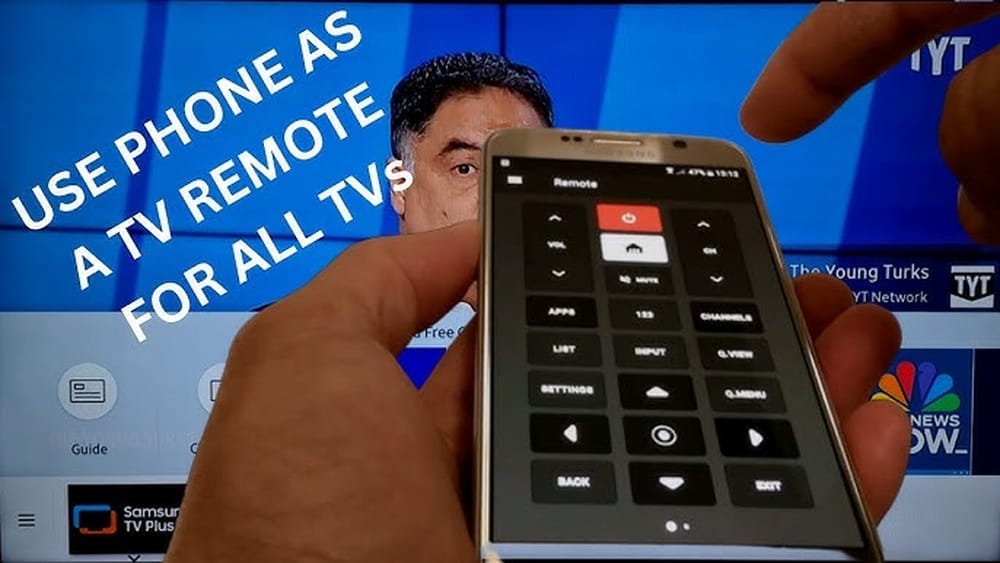
Can I Use My Phone As A Tv Remote Control?
We live in a time when almost everything can be controlled with a tap or swipe. If you’ve ever lost your TV remote or wished for fewer gadgets on your coffee table, you might have wondered: Can I use my phone as a TV remote control? The answer is yes, and it’s easier than you might think. Today, millions of people use their smartphones to manage their TVs, streaming boxes, and even soundbars.
But not all TVs and phones are the same. Some setups take less than a minute, while others need a bit more effort. In this guide, you’ll discover exactly how your phone can control your TV, what you need, and what to do if things don’t work right away.
You’ll also see real examples, learn about the most popular apps, and get tips that save time and frustration. If you want to leave old remotes behind, keep reading—you’re about to unlock a smarter way to watch TV.
How Phones Control Tvs: The Two Main Ways
Before grabbing your phone, it’s important to know how phone-to-TV remote control works. There are two main methods:
- Infrared (IR) Blaster: Some phones have a built-in IR blaster. This small piece of hardware lets your phone send the same invisible signals as a classic TV remote.
- Wi-Fi/Bluetooth Apps: Most modern smart TVs and streaming devices connect to your home Wi-Fi network. Your phone can send commands over Wi-Fi or Bluetooth using special apps.
Let’s look at both methods in detail.
Infrared (ir) Blaster Phones
An IR blaster acts like the “light” in your regular remote. It sends signals directly to your TV, soundbar, or set-top box—just point and tap. This method works even if your TV is not “smart.”
Which Phones Have Ir Blasters?
Not all phones include IR blasters. They were common in Android phones from brands like Samsung, Huawei, and Xiaomi in the early 2010s. Today, only a few new phones have them. For example, some Xiaomi and Huawei models still include IR.
iPhones do not have IR blasters.
How Ir Blaster Works
- The phone emits an invisible IR signal (like a regular remote)
- TV “sees” the signal and responds
- You need to point your phone directly at the TV
Wi-fi And Bluetooth (smart Tv) Control
Most new TVs and streaming devices connect to your home network. That means your phone can talk to them using special apps—no need for a built-in IR blaster.
How This Method Works
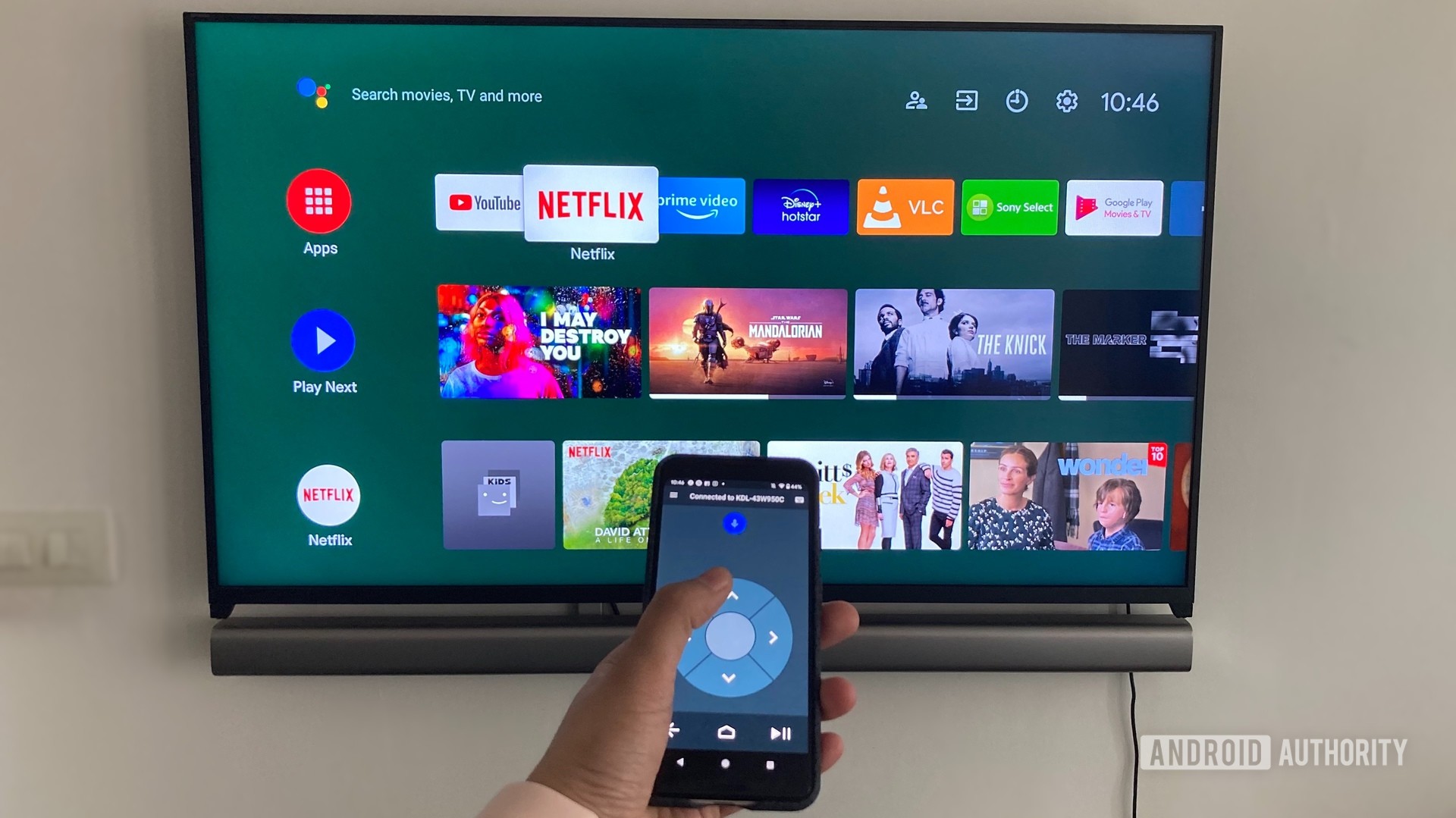
- Both phone and TV connect to the same Wi-Fi network (or Bluetooth)
- The app sends commands to the TV over the network
- Works even if you’re not in direct line-of-sight
Supported Devices
- Smart TVs (Samsung, LG, Sony, etc.)
- Streaming boxes (Roku, Apple TV, Fire TV, Google Chromecast)
- Many soundbars and AV receivers
Common Apps
- TV brand’s official app (e.g., Samsung SmartThings, LG ThinQ)
- Universal remote apps (e.g., AnyMote, Peel, Mi Remote)
- Streaming device apps (e.g., Roku, Fire TV, Apple TV Remote)
Setting Up Your Phone As A Tv Remote: Step-by-step
Your phone can replace your TV remote in just a few steps. The exact process depends on your phone and TV type. Here are the main setups:
1. Using An Ir Blaster Phone
If your phone has an IR blaster, follow these steps:
1. Download A Universal Remote App
Search for “universal remote” or your TV brand in the Google Play Store. Good options: Mi Remote, AnyMote, Peel Smart Remote.
2. Open The App
Follow the setup instructions. Most apps ask you to choose your TV brand and model.
3. Test The Connection
Point your phone at the TV. Tap the power or volume button in the app. If it works, you’re set.
4. Finish Setup
Save your TV or other devices for faster access later.
Tip:
If the first app doesn’t work, try another. IR support can vary by brand and app.
2. Using A Phone With No Ir Blaster (smart Tv Via Wi-fi)
Most people use this method. Here’s how:
1. Connect Both Devices To The Same Wi-fi
Your phone and TV must be on the same network. Check settings on both devices.
2. Download The Tv’s Official App Or A Universal App
Examples:
- Samsung: SmartThings
- LG: ThinQ
- Sony: Video & TV SideView
- Roku: Roku Official Remote
- Fire TV: Amazon Fire TV Remote
- Open the App and Find Your TV
Most apps scan for TVs automatically. If not, enter your TV’s IP address (find this in your TV’s network settings).
4. Pair The Devices
You might need to enter a code shown on your TV or tap “Allow” on the TV screen.
5. Start Using Your Phone As A Remote
Test power, volume, and channel buttons.
Non-obvious Insight:
Some apps offer extra features like text input, voice commands, or even launching apps on your TV.
3. For Streaming Devices (roku, Fire Tv, Chromecast, Apple Tv)
Most streaming sticks come with their own remote apps. Here’s how to set them up:
- Roku: Download the Roku app, connect to Wi-Fi, and select your device.
- Fire TV: Use the Amazon Fire TV app, follow on-screen instructions.
- Apple TV: Use the Apple TV Remote in Control Center (iPhone) or the Apple TV Remote app (Android).
- Chromecast with Google TV: Use the Google Home app.
Practical Example
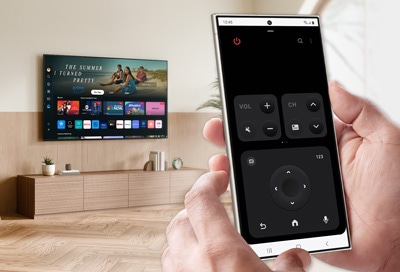
If you have a Samsung TV and a Samsung Galaxy phone:
- Download SmartThings.
- Open the app, tap “Add device,” and select your TV.
- The app will show a PIN on your TV—enter it on your phone.
- Your phone is now a full remote, including keyboard, volume, and app controls.
Popular Remote Apps: Features And Comparisons
With so many remote apps, it’s easy to get lost. Here’s a side-by-side look at some of the most popular options.
| App Name | Platform | Key Features | IR/Wi-Fi Support | Free or Paid |
|---|---|---|---|---|
| Mi Remote | Android | Supports many brands, easy setup | IR only | Free |
| AnyMote | Android/iOS | Universal, macros, smart home control | IR & Wi-Fi | Free + Paid |
| SmartThings | Android/iOS | Samsung smart home, TV control | Wi-Fi | Free |
| Roku Official | Android/iOS | Voice search, private listening | Wi-Fi | Free |
| Apple TV Remote | iOS/Android | Touchpad, keyboard, voice | Wi-Fi/Bluetooth | Free |
| Peel Smart Remote | Android | TV guide, IR, smart TV | IR & Wi-Fi | Free + Ads |
Non-obvious Insight
Some universal apps (like AnyMote) can control more than just your TV—think AC units, projectors, or even smart lights, if your phone supports IR.
What Devices Can You Control With Your Phone?
The list is bigger than you might expect:
- TVs (almost all brands)
- Streaming boxes (Roku, Fire TV, Apple TV, Chromecast)
- AV receivers
- Soundbars
- DVD/Blu-ray players
- Projectors
- Cable/Satellite boxes
- Smart home devices (lights, thermostats, etc., with the right app)
Some devices need IR, others need Wi-Fi/Bluetooth. Always check your phone and device compatibility before starting.
Compatibility Table
Here’s a quick compatibility guide:
| Device Type | IR Blaster | Wi-Fi/Bluetooth | Special Requirements |
|---|---|---|---|
| Old non-smart TV | Yes | No | Phone with IR blaster |
| Smart TV (2015+) | Sometimes | Yes | Same Wi-Fi network |
| Roku / Fire TV / Apple TV | No | Yes | Official app |
| Soundbar | Sometimes | Sometimes | Brand support needed |
| Cable Box | Yes | Sometimes | Brand and app support |
| Projector | Yes | Sometimes | Check brand |
Credit: www.samsung.com
Practical Tips For Using Your Phone As A Tv Remote
Switching to a phone remote isn’t always perfect. Here’s what you need to know for the best experience:
1. Battery Life
Phone remotes use more battery than physical remotes, especially with IR. Keep your phone charged.
2. App Permissions
Remote apps may ask for permissions, like location or Bluetooth. Grant only what’s needed.
3. Physical Buttons Vs. Touch
Some people miss “real” buttons. If you do, try a remote app with haptic feedback (vibration).
4. Multi-device Control
Most apps can control more than one device. Set up all your TVs, soundbars, and streaming boxes for one-tap switching.
5. Voice Control
Many remote apps support voice commands. Try saying “Open Netflix” or “Volume up” in the app.
6. Keyboard Input
Typing Wi-Fi passwords or searching for shows is easier with your phone’s keyboard. Most official apps support this.
7. Guest Mode
If friends come over, let them use your phone as a remote instead of passing around the real one.
8. Security
Connect your phone and TV to a secure home network. Avoid public Wi-Fi for remote control functions.
Common Problems And How To Fix Them
It’s easy to get stuck during setup. Here are the most frequent issues and solutions.
Phone Can’t Find The Tv
- Make sure both are on the same Wi-Fi network
- Restart your TV and phone
- Check if the TV’s remote control option is enabled (Settings > Network or General)
- Update the remote app
Commands Don’t Work
- Try another remote app
- For IR, make sure nothing blocks the phone’s IR sensor
- Check your TV’s model—some features may not be supported
App Keeps Disconnecting
- Move closer to your Wi-Fi router
- Check for app or firmware updates on both devices
- Some apps disconnect if the phone screen turns off—change your phone’s sleep settings
Voice Search Not Working
- Give the app permission to use your microphone
- Make sure your TV supports voice commands
Tv Turns On, But Nothing Else Works
- Some TVs only support power on/off with third-party apps; use the official app for full control
Credit: www.androidauthority.com
Phone Remote Vs. Original Remote: What’s Better?
Is using your phone as a TV remote always better? The answer depends on your needs.
Advantages
- Always available (if you have your phone)
- Keyboard input for faster searching
- Voice control for hands-free operation
- Fewer gadgets on your table
- App updates can add new features
Disadvantages
- Battery drain on your phone
- Can’t use while charging if you need to move around
- Some TVs/features not supported
- Not as “instant” as physical remotes for simple tasks
User Experience Table
Here’s a quick comparison:
| Feature | Phone Remote | Physical Remote |
|---|---|---|
| Typing/search | Easy | Difficult |
| Lost remote? | Unlikely | Common |
| Battery needs | High (phone) | Low (AAA/AA) |
| Setup time | Medium | None |
| Number of devices | Many (with app) | Usually one |
| Voice features | Yes (most apps) | Rare |
Non-obvious Use Cases: When Phone Remotes Shine
While using your phone as a TV remote is convenient for everyday use, there are situations where it’s a true lifesaver:
- Lost or broken remote: No need to buy a new one; just grab your phone.
- Traveling: Many hotel TVs can be controlled with universal remote apps (IR required).
- Accessibility: People with physical disabilities may find phone remotes (with voice control) much easier.
- Tech support: Help a family member set up their TV remotely if you have the same app.
- Multiple TVs: Control all TVs in your house from one device.

Credit: www.youtube.com
Common Mistakes When Using Your Phone As A Tv Remote
Avoid these pitfalls for a smoother experience:
1. Not Checking Compatibility
Many users download an app only to find their TV isn’t supported. Always check app and device compatibility first.
2. Ignoring Wi-fi Network Settings
Even a small Wi-Fi difference (like 2. 4 GHz vs. 5 GHz bands) can cause your phone to miss the TV.
3. Using Third-party Apps Without Reading Reviews
Some “universal” apps are filled with ads or don’t work well. Stick to highly rated apps.
4. Not Updating The App Or Tv Firmware
Outdated software causes many connection problems.
5. Expecting All Features To Work
Some advanced TV features (like HDMI switching or picture settings) may not be available.
Security And Privacy Concerns
You might wonder: is it safe to use your phone as a remote? Here’s what to know:
- Official apps from TV brands are generally safe.
- Third-party apps may ask for extra permissions. Only allow what’s needed.
- Avoid downloading remote apps from unofficial sources or “modded” APKs.
- Turn off remote control features on your TV when not needed, especially in hotels or public places.
If you care about privacy, always use a strong Wi-Fi password and keep your devices updated. For more on mobile device security, check resources like FTC Consumer Information.
Advanced Features: Beyond Basic Control
Modern remote apps do more than just switch channels. Here are a few advanced tricks:
- Cast photos and videos from your phone to your TV
- Launch apps directly (like Netflix, YouTube, Disney+)
- Set reminders or routines (e.g., turn on TV and dim lights at the same time)
- Private listening (stream TV audio to your phone and use headphones)
- Create favorite channel lists for quick access
These features depend on both your TV and the app you use.
What If My Tv Is Very Old Or Not “smart”?
If your TV is older and doesn’t support Wi-Fi or Bluetooth, you still have options:
- Use a phone with an IR blaster (if available)
- Add a smart streaming stick (like Roku, Fire TV, or Chromecast)—these all support phone remote apps
- Buy a cheap universal IR blaster that connects to your phone’s headphone jack or USB-C (rare, but possible)
The Future Of Tv Control: What’s Next?
TV remote technology is changing fast. Here’s what’s on the horizon:
- More voice assistants (Alexa, Google Assistant, Siri) built into remote apps
- Integration with smart homes (lights, security, thermostats, and TV all controlled together)
- Cloud-based control (use your phone as a remote even when away from home)
- Smartwatches and wearables as TV remotes
Don’t be surprised if, in a few years, you rarely use a traditional remote at all.
Frequently Asked Questions
Can I Use My Iphone As A Tv Remote?
Yes, but only for smart TVs and streaming boxes that support Wi-Fi or Bluetooth. IPhones do not have IR blasters, so they cannot control older, non-smart TVs unless you add a special accessory.
Do I Need To Connect My Phone And Tv To The Same Wi-fi Network?
Usually, yes. For Wi-Fi or Bluetooth remote apps, both phone and TV must be on the same home network. For IR blaster phones, Wi-Fi isn’t needed.
Are Universal Remote Apps Safe?
Most official brand apps are safe. Universal apps with high ratings are generally fine, but always download from official app stores and check reviews.
Can I Turn On My Tv With My Phone?
Many smart TVs support “wake on LAN” or Bluetooth wake, so you can turn them on with the app if the TV is in standby mode. With IR blaster phones, you can turn on any IR-compatible TV.
What If I Lost My Original Tv Remote?
You can use your phone as a replacement if your TV supports IR, Wi-Fi, or Bluetooth control. If not, consider buying a universal remote or adding a streaming device for smart control.
Switching to using your phone as a TV remote unlocks new features and convenience. With the right setup and app, you’ll wonder why you ever searched for that lost remote under the couch. Try it today and enjoy a smarter, simpler way to control your TV.