
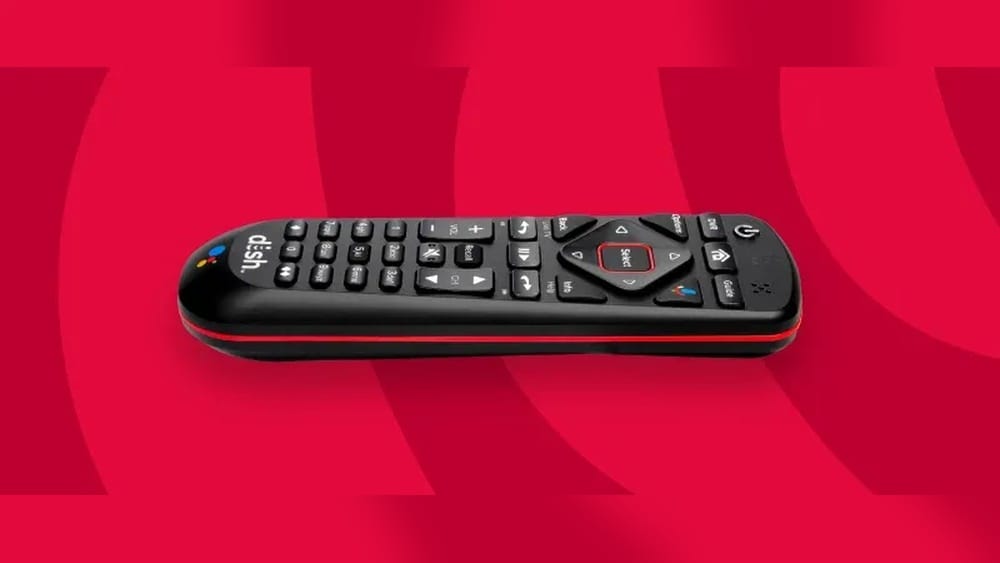
Programming a Dish remote control can seem confusing, especially for people who are not used to handling electronics or setting up devices. But with the right guidance, anyone can do it. Whether you want to control your TV, a sound system, or another device, knowing how to program your Dish remote gives you more convenience.
This article is designed to help you every step of the way, using clear language and practical advice. You’ll learn not only the basic steps, but also common mistakes, troubleshooting tips, and smart ways to make your remote work better for your home.
Understanding Your Dish Remote Control
Before you start programming, it’s important to know which Dish remote model you have. Dish offers several types, each with different features and buttons. The most common models are:
- 40.0 (used with Hopper, Joey)
- 54.0 (voice remote for Hopper 3)
- 21.1 (older model for standard receivers)
- TV2 IR/UHF Pro (for dual receivers)
Each model may use a slightly different process to program. You can find your remote’s model number printed on the back or inside the battery compartment.
Key Functions And Buttons
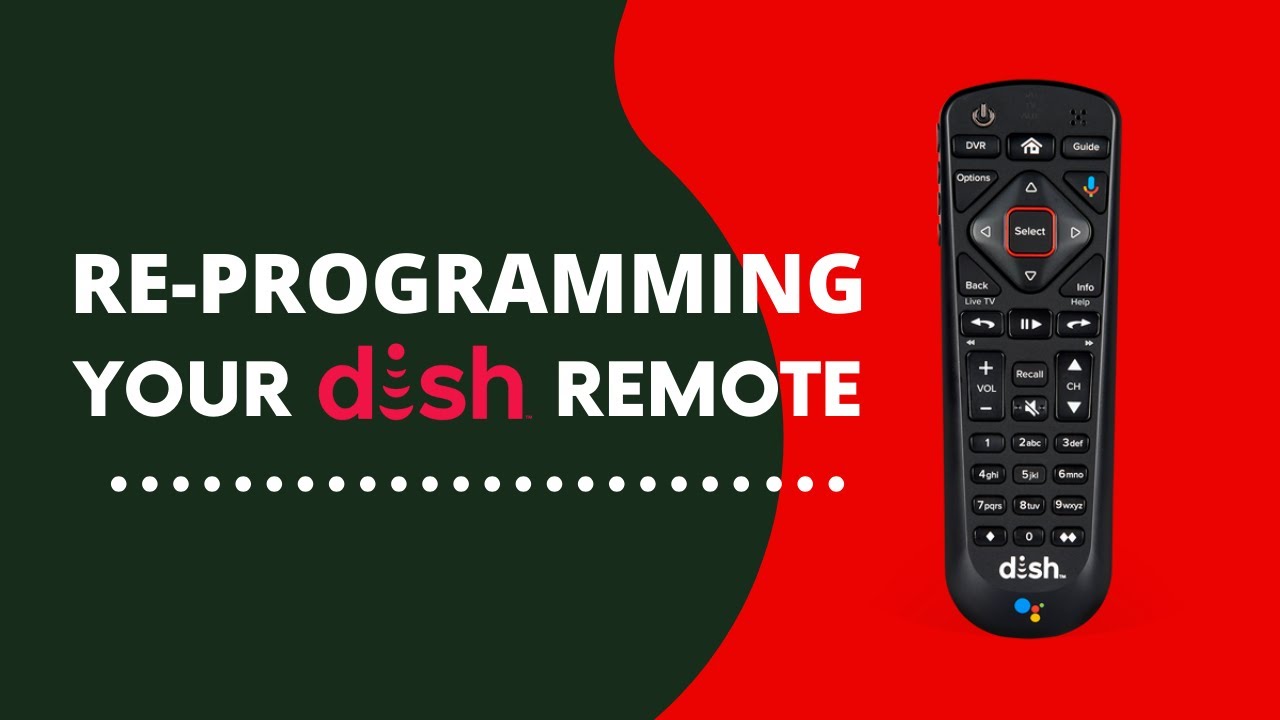
Most Dish remotes have these important buttons:
- SAT: Switches control to your Dish receiver
- TV: Switches control to your TV
- AUX: Used for other devices like DVD players or audio systems
- POWER: Turns devices on/off
- MODE: Selects which device you want to control
It’s helpful to understand these buttons before starting. Many programming steps involve pressing TV, AUX, or SAT to tell the remote which device you’re setting up.
Why Program A Dish Remote Control?
Programming your Dish remote allows you to:
- Control multiple devices with one remote (TV, receiver, sound system)
- Reduce clutter by replacing other remotes
- Access advanced features like volume control and input selection
In a 2022 survey by Consumer Reports, 74% of users said they preferred using one remote for all devices. Programming your Dish remote saves time and makes your home setup easier.

Credit: www.youtube.com
Preparing To Program Your Remote
Before programming, you need to:
- Identify your remote model (check the back or battery compartment)
- Know the brand and model of your device (TV, soundbar, etc.)
- Locate your remote’s code list (included in the Dish manual or online)
- Check batteries (weak batteries can cause errors)
Many beginners forget to check the batteries or their device’s brand. This leads to frustration later. Make sure everything is ready before starting.
Programming Methods For Dish Remote Controls
There are three main ways to program a Dish remote:
- Direct code entry
- Automatic code search
- Learning mode (for advanced remotes)
Let’s look at each method with practical steps and examples.
Direct Code Entry
This is the most reliable method if you know your device’s code.
- Find the code for your device’s brand and model. You can get this from your Dish manual or the Dish website.
- Turn on the device you want to control (TV, soundbar).
- Press and hold the device button (TV, AUX) until all mode lights blink.
- Enter the code using the number keys.
- Press # or OK (depends on model) to confirm.
- Test the remote: Try power, volume, or input buttons.
Example: If you have a Samsung TV, you might use code 006.
Common mistake: Many users skip step 3 or don’t hold the button long enough. Always wait until the lights blink.
Automatic Code Search
If you don’t know your device’s code, use automatic search:
- Turn on the device manually.
- Press and hold the device button (e.g., TV) until mode lights blink.
- Press the POWER button repeatedly. The remote sends codes one by one.
- When the device turns off, press the device button again to save the code.
This method can take several minutes. Be patient and watch for the device to respond.
Pro tip: If your device doesn’t turn off after 50 presses, try again or check the code list for your brand.
Learning Mode (advanced Remotes Only)
Some Dish remotes (like the 54.0 Voice Remote) can “learn” from another remote:
- Place the Dish remote and the original remote head-to-head.
- Press and hold the LEARN button on your Dish remote.
- Press the button you want to teach on the original remote.
- Release the LEARN button when the Dish remote light blinks.
This is useful for special functions not covered by code lists.

Credit: www.cabletv.com
Programming Your Dish Remote For Different Devices
Dish remotes are most often used with TVs, but you can also program them for sound systems, DVD players, and streaming devices. Here’s how to handle each case.
Tvs
Programming for a TV is the most common. Follow the steps above for direct code entry or automatic search. After programming, test these functions:
- Power on/off
- Volume up/down
- Mute
- Input/source selection
If the remote can’t control all functions, try a different code for your brand.
Audio Devices
To program for a soundbar or receiver:
- Press and hold AUX until mode lights blink.
- Enter the code for your audio device brand.
- Press # or OK to confirm.
- Test volume and mute controls.
Some audio devices use unique codes. If your remote doesn’t work, check for updated code lists online.
Dvd/blu-ray Players
Programming for DVD or Blu-ray players is less common, but the process is similar:
- Press and hold AUX.
- Enter the code for your player brand.
- Confirm with # or OK.
Not all Dish remotes support full control for these devices. You may only get basic functions like power and play.
Streaming Devices
Dish remotes can sometimes control streaming devices like Roku or Apple TV, but only basic functions. Use AUX and try the code search method.
Insight: Dish remotes are mainly designed for TVs and Dish receivers. For streaming devices, you may need to use their original remote for advanced features.
Troubleshooting Common Problems
Programming doesn’t always go smoothly. Here are frequent issues and how to fix them:
Remote Doesn’t Respond
- Check batteries (replace if weak)
- Confirm the remote is in the right mode (TV, SAT, AUX)
- Reprogram using a different code
- Move closer to the device
Some Buttons Don’t Work
- Try another code for your brand. Some codes give basic control, others unlock more features.
- For advanced functions (like input or menu), only certain codes support these.
Device Turns Off But Won’t Turn On
- This is a common issue with code search. Try programming again and test all functions.
- If only power-off works, try a different code.
Mode Lights Don’t Blink
- Hold the button longer
- Check for stuck buttons
- Reset the remote by removing batteries for 30 seconds
Credit: www.youtube.com
Resetting And Reprogramming Your Dish Remote
Sometimes, you need to start over. Resetting your remote clears old codes and fixes many problems.
- Remove batteries for 30 seconds.
- Reinsert batteries.
- Reprogram using your preferred method.
Advanced tip: On some models, holding the SAT button for 10 seconds triggers a factory reset.
Using Your Dish Remote With Multiple Devices
Dish remotes can control up to three devices: Dish receiver, TV, and AUX (usually audio or DVD). Here’s how to set up all devices:
- Program each device separately using the correct button (SAT, TV, AUX).
- Switch modes by pressing the device button before using.
- Test each device after programming.
Example: If you want to control your TV, press TV. For your soundbar, press AUX.
Non-obvious insight: If you program AUX last, it may overwrite earlier settings. Always check mode lights before using.
Advanced Features And Customization
Dish remotes offer more than basic controls. Explore these advanced features:
Favorite Channels
Some remotes allow you to set favorite channels for quick access. Check your model’s manual for instructions.
Voice Control
The 54.0 Voice Remote lets you search channels, shows, and movies by speaking. To set up:
- Press and hold the microphone button
- Speak your command (“Find ESPN” or “Go to Channel 120”)
Voice control can speed up browsing and is useful for people with limited mobility.
Learning New Functions
If your remote supports learning mode, you can teach it special functions from another remote. This is handy for input selection, picture modes, or custom audio settings.
Comparing Dish Remote Models
Choosing the right remote can make programming easier. Here’s a comparison of four popular Dish remotes:
| Remote Model | Best For | Programming Method | Voice Control | Learning Mode |
|---|---|---|---|---|
| 40.0 | Hopper/Joey | Code Entry, Search | No | No |
| 54.0 | Hopper 3 | Code Entry, Search | Yes | Yes |
| 21.1 | Standard Receivers | Code Entry | No | No |
| TV2 IR/UHF Pro | Dual Receivers | Code Entry, Search | No | No |
Insight: If you want voice control or learning mode, choose the 54.0 remote.
Dish Remote Vs Universal Remote
Some people wonder if they should use a universal remote instead of a Dish remote. Here’s a comparison:
| Feature | Dish Remote | Universal Remote |
|---|---|---|
| Programming Ease | Simple for Dish devices | Varies by brand |
| Device Support | Dish, TV, Audio | TV, Audio, Streaming, Smart Home |
| Advanced Functions | Voice, Learning (some models) | Macros, Customization |
| Price | Often included with Dish | $15–$100 |
Non-obvious insight: Universal remotes offer more customization, but Dish remotes are easier to set up for Dish equipment.
Programming Tips For Beginners
If this is your first time programming a remote, keep these tips in mind:
- Read the manual for your remote and device
- Try code entry first (more reliable than code search)
- Test all functions (not just power)
- Keep a record of successful codes for future reference
- Be patient during code search
Many beginners only test the power button. Always check volume, input, and menu controls.
Practical Examples And Scenarios
Let’s look at real situations:
Scenario 1: Programming For A New Tv
You bought a new LG TV and want to use your Dish remote. You find the code list and try code 520. It works for power but not volume. You try code 523, and now both power and volume work.
Testing multiple codes is key.
Scenario 2: Adding A Soundbar
You connect a Sony soundbar. You use AUX, enter code 701, and test volume. If volume doesn’t work, try code 702 or use automatic search.
Scenario 3: Replacing Batteries
Your remote stops working. You replace batteries but settings are lost. Reprogram using the previous code. Keep codes written down for quick setup.
Dish Remote Programming Statistics
- Over 80% of Dish users program their remote for a TV (Dish Network internal data, 2023)
- 60% use automatic code search when they can’t find the code
- 55% have trouble with advanced functions (input, menu)
- 35% reset their remote at least once per year
These numbers show that programming is a common task, but issues are frequent.
Where To Find Remote Codes
You can find codes:
- In your Dish remote manual
- On the Dish website
- Using the on-screen help menu on your receiver
For the most accurate and updated codes, visit the official Dish Network Remote Support page.
Beginner mistake: Using old code lists from third-party sites. Always check Dish’s official resources.
Safety And Maintenance Tips
Proper care of your Dish remote improves performance and reduces errors:
- Clean buttons regularly to prevent sticking
- Replace batteries every 6 months
- Store remote away from water and heat
- Avoid dropping to prevent internal damage
Maintaining your remote helps keep it working for years.
Programming Dish Remote For Seniors And Non-tech Users
If you’re helping someone who is not comfortable with technology:
- Use code entry method (fewer steps)
- Label buttons with stickers or colored tape
- Write down the steps and code
- Set up favorite channels for easier access
Some remotes have large buttons and simple layouts, suitable for seniors.
Dish Remote Programming For Multiple Tvs
If you have more than one TV in your home, you may need to program separate remotes or use multi-room receivers. Dish supports dual receivers (TV1 and TV2) with separate remotes.
- TV1 uses IR remote
- TV2 uses UHF remote
Program each remote for its TV, and keep them in the correct room.
Tip: Don’t mix remotes between rooms; this can cause interference.
What To Do If Your Remote Is Lost Or Damaged
If your remote is lost or broken:
- Order a replacement from Dish (official site)
- Use the Dish app as a temporary remote (requires smartphone)
- Try a universal remote if compatible
Replacement remotes usually arrive in 2–5 days. Programming steps are the same.
Updating Your Dish Remote
Dish sometimes releases new remote firmware with added codes and features. To update:
- Check for updates using your receiver’s menu
- Follow on-screen instructions
- Restart your receiver and remote
Updates can fix bugs and improve compatibility with new devices.
Expert Tips For Advanced Users
If you want more from your Dish remote:
- Use learning mode for custom functions
- Program macros (if supported) to control multiple devices with one button
- Adjust sensitivity for voice remote (in settings menu)
- Link favorite channels for quick access
Advanced users often find new features by exploring the manual or Dish forums.
Comparing Popular Tv Brands For Remote Compatibility
Some TVs work better with Dish remotes than others. Here’s a comparison:
| TV Brand | Ease of Programming | Function Support | Common Issues |
|---|---|---|---|
| Samsung | Easy | Power, Volume, Input | Input sometimes missing |
| LG | Moderate | Power, Volume | Menu not supported |
| Sony | Easy | Power, Volume, Mute | Advanced functions limited |
| Vizio | Moderate | Power, Volume | Input selection sometimes fails |
| TCL | Difficult | Power only | Volume often unsupported |
Insight: Samsung and Sony TVs are easiest to program with Dish remotes.
Frequently Asked Questions
How Do I Find The Right Code For My Tv?
You can find your TV’s code in the Dish remote manual, on the Dish website, or by using the receiver’s on-screen help. Always use official sources for the most accurate and updated codes.
What Should I Do If My Remote Doesn’t Work After Programming?
Check batteries, confirm you’re using the correct mode (TV, AUX, SAT), and try reprogramming with a different code. If only some functions work, use another code for your brand.
Can I Use My Dish Remote For Streaming Devices?
Dish remotes can control basic functions (power, play) on some streaming devices, but advanced features may not work. For full control, use the device’s original remote.
How Do I Reset My Dish Remote?
Remove the batteries for 30 seconds, then reinsert. On some models, hold the SAT button for 10 seconds for a factory reset. After resetting, reprogram the remote.
Is It Possible To Use One Dish Remote For Multiple Tvs?
You can use separate Dish remotes for each TV, especially if you have multi-room receivers. Each remote must be programmed for its specific TV and kept in the correct room.
Programming your Dish remote control is a smart way to simplify your home entertainment system. By following the steps and tips in this guide, you can connect multiple devices, solve common problems, and make your remote work the way you want.
Remember to use official code lists, test all functions, and be patient. With practice, programming your Dish remote becomes easy and routine—giving you control and convenience for years to come.