
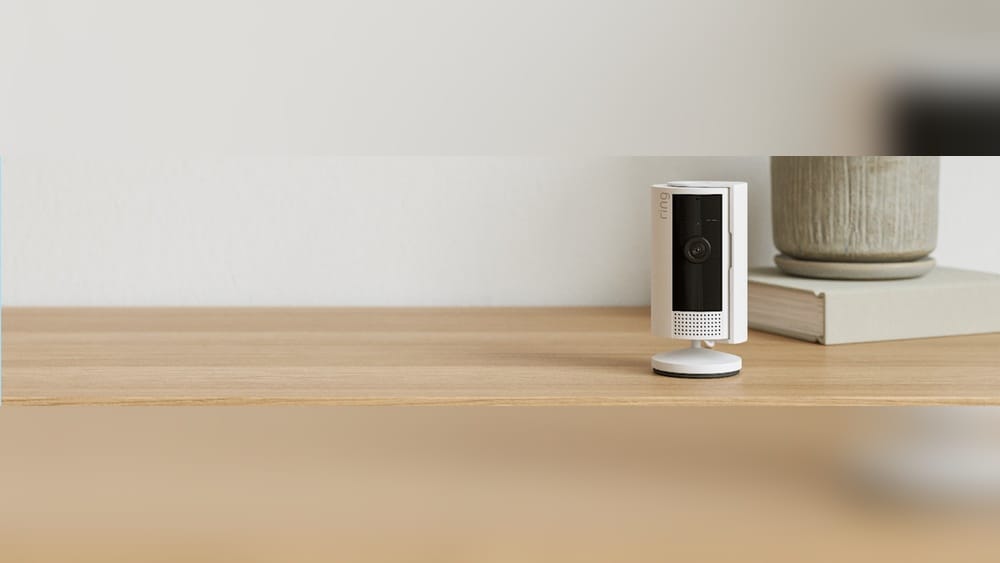
Mounting a security camera is not just about finding a spot on the wall—it’s about making sure it works as you expect. The Ring Indoor Camera is a popular choice for people who want to watch over their home from anywhere. But what if your space, ceiling, or furniture makes you wonder: can you mount the Ring Indoor Camera upside down? Will the image flip automatically? Does the device still detect motion? These questions matter, and the answers can help you avoid mistakes, frustration, or even wasted money.
This guide explores everything you need to know before installing your Ring Indoor Camera upside down. We’ll look at what the camera can do, what happens when you turn it, the technical details, and solutions that work. Along the way, you’ll see real examples, get expert tips, and learn things many owners miss. By the end, you’ll know exactly what to expect—so your camera works for you, not against you.
Understanding The Ring Indoor Camera
The Ring Indoor Camera is designed for flexibility, but it does have some limitations. Before you try to mount it upside down, it helps to understand how the camera works and what features it offers.
Key Features
- High-definition video: 1080p HD, giving you clear images.
- Motion detection: Sends alerts to your phone when it senses movement.
- Two-way talk: Lets you speak and listen through the camera.
- Wi-Fi connectivity: Connects to your home network.
- Compact design: Fits almost anywhere, from shelves to walls.
Mounting Options
Ring provides a base that lets you place the camera on a flat surface. You can also screw the base to a wall or ceiling. The camera attaches to the base with a hinge, which lets you tilt and rotate it for the best view.
Most people mount the Ring Indoor Camera upright on a shelf or wall. But sometimes, the best view is only possible if the camera hangs from the ceiling or is installed upside down. This is where questions start.
Why Consider Upside Down Mounting?
- Ceiling placement: Some rooms have no good wall space, or you want a wide view from above.
- High shelves: Placing the camera under a shelf or cabinet may require it to hang downward.
- Creative angles: Watching entryways, pets, or valuables sometimes works best from a less common position.
But mounting upside down is not as simple as flipping the camera. There are technical and practical details to consider.
Can You Mount A Ring Indoor Camera Upside Down?
The short answer: Yes, you can physically mount the Ring Indoor Camera upside down. The base and hinge allow for a wide range of positions, including hanging from a ceiling or shelf. But there’s more to the story.
Video Orientation
When you mount the camera upside down, the video image will also be upside down by default. The Ring Indoor Camera does not automatically flip the image to match the new position. This can make the live view and recordings confusing, as everything appears inverted.
Some other camera brands have a “rotate image” or “flip video” setting to correct this. Ring’s official app, as of June 2024, does not include this option for the Indoor Camera.
Motion Detection
The motion sensor uses software to identify movement in the camera’s view. Mounting upside down does not change how the sensor works—it still looks for changes in the picture. However, upside-down mounting can confuse the motion zones you set in the app, since the top and bottom are reversed.
Audio And Two-way Talk
The speaker and microphone are built into the camera body. Mounting upside down can affect audio quality if the microphone is blocked or pointed at a surface. Sound may echo or be less clear if the camera is close to a ceiling or shelf.
Power Cable Position
The USB power cable attaches to the back of the camera. When mounting upside down, the cable may stick out above the camera, which can look messy or make the installation harder. You’ll want to plan your cable routing for a neat, safe setup.
Step-by-step: How To Mount A Ring Indoor Camera Upside Down
If you decide upside-down mounting is right for your space, follow these steps to get the best results.
1. Choose The Right Spot
Pick a location that gives a clear view of the area you want to monitor. Make sure there is a nearby power outlet, and check for strong Wi-Fi signal. Avoid spots where the camera lens will face bright lights or direct sunlight.
2. Prepare The Mounting Surface
You can mount the camera on ceilings, shelves, or under cabinets. The surface should be solid enough to hold the camera base with screws. If mounting on drywall or plaster, use wall anchors for a secure hold.
3. Attach The Base
The Ring Indoor Camera base has screw holes for mounting. Use a pencil to mark where the screws will go. Drill small pilot holes, insert wall anchors if needed, and screw the base to the surface.
4. Connect The Camera
Attach the camera to the base using the hinge. Adjust the angle so the lens points where you want. Plug in the USB power cable, making sure it is secure and does not hang loosely.
5. Set Up In The App
Open the Ring app, add the camera if you have not already, and check the live view. Since the image will be upside down, you’ll need to adjust your motion zones and get used to the new orientation.
6. Test And Adjust
Walk through the area to see how well the motion detection works. Listen to the audio and check the video quality at different times of day. Make sure the camera is stable and the cable is safe from pets or children.
Quick Reference: Installation Steps
- Select spot and check Wi-Fi
- Mark and drill screw holes
- Attach base with screws
- Mount camera and plug in
- Check live view in app
- Adjust motion zones as needed
What Happens If You Mount The Ring Indoor Camera Upside Down?
Mounting upside down is possible, but it brings a few important changes.
Upside Down Video
The most obvious effect is the upside-down image. Everything you see in the app or recordings will be inverted. This includes live view, motion events, and snapshots. There is no built-in option to flip the image in the Ring app for the Indoor Camera.
Example: If you mount the camera on the ceiling of your entryway, people walking in will appear to enter from the top of the screen.
Adjusting To The New View
While the video is clear, it can take time to get used to seeing everything upside down. You may need to mentally flip the image when checking alerts or sharing clips.
Motion Zones
Setting up motion zones is more challenging. In the app, you draw areas on the screen to tell the camera where to look for movement. With an inverted image, the top and bottom are reversed. You must adjust your zones carefully to avoid missing important activity.
Audio
If the camera’s microphone faces a hard surface, sound may echo or be muffled. Test the two-way talk feature to be sure you can hear and speak clearly.
App Controls
All app controls (zoom, snapshot, motion settings) work the same way, but the orientation may feel less natural. There is a learning curve, especially if you use multiple cameras in different positions.

Credit: ring.com
Workarounds For Upside Down Video
If the upside-down view is a problem, there are some solutions—though each comes with trade-offs.
1. Use A Third-party Video App
Some advanced home security systems let you add Ring cameras to other apps, such as Blue Iris, Home Assistant, or RTSP viewers. These often include a “rotate video” or “flip image” setting. However, not all Ring cameras support direct streaming to third-party apps, and you may need extra setup.
2. Rotate Video In Editing
If you only need to rotate recorded clips (for sharing or saving), you can use video editing software to flip the image. Tools like VLC, iMovie, or Windows Video Editor let you rotate videos 180 degrees before exporting. This is not a real-time solution but works for important events.
3. Physical Workarounds
Some users mount the camera sideways and tilt the lens to get the best view without going fully upside down. Others use brackets or mounts that allow for more flexible positioning.
4. Wait For App Updates
Ring has added features over time, such as color night vision and improved motion zones. Many users have requested a “video flip” option for the Indoor Camera. It’s possible a future app update will add this feature, but as of now, there is no official timeline.
Comparison: Upright Vs. Upside Down Mounting
The following table compares key aspects of upright and upside-down mounting for the Ring Indoor Camera.
| Feature | Upright Mounting | Upside Down Mounting |
|---|---|---|
| Video Orientation | Normal | Inverted (upside down) |
| Motion Detection | Easy to set zones | Zones must be adjusted for inverted view |
| Audio Quality | Designed for best sound | Can be muffled/echo if blocked |
| Cable Management | Cable hangs down naturally | Cable may stick up or be harder to hide |
| Setup Difficulty | Simple and fast | Requires extra planning |
Real-world Examples And Use Cases
Many users find creative ways to mount their Ring Indoor Camera. Let’s look at three common scenarios.
1. Ceiling Mount In A Living Room
A family wants to watch their entire living room, including doors, windows, and pets. The only spot with a clear view is the ceiling. They mount the camera upside down, accepting the inverted image. They adjust motion zones to cover the floor and entryways.
The setup works, but it takes a few days to get used to the video view.
2. Under A High Shelf
A pet owner wants to watch their cat without the camera being knocked over. Mounting the camera under a shelf keeps it safe. The upside-down view is a minor issue, since the main goal is to see if the cat is on the furniture.
The owner checks recorded clips and rotates them using video editing when needed.
3. Office Security
A small office uses several Ring Indoor Cameras. One camera is mounted upside down in the entry hallway to avoid vandalism. The staff labels this camera in the app as “Ceiling View” so everyone knows the orientation is different. They leave motion alerts on but do not share these clips with clients.
These examples show that upside-down mounting is possible, but you need to plan for the visual and technical changes.
Technical Details: Why Ring Doesn’t Flip The Image
You might wonder why the Ring Indoor Camera does not have a simple “flip video” setting. The answer is partly technical and partly design choice.
Hardware Limitations
Some cameras have sensors that detect orientation and adjust the image automatically. The Ring Indoor Camera is designed to be simple and affordable, so it does not include this sensor. The software is set up for normal upright mounting.
Software Choices
Ring’s app supports many camera models. Not all features are available for every device. Adding a video flip option might affect performance or create confusion for users with multiple cameras.
User Requests
Many users have asked for a flip option in forums and support chats. Ring has added this to their feature request list, but has not made a public promise. If this feature is important to you, it helps to give feedback to Ring support.
Pros And Cons Of Mounting Upside Down
Let’s look at the main advantages and disadvantages of mounting your Ring Indoor Camera upside down.
Pros
- Flexible placement: Use ceilings, shelves, or hidden spots.
- Better coverage: See more of the room or important entry points.
- Safer from pets or tampering: Out of reach for kids and animals.
Cons
- Upside-down video: Harder to view live or share clips.
- Difficult motion zones: Takes time to set up correctly.
- Possible audio issues: Sound may be less clear.
- Less clean cable management: Power cord may look untidy.
- No official support: You’re on your own for troubleshooting.
Tips For Best Results
If you decide to mount your Ring Indoor Camera upside down, these expert tips can help you avoid problems.
- Test before final mounting: Use tape or a temporary mount to check the view, audio, and Wi-Fi signal before drilling holes.
- Label your camera in the app: If you use multiple cameras, give the upside-down one a clear name like “Ceiling View” or “Shelf Cam.”
- Set up motion zones carefully: Take time to adjust zones and test with real movement. Walk through the area and check alerts.
- Check cable safety: Use clips or cable covers to keep wires out of the way and prevent accidents.
- Consider lighting: Avoid pointing the camera at bright lights or windows, which can wash out the image.
- Review recordings regularly: Watch a few clips each week to make sure the setup still works as you want.
- Give feedback to Ring: If you want a video flip feature, contact Ring support and join community forums.
Alternatives To Upside Down Mounting
If you find the upside-down image too difficult, there are other ways to get a good view with the Ring Indoor Camera.
1. Use A Wall Or Corner Mount
Corner mounts and wall brackets are available from third-party sellers. These let you angle the camera for a wide view without turning it upside down.
2. Place On High Furniture
If you can place the camera on top of a bookshelf or cabinet, you may get the view you want without mounting.
3. Choose A Different Camera
Some security cameras from other brands have a built-in image flip or rotate feature. If upside-down mounting is important, research before you buy. For example, some models from Wyze, Arlo, and Reolink allow you to flip the video in the app.
How Does The Ring Indoor Camera Compare To Other Brands?
Here’s a quick look at how the Ring Indoor Camera stacks up against other popular indoor cameras for upside-down mounting.
| Camera | Upside Down Mount Support | Image Flip Setting | Price Range |
|---|---|---|---|
| Ring Indoor Camera | Physical mounting only | No | $60-$70 |
| Wyze Cam v3 | Yes | Yes | $35-$40 |
| Arlo Essential Indoor | Yes | Yes | $70-$100 |
| Google Nest Cam (Indoor) | Yes | No | $100-$130 |
| Reolink E1 | Yes | Yes | $50-$80 |
As you can see, some competitors offer more flexibility for upside-down mounting. If this feature is critical, you may want to compare before buying.
Common Mistakes To Avoid
Mounting a camera upside down is simple in theory, but there are pitfalls. Here are mistakes to watch out for:
- Forgetting the image stays inverted: Many users expect the app to flip the video automatically. Double-check before final mounting.
- Setting motion zones incorrectly: If you forget the image is upside down, your motion zones may miss key areas.
- Blocking the microphone or speaker: Placing the camera too close to a surface can affect audio.
- Ignoring cable safety: Loose cables can be a hazard for pets, kids, or cleaning.
- Not testing before final install: Always test the view and features before drilling or screwing in the mount.
User Feedback And Expert Opinions
Online forums and product reviews show mixed feelings about upside-down mounting with Ring Indoor Cameras.
- Some users love the flexibility: They are happy to trade the upside-down video for a better view or safer placement.
- Others are frustrated: They expect a video flip option and find the inverted view annoying, especially when sharing clips.
- Experts recommend testing first: Many security pros suggest trying the camera in the new position for a few days before permanent installation.
A common insight: Think about how you plan to use the footage. If you mostly check alerts on your phone, you may quickly adjust to the upside-down view. If you need to share videos with others, the extra editing step can be a hassle.
Visual Examples: What To Expect
Seeing is believing. Below are two scenarios:
- Normal Mounting: Door opens at the bottom of the video, people walk from bottom to top. Motion zones are easy to draw.
- Upside Down Mounting: Door opens at the top of the video, people walk from top to bottom. You must draw motion zones in reverse.
This can be confusing at first, but most users adapt over time.
Security And Privacy Considerations
Mounting your camera upside down does not change the way Ring handles your data or privacy. All footage is still encrypted and stored in your account. However, the unusual camera angle might surprise visitors. Consider informing family or guests about your camera placement.
If you share video clips with police or neighbors, explain that the footage may look different due to the mounting position.

Credit: www.reddit.com
When Upside Down Mounting Makes Sense
There are situations where mounting upside down is the best or only option:
- No wall space: Ceilings or under-shelf spots are the only choices.
- Wider coverage needed: Overhead views capture more of the room.
- Protection from tampering: Cameras are safer high up.
- Pet monitoring: Out of reach from curious animals.
If one of these fits your needs, don’t let the upside-down image stop you—just be ready for the extra steps in setup and viewing.
Smart Home Integration
The Ring Indoor Camera works with Amazon Alexa, and you can view the feed on Echo Show devices. However, the upside-down video issue remains—you will see the inverted image on all connected screens. There is no Alexa command to flip the image.
If you use IFTTT or other smart home routines, the camera’s triggers (like motion alerts) are not affected by mounting position.
Is It Worth Mounting Upside Down?
For most people, mounting the Ring Indoor Camera upright or on a wall will be easier. The video looks normal, and setup is simple. But if your space or security needs require an overhead or under-shelf view, upside-down mounting is possible—just know the trade-offs.
- You get more flexibility in placement
- You must adjust to an upside-down video
- Motion zones take extra attention
- No official video flip option as of June 2024
This approach works best for users who can adapt to the inverted view or who only need the camera for special situations.
Frequently Asked Questions
Can You Mount A Ring Indoor Camera Upside Down On The Ceiling?
Yes, you can mount the camera upside down on the ceiling or under a shelf. The base and hinge allow for this position. However, the video will appear upside down in the app, and there is no built-in way to flip it.
Will The Motion Detection Still Work If The Camera Is Upside Down?
Motion detection still works, but you must set up motion zones carefully. The top and bottom of the image are reversed, so test your alerts to be sure you cover the right areas.
Can I Flip The Video Image In The Ring App?
No, the Ring app does not offer a video flip or rotation setting for the Indoor Camera as of June 2024. You can use video editing software to rotate recorded clips, but live view will remain inverted.
Does Mounting Upside Down Affect Audio Or Two-way Talk?
It can affect audio quality if the microphone or speaker is blocked by a ceiling or shelf. Test the sound after installation, and try to keep the area around the camera clear for best results.
Are There Other Cameras That Support Upside-down Mounting And Image Flipping?
Yes, some cameras from brands like Wyze, Arlo, and Reolink offer an image flip feature in their apps. If this is important, compare features before buying. For more details, see the manufacturer’s websites or this Ring support article.
Mounting your Ring Indoor Camera upside down opens new options for coverage, but it is not perfect. Take time to plan, test, and adjust—so your camera works the way you want. With the right setup, even an upside-down camera can give you peace of mind and a safer home.

Credit: www.reddit.com