
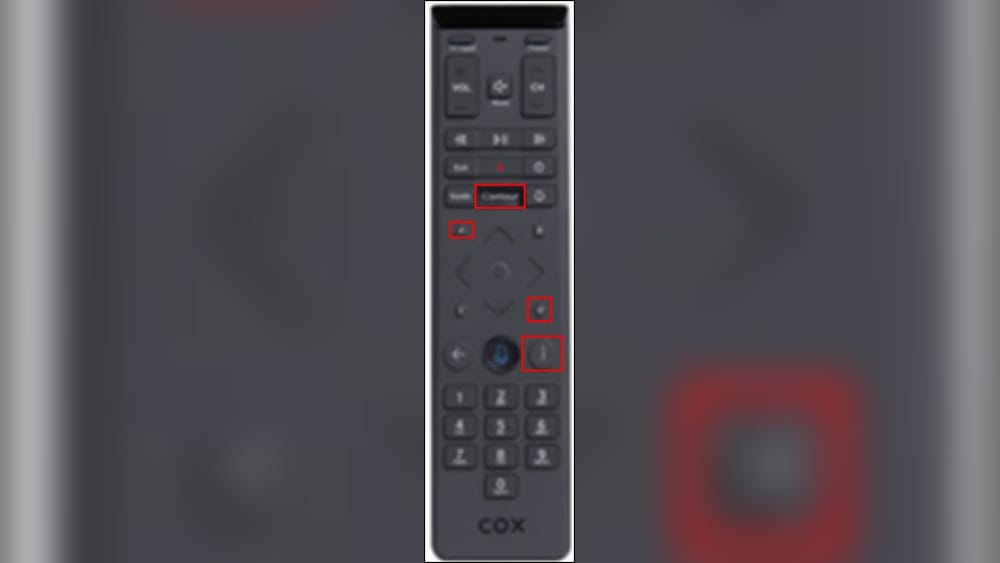
Programming a Cox Cable remote control can feel like a challenge, especially if you’re not used to handling different electronics. But this process is not as complex as it might seem. With a step-by-step approach, even beginners can set up their remote quickly and enjoy more control over their TV and entertainment system.
This guide will help you understand every part of programming a Cox remote, avoid common mistakes, and get the most from your device. You’ll also learn some helpful tricks that many users overlook. Whether your goal is to control your TV, audio system, or other devices, you’ll find everything you need right here.
Understanding Cox Cable Remote Controls
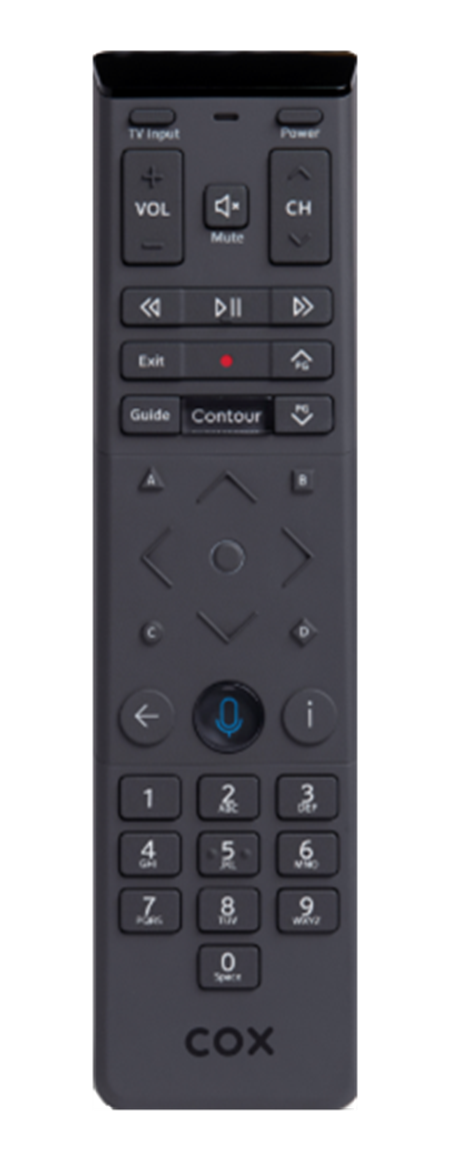
Before you start programming, it’s important to know which Cox remote model you own. Cox has released several remote types over the years, and each one works a little differently. The most common models include:
- Contour Remote (XR11, XR15)
- URC Series (URC-8820, URC-3220)
- Mini Box Remote
- Cox Universal Remote
The steps in this guide will cover the main programming methods for these remotes. If you’re unsure which model you have, look on the back or inside the battery compartment. You’ll see the model number printed there.
Main Features Of Cox Remotes
Modern Cox remotes offer much more than just basic channel changing. Here are some key features you might find:
- Voice control (Contour series)
- Backlit buttons for easy use in the dark
- Device control for TV, audio, and streaming devices
- Favorite channels programming
- Parental controls
Not every remote has all these features, but most will let you control at least your TV and cable box.
Why Program Your Remote?
Programming your Cox remote lets you:
- Use one remote for multiple devices
- Turn devices on/off together
- Adjust volume without switching remotes
- Access advanced features (like input select)
Many people don’t realize that a properly programmed remote can simplify their whole setup—no more searching for multiple remotes or dealing with tangled cables.
Preparing To Program Your Cox Remote
Programming usually takes less than 10 minutes, but a little preparation will make it smoother. Here’s what you’ll need:
- Your Cox remote and working batteries (replace if needed)
- The device you want to control (TV, soundbar, etc.)
- Device codes for your TV or audio system (these are unique numbers for each brand and often model)
You can find device codes in the user manual or on the Cox website. Sometimes, the codes are listed on a sticker inside the battery compartment.
Check For Compatibility
Most newer TVs and audio devices work with Cox remotes. However, very old or very new models (like recent smart TVs) might need extra steps or may not be fully compatible. In these cases, advanced programming methods can help.
Troubleshooting Before You Start
If your remote isn’t working at all:
- Replace the batteries
- Check for stuck buttons
- Ensure the remote isn’t blocked by furniture
- Make sure your device (TV, soundbar) is plugged in and turned on
Programming Your Cox Remote: Step-by-step Instructions
Let’s dive into the main programming methods. The exact process depends on the remote model, but most use either manual code entry or auto search.
Programming The Cox Contour Remote (xr11, Xr15)
These are the latest voice-controlled remotes. Here’s how to set them up:
Manual Code Entry
- Turn on your TV.
- Press and hold the Setup button until the LED turns green (XR11) or blue (XR15).
- Press the TV Power button.
- Enter the 4-digit TV code (use the code list from Cox or their website).
- The LED will blink twice if successful.
- Test the volume and power buttons to make sure the remote works with your TV.
Auto Search Method
If you don’t have the code or manual entry doesn’t work, try this:
- Turn on your TV.
- Press and hold Setup until the LED changes color.
- Press and release the TV Power button.
- Press and hold the Select button until the TV turns off.
- Release the button and test the remote.
Programming The Cox Universal Remote (urc Series)
For the URC-8820 and URC-3220 models:
- Turn on your TV.
- Press and hold the Setup button until the LED stays on.
- Press the TV button.
- Enter the 4-digit code for your TV brand.
- The LED will turn off if the code is accepted.
- Try the remote—if it doesn’t work, repeat with the next code.
Programming The Mini Box Remote
For the Cox Mini Box remote:
- Turn on your TV.
- Press and hold the Setup button until the LED turns on.
- Press the TV Power button.
- Enter the 3-digit code for your TV brand.
- The LED will blink twice if successful.
- Test the remote.
Programming For Audio Devices
If you want to control a soundbar or audio receiver:
- Press and hold Setup until the LED lights up.
- Press the Audio or AUX button (if available).
- Enter the brand code for your audio device.
- The LED will turn off if successful.
- Test the volume and mute buttons.
Locating Device Codes
Finding the correct device code is key. Cox provides an online tool for this purpose.
You can search for codes using the official Cox code lookup page:
cox Remote Control Codes
If you can’t find your device, try codes for similar models or brands. Sometimes, universal codes work for multiple brands.
Example: Popular Tv Brands And Codes
Here’s a sample of common brands and their codes for Cox remotes:
| Brand | Common Codes (XR11/XR15) | Common Codes (URC Series) |
|---|---|---|
| Samsung | 10812, 10060, 12051 | 2051, 0812, 0702 |
| LG | 10178, 11265, 10700 | 1756, 1423, 0178 |
| Sony | 10000, 11100, 11317 | 0810, 1685, 1037 |
| TCL | 12434, 11756, 12834 | 1738, 1395, 1756 |
If your brand is not listed, check the Cox website or try codes for related brands.
Credit: www.cox.com
Using The Auto-search Feature
Sometimes, you can’t find the right code or your device is not listed. The auto-search feature can help:
- Turn on the device.
- Hold Setup until the LED stays on.
- Press the device button (TV, AUX, etc. ).
- Press and release the Power button until the device turns off.
- When the device turns off, press Setup again to lock the code.
Insight: Most users don’t realize that you might need to press the Power button dozens of times—be patient! This process cycles through all codes.
Testing And Troubleshooting
After programming, always test the main functions:
- Power on/off
- Volume up/down
- Mute
- Input/source select
If something doesn’t work, repeat the programming with a different code.
Common Issues And Solutions
Remote Not Controlling Volume:
Try programming the remote in audio mode, or use the volume lock feature if available.
Remote Controls Wrong Device:
Double-check which device mode (TV, AUX, etc. ) Is active.
Nothing Happens:
- Replace batteries
- Try another code
- Reset the remote (see below)
Resetting Your Cox Remote
If your remote gets stuck or won’t program, resetting it can help.
Resetting Contour Remotes (xr11, Xr15)
- Press and hold A and D together for 3 seconds (XR15), or Setup (XR11).
- Enter 981.
- The LED will blink blue (XR15) or green (XR11).
- The remote is now reset—reprogram as needed.
Resetting Urc Series
- Hold Setup until the LED stays on.
- Enter 981.
- The LED will blink twice and turn off.
Advanced Features And Customization
Many Cox remotes allow advanced programming for better control.
Volume Lock
Lock the volume control to always operate your TV or audio device, regardless of device mode.
- Hold Setup until the LED stays on.
- Enter 993.
- Press the device button you want volume locked to (TV or AUX).
- The LED will blink twice.
Input Button Programming
Some remotes let you set up the Input or Source button to switch between devices.
- Hold Setup until the LED stays on.
- Enter 994.
- Press the Input button, then the device button.
- The LED will blink if successful.
Programming For Multiple Devices
You can program your remote to control more than one device (TV, audio, streaming box). Just repeat the programming steps for each device.
Insight: Not all functions will work for all devices. For example, you might control basic TV functions but not smart TV apps.
Comparing Cox Remote Models
It’s helpful to see how different Cox remotes compare in terms of features and compatibility.
| Feature | Contour Remote (XR11/XR15) | URC Series | Mini Box Remote |
|---|---|---|---|
| Voice Control | Yes | No | No |
| Controls Multiple Devices | Yes | Yes | Limited |
| Backlit Buttons | Yes | Some models | No |
| Device Code Search | Yes | Yes | Yes |
| Advanced Programming | Yes | Yes | No |
Tip: If you want the latest features and voice control, ask Cox for a Contour remote upgrade.
Tips For Success When Programming Your Cox Remote
Programming a remote isn’t always perfect on the first try. Here are some practical tips for a smoother experience:
- Be patient: Some TVs need several tries with different codes.
- Write down your code: Keep a record in case you need to reprogram later.
- Update your remote: Some newer remotes may update automatically with Cox service, improving compatibility.
- Check line of sight: Remotes work best with a clear path to your device.
- Try codes for similar brands: Many TVs are made by the same manufacturer under different names.
Lesser-known advice:
If your TV supports HDMI-CEC and is connected to your Cox box via HDMI, you may be able to control basic TV functions (like power and volume) without programming the remote at all. Look for “CEC” or “HDMI Control” settings in your TV’s menu.
Programming For Special Tv Brands And Setups
Some TVs and devices need extra attention. Here’s what to know:
Smart Tvs
Smart TVs (like Samsung, LG, Sony) can be more challenging. Basic functions (power, volume) usually work with standard codes, but advanced features (apps, internet) require the original TV remote.
Soundbars And Audio Receivers
Many soundbars use TV codes, but some brands (like Bose, Sonos) may need AUX or audio codes. You might also need to program the remote in AUX mode rather than TV mode.
Streaming Devices
Cox remotes are not designed to fully control Roku, Apple TV, or Amazon Fire, but may work for basic volume and power if your TV supports HDMI-CEC.
Home Theater Systems
For complex setups, you may want to use a universal remote or a programmable smart remote for total control. Cox remotes are best for controlling TV and cable functions.

Credit: www.cox.com
When To Contact Cox Support
If you’ve tried all codes and methods but your remote still won’t work, it’s time to reach out for help. Cox support can:
- Provide updated codes for new devices
- Replace faulty remotes
- Walk you through programming over the phone
You can visit a Cox Solutions Store or call their support line for assistance.
Bonus tip: If you lose your remote, Cox can usually provide a replacement at little or no cost, depending on your account.
Real-world Examples
Let’s look at two real-life scenarios that show how programming works in practice.
Example 1: Programming A Contour Remote For A New Tv
Maria just bought a new LG TV. She wants to control it with her Cox XR15 remote.
- She finds the LG codes (10178, 11265) on the Cox website.
- She follows the manual entry steps and enters 10178.
- The remote powers the TV but volume doesn’t work.
- She tries 11265. Now both power and volume work.
- Maria writes down the code for future reference.
Example 2: Setting Up Audio Control
John has a soundbar connected to his TV. He wants to control volume using his remote.
- He holds Setup until the LED stays on.
- He presses the AUX button and enters the code for his soundbar brand.
- Volume and mute now control the soundbar, not the TV.
- John uses the volume lock feature so the remote always controls soundbar volume.

Credit: www.cox.com
Security And Parental Controls
Cox remotes can also help manage parental controls, locking certain channels or features for children.
- Set a PIN on your cable box or TV
- Restrict access to adult channels
- Limit on-demand purchases
Check your cable box or TV menu for these options—they’re usually under Settings > Parental Controls.
Note: Programming the remote does not set parental controls—you must configure these separately on your cable box or TV.
Cox Remote Programming: Key Data And Trends
Programming universal remotes is more common than ever. According to a 2023 survey by Parks Associates, 78% of US households use at least one universal remote for their home entertainment system. Of these, about 46% have had trouble programming at least once.
Why do issues happen? The main reasons are:
- Device codes change as new models come out
- Some remotes have outdated code lists
- Users often skip the instructions or don’t test all functions after setup
Actionable advice: Always test every button you plan to use—not just power and volume—after programming.
Additional Resources
For more help, check out the official Cox support page or online forums. You can also find video tutorials on YouTube by searching for your remote model.
A good external reference is the Universal Remote Wikipedia page, which explains how universal remotes work and common features.
Frequently Asked Questions
How Do I Find The Correct Code For My Tv Brand?
The best way is to visit the official Cox code lookup page. Enter your remote model and TV brand to get the most up-to-date codes. Codes are also in your remote’s manual or inside the battery cover.
What If None Of The Codes Work For My Device?
Try the auto-search method. Hold the Setup button and use the Power button to cycle through all codes until your device responds. If this still fails, contact Cox support for help or see if your device is compatible.
Can I Program My Cox Remote To Control More Than Just My Tv?
Yes. Most Cox remotes support multiple devices, including soundbars and audio receivers. Use the AUX or Audio button and the correct brand code for each device.
How Do I Reset My Cox Remote To Factory Settings?
For Contour remotes, hold A and D (or Setup) and enter 981. For URC series, hold Setup and enter 981. This will erase all programming and let you start fresh.
Why Does My Cox Remote Only Control Power But Not Volume?
This usually means you used the wrong code or need to program the remote in audio mode. Try another code or set up volume lock to always control the right device.
—
Programming your Cox Cable remote control is a simple way to make your TV setup more enjoyable and organized. By following the right steps and testing your remote after each attempt, you can avoid frustration and get more from your entertainment system.
Remember, patience and careful testing are your best tools. If you run into trouble, Cox’s official support and community forums are great resources. With your remote properly programmed, you’ll spend less time searching for remotes and more time enjoying your favorite shows.