
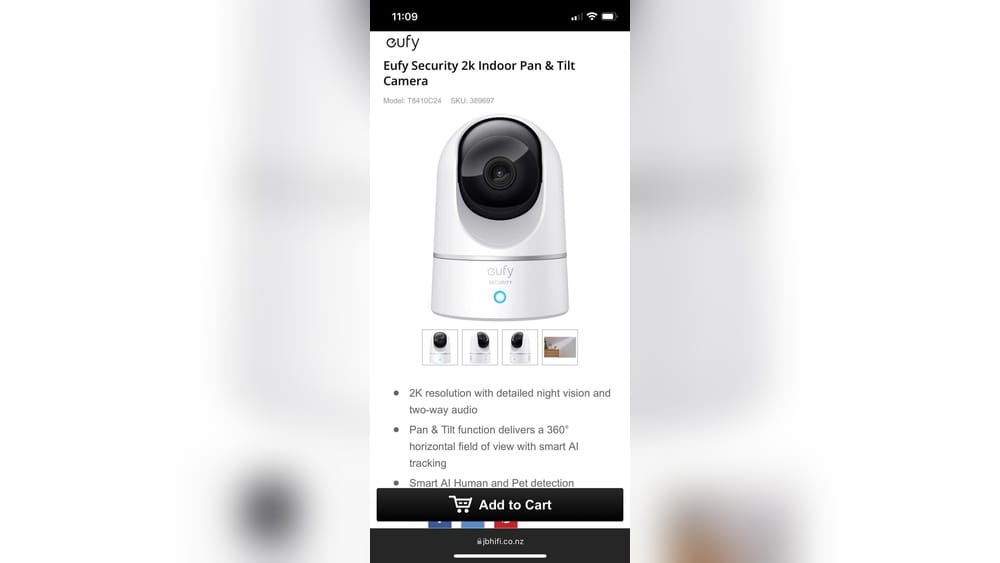
If you own or are considering the Eufy Indoor 2K Camera, you might wonder if you can use it to speak with people in your home. This is a common question for anyone interested in smart home security. Talking through your camera can help you calm a pet, give instructions to family, or even warn an intruder. But how well does this feature work, and what should you know before using it?
This article will help you understand everything about speaking through the Eufy Indoor 2K Camera. You’ll learn how the feature works, how to set it up, its strengths and weaknesses, privacy concerns, and practical tips. We’ll also compare this camera with similar models, answer common questions, and help you get the most from your device.
What Is The Eufy Indoor 2k Camera?
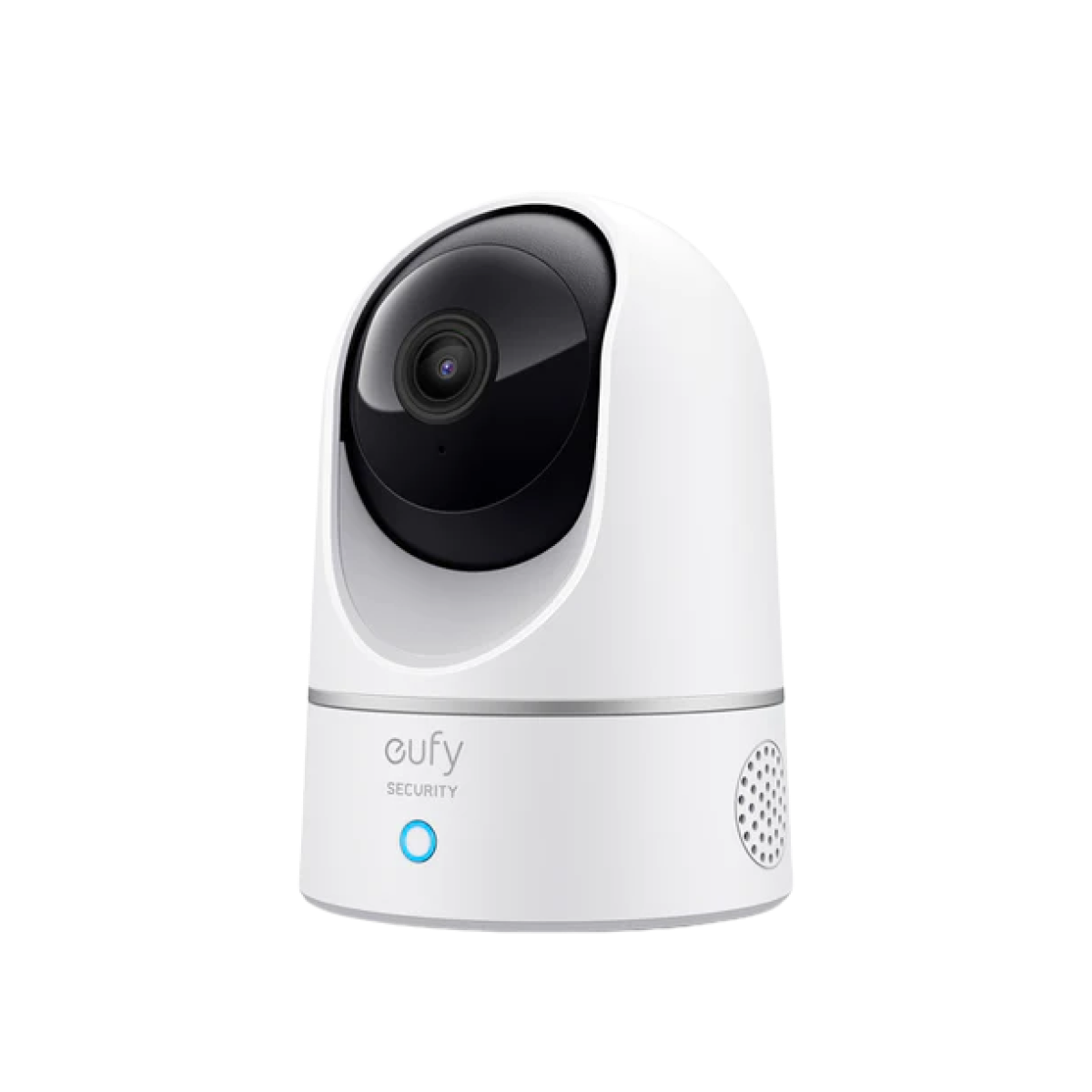
The Eufy Indoor 2K Camera is a compact indoor security camera. It’s designed for home use, offering sharp 2K video quality, night vision, motion detection, and two-way audio. Eufy, a brand from Anker Innovations, focuses on privacy and user-friendly features. The camera connects to your Wi-Fi and is managed through the Eufy Security app. It works with both iOS and Android devices, and can be integrated with Amazon Alexa, Google Assistant, and Apple HomeKit.
Key Features
- 2K resolution for clear video
- Night vision for low-light conditions
- Motion and sound detection
- Two-way audio (microphone and speaker)
- Local and cloud storage options
- Works with smart home platforms
These features make it a solid choice for monitoring babies, pets, or general home security. But the main focus here is: can you use it to speak to people in your home?
Can You Speak Through The Eufy Indoor 2k Camera?
Yes, you can speak through the Eufy Indoor 2K Camera using the two-way audio feature. This allows you to listen and talk to whoever is near the camera, directly from your phone or tablet. This function is especially useful for:
- Talking to family or roommates
- Calming pets when you’re away
- Welcoming visitors at the door
- Warning intruders or unwanted guests
The two-way audio works in real-time, so your voice is heard almost immediately by the person near the camera. The quality of the sound depends on your Wi-Fi connection, the camera’s location, and the surrounding noise.
How Two-way Audio Works On The Eufy Indoor 2k Camera
The camera has a built-in microphone and speaker. When you open the Eufy Security app and tap on your camera’s live view, you’ll see a microphone icon. Pressing and holding this icon lets you talk, and your voice is sent through the camera’s speaker. You can also listen to sounds from the camera’s location, such as people talking or pets barking.
Step-by-step Guide To Using Two-way Audio
- Open the Eufy Security app on your phone or tablet.
- Select your camera from the device list.
- Tap the live view to see and hear what’s happening.
- Look for the microphone or “hold to talk” button.
- Press and hold the button while you speak.
- Release the button when done talking. Your message will be heard through the camera’s speaker.
Example: Talking To A Delivery Person
Imagine you’re at work and get a notification from your Eufy camera. You see a delivery person at your door. By opening the app and pressing the microphone, you can say, “Please leave the package at the door. ” The delivery person hears your voice and follows the instruction, even though you’re not home.
Setting Up Two-way Audio: What You Need
Getting the two-way audio feature working is straightforward, but a few things must be set up correctly.
Requirements
- Eufy Indoor 2K Camera set up and connected to Wi-Fi
- Eufy Security app installed on your smartphone or tablet
- Stable internet connection (both at home and on your phone)
- Microphone and speaker access enabled for the app
Setup Steps
- Connect the Camera: Plug in your Eufy Indoor 2K Camera and follow the app instructions to connect it to your Wi-Fi.
- Update Firmware: Make sure your camera has the latest firmware. Updates often improve audio quality and security.
- App Permissions: Allow the app to use your phone’s microphone and speaker. Without this, two-way audio won’t work.
- Test Audio: After setup, test the audio by talking through the app and checking if your voice is heard from the camera.
Common Setup Mistakes
- Not updating the camera’s firmware, which can cause bugs.
- Weak Wi-Fi signal near the camera, leading to delays or poor sound.
- Denied microphone permissions in your phone’s settings.
Making sure these steps are covered will give you a smooth experience with two-way audio.
How Good Is The Audio Quality?
The audio quality on the Eufy Indoor 2K Camera is generally clear, but it depends on several factors. Unlike some older or cheaper cameras, Eufy’s device uses digital noise reduction and a decent speaker. Still, it’s important to have realistic expectations.
Factors Affecting Audio Quality
- Wi-Fi Strength: A weak signal can cause delays or dropped audio.
- Background Noise: Loud TVs, barking dogs, or busy streets can reduce clarity.
- Camera Placement: Placing the camera near walls or in corners can affect sound.
- App Version: Outdated apps may have audio bugs.
User Experience
Most users report that the two-way audio is good enough for basic conversations. You can give simple instructions, calm pets, or greet visitors. However, don’t expect studio-level sound. Voices may sound a bit tinny or robotic, especially if the connection isn’t strong.
Practical Tip
If you want the best audio, place the camera in a quiet area and make sure your Wi-Fi signal is strong. Some users have improved clarity by adding a Wi-Fi extender near the camera.
Comparing Eufy Indoor 2k Two-way Audio With Other Cameras
The two-way audio feature is common in many smart cameras, but not all are created equal. Here’s a comparison between the Eufy Indoor 2K Camera and two popular alternatives: the Wyze Cam v3 and the Google Nest Cam (Indoor).
| Feature | Eufy Indoor 2K | Wyze Cam v3 | Google Nest Cam (Indoor) |
|---|---|---|---|
| Audio Type | Two-way | Two-way | Two-way |
| Microphone Quality | Good | Decent | Excellent |
| Speaker Loudness | Medium | Low | High |
| Delay (Wi-Fi) | Low | Medium | Low |
| Voice Clarity | Clear | Fair | Very clear |
| App Usability | Easy | Easy | Very easy |
As the table shows, the Eufy Indoor 2K holds its own against more expensive competitors, especially in voice clarity and low delay. The Nest Cam is a bit better in overall sound, but the difference isn’t huge for most users.
Credit: www.eufy.com
Use Cases For Speaking Through Your Camera
The two-way audio feature offers many practical uses beyond just security. Here are some real-life examples:
1. Checking On Children
Parents often use the Eufy Indoor 2K Camera as a baby monitor. If you see your child waking up, you can speak through the camera to soothe them before you get to the room.
2. Calming Pets
Pet owners use the camera to check in on dogs or cats. If your dog is barking or acting up, your voice can help calm them. Some pets even learn to respond to your commands through the camera.
3. Talking To Elderly Family
If you have elderly family members who need care, you can use the camera to check on them and remind them to take medicine or stay safe.
4. Handling Visitors
You can instruct delivery workers, greet friends, or turn away unwanted guests without opening the door.
5. Security Alerts
If you see a suspicious person near your home, you can use the speaker to warn them off. The surprise of a voice can scare away intruders.
Unique Insight
Many users overlook the power of reassuring words. In stressful situations, simply hearing a familiar voice can make a big difference. For example, a child home alone may feel safer if you can talk to them through the camera.
Privacy And Security Concerns
Having a camera in your home that lets you listen and speak raises obvious privacy questions. Eufy claims to prioritize user privacy, but it’s wise to be informed.
How Eufy Handles Privacy
- Local Storage: Eufy allows you to store video clips locally on an SD card, reducing the risk of cloud breaches.
- End-to-End Encryption: Data sent between your app and the camera is encrypted to prevent hackers from listening in.
- App Permissions: You control who can access the audio feature through account settings.
What You Should Know
- Microphone Always On? The microphone only records when you access live view or if you set up sound detection alerts. It is not constantly streaming audio.
- Shared Access: If you share camera access with family, they can also use two-way audio. Make sure you trust everyone with access.
- HomeKit Secure Video: If you use Apple HomeKit, you get extra privacy features, like encrypted video in iCloud.
Non-obvious Tip
Some users forget to disable audio when not needed. This can help protect your privacy, especially in sensitive areas like bedrooms.
Credit: www.reddit.com
Troubleshooting Two-way Audio Problems
Sometimes, the two-way audio may not work as expected. Here are the most common issues and how to fix them.
1. No Sound Or Low Volume
- Make sure the camera’s speaker holes aren’t blocked by furniture or dust.
- Increase the volume on your phone and in the app.
- Check if the camera’s firmware is up to date.
2. Echo Or Feedback Noise
- Stand farther from the camera when using two-way audio to avoid audio loops.
- Lower your phone volume if you hear an echo.
- Make sure only one device is connected to the live view at a time.
3. Delay In Voice
- Test your Wi-Fi speed. Two-way audio needs a stable connection, ideally above 5 Mbps upload/download.
- Move the camera closer to your router or use a Wi-Fi extender.
- Restart your camera and app if delays continue.
4. Microphone Not Working
- Check app permissions to ensure microphone access is enabled.
- Try reinstalling the Eufy Security app.
- Test the microphone on your phone with another app to rule out hardware problems.
5. App Crashes Or Freezes
- Update the app and your phone’s operating system.
- Clear the app’s cache from your phone settings.
- If the issue remains, contact Eufy support.
Hidden Insight
Rarely, interference from other smart devices (like baby monitors or cordless phones) can affect audio quality. Try moving such devices away from your camera if you notice problems.
Optimizing Your Two-way Audio Experience
To get the best from your camera’s audio, a few tweaks and best practices can make a big difference.
Placement Tips
- Height: Place the camera at chest or head height for best sound pickup.
- Distance: Keep the camera within 10-15 feet of where you expect to speak.
- Avoid Corners: Corners can cause echoes; choose an open spot.
Network Tips
- Use 5 GHz Wi-Fi if available; it’s faster and less crowded than 2.4 GHz.
- Place your router closer to the camera if possible.
- Limit heavy internet use (like streaming or gaming) during important calls.
App Settings
- Adjust audio sensitivity in the Eufy app to reduce unwanted alerts.
- Set notifications only for important events to avoid distraction.
Advanced Advice
If you need more advanced control, Eufy allows custom alert zones. This means you can decide which areas the camera watches and where it will send audio alerts. This is useful if, for example, you want to ignore a busy hallway but focus on the front door.
Credit: www.reddit.com
The Eufy Indoor 2k Camera In The Real World
To understand how well the two-way audio works, let’s look at real-world situations and user feedback.
User Reviews And Ratings
On Amazon, the Eufy Indoor 2K Camera has thousands of reviews, with an average rating above 4.5 out of 5 stars. Most users praise the clear audio, easy setup, and reliable app. Some users note that the speaker could be louder, especially in large rooms or noisy environments.
Case Study: Family Use
A family with young children uses the camera as both a security device and an intercom. When the kids play in the living room, parents can check in from the kitchen or while at work. The two-way audio has helped them solve small problems quickly, such as reminding children to turn off the TV or checking if homework is done.
Case Study: Pet Owners
A dog owner uses the Eufy Indoor 2K to watch his pet while at work. When the dog barks, he talks through the app to calm him. After a few weeks, the dog recognizes the voice and often stops barking right away.
Data: Audio Response Time
According to user tests, the delay between speaking into the app and the sound coming from the camera is usually under one second with a strong Wi-Fi connection. This is fast enough for natural conversations.
Comparison: Eufy Vs. Arlo Essential Indoor
Let’s compare the Eufy Indoor 2K with the Arlo Essential Indoor, focusing on two-way audio.
| Feature | Eufy Indoor 2K | Arlo Essential Indoor |
|---|---|---|
| Speaker Quality | Good | Good |
| Microphone Sensitivity | High | Medium |
| Delay Time | < 1 sec | 1-2 sec |
| App Stability | Very stable | Occasional crashes |
| Price | Affordable | Moderate |
As you can see, Eufy’s camera performs very well in both audio quality and speed, especially for its price range.
Advanced Settings And Integrations
The Eufy Indoor 2K Camera is not just a standalone device. You can enhance its two-way audio with smart home integrations and advanced settings.
Amazon Alexa And Google Assistant
You can link your Eufy camera to voice assistants. For example, “Alexa, show me the living room camera” will display live video, and you can use two-way audio through some smart displays.
Apple Homekit
If you use HomeKit, the camera supports secure video and audio streaming. You can talk through the camera using the Apple Home app on iPhone, iPad, or Mac.
Multi-device Use
The Eufy Security app lets you manage and speak through multiple cameras at once. This is helpful if you have cameras in different rooms.
Custom Modes
You can set Home and Away modes to control when the microphone and speaker are active. For example, disable audio at night for privacy, or turn it on only when you’re out.
Scheduling
Set schedules so the camera’s audio is only active during certain hours, like when you’re at work or the kids are home alone.
Unique Integration Insight
Many users don’t realize that you can use IFTTT (If This Then That) to automate audio actions. For example, you could automatically send a warning message through the camera if motion is detected after midnight.
Safety And Legal Considerations
Using two-way audio in your camera may have legal implications, especially regarding consent and recording.
United States Law
In most US states, it’s legal to record audio in your own home if at least one person (usually you) consents. However, some states require all parties to know and agree to being recorded. If you use the camera as a nanny cam or in shared spaces, let people know that audio may be recorded.
Tips For Staying Legal
- Post a small sign if guests are likely to be recorded.
- Avoid recording in private areas like bathrooms or bedrooms.
- Check your state laws on audio recording.
For more information, you can refer to the National Conference of State Legislatures for up-to-date rules.
Common Mistakes To Avoid
Many users make small errors that can limit their two-way audio experience. Here’s what to watch out for:
- Ignoring Firmware Updates: Skipping updates can cause glitches or security risks.
- Poor Camera Placement: Putting the camera behind objects or in noisy spots can muffle sound.
- Not Checking App Permissions: Denying microphone access will block two-way audio.
- Using Slow Wi-Fi: Audio needs good speed; a weak connection means lag and drops.
- Sharing Access Carelessly: Only give app access to trusted people.
- Forgetting to Mute: Remember to mute or disable audio in private moments.
Bonus Tip
If you’re worried about privacy, use the camera’s physical privacy shutter (if available) or unplug the device when not in use.
Is The Two-way Audio Feature Worth It?
If you want a camera for more than just recording, the two-way audio on the Eufy Indoor 2K is a valuable feature. It turns your camera into a tool for real-time communication, not just passive monitoring.
Pros
- Easy to use through the app
- Fast, low-delay audio
- Good clarity for daily use
- Works with major smart home systems
Cons
- Speaker is not very loud for large rooms
- Audio can be affected by poor Wi-Fi
- Privacy concerns if not managed carefully
For most users, the benefits far outweigh the drawbacks. It’s especially useful for parents, pet owners, and anyone who wants to interact with their home from a distance.
Frequently Asked Questions
Can You Use Two-way Audio When Not At Home?
Yes, as long as your phone has internet access and your Eufy camera is connected to Wi-Fi, you can use two-way audio from anywhere in the world.
Does The Eufy Indoor 2k Camera Record Audio All The Time?
No, it only records audio when you enable live view or when motion/sound detection is triggered and recording is set up for those events.
Can Multiple People Use The Two-way Audio Feature At The Same Time?
No, only one person can use two-way audio at a time. If two users try to speak through the camera, the app will let you know, and you’ll need to wait your turn.
Is There A Delay When Speaking Through The Camera?
There is a slight delay (usually less than one second) depending on your network speed. For most conversations, this is not a problem.
Is The Two-way Audio Feature Available On All Eufy Cameras?
Most Eufy indoor cameras, including the Indoor 2K and Pan & Tilt models, support two-way audio. Always check the model specifications before buying.
Smart home cameras have come a long way, and the Eufy Indoor 2K Camera is a strong example of how two-way audio can be practical, user-friendly, and secure. With the right setup and awareness of privacy, it can do much more than just watch your home—it lets you be present, even when you’re away.