
Remote controls make modern life easier. They let us change channels, adjust the volume, open garage doors, and even turn on air conditioners without moving from our seat. But what happens when you buy a new remote or need to replace an old one?
Or maybe you want to control several devices with a single universal remote. In all these cases, you need to program your remote control. This process may sound technical, but anyone can do it with the right guidance. This article explains how to program different types of remote controls, shares tips for smooth setup, and highlights common mistakes to avoid.
Understanding Remote Controls
Before you start programming, it’s helpful to know a bit about how remote controls work. Most remotes use infrared (IR) or radio frequency (RF) signals to communicate with devices. When you press a button, the remote sends a unique code. The receiving device recognizes the code and performs the command.
There are two main types of remotes:
- Original (OEM) remotes: These come with your device, like a TV remote that matches your TV brand.
- Universal remotes: These can be programmed to control many devices from different brands.
Many people buy a universal remote to reduce clutter or replace a lost remote. Some advanced models can even control smart home devices.
Types Of Remote Programming Methods
Programming a remote can mean different things, depending on your remote and devices. Here are the most common methods:
- Direct code entry: Entering a numeric code for your device’s brand.
- Auto code search: The remote cycles through codes until it finds one that works.
- Manual learning: The remote “learns” commands from your original remote.
- App-based programming: Some smart remotes use a mobile app to guide the process.
Each method has pros and cons. Direct code entry is fast if you have the code list, but auto search is helpful if you don’t know your device’s brand. Manual learning is useful for unusual devices or custom commands.

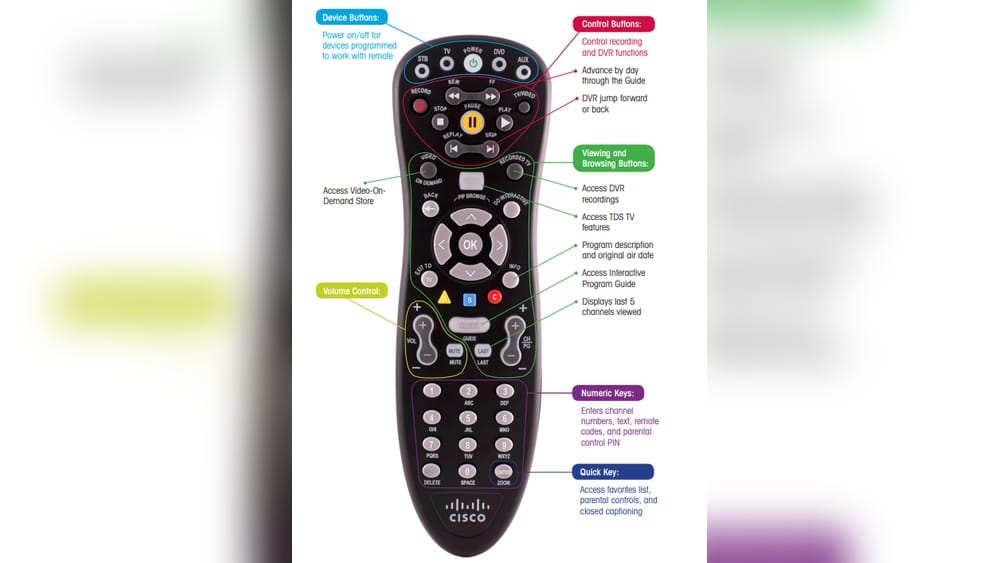
Credit: www.spectrum.net
Why Programming Your Remote Matters
Many people underestimate the power of a properly programmed remote. Here’s why it’s important:
- Reduces clutter: One universal remote can replace several original remotes.
- Adds convenience: Control all your devices from one place.
- Unlocks extra features: Some remotes offer macros, smart home integration, or advanced settings only after programming.
- Saves money: A universal remote is usually cheaper than buying multiple branded remotes.
It’s also essential for devices like garage door openers, where programming is a key part of security.
Getting Ready To Program Your Remote
Programming is easier if you prepare in advance. Here are steps to make setup smoother:
- Identify your devices: Write down the brand and model numbers for your TV, DVD player, sound system, or any device you want to control.
- Find the remote’s manual: Most programming instructions are in the user manual. If you lost it, search online using your remote’s model number.
- Gather codes: Many remotes include a code list for different brands. You can also find these online.
- Check the batteries: Weak batteries can cause programming to fail.
- Clear obstacles: Make sure there’s nothing blocking the path between the remote and your device.
A little preparation saves time and frustration.
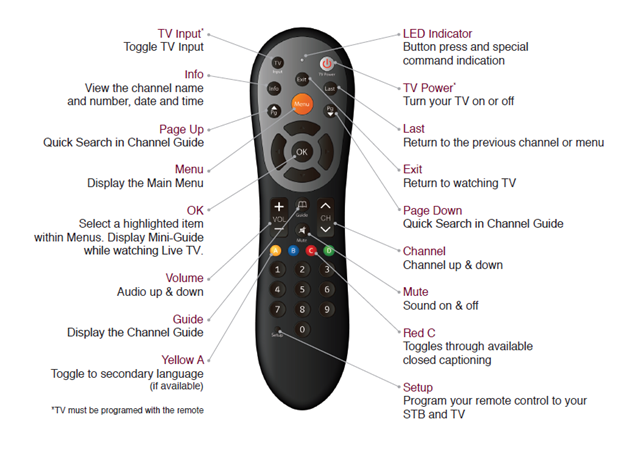
Credit: customersupport.brctv.com
Step-by-step: How To Program A Universal Remote Control
Programming a universal remote is the most common request. Here’s a clear guide:
1. Direct Code Entry
This is the fastest way if you have the right code.
- Step 1: Turn on the device you want to control (for example, your TV).
- Step 2: Press and hold the remote’s Program or Setup button until the LED light turns on.
- Step 3: Press the button for the device you’re programming (TV, DVD, etc. ).
- Step 4: Enter the code for your device’s brand using the number buttons. The LED should blink or stay on if the code is accepted.
- Step 5: Test the remote. Try the power, volume, and channel buttons.
- Step 6: If it doesn’t work, repeat with the next code for your brand.
Pro tip: Some brands have many codes. You may need to try several before finding the one that works perfectly.
2. Auto Code Search
If you don’t know your device’s code, use this method.
- Step 1: Turn on the device.
- Step 2: Hold the Program/Setup button until the LED lights up.
- Step 3: Press the device button (TV, DVD, etc. ).
- Step 4: Press the Power button repeatedly. The remote will send a different code each time.
- Step 5: When the device turns off, stop pressing.
- Step 6: Press Enter or OK to lock in the code.
This process can take several minutes but works well if you’re missing the code list.
3. Manual Learning
Some universal remotes can “learn” commands from another remote.
- Step 1: Place the original and universal remotes facing each other, a few inches apart.
- Step 2: Enter learning mode (check your manual for the exact method).
- Step 3: Press the button you want to program on the universal remote.
- Step 4: Press and hold the matching button on the original remote until the LED blinks.
- Step 5: Repeat for other buttons.
Non-obvious insight: Learning mode is great for odd devices that don’t use standard codes, like older audio systems or niche brands.
4. App-based Programming
Smart universal remotes (like Logitech Harmony) often use a mobile app.
- Step 1: Download the remote’s app on your phone.
- Step 2: Connect the remote to your Wi-Fi or Bluetooth, following the app’s instructions.
- Step 3: Select your devices from the app’s database.
- Step 4: The app programs the remote automatically.
These remotes can control not just TVs and stereos, but also smart lights, thermostats, and other smart devices.
Programming Other Common Remotes
Not all remotes are for TVs. Here’s how to handle some special cases.
Programming A Garage Door Opener Remote
Programming these remotes is vital for security.
- Step 1: Locate the “Learn” button on your garage door opener (usually inside the motor unit).
- Step 2: Press and release the Learn button. A light will start blinking.
- Step 3: Within 30 seconds, press the button on your remote. Hold it until the light on the opener blinks or clicks.
- Step 4: Test the remote.
Mistake to avoid: Don’t hold the Learn button too long, or you may erase all stored remotes.
Programming A Car Key Fob Remote
Many modern cars use key fobs that need programming after battery replacement or for new keys.
- Step 1: Sit in the driver’s seat with all doors closed.
- Step 2: Insert the key into the ignition and turn it to “On” (but don’t start the car).
- Step 3: Press and hold the Lock and Unlock buttons on the fob for several seconds.
- Step 4: Some vehicles require turning the key on and off in a specific pattern or pressing a hidden button.
- Step 5: Wait for the car’s lights to flash or hear a beep. Test the remote.
Tip: Car key fob programming varies by brand and model. Always check your owner’s manual.
Programming Air Conditioner Remotes
Many split AC units use remotes with display screens.
- Step 1: Turn on the AC unit.
- Step 2: Press and hold the Set or Mode button.
- Step 3: Use the arrow buttons to select the correct code for your AC brand.
- Step 4: When the AC beeps or responds, stop. The remote is now programmed.
Example: Gree and Midea AC remotes often have a list of codes in the back of the manual.
Troubleshooting Common Remote Programming Problems
Things don’t always go smoothly. Here’s how to fix common issues:
Remote Doesn’t Work After Programming
- Check batteries: Weak or dead batteries are the top cause of failure.
- Re-enter the code: You may have typed the wrong code.
- Try another code: Not all codes work for every model of a brand.
- Check device compatibility: Some remotes don’t support certain brands or devices.
Buttons Work Incorrectly
- Wrong code: Some codes only give partial control (for example, volume works, but power doesn’t).
- Try learning mode: Use manual learning for missing buttons.
- Firmware update: For smart remotes, check if a software update is available.
Devices Respond Slowly
- Interference: Make sure there are no bright lights or reflective surfaces between remote and device.
- Fresh batteries: Low power can reduce signal strength.
- Distance: Stay within 10-15 feet for best results.
Remote Won’t Program At All
- Reset the remote: Some remotes need a factory reset before programming.
- Check for lockout mode: Some remotes have a child lock or security mode.
- Physical damage: If the remote was dropped or got wet, it may be broken.
How To Program A Remote Without Codes
Not every situation gives you a code list. Here’s what to do:
- Auto search method: Use the remote’s auto code search feature.
- Online databases: Many brands post code lists online. For example, visit the manufacturer’s website.
- Learning mode: Use your original remote to teach commands.
- Contact support: Some brands offer phone or chat support for missing codes.
Non-obvious insight: Sometimes, a code for a different brand will work if the hardware is similar. For example, RCA and GE remotes sometimes share codes.
Comparing Universal Remotes: Which One Should You Buy?
Choosing the right remote can save future headaches. Here’s how some popular universal remotes compare:
| Remote | Max Devices | Programming Methods | Smart Home Support | Approx. Price (USD) |
|---|---|---|---|---|
| Logitech Harmony Elite | 15+ | App, IR, Learning | Yes | $249 |
| GE Universal Remote | 4 | Direct Code, Auto Search | No | $15 |
| Philips Universal Remote | 4 | Direct Code, Auto Search | No | $12 |
| Sofabaton U1 | 15 | App, IR, Learning | Partial | $49 |
Key factors to consider:
- Number of devices: Some homes need only a 2-device remote, others want to control everything.
- Programming method: App-based remotes are easier for tech-savvy users.
- Smart home: If you use Alexa, Google Home, or smart lights, choose a remote with this support.
- Price: Consider how much you want to spend and if extra features are worth it.
Programming Remote Controls For Streaming Devices
Streaming devices like Roku, Fire TV, or Apple TV often come with their own remotes. But universal remotes can usually control them too, with a few extra steps.
- Roku: Many universal remotes support Roku, but only for TVs with a built-in Roku system. Stick and streaming box models may need a special remote.
- Fire TV: Infrared-based universal remotes can control Fire TV if you have a compatible IR receiver. Otherwise, use the official remote or the app.
- Apple TV: Supports Bluetooth remotes, but some universal remotes offer partial control via IR.
Example: Logitech Harmony remotes work with all major streaming devices, including integration for smart home routines.
Security Tips When Programming Remotes
Remote controls are not just about convenience—they can be a security risk.
- For garage doors: Always erase old remotes when moving into a new house.
- For smart home remotes: Change default passwords and keep firmware updated.
- For car remotes: If you lose a key fob, remove it from the car’s memory to prevent theft.
Non-obvious insight: Some universal remotes can send signals at longer distances than OEM remotes. Make sure your remote isn’t controlling a neighbor’s device by accident.
When To Reset Or Reprogram Your Remote
Sometimes, your remote stops working suddenly. This might mean it needs a reset or reprogramming.
- After changing batteries: Some remotes lose codes when batteries are removed.
- After firmware updates: Smart remotes may reset after an update.
- If the remote starts acting strange: Buttons stop working or control the wrong device.
To reset:
- Hold the Setup or Program button for 10 seconds, or follow the reset steps in your manual.
- Reprogram as you did before.
Practical Tips For Smooth Remote Programming
Programming can be tricky, but these tips make it easier:
- Write down your codes: Keep a list of working codes for future reference.
- Label your remotes: If you have several, label them to avoid confusion.
- Update firmware: For smart remotes, always check for updates before programming.
- Avoid bright light: Infrared signals can be blocked by sunlight or fluorescent lights.
- Test all buttons: After programming, check every button you need—sometimes only basic functions work.
Real-world Example: Programming A Remote Step-by-step
Imagine you have a new GE universal remote and want to control your Samsung TV.
- Insert fresh batteries into the remote.
- Turn on your Samsung TV.
- Find the code for Samsung TVs in the GE remote manual (for example, 0101).
- Hold the Setup button until the LED indicator stays on.
- Press the TV button.
- Enter 0101 using the number pad. The LED will turn off if entered correctly.
- Test the Power, Volume, and Channel buttons.
- If something doesn’t work, try the next Samsung code.
If you lost your code list, you could also try the auto code search method as described earlier.
Advanced Features Of Modern Universal Remotes
Some universal remotes offer features beyond basic programming:
- Macros: Program a button to perform several actions (like turn on TV, receiver, and set input with one press).
- Activity-based control: Set up routines, such as “Watch Movie” or “Listen to Music.”
- Smart home integration: Control lights, thermostats, and security systems.
- Custom labels: Rename buttons or display device names on a screen.
Here’s how macro programming compares to basic programming:
| Feature | Basic Programming | Macro Programming |
|---|---|---|
| Controls one device at a time | Yes | No |
| Performs multiple actions with one button | No | Yes |
| Needs advanced setup | No | Yes |
| Ideal for home theaters | No | Yes |
When To Call For Help
If you’ve tried all the steps and your remote still won’t program, it may be time for help.
- Contact the manufacturer: Most brands offer phone or online support.
- Visit a local electronics store: Technicians can often program remotes for a small fee.
- Check online forums: Communities like Reddit or AVSForum have solutions for tricky cases.
Insight: Sometimes remotes or devices are simply not compatible. It’s rare, but not every universal remote can control every device.
Environmental And Health Considerations
Remote controls are safe for everyday use, but keep these points in mind:
- Battery disposal: Always recycle old batteries properly.
- Child safety: Keep remotes out of reach of very young children (batteries can be a choking hazard).
- Sanitizing: Remotes collect germs. Clean them regularly, especially if used by many people.
The Future Of Remote Controls
Remotes are changing fast. Here’s what’s coming:
- Voice control: Many new remotes work with Alexa, Google Assistant, or Siri.
- Smartphone apps: More brands let you control devices directly from your phone.
- Touch screens: High-end remotes have color screens for easy navigation.
- Integration: Future remotes will control not just TVs, but all smart devices in your home.
Some manufacturers are even exploring gesture controls or wearable remotes.
For more on the history and future of remote controls, see this detailed overview at Wikipedia.
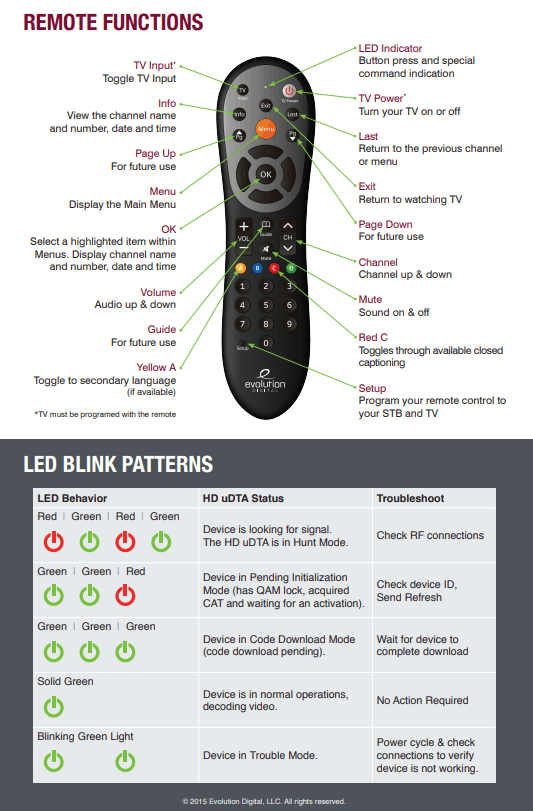
Credit: www.hbci.com
Frequently Asked Questions
How Do I Find The Correct Code For My Device?
Most remotes provide a code list in the manual or on the manufacturer’s website. You can also use auto code search if you don’t have the code.
What If My Universal Remote Only Controls Some Functions?
This can happen if the code only supports basic commands. Try another code for your brand, or use the learning feature to program missing buttons.
Can One Remote Control All My Devices?
Modern universal remotes can control most TVs, DVD players, sound systems, and even smart home devices. However, very new or very old devices may not always be compatible.
How Do I Reset My Remote To Factory Settings?
Usually, you hold the Setup or Program button for 10-15 seconds, or follow the specific steps in your manual. This erases all programmed codes.
Is It Safe To Buy A Universal Remote Online?
Yes, as long as you buy from reputable sellers and check compatibility with your devices. Read reviews and avoid deals that seem too good to be true.
Programming a remote control is a skill anyone can learn. With a bit of patience and the right steps, you can control nearly every device in your home from one place. Remember to keep your codes handy, follow safety tips, and don’t be afraid to ask for help if you get stuck.
As technology advances, remotes will become even smarter, making your daily life simpler and more connected.