
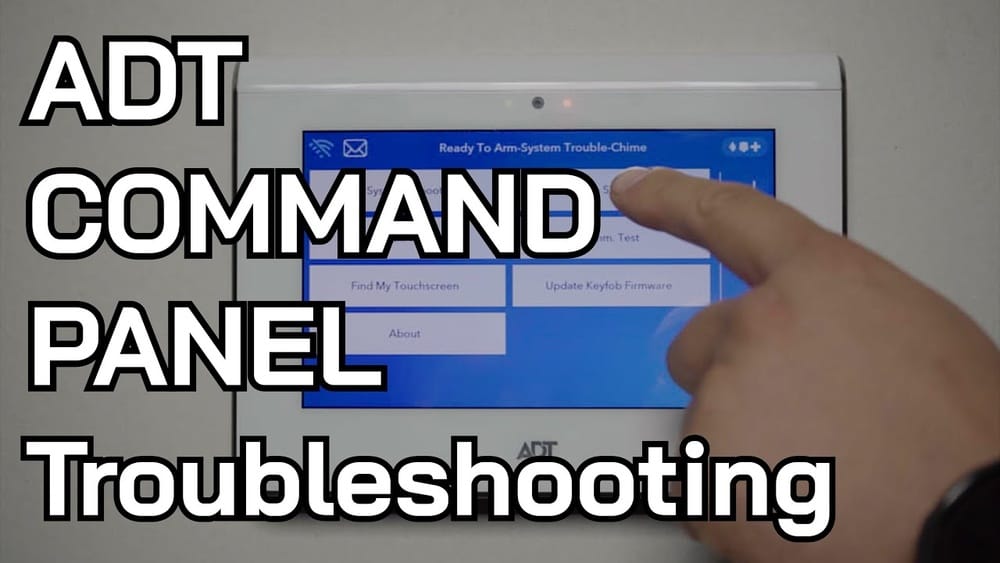
Resetting your ADT Touch Panel can solve many common issues, from slow response times to error messages or forgotten codes. For many homeowners and renters, a reliable security system means peace of mind. But like any smart device, sometimes a panel needs a fresh start. If you’re unsure how to safely reset your system, this guide will walk you through each step, help you avoid mistakes, and explain when a reset is the right move. By the end, you’ll feel confident managing your ADT Touch Panel and keeping your home secure.
Understanding The Adt Touch Panel
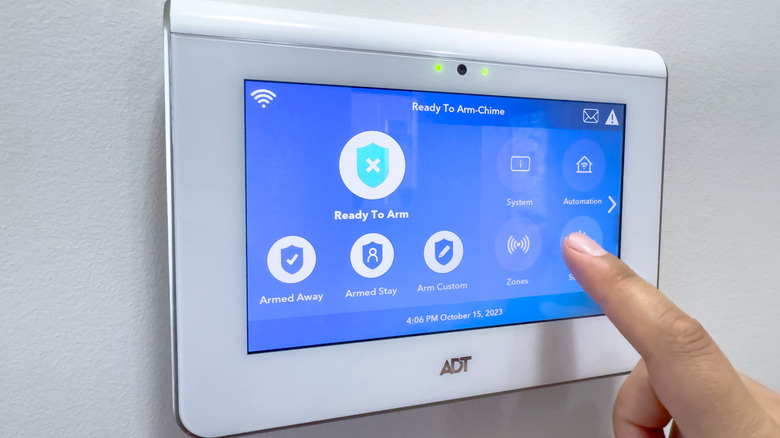
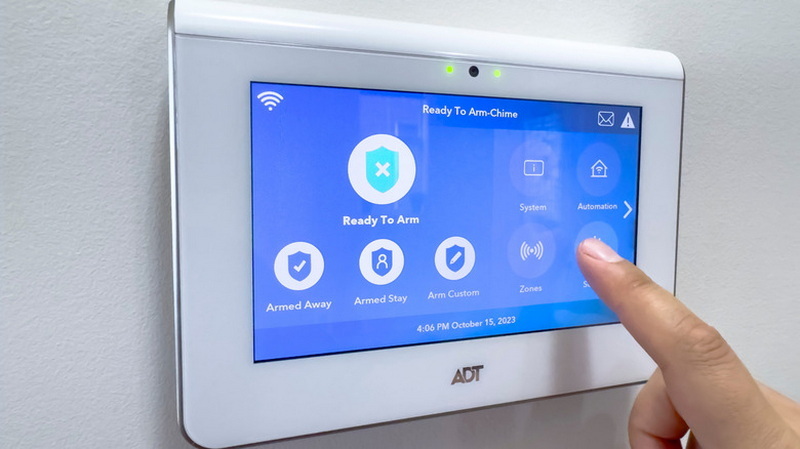
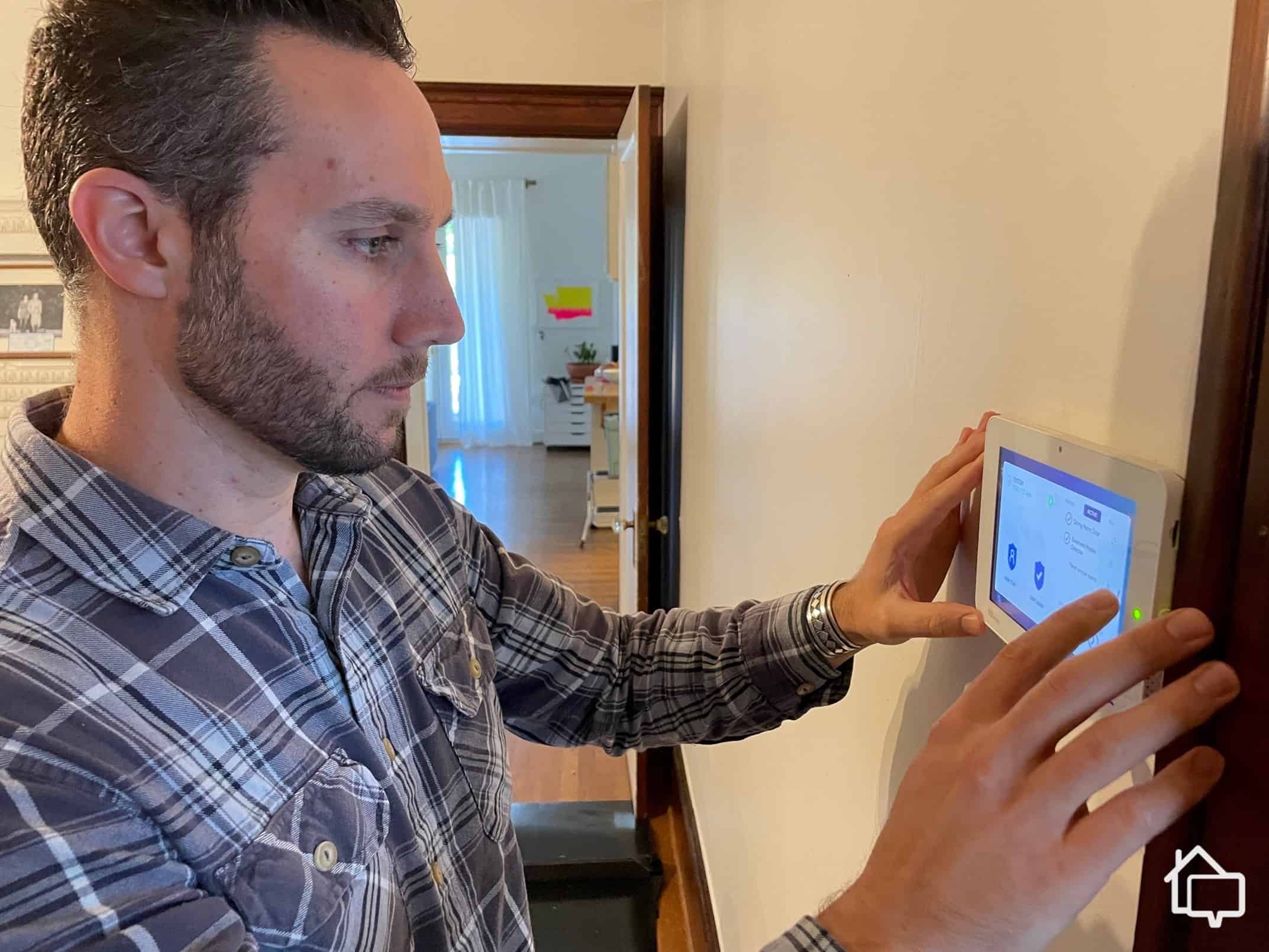
The ADT Touch Panel is a central device for many ADT alarm systems. It acts as the brain of your home security, letting you arm/disarm, view alerts, and control smart home features. Most panels use a touchscreen for easy navigation. Popular models include the ADT Command Panel, ADT Pulse, and older models like the ADT Safewatch Pro.
Some panels connect to the internet and support mobile control via apps, while others work mainly as a local control point. Knowing which model you have is important before starting a reset, because steps may differ.
Common Reasons To Reset
People choose to reset their ADT Touch Panel for several reasons:
- Forgotten user codes: If you can’t remember your PIN or master code.
- System errors: Error messages or beeping that won’t stop.
- Slow performance: The panel freezes, lags, or doesn’t respond.
- Panel replacement: Installing a new panel and needing a fresh start.
- Network changes: Switching Wi-Fi or internet provider.
- Troubleshooting: Recommended by ADT support to solve specific issues.
What Happens During A Reset?
A reset can mean different things depending on the type:
- Soft reset: Like restarting a computer; fixes minor glitches without deleting settings.
- Factory reset: Erases all data and settings, returning the panel to its original state.
A factory reset removes user codes, schedules, device connections, and sometimes sensor pairings. Only do a factory reset if you’re ready to set up your system again from scratch.
Preparation Before Resetting
Before you reset your ADT Touch Panel, take time to prepare. This helps avoid mistakes and data loss.
1. Identify Your Panel Model
Look at the panel’s label, user manual, or on-screen menu. Common models:
- ADT Command (also called ADT Command Smart Security Panel)
- ADT Pulse
- Safewatch Pro
- Simon XT/XTi
If unsure, search for your panel’s model number online or call ADT support.
2. Back Up Important Settings
Backup is often overlooked. If your panel supports cloud backup or a mobile app, check for backup options. Write down:
- User codes and names
- Device names (e.g., living room window sensor)
- Custom schedules or automations
- Wi-Fi network name and password
If your panel doesn’t support backup, take photos of each settings screen.
3. Notify Other Users
If others in your home use the system, let them know you’ll be resetting it. They may need to reconnect their devices or learn new codes.
4. Contact Adt Support (if Needed)
Some advanced resets require an installer code or support from ADT. If you don’t know your installer code, call ADT at their customer service number. Attempting resets without proper codes can lock you out.
Credit: www.hunker.com
Types Of Resets For Adt Touch Panels
Resetting your panel isn’t one-size-fits-all. There are several types:
- Soft Reset (Reboot)
- Master Code Reset
- Network Reset
- Factory Reset
Let’s break down each type and when to use them.
1. Soft Reset (reboot)
This is the simplest reset—turning the panel off and on again. It fixes minor issues like unresponsive touchscreens or glitches.
When to use:
If the panel is frozen, running slow, or not responding to touch.
How to do a soft reset:
- Locate the panel’s power source. Many panels have a power cord and a backup battery.
- Unplug the power cord from the wall.
- Open the panel (if possible) and disconnect the backup battery.
- Wait 30 seconds.
- Reconnect the battery, then plug the power cord back in.
- Allow the panel to reboot. This may take 2–3 minutes.
Note: Some panels have a “reboot” option in the settings menu. If available, use this for an easier reset.
2. Master Code Reset
If you’ve forgotten your master code but can access the installer code, you can reset the master code.
When to use:
If you can’t arm/disarm the system due to a lost code.
How to reset the master code:
- Enter the installer code (common default: 4112 or 6321, but this varies).
- Navigate to the “Users” or “Codes” menu.
- Select “Reset Master Code” or “Change Master Code.”
- Enter a new code, then confirm.
Warning: If you don’t have the installer code, contact ADT. Too many failed attempts may lock the panel.
3. Network Reset
If you’ve changed your Wi-Fi network or the panel is not connecting to the internet, a network reset helps reconnect.
When to use:
After switching routers, ISPs, or Wi-Fi passwords.
How to reset network settings:
- Open the settings or menu on the panel.
- Find “Network,” “Wi-Fi,” or “Communications.”
- Select “Forget Network” or “Reset Network Settings.”
- Re-enter your Wi-Fi details.
- Save and reconnect.
Panels without touchscreens may use button combinations—refer to your manual.
4. Factory Reset
A factory reset is the most complete form of reset. It wipes all user data and settings.
When to use:
Major errors, selling your home, or starting from scratch.
How to perform a factory reset:
- Disarm the system. The panel cannot reset if armed.
- Enter the installer code. This is different from the master code.
- Go to the “Settings” or “System” menu.
- Select “Factory Reset,” “Default Settings,” or similar.
- Confirm your choice (you may need to enter the code again).
- Wait for the process to finish. The panel will reboot and show the initial setup screen.
Some panels require a physical reset button (often a small hole—use a pin to press). Check your user guide for specifics.
Model-specific Reset Instructions
Since ADT has several panel models, the reset steps can differ. Here’s a guide for the most common ones.
Adt Command Panel
The ADT Command Panel is one of the latest touch panels. It has a clear touchscreen and supports many smart home features.
Factory Reset Steps:
- Disarm the system.
- Tap the gear icon to open settings.
- Enter the installer code (default is often 1111 or 1234, but it may have been changed by your installer).
- Tap “Tools” or “Advanced Settings.”
- Select “System Reset” or “Factory Default.”
- Confirm the reset.
Note: The panel will erase all settings. You’ll need to re-add sensors and devices.
Adt Pulse Panel
The ADT Pulse system uses older touch panels, sometimes with physical buttons.
Factory Reset Steps:
- Disarm the panel.
- Open the panel cover.
- Press and hold the red reset button (usually inside the panel) for 10–15 seconds.
- Release the button. The panel will reboot and reset to factory settings.
Tip: ADT Pulse panels often need to be “enrolled” with the Pulse app again after a reset.
Safewatch Pro
The Safewatch Pro is less common today but still used in many homes. It looks like a keypad rather than a touchscreen.
Factory Reset Steps:
- Enter the installer code + 8 + 00 (e.g., 6321 + 8 + 00).
- The panel will beep and show a reset message.
- You may need to power cycle the system by unplugging and removing the battery for 1 minute, then reconnecting.
Warning: Some Safewatch Pro panels lock out users after too many failed attempts. If unsure, call ADT support.
Simon Xt/xti
These panels are made by Interlogix but used by ADT.
Factory Reset Steps:
- Disarm the system.
- Open the panel to access the programming buttons.
- Press and hold the “Learn” button until the display reads “System Reset.”
- Release and wait for the panel to restart.
Note: You’ll need to reprogram sensors after resetting.
Comparison Of Reset Methods
Choosing the right reset method depends on your problem. Here’s a quick side-by-side look:
| Reset Type | What It Does | When to Use | Data Loss |
|---|---|---|---|
| Soft Reset | Reboots the panel | Minor glitches, frozen screen | No |
| Master Code Reset | Resets only user codes | Forgotten code | No (just code change) |
| Network Reset | Clears Wi-Fi/network data | Internet issues, new network | Only network info |
| Factory Reset | Wipes all settings | Major errors, resale, new setup | Yes (full reset) |
Key Mistakes To Avoid When Resetting
Many users make simple mistakes that can cause bigger problems. Here are the most common ones and how to avoid them:
1. Not Knowing The Installer Code
Factory resets usually require this code. If you don’t know it, you may be locked out or unable to finish the reset.
2. Resetting While Armed
The system must be disarmed before any reset. Attempting a reset while armed may trigger alarms or lockout.
3. Forgetting To Back Up Settings
Don’t lose custom codes or device pairings. Take photos or write notes before you start.
4. Not Warning Other Users
Resetting logs out all users. Family members or roommates may be unable to use the system until you set it up again.
5. Skipping Sensor Re-adding
After a factory reset, you must re-add all sensors and devices. Missing this step leaves your home unprotected.
6. Ignoring Battery Backup
Unplugging only the power cord leaves the panel running on battery. Always disconnect the battery too for a true reset.
7. Attempting Resets Too Often
Repeated resets can trigger security locks or require professional service.
Pro tip: Always check your warranty and ADT service agreement. Some actions may void coverage or require technician support.
What To Do After Resetting
A reset is just the start. Here’s what to do next to restore your security and peace of mind:
1. Go Through Initial Setup
Follow the on-screen instructions to set your language, time zone, and basic preferences.
2. Add User Codes
Create a new master code. Add codes for other users. Choose codes that are easy for you to remember but hard for others to guess.
3. Reconnect Sensors And Devices
Pair door/window sensors, motion detectors, and any smart home devices (lights, locks, thermostats). If you wrote down names and locations, use them now.
4. Set Up Communication
If your panel connects to Wi-Fi or cellular, re-enter your network details. Test to ensure the panel communicates with ADT’s monitoring center.
5. Restore Automations And Schedules
If you use automations (e. g. , lights on at sunset), re-create your schedules.
6. Test The System
Run a full system test. Arm and disarm, trigger sensors, and make sure alerts go to your phone or monitoring service.
7. Update Mobile Apps
Re-link your panel to the ADT mobile app. Check push notifications and remote control features.
Note: For detailed setup, see your panel’s user manual or contact ADT support.
When To Call Adt Support
Not every issue can be solved at home. Call ADT support if:
- You don’t know your installer code
- The panel won’t reset or reboots repeatedly
- Sensors don’t re-pair after a reset
- You see error messages you don’t understand
- You’re worried about warranty or service agreement
ADT technicians can often walk you through steps over the phone, or schedule a visit if needed.
Non-obvious insight: Some advanced panels are “locked” to prevent factory resets by users. This protects against tampering but means you must call ADT for help. If your panel doesn’t show a reset option, don’t force it—request support instead.
Credit: www.kelaidisplay.com
Real-world Example: Resetting After A Move
Imagine you’ve just moved into a new home with an existing ADT system. The old owner didn’t leave any codes. Here’s how a reset helps:
- Identify the panel model (e.g., ADT Command).
- Contact ADT to transfer service and get installer code.
- Factory reset the panel to remove old codes and schedules.
- Set up new codes for your family.
- Pair sensors and devices as you arrange your furniture.
- Test everything to make sure your new home is secure.
This process ensures you control your system and no one else has access.
Comparing Adt Touch Panel Models
Not all ADT panels are equal in reset options, features, or security. Here’s a comparison of popular models:
| Panel Model | Touchscreen | Supports Soft Reset | Supports Factory Reset | Cloud Backup |
|---|---|---|---|---|
| ADT Command | Yes | Yes | Yes | Yes |
| ADT Pulse | Some models | Yes | Yes | No |
| Safewatch Pro | No | Yes | Yes (with code) | No |
| Simon XT/XTi | XT: No, XTi: Yes | Yes | Yes | No |
Non-obvious insight: If you plan to upgrade your panel, newer models like ADT Command offer easier resets and better backup options. Consider this if you’re often changing settings or moving.
Security Considerations When Resetting
Security should always come first. Here’s what to keep in mind:
- Change default codes. Never leave the installer or master code at its default.
- Re-pair all devices. Sensors left unpaired after a reset won’t protect your home.
- Restore alerts. Make sure notifications and monitoring are re-enabled.
- Lock down access. Only share new codes with trusted people.
If you’re selling your home, always factory reset the panel so new owners can set their own codes.
Troubleshooting After A Reset
Sometimes, things don’t work perfectly after a reset. Here’s what to do:
Panel Won’t Power On
Check both the power cord and backup battery. Make sure connections are secure and outlets work.
Sensors Not Detected
Go into pairing mode on the panel, then trigger the sensor (open/close or press test button). If it still doesn’t connect, check the sensor’s battery or move it closer to the panel.
Can’t Connect To Wi-fi
Double-check the Wi-Fi password. If your router uses special characters or a very long password, try changing it to something simpler.
No Alerts Or Notifications
Sign in to your ADT app and check notification settings. Make sure the panel is listed and has internet access.
Error Codes Continue
Write down any error codes. Look them up in your panel’s manual or search online. If you can’t clear them, call ADT support.
How Often Should You Reset Your Adt Touch Panel?
Most users never need a reset unless there’s a major issue. Don’t reset as routine maintenance—it’s only for troubleshooting, forgotten codes, or when you move.
Pro insight: Frequent resets can cause the panel to flag your account for tampering. Only reset when necessary, and always document what you changed.
Upgrading Instead Of Resetting
If you find yourself resetting often, it may be time for an upgrade. Newer ADT panels have better software, easier resets, and advanced features like facial recognition or voice control.
Before upgrading, ask ADT if your sensors and devices are compatible with the new panel. Sometimes, only the panel needs replacing, which can be more affordable.
Credit: www.safehome.org
Resources For Further Help
For more details, guides, or the latest ADT panel manuals, visit the official ADT Help Center. You’ll find step-by-step videos, troubleshooting tips, and direct contact info for support.
Frequently Asked Questions
How Do I Find My Adt Installer Code?
The installer code is a special code for programming and resetting. It’s often set by your installer and may be in your paperwork. Common defaults are 4112 or 6321, but your installer may change it. If you can’t find it, call ADT support—they may verify your identity before sharing it.
Will Resetting My Adt Panel Trigger The Alarm?
If you reset while the system is armed, it may trigger the alarm or notify the monitoring center. Always disarm the system before any reset to avoid false alarms.
Do I Lose All My Settings After A Factory Reset?
Yes, a factory reset deletes all user codes, device pairings, schedules, and sometimes network settings. Prepare by writing down or photographing important information before you reset.
Can I Reset My Adt Touch Panel Without The Installer Code?
In most cases, no. The installer code is needed for major resets and programming changes. If you’ve lost it, contact ADT support. Some older panels have physical reset buttons, but these are rare on newer models.
What Should I Do If My Panel Doesn’t Reconnect After A Reset?
Check your power and Wi-Fi connections. Re-add devices one by one. If issues continue, write down any error messages and call ADT support. Sometimes, a technician needs to visit if the panel won’t reconnect.
Taking control of your ADT Touch Panel means better security and fewer headaches. With preparation, careful steps, and the right support, you can reset your panel safely—whether fixing a minor glitch or starting fresh in a new home. Remember to keep your information safe, always disarm before resetting, and reach out to ADT if you hit a snag. A secure, reliable home is just a few steps away.