
If your DIRECTV remote control stops working or behaves strangely, you’re not alone. Many users face issues like unresponsive buttons, incorrect TV control, or the remote not pairing with the receiver. But before you rush to buy a new remote, a simple reset can often solve these problems.
Resetting your DIRECTV remote is a practical step that brings it back to its original settings, making it work like new. Whether you have the older standard remote, the Genie remote, or the latest models, this guide will walk you through everything you need to know—step by step.
You’ll learn exactly how to reset your DIRECTV remote, understand why resets are needed, and discover tips that most beginners miss. By the end, you’ll have practical solutions for almost any DIRECTV remote issue. Let’s make your remote work smoothly again.
Why Resetting Your Directv Remote Matters
Many DIRECTV users ask, “Why should I reset my remote?” Over time, remotes can develop glitches—maybe some buttons don’t respond, the remote won’t pair with your TV or receiver, or it controls the wrong device. This happens due to programming errors, battery issues, or software bugs. Resetting clears these problems by restoring factory settings.
Sometimes, users try changing batteries or re-pairing, but the real issue is hidden inside the remote’s memory. Resetting wipes out old codes and stuck configurations, giving you a fresh start. It’s a simple fix that often saves time, money, and frustration.
Types Of Directv Remotes: Know Your Model
DIRECTV offers several remote models, and each has a slightly different reset process. Knowing your remote type is essential before starting.
Here are the most common DIRECTV remotes:
| Remote Model | Main Features | Release Year |
|---|---|---|
| Genie Remote (RC73, RC71, RC72) | Small, sleek, works with Genie receivers | 2014–present |
| Universal Remote (RC65, RC66, RC32, etc.) | Classic design, controls multiple devices | 2004–2017 |
| DIRECTV Stream Remote | For DIRECTV Stream devices, voice control | 2021–present |
How to identify your remote: Look for the model number printed inside the battery compartment or on the back of the remote. This step prevents mistakes, as reset methods differ by model.
Common Problems That A Reset Can Fix
A reset is not just for major failures; it can solve many annoying problems:
- Unresponsive buttons: Some or all buttons stop working.
- Remote not controlling TV or receiver: It doesn’t change channels or adjust volume.
- Wrong device control: The remote controls the TV instead of the receiver or vice versa.
- Strange blinking lights: The remote flashes odd patterns or stays lit.
- Pairing issues: The remote won’t link to your receiver or TV.
- Lag or slow response: Commands take too long to work.
Resetting is usually the fastest way to fix these issues.
When You Should Not Reset Your Remote
Resetting isn’t always the answer. Here are times when you should try something else first:
- Battery problems: If your remote doesn’t light up at all, change the batteries before resetting.
- Physical damage: If the remote was dropped or got wet, internal parts might be broken. Resetting won’t fix hardware damage.
- Receiver or TV issues: If your receiver or TV isn’t working, the problem is not the remote.
- Obstructions: Make sure nothing is blocking the remote’s signal to your receiver or TV.
If you’ve ruled out these issues, a reset is a smart next step.
Credit: blog.solidsignal.com
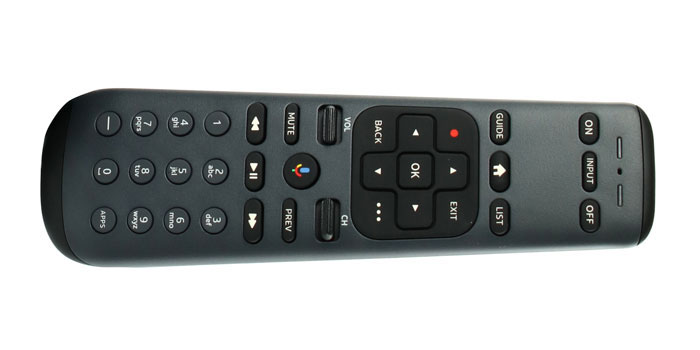
How To Reset A Directv Genie Remote (rc73, Rc71, Rc72)
The Genie remote is the most popular DIRECTV remote today. Here’s how to reset it.
Soft Reset (quick Fix)
A soft reset clears minor glitches without erasing all settings.
- Remove the batteries: Open the back cover and take out both batteries.
- Press any button for 5 seconds: This drains leftover power.
- Reinsert the batteries.
- Test the remote.
This simple process often fixes basic problems. If the remote still misbehaves, try the full reset.
Full Factory Reset (genie Remote)
A full reset restores the remote to its original factory settings.
- Press and hold the MUTE and ENTER buttons at the same time.
- Wait for the green light at the top to blink twice (about 3 seconds).
- Release both buttons.
- The TV screen will show “Applying IR/RF Setup” (if your receiver is on).
- Follow on-screen instructions to re-pair the remote, if necessary.
The Genie remote will now work as if it’s brand new. You’ll need to reprogram it for your TV or audio system if you used those features before.
Non-obvious tip: If your Genie remote fails to pair after reset, try resetting your receiver as well (by holding the red reset button on the receiver). Sometimes, both devices must be reset for full functionality.
How To Reset A Directv Universal Remote (rc65, Rc66, Rc32, Etc.)
These remotes are common in older DIRECTV setups. The process is a little different but still easy.
Soft Reset (universal Remote)
- Remove the batteries.
- Press and hold the POWER button for 10 seconds.
- Reinsert the batteries.
- Test the remote.
Full Factory Reset (universal Remote)
- Slide the mode switch to “DIRECTV.”
- Press and hold MUTE and SELECT together until the green light flashes twice.
- Release both buttons.
- Enter 9-8-1 on the keypad.
- Wait for the remote’s light to flash four times.
Your universal remote is now reset. Reprogramming may be needed for TV or other devices.
Practical insight: If you use your remote for both your TV and receiver, keep your TV’s programming code handy. After a reset, you’ll have to re-enter it.
Credit: www.directv.com
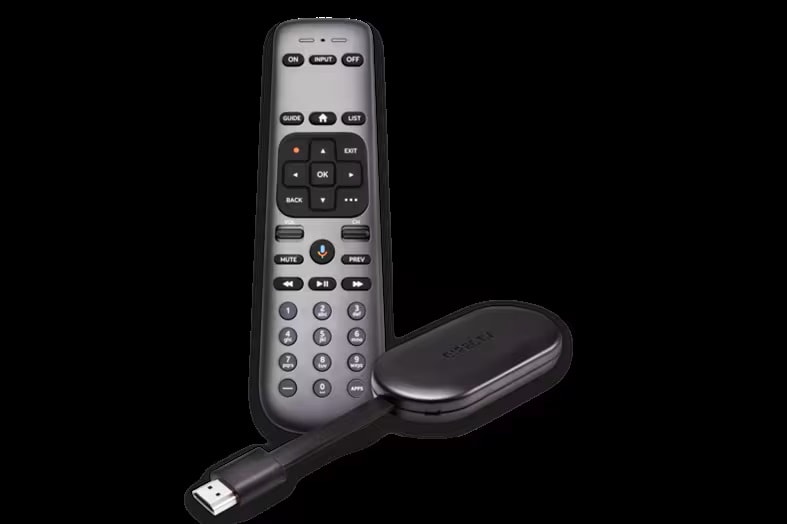
How To Reset A Directv Stream Remote
If you use the newer DIRECTV Stream service and its remote, the reset process is different.
Soft Reset (directv Stream Remote)
- Remove both batteries.
- Wait 30 seconds.
- Reinsert the batteries.
- Test the remote.
Full Factory Reset (directv Stream Remote)
- Press and hold the DASH (–) and APPS buttons together.
- Keep holding until the LED light blinks blue three times.
- Release the buttons.
- Follow on-screen instructions to re-pair the remote, if needed.
This method clears all programming and settings.
Hidden detail: The DIRECTV Stream remote can sometimes get “stuck” in a software update loop. If a full reset doesn’t work, unplug your DIRECTV Stream device for a minute, then try again.
How To Reprogram Your Remote After Reset
After a factory reset, your remote will lose programming for your TV, sound system, or other devices. Here’s how to set it up again:
- Press MENU on your remote.
- Go to Settings > Remote Control > Program Remote.
- Choose the device (TV, audio, etc.) You want to control.
- Follow the on-screen prompts to enter the correct code.
If your remote doesn’t have a screen, check the DIRECTV website for device codes or refer to your user manual.
Common mistake: Many people skip this step, thinking the remote will automatically control all devices. After a reset, you must reprogram it for each device.
Troubleshooting: When A Reset Doesn’t Work
Sometimes, even after a reset, the remote still has problems. Here’s what to do:
- Try new batteries again, even if you just replaced them.
- Make sure you reset the correct remote type (Genie, Universal, or Stream).
- Check for receiver or TV issues. Try the remote on another DIRECTV receiver, if possible.
- Inspect for physical damage. Cracks or water damage can make a remote unusable.
- Update your receiver’s software. Outdated receiver firmware can cause remote issues.
If your remote still won’t work after these checks, you may need a replacement.
Comparison: Reset Methods For Different Directv Remotes
To help you remember, here’s a quick comparison of reset methods:
| Remote Type | Soft Reset Steps | Factory Reset Steps |
|---|---|---|
| Genie Remote | Remove batteries, press any button, reinsert batteries | Hold MUTE + ENTER, wait for green light |
| Universal Remote | Remove batteries, hold POWER, reinsert batteries | Hold MUTE + SELECT, enter 9-8-1 |
| DIRECTV Stream Remote | Remove batteries, wait, reinsert | Hold DASH + APPS until blue light blinks |
Quick tip: Always check your remote’s model before starting. Using the wrong reset method can make things worse.
How To Tell If Your Remote Reset Worked
After resetting, your remote should behave as if it’s brand new. Here are signs the reset was successful:
- All buttons respond quickly
- The remote only controls the DIRECTV receiver (until reprogrammed for TV or audio)
- No strange lights blinking
- Pairing works on the first try
If you see these signs, you’re good to go. If not, double-check you followed the right reset steps for your model.
How To Avoid Common Remote Issues In The Future
Resetting is helpful, but prevention is even better. Here’s how to keep your DIRECTV remote working smoothly:
- Change batteries every 6–12 months. Weak batteries can cause glitches.
- Clean your remote regularly. Dust and dirt can block buttons.
- Keep the remote dry. Liquids can damage circuits.
- Store out of direct sunlight. Heat can warp plastic and harm electronics.
- Update your receiver’s software. Regular updates fix bugs that affect remote control.
Non-obvious insight: If your remote often loses pairing, try moving your receiver to a higher shelf or away from thick walls. Wireless signals can be blocked by furniture, electronics, or even mirrors.
What To Do If You Need A New Remote
If your remote is physically damaged or lost, resetting won’t help. Here’s what to do:
- Order from DIRECTV: Go to the official DIRECTV website and order an exact replacement.
- Check for compatibility: Not all remotes work with all receivers. Use your model number to find the right version.
- Try universal remotes: Some third-party universal remotes work with DIRECTV, but features may be limited.
- Contact customer support: If you’re unsure, DIRECTV customer service can help you pick the correct remote.
Money-saving tip: Buying from DIRECTV guarantees compatibility, but check major retailers for deals—sometimes you’ll find lower prices for the same model.
Advanced Reset: Resetting Both Remote And Receiver
In rare cases, your remote and receiver may both need to be reset. This is common after power surges, firmware updates, or long periods without use.
Here’s how:
- Reset your remote using the steps above for your model.
- Reset your DIRECTV receiver: Press and hold the small red reset button on the receiver (usually behind the access card door) for 10 seconds.
- Wait for the receiver to reboot. This can take several minutes.
- After the receiver powers up, re-pair your remote as needed.
This advanced reset clears out deeper glitches. Use it only if regular resets don’t work.
Hidden detail: Some DIRECTV receivers have two reset buttons (front and back). Use the small red button, not the big power button, for a true reset.

Credit: www.youtube.com
Directv Remote Reset: Myths Vs. Facts
There’s a lot of confusion about DIRECTV remotes. Let’s clear up some common myths.
| Myth | Fact |
|---|---|
| Resetting erases your DIRECTV account | Resetting only affects the remote, not your account or service |
| All remotes reset the same way | Different models have different reset steps—always check yours |
| Factory reset is always needed | Soft resets fix most issues; factory reset is a last resort |
| Broken remotes can always be fixed by resetting | Physical damage or water exposure usually requires a replacement |
Additional Tips For A Smooth Reset
- Work in good light: Being able to see all buttons and the LED light makes resets easier.
- Have your device codes ready: After a full reset, you’ll need to reprogram your remote for your TV or audio system.
- Use fresh batteries: Weak batteries can make resets fail.
- Be patient: Some resets require holding buttons for several seconds—don’t rush.
Pro insight: If you have a complex home theater setup, write down your device codes and settings before resetting. This saves time if you need to reprogram multiple devices.
Where To Find Official Help And More Information
If you get stuck or your remote behaves unusually, check the official DIRECTV support page for your model. They update their troubleshooting guides regularly and offer step-by-step videos.
One trusted resource is the DIRECTV Official Support page, which covers remote issues, receiver resets, and programming codes.
Frequently Asked Questions
How Do I Know If My Directv Remote Needs To Be Reset?
If your remote stops working, some buttons won’t respond, or you can’t control your TV or receiver, a reset is a smart first step. If changing batteries doesn’t help and you see unusual lights or lag, resetting will often solve the problem.
Will Resetting My Remote Erase Everything?
A soft reset does not erase programming for your TV or audio devices. A factory reset returns the remote to its original settings, so you’ll need to reprogram it for extra devices like your TV or sound system. Your DIRECTV account and receiver settings are not affected.
Can I Reset My Directv Receiver With The Remote?
You can restart your receiver using the remote (press MENU, then Settings > Reset Options), but this is different from resetting the remote itself. For a full receiver reset, use the small red button on the receiver.
What Should I Do If Resetting Doesn’t Fix My Remote?
Try new batteries, make sure you’re using the correct reset method for your model, and check for physical damage. If your remote still doesn’t work, it may need to be replaced.
Where Can I Find Device Codes For Reprogramming My Remote?
DIRECTV provides a list of device codes in your remote’s manual and on their website. After a factory reset, you’ll need these codes to control your TV or audio system again.
DIRECTV remotes are reliable, but like all electronics, they need occasional resets. With the right steps, you can fix most issues in minutes—no technical skills required. By following this guide, you’ll save time and avoid unnecessary frustration the next time your remote acts up.
Happy watching!