
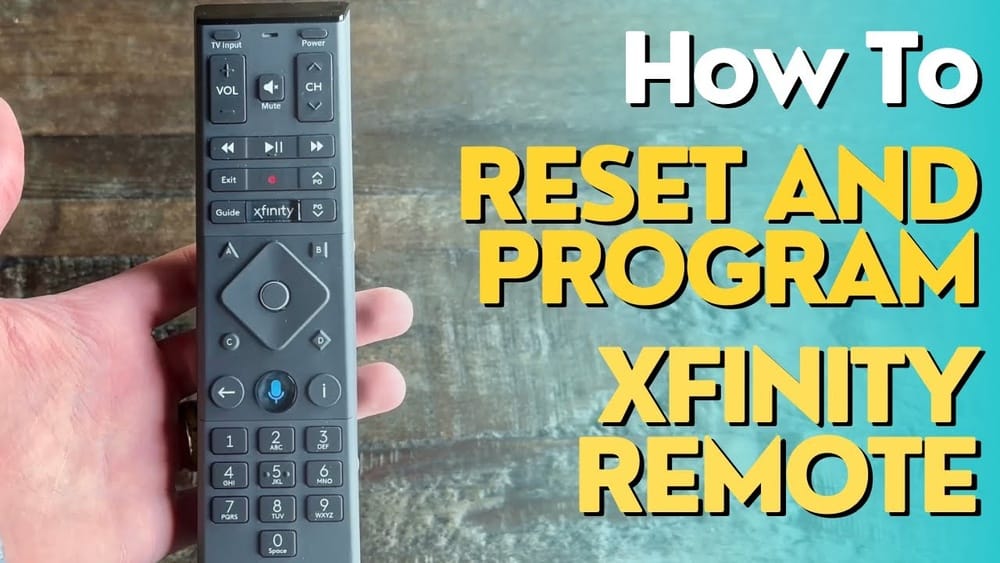
Resetting your Xfinity remote control can solve many common problems, from unresponsive buttons to syncing issues with your TV or audio system. Many people feel stuck or frustrated when their remote stops working as expected, but the truth is, most issues can be fixed with a simple reset or reprogramming.
This guide will walk you through the entire process step-by-step, using clear, simple language. Whether you have the latest Xfinity Voice Remote or an older model, you’ll find all the details you need to get your remote working like new again.
You’ll also discover practical troubleshooting tips, differences between remote models, and advice on what to do if your remote still won’t work after a reset. By the end of this guide, you’ll not only know how to reset your Xfinity remote, but you’ll also understand how to prevent common mistakes and keep your remote functioning smoothly.
Let’s get started.
Understanding Xfinity Remote Controls
Before you begin resetting, it helps to know which Xfinity remote model you have. Xfinity offers several types, and the reset process can be slightly different for each. The most common models include:
- Xfinity XR2 and XR5: Older, basic remotes without voice features.
- Xfinity XR11 (Voice Remote): Has a blue microphone button.
- Xfinity XR15 (Voice Remote): Smaller, with a microphone button in the center.
- Xfinity XR16 (Flex Voice Remote): Used with Xfinity Flex streaming boxes.
You can usually find the model number inside the battery compartment or on the back label. If you’re unsure, compare your remote to images on the Xfinity website.
Why does the model matter? Because reset steps and programming codes can change depending on your remote. If you follow the wrong process, your remote may not reset correctly.
Why You Might Need To Reset Your Xfinity Remote
A reset can fix many issues, including:
- Buttons not working or responding slowly.
- Remote not controlling TV volume or power after a recent change.
- Pairing problems with your set-top box or audio system.
- Accidental reprogramming or wrong device codes.
- Stuck in a non-working mode after a failed update.
Sometimes, a simple battery replacement works, but if that fails, a reset is your next best step.
How Xfinity Remotes Communicate With Devices
Xfinity remotes use either Infrared (IR) or Radio Frequency (RF). IR remotes require direct line-of-sight to your device, while RF remotes (like XR15) can work through obstacles and don’t need to point directly at the box.
This matters because if your remote is in RF mode and the pairing breaks, a reset may be the only way to restore control. If you have multiple Xfinity boxes, you might also need to reset and re-pair to the correct box.
Step-by-step Guide To Resetting Your Xfinity Remote
Let’s look at how to reset different Xfinity remote models. Before starting, make sure your batteries are fresh—weak batteries can cause strange problems.
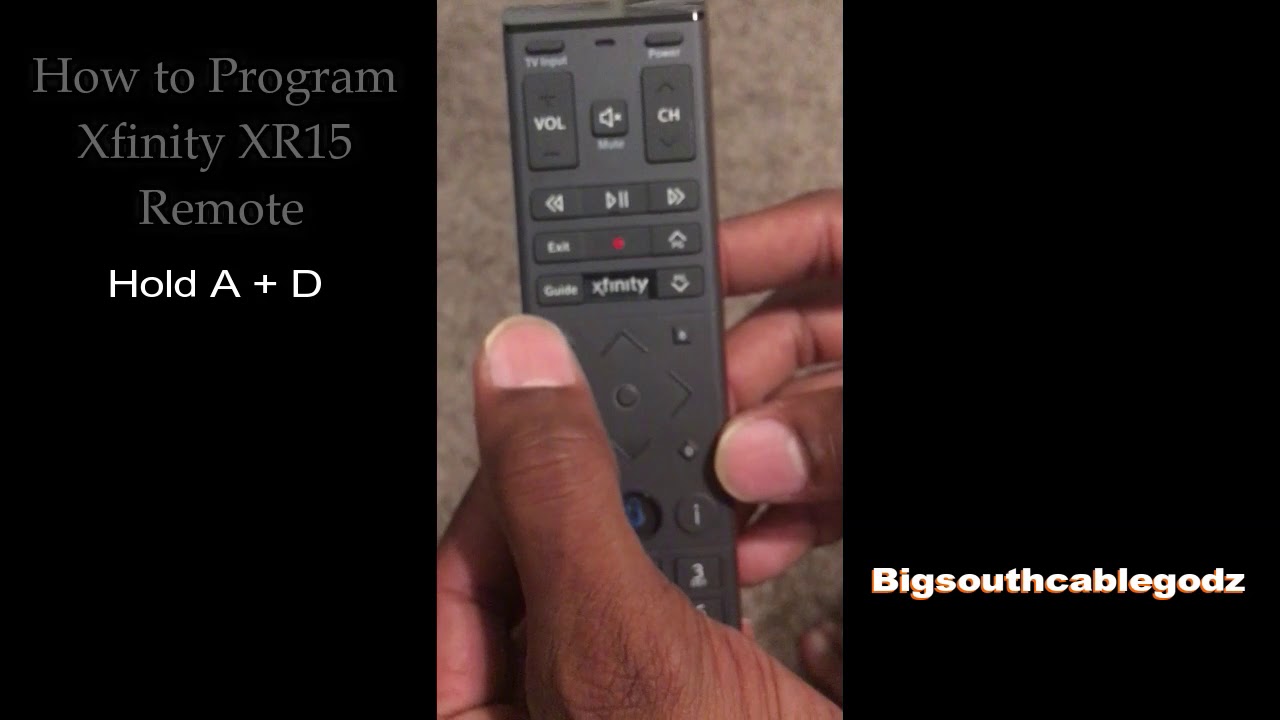
Resetting The Xr15 (voice Remote)
- Press and Hold the A (triangle) and D (diamond) buttons together for 3 seconds. The status light will turn from red to green.
- Enter 9-8-1. The LED will blink blue three times to confirm reset.
- Test your remote. If needed, re-pair it to your Xfinity box (see pairing instructions below).
Resetting The Xr11 (voice Remote)
- Press and Hold the Setup button (lower left) until the LED turns green.
- Enter 9-8-1. The LED will blink green twice.
- Test basic functions and re-pair if necessary.
Resetting The Xr2 Or Xr5 (non-voice Remote)
- Press and Hold the Setup button until the LED turns green.
- Enter 9-8-1. The LED should blink twice.
- Reprogram device codes if you use the remote for your TV or audio receiver.
Resetting The Xr16 (flex Remote)
- Press and Hold both the Info (i) and Home buttons together for 5 seconds.
- The status light will blink. Enter 9-8-1 using the number pad.
- The LED will flash, showing the remote is reset.
- Pair again with your Xfinity Flex box.
What If Your Remote Has No Setup Button?
Some newer remotes (like the XR16) do not have a Setup button. Use the method above—usually a combination of Info and Home, or A and D buttons.
Pro Tip: If you’re unsure which buttons to hold, check the Xfinity support site or your remote’s manual. Using the wrong button combo won’t harm your remote, but it also won’t reset it.
Credit: www.youtube.com
How To Pair Your Xfinity Remote Again After A Reset
Resetting wipes pairing information, so you’ll need to re-pair the remote with your TV box or Flex device.
Pairing The Xr15 Or Xr11
- Turn on your TV and Xfinity box.
- Point the remote at the box.
- Press and hold the Xfinity and Info (i) buttons together for 5 seconds until the light changes.
- Follow on-screen instructions. You’ll see a 3-digit pairing code on your TV.
- Enter the code on your remote.
- Wait for confirmation.
Pairing Xr16 (flex Remote)
- Turn on your TV and Xfinity Flex box.
- Press and hold the Voice button and say “Program remote” or use the on-screen instructions.
- Follow prompts to finish pairing.
Common Mistake: Skipping the pairing step leads to a working remote that can’t control your box or TV power/volume. Always pair after resetting!
Programming Your Remote For Tv Or Audio Devices
To control your TV’s power, volume, or input, you must program the remote with the right device code after a reset. Each brand and model has a unique code.
- Press and hold the Setup button until the LED is green.
- Enter the 5-digit code for your TV brand (find codes on the Xfinity website or in your manual).
- The LED blinks green twice if correct. Test Power and Volume buttons.
- If it fails, try another code.
Tip: Many people enter the wrong code or skip this step, leading to frustration. Make sure you have the right code for your device.
Troubleshooting After A Reset
If your remote still doesn’t work after a reset and re-pairing, try these steps:
- Check Batteries: Even new batteries can be faulty. Try a different set.
- Inspect for Damage: Look for stuck buttons, corrosion in the battery compartment, or signs of water damage.
- Restart Your Xfinity Box: Unplug the box for 30 seconds, then plug it back in.
- Try Another Remote: If possible, test with a friend’s Xfinity remote. If it works, your original remote may be defective.
- Contact Xfinity Support: If all else fails, get professional help. Sometimes, remotes need replacement.
When Should You Replace Your Xfinity Remote?
A reset won’t fix every problem. Physical damage, worn-out buttons, or water exposure can make a remote unusable. If your remote:
- Responds only sometimes, even after new batteries and resetting
- Has broken or missing buttons
- Shows no lights when you press any buttons
…it’s probably time for a replacement. Xfinity will often provide a new remote for free if yours is still under warranty or with an active subscription.
Comparing Xfinity Remote Models And Features
Not all Xfinity remotes are created equal. Here’s a quick comparison of the main models, their reset methods, and features.
| Remote Model | Reset Method | Voice Control | Backlit Keys | RF Capability |
|---|---|---|---|---|
| XR2 / XR5 | Setup + 9-8-1 | No | No | No |
| XR11 | Setup + 9-8-1 | Yes | Yes | Yes |
| XR15 | A + D, then 9-8-1 | Yes | Yes | Yes |
| XR16 (Flex) | Info + Home, then 9-8-1 | Yes | No | Yes |
Common Problems That A Reset Can Fix
A reset is not just for when your remote is “dead.” Here are some less obvious issues a reset often solves:
- Laggy or delayed response: If there’s a long delay after pressing buttons.
- Wrong device control: After switching TVs or boxes, the remote controls the wrong device.
- Partial function: Volume works, but Power doesn’t, or vice versa.
- Voice command failure: Microphone button stops working.
Many users spend hours trying different things when a reset would fix these problems in seconds.
Resetting Your Xfinity Remote: Myths Vs. Facts
Some people avoid resetting their remote because of common myths. Let’s clear up a few:
- Myth: Resetting deletes your Xfinity account or settings.
Fact: Only remote pairing and device codes are erased. Your Xfinity service and apps remain safe.
- Myth: You need to call support to reset.
Fact: Most resets are easy and can be done at home in 2 minutes.
- Myth: All remotes use the same reset steps.
Fact: Each model has its own reset process. Using the wrong one won’t break your remote, but it won’t reset it either.
Reset Vs. Reprogramming: What’s The Difference?
It’s easy to confuse “reset” and “reprogramming.” Here’s a quick explanation:
- Reset: Wipes all stored information and returns the remote to factory settings. You’ll need to pair and program it again.
- Reprogramming: Changes device codes (for TV, audio, etc.) Without deleting pairing with your Xfinity box.
If your remote works with the box but not your TV, try reprogramming first. Reset only if the remote isn’t working at all or after major issues.
Table: Reset Vs. Reprogramming
Here’s a simple comparison to help decide which you need:
| Action | What It Does | When to Use | Data Erased |
|---|---|---|---|
| Reset | Factory default, removes all codes and pairing | Major issues, not responding, after moving to new box | All device & pairing info |
| Reprogram | Updates TV/audio codes only | TV/audio not responding, switched devices | Device codes only |
Avoiding Common Reset Mistakes
Many people make the same mistakes when resetting their Xfinity remote. Here’s how to avoid them:
- Not holding the buttons long enough: If the LED doesn’t change color, try again and hold for a full 3-5 seconds.
- Entering the wrong code: Double-check the reset code (it’s almost always 9-8-1).
- Skipping re-pairing: Your remote won’t control your box until it’s re-paired after a reset.
- Forgetting to reprogram TV codes: After a reset, volume/power controls may not work until you enter the correct TV code.
Insider Tip: If you have more than one Xfinity remote in the home, always reset and pair remotes one at a time to avoid cross-pairing.
What To Do If Reset Doesn’t Work
Sometimes, even after a reset, your remote may not function. Possible reasons include:
- Remote is physically damaged: Water, drops, or sticky buttons.
- Wrong pairing: Remote is paired to the wrong box (especially in homes with multiple Xfinity boxes).
- Software issue in the box: Try restarting your Xfinity box or running a system refresh from the Xfinity app.
If you suspect hardware failure, you can request a replacement remote via your Xfinity account or visit an Xfinity store.
How To Keep Your Xfinity Remote Working Well
Once your remote is reset and working, you can prevent future problems with these simple habits:
- Change batteries every 6-12 months or when response slows down.
- Keep it clean: Wipe down with a dry or slightly damp cloth. Avoid liquids.
- Store away from water/food to prevent spills and crumbs.
- Don’t drop or step on it—remotes are tough, but not indestructible.
A little care extends the life of your remote and reduces the need for resets or replacements.
Additional Features Of Xfinity Remotes
Modern Xfinity remotes offer more than just channel surfing. Here are some features you might not know about:
- Voice search: Press the microphone button and say a channel, movie, or actor.
- Accessibility shortcuts: XR15 and XR11 offer voice guidance for the visually impaired.
- Backlit keys: Helpful in dark rooms (XR11, XR15).
- Favorite channels: Save time by programming favorites.
You don’t lose these features after a reset—they’re built into the remote’s firmware.
How Xfinity Remotes Compare To Other Brands
Xfinity remotes are designed for easy setup, but how do they compare with other popular remotes?
| Feature | Xfinity XR15 | DirecTV RC73 | Roku Voice Remote |
|---|---|---|---|
| Voice Control | Yes | No | Yes |
| Backlit Buttons | Yes | No | No |
| TV/Audio Programming | Yes | Yes | Yes |
| RF Pairing | Yes | Yes | No |
Xfinity remotes stand out for their combination of voice control, RF pairing, and backlit keys, making them user-friendly and easy to reset.

Credit: www.wikihow.com
Advanced Tips: Using The Xfinity App For Remote Issues
If your physical remote fails, the Xfinity Stream app (for smartphones and tablets) can serve as a backup. You can change channels, search, and even use voice commands from your phone. This is useful while waiting for a replacement remote or troubleshooting.
Hidden Insight: Sometimes, the app can trigger a box restart or help pair a new remote without using the physical remote at all—a feature many users miss.
When To Contact Xfinity Support
Most remote issues can be solved at home, but call support if:
- Your remote is physically broken.
- Reset and pairing steps don’t work.
- The Xfinity box doesn’t display pairing instructions.
- You need a replacement shipped to your address.
You can reach support through the official website, by phone, or by visiting an Xfinity store in person.
For official instructions and troubleshooting, visit the Xfinity Support Center.

Credit: www.wikihow.com
Frequently Asked Questions
How Do I Know If My Xfinity Remote Needs To Be Reset?
If your remote stops responding, controls the wrong device, or the voice button stops working, a reset is often the best fix. Try new batteries first. If problems continue, follow the reset steps for your model.
Will Resetting My Xfinity Remote Affect My Dvr Recordings Or Xfinity Account?
No, resetting only erases remote pairing and device codes. Your DVR recordings, account settings, and apps stay safe.
Can I Reset My Xfinity Remote Without The Setup Button?
Yes. Newer remotes like the XR15 and XR16 use different button combinations (such as A + D or Info + Home). Check your remote’s manual or the Xfinity support site for the exact steps.
What Should I Do If My Remote Still Doesn’t Work After A Reset?
Try new batteries, restart your Xfinity box, and make sure you paired the remote properly. If nothing works, the remote may be defective. Contact Xfinity for a replacement.
How Can I Prevent Remote Issues In The Future?
Change batteries regularly, keep the remote clean and dry, and avoid dropping it. After a reset, always re-pair and reprogram your device codes to ensure full control.
Resetting your Xfinity remote control is a simple process that can solve many common issues. By understanding your remote model, following the correct reset steps, and pairing it again, you can quickly restore full control over your Xfinity devices. Remember to care for your remote to prevent future problems, and don’t hesitate to contact support if you need help.
With these tips, your Xfinity remote will stay reliable and easy to use.