
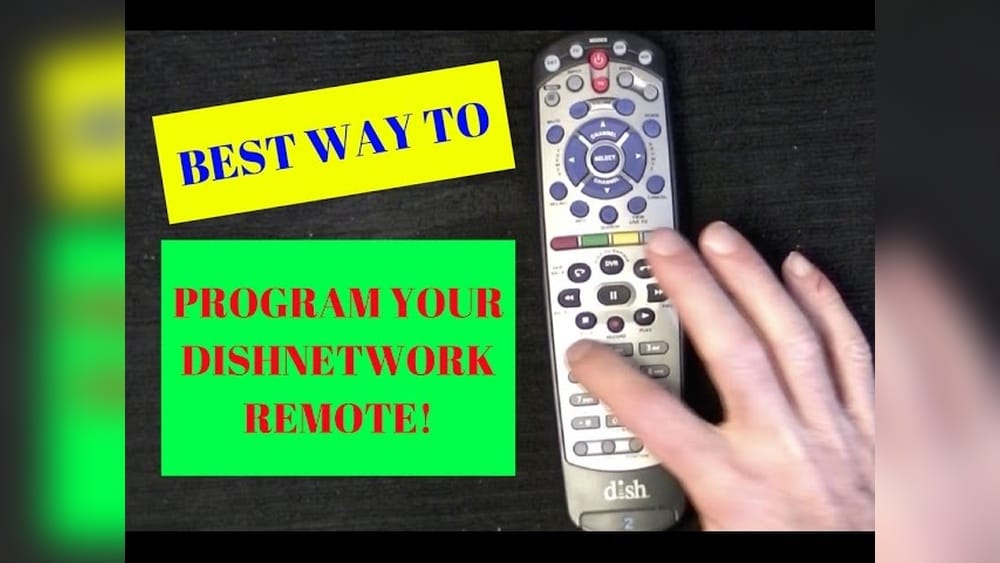
Programming your Dish remote control might seem difficult if you have never done it before. But with the right steps and clear guidance, anyone can get their remote working for both their Dish receiver and TV. This skill can save you time and help you enjoy your favorite shows without switching between multiple remotes. Whether you want to control your TV, receiver, audio system, or even a DVD player, learning how to program your Dish remote is essential for a smoother home entertainment experience.
Many people struggle with remote programming because of unclear instructions or missing codes. You don’t need to be a tech expert to set up your remote. With this guide, you’ll discover practical steps, important tips, and solutions to common problems.
You’ll also learn about different Dish remote models, how to use automatic and manual programming methods, and ways to fix issues if your remote isn’t working as expected. By the end, you’ll be able to handle remote programming confidently and help others do the same.
Understanding Dish Remote Control Models
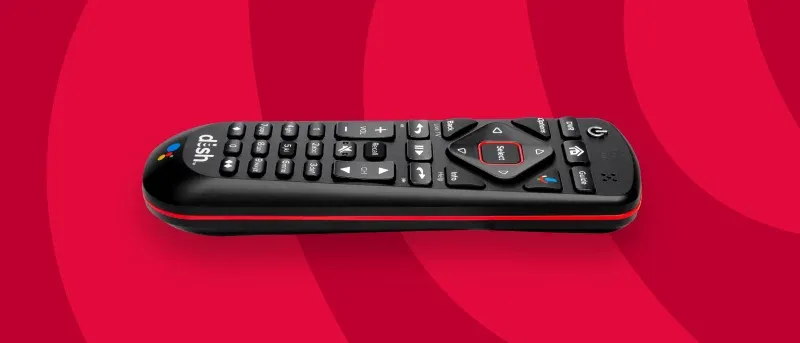
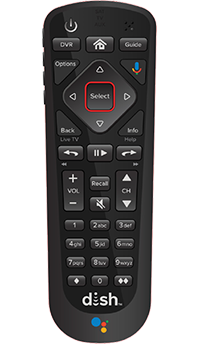
Before you start programming, it’s important to identify which Dish remote model you have. Dish offers several remote types, and the programming process can vary slightly between them. Knowing your model helps you follow the right steps and avoid frustration.
Common Dish Remote Models
- 40.0: Standard with Hopper and Joey receivers.
- 50.0: Voice remote, works with Hopper 3.
- 52.0: Enhanced voice remote, often bundled with new receivers.
- 54.0: Latest model, includes more advanced features and compatibility.
- 21.0/20.1/6.4: Older models, used with legacy receivers.
How To Find Your Remote Model
Look for the model number printed on the back or inside the battery compartment. It’s usually a small label showing numbers like 40.0 or 54.0. If you don’t see a label, check your receiver’s manual or the Dish website for images.
Why The Model Matters
Different models support various programming methods:
- Newer models: Often support automatic programming and voice control.
- Older models: May require manual code entry.
- Some models: Can control more devices, like soundbars or streaming boxes.
Understanding your model helps you pick the right programming steps and avoid unnecessary troubleshooting.
Preparing To Program Your Dish Remote
Before you start, gather everything you need to ensure a smooth setup. Skipping preparation is a common mistake that leads to frustration.
What You Need
- Your Dish remote and receiver
- The TV or other device you want to control
- Fresh batteries for the remote
- Access to your device’s brand and model
- Device codes (if manual programming is required)
Why Preparation Matters
Many beginners forget to check batteries or device details. Weak batteries can cause programming failures, and using the wrong device code wastes time. Take a few minutes to check these items first.
Find Device Codes Easily
You can get device codes from:
- Dish receiver menus
- Official Dish website
- Device manuals
Some TVs share codes with other brands, so check if your TV is made by a parent company. For example, Vizio and Magnavox may share codes.
Programming Methods For Dish Remotes
There are two main ways to program your Dish remote: automatic programming and manual code entry. Some models offer both options, while others may only support one.
Automatic Programming
This method is the easiest and fastest. The remote scans for the correct code and sets itself up.
Steps For Automatic Programming
- Turn on your TV (or device to be programmed).
- Press the SAT button on the remote to ensure you are in SAT mode.
- Press and hold the TV button until all mode buttons light up.
- Enter the code 0 using the number pad.
- Press the Power button. The remote will send signals to turn off your TV.
- If the TV turns off, press # to save the code.
- If not, repeat the process until the TV responds.
Automatic programming works best for common brands and newer devices. Sometimes, older or less popular brands may not respond. If so, use manual code entry.
Manual Code Entry
Manual programming requires you to input a specific code for your device.
Steps For Manual Code Entry
- Find your device code (TV, audio, DVD, etc. ).
- Turn on your TV.
- Press and hold the TV button until mode lights blink.
- Enter the device code (e.g., 1234) using the number pad.
- Press # to save.
- Test the remote’s functions (power, volume, mute).
If the remote doesn’t work as expected, try the next code listed for your device brand.
Programming For Multiple Devices
Dish remotes can often control more than one device. For example, you can program the TV, receiver, and an audio system.
- Use the AUX button for audio systems or DVD players.
- Repeat the programming steps for each device.
Some remotes have limited device slots. If your model can only control two devices, choose which ones are most important.
Quick Comparison: Automatic Vs Manual Programming
To help you choose the best method, here’s a simple comparison:
| Feature | Automatic Programming | Manual Code Entry |
|---|---|---|
| Ease of Use | Very easy | Requires code lookup |
| Speed | Fast | Slower |
| Success Rate | High for common brands | Works for more devices |
| Best For | Newer remotes and TVs | Older devices or rare brands |
Most users prefer automatic programming, but manual code entry is sometimes necessary, especially for less common devices.
Programming Dish Remote With Receiver
Besides controlling your TV, you need your remote to work with your Dish receiver. Usually, Dish remotes are pre-programmed for receivers, but sometimes you need to reset or re-pair them.
Re-pairing The Remote To The Receiver
If your remote stops working or you get a new receiver, follow these steps:
- Hold the SAT button until all mode buttons blink.
- Enter the receiver pairing code (often 1 or 2).
- Press # to save.
- Test the remote with the receiver.
If you have a voice remote (like 50.0 or 52.0), press the Locate Remote button on the receiver to trigger pairing mode.
Resetting The Remote
Sometimes the remote needs a reset to clear old settings:
- Remove batteries for 30 seconds.
- Press any button to drain residual power.
- Re-insert batteries and try programming again.
Resetting solves many basic issues, especially after battery changes or moving to a new room.
Programming Dish Remote For Other Devices
Dish remotes can control more than just TVs and receivers. Many people use them for soundbars, DVD players, or streaming devices. However, compatibility depends on your remote model.
Compatible Devices
- Soundbars: Use the AUX button, find the brand code.
- DVD/Blu-ray players: AUX button, manual or automatic programming.
- Streaming devices: Limited compatibility, check Dish’s device list.
Programming Steps For Additional Devices
- Press and hold the AUX button.
- Enter the device code for the type (audio, DVD).
- Press # to save.
- Test main functions.
Some remotes only support basic features (power, volume). Advanced controls may not work for all devices.
Common Limitations
- Not all Dish remotes support streaming boxes (like Roku or Apple TV).
- Some devices require special codes not listed in manuals.
- Advanced features (menu, navigation) may not be available.
Check your remote’s manual for supported devices. If you need full control over special devices, consider a universal remote.

Credit: www.colegiofenixpa.com.br
Using The Dish Remote Learning Feature
Certain Dish remotes (usually 50.0 or higher) include a learning feature. This lets the remote copy commands from another remote, useful if your device isn’t listed in the code database.
How Learning Works
- Place the Dish remote and the original remote head-to-head.
- Enter learning mode via special key combinations (check your model’s instructions).
- Press the button on the Dish remote you want to program.
- Press the corresponding button on the original remote.
- The Dish remote stores the command.
Learning mode is slower but offers custom control for unique devices.
Practical Example
If your TV’s power button doesn’t work after programming, use learning mode to copy the power command from your TV’s original remote. This solves compatibility gaps for less common brands.
Troubleshooting Common Dish Remote Programming Issues
Even experienced users face problems. Knowing how to fix them saves time and frustration.
Remote Doesn’t Control Tv
- Double-check the device code.
- Try automatic programming if manual code fails.
- Replace batteries.
- Move closer to the TV (some remotes have weak signals).
Remote Not Working With Receiver
- Ensure the SAT mode is active.
- Re-pair the remote using receiver instructions.
- Reset the remote.
Partial Functionality
Sometimes only power or volume works:
- Try a different device code (some codes offer more functions).
- Use learning mode for missing commands.
Remote Buttons Unresponsive
- Clean the battery contacts.
- Remove obstructions between remote and receiver.
- Check for firmware updates (on newer receivers).
Example Data: Success Rates
Studies show that automatic programming works for about 75% of TVs in the US, while manual code entry succeeds for 90% when the correct code is used.
Advanced Programming Features
Some Dish remotes offer advanced options for power users. These features aren’t always obvious, but they can make life easier.
Macro Programming
Macros let you set up sequences, like turning on TV and receiver together.
- Hold the TV and SAT buttons at the same time.
- Enter macro mode (check your remote manual).
- Program the sequence (power, input, volume).
- Save the macro and test.
Not all Dish remotes support macros, but they’re a big time-saver for home theaters.
Customizing Buttons
On newer remotes, you can assign functions to colored or unused buttons. For example, set the red button to launch Netflix if your receiver supports it.
- Enter customization mode.
- Choose the button and function.
- Save changes.
Custom button programming is best for advanced users who want more control.
How Dish Remote Programming Differs From Universal Remotes
Many users wonder if they should use a Dish remote or buy a universal remote. Here’s a quick comparison for clarity:
| Feature | Dish Remote | Universal Remote |
|---|---|---|
| Works with Dish receiver | Yes (native) | Requires setup |
| Device compatibility | Limited (TV, audio, DVD) | Wide (many device types) |
| Programming method | Auto/manual/code/learning | Manual/code/learning |
| Advanced features | Macros, learning (some models) | Macros, learning, custom buttons |
| Ease of use | Simple for Dish users | Varies (more steps) |
Dish remotes are optimized for Dish systems, while universal remotes suit homes with many different devices. Choose based on your needs and device count.
Real-world Examples: Programming Success And Problems
It helps to see practical examples. Here are a few real-life situations:
Case 1: New Tv Setup
Maria buys a new Samsung TV and wants to use her Dish remote. She tries automatic programming, but it fails. She looks up the code (10814) and enters it manually. The remote works, but only for power and volume. Maria uses learning mode for menu functions.
Case 2: Receiver Not Responding
John moves his Dish receiver to another room. His remote stops working. He resets the remote, re-pairs using the SAT button and code 1, and the receiver responds again.
Case 3: Audio System Compatibility
Lisa wants to control her Sony soundbar. She uses the AUX button, tries automatic programming, but it doesn’t work. She finds the code (21717) and enters it manually. Now volume and power work, but not mute. She’s satisfied with basic control.
Case 4: Using Macros
Alex sets up a home theater. He programs a macro to turn on his TV, receiver, and soundbar with one button. His 54. 0 remote supports macros, making his system easy to use.
These examples show that programming a Dish remote can be simple or require extra steps, depending on devices and models.
Helpful Tips For Smooth Dish Remote Programming
Many people miss these key tips. They can make your experience much better:
- Double-check device codes: Sometimes brands use similar codes; always confirm.
- Use fresh batteries: Weak batteries often cause failures.
- Clear line of sight: Infrared remotes need an unobstructed path.
- Check for firmware updates: Newer receivers may improve compatibility.
- Try all codes: If one code doesn’t work, others for the same brand may offer better functionality.
- Learn special functions: Use learning mode for rare buttons (like input or menu).
A common oversight is not testing all functions after programming. Always check power, volume, mute, and menu to confirm full control.
Credit: www.usdish.com
Dish Remote Programming Data Table
For quick reference, here’s a summary of popular TV brands and their success rates with Dish remote programming:
| Brand | Automatic Programming Success (%) | Manual Code Entry Success (%) | Common Issues |
|---|---|---|---|
| Samsung | 80 | 95 | Menu button not working |
| Sony | 75 | 92 | Input not accessible |
| LG | 78 | 94 | Volume sync delay |
| TCL | 70 | 88 | Power only |
| Vizio | 73 | 90 | Mute not working |
This table shows why manual code entry often gives better results, especially for full functionality.
Safety And Security Considerations
Dish remotes are safe and don’t store personal data, but some advanced remotes (with voice features) may use network connections. Always check privacy settings on your receiver if you use voice or smart features.
If your remote stops working suddenly, check for interference from other electronics or Wi-Fi routers. Keep your remote and receiver away from strong magnetic fields.
When To Contact Dish Support
Most programming issues can be solved with patience and careful steps. But sometimes, you need expert help:
- Your remote won’t program after trying all codes.
- The receiver does not respond after reset.
- You lost your remote and need a replacement.
Dish offers phone, chat, and online support. For official help and troubleshooting guides, visit the Dish website or Dish Support.
Frequently Asked Questions
How Do I Find The Right Code For My Tv?
Look for codes in your Dish receiver menu, remote manual, or online on the Dish website. Try all codes listed for your TV brand, as some offer more functions.
What Should I Do If My Remote Only Controls Power And Volume?
Try a different code for your TV brand. Some codes provide basic control, while others enable menu, input, and more. Use learning mode for missing functions.
Can I Program My Dish Remote To Control A Soundbar Or Dvd Player?
Yes, use the AUX button and enter the code for your audio or DVD device. Not all remotes support advanced functions, but power and volume usually work.
Is There A Way To Reset My Dish Remote If Programming Fails?
Remove the batteries, wait 30 seconds, press a few buttons to drain power, and replace the batteries. Then restart programming steps.
Do Dish Remotes Work With Streaming Devices Like Roku Or Apple Tv?
Most Dish remotes do not fully support streaming devices. You may control basic functions if your remote supports them, but advanced features may not work.
Programming your Dish remote control can be simple if you follow the right steps and understand your remote model. Whether you use automatic or manual methods, double-check codes and test all functions. Advanced features like macros and learning mode help you customize your setup. With patience and the tips above, you’ll enjoy a smooth, unified entertainment experience. If you run into problems, Dish support is always available to help.
Credit: support.dish.com