
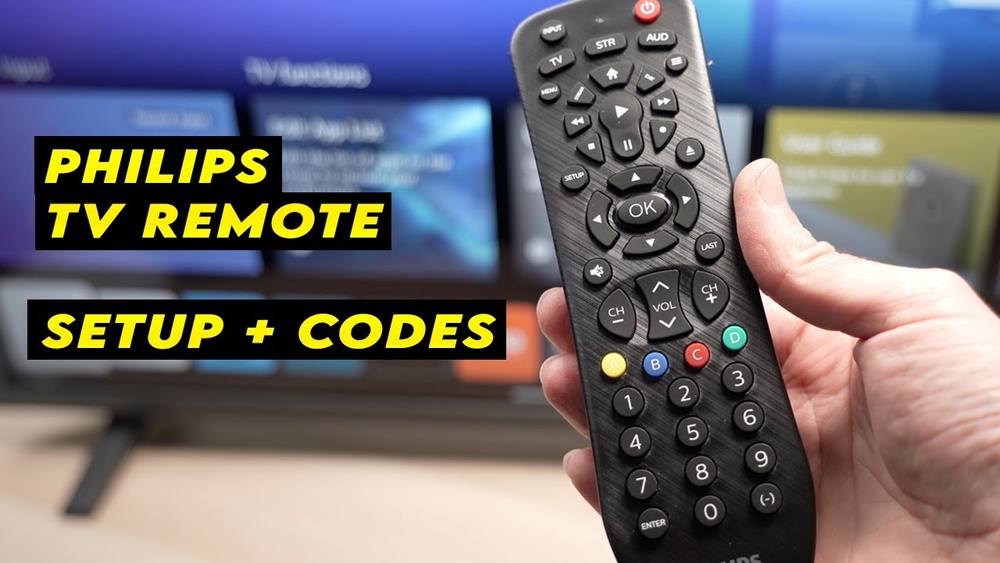
Programming a Philips remote control can feel confusing, especially if you’ve just opened the box or lost your manual. If you’re tired of juggling multiple remotes or need to replace a lost controller, learning how to set up your Philips remote is a valuable skill.
The good news? With some patience and the right steps, you can control your TV, DVD, sound system, and even streaming devices—all from one remote. This guide walks you through every detail, from finding the correct codes to troubleshooting common problems, helping you become confident with your Philips universal remote.
Understanding Philips Remote Controls
Philips makes a wide range of remotes, from basic TV controllers to advanced universal remotes that can operate several devices. The most common types include:
- Standard TV remotes – Usually come with Philips TVs.
- Philips Universal Remotes – Can control TVs, DVD/Blu-ray players, streaming devices, and audio systems from different brands.
Each model might have unique features, but the programming process is similar. Universal remotes are especially popular because they can replace lost remotes or simplify your entertainment system.
Why People Choose Philips Universal Remotes
- Convenience: Replace several remotes with one.
- Compatibility: Works with many brands, not just Philips.
- Budget-friendly: Often less expensive than brand-specific replacements.
Philips universal remotes are found in homes, hotels, and offices worldwide. They help reduce clutter and confusion, especially in living rooms with multiple devices.
Getting Ready: What You Need Before Programming
Before you begin, make sure you have everything ready:
- Your Philips remote control (with working batteries).
- The device you want to control (TV, DVD, soundbar, etc. ), plugged in and powered on.
- The remote’s user manual or a code list (often found online if you lost the paper version).
- A clear view of the device (no obstructions between remote and device).
If your remote is new, insert fresh batteries. Weak batteries can cause programming to fail, or buttons may not respond correctly. Also, check that your device (like a TV) is working properly with its original remote or manual controls.
Common Mistakes At This Stage
Many people skip checking the batteries or try programming with the device turned off. Others look up the wrong code list for their remote’s model. Always double-check your remote’s model number—usually found inside the battery compartment or on the back.
How Philips Remote Programming Works
Philips remotes use a code-based system to communicate with your devices. Each brand (and sometimes each model) has a unique numeric code. When you “teach” your remote the correct code, it sends the right signals to your device.
There are two main ways to program a Philips remote:
- Direct code entry: Enter a specific code for your device’s brand.
- Code search (auto search): Let the remote find the right code by cycling through options.
Some advanced remotes may also support learning mode, where you can “teach” the Philips remote by pointing it at the original remote. But for most users, direct code entry and code search are the main methods.
Finding The Right Remote Code
Each device brand has its own set of remote codes. Here’s how to find them:
- Check the user manual: Most Philips remotes come with a printed list of codes.
- Look online: Philips’ official support site and other tech forums list codes for nearly every device.
- Contact Philips support: If you have a rare device or can’t find the code, customer support can help.
Example: Tv Remote Codes
Below is a comparison of popular TV brands and their common Philips remote codes. Always use the code that matches your remote’s model and your TV’s brand.
| TV Brand | Common Philips Remote Codes |
|---|---|
| Samsung | 0812, 0702, 0002 |
| Sony | 0810, 1685, 1904 |
| LG | 1840, 1423, 0108 |
| Philips | 0911, 0711, 0002 |
| Toshiba | 0156, 1265, 0714 |
Pro Tip: If you have a lesser-known brand, there may be multiple codes. Start with the first one listed.

Credit: www.wikihow.com
Step-by-step: Programming Your Philips Remote By Code Entry
This is the most reliable method if you have the correct code. Here’s how to do it:
- Turn on the device you want to control (like your TV).
- Press and hold the “Setup” button on the Philips remote until the indicator light turns on or blinks. (On some remotes, this light is labeled “LED” or “Power”).
- Press the device button (for example, “TV,” “DVD,” or “AUX”). The indicator light should blink or stay on.
- Enter the code for your device using the remote’s number buttons. The indicator light should turn off if the code is accepted.
- Test the remote by pressing the power or volume button. If the device responds, setup is complete.
If your device doesn’t respond:
- Repeat the process with the next code on the list.
- Double-check the model number of your remote and device.
Example: Programming A Philips Remote For A Samsung Tv
- Turn on your Samsung TV.
- Hold “Setup” until the LED stays on.
- Press “TV.”
- Enter “0812.”
- Test with the power button.
If Nothing Happens, Repeat With “0702,” Then “0002.”
Common Problems And Solutions
- Indicator light never turns on: Check your batteries.
- Device doesn’t respond after code entry: Try the next code.
- Remote controls only some functions: Not all codes support all features. Try alternate codes.
Programming Using Auto Code Search
If you can’t find the correct code or your device is a rare brand, use auto search:
- Turn on the device (TV, DVD, etc. ).
- Hold the “Setup” button until the indicator light turns on.
- Press the device button (like “TV”).
- Press and release the “Power” button repeatedly (every few seconds). The remote will send different codes each time.
- When the device turns off, press “OK” or “Enter” to save the code.
This method takes longer but works for nearly any device. Be patient—some TVs require dozens of presses before the right code is found.
Tips For Faster Auto Search
- Make sure you point the remote directly at the device.
- Don’t press buttons too quickly—wait a second or two between presses.
- If you pass the correct code and the device turns off, you may have to start over.
Using The Learning Mode (if Available)
Some advanced Philips remotes have a learning mode. This lets you copy functions from the original remote by pointing them at each other. Here’s a general process (check your remote’s manual for specifics):
- Place the Philips remote and the original remote head-to-head, a few inches apart.
- Press and hold the “Learning” button (may be labeled “Learn” or similar).
- Press the button on the Philips remote you want to program.
- Press the corresponding button on the original remote.
- The Philips remote’s light will blink to confirm.
- Repeat for all buttons you want to copy, then exit learning mode.
Learning mode is useful if your device is very new or uses unique functions not covered by standard codes. However, it requires both remotes to work.
Programming For Special Devices: Audio Systems And Streaming Boxes
Philips remotes aren’t just for TVs. You can also control audio systems, Blu-ray players, and streaming devices like Roku or Apple TV. The process is similar, but:
- Use the correct device button (“AUX,” “DVD,” “STB,” etc. ).
- Some streaming devices may need special codes or may only support basic functions (like power and volume).
Example: Programming For A Soundbar
- Turn on the soundbar.
- Hold “Setup” until the indicator stays on.
- Press “AUX” or “Audio.”
- Enter the correct code for your soundbar’s brand.
- Test with volume buttons.
Soundbars can be tricky—sometimes you need to program the volume buttons separately. Check your soundbar manual for details.
Resetting Your Philips Remote
Sometimes, you need to erase all programmed codes and start fresh. Maybe your remote behaves strangely, or you want to set it up for new devices. Resetting is simple:
- Remove the batteries.
- Press and hold the “Power” button for 10 seconds.
- Re-insert the batteries.
- The remote returns to default settings.
Some remotes have a special reset button or a sequence (like holding “Setup” and “Power” together). Check your manual for details.
Resetting clears all programmed codes—so you’ll need to set up each device again.
Troubleshooting Philips Remote Programming
Even if you follow all steps, things can go wrong. Here’s a quick troubleshooting guide:
| Problem | Possible Cause | Solution |
|---|---|---|
| Remote not responding | Dead batteries, blocked signal, wrong code | Replace batteries, clear obstacles, try another code |
| Indicator light won’t turn on | Faulty remote, battery issue | Test batteries, try another remote |
| Device only partially works | Limited code support | Test other codes, use learning mode if possible |
| Remote works for one device but not another | Device code not programmed | Repeat programming steps for each device |
| Remote lost programming after battery change | Some remotes lose memory | Reprogram devices after battery replacement |
Non-obvious Insight: Some Philips remotes use “non-volatile memory,” so codes remain after battery changes. Others lose all programming. Check your model’s manual to know what to expect.

Credit: www.youtube.com
Tips To Make Programming Easier
- Write down the correct codes for your devices. Keep this list with your remote for future use.
- Label your remote with the programmed device names, especially if controlling multiple TVs or gadgets in one home.
- Update codes if you get a new device—manufacturers update their technology, and new codes may be released online.
- Try codes for similar brands if your brand isn’t listed. Many TVs use the same remote technology.
- Keep the remote clean—dirt on the buttons can cause poor performance.
Advanced Setup: Macro Programming And Customization
Some high-end Philips remotes allow macro programming. This lets you program one button to perform several actions (like turning on TV, soundbar, and streaming box in sequence).
How Macro Programming Works
- Enter macro mode (often by holding “Setup” and a device button).
- Press the sequence of buttons you want to record.
- Save the macro to a chosen button.
Not all Philips remotes support this feature. If yours does, it’s a great way to simplify your routine.
Custom Button Mapping
Some remotes let you reassign buttons. For example, you can make the “AUX” button control a second TV, or map “Channel Up” to a favorite app. Check your user manual for these advanced options.
Comparing Philips Remote Models
Philips offers several universal remote models. Here’s a quick look at popular options:
| Model | Number of Devices Supported | Special Features |
|---|---|---|
| SRP4004/27 | 4 | Simple design, easy code entry |
| SRP5107/27 | 7 | Learning mode, supports streaming boxes |
| SRP9232D/27 | 3 | Backlit keys, compact design |
| SRP5643B/27 | 4 | Macro programming, advanced features |
| SRP2024A/27 | 2 | Basic functions, entry-level |
Pro Insight: The more devices a remote supports, the more complicated the setup can be. For simple setups, choose a basic model.
When To Buy A New Remote
Programming won’t fix physical damage or faulty electronics. If your Philips remote:
- Doesn’t respond at all (after testing with fresh batteries)
- Has stuck or missing buttons
- Won’t control any device after reset and reprogramming
…it may be time to buy a replacement. Universal remotes are affordable and widely available at electronics stores and online.
Buyer’s Tip: Check your device compatibility list before buying a new remote. Not all universal remotes support all brands or device types.
Keeping Your Remote Up To Date
Some Philips remotes can be updated via USB or Bluetooth. This is rare, but if your remote supports updates, check the Philips support site for software upgrades. Updated remotes can control newer devices and may fix bugs.
For most users, keeping your remote up to date means:
- Checking for new codes online if you buy a new TV or gadget.
- Reading forums for tips if your device isn’t working with any listed code.
Safety And Maintenance Tips
Remotes are durable but not indestructible. To extend the life of your Philips remote:
- Avoid dropping it—impacts can damage internal circuits.
- Keep it dry—liquids can ruin the electronics.
- Clean the buttons occasionally with a dry cloth.
- Store the remote in a safe place, especially if you have small children or pets.

Credit: manuals.plus
Getting Support
If you’re stuck, Philips offers extensive support:
- Official website: Manuals, code lists, and troubleshooting.
- Customer helplines: Call for personalized help.
- Tech forums: Other users may have solved your exact problem.
Official resources, like the Philips Support Center, provide trustworthy information and updates.
Frequently Asked Questions
How Can I Find The Correct Code For My Device?
Check your remote’s user manual or the Philips website for the most accurate code list. If your device is not listed, try searching online or use the auto code search feature on your remote.
What Should I Do If My Philips Remote Stops Working After Changing Batteries?
First, reprogram your devices—some remotes lose their settings when batteries are removed. Make sure the batteries are inserted correctly and are fresh. If the remote still doesn’t work, try resetting it and repeat the programming steps.
Can I Use One Philips Remote For Multiple Devices?
Yes, most Philips universal remotes can control 2–8 devices, depending on the model. Program each device separately using the correct device button and code.
Why Does My Remote Only Control Some Functions (like Volume But Not Power)?
This usually happens when the code you entered supports only basic functions. Try programming the remote with another code for your device’s brand. If available, use the learning mode to add missing functions.
Is It Possible To Program A Philips Remote Without The Original Remote?
Yes. You only need the original remote for learning mode, which is used to copy unique or advanced functions. For basic programming (power, volume, channel), you only need the correct code or auto search.
Learning how to program a Philips remote control puts the power back in your hands, quite literally. With a bit of patience and these clear steps, you can make your living space less cluttered and more enjoyable. Whether you’re replacing a lost remote or unifying your entertainment setup, the process is straightforward—and you’ll enjoy the convenience for years to come.