
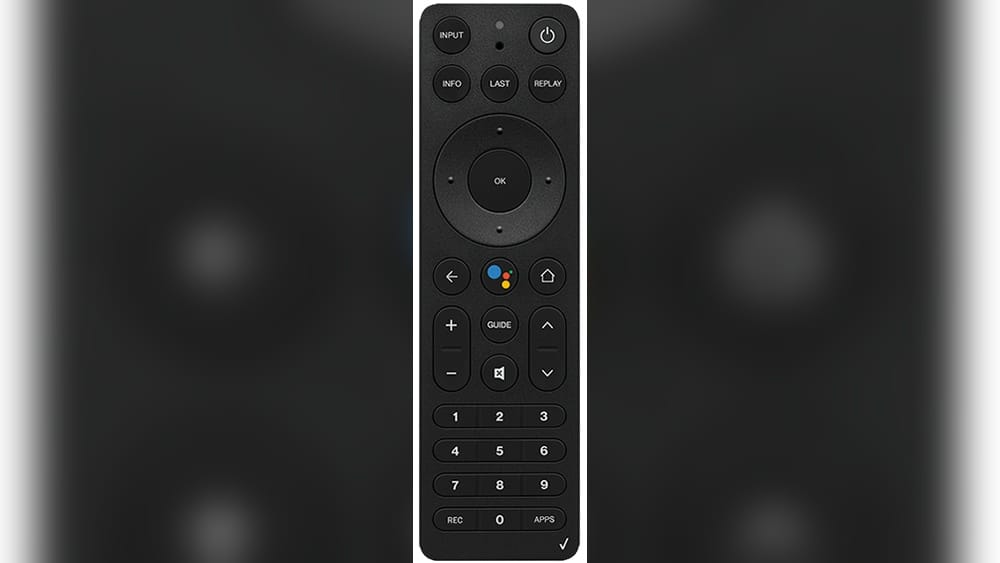
Programming your Verizon Fios remote control can make life much easier. With one remote, you can turn your TV on and off, control the volume, and access your favorite Fios features. For many people, setting up the remote is confusing. There are different models, different TV brands, and sometimes, the instructions are not clear. This guide will walk you through everything you need to know to program your Fios remote — no matter your experience level.
You’ll learn how to identify your remote, find the right codes, program it step by step, and solve common problems. You’ll also see data tables comparing remotes, and answers to questions many Fios users have. Whether you’re new to Fios or just replaced your remote, follow along and you’ll be in control in no time.
Understanding Verizon Fios Remote Models
Before you begin, it’s important to know which Fios remote model you have. Verizon has released several remotes over the years. Each model has its own programming method and unique features.
Common Fios Remote Models
- Fios TV Voice Remote: The newest model, with voice control and Bluetooth.
- Fios TV One Remote: Works with Fios TV One box, has a simple design.
- Fios Big Button Remote: Larger buttons, easy for seniors or those with vision issues.
- P265 Remote: Popular with earlier Fios set-top boxes.
- RC1445302/00B and RC265: Older but still in use.
Remote Model Comparison
Here’s a quick look at some differences:
| Remote Model | Release Year | Main Features | Pairing Method | Works With Voice |
|---|---|---|---|---|
| Fios TV Voice Remote | 2019 | Voice, Bluetooth, Backlit | Auto/Manual | Yes |
| Fios TV One Remote | 2018 | Sleek, Streamlined | Manual | No |
| P265 | 2014 | Traditional, IR | Manual | No |
| Big Button Remote | 2012 | Large Buttons | Manual | No |
Non-obvious insight: The model name is usually found inside the battery compartment or on the back of the remote. This small detail is often missed, but it’s crucial for choosing the right programming instructions.
Preparing To Program Your Verizon Fios Remote
Programming is much smoother if you start with the right setup. Take a few minutes to prepare.
- Check batteries: Weak batteries can cause programming to fail.
- Know your TV brand and model: Most remotes require a brand code.
- Clear the area: Make sure nothing blocks the path from remote to TV (for IR remotes).
- Find your set-top box: Some remotes must be close to the Fios box during setup.
Where To Find Tv Codes
You will need a code for your TV brand. Verizon provides codes in their manuals, but you can also find them online. Use the official Fios support page or the on-screen menu on your Fios box.
Pro tip: Write down your TV’s model number before searching for codes. Some brands have multiple codes, and the model number helps you choose the most accurate one.
Programming The Fios Tv Voice Remote
The Fios TV Voice Remote is the most advanced. It uses Bluetooth and can be paired automatically or manually.
Automatic Pairing
- Turn on your TV and Fios set-top box.
- Press the “Play/Pause” and “0” buttons at the same time until the blue LED light blinks.
- Wait for the on-screen prompts. The TV will guide you through pairing.
- If the TV brand is detected, follow the instructions to finish setup.
Tip: If automatic pairing fails, you can program the remote manually.
Manual Programming
- Press the “Menu” button on the remote.
- Go to Settings > Remote Control > Program Voice Remote > Manual Setup.
- Choose your TV brand.
- Follow the instructions to enter the TV code.
If your TV turns off when you test the power button, the setup is complete.
Pairing With Audio Devices
You can also program the Voice Remote to control soundbars or AV receivers.
- Go to Settings > Remote Control > Program Voice Remote.
- Select Audio Device.
- Pick your device brand and follow the prompts.
Non-obvious insight: Bluetooth remotes like the Voice Remote do not need a direct line of sight to the Fios box, but they DO need line of sight to your TV unless the TV supports Bluetooth. This is why the remote works through cabinets with the box, but not always with the TV.
Programming The Fios Tv One Remote
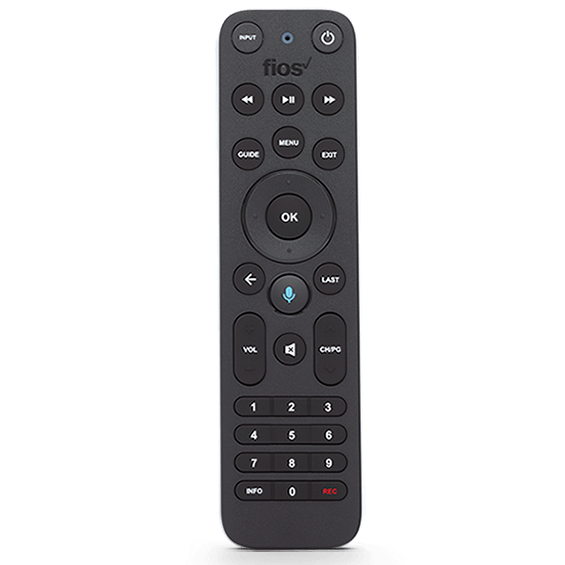
The Fios TV One Remote looks similar to the Voice Remote but does not have microphone buttons. Its setup is a bit different.
Programming Steps
- Turn on your TV and Fios set-top box.
- Press the “OK” and “Fios TV” buttons together, then release both.
- The LED light will blink twice.
- Enter the TV code for your brand (find this in the Fios guide or on-screen).
- Press the “Power” button to test. If the TV turns off, setup is done.
If not, repeat the process with the next code for your brand.
Troubleshooting
- If the remote only controls the Fios box but not your TV, try resetting the remote (hold “OK” and “2” for 5 seconds).
- Some TV brands require more than one code attempt.
Common mistake: Skipping the step where the remote’s LED should blink twice. If you don’t see this, the code didn’t register.
Credit: www.verizon.com
Programming The P265 Remote
The P265 remote is one of the most used Verizon remotes. It supports a wide range of TVs and is known for reliability.
Step-by-step Programming
- Turn on your TV.
- Press and hold the “OK” and “0” buttons together until the LED blinks twice.
- Enter the TV code for your brand.
- The LED will blink twice again.
- Press the “Power” button. If the TV turns off, you’re done.
If your TV doesn’t turn off, repeat the process with a different code.
Using The Auto-search Method
If you can’t find your TV code:
- Turn on the TV.
- Press and hold “OK” and “0” until the LED blinks twice.
- Press “9-2-2”. The LED blinks twice.
- Press the “Power” button repeatedly (up to 100 times) until the TV turns off.
- When the TV turns off, press “OK” to save the code.
Note: The auto-search method takes patience. Move slowly to avoid skipping the right code.
Programming The Big Button Remote
The Big Button remote is designed for users who need larger, clearer buttons. Programming steps are similar but use a slightly different method.
How To Program
- Turn on your TV.
- Press and hold the “TV” key.
- While holding “TV”, press the “OK” key.
- Release both keys. The red LED will blink twice.
- Enter the TV code. The LED blinks twice again.
- Test by pressing “Power”. If the TV turns off, setup is complete.
If not, repeat with a different code.
Extra tip: The Big Button remote can be programmed for other devices like DVD players, but most people only use it for TV and Fios box.
Using The On-screen Fios Setup Tool
Verizon Fios boxes have a built-in tool to make setup easier, especially for newer remotes.
How To Use The On-screen Tool
- Press the “Menu” button on your Fios remote.
- Navigate to Settings > Voice Control > Fios TV Voice Remote > Program Voice Remote.
- Select Manual Setup or Automatic Setup.
- The screen will guide you through the steps.
This tool lists TV brands and codes, so you don’t need to search online.
Table: Typical On-screen Programming Steps
| Step | Action | What to Expect |
|---|---|---|
| 1 | Open Menu | See main Fios options |
| 2 | Select Settings | Access system settings |
| 3 | Choose Remote Control | See remote setup options |
| 4 | Pick your remote model | See TV brands/codes |
| 5 | Follow instructions | Test and confirm setup |
Non-obvious insight: Many users don’t realize the Fios box can detect your TV brand automatically during setup. If you see your TV listed, always choose it — this increases the chance of full compatibility (like volume and mute working).
Programming For Soundbars And Audio Receivers
Many people connect their TV to a soundbar or audio receiver. You can program most Fios remotes to control the volume and power on these devices too.
Steps For Audio Device Programming
- Go to Menu > Settings > Remote Control > Program Remote.
- Select Audio Device or Soundbar.
- Choose your brand from the list.
- Follow the on-screen instructions to test volume and mute.
If your remote does not support audio device programming, you may need to use the soundbar’s original remote.
Comparison: Tv Vs Soundbar Programming
| Function | TV Programming | Soundbar Programming |
|---|---|---|
| Power On/Off | Yes | Some remotes/models |
| Volume Control | Yes | Yes |
| Mute | Yes | Yes |
| Input Selection | No | No |
Practical tip: If your soundbar is connected using HDMI ARC, programming is more likely to succeed. For optical or analog connections, some remotes may not control volume unless the TV is set to “external speakers” mode.
Resetting Your Verizon Fios Remote
Sometimes programming fails, or the remote starts acting strangely. Resetting the remote can solve many problems.
How To Reset Different Fios Remotes
- Voice Remote: Press and hold “Play/Pause” and “0” for 10 seconds until the LED blinks.
- P265: Hold “OK” and “2” together for 5 seconds. The LED blinks red, then green.
- Big Button: Remove batteries, press every button, wait 30 seconds, and reinsert batteries.
After resetting, you’ll need to re-program the remote.
Common mistake: People often forget to reset the remote after changing TV brands or moving to a new home. If the remote won’t program, try a reset first.
Troubleshooting Common Programming Problems
Programming a Fios remote is usually simple, but sometimes things don’t work as expected.
Remote Won’t Control Tv
- Double-check the TV code.
- Try a different code for the same brand.
- Ensure the remote and TV have a clear path (for IR remotes).
- Replace the batteries.
Remote Only Controls Fios Box
- Reprogram the remote for your TV.
- Check if your TV brand requires a special code.
- Some smart TVs need the latest Fios remote.
Volume Or Mute Not Working
- Some codes only control power, not volume.
- Try other codes for your TV brand.
- For soundbars, make sure TV audio is set to “external speakers.”
Remote Not Responding At All
- Reset the remote.
- Make sure the Fios box is on.
- Try the remote on another device to check if it’s working.
Advanced Tip: Learning Mode
Some remotes (rare) can “learn” signals from other remotes. Check the manual to see if your model supports this. It’s useful for unique devices.
Practical Tips To Improve Programming Success
- Have patience: Some TVs need two or three code tries.
- Use the on-screen tool: It’s more reliable than printed guides.
- Update your Fios box: Software updates can add new remote codes.
- Check compatibility: Older remotes may not work with new smart TVs.
- Test all functions: After programming, check power, volume, and mute. Sometimes only one works.
Non-obvious insight: If programming fails repeatedly, it’s often due to a low battery, not a wrong code. Try new batteries before giving up.
When To Get A Replacement Remote
Remotes are durable, but sometimes they stop working for good.
- If none of the buttons respond, even after battery changes and resets, the remote may be dead.
- If the remote is physically damaged (broken buttons, cracked case), replacement is the best option.
- If your TV is too new for your remote, a newer model may be required.
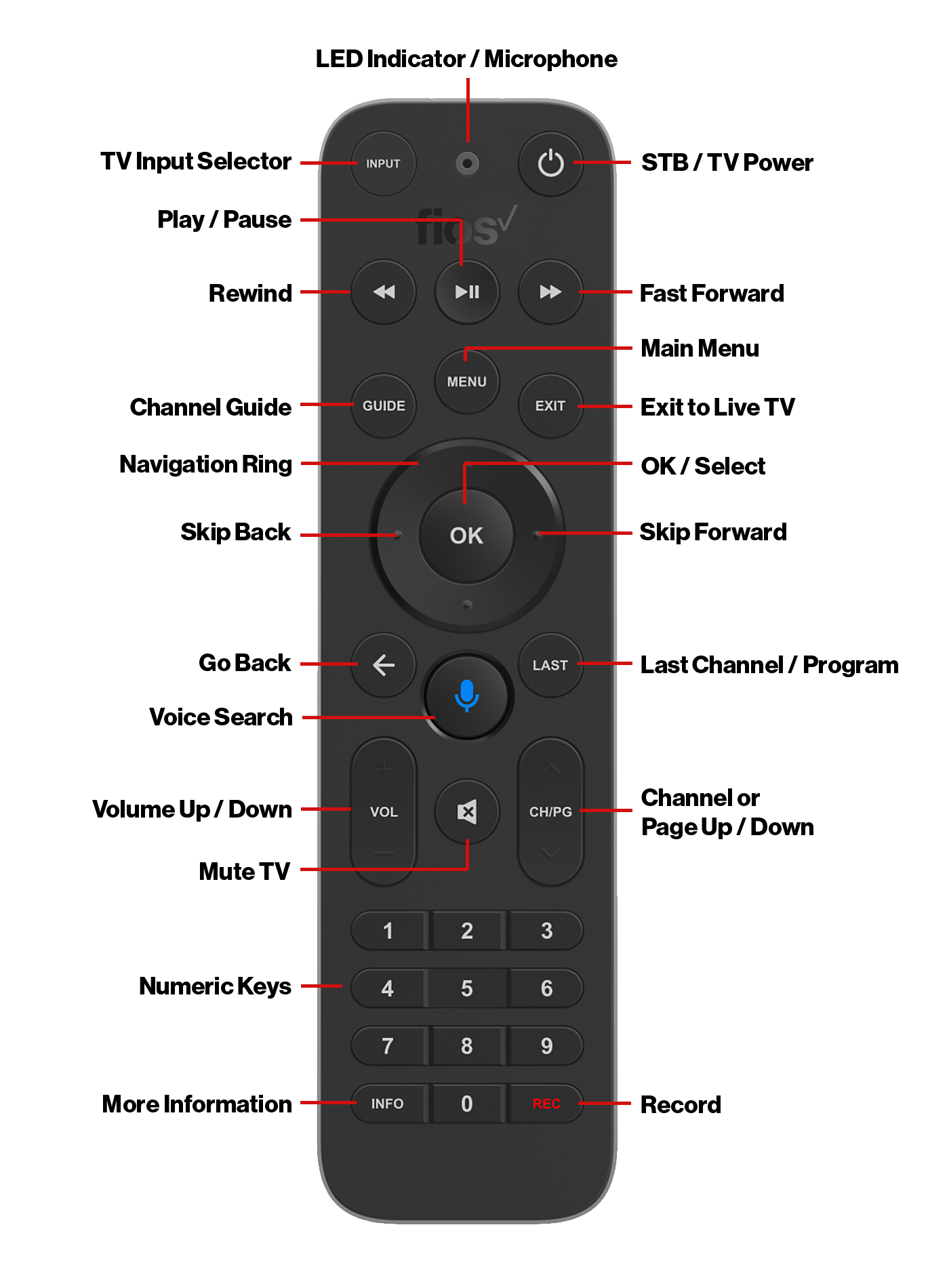
You can order a new remote from the Verizon Fios website, customer service, or third-party retailers.
Credit: espanol.verizon.com
Useful Resources For More Help
Verizon’s official support pages are a great place for the latest guides and troubleshooting steps. You can access their programming tool, code lookup, and live chat. For more details, check the official Verizon Fios remote programming page.
Frequently Asked Questions
How Do I Know Which Fios Remote Model I Have?
Check the back of your remote or inside the battery compartment. The model number is printed there. Common models are Fios TV Voice Remote, P265, and Big Button Remote.
Can I Program My Fios Remote To Control Other Devices?
Yes, most Fios remotes can be programmed to control TVs and soundbars. Some older models can also control DVD players or receivers. Follow the instructions for “audio device” programming if you have a soundbar.
What If I Can’t Find My Tv’s Code?
Try the auto-search method. This lets the remote cycle through all possible codes until it finds one that works. If your TV is very new or rare, contact Verizon support for updated codes.
Why Does Only The Power Button Work After Programming?
Some codes only control basic functions like power. Try another code for your TV brand. It can take two or three attempts to find a code that controls power, volume, and mute.
How Do I Reset My Fios Remote To Factory Settings?
Each remote has a different reset method, usually holding two buttons for several seconds. Check your remote’s manual or see the “Resetting Your Verizon Fios Remote” section above for step-by-step instructions.
Programming your Verizon Fios remote control may feel tricky at first, but with the right steps, it’s straightforward. Identify your remote model, follow the detailed instructions for your setup, and don’t hesitate to use the on-screen programming tool. If you run into trouble, remember: reset, check batteries, and try again. With a little patience, you’ll have your remote working for your TV, soundbar, and Fios box — making your entertainment system easier to enjoy every day.

Credit: www.amazon.com