
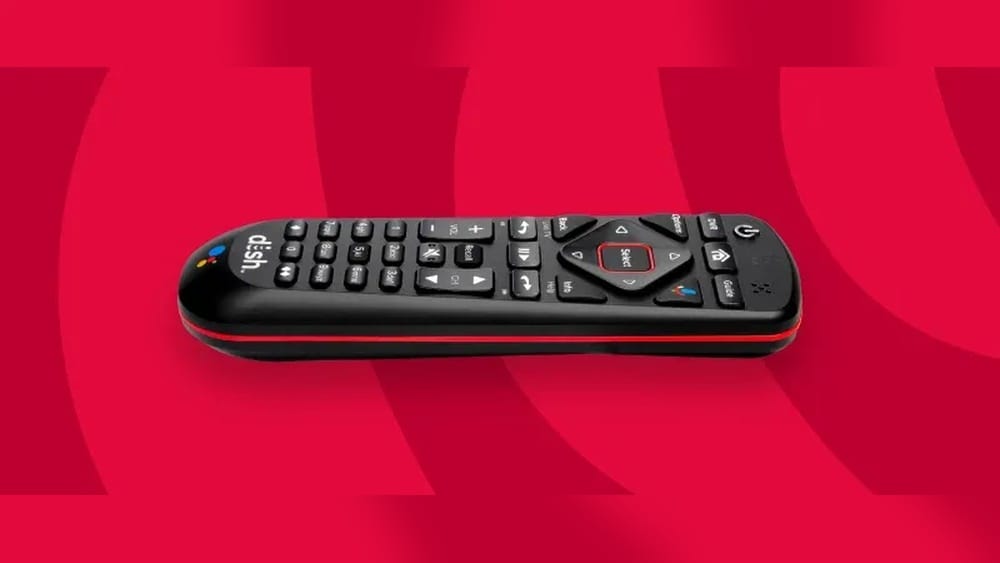
Getting a new TV or remote is exciting, but syncing your Dish remote control to your TV can feel confusing if you’ve never done it before. You might press buttons and see nothing happen, or maybe the volume works but the power button doesn’t. The good news is that activating your Dish remote to your TV is easier than most people expect, once you know the right steps. With clear instructions, you can do it yourself in just a few minutes—no technical background required.
This guide will show you step-by-step how to activate a Dish remote control to a TV, no matter which model you have. You’ll learn how the process works, what to do if something goes wrong, and discover tips that help avoid common mistakes.
Whether you own a new smart TV or an older set, you’ll finish with a working remote and less frustration. Let’s get started with everything you need to know.
Understanding Dish Remote Controls
Dish Network offers several types of remotes, each with slightly different features and buttons. While the main process for activation is similar, knowing your remote model helps you follow the right steps and troubleshoot problems.
| Remote Model | Main Features | Typical TV Compatibility |
|---|---|---|
| 40.0/50.0/52.0/54.0 Voice Remote | Voice commands, backlighting, simplified buttons | Most modern TVs & Dish receivers |
| 21.1/20.1 IR Remote | Infrared technology, standard buttons | Older TVs, basic models |
| Hopper 1/2/3 Remotes | Custom Hopper features, search, DVR controls | Hopper receivers, compatible TVs |
| Joey/Wally Remotes | Compact, simplified navigation | Joey, Wally receivers, most TVs |
Tip: The remote model is usually printed on the back or inside the battery compartment. If you’re not sure, check the Dish Network support page or your remote’s user manual.
Why You Need To Activate Your Dish Remote
It’s easy to assume that a new remote will work right out of the box. In reality, most Dish remotes must be programmed or activated to control your TV, not just your Dish receiver. Here’s why activation matters:
- Universal function: A programmed remote can control both your Dish receiver and your TV (power, volume, input).
- Convenience: No need to juggle multiple remotes for basic TV control.
- Compatibility: Ensures your remote sends the right signals for your TV brand and model.
Some new TVs and remotes may pair automatically, but manual activation is still required in many cases. Skipping activation often means limited functionality—your remote might change channels but can’t adjust the volume or turn the TV on and off.
Credit: support.dish.com
Getting Ready: What You Need Before Activation
Taking a few minutes to prepare can make the activation process smoother and prevent frustration.
- Identify your remote model and TV brand: Write them down or have them nearby.
- Check batteries: Insert new or fully charged batteries into the remote. Weak batteries can cause programming to fail.
- Turn on your TV and Dish receiver: Both devices should be powered on before you start.
- Find your TV’s input/source button: You’ll need to switch inputs if you test the remote.
- Locate the TV code list: This is a set of codes (often found in the remote manual or on the Dish website) that match your TV brand.
Pro tip: If you don’t have the printed code list, you can search for “Dish TV remote codes” for your brand online, or use the on-screen menu on your Dish receiver.
How Dish Remote Activation Works
Most Dish remotes work using one of two main technologies:
- Infrared (IR): Sends a beam of light (invisible to the eye) to your TV. Needs a clear line of sight.
- Radio Frequency (RF): Sends signals through walls or objects. Some remotes use both IR and RF.
When you activate (or “pair”) your Dish remote to your TV, you are programming it with a code that matches your TV’s brand. This code tells the remote how to talk to your TV. If you use the wrong code, some buttons might not work—or nothing will happen at all.
Step-by-step: Activating Your Dish Remote To Your Tv
Let’s get into the specific steps. The process is similar for most Dish remotes, but there are small differences between models. We’ll start with the most common activation methods.
Method 1: Programming The Remote Using Tv Codes
This is the most reliable way, especially for older TVs or remotes.
- Find the correct TV code
- Look up your TV brand in the Dish remote’s code list (paper manual or online).
- Write down all codes listed for your brand. Sometimes, you’ll need to try more than one.
- Put the remote in programming mode
- Press and hold the TV button on the remote until all mode buttons light up.
- Release the TV button. The TV mode button should blink.
- Enter the TV code
- Using the number pad, enter the first code for your TV brand.
- The TV mode button should blink again to confirm.
- Test the remote
- Point the remote at the TV. Press the Power button.
- If the TV turns off, the code worked. If not, repeat with the next code.
- Check other functions
- Test Volume Up/Down and Mute.
- If only some buttons work, try another code from the list for better compatibility.
Common mistake: Entering the code too slowly. Enter the numbers within a few seconds, or the remote may exit programming mode.
Method 2: Using Auto Scan (no Code Needed)
If you can’t find your TV code or the code doesn’t work, try this method.
- Press and hold the TV button until all mode buttons light up, then release.
- Press and hold the Power button until the TV mode button lights up and stays on.
- Press the Up arrow (▲) repeatedly (every second or so) until the TV turns off. The remote is cycling through possible codes.
- When the TV turns off, release the Up arrow.
- Press the # (Pound/Hash) button to save the code.
Tip: Be patient—this can take several minutes if your TV code is near the end of the list. Don’t press the Up arrow too quickly, or you might skip the right code.
Method 3: Pairing Voice Remotes (40.0, 50.0, 52.0, 54.0)
Newer Dish voice remotes use a pairing process that’s even simpler.
- Press the Home button twice (or the Menu button once) on your remote.
- Select “Settings” on your TV screen.
- Choose “Remote Control” from the menu.
- Select “Pairing Wizard” (or “TV Pairing”).
- Choose your TV brand from the on-screen list.
- Follow the on-screen steps to test codes. The receiver will guide you through testing power and volume.
Extra insight: Voice remotes often update automatically via your Dish receiver, so using the on-screen menu is usually more accurate than a printed code list.
Method 4: Programming With The Receiver’s On-screen Menu
If your Dish receiver is connected to your TV and working, you can program your remote directly through the menu.
- Press the Menu or Home button on your Dish remote.
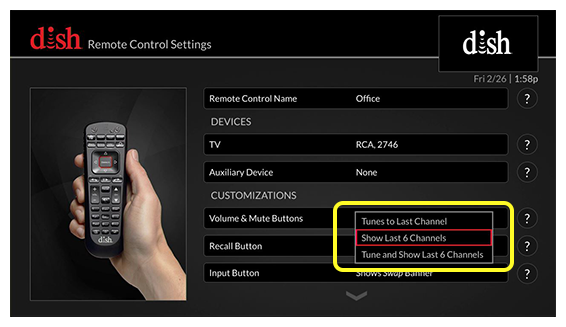
- Go to Settings > Remote Control.
- Select “TV” under Devices.
- Select “Pairing Wizard” or “TV Code.” Follow the prompts.
- Test the remote as guided on the screen.
Benefit: The on-screen menu often has the latest codes for new TV brands, which may not be in old manuals.
Troubleshooting: What To Do When Activation Fails
Even if you follow the steps, sometimes the remote doesn’t work as expected. Here’s how to fix the most common issues:
The Remote Won’t Control The Tv At All
- Check batteries: Weak batteries are the top cause of failed programming.
- Try all codes for your TV brand: Some brands have several codes—test each one.
- Use the auto scan method: If codes don’t work, auto scan often solves the problem.
- Check for obstructions: For IR remotes, make sure nothing blocks the signal path from remote to TV sensor.
Only Some Buttons Work (e.g., Power But Not Volume)
- Try a different code: Sometimes, one code turns the TV on/off but doesn’t control volume or mute.
- Update your receiver’s software: If using the on-screen menu, make sure your Dish receiver is up to date.
- Check TV settings: Some TVs have settings that disable remote control from third-party remotes. Look for “CEC” or “External Control” in your TV’s menu.
Remote Controls The Receiver, Not The Tv
- Reprogram the TV mode: Make sure you completed the activation for the TV, not just for the Dish receiver.
- Check mode buttons: Press the “TV” mode button before testing TV controls.
Advanced tip: For some smart TVs, you may need to enable “IR control” or “remote pairing” in the TV’s own settings menu.

Credit: www.youtube.com
Special Cases: Unique Tvs And Remotes
While most brands work with the standard steps, some situations need extra attention.
Smart Tvs (samsung, Lg, Sony)
- Samsung: Try all codes, including older ones. Some new models need “Anynet+” (HDMI-CEC) enabled.
- LG: Look for “LG Simplink” in settings. If using a Magic Remote, the Dish remote may only control power/volume.
- Sony: Enable “Bravia Sync” for best results. Some models require a code update from the Dish receiver.
Vizio, Tcl, Hisense, And Roku Tvs
- Vizio: Use the latest code lists. Some Vizio TVs have unique IR sensors—try moving the remote slightly up/down if it doesn’t work at first.
- TCL/Hisense/Roku: These TVs often need the newest codes, only available via the on-screen menu. Not all Dish remotes can control Roku functions—basic TV controls should work.
Soundbars And Audio Receivers
If your Dish remote is also controlling a soundbar or audio system, you’ll need to program it for that device separately. Use the same process as for a TV, but select the “AUX” or “Audio” mode instead.
Comparing Dish Remote Models For Tv Activation
If you’re not sure which remote you have, or you’re shopping for a replacement, understanding the differences can help.
| Remote Model | TV Activation Method | Voice Control | Best For |
|---|---|---|---|
| 40.0/50.0/52.0/54.0 Voice Remote | Pairing Wizard, On-screen menu | Yes | Modern smart TVs, Hopper receivers |
| 21.1/20.1 IR Remote | Manual code entry, Auto scan | No | Older TVs, basic setups |
| Hopper/Joey/Wally Remotes | On-screen menu, code entry | Some models | Multi-room setups |
Key insight: Newer Dish remotes are easier to activate and work with more TV brands, but older remotes often still work if you use manual code entry.
Using Your Dish Remote After Activation
Once your Dish remote is activated to your TV, you can do more than just turn the TV on and off. Here’s how to get the most from your remote:
- Control volume and mute: Adjust TV sound without switching remotes.
- Switch TV inputs: Press the “Input” or “Source” button to change from your Dish receiver to a gaming console, streaming stick, or DVD player.
- Power sync: Turn your Dish receiver and TV on/off with a single button press.
- Access TV menus: Some remotes let you open the TV’s menu/settings directly.
Practical tip: If your remote has a “Mode” button (TV, SAT, AUX), make sure it’s set to “TV” for TV controls and “SAT” for Dish receiver commands. If you’re not getting a response, check the mode.
Upgrading Or Replacing Your Dish Remote
If your remote is lost, damaged, or just old, you might consider getting a new one. Here’s what matters when choosing a replacement:
- Compatibility: Make sure the remote works with your Dish receiver model (Hopper, Joey, Wally, etc. ).
- TV control features: Newer remotes offer more reliable TV activation and voice control.
- Ease of activation: The latest models support on-screen pairing wizards, which are simpler for most users.
Buyer mistake to avoid: Buying universal remotes not made by Dish. While some work, they often lack features for controlling both TV and Dish receiver seamlessly.
| Feature | Dish Official Remote | Generic Universal Remote |
|---|---|---|
| TV Power/Volume Control | Yes (Full Support) | Partial/Varies |
| Receiver Control | Yes (Full Support) | Often Limited |
| Voice Search | Yes (New Models) | No |
| Activation Ease | Easy (On-screen wizard) | Manual only |
Pro tip: Buy replacements directly from Dish or a trusted retailer to ensure full compatibility and warranty.
Common Problems And Their Solutions
Here are some less obvious issues that beginners often face, with clear fixes.
Tv Turns On, But Volume Still Doesn’t Work
- Check if your TV uses a separate audio system (soundbar, home theater). If so, program the remote for that device using the AUX mode.
- Try all available codes: Volume control sometimes needs a different code than power.
- Update your Dish receiver: Software updates can add support for new TV models.
Remote Suddenly Stops Working After It Was Fine
- Check for interference: Sunlight, fluorescent lights, or other IR devices can block signals.
- Reprogram the remote: Sometimes a power outage or battery change resets the programming.
- Replace batteries: Even if the remote lights up, weak batteries can cause random failures.
The Remote Controls A Different Device
- Mode confusion: Make sure you’re in the right mode (TV, SAT, AUX). Press the correct mode button before using the remote.
Can’t Find Your Tv Brand In The Code List
- Try auto scan: As described above, this method works for less common brands.
- Check online for updates: New TV brands appear regularly. The Dish support site posts new codes as they become available.
Maintaining Your Dish Remote For Long-term Use
After successful activation, take these steps to keep your remote working well:
- Clean regularly: Dust and spills can block buttons. Wipe the remote with a dry cloth.
- Store safely: Avoid dropping or exposing the remote to heat/moisture.
- Change batteries together: Always replace both batteries at the same time.
- Update your receiver: New features and codes are often added via receiver updates.
Expert tip: If you notice buttons sticking or not registering, open the battery compartment and check for corrosion or debris.

Credit: www.youtube.com
When To Call For Support
Most activation problems can be solved at home, but sometimes expert help is needed.
- Unusual TV brands: Some rare brands may need special codes or steps.
- Physical damage: If buttons are missing or the remote is cracked, replacement is best.
- Receiver or TV issues: If your TV or Dish receiver won’t respond to any remote, the device itself may be the problem.
You can contact Dish customer support for guidance, or check their official help center at Dish Support.
Real-world Example: Activating A Dish Remote For A Samsung Tv
Let’s walk through a real example, using a common TV brand.
- Identify your remote model. You have a 54.0 Voice Remote.
- Turn on your Samsung TV and Dish receiver.
- Press the Home button twice on your remote to open the menu.
- Navigate to Settings > Remote Control > Pairing Wizard.
- Select “Samsung” from the TV brands list.
- Follow the on-screen instructions: The receiver will prompt you to test power and volume.
- Confirm the remote works: If not, the wizard will try the next code automatically.
Result: The remote now controls both your Samsung TV’s power and volume, as well as the Dish receiver.
Advanced Tips For Power Users
If you want to do more with your Dish remote, consider these advanced tricks:
- Program multiple devices: Some remotes let you control a TV, soundbar, and receiver with different mode buttons.
- Set up macros: Certain models allow you to program a sequence of commands (e.g., turn on TV, set input, power receiver) with one button press.
- Use HDMI-CEC: If your TV and receiver support HDMI-CEC (Consumer Electronics Control), enable it to sync power and volume commands automatically.
Warning: Not all TVs and remotes support advanced features. Always check your user manual first.
Frequently Asked Questions
How Do I Find The Correct Tv Code For My Dish Remote?
You can find TV codes in your remote’s manual, on the Dish Network website, or through the receiver’s on-screen menu. If your TV brand isn’t listed, use the auto scan method to search for a compatible code.
What Should I Do If None Of The Codes Work For My Tv?
Try the auto scan method, which cycles through all possible codes. If that fails, check for software updates on your Dish receiver, or contact Dish support for the latest codes.
Can I Use My Dish Remote To Control Other Devices, Like A Soundbar Or Dvd Player?
Yes, many Dish remotes can control multiple devices. Use the AUX or AUDIO mode and follow the same activation process, using the code for your specific device.
Why Does My Remote Only Work For Dish Channels, Not The Tv’s Power Or Volume?
This usually means the remote is only paired to your receiver, not the TV. Re-enter programming mode and activate the TV functions as described above.
Is There A Difference Between Dish’s Voice Remotes And Older Models For Tv Activation?
Yes, voice remotes (like the 54. 0) are typically easier to activate and support more TV brands, with on-screen pairing wizards. Older remotes require manual code entry or auto scan.
Getting your Dish remote control activated for your TV saves time and makes your home entertainment simpler. With the right steps, you’ll avoid frustration and enjoy full control from a single device. The process is quick, and even if you run into problems, the solutions are straightforward. Now, you’re ready to sync your remote and TV like a pro—happy watching!