
Have you ever wished your Google Assistant sounded a little different? Maybe a voice that feels friendlier or more like your style?
Changing your Google Assistant’s voice is easier than you think, and it can make your daily interactions more enjoyable. In this guide, you’ll learn simple steps to switch up the voice and personalize your experience. Keep reading, and soon your Assistant will sound just the way you want it!
:max_bytes(150000):strip_icc()/001-fix-cant-change-google-assistants-voice-4586811-713b8075cd8649748c42db69630bffda.jpg)
Credit: www.lifewire.com
Google Assistant Voice Options
Google Assistant allows you to customize its voice to suit your preferences. You can choose from various voices and languages. This helps make interactions more personal and enjoyable. Changing the voice is simple and quick. Here are some details about the voice options available.
Available Voices And Languages
Google Assistant offers many voices to choose from. These voices come in different accents and tones. You can pick a voice that sounds natural to you. The assistant supports multiple languages worldwide. Switching languages lets you use Google Assistant in your preferred tongue. This feature is great for bilingual users or learners. The voices update regularly, adding more choices over time.
Voice Personalities
Each Google Assistant voice has a unique personality. Some voices sound calm and friendly. Others may sound more energetic or playful. This variety helps you find a voice that fits your style. The assistant can also use celebrity voices in some regions. These voices bring fun and novelty to your experience. Choosing a voice personality can make daily tasks more engaging.
Changing Voice On Android Devices
Changing the Google Assistant voice on Android devices makes your experience more personal. You can choose a voice that sounds clear and pleasant to you. This simple change can make your daily tasks more enjoyable.
The process is quick and does not require technical skills. Follow the steps below to find the perfect voice for your Google Assistant.
Accessing Google Assistant Settings
Open your Android device and unlock the screen. Press and hold the home button or say “Hey Google” to activate the Assistant. Tap the compass icon in the bottom right to open the Explore page. Next, tap your profile picture or initial at the top right corner. Select “Settings” from the menu. In the Settings, find and tap “Assistant” to access more options. Scroll down to the “Assistant devices” section and choose your device, usually listed as “Phone.”
Selecting A New Voice
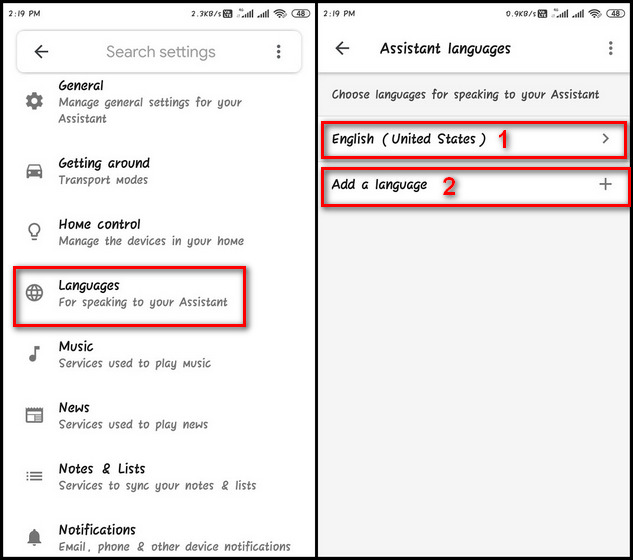
Inside your device settings, look for the “Assistant voice” option. Tap it to see the list of available voices. Listen to each voice sample by tapping the colored circles. Pick the voice that sounds best to you. The change takes effect immediately. You can switch voices anytime to keep your experience fresh.
Changing Voice On Ios Devices
Changing the Google Assistant voice on iOS devices is simple and fast. It helps personalize your experience and makes interactions more enjoyable. You can choose from different voices that fit your style.
This guide shows how to change the voice step-by-step using the Google Assistant app on your iPhone or iPad.
Opening The Google Assistant App
First, find the Google Assistant app on your iOS device. Tap the app icon to open it. Make sure you are signed in with your Google account. The app should load quickly, showing the main screen with the microphone button.
Modifying Voice Settings
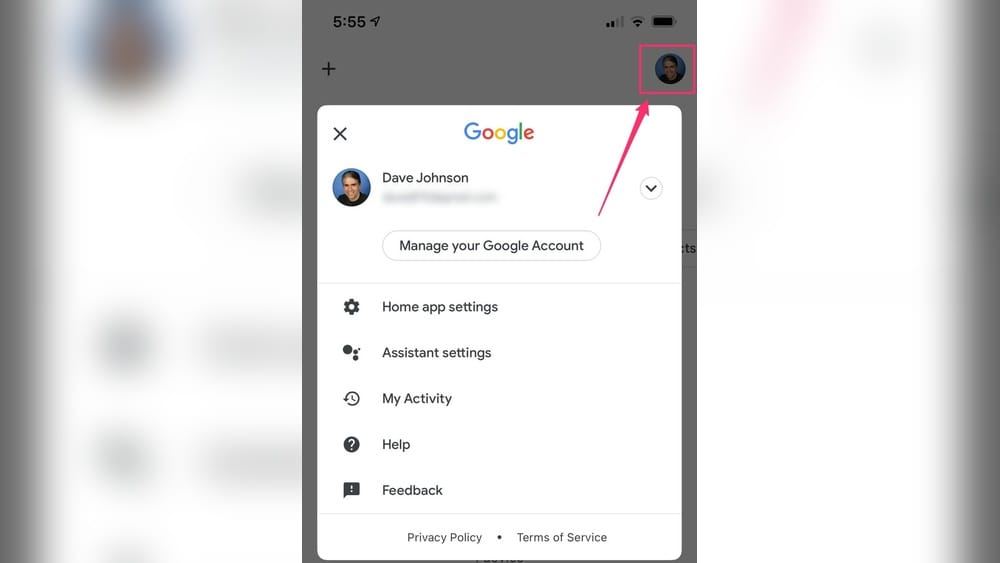
Next, tap your profile picture in the top right corner. This opens the settings menu. Scroll down and select “Assistant voice & sounds.” Here, you see a list of available voices. Tap on each to hear a sample. Pick the voice you like best. The change saves automatically. Now your Google Assistant will speak in the new voice.
Credit: kdfoundation.org
Using Voice Commands To Change Voice
Changing the Google Assistant voice can be quick using voice commands. This method lets you switch voices without opening settings manually. It works with simple spoken instructions.
You just talk to Google Assistant and tell it to change the voice. This way saves time and effort. It is useful when your hands are busy or you want a fast change.
Voice Command Steps
Start by saying, “Hey Google, change your voice.”
Google Assistant will show voice options available. Listen to each voice sample by asking to play them.
Say the number or name of the voice you want. Example: “Select voice 2” or “Choose voice number three.”
The assistant will confirm your choice and switch to the new voice immediately.
Limitations Of Voice Commands
Voice commands do not work on all devices. Some older models might not support this feature.
You can only pick from voices Google offers. Custom voices are not available by voice command.
Sometimes, the assistant may not understand the voice number correctly. Repeating the command may help.
Changing voice with commands works only in supported languages. Some languages have fewer voice options.
Troubleshooting Voice Changes
Changing the Google Assistant voice should be simple. Sometimes, problems occur during the process. These issues can stop the voice from changing or cause the assistant to act strangely. Knowing how to fix these problems helps you enjoy your new voice without delay.
Common Issues
Voice changes may not apply immediately. This delay can confuse users. Sometimes, the app crashes or freezes. Another problem is that the new voice option might not appear. These troubles often come from software bugs or connection errors. Also, outdated apps or devices cause voice change failures.
Tips For Smooth Switching
Restart your device after selecting a new voice. This step helps the settings update properly. Ensure your Google app is updated to the latest version. Clear the app cache if voice changes don’t stick. Check your internet connection for stability. Make changes in a quiet environment to avoid voice recognition issues. Lastly, try changing the voice again after a few minutes if it fails the first time.
Customizing Voice Experience
Customizing your Google Assistant voice makes interactions more personal and enjoyable. You can change how it sounds to match your style and preferences. This helps in feeling more connected while using the assistant daily.
Adjusting voice settings is simple. You can tweak speed and accent to suit your taste. These small changes improve clarity and comfort during conversations with Google Assistant.
Adjusting Speech Rate
Changing the speech rate helps make the voice easier to understand. You can slow it down for clear listening or speed it up to save time. Adjusting speech rate fits your listening habits perfectly. This setting is useful for all ages and language skills.
Choosing Preferred Language Accents
Selecting an accent changes how Google Assistant sounds. Choose from various English accents like American, British, or Australian. This makes the voice feel more familiar and natural. It also helps with understanding if you prefer a certain accent. Changing accents is quick and does not affect commands.

Credit: www.youtube.com
Frequently Asked Questions
How Do I Change Google Assistant Voice On Android?
Open the Google app, tap More > Settings > Google Assistant > Assistant voice. Choose your preferred voice from the list.
Can I Switch Google Assistant Voice On Iphone?
Yes, open the Google Assistant app, tap your profile, go to Assistant voice, and select a new voice option.
Are There Different Language Options For Google Assistant Voice?
Yes, Google Assistant supports multiple languages and regional accents. Change language settings to access various voice options.
Does Changing Google Assistant Voice Affect All Devices?
No, voice settings are device-specific. You must change the voice on each device separately for consistency.
Conclusion
Changing Google Assistant’s voice is quick and simple. You can pick a voice that feels right for you. This small change makes your experience more personal and fun. Just follow the easy steps and enjoy a new voice every day.
Keep your device updated to access all voice options. Try different voices and see which one you like best. Your Google Assistant can sound just the way you want. Give it a try and make your device truly yours.