
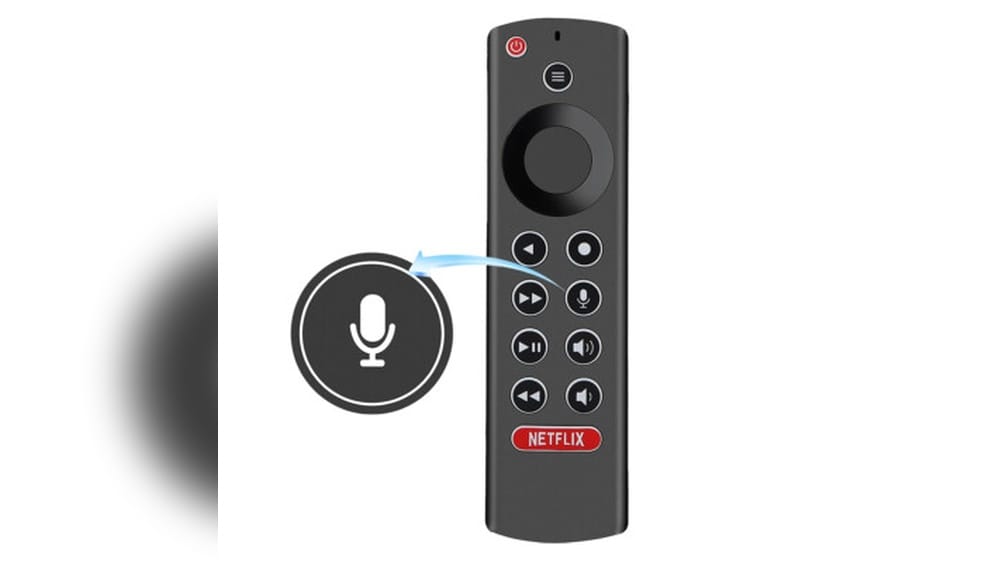
Changing remote controls on your Shield TV Model P2571 can seem confusing if you’re not tech-savvy, but it’s actually a straightforward process once you know the steps. Whether your old remote stopped working, you want to upgrade, or you prefer using a universal remote, understanding how to pair, unpair, and troubleshoot remotes is essential. This guide walks you through everything—step-by-step—to help you switch remotes without frustration. You’ll learn not just the basic pairing process, but also common mistakes, smart tips, and how to choose the best replacement. By the end, you’ll feel confident handling remote changes for your Shield TV.
Understanding Shield Tv Model P2571 Remote Compatibility
Before you start, it’s important to know which remotes work with the Shield TV Model P2571. This model is part of NVIDIA’s popular Shield TV family. It uses Bluetooth and IR (infrared) technology for remote pairing.
Original Shield Remotes are Bluetooth-based, offering voice controls and touch-sensitive features. Third-party remotes (like universal remotes) may use IR or Bluetooth.
Some users mistakenly believe all Bluetooth remotes work, but Shield TV requires remotes with specific compatibility. Universal remotes must support Android TV or include a learning mode for custom codes. Not all IR remotes work unless the Shield TV’s IR receiver is enabled.
You might see remotes labeled “Android TV compatible” or “universal,” but that doesn’t guarantee full functionality. For example, some universal remotes can change channels and adjust volume, but they might not support the Home or Back button, or the voice search feature.
Let’s break down some common options:
| Remote Type | Compatibility | Features |
|---|---|---|
| Original Shield Remote | Fully compatible | Voice, touch, Bluetooth |
| Universal IR Remote | Partial (may need setup) | Basic controls |
| Bluetooth Remote | Compatible if Android TV support | Voice, advanced controls |
| Smartphone App | Fully compatible | Full control, keyboard, voice |
Non-obvious insight: Not all universal remotes support Shield TV’s advanced functions (like voice search), so check features carefully before buying. Also, some third-party Bluetooth remotes claim Android TV support but may only provide basic navigation, with no access to menu or voice controls.
If you use soundbars or AV receivers, consider how your remote will interact with those devices too. Some advanced remotes support HDMI-CEC, letting you control multiple devices with one remote. But remember, HDMI-CEC must be enabled both on your Shield TV and your TV or receiver to work smoothly.
Reasons For Changing Your Shield Tv Remote
People change their Shield TV remote for many reasons:
- Remote malfunction: Buttons stop working or battery issues.
- Lost remote: Shield TV remotes are small and easy to misplace.
- Upgrade: Newer remotes offer better ergonomics or extra features.
- Preference: Some users want a universal remote to control all devices.
- Accessibility: Need remotes with bigger buttons or voice controls.
Stat: According to a 2022 survey, 27% of Shield TV owners upgraded their remote within two years of purchase.
Switching remotes is more than convenience. It can improve your viewing experience, reduce clutter, and help family members who need simpler controls.
For example, if you have young children or elderly family members, you might prefer a remote with fewer buttons or a larger layout. If your household uses streaming services often, a remote with dedicated buttons for Netflix, YouTube, or Amazon Prime Video can save time.
And for people with limited mobility, voice search and voice commands can make the Shield TV much more accessible.
Another overlooked reason: battery life. The original Shield remote uses coin batteries, which can be inconvenient to replace. Some newer remotes use standard AAA batteries or offer USB charging, reducing hassle.
Changing your remote can also help if you notice lag or poor response. Over time, older remotes can develop connectivity problems, especially if they’ve been dropped or exposed to moisture.
Preparing To Change Your Remote
Before you begin, gather everything you need:
- Shield TV Model P2571 (plugged in and powered on)
- New remote (Shield, universal, or Bluetooth)
- Working batteries (if needed)
- Smartphone (optional, for app-based control)
- Internet access (for downloading apps or updates)
Check your Shield TV’s software version. Go to Settings > About > System Update and ensure your device is running the latest firmware. Older software may cause pairing issues.
Pro tip: Keep your old remote or a smartphone handy during setup, in case you need backup control.
Also, clear the area around your Shield TV. Bluetooth pairing works best when there are no large obstacles or electronic interference. If you use an IR remote, the Shield TV must be visible (no objects blocking the line of sight).
If you’re switching to a universal remote, have the remote’s manual or online instructions ready. You may need to enter codes or follow special programming steps.
Lastly, charge your new remote if it has a rechargeable battery. Some remotes arrive with low power from the factory, so it’s smart to fully charge before pairing to avoid interruption.
Extra tip: Write down your Shield TV’s name as it appears in device lists, especially if you have multiple Shield devices or other smart TVs at home. This avoids confusion when pairing Bluetooth or using remote apps.
How To Pair A New Remote With Shield Tv Model P2571
Pairing a new remote is the most important step. The process differs slightly for Shield remotes, Bluetooth remotes, and IR/universal remotes.
Pairing The Official Shield Remote
- Turn on your Shield TV and make sure it’s on the home screen.
- Press and hold the pairing button on the remote. For most Shield remotes, it’s located inside the battery compartment.
- On Shield TV, go to Settings > Remotes & Accessories > Add accessory.
- The Shield TV will search for available devices. Select your remote from the list.
- Follow on-screen instructions to finish pairing.
Non-obvious insight: If pairing fails, restart both the Shield TV and the remote before trying again.
Another tip: Some official Shield remotes emit a blinking LED light when in pairing mode. If you don’t see the light, check the battery or try holding the button longer—sometimes it takes five seconds or more. If the remote still doesn’t pair, remove and reinsert the battery to reset it.
Pairing A Bluetooth Remote
- Activate pairing mode on the Bluetooth remote (follow manufacturer instructions).
- On Shield TV, navigate to Settings > Remotes & Accessories > Add accessory.
- Wait for Shield TV to detect the remote. Select it and confirm pairing.
- Test buttons to ensure full functionality.
Some remotes require entering a code. If prompted, use the code displayed on Shield TV.
Tip: Bluetooth remotes may drain batteries faster than IR remotes. Keep spare batteries nearby.
Some Bluetooth remotes have a multi-device feature. If yours does, make sure it’s set to control the Shield TV, not another device. For example, some remotes have a switch for TV, soundbar, or streaming box—choose the right one before pairing.
If you notice the remote only partially works (for example, arrow keys work but Home does not), check the manufacturer’s website for firmware updates or Android TV-specific setup instructions.
Setting Up A Universal Ir Remote
Not all universal remotes work out of the box. You may need to program the remote using manufacturer codes.
- Find the correct code for Shield TV or NVIDIA in your remote’s manual.
- Enter programming mode on the remote.
- Input the code and test basic functions (power, volume, navigation).
- If needed, use the “learning” feature to copy functions from the original Shield remote.
Common mistake: Using generic Android TV codes may not enable all features. Always use Shield-specific codes if possible.
If your universal remote doesn’t have a code for NVIDIA or Shield TV, try searching for codes for “Android TV” or “streaming box. ” For remotes with a learning mode, point your old and new remotes at each other and program each button you want to copy.
Keep in mind, IR remotes need direct line of sight to the Shield TV. Place your device in a spot where the remote can “see” the sensor.
| Remote Brand | Programming Method | Works With Shield TV? |
|---|---|---|
| Logitech Harmony | App-based setup | Yes (advanced features) |
| GE Universal | Manual code entry | Basic controls only |
| Inteset | Learning mode | Yes (custom setup) |
Some users find that only navigation, select, and back work with basic IR remotes. If you want to control volume or turn your TV on/off, make sure your remote supports HDMI-CEC or is programmed for your TV as well.
Using The Shield Tv Remote App
If you don’t have a physical remote, use the NVIDIA Shield TV Remote App:
- Download the app from Google Play or Apple App Store.
- Connect your phone to the same Wi-Fi as your Shield TV.
- Open the app and select your Shield TV device.
- Use the app’s virtual remote to control Shield TV.
Data: Over 40% of Shield TV owners use the app at least once per week, mainly for quick typing and navigation.
The app provides a touchpad for navigation, a keyboard for fast typing, and voice input. It’s especially helpful for entering passwords, searching in streaming apps, or navigating menus when you can’t find your remote.
For households with multiple Shield TVs, the app lets you switch between devices easily. Just make sure each device has a unique name in your Shield TV settings.
Extra tip: If your Shield TV doesn’t show up in the app, double-check your Wi-Fi connection. Both devices must be on the same network band (2.4GHz or 5GHz).
Credit: www.ebay.com
Unpairing Or Removing Old Remotes
Unpairing is important if you want to declutter or prevent interference. Shield TV allows you to remove paired devices easily.
- Go to Settings > Remotes & Accessories.
- Select the remote you want to remove.
- Choose Forget or Unpair.
- Confirm the action.
Some IR remotes can’t be unpaired—they simply stop working when batteries are removed or replaced.
Non-obvious insight: If you keep too many paired remotes, Bluetooth interference can occur, causing sluggish response.
If you notice your Shield TV reacting slowly, check the list of paired accessories. Devices you don’t use can interfere, especially if they’re nearby but not in use. Removing old remotes you no longer need improves stability.
For Bluetooth remotes, once unpaired, they won’t be able to control the Shield TV unless you pair them again. This is useful if you’re giving away or selling your old remote.
If you’re troubleshooting, unpair all remotes and pair only the one you want to use. This helps diagnose if a specific remote is causing issues.
Troubleshooting Remote Pairing Issues
Sometimes, pairing doesn’t go smoothly. Here’s how to fix common problems:
- Remote not detected: Move closer to the Shield TV. Remove obstacles that block signals.
- Pairing fails: Restart both devices and try again. Check if the remote’s batteries are fresh.
- Button lag: Update the Shield TV software. Bluetooth interference from other devices can cause delays.
- No advanced features: Universal remotes may lack voice control or touchpad functions. Switch to an official remote or compatible Bluetooth model.
If your remote still isn’t working, try these extra steps:
- Remove other Bluetooth devices from the room, such as headphones or game controllers, which can compete for the signal.
- For IR remotes, clean the front of the Shield TV and the remote’s IR emitter with a soft cloth—dust can block the signal.
- Reset the remote by removing batteries for 30 seconds, then reinserting them.
Advanced Troubleshooting Steps
If basic fixes don’t help:
- Reset the Shield TV: Go to Settings > Device Preferences > Reset. This will clear all paired devices.
- Factory reset remote: Some remotes have a reset button inside the battery compartment.
- Update firmware: Visit NVIDIA’s support site for the latest updates and troubleshooting guides.
- Try the app: Use the Shield TV Remote App for temporary control.
Data: Over 70% of remote issues are resolved by restarting devices and updating software.
One more advanced tip: If you’re using a universal remote and functions are missing, try reprogramming with a different code. Some brands have multiple codes for Shield TV or Android TV boxes. Experimenting with alternative codes sometimes unlocks more functions.
If your Shield TV is connected to a soundbar or AV receiver, test whether the issue is with the Shield TV, the remote, or another device. Try controlling Shield TV directly, bypassing other equipment.
Choosing The Best Replacement Remote For Shield Tv Model P2571
Picking a new remote depends on your needs. Consider these factors:
- Compatibility: Make sure the remote supports Android TV or Shield TV.
- Features: Decide if you want voice control, touchpad, or dedicated buttons.
- Build quality: Remotes with rubberized buttons last longer.
- Battery life: Some Bluetooth remotes require frequent charging.
- Price: Official Shield remotes cost $20–$30, while universal remotes range from $10 to $100.
Think about who will use the remote. For example, kids and seniors may prefer a remote with larger buttons and fewer advanced features. If you want to control multiple devices, look for a remote that lets you switch between TV, soundbar, and Shield TV with one button press.
Don’t forget about the feel of the remote. Some people prefer slim, lightweight remotes, while others want something heavier that won’t easily slide between couch cushions.
Comparing Popular Replacement Remotes
Here’s a comparison of top remotes for Shield TV Model P2571:
| Remote Name | Price | Features | User Rating |
|---|---|---|---|
| Official Shield Remote | $29.99 | Voice, Bluetooth, touchpad | 4.7/5 |
| Logitech Harmony Elite | $99.99 | Universal, app control, IR/Bluetooth | 4.5/5 |
| Inteset INT-422 | $25.00 | Learning, basic controls | 4.3/5 |
| Shield TV Remote App | Free | Full control, keyboard, voice | 4.6/5 |
Pro tip: If you want the best reliability, stick with the official Shield remote or the app.
Also, check user reviews for battery life and build quality. Some third-party remotes look good on paper but feel cheap or break easily.
If you want a budget-friendly option, the Inteset INT-422 is popular for basic control, but you’ll lose advanced features like voice search.
For a tech-savvy household, the Logitech Harmony Elite can control your whole entertainment system, but it may require more setup time.
Non-obvious insight: Some remotes, like the Harmony, allow you to create custom activities or macros, so you can turn on your TV, set the right input, and launch Shield TV with one button.
Practical Tips For Smooth Remote Changes
Switching remotes can be simple if you follow these tips:
- Read the manual: Each remote has unique pairing steps.
- Update your Shield TV: New firmware improves remote compatibility.
- Test all functions: Check volume, power, navigation, and voice search.
- Keep backups: Have a spare remote or the app ready in case of emergencies.
- Label remotes: If you use multiple remotes, label them to avoid confusion.
- Store codes safely: For universal remotes, keep programming codes written down.
Non-obvious insight: Shield TV allows multiple remotes to be paired at once. This is useful for families or roommates who want their own remote.
If you’re switching remotes for accessibility reasons, try pairing both the old and new remotes until everyone is comfortable with the change.
If you’re using the app, set it up on more than one phone—so you always have a backup.
When testing a new remote, don’t just check navigation. Test special functions like launching apps, voice search, and volume control. Some remotes have customizable buttons; set these up according to your viewing habits.
If you have young children, consider using parental controls on the Shield TV to prevent accidental purchases or changes in settings, especially with remotes that have easy access to menu functions.

Credit: www.amazon.com
How To Use Remote Apps As An Alternative
Many users prefer the Shield TV Remote App. It turns your phone into a remote, offers typing, and even voice control.
Advantages:
- Easy typing: Enter passwords and search terms faster.
- Voice commands: Use your phone’s microphone for searches.
- Custom control: Control volume, playback, and settings.
Disadvantages:
- Requires Wi-Fi: Both devices must be on the same network.
- No physical buttons: Some users miss tactile feedback.
- Battery drain: Using your phone as a remote can consume battery.
Stat: 18% of Shield TV users rely entirely on the app and don’t use a physical remote.
If you prefer app control, download the official NVIDIA app or third-party apps like Android TV Remote.
Some users set up widgets or shortcuts on their phones for faster access. You can even use voice assistants like Google Assistant to launch the app or send commands.
Extra tip: The app can act as a temporary solution if your remote is lost, out of battery, or damaged. Keep it installed on at least one phone in your household.
One thing to watch: if your Wi-Fi network changes, you may need to reconnect or re-pair the app to your Shield TV.
Common Mistakes When Changing Remotes
Avoid these errors to save time and frustration:
- Buying incompatible remotes: Always check for Shield TV support.
- Skipping firmware updates: Older Shield TVs may not recognize new remotes.
- Not testing all functions: Some remotes lack volume or power controls.
- Ignoring battery status: Weak batteries cause pairing failures.
- Forgetting to unpair old remotes: Too many paired devices can cause interference.
Non-obvious insight: Some universal remotes require extra steps to control streaming apps like Netflix or YouTube. Check button mapping carefully.
Another common mistake: placing the Shield TV behind the TV or in a closed cabinet, which blocks IR signals. For best results, place the device in an open, visible area.
If your remote offers firmware updates, install them. Updated remotes often work better with newer Shield TV software.
Some users forget to check the “input” setting on their TV. If you switch remotes and nothing seems to happen, confirm your TV is set to the correct HDMI input for the Shield TV.
Advanced Options: Using Smart Home Remotes
If you use smart home systems (like Alexa or Google Home), you can control Shield TV Model P2571 with voice commands and smart remotes.
- Alexa integration: Use routines to turn on Shield TV and control playback.
- Google Home: Send voice commands to Shield TV via Chromecast integration.
Smart remotes (like Logitech Harmony) can control multiple devices, including TVs, soundbars, and Shield TV.
Data: Smart remote setups are used by 12% of Shield TV owners, mainly in home theater systems.
For example, you can say, “Hey Google, play Stranger Things on Shield TV,” and your Shield TV will launch Netflix and start playing the show. Or with Alexa, you can create a routine that turns on the TV, switches to the correct input, and starts your favorite app.
Some smart remotes offer smartphone apps for customization. You can rename activities, set up one-touch controls, and even adjust button layout.
Extra tip: For best performance, update both your Shield TV and smart remote firmware regularly. Check online forums for tips specific to your smart home setup.
Security Considerations When Pairing Remotes
Pairing remotes is safe, but there are a few security tips:
- Avoid unknown Bluetooth devices: Only pair devices you trust.
- Unpair old remotes: Prevent others from controlling your Shield TV.
- Update regularly: Security patches protect against vulnerabilities.
Stat: In 2023, NVIDIA released several security updates for Shield TV. Users who updated saw fewer pairing issues.
Another tip: Change your Shield TV’s name to something unique, especially if you live in an apartment. This prevents neighbors from accidentally trying to pair with your device.
If you sell or give away your Shield TV, always unpair all remotes and do a factory reset to remove your accounts and settings.

Credit: www.amazon.com
When To Contact Support
If you’ve tried all steps and your remote still doesn’t work, it may be time to contact NVIDIA support.
- Hardware failure: Remote won’t power on even with new batteries.
- Shield TV won’t detect any remote: Possible Bluetooth or hardware issue.
- Advanced troubleshooting needed: For IR receiver issues or firmware bugs.
Visit NVIDIA’s official support site for guidance: NVIDIA Support.
Be ready to describe the troubleshooting steps you’ve tried. It helps support staff find solutions faster.
If your remote is still under warranty, NVIDIA may replace it. Check the purchase date and keep your receipt handy.
Frequently Asked Questions
Can I Use Any Universal Remote With Shield Tv Model P2571?
No, not all universal remotes are compatible. Look for remotes that support Android TV or have learning features. Some basic universal remotes can only control power and volume.
How Many Remotes Can I Pair With Shield Tv Model P2571?
You can pair multiple Bluetooth remotes, and use the app simultaneously. However, pairing too many may cause interference. For best performance, pair only the remotes you need.
Is The Shield Tv Remote App Safe To Use?
Yes, the official app is secure and widely used. Make sure you download it from Google Play or Apple App Store to avoid fake apps.
What Should I Do If My Remote Stops Working After Pairing?
Restart your Shield TV and the remote. Check for firmware updates. If the problem continues, try re-pairing or use the app for temporary control.
Can I Control Shield Tv Model P2571 With Smart Home Devices?
Yes, you can integrate Shield TV with Alexa, Google Home, or smart remotes like Logitech Harmony. This lets you use voice commands and routines to control your device.
Switching remotes on your Shield TV Model P2571 is easier than most people expect. With the right steps, you can pair a new remote, unpair old ones, and troubleshoot common issues. Remember to check compatibility, update your device, and use the app as a handy backup. Whether you want a universal remote, an upgraded Shield remote, or smart home integration, this guide gives you the knowledge to make the switch smoothly. Enjoy better control, smarter features, and a hassle-free viewing experience.